11 Best WordPress Backup and Migration Plugins in 2026
By wpmew
Every website owner eventually faces a nightmare moment. A minor core update triggers a critical PHP fatal error. A compromised plugin injects malicious redirects. Or an urgent server migration turns into hours of broken image paths and corrupted database tables.
When disasters strike, relying on unverified server snapshots often leaves you empty-handed. Having the best WordPress backup and migration plugin gives you complete control over your files, database, and business continuity. It lets you capture point-in-time archives, store them safely off-site, and restore or transfer your entire site in minutes.
In this comprehensive guide, we compare the top 11 backup and migration tools available in 2026. We tested each option on real production workloads to evaluate reliability, server impact, cloud storage integration, and ease of restoration.
Disclosure: Integration for Google Drive is developed by CodeConfig, our partner team. We’ve compared it fairly against the alternatives below based on real-world capabilities and technical performance.
Quick Answer: Which Is the Best WordPress Backup and Migration Plugin?
For most site owners, the Integration for Google Drive plugin by CodeConfig is the best overall choice. It delivers automated full-site backups, one-click restores, and domain migrations straight to your personal Google Drive with zero extra cloud fees. If you need a completely free offloaded migration for a massive site, Migrate Guru is the standout pick. For agencies managing multi-cloud server setups across hundreds of client sites, Duplicator Pro remains the gold standard.
Quick Comparison Table
| Plugin | Best For | Where to Get | Free Version | Starting Price | Scheduled Backups | Google Drive | Migration | Restore | Staging |
|---|---|---|---|---|---|---|---|---|---|
| Integration for Google Drive | Google Drive Backups & File Management | codeconfig.dev | Yes | $39.99/yr | Yes | Native Direct | Yes | 1-Click | Manual / Host |
| UpdraftPlus | Multi-Cloud Free Scheduling | WordPress.org | Yes | $70/yr | Yes | Yes | Paid Only | 1-Click | Paid Only |
| Duplicator | Developer Packages & Clones | WordPress.org | Yes | $69/yr | Paid Only | Paid Only | Yes | Installer File | Paid Only |
| All-in-One WP Migration | Small Site 1-Click Exports | WordPress.org | Yes (512MB limit) | $69/yr | Paid Only | Paid Addon | Yes | Drag-and-Drop | No |
| WPvivid | Budget-Friendly All-in-One Tools | WordPress.org | Yes | $49/yr | Yes | Yes | Yes | 1-Click | Yes (Free) |
| Migrate Guru | Massive Sites (Up to 200 GB) | WordPress.org | Yes | 100% Free | No | No | External Server | Auto-deploy | No |
| Jetpack VaultPress Backup | Real-Time WooCommerce Backups | Official site | No | $4.95/mo | Real-Time | Automattic Cloud | 1-Click | 1-Click | No |
| BlogVault | Zero-Load Automated Operations | Official site | Free Trial | $89/yr | Yes (Off-site) | BlogVault Cloud | Dedicated Engine | Independent | Yes |
| Solid Backups | Centralized Agency Maintenance | Official site | No | $99/yr | Yes | Yes | Yes | 1-Click | Staging Sync |
| WP STAGING | Local Testing & Safe Pushing | WordPress.org | Yes | ~€139/yr | Paid Only | Paid Only | Paid Only | Paid Only | Yes (Core) |
| BackWPup | Server Script Control & S3 | WordPress.org | Yes | $69/yr | Yes | Paid Only | Manual Import | Paid Only | No |
What to Look For in a WordPress Backup and Migration Plugin

Not every backup plugin serves the same purpose. Some focus entirely on fire-and-forget disaster recovery, while others specialize in cloning environments across servers. Keep these vital criteria in mind when selecting a solution for your stack.
Automated Scheduling
Manual backups are easy to forget. Look for a plugin that lets you automate schedules by the hour, day, week, or month. Dynamic e-commerce stores require frequent snapshots, while static brochure blogs run fine on weekly database updates.
Off-Site Cloud Storage
Storing backup archives on the same web server as your WordPress install is dangerous. If your hosting environment suffers disk corruption or an account lockout, your backups disappear too. Reliable plugins transfer archives directly to cloud providers like Google Drive, Dropbox, or Amazon S3.
One-Click Restore Capabilities
A backup is worthless if restoring it requires manual MySQL queries and command-line extraction during an emergency. The best tools include automated restoration scripts that unpack files and restore database tables with a single click inside the dashboard.
Intelligent Migration and URL Search-Replace
Transferring a website between domains requires more than copying files. WordPress stores absolute URLs and serialized PHP arrays inside the wp_options and post tables. A dedicated WordPress migration plugin automatically handles database serialization without breaking website links.
Large-Site Support and Server Load Management
Shared hosting plans frequently time out when compressing multi-gigabyte media uploads into ZIP archives. Superior plugins overcome PHP execution timeouts by processing files in background batches or offloading operations to external servers.
Security and Data Encryption
Your database contains sensitive customer information, password hashes, and API credentials. Look for plugins that provide AES-256 archive encryption and support modern OAuth authentication instead of storing plain-text cloud passwords.
Why Back Up WordPress to Google Drive?
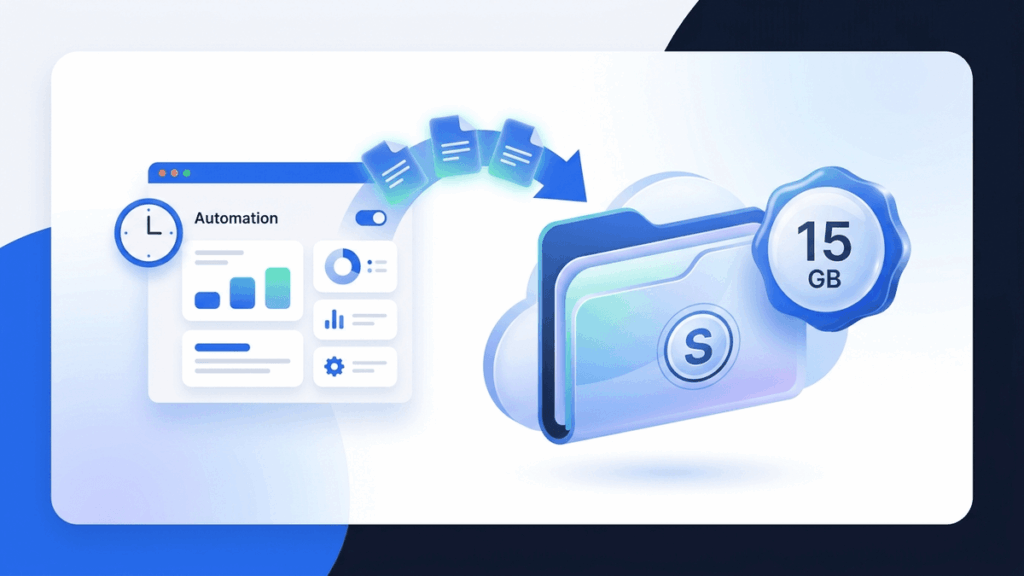
Among all third-party storage providers, Google Drive stands out as the most practical off-site storage target for website owners.
Every standard Google account includes 15 GB of secure cloud storage free of charge. For most small to mid-sized WordPress sites, that free quota easily holds several weeks of rotating full-site snapshots. You do not need an enterprise Amazon Web Services account or a secondary paid cloud subscription just to keep your files safe.
Google Drive also isolates your disaster recovery archives completely outside your web host. If your hosting provider experiences downtime, billing issues, or hardware failures, your website backup remains accessible from any device. This structure aligns with the industry-standard 3-2-1 backup rule without introducing recurring overhead.
Furthermore, setting up a dedicated Google Drive backup plugin for WordPress simplifies ongoing site management. You can download archives to your local desktop, view previous revisions, or migrate data to a fresh hosting account using familiar Google folder sharing.
The Best WordPress Backup and Migration Plugins (2026)
1. Integration for Google Drive – Best Overall for Google Drive Backups & Migration (Editor’s Pick)
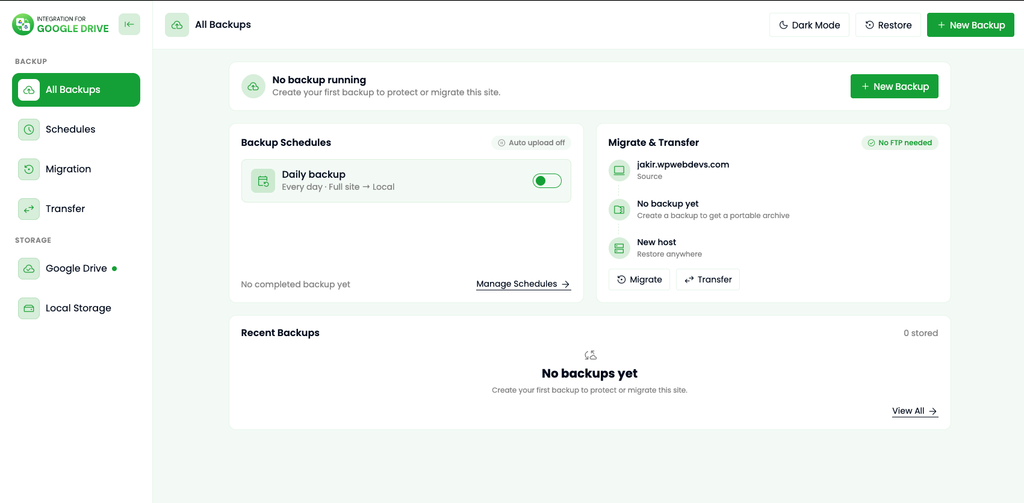
Integration for Google Drive by CodeConfig takes our top recommendation by combining automated cloud backups, seamless site migration, and an integrated file manager into a single, cohesive interface. Rather than treating Google Drive as an afterthought add-on, this plugin is engineered specifically around Google’s API ecosystem. It eliminates the need for third-party cloud accounts while maintaining zero recurring storage fees for typical websites.
The plugin handles both full-site backups (all core files, themes, plugins, and uploads) and standalone database archives. You can configure granular automation to schedule WordPress backup to Google Drive hourly, daily, weekly, or monthly. Retention rules ensure older copies delete automatically, keeping your Google Drive within healthy storage limits.
Where Integration for Google Drive truly excels is site migration. When switching hosting providers or moving to a new domain name, you simply install the plugin on the destination WordPress site, connect the same Google account, and import your backup directly. The restoration engine extracts the files and updates all site references automatically without requiring FTP or phpMyAdmin access.
As a notable bonus, the tool acts as a full-featured Google Drive explorer inside your WordPress admin. You can manage, view, and embed cloud files right from the media library. For users who prefer Dropbox for their storage workflows, CodeConfig also provides an identical companion plugin called Integrate Dropbox.
Key Features
- Full WordPress backups (files and database) sent straight to Google Drive
- Customizable automated schedules (hourly, daily, weekly, and monthly intervals)
- Fast one-click restoration engine directly from Google Drive archives
- Effortless host and domain migration without manual file handling
- Built-in Google Drive file browser inside the WordPress dashboard
- Granular file exclusion options for caching directories and temporary logs
Pros
- Combines complete backups, domain migration, and cloud file management in one package
- Leverages Google’s free 15 GB storage tier with no mandatory cloud hosting subscriptions
- Direct developer support and regular updates from the dedicated CodeConfig engineering team
Cons
- Not distributed on the official WordPress.org repository; installed via direct ZIP upload
- Google Drive is the primary cloud destination (requires separate plugin for Dropbox)
- Very large sites exceeding 15 GB require an upgraded Google One storage subscription
Pricing: Free version available with core features. Premium plans start at $39.99/year for a single-site license.
Who should use it: Site owners, freelancers, and businesses looking for an all-in-one Google Drive backup plugin for WordPress that handles scheduling, migration, and day-to-day cloud file access without extra costs.
Get Integration for Google Drive →
2. UpdraftPlus – Best for Multi-Cloud Free Scheduling
UpdraftPlus is one of the most widely used backup tools in the WordPress ecosystem, with over 4 million active installations. It allows users to run on-demand backups or establish independent file and database schedules. The free edition connects natively to destinations like Google Drive, Dropbox, Amazon S3, and standard FTP.
While UpdraftPlus handles routine snapshots dependably, its migration and site-cloning capabilities are strictly locked behind the paid version. UpdraftPlus Premium also unlocks incremental backups, database encryption, and advanced reporting. The administrative interface is utilitarian and crowded with upsell notices, but its core engine remains solid.
Key Features
- Independent schedules for website files and MySQL database tables
- Broad cloud compatibility including Google Drive, Dropbox, and S3
- Automated scheduled backups in the free version
- Direct restore tool inside the WordPress dashboard
- WP-CLI integration for command-line management
Pros
- Extensive track record with millions of successful deployments worldwide
- Free tier includes automated schedules to popular cloud platforms
- Active community forum and extensive third-party documentation
Cons
- Migration, website cloning, and staging require UpdraftPlus Premium
- Free backups process on your web server, which can cause timeouts on budget shared hosting
- The settings dashboard feels dated and cluttered with advertisements
Pricing: Free version on WordPress.org. Premium plans start at approximately $70/year for two site licenses.
Who should use it: Users who want a reliable, free WordPress backup plugin to store basic scheduled archives across multiple cloud providers.
3. Duplicator – Best for Developer Packages & Clones
Duplicator by Awesome Motive is a legendary tool trusted by developers to package, clone, and migrate WordPress installations. Instead of relying on a standard WordPress importer, Duplicator packages your entire installation into a standalone archive file paired with an independent PHP installer script.
This architecture allows you to deploy a WordPress website onto a clean server without pre-installing WordPress first. You simply upload the package and installer file, navigate to the installer URL in your browser, and run the deployment wizard. However, the free version requires manual file transfers and lacks cloud storage integration or automated scheduling.
Key Features
- Standalone two-file deployment packages (Archive ZIP +
installer.php) - Comprehensive serialized database search-and-replace engine
- Pre-flight server environment validation before packaging
- Duplicator Pro adds automated schedules and direct cloud uploads
- Direct cPanel database creation in the Pro edition
Pros
- Allows complete site restoration on fresh servers without WordPress pre-installed
- Industry standard for creating reusable base installation templates
- Exceptional database URL replacement accuracy during complex domain migrations
Cons
- Free version does not support scheduled backups or off-site cloud storage
- Manual installer deployment can be intimidating for non-technical users
- Pro plans start at $69/year, making automated backups an investment
Pricing: Free version on WordPress.org (1+ million installs). Duplicator Pro starts at $69/year.
Who should use it: Developers, agency staff, and power users who need complete manual control over cloning, staging environments, and custom server migrations.
4. All-in-One WP Migration – Best for Small Site 1-Click Exports
All-in-One WP Migration by ServMask is designed around ultimate simplicity. It exports your database, plugins, themes, and media library into a proprietary .wpress package. On your target site, you simply drag and drop the file into the importer to complete the transfer.
The plugin is widely loved by beginners because it bypasses complex server configurations and PHP upload quotas by importing data in chunked requests. However, the free version limits imports to 512 MB. Large websites with substantial media libraries will quickly hit this cap, requiring the paid Unlimited Extension.
Key Features
- Proprietary single-file
.wpressarchive export format - Drag-and-drop import mechanism directly in the WordPress dashboard
- Chunked data uploads to circumvent hosting execution timeouts
- Zero server dependencies; functions across Windows, macOS, and Linux servers
- Automated serialization repair during URL replacement
Pros
- The simplest migration user experience in the WordPress market
- Bypasses shared host file upload limitations via chunked transfers
- Consistent results on small portfolio and business websites
Cons
- Strict 512 MB file size limit on the free version importer
- Unlimited Extension costs $69/year to unlock larger file migrations
- Cloud storage integrations (Google Drive, Dropbox) are sold as separate annual add-ons
Pricing: Free version on WordPress.org (5+ million installs). The Unlimited Extension starts at $69/year; cloud extensions are priced separately.
Who should use it: Non-technical users who need to migrate a small WordPress site under 512 MB without touching FTP or database tools.
5. WPvivid Backup & Migration – Best Budget-Friendly All-in-One Tool
WPvivid has grown rapidly into a strong contender by bundling automated cloud backups, direct site-to-site migration, and staging site creation into its free plugin tier. With over 900,000 active installs, it provides features that competitors typically restrict to paid upgrades.
Using WPvivid, you can establish automated schedules directly to Google Drive or Dropbox without paying for an add-on. It also features a unique site-to-site transfer tool: generate an API key on your destination website, paste it into your live site, and the plugin transfers your data server-to-server. The interface is somewhat busy, but the feature set is generous.
Key Features
- Direct site-to-site migration using temporary authorization keys
- Free automated scheduled backups to Google Drive, Dropbox, and OneDrive
- Built-in staging environment generator in the free version
- Customizable file splitting to prevent shared server timeouts
- Pro version includes incremental backups and multisite cloning
Pros
- Generous free version including cloud scheduling and basic staging
- Direct site-to-site transfer eliminates manual archive downloading
- Offers both annual subscriptions and lifetime license options
Cons
- User interface is dense and can feel overwhelming to beginners
- Server-to-server migrations can stall if your host blocks external loopback calls
- Incremental backups are restricted to the Pro version ($49/year)
Pricing: Free version on WordPress.org. Pro plans start at $49/year (or $99 one-time lifetime license).
Who should use it: Budget-conscious website owners looking for free cloud scheduling, direct site transfers, and local staging in one plugin.
6. Migrate Guru – Best for Massive Sites (Up to 200 GB)
Migrate Guru, built by the engineering team behind BlogVault, solves the single biggest headache in site transfers: server resource limits. Standard migration plugins compress your files directly on your web host, which frequently causes PHP execution timeouts on large installations.
Migrate Guru completely bypasses your hosting resources by running the migration through BlogVault’s dedicated cloud servers. It clones your data piece by piece, processes the transfer off-site, and deploys it to your destination server without consuming server RAM or disk space. Best of all, Migrate Guru is completely free and supports transfers up to 200 GB.
Key Features
- Offloads migration processing entirely to external BlogVault servers
- Supports large enterprise websites up to 200 GB
- Zero server CPU and disk space consumption during archiving
- Native pre-configured integrations with dozens of major managed WordPress hosts
- Automated search-and-replace for internal database paths
Pros
- 100% free with no hidden file size paywalls or premium tiers
- Never triggers 504 gateway timeouts on shared hosting plans
- Hands-down the most dependable tool for migrating multi-gigabyte media libraries
Cons
- Designed exclusively for migration; does not offer scheduled automated backups
- Requires your website data to pass through external BlogVault servers
- Cannot be used for local development environments without public access
Pricing: 100% free with no paid version.
Who should use it: Anyone needing to migrate a large, resource-heavy WordPress site between hosts without hitting server memory caps or timeouts.
[SCREENSHOT: Migrate Guru – dashboard / settings page]
7. Jetpack VaultPress Backup – Best for Real-Time WooCommerce Backups
Jetpack VaultPress Backup (formerly VaultPress, engineered by Automattic) is designed for mission-critical e-commerce stores and active publishers. Unlike standard plugins that run on a cron schedule, VaultPress Backup monitors your website for changes in real time.
Every time a customer places an order, a post is published, or a page is updated, VaultPress records the change instantly to Automattic’s high-redundancy cloud infrastructure. If your website crashes, you can roll back your installation to the exact minute before the failure. It also includes an iOS and Android mobile app that lets you restore your site even if your admin dashboard is inaccessible.
Key Features
- Real-time automated cloud backups triggered on every database change
- 10 GB to 1 TB cloud storage on Automattic’s global infrastructure
- One-click restores from the web dashboard or Jetpack mobile app
- Granular activity log detailing every user action and site modification
- 30-day to 1-year archive rollback history
Pros
- Zero lost order data for high-volume WooCommerce stores
- Independent cloud dashboard allows site restores when WordPress core is broken
- Backed directly by Automattic, the primary contributors to WordPress
Cons
- No permanent free version available; ongoing monthly subscription required
- Requires a connected WordPress.com account and Jetpack core plugin
- Storage limits apply (entry plans start with 10 GB; larger sites require higher tiers)
Pricing: Standalone backup plans start at $4.95/month (billed annually for the first year). Full security bundles start at $9.95/month.
Who should use it: WooCommerce store managers and dynamic membership sites that cannot afford to lose a single transaction or order history record.
[SCREENSHOT: Jetpack VaultPress Backup – dashboard / settings page]
8. BlogVault – Best for Zero-Load Automated Maintenance
BlogVault is a premium backup and website management SaaS built specifically for professionals, high-traffic portals, and agencies. Similar to Migrate Guru, BlogVault offloads the entire backup creation process to its own dedicated cloud servers, guaranteeing zero performance impact on your live website.
BlogVault utilizes smart incremental backup technology. After capturing an initial baseline copy, it only syncs files and database rows that have changed. It also includes integrated staging environments, independent disaster recovery tools, and automated testing that verifies whether a restored site loads properly before deploying it live.
Key Features
- Off-site incremental backup engine with zero server overhead
- Independent dashboard for restoring offline or completely crashed sites
- One-click cloud staging with automated selective merge capabilities
- Built-in visual regression test to confirm site appearance after updates
- WooCommerce real-time order synchronization
Pros
- Eliminates server crashes and throttling during backup creation
- Restoration test sandbox verifies backup integrity before live deployment
- Exceptional centralized dashboard for managing client site fleets
Cons
- Premium-only service with no ongoing free plan (free trial only)
- Entry-level pricing starts at $89/year per site, which can add up across portfolios
- Backups reside on BlogVault’s cloud rather than your personal Google Drive
Pricing: Plans start at approximately $89/year for a single site license.
Who should use it: Agencies, high-traffic portals, and busy online stores seeking completely hands-off backups with built-in staging and zero server strain.
[SCREENSHOT: BlogVault – dashboard / settings page]
9. Solid Backups – Best for Centralized Agency Management
Solid Backups (formerly BackupBuddy by iThemes, now part of the StellarWP ecosystem) is one of the original pioneers of third-party WordPress backup software. It offers scheduled backups, off-site storage to multiple cloud providers, and site migration tools.
Solid Backups features NextGen daily incremental backups and integrates directly with Solid Central, allowing agency owners to orchestrate backups across dozens of client installations from one management hub. While it lacks a free version on WordPress.org, it remains an established option in enterprise agency toolkits.
Key Features
- Daily incremental backups and selective database table exclusion
- Off-site destinations including Google Drive, Dropbox, Amazon S3, and OneDrive
- One-click restoration engine with automated rollback checkpoints
- Centralized multi-site management via Solid Central integration
- Automated malware and database health scanning utilities
Pros
- Established enterprise feature set with years of production deployment
- Centralized multi-site management dashboard for client work
- Direct integration with the broader SolidWP security ecosystem
Cons
- No free version available on WordPress.org
- Entry price starts at $99/year for a single site
- The interface and setup process carry a steeper learning curve than newer tools
Pricing: Premium-only; plans start at $99/year for a single site.
Who should use it: Agencies and freelance developers already utilizing SolidWP products who want centralized client backup administration.
[SCREENSHOT: Solid Backups – dashboard / settings page]
10. WP STAGING – Best for Safe Testing & Staging Migrations
WP STAGING takes a unique approach by focusing on site cloning and staging environments first, with backup and migration features built on top. With over 100,000 active installs and a 4.8-star rating, it allows users to create an exact clone of their live website in a staging subfolder with one click.
The free version excels at staging, making it easy to test plugin updates, theme modifications, or custom PHP code without risking your production environment. To push staging changes back to your live site, or to export backups directly to Google Drive, you will need to upgrade to WP STAGING Pro.
Key Features
- One-click local staging environment generation without complex server setup
- Clones database tables and files into an isolated test sandbox
- High-speed file processing optimized for shared hosting environments
- Pro version adds automated backups to Google Drive, Dropbox, and S3
- Selective push-to-live functionality in the Pro tier
Pros
- The easiest way to set up a safe WordPress staging sandbox for free
- Prevents live website downtime by allowing pre-update testing
- Lightweight code footprint that avoids server bloat
Cons
- Free version is focused on staging; backup and migration tools are locked to Pro
- Pushing staging changes back to the live site requires the Pro edition
- Pro version is priced higher than standard backup plugins (~€139/year)
Pricing: Free staging plugin on WordPress.org. Pro backup and push-to-live features start around €11.58/month (~$139/year).
Who should use it: Developers and store owners who prioritize testing updates in a staging environment before pushing changes to production.
[SCREENSHOT: WP STAGING – dashboard / settings page]
11. BackWPup – Best for Granular Server Control & S3 Destinations
BackWPup by Inpsyde has been a mainstay in the WordPress community for over a decade, with over 400,000 active installations. It is a highly customizable, developer-oriented backup utility that allows users to create separate backup jobs for files, databases, and XML exports.
The free version connects directly to FTP, Dropbox, Amazon S3, and email, making it popular for custom server configurations. However, BackWPup does not include an automated one-click restoration engine in its free tier; restoring a site from a free BackWPup archive requires manual unzipping and database importing via phpMyAdmin or command-line MySQL tools.
Key Features
- Multi-job scheduling with individual rules for files, database, and exports
- Native support for FTP, Dropbox, S3, and Microsoft Azure
- Integrated database optimization and repair tools
- Generates comprehensive job logs with automated error notifications via email
- Pro edition includes Google Drive support and a standalone restore app
Pros
- Highly granular control over specific directory exclusions and cron timings
- Reliable integration with Amazon S3 and compatible storage buckets
- Free version provides complete export capability without file size caps
Cons
- Free tier lacks an automated one-click restore feature inside WordPress
- Google Drive and OneDrive storage require the paid Pro edition ($69/year)
- The user interface is technical and unintuitive for casual website owners
Pricing: Free version on WordPress.org. BackWPup Pro plans start at $69/year.
Who should use it: System administrators and experienced webmasters who need advanced cron job controls and S3 storage, and don’t mind manual database restores.
[SCREENSHOT: BackWPup – dashboard / settings page]
How to Back Up and Migrate WordPress to Google Drive (Step-by-Step)
Connecting your website directly to your personal cloud storage gives you reliable disaster recovery without ongoing server bills. Here is how to configure automated backups and perform a complete site migration using the Integration for Google Drive plugin.
Step 1: Install and Activate the Plugin
Because Integration for Google Drive is distributed directly by CodeConfig, download the latest release ZIP file from the Integration for Google Drive download page. Next, open your WordPress admin area and navigate to Plugins → Add New → Upload Plugin. Choose the downloaded ZIP file, click Install Now, and activate the plugin.
Step 2: Connect Your Google Drive Account
Once activated, click on Google Drive in your WordPress dashboard menu. Click the Connect Account button. You will be redirected to Google’s secure authorization screen. Select your Google account and grant the requested permissions. The plugin uses secure OAuth 2.0, meaning your Google password is never stored on your WordPress server.
Step 3: Create Your First Manual Backup
Before making any major changes or testing migrations, create a complete baseline snapshot. Navigate to the Backup & Restore tab inside the plugin. Select Full Backup (both files and database) and click Create Backup Now. The plugin packages your WordPress files, compresses your database, and uploads the archive directly into your designated Google Drive folder.
Step 4: Set an Automated Backup Schedule
To ensure continuous protection, navigate to the Schedules tab. Toggle automated backups to Enabled. Choose your preferred schedule frequency (e.g., daily database backups and weekly full backups). Set your retention limit (for example, keep the last 5 backup copies) to ensure older archives delete automatically to preserve your 15 GB free Google Drive storage space.
Step 5: Restore WordPress from Google Drive
If an update breaks your website or files become corrupted, restoring your site takes only a moment. Go to the Backup & Restore screen, locate your desired restore point in the list of Google Drive archives, and click Restore. The plugin downloads the archive from Google Drive, unpacks core directories, restores your database tables, and clears server caches automatically.
Step 6: Migrate Your Site to a New Host or Domain
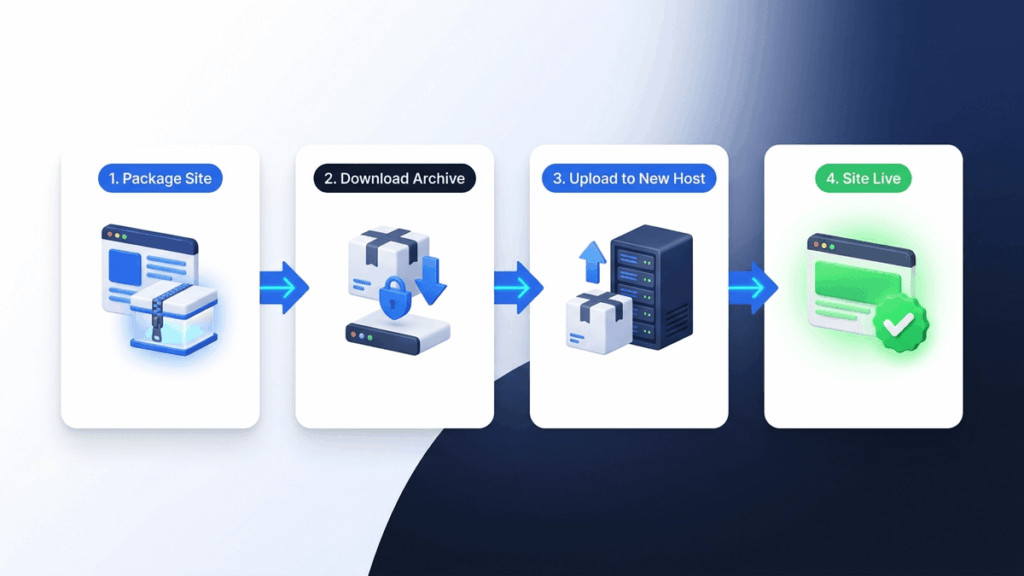
To migrate WordPress site with Google Drive to a new hosting provider or domain name, follow this seamless sequence:
- Create a fresh backup on your existing live site using Step 3.
- Install WordPress on your new hosting server and upload the Integration for Google Drive plugin ZIP.
- Connect the new installation to the same Google account you used on the original site.
- Open the Backup & Restore screen on the new site. The plugin will automatically detect your existing cloud backups.
- Click Import / Restore next to your latest archive. The plugin handles the transfer, updates your internal domain paths, and finishes the migration without requiring third-party FTP tools.
- Log into your new dashboard, review your permalink settings, and confirm your site operates smoothly.
Integration for Google Drive vs UpdraftPlus vs Duplicator: Which Should You Choose?
Choosing between the top three market options comes down to your storage preferences, technical experience, and budget:
- Choose Integration for Google Drive if: You want an all-in-one solution that provides automated backups, one-click restores, domain migrations, and file management centered entirely around your personal Google Drive without extra cloud charges.
- Choose UpdraftPlus if: You need a free automated backup scheduler and prefer spreading your files across multiple cloud storage platforms like Dropbox, Amazon S3, and Rackspace.
- Choose Duplicator if: You are a developer who builds custom client staging environments, needs standalone two-file deployment packages, or frequently deploys sites onto bare-metal servers without pre-installing WordPress.
WordPress Backup Best Practices
Having a capable plugin is only half the battle. Adopting sensible data-management habits ensures your recovery process works smoothly when an emergency strikes.
Follow the 3-2-1 Backup Strategy
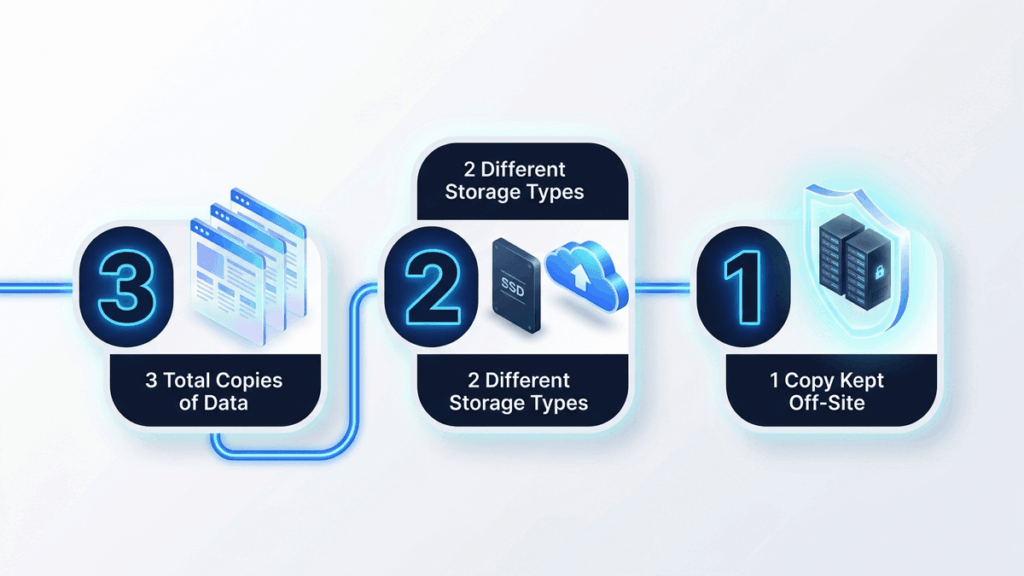
The 3-2-1 backup rule is an industry-standard security protocol. Maintain at least 3 total copies of your data: 1 primary live website, and 2 backup archives stored across 2 different media types (such as an external local hard drive and secure cloud storage). At least 1 copy must always reside in a remote off-site location, ensuring server-level disasters never destroy your only fallback.
Tailor Backup Frequency to Site Activity
A static portfolio site updated once a month does not require hourly database snapshots. In contrast, an active WooCommerce store or high-traffic membership portal should capture database updates every hour to prevent lost orders. Static blogs perform well with daily database backups and weekly full-file archives.
Test Your Restores Regularly
An untested backup is merely an assumption. Every few months, practice restoring an archive onto a local staging site or secondary test domain. Verifying that your restoration engine functions properly ensures your team won’t encounter corrupt archives during an actual server crash.
Always Back Up Before Core and Plugin Updates
Major WordPress core upgrades and plugin updates carry occasional compatibility issues. Make it standard practice to capture an on-demand manual snapshot immediately before clicking the update button in your dashboard.
Exclude Cache and Temporary Files
Backing up transient data wastes bandwidth and cloud storage quota. Use your plugin’s filter settings to exclude directories like wp-content/cache, temporary debugging logs, and unused staging folders from your backup packages.
Our Recommendation
Depending on your technical workflow and project scale, here is our definitive guidance:
- For Beginners and Everyday Site Owners: Integration for Google Drive is our top pick. It handles automated backups, migrations, and cloud file management within a straightforward dashboard using storage space you already own.
- For Budget Bloggers Needing Multi-Cloud: UpdraftPlus (free version) provides reliable multi-cloud scheduling if you don’t require built-in migration tools.
- For Active WooCommerce and Membership Sites: Jetpack VaultPress Backup provides real-time transaction syncing that prevents lost customer orders during downtime.
- For Developers and Agencies: Duplicator Pro or BlogVault offer unmatched control for complex server migrations, client fleet management, and zero-load staging sandboxes.
- For Moving Giant Websites (Over 10 GB): Migrate Guru is unbeatable for free, offloaded migrations that never crash under heavy media loads.
Frequently Asked Questions
What is the best WordPress backup and migration plugin?
Integration for Google Drive is the best overall backup and migration plugin for most website owners. It provides automated full-site backups, one-click restores, and domain migrations directly to your Google Drive account without extra cloud storage fees. For developers needing standalone template packages, Duplicator Pro is an excellent alternative.
How do I back up my WordPress site to Google Drive automatically?
Install the Integration for Google Drive plugin, connect your Google account via secure OAuth, and open the Schedules tab. Enable automated backups and select your preferred frequency (hourly, daily, weekly, or monthly). The plugin will automatically generate full archives and upload them to your Google Drive folder on schedule.
Can I restore a WordPress site from a Google Drive backup?
Yes. Plugins like Integration for Google Drive feature automated one-click restoration engines. You simply select your desired backup point directly from your Google Drive list inside the dashboard and click Restore. The plugin downloads the archive, restores database tables, unpacks media files, and clears caches automatically.
Can I migrate WordPress to a new host using Google Drive?
Yes. You can create a full backup to your Google Drive from your old host, install WordPress and the Integration for Google Drive plugin on the new server, connect the same Google account, and click Import. The plugin transfers the files, rewrites database URLs, and completes the migration without FTP.
Is Integration for Google Drive available on WordPress.org?
No. Integration for Google Drive is distributed directly by the developer at codeconfig.dev. You install it by downloading the official ZIP file from their site and uploading it via Plugins → Add New → Upload Plugin in your WordPress dashboard.
Is there a free WordPress backup plugin for Google Drive?
Yes. Integration for Google Drive provides a free edition with core backup features. UpdraftPlus also offers a free version on WordPress.org that supports scheduled backups to Google Drive, though migration features require their paid upgrade.
How often should I back up my WordPress site?
Backup frequency depends on site activity. Static brochure websites require weekly or monthly backups. Active blogs benefit from daily database backups and weekly full-file backups. High-volume WooCommerce stores and membership sites should run daily or real-time backups to ensure no customer transactions or order records are lost.
Does my web host’s backup replace a backup plugin?
No. While hosting backups are useful for server-level recovery, they keep your backup data on the same infrastructure as your site. If your host suffers hardware failures or account suspensions, you lose access to both. A dedicated plugin stores independent off-site copies on Google Drive, ensuring complete data ownership.
What is the 3-2-1 backup rule?
The 3-2-1 rule is an industry data-protection standard. It requires keeping 3 copies of your data (1 live site and 2 backups), stored across 2 different storage formats (such as local drive and cloud), with at least 1 copy kept completely off-site (such as Google Drive) to withstand hardware disasters.
Conclusion
A reliable backup and migration setup is the most important insurance policy your WordPress website can have. Without off-site copies, a single failed plugin update or hosting glitch can wipe out years of hard work, search engine rankings, and customer revenue.
By leveraging your personal Google Drive with a specialized tool like Integration for Google Drive, you gain automated scheduling, one-click disaster recovery, and effortless site migration without paying for unnecessary cloud storage tiers. Take twenty minutes today to configure your automated backup schedule—your future self will thank you.