Best Dark Mode Plugin for WordPress in 2026 (Top 5)
By Rimon
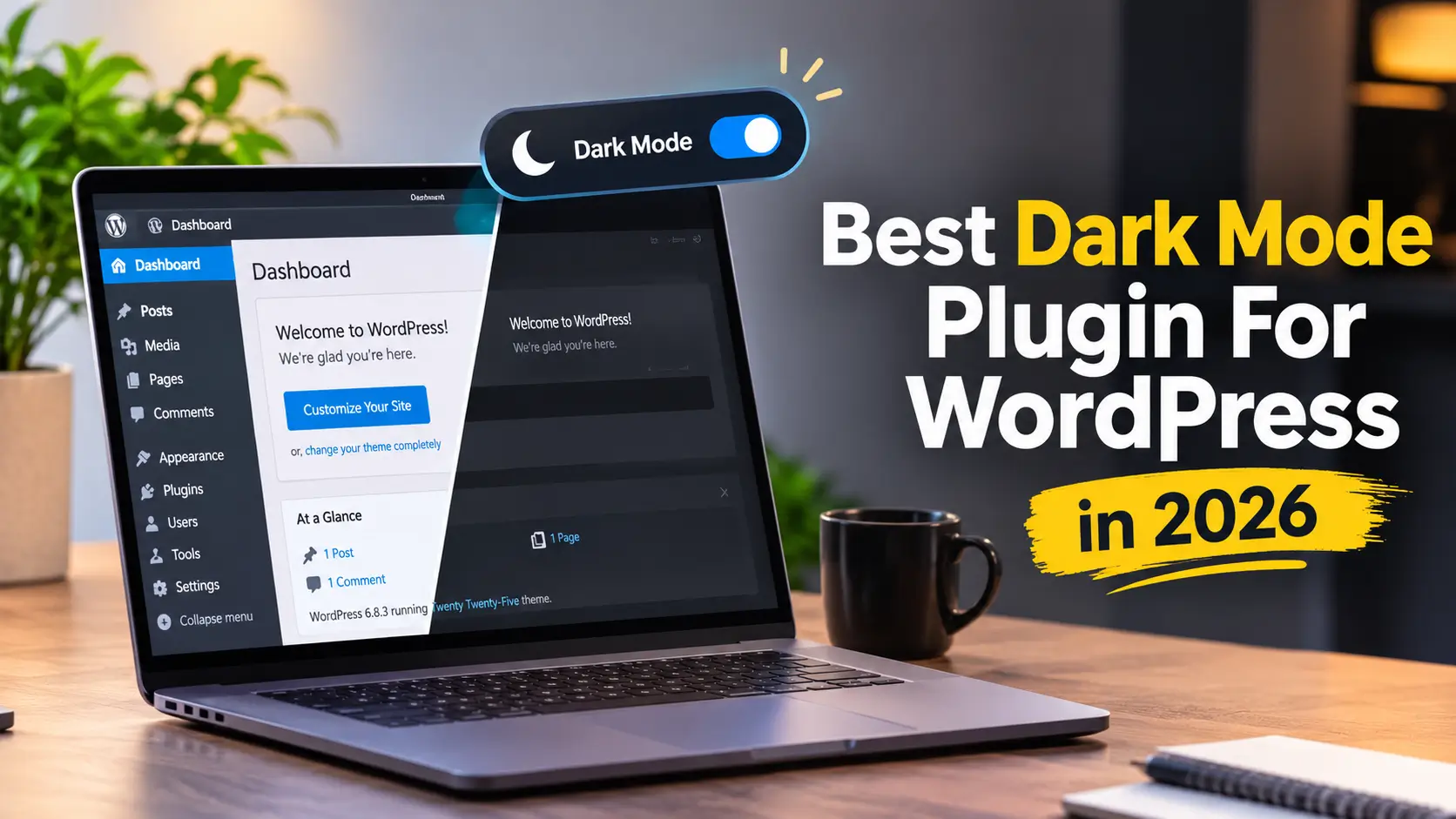
More visitors now expect a dark option on the websites they use. Phones, laptops and most apps have offered dark themes for years, so a bright white blog can feel out of step, especially late at night. The good news is that you do not need to code anything. A WordPress dark mode plugin can add a switch to your site in a few minutes.
The hard part is choosing. Some plugins only add a simple toggle. Others rebuild your colors, swap images, follow your visitor’s device settings and even darken the admin area. In 2026 there is one more thing to check: availability. Several dark mode plugins have been closed or paused on WordPress.org this year, so a plugin that looks popular in an older review may not be easy to install today.
Table of Contents
This guide is written for beginners who want the best dark mode plugin for WordPress without wading through technical jargon. We compare six options, explain what each one does well, point out the limits, and finish with a plain-English buying guide. If you only want a quick answer, jump to the comparison table and then read the review that matches your needs.
How we researched this article: we reviewed each plugin’s official website, its WordPress.org listing and public user reviews as of November 2, 2026. We did not run our own speed or lab tests, so we do not publish performance numbers. Where a detail could not be confirmed, we say so. Disclosure: Dusky Dark Mode is built by CodeConfig, which WPMEW lists among its own featured plugins. It is listed first as requested, and we have still described its limits honestly.
What Is Dark Mode in WordPress?
Dark mode shows your website with a dark background and light text instead of the usual white background and dark text. In WordPress, it usually works in one of three ways:
- Visitor switch: a small button or toggle lets each visitor choose light or dark mode. Their choice is usually remembered for the next visit.
- Automatic device matching: the site follows the visitor’s phone or computer setting. Developers call this the
prefers-color-schemesetting, and you can read how it works in the MDN documentation. - Scheduled mode: dark mode turns on automatically at certain times of day, such as the evening.
Choosing the best dark mode plugin for WordPress starts with knowing which of these modes you actually need.
Some plugins also darken the WordPress admin area, so you can write posts and manage settings in a dark interface. A good WordPress dark mode plugin handles the hard details for you: dark colors for text, buttons and forms, a sensible look for images and logos, and a toggle that works on any theme.
You can also add basic dark styling with a few lines of CSS, but that gives you no on-page switch and takes more work to maintain. For most site owners, a plugin is the faster and safer route. The best dark mode plugin for WordPress is the one that fits your theme, your page builder and your comfort level, not necessarily the one with the longest feature list.
Benefits and Limitations of Using Dark Mode
Before you pick the best dark mode plugin for WordPress, it helps to know what dark mode can and cannot do for your site.
Possible Benefits
- Visitor choice: people can read in the style they prefer, which many visitors appreciate in dim rooms.
- Modern feel: a polished dark theme can make a blog, portfolio or store look more current.
- Accessibility support: some visitors find dark themes more comfortable, and a switch gives them control. Dark mode is one option among several, not a replacement for good accessibility basics.
- Comfort for editors: a dark admin area can be easier on the eyes for people who write and edit for long sessions.
Limitations to Keep in Mind
- No guaranteed health or battery benefits: comfort is personal. Dark mode is not a proven fix for eye strain, and any battery savings depend on the device and screen type.
- No ranking boost: adding dark mode should not be expected to improve your search rankings by itself. Treat it as a user experience feature.
- Some people find it harder to read: light text on a dark background does not suit everyone, which is why a visible toggle matters.
- Design problems can appear: logos, charts, embedded videos, forms and some blocks may look wrong after the colors change. Always test your key pages.
- Contrast still matters: text must stay readable. The WCAG contrast guidance from the W3C is a useful reference when you check your colors.
None of this means dark mode is a bad idea. It means the best dark mode plugin for WordPress should give visitors a choice instead of forcing one look on everyone.
Quick Comparison of the 6 Best Dark Mode Plugins
Use this table to shortlist the best dark mode plugin for WordPress for your site. It is based on each plugin’s official listing and website as of November 2, 2026. “Not re-verified” means we could not confirm the detail from a current official source.
| Plugin | Free version | Paid plans | Auto device (OS) matching | Admin dark mode | Best for |
|---|---|---|---|---|---|
| Dusky Dark Mode | Yes, from CodeConfig’s website | Pro from $19.99/year for 1 site | Yes (free) | Yes (free) | Deep customization |
| Darkify | Yes, on WordPress.org | Pro from $27/year for 1 site | Yes (free) | Yes (free) | Strong free feature set |
| Darklup | Yes, on WordPress.org | Pro from $29.40/year for 1 site | Yes (free) | Yes (free) | Dark mode plus accessibility panel |
| DarkMySite | Yes, on WordPress.org | Pro from $34/year for 2 site | Yes (free) | Yes (free) | Page-level control (Pro) |
| WP Dark Mode | Yes, when available | Pro from $44/year for 1 site | Not re-verified | Reported by users | Existing users and agencies |
Looking at this list of the best dark mode plugins for WordPress, notice that the free versions differ a lot. One plugin gives you automatic device matching for free while another keeps it behind a paywall, so read the details below before you decide.
Detailed Reviews of All 6 Plugins
Each review below covers features, pricing, compatibility, pros, cons and who the plugin suits, so you can judge which is the best dark mode plugin for WordPress for your own site.
1. Dusky Dark Mode: Best Dark Mode Plugin for WordPress for Feature-Rich Customization
Dusky Dark Mode is a WordPress dark mode plugin from CodeConfig. It covers the basics for free and adds a live editor, image replacement and analytics in its paid plans.
Key features
- Frontend dark mode, backend dark mode and an admin dashboard dark mode.
- Automatic matching of the visitor’s device theme, plus time-based dark mode.
- A floating toggle button with many styles. CodeConfig’s own pages quote slightly different numbers (30+ and 40+ toggle styles), so check the exact count in your dashboard.
- Ready-made color presets, plus custom colors.
- A menu toggle, a Gutenberg block and an Elementor widget for placing the switch.
- Paid features listed on the pricing page include a live editor, image and background replacement, custom CSS, URL parameters to force dark or light mode, color adjustments such as brightness and contrast, and usage analytics.
Pricing
According to CodeConfig’s pricing page, the plugin has a free plan for unlimited sites. Paid yearly plans were listed as Starter at $19.99 per year for 1 site, Professional at $29.99 per year for 2 sites and Business at $99.99 per year for 50 sites. The page also shows a lifetime option, a free 7-day trial and a 7-day money-back guarantee. We did not capture lifetime prices, so check the page for current amounts.
Compatibility
CodeConfig lists Elementor, Divi, Astra, Avada, The7, aThemes, OceanWP and Gutenberg as compatible. Its older WordPress.org description also named GeneratePress, Beaver Builder, the Classic Editor and WooCommerce. The last WordPress.org listing we could see showed version 1.0.17, tested up to the WordPress 6.9 series, with a minimum of WordPress 6.2 and PHP 7.4.
Pros
- Useful free plan, including admin dark mode and automatic device matching.
- Image replacement and a live editor help when your logo or hero images look wrong in dark mode.
- Several ways to place the switch, including Elementor and Gutenberg.
Cons
- Several advanced features, such as image replacement and custom CSS, need a paid plan.
Who should use it
If you want the best dark mode plugin for WordPress for hands-on customization, such as replacing logos and tuning colors, and you are comfortable installing from the developer’s website, Dusky is a strong first option to test. If you prefer plugins that install straight from the WordPress.org directory, look at the next picks.
2. Darkify
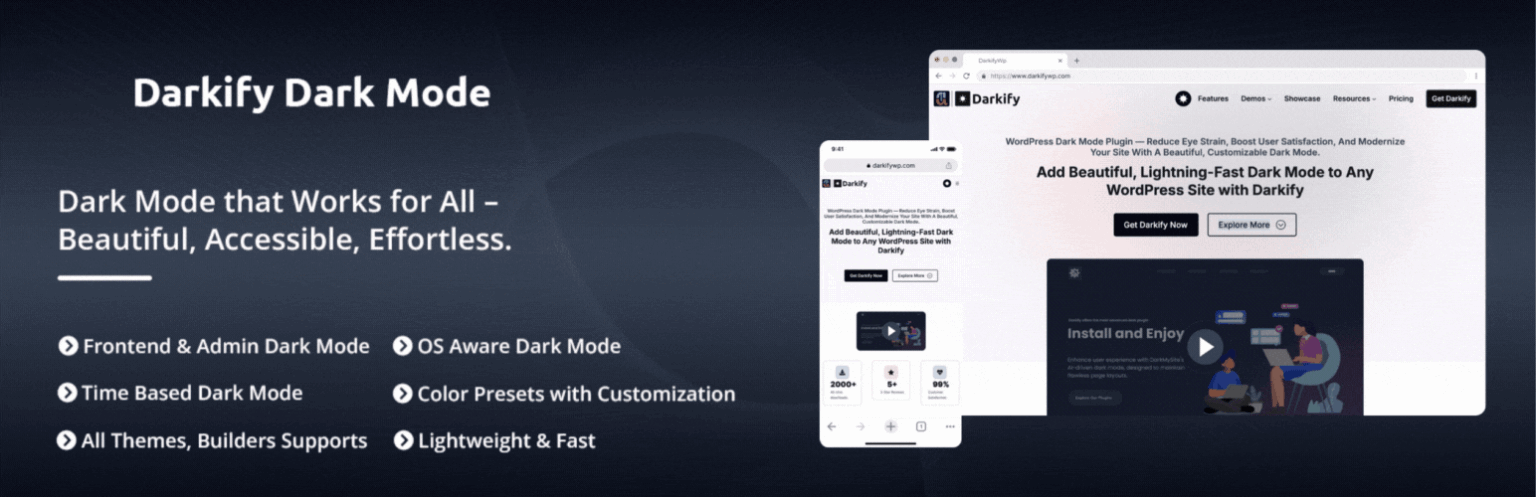
Darkify is made by ThemeAtelier. Its free version includes a lot that other plugins reserve for paid plans.
Key features
- Frontend and admin dashboard dark mode, with separate dark mode for the Block Editor and Classic Editor.
- Automatic device matching, default dark mode and time-based scheduling.
- A keyboard shortcut (Ctrl + Alt + D), a floating switch, a menu switch, a shortcode, a Gutenberg block and an Elementor widget.
- Image and video brightness controls, element-level include and exclude rules, settings import and export, and multisite support.
- Toggles built as real buttons that work with a keyboard and screen readers, according to the plugin description.
Pro adds more switch designs, a draggable switch, dark-mode-only custom CSS, image inversion and replacement, video replacement, and page, post and element allow or block lists.
Pricing
Pro from $27/year for 1 site. $47/year for 5 site and 69.50/$ for unlimited site. Lifetime packages are available.
Compatibility
The WordPress.org listing shows version 2.2.4, tested up to WordPress 7.1.4, requiring WordPress 5.5 and PHP 7.1, with more than 1,000 active installs and a 4.7 rating from 27 ratings. It lists support for Elementor, Divi, WPBakery, Beaver Builder, Bricks and many themes including Astra, Kadence, GeneratePress and Blocksy.
Pros
- Scheduling, editor dark mode and element controls are included in the free version.
- Clear accessibility effort on the toggle itself.
- Recently updated and tested with current WordPress versions.
Cons
- The install base is still modest compared with older, larger plugins.
- Image replacement and custom CSS require Pro.
- It bundles the open-source Dark Reader library for the admin area, which some developers may want to review.
Who should use it
Choose Darkify if you want the best dark mode plugin for WordPress that is free to start with, installs from the official directory and does not hide basic features like scheduling and automatic device matching.
3. Darklup
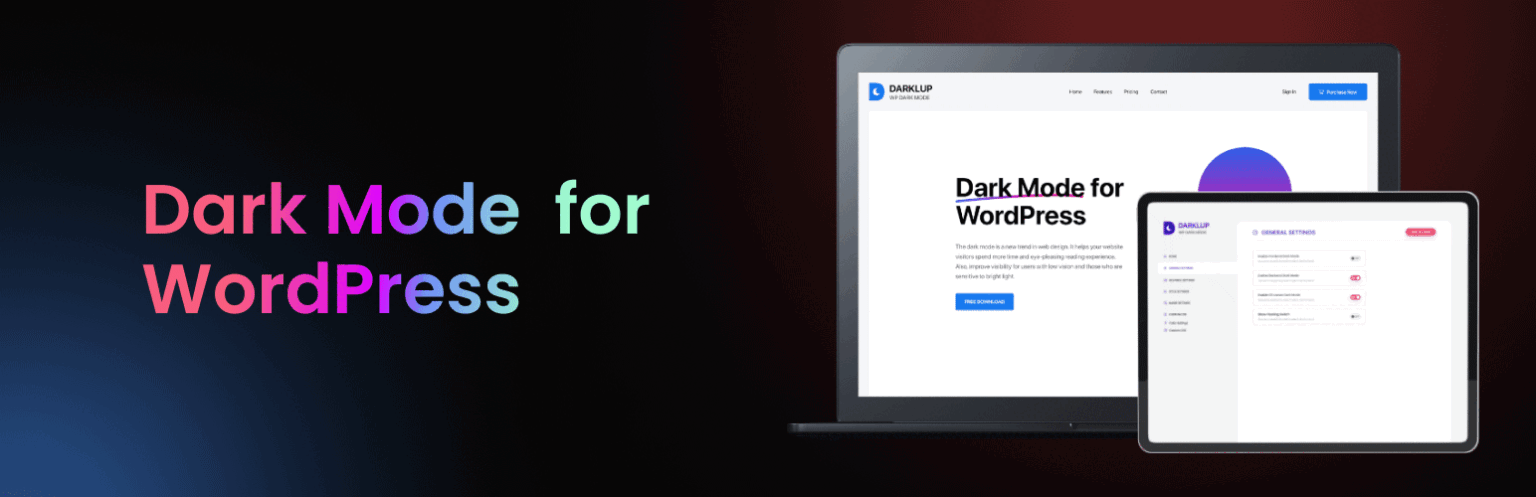
Darklup adds dark mode and, since version 4.0, a built-in accessibility toolbar for visitors.
Key features
- A dynamic color mode that analyzes page elements and applies dark colors automatically, which reduces manual setup.
- Frontend and backend dark mode, time-based dark mode and automatic device matching.
- 15+ switch styles, a floating switch you can reposition, a menu switch, an Elementor widget and a Gutenberg block.
- Keyboard shortcut, image effects such as brightness and opacity, and an option to exclude the plugin from page caching.
- An accessibility panel with 11 modules. Six are free (including contrast, bigger text, readable font, highlight links and stop animations) and five are Pro.
- Pro features include WooCommerce product and category exclusions, custom CSS, color customization, logo replacement and usage analytics.
Pricing
Darklup has a free version and paid Pro plans. Pro from $29.40/year for 1 site and $83.30/year for 10 site.
Compatibility
The WordPress.org listing shows version 4.0.1, tested up to WordPress 7.0.8, requiring WordPress 6.5 and PHP 7.4. It reports 1,000+ active installs and a 4.5 rating from 44 reviews. The plugin names Elementor and Gutenberg support and says it works with WooCommerce.
Pros
- Automatic color handling can save setup time.
- The accessibility panel goes beyond a simple dark switch.
- Recently maintained, and reviewers often mention responsive support.
Cons
- Some user reviews report display issues in the free version. One detailed review described spending a couple of hours adding exclusions and custom CSS for unreadable blocks, plus a console error that support later fixed. Experiences vary, but test carefully.
- Custom CSS and several controls are Pro features.
Who should use it
It suits site owners who want dark mode and basic reading aids in one plugin. It can be the best dark mode plugin for WordPress for sites that also want reading aids, provided it passes your tests. Try it on a staging site first, especially if you use many different blocks.
4. DarkMySite
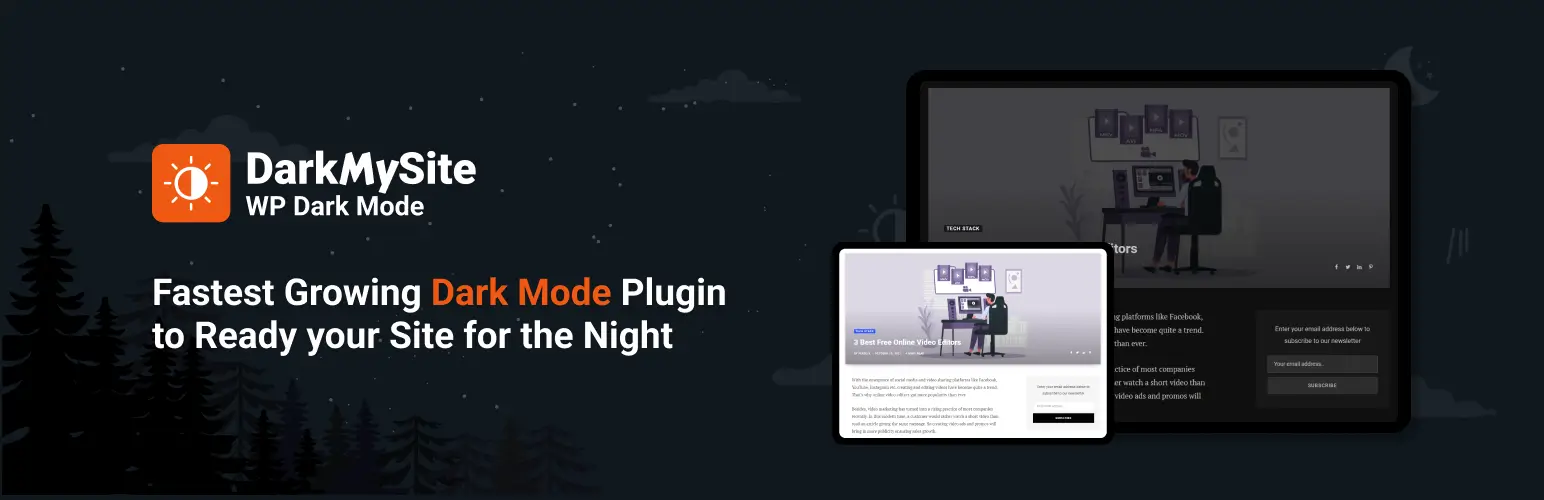
DarkMySite is a free and premium dark mode plugin with a long feature list.
Key features
- Frontend and admin panel dark mode, default dark mode, automatic device matching and time-based dark mode.
- Several floating switch designs, a menu switch, a shortcode switch and a keyboard shortcut.
- Color presets, image and video brightness and grayscale controls, and support for Elementor, Divi, WPBakery, Beaver Builder and Oxygen.
- Premium adds image, video and logo-style replacement, image inversion, custom CSS, and allow or block rules for pages, posts and elements.
Pricing
Darklup has a free version and paid Pro plans. Pro from $27/year for 1 site.
Compatibility
The WordPress.org listing shows version 1.2.9, tested up to the WordPress 6.8 series and 900+ active installs, with a 4.7 rating from 14 reviews. Importantly, WordPress.org displays a notice that the plugin has not been tested with the latest three major WordPress releases and may no longer be maintained.
Pros
- Many controls, including page and post restrictions in the premium version.
- Strong user reviews on support and ease of use.
Cons
- Last updated about a year ago, so recent WordPress compatibility is unproven.
- In the free version, color customization is limited to background and text colors, according to the FAQ.
- A 2025 review mentioned an unfixed security issue at the time. The changelog says later releases addressed vulnerabilities, but this shows why update history matters.
Who should use it
Consider it only if you value its page-level controls and are willing to test it thoroughly on a staging site. For most new projects, an actively updated plugin is the safer bet, and it is hard to call DarkMySite the best dark mode plugin for WordPress while its update status is unclear.
5. WP Dark Mode
WP Dark Mode from WPPOOL has been one of the most widely used options. We include it because many site owners already run it or are asked about it.
Key features
- A floating dark mode switch and compatibility with page builders such as Divi, WPBakery, Beaver Builder and Oxygen, according to its plugin description.
- Custom CSS is now offered in the free version, according to WPPOOL.
- Paid Ultimate plans add scheduling and email reports on dark mode usage.
- Before the closure, the listing showed 20,000+ active installs and a rating of around 4.5 from hundreds of ratings.
Pricing
Darklup has a free version and paid Pro plans. Pro from $44/year for 1 site
Pros
- Large existing user base and a long product history.
- Free version reviewers describe a decent range of options, including admin dark mode.
Cons
- The WordPress.org closure creates uncertainty for new installs and updates.
- One reviewer reported admin dark mode causing 404 errors, and another compared its free performance unfavorably with a rival. Individual experiences vary.
Who should use it
It is best for existing users, and for agencies already comfortable with the vendor. New users should wait for confirmation that the plugin is back in the directory or choose an alternative above. Until its status is clear, it is hard to name it the best dark mode plugin for WordPress for a brand-new site.
How to Choose the Right WordPress Dark Mode Plugin
The best dark mode plugin for WordPress for you depends on your site, not on a rating. Use this checklist before you install anything.
1. Toggle Options
Decide where your visitors should find the switch. A floating button is easiest, but you may also want a menu item, a shortcode, a Gutenberg block or an Elementor widget. Check that the toggle is large enough to tap on a phone and does not cover important buttons.
2. Automatic Device (OS) Detection
Many visitors have already chosen dark mode on their device. A plugin with automatic detection respects that choice. It is free in Dusky Dark Mode, Darkify and Darklup but a Pro feature in Dark Mode Toggle, so do not assume it is included.
3. Customization and Image Handling
Dark colors are only half of the job. Logos, banners and charts often look wrong on a dark background. Look for image and logo replacement, brightness controls, element exclusions and custom CSS. Check which of these are free and which need a paid plan.
4. Performance
A dark mode plugin loads extra scripts and styles, so test your site before and after you install it. Use a speed testing tool on your key pages and watch for a “flash” of white before dark mode loads. If you use a caching plugin, confirm the dark mode plugin works with it. Treat vendor claims about being “lightweight” as a starting point, not proof.
5. Accessibility
Dark mode should make reading easier, not harder. Check text contrast, visible keyboard focus and whether the toggle can be used with a keyboard and a screen reader. Be cautious with plugin descriptions that promise exact eye-protection percentages, because comfort differs from person to person.
6. Theme and Page Builder Compatibility
Make sure the plugin lists your theme and builder, and then test it yourself. If you use Elementor, see our Elementor plugin page for its current version and compatibility data. Dark mode can behave differently with sliders, forms, WooCommerce pages and custom blocks.
7. Updates, Support and Availability
When judging the best dark mode plugin for WordPress, availability matters as much as features. Check the last update date, the “tested up to” WordPress version, and how quickly the developer answers support questions. Confirm where the plugin is distributed, because a plugin that is closed on WordPress.org may be harder to install and update. You can compare these details quickly with WPMEW’s plugin search and plugin comparison tool.
8. Pricing and Refunds
The best dark mode plugin for WordPress is not always the most expensive one. Start with the free version when one exists, and compare yearly and lifetime pricing before you buy. Note the number of sites each plan covers and look for a clear refund policy.
Test Before You Commit
Before you commit to the best dark mode plugin for WordPress on your shortlist, run through these steps:
- Install the plugin on a staging site or a backup copy.
- Switch dark mode on and check your home page, a blog post, a contact form and any shop pages.
- Check logos, images, buttons, menus and pop-ups.
- Try a phone and a desktop browser, and test with your device set to dark and light.
- Run a speed test and clear any caches.
- Go live only when everything looks readable.
Frequently Asked Questions
What is the best dark mode plugin for WordPress?
There is no single winner for every site. Dusky Dark Mode is a strong choice for deep customization if you are happy to install it from CodeConfig’s website. Darkify is a good pick if you want a feature-rich free plugin from the WordPress.org directory, and Darklup suits people who want an accessibility panel as well. Use the checklist above to match the best dark mode plugin for WordPress to your own needs.
Is there a free WordPress dark mode plugin?
Yes. Dusky Dark Mode, Darkify, Darklup, Dark Mode Toggle and DarkMySite all have free versions. The free versions differ, so compare which features you actually need. For many small sites, the best dark mode plugin for WordPress is simply a well-built free version.
Will a dark mode plugin slow down my website?
It can add some extra code, so it is wise to measure. Test your pages before and after installing the plugin and avoid stacking several dark mode tools together.
Does dark mode work with Elementor and the block editor?
Most of the plugins in this guide mention support for Elementor and Gutenberg, and several provide a dedicated widget or block for the switch. Still, test your own templates and custom blocks, because results vary from site to site.
Which is the best WordPress dark mode plugin for Elementor users?
Dusky Dark Mode, Darkify and Darklup each mention an Elementor widget or Elementor support in their listings or websites. The best dark mode plugin for WordPress with Elementor is the one that still looks right on your own templates, so test your header, forms and popups before going live.
Can I add dark mode without a plugin?
Yes, with CSS that follows the visitor’s device setting. That approach has no on-page switch, so people cannot override their device setting. A WordPress dark mode plugin gives you a toggle and saved preferences without custom code.
Does dark mode improve SEO, eye health or battery life?
We cannot promise any of these. Dark mode is mainly a comfort and design choice. Do not expect rankings to rise because of it, do not treat it as a medical solution, and note that battery effects depend on the device.
Why can’t I find some dark mode plugins in the WordPress plugin directory?
Plugins can be closed on WordPress.org for different reasons, sometimes temporarily while a review is underway. In 2026, the listings for Dusky Dark Mode and WP Dark Mode both showed closure notices. Always check the plugin page and the developer’s website before you plan around a plugin.
Which is the best WordPress dark mode plugin for beginners?
For the simplest setup, Dark Mode Toggle has the fewest settings. For more features without much effort, Darkify and Darklup both offer guided settings screens and free versions that cover most basic needs. In practice, the best dark mode plugin for WordPress for beginners is the one with clear settings and a free version you can try safely. Whichever you pick, test it on a staging site first.
Conclusion and Final Recommendation
Choosing the best dark mode plugin for WordPress is mostly about fit. Think about where visitors will find the switch, whether the plugin follows their device settings, how it handles your images and logos, and whether you can rely on updates in 2026.
Here is a simple way to decide:
- Want deep customization and image replacement? Start with Dusky Dark Mode and try the free version or the trial. Confirm the update process first, since it is no longer available from the WordPress.org directory.
- Want a strong free plugin from the official directory? Try Darkify.
- Want dark mode plus reading aids? Test Darklup on a staging site.
- Want the simplest toggle? Dark Mode Toggle is easy to set up, but remember that automatic device matching is a Pro feature.
- Already use WP Dark Mode or DarkMySite? Keep a close eye on update status and have a backup plan.
Our advice is simple: pick the best dark mode plugin for WordPress that you can test today, install safely and keep updated.
Whichever WordPress dark mode plugin you choose, test it with real pages, check readability and keep your plugins updated. If you want to explore more options, browse the WPMEW plugin directory or use the compare tool to see how the best dark mode plugins for WordPress stack up before you install.