Connect Google Drive to WordPress: 2 Best Plugins (2026)
By wpmew
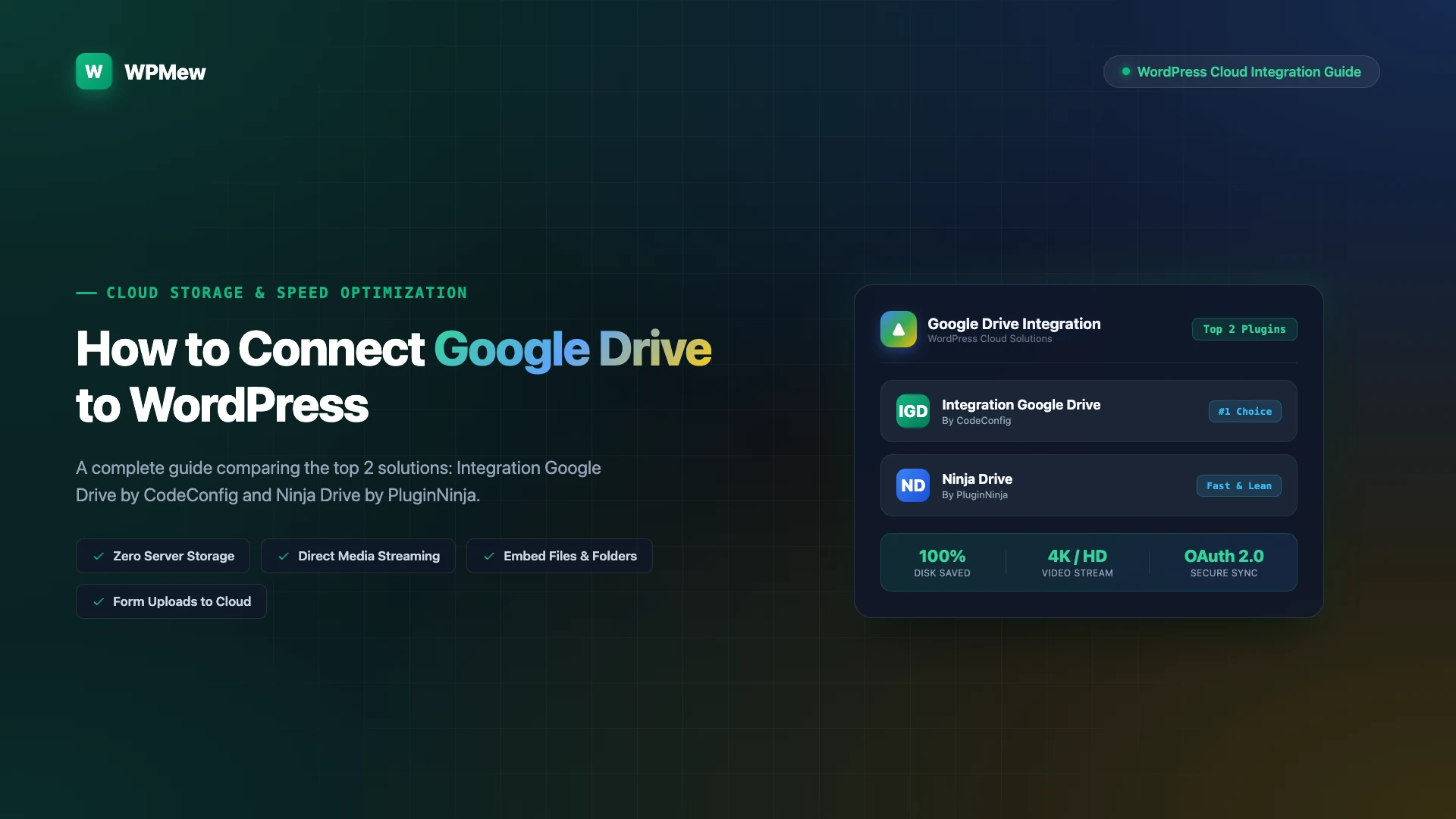
Learning how to connect Google Drive to WordPress is the smartest way to offload heavy documents, stream video assets, and manage shared cloud files without exhausting server disk space. Most shared and managed hosting packages impose strict storage thresholds and bandwidth quotas. Storing large video libraries, downloadable client deliverables, and PDF catalogues directly inside your WordPress media library quickly triggers performance slowdowns and costly storage add-ons.
Table of Contents
Why Connect Google Drive to WordPress?
Modern WordPress sites handle much more than simple blog articles. Websites run membership academies, client portals, eCommerce digital downloads, and corporate document libraries. When you upload multi-gigabyte media files to your standard hosting server, you pay a steep operational penalty in slower backup creation times, high inode consumption, and bloated database tables.
When you connect Google Drive to WordPress, your cloud storage acts as an elastic, scalable backend file repository. Google’s global content distribution network absorbs the bandwidth strain of streaming audio, playing 4K video, and delivering heavy zip archives. Your WordPress installation stays light, fast, and nimble.
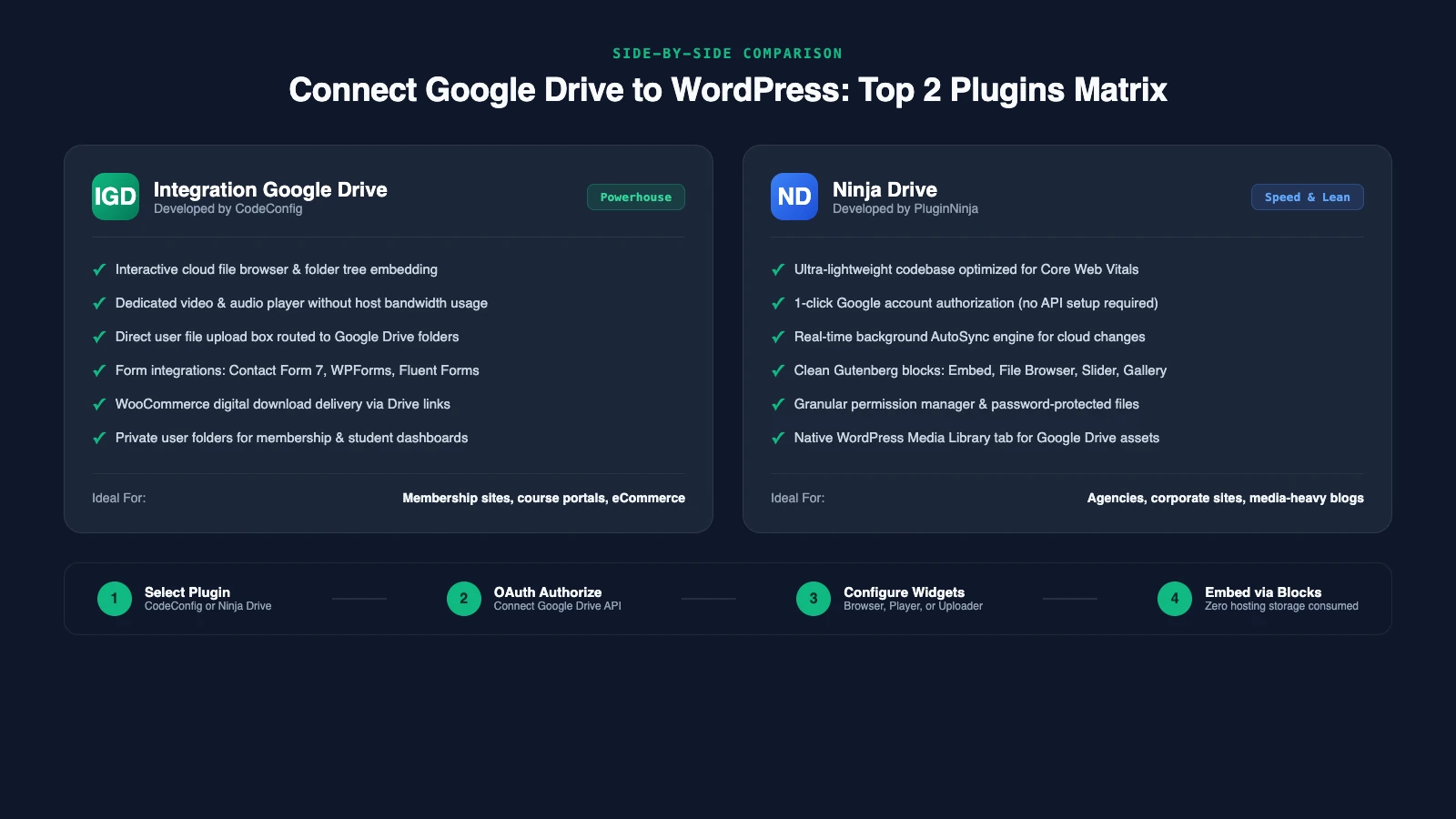
Two specialized plugins lead the WordPress cloud integration space: Integration Google Drive by CodeConfig and Ninja Drive by PluginNinja. Below is an in-depth breakdown of how both plugins perform across real-world publishing workflows.
1. Integration Google Drive by CodeConfig (Feature Breakdown)
Developed by the team at CodeConfig, Integration Google Drive is widely regarded as an all-in-one powerhouse for businesses requiring deep, interactive file manipulation. Rather than offering basic file embedding, it transforms your Google Drive into a dynamic web asset manager directly inside the WordPress dashboard.
When businesses need to connect Google Drive to WordPress for complex operations, the core strength of CodeConfig’s solution lies in its modular widget architecture. It allows site owners to build customizable frontend file modules using native Gutenberg blocks, Elementor widgets, or flexible shortcodes:
- Interactive Cloud File Browser: Displays your Google Drive folders in an intuitive grid or list view with search filters, folder navigation, and permission gates.
- Bandwidth-Free Media Player: Streams video and audio files directly from Google Drive without routing streaming traffic through your web host’s CPU.
- Direct User File Upload Box: Enables visitors, students, or clients to upload documents directly into designated Google Drive folders from frontend forms.
- Advanced Form Integrations: Seamlessly hooks into Contact Form 7, WPForms, Fluent Forms, and Gravity Forms, automatically diverting form attachments into cloud folders.
- WooCommerce Digital Downloads: Link digital products directly to cloud-hosted files, generating expiring download links for paying customers.
- Private User Folders: Automatically provisions personal, isolated Google Drive directories for logged-in WordPress subscribers and membership tiers.
2. Ninja Drive by PluginNinja (Feature Breakdown)
If your primary goal is to connect Google Drive to WordPress with high site speed, intuitive setup, and clean publishing workflows, Ninja Drive by PluginNinja is an exceptional choice. Engineered from the ground up for minimal resource overhead, Ninja Drive emphasizes effortless onboarding and Core Web Vitals compliance.
One of Ninja Drive’s most convenient features is its 1-click Google authorization. While traditional cloud connectors require users to navigate Google Cloud Console to build custom OAuth credentials, Ninja Drive provides an automated authorization bridge that connects your account in under 60 seconds.
- Lean, Modular Architecture: Loads zero unnecessary scripts or styles on pages where Drive widgets are absent, preserving page speed scores.
- Background AutoSync Engine: Automatically synchronizes changes made directly within Google Drive, updating folder contents on WordPress without manual cache purging.
- Media Library Integration: Adds a dedicated Google Drive tab inside the native WordPress Media Library, allowing you to insert cloud images into posts seamlessly.
- Pre-Built Display Modules: Clean Gutenberg blocks for document embeds, responsive sliders, image carousels, file browsers, and search boxes.
- Password Protection & Expirations: Add custom access passwords or temporary access limits to sensitive shared files with one click.
Side-by-Side Comparison: CodeConfig vs PluginNinja
Both plugins excel when you connect Google Drive to WordPress, but each caters to distinct architectural requirements. The table below outlines their core operational differences.
| Core Capability | Integration Google Drive (CodeConfig) | Ninja Drive (PluginNinja) |
|---|---|---|
| Primary Focus | Advanced workflow automation & eCommerce | High speed, ease of use & content embedding |
| Google Authorization | Manual Google Cloud API & 1-click OAuth | Instant 1-click authorization bridge |
| Media Library Tab | Yes (via dedicated extension) | Built-in native Media Library tab |
| Form Upload Bridge | WPForms, CF7, Fluent Forms, Gravity Forms | WPForms, CF7, Elementor Forms, Gravity |
| WooCommerce Downloads | Direct integration with expiring links | Supported via direct cloud links |
| Private User Folders | Automated per-user folder provisioning | Role-based and user permission controls |
| Frontend Asset Weight | Moderate (Feature-rich components) | Ultra-lightweight (Modular conditional loading) |
How to Connect Google Drive to WordPress Step by Step
Setting up your integration takes only a few minutes. Whether you select CodeConfig or PluginNinja, follow these four foundational steps to connect Google Drive to WordPress cleanly.
Step 1: Install Your Chosen Google Drive Plugin
Before you can connect Google Drive to WordPress, you must install your chosen connector plugin. Navigate to your WordPress admin dashboard and click Plugins > Add New. If using Ninja Drive, search for the plugin or upload your premium zip file. If utilizing CodeConfig’s Integration Google Drive, upload the installation package and click Activate.
Step 2: Authenticate with Google Drive (OAuth 2.0)
Open the plugin settings menu. With Ninja Drive, simply click the Connect Google Drive button and sign in with your Google Workspace or personal Google account. With CodeConfig, choose between 1-click authentication or create custom client credentials in Google Cloud Console following the official Google Drive API documentation.
To keep your master Google account completely protected, ensure you secure your login credentials. Review our guide on how to share Google Authenticator codes to manage team 2FA access safely.
Step 3: Configure Folder Scopes and Permissions
Once connected, specify which root folders your WordPress site can access. For maximum security, never grant unrestricted access to your entire personal Drive. Create a dedicated folder (such as wp-cloud-storage) and restrict plugin visibility strictly to that directory.
Step 4: Embed File Widgets and Media Players via Blocks
Open any WordPress page or blog post in the block editor. Click the + block inserter, search for your plugin’s widgets (such as Drive File Browser, Drive Video Player, or File Uploader), select your target folder, and publish. Your visitors can now browse, stream, and download files hosted entirely on Google’s infrastructure.
Best Practices When You Connect Google Drive to WordPress
To ensure flawless long-term reliability when you connect Google Drive to WordPress, keep these four technical guidelines in mind:
- Mind Your Google API Quotas: Standard Google Drive API keys allow generous daily call limits, but high-traffic sites should enable internal transient caching inside plugin settings to prevent hitting rate throttles.
- Optimize Streaming Video Formats: When publishing long-form videos, encode files in standard MP4 (H.264 / AAC) or WebM formats. For advanced player options, compare our benchmark of the best video plugins for WordPress.
- Maintain Reliable Site Backups: External cloud storage keeps media off your server, but your WordPress database and block layouts still require regular backups. Check our review of the best WordPress backup and migration plugins to protect your configurations.
- Review Hosting Storage Allocations: If your web host imposes low disk limits, offloading media to Google Drive allows you to remain on affordable tiers without forced server upgrades. Learn more in our comparison of shared hosting vs VPS performance.
Which Plugin Should You Choose?
Both tools deliver exceptional value when you connect Google Drive to WordPress. If you manage a membership platform, run complex student upload forms, or deliver protected WooCommerce digital goods, Integration Google Drive by CodeConfig provides the deepest enterprise toolkit.
Conversely, if you want an ultra-fast, user-friendly solution with native Media Library browsing, instant 1-click authorization, and minimal asset overhead, Ninja Drive by PluginNinja is the ideal choice for modern WordPress teams.