How to Share Google Authenticator Codes: 6 Easy Steps (2026)
By wpmew
Learning how to share google authenticator codes is the fastest way for digital teams, agency partners, and families to manage shared website logins without sacrificing two-factor authentication security. Rather than constantly asking the primary phone owner for temporary six-digit one-time passwords or unsafely turning off two-factor authentication, Google Authenticator provides a native transfer system that replicates specific accounts across multiple devices seamlessly.
Why Share Google Authenticator Codes Instead of Disabling 2FA?
In collaborative work environments, multiple people frequently need access to central web services. These include domain registrars, Cloudflare DNS portals, hosting dashboards, social media accounts, and staging environments. When a single phone holds the two-factor authentication (2FA) credential, remote colleagues get locked out whenever that team member is offline, asleep, or traveling.
Many teams make the dangerous mistake of disabling 2FA entirely to solve login bottlenecks. Disabling 2FA exposes valuable web properties to automated credential-stuffing attacks. Understanding how to share google authenticator codes allows you to copy the underlying cryptographic secret key to a colleague’s phone in seconds, keeping security intact.
Before reviewing the step-by-step instructions, examine how this native transfer approach compares to alternative shared access methods.
| Access Method | Security Level | Setup Effort | Operational Friction |
|---|---|---|---|
| Google Authenticator QR Export | High (End-to-End Encrypted) | Under 1 minute | Zero (Generates codes simultaneously) |
| Disabling 2FA Completely | Critical Risk (Vulnerable) | Instant | Low (Leaves accounts completely exposed) |
| SMS Verification Forwarding | Low (SIM swap vulnerability) | Moderate | High (Manual relaying required each time) |
| Enterprise Password Vault (Bitwarden/1Password) | Very High (Managed Access) | Requires paid team plan | Low (Requires team onboarding and setup) |
How to Share Google Authenticator Codes in 6 Steps
When discovering how to share google authenticator codes across different operating systems, the workflow remains identical on Android and iOS. You will use the primary phone currently generating the codes to create a secure, one-time export QR code, and the recipient phone will scan it.
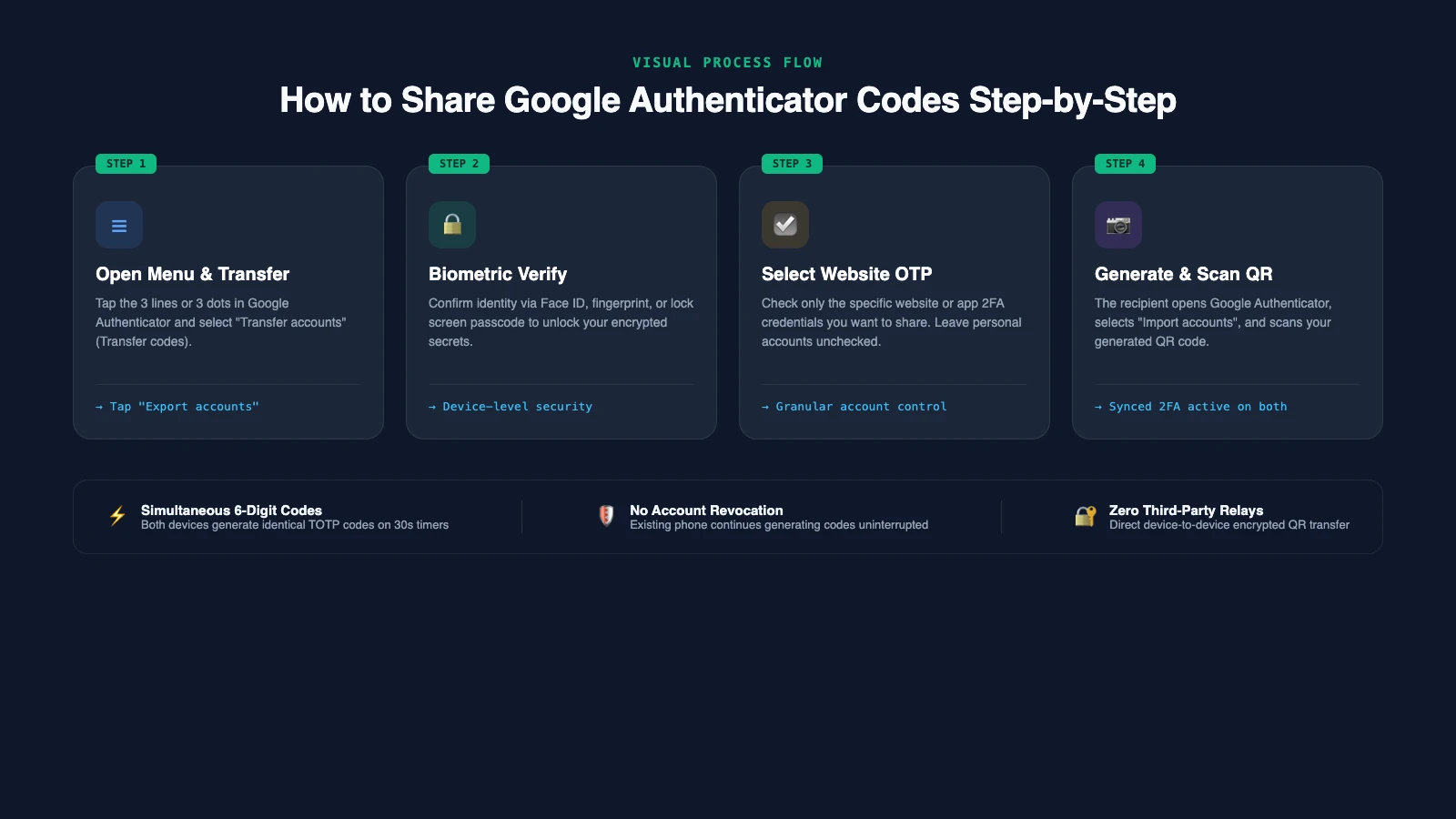
Step 1: Open Google Authenticator and Access the Menu
Launch the Google Authenticator app on your primary smartphone. Locate the menu icon in the upper-left corner of the screen (represented by three horizontal lines or three dots, depending on your app version). On newer versions linked with a Google Account, you can also tap your profile avatar in the upper-right corner.
Step 2: Tap Transfer Accounts
From the slide-out navigation menu, tap Transfer accounts (labeled as Transfer codes in some versions). This opens the dedicated migration hub containing options to either export accounts off this phone or import accounts from another source.
Step 3: Select Export Accounts
Select the Export accounts option. The app will notify you that exporting generates a QR code containing your selected account credentials, which can be scanned to duplicate authenticator codes on another phone.
Step 4: Authenticate with Biometrics or Passcode
To prevent unauthorized transfers, your phone will prompt for identity verification. Confirm ownership using Face ID, your fingerprint sensor, or your lock-screen PIN. The app will not display any credentials until biometric authentication completes successfully.
Step 5: Check Only the Specific Website Accounts You Want to Share
By default, Google Authenticator selects every saved 2FA account on your device. Do not leave all accounts selected. Tap the Deselect All button, or manually uncheck items so that only the specific website or client account you wish to share remains checked.
A crucial rule in how to share google authenticator codes securely is never exporting your entire library. Granular selection ensures that your personal Gmail, banking, and private social media credentials remain strictly confidential on your personal phone.
Step 6: Generate and Scan the QR Code
The final phase of how to share google authenticator codes requires the recipient device. Tap Next on the primary device. Google Authenticator will generate a specialized high-density QR code on your display.
Have the other person open Google Authenticator on their phone, navigate to Transfer accounts > Import accounts, and point their camera at your screen. The shared website account appears immediately inside their authenticator list. Both smartphones will now produce identical six-digit codes simultaneously on the standard 30-second countdown timer.
How Shared Google Authenticator Codes Work Under the Hood
Understanding how to share google authenticator codes technically gives development teams confidence when managing mission-critical logins. Google Authenticator uses the open Time-based One-Time Password (TOTP) standard documented in RFC 6238 specifications. When you first enable 2FA on a website, the server and your authenticator app exchange a secret base32 cryptographic seed.
When you export an account, Google Authenticator packages that exact cryptographic seed into an offline data payload URI. Because TOTP algorithms calculate six-digit codes using only the shared seed and the current Unix timestamp, both devices calculate identical passwords without communicating with Google servers or each other.
How to Safely Share Google Authenticator Codes with Remote Team Members
For remote teams exploring how to share google authenticator codes securely across long distances, scanning directly from screen to screen is not always possible. Distributed teams operating across different locations require extra security precautions:
- Never send export QR codes via email or public chat: Standard email and unencrypted messaging channels remain stored on cloud servers indefinitely. Anyone with access to the image can add the OTP token to their device.
- Use End-to-End Encrypted Disappearing Media: If you must send the QR code remotely, use Signal or WhatsApp with disappearing messages enabled (view once). Have the recipient scan the QR code immediately from a secondary screen, then permanently purge the image file.
- Verify via Live Video Call: Display the QR code briefly during a 1-on-1 private video screen share while your colleague scans it live with their phone. Once verified, close the screen share.
- Combine with Web Security Best Practices: For WordPress administration, combine 2FA with IP allowlisting and security plugins. For comprehensive hardening tips, read our guide on WordPress spam and registration protection.
How to Revoke Shared 2FA Access When Team Members Leave
Once you share google authenticator codes with an external contractor, remember that the secret resides locally on their device. One critical security rule must be understood: Google Authenticator cannot remotely delete an exported token from another person’s device. Once a recipient scans your export QR code, their phone retains the secret key permanently.
If an employee, contractor, or collaborator leaves your organization, you must reset 2FA on the target website directly. Log in to the service, navigate to account security settings, disable two-factor authentication, and re-enable it fresh according to Google Account Authenticator transfer documentation. This generates a completely new secret key and invalidates the old code on all previous devices.
When restructuring site administration and permissions, regularly back up your core database and configuration. Review our curated list of WordPress backup and migration plugins to protect your configurations during user permission audits. If you also manage analytics tracking across accounts, verify access using our tutorial on installing Google Analytics in WordPress.
Key Takeaways for Managing Shared 2FA Codes
Mastering how to share google authenticator codes provides an efficient balance between team convenience and strict credential security. By taking advantage of granular account checklists, biometric confirmation, and secure scan protocols, your team eliminates login bottlenecks while keeping organizational assets fully safeguarded.