
AcrossAI MCP Manager – WordPress MCP Server & Admin for MCP Adapter, Claude & ChatGPT
by AcrossAI
AcrossAI turns your WordPress site into an MCP server with 357 ready-made abilities, and gives you control over every one of them. Claude, ChatGPT, Gemini, Grok, Cursor and any other AI agent connect straight to your site and can read, write and act on it, with no relay and no third party in between. It is built on the official WordPress MCP Adapter and the WordPress Abilities API.
Connect Claude to WordPress, connect ChatGPT to WordPress, or give Cursor, VS Code, GitHub Copilot, Codex and other AI agents access limited to exactly the tools and users you choose. Ask your AI to draft a post, fix a page, audit site health or clean up the database, and it acts on your live site instead of telling you what to click.
Setup takes about a minute with the Quick Setup wizard. Full guides are in the documentation.
Connect Claude, ChatGPT and Any AI Agent to WordPress
- One-click AI Connectors for ChatGPT, Claude, Gemini, Grok and Cursor: paste one URL into the AI client, approve the consent screen on your own site, done. The OAuth 2.1 server runs on your site, and its clients and tokens are rows in your own database.
- Claude Code: one terminal command, approved in your browser, with every attempt recorded in an audit log. No password ever appears in the terminal.
- 16 AI client guides with the exact config path for your operating system and ready-made JSON: Claude Desktop, Claude Code, VS Code, GitHub Copilot, Codex, Cursor, Gemini CLI, Cline, Roo Code, Kilo Code, Amazon Q Developer, OpenCode, Antigravity, Windsurf, Zed and a Custom Client template.
- Four ways to connect: AI Connectors (OAuth), an
npxbridge with Application Passwords, CLI connections with browser approval, or WP-CLI STDIO so no credential crosses the network.
What Your WordPress AI Agent Can Do
357 abilities on any WordPress site, with no configuration, rising to over 800 as AcrossAI detects the plugins you already run.
- Content: posts, pages and custom post types with meta and revisions; comments, media, categories and tags; semantic search that proposes, reviews and applies internal links.
- Blocks: edit a page’s block tree without rewriting the page, build from patterns, generate sections and landing pages, audit copy and design.
- Appearance: theme.json and global styles, templates and template parts, menus, widget areas, fonts, site title, logo and icon.
- Users: create and edit users, reset passwords, create roles, grant or revoke individual capabilities.
- Configuration: any option, including values nested inside serialised arrays; permalinks; which admin screen a setting lives on.
- Database: schema and table sizes, index health, bloated autoloaded options, EXPLAIN on a slow query, serialisation-safe search-and-replace.
- Files: browse, read, write and delete inside an administrator-defined allowlist; zip backups; wp-config constants; the debug log.
- Activity log: every MCP request and the abilities it ran, kept as a readable history with retention, a size cap and privacy controls.
- Cron, updates, diagnostics and cache: overdue cron jobs, plugin and core updates with rollback and checksum checks, Site Health, recent fatal errors, transients and object cache.
Try prompts like “Check Site Health and tell me what needs fixing” or “Find the slowest database query and explain why it is slow.”
Real Use Cases, Start to Finish
- Build a WordPress site with Claude in one hour: five free plugins, 93 Performance and 100 SEO in Lighthouse.
- Build a WordPress site with blocks using Claude: design system, header, footer, logo and homepage from native blocks.
- Build a WordCamp event site with Claude: pages, mega menu and a Contact Form 7 form.
- Tag every WordPress post with AI: reusing your existing tags instead of creating near-duplicates.
- Update WordPress core from your phone: no dashboard, no SSH, just chat messages routed through WordPress’s own updater.
A Dozen Tools, Not 357
An AI client receives its tool list once, at connect time, and pays for it out of the model’s context window in every conversation. Most assistants degrade past a few dozen tools. So abilities are grouped into toolsets, and each toolset is a single tool with three actions: discover, info and execute. Your AI reaches everything, drilling in only when it needs to.
WooCommerce MCP, Elementor MCP, Rank Math & Yoast MCP
Plugins you already run get their own toolset, registered only when that plugin is active:
- Elementor (89 abilities): pages, templates, kits, global widgets and form submissions.
- Yoast SEO (64) and Rank Math (61): titles and meta, indexing, redirections, schema and settings.
- LiteSpeed Cache (61): targeted purges, TTLs, exclusions and vary rules.
- WooCommerce (34): catalogue, prices, stock, orders, customers and store health.
- Contact Form 7 (25), WPCode (24) and CookieYes (22): forms and mail templates, snippets and their logic, cookies and Google Consent Mode.
- The Events Calendar (18) and Event Tickets (16): events, venues, tickets, capacity and check-ins.
- Advanced Custom Fields (16), Site Kit by Google (14) and Loco Translate (14): field groups, Search Console and Analytics 4 reports, and translations.
- All-in-One WP Migration (9) and UpdraftPlus (8): backups, whether they worked, and what each contains.
- WP Mail SMTP, Classic Editor, Akismet and WPForms.
The optional AcrossAI Pro add-on contributes 276 more abilities for MailerPress, LearnDash, BuddyBoss and GeoDirectory. Browse every integration.
Access Control and Safety: Nothing Is Wide Open
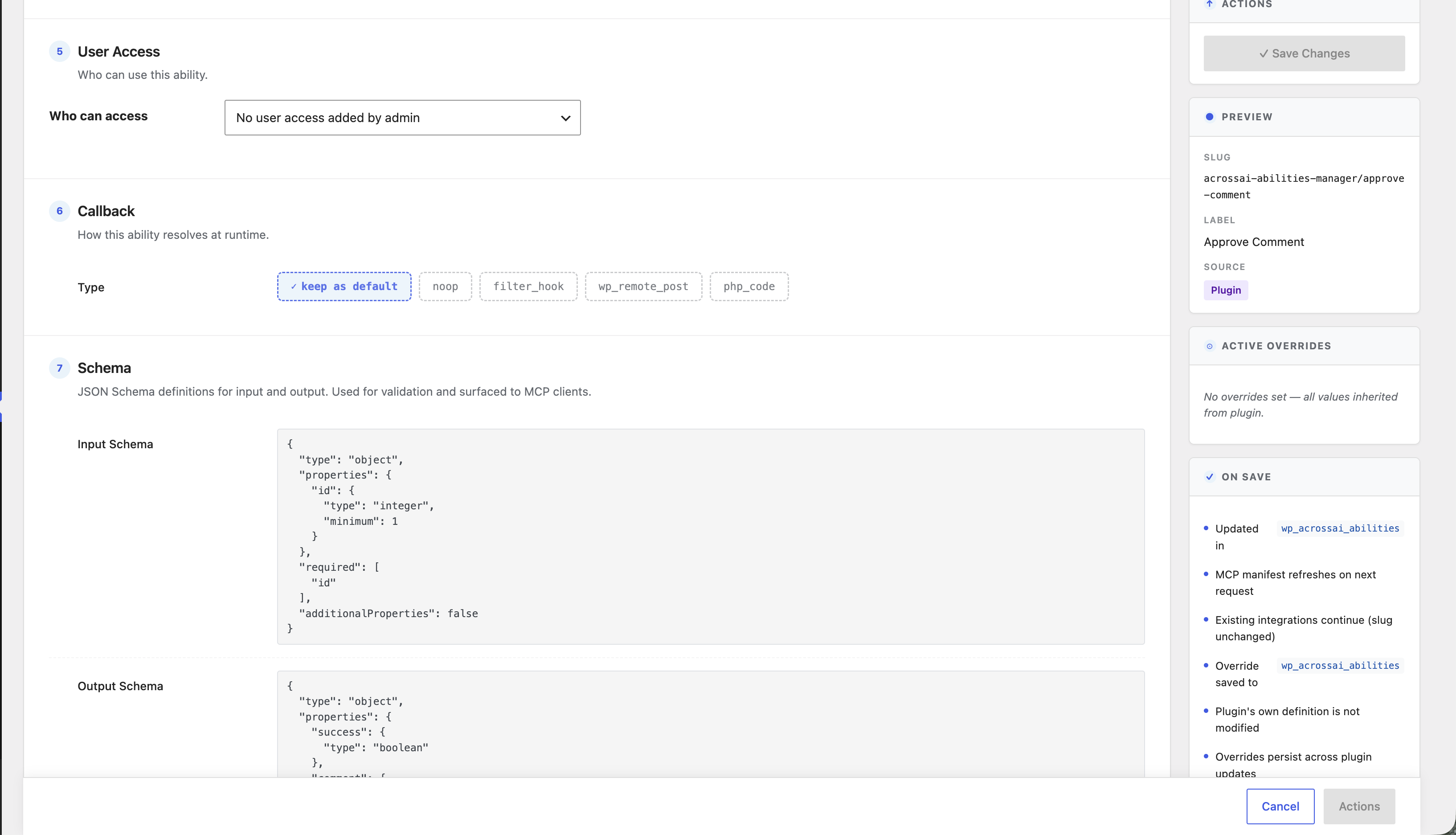
- Administrator-only by default, then gate each server by user, role, capability or your own policy provider. The gate is fail-closed.
- Every ability runs WordPress’s own capability check for the calling user, so MCP access grants nothing extra.
- Roughly half the catalogue is read-only and only about 13% is flagged destructive.
- Higher-risk operations need a confirmation flag, and search-and-replace is a dry run unless you say otherwise.
- File access is confined to an allowlist, secrets are redacted from file and log reads, and database abilities never accept a raw table name.
See What the AI Actually Did
Access control decides what an assistant may do. The activity log records what it did.
- Every request, and every ability behind it. A single “create a page” from an assistant may run several abilities; the log keeps the request and its abilities together, so you can open one entry and read what actually happened rather than guessing from the result.
- On from the moment you update, and bounded without being configured. Requests are kept 30 days, ability runs 7, and the whole log is capped at 50,000 entries. A daily job applies all three. Both halves can be switched off.
- Enough detail to answer the real questions: which assistant, how it authenticated, whether it worked, how long it took, what it was asked and roughly how much of your content it read back.
- It tells you when it is failing. An empty log and a broken log look identical, so the screen and Site Health both say so when writes are failing, when the table cannot be reached, or when the daily cleanup has not run.
- Private by design. Sensitive values are redacted by key name before anything is stored, response bodies are never kept, and WordPress’s own personal-data export and erase both reach it — erasing clears the person from the record while keeping the event, so the audit history stays intact.
Find it under MCP Activity Log, or on any individual server’s own tab.
Full Control Over Every Ability
- Browse every registered ability in a searchable, sortable table, and allow or disallow any of them in one click. A disallowed ability is unregistered outright.
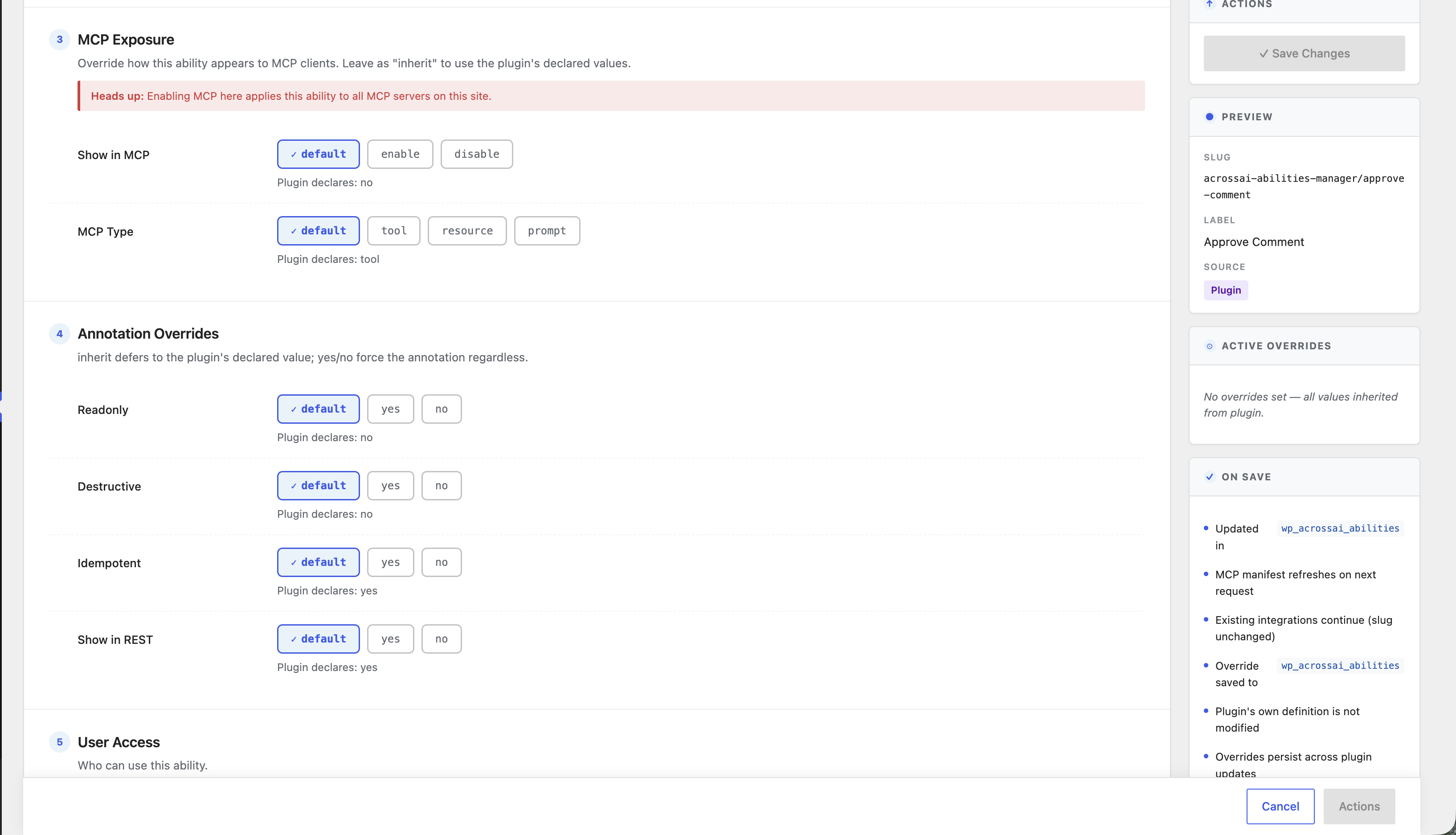
- Override metadata such as
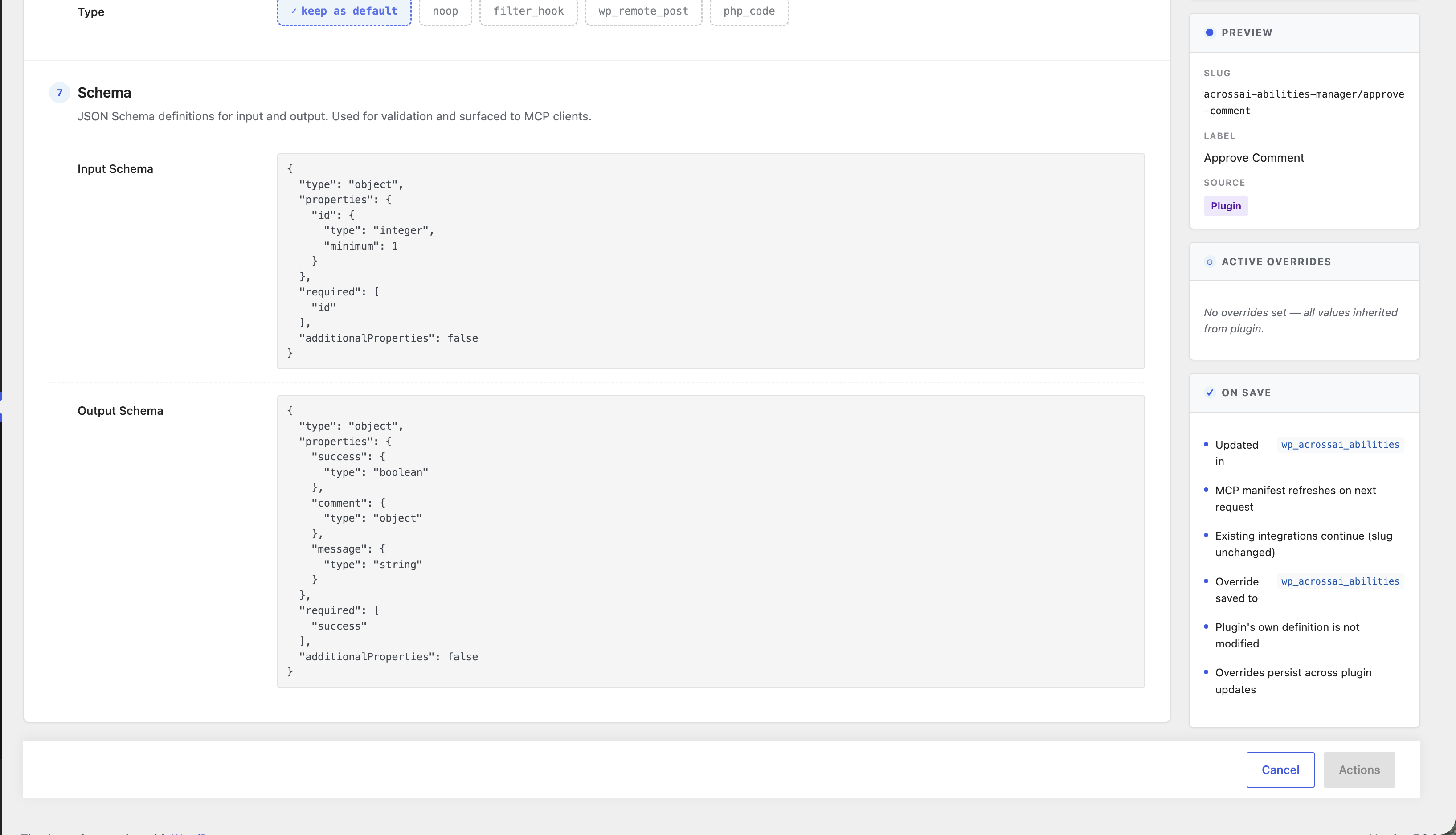
readonly,destructive,idempotent,show_in_mcpandmcp_serverswith a Yes / No / Inherit control. - Bulk actions on up to 50 abilities, and an Ability Library to switch whole groups on or off.
- Multiple MCP servers per site, each with its own route, tools, ability exposure and access rules: a read-only server for a client’s AI and a full-access one for yourself.
Overrides live in their own table. The WordPress ability registry is never modified.
Reproduce a Plugin Conflict Without Breaking the Site
Conflict Testing toggles any plugin’s effective active state for one browser session without writing to active_plugins, so your AI can bisect a conflict for you. A sandbox probe refuses any plugin that would fatal-error the site.
Built on the Official MCP Adapter. No Relay, No Lock-In.
MCP Adapter is the official WordPress library that turns abilities into MCP tools, and it is included. AcrossAI adds the admin, access control, connectors and abilities around it. There is no telemetry and no hosted relay: your MCP endpoint is a route on your own site. Every ability is a standard WordPress ability, so it also works over the REST API or with any other Abilities API consumer.
The only outbound connection is WordPress core’s own plugin installer reaching WordPress.org, and only when you click to install a companion plugin. Uninstalling is non-destructive by default: your servers, rules and logs survive unless you tick the delete-all-data option first.
For Site Owners, Developers and Agencies
Site owners run their site by talking to the AI they already pay for. Developers add clients, server tabs, connect methods, server types and toolsets through filters, with no fork required. Agencies run a separate MCP server per client, scoped to exactly what that client should reach.
Requirements
- WordPress 6.9 or higher
- PHP 8.1 or higher
- HTTPS (required by WordPress Application Passwords)
Support
Documentation: acrossai.co/docs. Every ability, searchable: acrossai.co/abilities. Source code: github.com/acrossai-co.
License
This plugin is licensed under the GPL-2.0-or-later license. See LICENSE file for details.
Credits
AcrossAI is built with:
– The official WordPress MCP Adapter
– WordPress native APIs
– Automattic’s MCP WordPress Remote package
– WordPress Application Passwords system
Developed with ❤️ for the WordPress community.
Screenshots

Overview tab: your WordPress MCP server at a glance, with the live endpoint URL for your AI client and every supported client listed.

CLI connections: connect Claude Code or another terminal client with one command, approve in the browser, and review every attempt in the audit log.

Clients tab: pick your AI client, generate an Application Password in one click, and copy JSON with the right file path and key.

AI Connectors: paste one URL into Claude, ChatGPT, Gemini, Grok or Cursor and approve the consent screen on your own site.

WP-CLI STDIO: the client launches WP-CLI as a subprocess, so no credential crosses the network.

Tools tab: choose exactly which abilities this MCP server advertises.

Abilities tab: switch individual abilities on or off per server, with search, filters and bulk actions.

Access control: decide who may reach each server by user, role or capability. New servers are administrator-only.

Multiple MCP servers on one site, each with its own route, tools and rules.

Global settings, including CLI connections and a non-destructive uninstall.
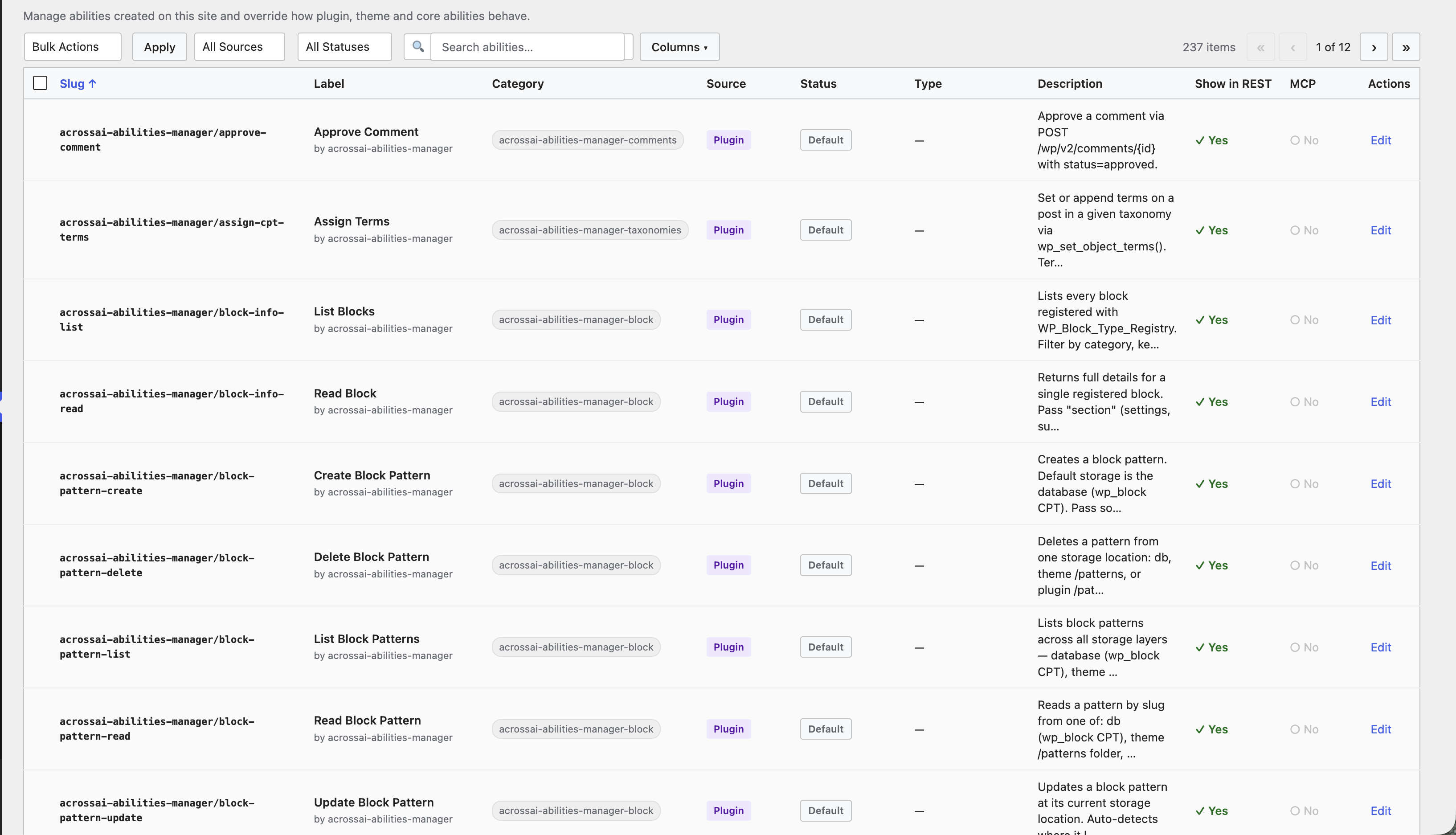
The abilities table: every registered ability, searchable and sortable.
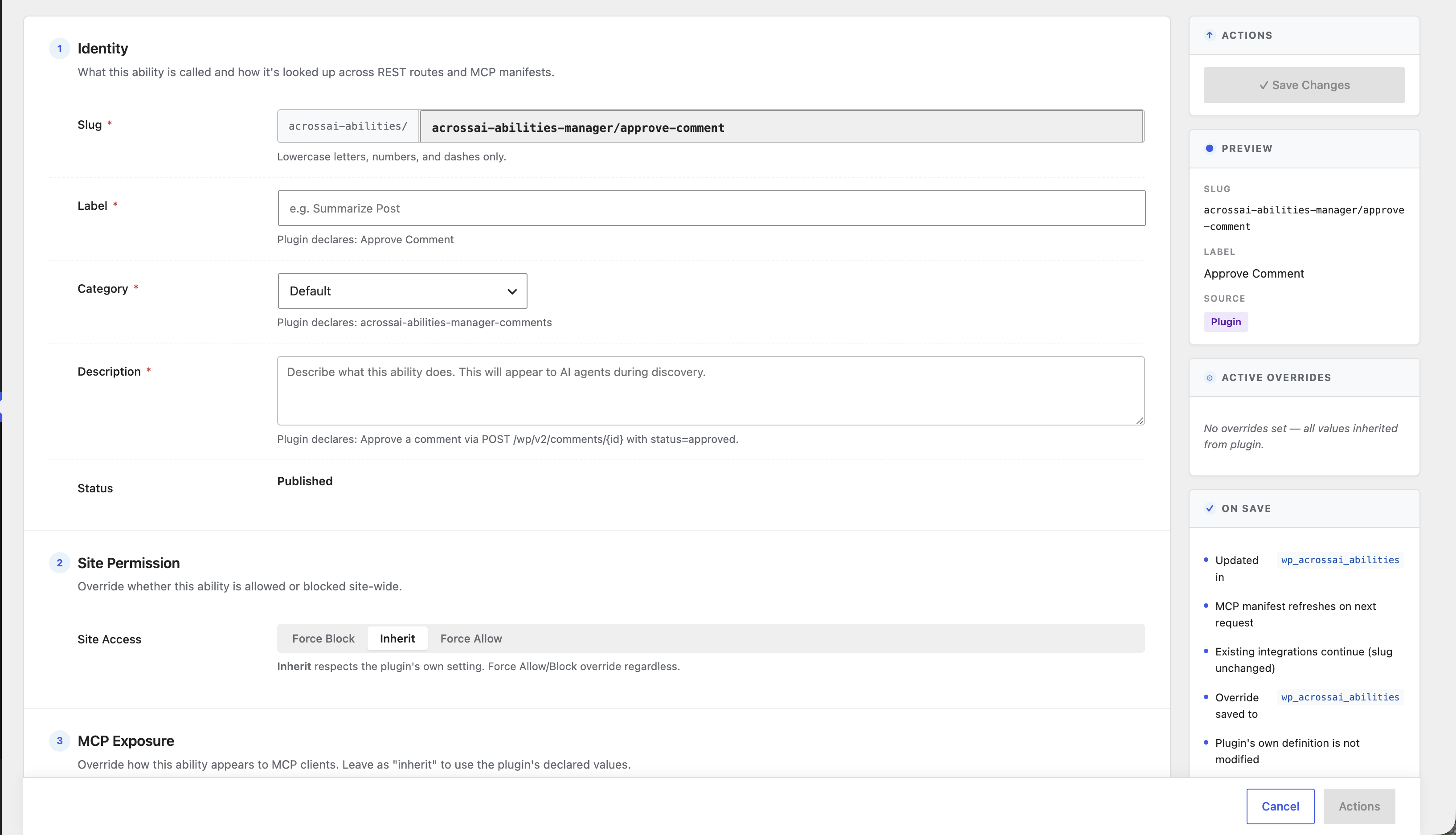
The edit drawer: Yes / No / Inherit override controls for each ability field.
Bulk actions to allow, disallow or reset many abilities at once.
The Ability Library: enable or disable whole ability groups.
The Add-ons page: browse free companion plugins.
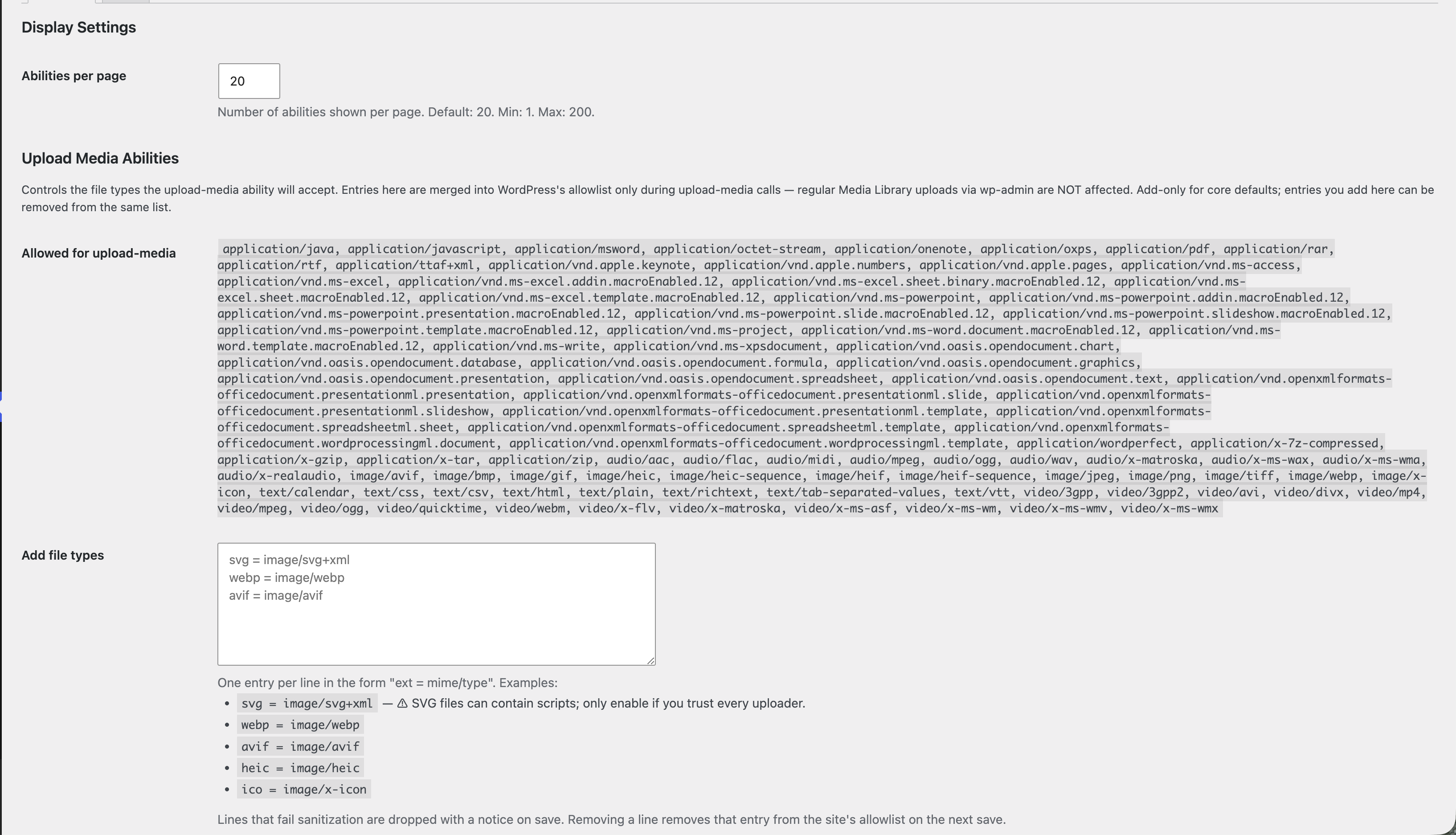
Abilities settings: abilities per page and allowed upload file types.