AnimateGL – WebGL & CSS Scroll Animations and Hover Effects for Gutenberg and Elementor
by creativeinteractivemedia
Live demo | Documentation | Support | AnimateGL Pro
Bring your pages to life with scroll animations and hover effects. AnimateGL animates headings, text, images, buttons, cards and whole sections as they scroll into view, and moves them when the mouse is over them. Select a Gutenberg block, an Elementor widget, a Bricks element or a Divi module, pick an entrance animation or a hover effect, and publish. No code, and no new page builder to learn.
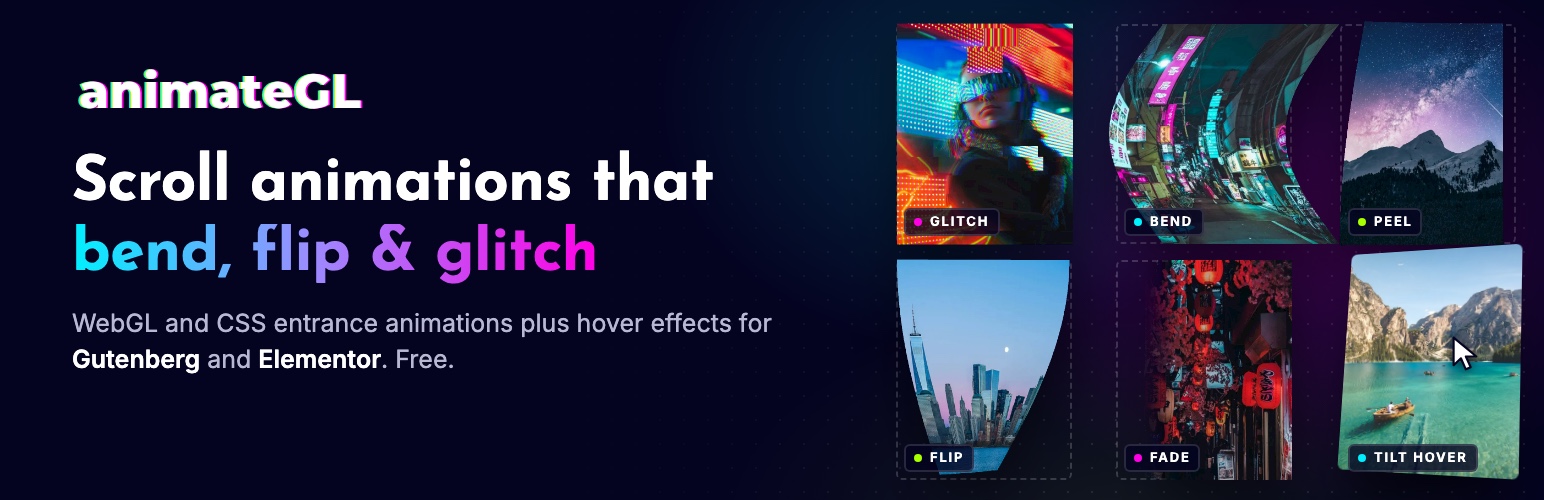
Most animation plugins stop at fade and slide. AnimateGL has those as fast CSS animations, and it adds WebGL animations that bend, flip, peel, stretch and glitch an element in 3D. CSS can’t do these effects. They make a hero heading, a product image or a call-to-action button stand out.
Why AnimateGL
- Works where you already build. Animate any block in the Gutenberg block editor, including dynamic blocks and blocks from other plugins. In Elementor, animate any section, column, container or widget, also Elementor 4’s atomic elements, and in Bricks and Divi 5 any element or module. In any other theme or page builder, add a CSS class.
- Effects you won’t find in other plugins. 9 WebGL animations with 3D distortion, page peel, glitch and directional fade, next to 13 GPU-accelerated CSS animations.
- 106 ready-made presets. Each animation but Glitch plays centered or from the left, right, top or bottom. Every preset has a live preview in the admin.
- Text effects. Type a heading out with the typewriter effect, or count numbers up from 0 for stats and counters.
- Hover and scroll effects. Lift, Grow and Tilt an element while the mouse is over it, or Skew it with the scroll speed. Free, on any block or page builder element.
- Full control. Set the direction, distance, duration, delay and easing (23 easings, including elastic, bounce, springs and steps). Play an animation once or every time it enters the viewport, or lock it to the scrollbar.
- Preview in the editor. Click Preview animation in the block editor to see the animation before you publish.
- Fast. The core script is about 19 KB gzipped, has no dependencies and loads deferred. The WebGL renderer loads only on pages that use a WebGL animation.
- SEO friendly and accessible. Content stays visible to search engines and to visitors without JavaScript. Visitors who prefer reduced motion see your content without animation.
- Free, no sign-up. All 22 animations, 106 presets, the typewriter, count-up numbers and the free hover and scroll effects are in the free plugin. AnimateGL Pro adds more when you need it.
How it works
- Install and activate AnimateGL.
- Select a block in the block editor, or an element in Elementor, Bricks or Divi, and choose an entrance animation and, if you like, a hover effect.
- Adjust the direction, duration and delay, preview it, and publish.
The animation plays on your live site when a visitor scrolls the element into view, and the hover effect when the mouse is over it.
Animations included
CSS entrance animations (GPU accelerated): Fade, Zoom In, Zoom Out, Wipe, Slide, Blur, Focus, Flip, Fold, Rotate, Roll, Skew, Pop.
WebGL entrance animations: Fade (directional), Slide, Stretch, Bend, Flip, Peel, Zoom In, Zoom Out, Glitch.
Text effects (any block): typewriter text and count-up numbers.
Hover effects (CSS, any element): Lift, Grow and Tilt.
Scroll effects (CSS, any element): Skew, which leans the element with the scroll speed.
Ideas for using them:
- Fade in a hero heading, then slide in its button with a short delay
- Stagger a row of cards or blog posts by giving each one a longer delay
- Reveal images in a portfolio or gallery with a wipe or zoom, and lift them on hover
- Count up the numbers in a stats row: customers, downloads, years in business
- Type out a tagline under the hero heading
- Peel or flip in a call-to-action banner
- Bend or stretch a product image as it scrolls into view
- Glitch in a bold headline on a tech or gaming site
Scroll animations (animate on scroll)
Entrance animations are scroll triggered: fade in, slide in, zoom or reveal an element as it scrolls into view. Each one plays when its element enters the viewport, by default once 70% of the element (or 200px of it) is visible.
Turn on Repeat to play the animation every time the element scrolls back into view.
Lock to scrollbar (scroll-linked animations)
Turn on Lock to scrollbar to tie an animation to the scroll position instead of a fixed duration. The animation’s progress follows the scrollbar: as you scroll down, the element animates in, and it is fully in place when it reaches the middle of the viewport. It works with every CSS and WebGL animation, for scroll-driven reveals without writing code.
Typewriter text effect
Turn on Type out the text for a heading, paragraph or button, and its text is typed a character at a time behind a caret when it scrolls into view, or together with its entrance animation. Links and bold or italic text are kept, nothing on the page moves while it types, and screen readers read the whole text. With another page builder, add the class agl-typewriter.
Count-up numbers (animated counter)
Turn on Count up the numbers for any block or element, and every number in its text counts up from 0 when it scrolls into view, or together with its entrance. It ends exactly as written: 1,250, 98.6% or 1.200,50 keep their separators and decimals. Use it for stats, counters, prices and milestones. With another page builder, add the class agl-count.
Easings
Pick from 23 easings for every animation: linear, sine, quad, cubic, expo, back (overshoot), elastic, bounce, three springs (soft, bouncy and stiff, which set their own duration) and steps for a stop-motion look. WebGL animations follow an overshoot too.
Hover effects
Add a hover animation to any block or page builder element: Lift raises it, Grow scales it up and Tilt turns it in 3D toward the mouse. Use them on cards, buttons, images and call-to-action boxes. Pick one under Hover effect in the AnimateGL panel, or add a class such as agl-hover-tilt. They play after the entrance, with the mouse only, and not for visitors who prefer reduced motion.
AnimateGL Pro adds WebGL image hover effects such as zoom, liquid, ripple, glitch and colour reveal, and CSS reveals for any block. See them live.
CSS animations
CSS entrance animations are GPU accelerated and animate opacity, transform, clip-path and blur. Combine fade, zoom, slide, wipe, blur, flip, fold, rotate, roll, skew or pop with direction, distance, easing and delay to create elegant reveal animation effects for headings, text, buttons, images and whole sections. They work on any element, however complex.
WebGL animations
WebGL animations go beyond CSS. AnimateGL renders the element to an image with html2canvas, then animates it with custom GLSL shaders for 3D distortions, page peel, glitch and gradient (directional) fade effects. Use these motion effects, image effects and visual effects on simple elements like headings, buttons and images.
Gutenberg block animations
Add animations for blocks in the Gutenberg block editor, including dynamic blocks like Latest Posts and blocks from other plugins. Select the block, open the AnimateGL panel in the block settings sidebar, and choose the animation type, direction, distance, duration, delay and easing, a hover or scroll effect, the typewriter or count-up. Click Preview animation to play it right in the block editor. Your blocks stay visible while you edit. Image blocks and blocks in locked patterns and block theme templates have the same controls in their toolbar.
Elementor animations
Add an entrance animation or a hover effect to any Elementor section, column, container or widget. Open the element’s Advanced tab and choose the animation type, direction, distance, duration, delay and easing in the AnimateGL section. Elementor 4’s atomic elements have the same settings in their panel.
Bricks animations
Add an entrance animation or a hover effect to any Bricks section, container, block, div or element. Open the element’s Style tab and choose the animation type, direction, distance, duration, delay and easing in the AnimateGL group. The builder’s canvas shows the element as it is, without its animation: preview the page to see it play.
Divi animations
Add an entrance animation or a hover effect to any Divi 5 section, row or module. Open the module’s Advanced tab and choose the animation type, direction, distance, duration, delay and easing in the AnimateGL group. The Visual Builder shows the module as it is, without its animation: preview the page to see it play. On Divi 4, add an animation’s CSS class in the module’s CSS Class field.
CSS class animations for any page builder
Not using Gutenberg, Elementor, Bricks or Divi 5? Add an animation’s CSS class to any element in Visual Composer, another page builder or your theme, for example agl agl-fadeCSSUp or agl agl-bendLeft. The Animations tab of the AnimateGL admin page lists every preset animation with a live preview and a CSS class you can copy, and its class builder writes the classes for the settings you pick.
Animation Editor
Design your own entrance animation in the visual Animation Editor on the AnimateGL admin page, then apply it to any element with the agl class. You can set:
- Fade, with directional fade and threshold
- Translate along the x, y and z axes
- Rotation around the x, y and z axes
- Corners distortion
- Duration, delay and easing
You can set the same properties with CSS classes.
AnimateGL Pro
AnimateGL Pro is a separate plugin that includes everything in the free plugin, which it replaces, plus:
- Tile entrances: Assemble, Tile flip, Materialize, Vortex and Murmuration break an image or block into tiles that fly, flip or grow into place, with tile hover effects (push, lift, scatter) and a Scatter scroll effect
- WebGL image hover effects: zoom, bulge, light, liquid, ripple, drag, pixel smear, glitch, RGB shift, an image swap, and colour reveal with spotlight, focus, mosaic, trail and before-and-after variations. See them live
- CSS hover reveals for any block, and hover effects on touch screens
- Scroll effects: bend, wave, RGB shift, glitch and tile scatter while the page scrolls, and scroll motion: parallax scrolling and fade on scroll. See them live
- Animated WebGL section backgrounds (Flow, Blobs, Waves, Aurora, Grain, Mesh) for Group and Cover blocks and Elementor containers
- Loop animations: pulse, float, wobble, shake, heartbeat and swing
- Text animations: split a heading into words or letters, and stagger a group’s blocks one after another
- Triggers and sequences: play an animation on page load, a click, a hover or a class, or after another block’s animation ends
- Per-device animations and play once per visit
- My animations: save your own animations and use them like presets
- Site-wide rules that animate every block of a type, or every element matching a CSS selector
- The Entrance Pack and Fade Pack presets
Pro is a yearly or lifetime license from animategl.com. The free plugin stays complete on its own: nothing in it is locked or time-limited.
More animations
Get more entrance animations with add-ons (included in AnimateGL Pro):
- Entrance Pack: Circle, Square and Line CSS animations
- Fade Pack: more fade animations
Source code
Every minified script ships with its readable source in the plugin: js/lib/animategl.js (animation runtime), js/lib/animategl.webgl.js (its WebGL part, loaded only for WebGL animations), js/lib/animategl.editor.js (Animation Editor), js/lib/html2canvas-pro.js (html2canvas-pro with three small fixes, marked in the file), and src/index.js (block editor controls, built with @wordpress/scripts).
Help us improve
If you run into a problem or want a new feature, please open a support topic. If AnimateGL helps your site, a review helps other people find it.
Screenshots

Elementor: choose an entrance animation in the AnimateGL section of the Advanced tab.

Block editor: set the animation, direction, duration and delay in the block's AnimateGL panel.

Cards animating in on the front end as the page scrolls.

Block editor: add a Fade Left animation to an image block.
