
Image Generator – AI Auto Featured Images, Thumbnails & Post Images
by BeautifulPlugins
Image Generator is the all-in-one AI image generator and automatic featured image plugin for WordPress. Create eye-catching featured images, post thumbnails, hero banners, and social media images in two clicks — directly inside the Gutenberg block editor, or automatically every time you publish a post or page.
Stop switching between design tools, AI apps and stock photo sites. Stop publishing posts with broken thumbnail spots. With Image Generator you can:
- Design your own image templates in a visual Template Studio and turn every post title into an on-brand image — free, rendered on your own server.
- Generate AI images from a custom prompt using OpenAI GPT Image (your own API key) — right inside the block editor.
- Search free stock photos from Unsplash, Pexels and Pixabay without leaving WordPress, imported with the photographer’s credit.
- Combine them: put a stock photo or an AI image under your own template design, so each post gets a different picture with your logo, colors and title.
- Auto-generate featured images whenever a post or page is saved without one — from a template, AI or a stock photo.
- Insert images straight into Image and Media & Text blocks while you write, or set the featured image with one click from the AI Featured Image sidebar panel.
Where Your Images Come From
- Your own image templates — designs you build in the Template Studio (or start from 10 ready-made ones). The post title and other details are filled in and the image is drawn on your server with PHP’s GD library. No API key, no cost, nothing leaves your site (unless a layer uses a stock photo or AI image).
- AI images — unique images from OpenAI GPT Image, written from your prompt or from the post’s title and excerpt. Needs your own OpenAI API key.
- Free stock photos — Unsplash, Pexels and Pixabay. Needs a free API key from the library you use.
- Templates over photos — any template’s background or image layer can show a stock photo or an AI image picked for each post.
Images inside your templates can come from your Media Library, the post’s featured image, the first image in the post, your site logo or site icon, the author’s avatar (uploaded to the Media Library), a stock photo for the post or an AI image for the post.
Whether you run a blog, news site, magazine, portfolio, affiliate site, online store, or membership platform, this plugin gives every post a polished, SEO-friendly featured image — without the manual work.
🚀 Upgrade to Pro | 📄 Plugin Documentation | 💻 Support
Watch video tutorial on how to use the Image Generator plugin
Perfect For
- Bloggers who publish daily and never want to think about featured images again.
- News sites and magazines that need every article to have a thumbnail.
- WooCommerce stores that need product placeholder images.
- Affiliate marketers who want unique hero images for every roundup post.
- Agencies and freelancers managing multiple client sites.
- Membership and learning platforms that publish lots of lessons.
- Anyone who has ever shipped a post with a missing or generic thumbnail.
Key Features
✅ AI Image Generation with OpenAI
Plug in your OpenAI API key (or define the AIMG_API_KEY constant in wp-config.php) and generate unique images from natural-language prompts “a sunlit forest path in autumn, photorealistic, soft lighting”, without leaving WordPress.
✅ Block Editor (Gutenberg) Integration
Adds an “AI Generate” sparkle button to the toolbar of core Image and Media & Text blocks, plus a dedicated AI Featured Image panel in the document sidebar. No setup, no shortcodes, it just shows up.
✅ Templates, AI and Stock Photos in One Modal
A single modal lets editors switch between Templates (fast, on-brand, free), Custom Prompt (AI-generated, unique) and one tab each for Unsplash, Pexels and Pixabay. It opens from the block editor and from the Media Library, and remembers the tab you used last.
✅ Free Stock Photos from Unsplash, Pexels & Pixabay
Search millions of free photos in the editor and the Media Library, filter by orientation and color, and insert one with a click. Each photo is downloaded into your Media Library with alt text and the photographer’s credit in the caption. Stock photos can also be the automatic featured image, picked with keywords from the post title. Each library needs its own free API key.
✅ On-Brand Photos: Templates over Stock or AI Images
Use a stock photo or an AI image as a template’s background or image layer, and every post gets a different picture with your logo, colors and title on top. The picture is fetched once per post in the background and reused when you regenerate.
✅ Visual Template Studio
Design image templates on a canvas: drag, resize and rotate layers, with snapping guides, undo/redo and keyboard shortcuts. Combine backgrounds (colors, random palettes, gradients or an image), images with rounded or circle masks, brightness, contrast, blur, black and white and duotone, see-through overlays and fades, shapes, patterns, frames and text. Background and image layers can use a Media Library image, the post’s featured image, the first image in the post, the site logo or icon, the author’s avatar, or a stock photo or AI image picked for each post. Text fits itself to its box, with 11 bundled fonts (or upload your own .ttf/.otf), outlines, shadows, highlight boxes and tags like {title}, {category}, {author}, {date} and {custom_field:key}. Preview with long titles or a real post, check the exact image your server will make, start from 10 ready-made designs, and import or export designs as JSON.
✅ Unlimited Reusable Image Templates
Build as many image templates as you want. Each template is rendered server-side using PHP’s GD library, no external dependency — the canvas you design on draws the same way, so what you see is what your posts get.
✅ Automatic Featured Image on Save — Template, AI or Stock Photo
When a post or page is saved without a featured image, the plugin creates one. Choose from: Image template (a random one, or the one you pick), AI image, Stock photo (Unsplash, Pexels or Pixabay, found with keywords from the post title), or a combination — template with AI as a fallback, AI with a template as a fallback, or a stock photo with a template as a fallback. AI images, stock photos and templates with a stock or AI layer are made in the background, so saving never waits on an outside service, and the editor shows the progress.
✅ Smart AI Prompts
Write your prompt template once with tags like {title}, {excerpt}, {category}, {tags} and {custom_field:key}, choose a style (Photorealistic, Flat illustration, 3D render, Watercolor, Cinematic and more), and every post gets a fitting prompt. A built-in instruction keeps garbled text and watermarks out of the image.
✅ Image Shape, Quality and Variations
Choose square, landscape or portrait images and the quality level (and so the cost). In the editor, generate up to 4 variations and keep the one you like — the others are removed from the Media Library.
✅ Cost Control
Decide which roles can use AI and set an hourly limit per user. Automatic AI images wait until a post is published, so drafts don’t spend credit.
✅ Works Anywhere You Edit
Automatic generation currently covers posts and pages. On-demand generation is not limited that way: the block editor panel and the Media Library modal let you generate an image and set it as the featured image on any post type that supports featured images, including WooCommerce products and custom post types.
✅ Native WordPress Media Library
Every image — template, AI or stock photo — is saved into the Media Library with alt text. So image optimization plugins (Smush, ShortPixel, Imagify, EWWW), CDNs (Cloudflare, BunnyCDN, KeyCDN), and SEO plugins (Yoast, Rank Math, AIOSEO) all see it as a regular attachment.
✅ REST API for Headless & Custom Workflows
Endpoints (/wp-json/aimg/v1/generate, /templates, /featured/{post}, /status/{post}, /prompt, /stock/{library}/search, /stock/{library}/import) with capability checks and nonce protection, perfect for headless WordPress, decoupled frontends, and automation scripts.
✅ Developer-Friendly Filters
Add your own AI provider (aimg_providers), stock photo library (aimg_stock_providers), template layer type (aimg_template_layers), merge tag (aimg_merge_tags), modal tab (aimgModal.tabs), generation method (aimg_generation_methods, aimg_pre_generate_for_post) or style preset (aimg_style_presets), adjust prompts (aimg_post_prompt), and keep using aimg_generate_endpoint and aimg_generate_request_body to customize the OpenAI request.
✅ Translation Ready (i18n)
Fully translatable via the bundled .pot file, both PHP and editor JavaScript strings are registered with wp_set_script_translations. Compatible with WPML, Polylang, Loco Translate, and TranslatePress.
✅ Lightweight, Fast, and Secure
No bloated dependencies. Uses native WordPress components, the GD library (already part of PHP), and the REST API. API keys can be stored outside the database with the AIMG_API_KEY, AIMG_UNSPLASH_KEY, AIMG_PEXELS_KEY and AIMG_PIXABAY_KEY constants, and stock photos are only downloaded from each library’s own image servers.
✅ No Coding Required
Simple admin UI under Image Generator in the WordPress dashboard. Build a template, save your settings, you’re done.
How It Works
Generate from the Block Editor (On Demand)
- Open any post or page in the Gutenberg editor.
- Click the ✨ sparkle icon in the toolbar of an Image or Media & Text block or open the AI Featured Image panel in the document sidebar.
- Choose a tab in the modal:
- Templates: pick a saved image template and see a preview with your post title. The title text defaults to the current post title.
- Custom Prompt: describe the image you want — or click Write a prompt from this post — pick the shape, style, quality and number of variations, and press Generate (or Ctrl + Enter / ⌘ + Enter).
- Unsplash, Pexels or Pixabay: search is filled in with keywords from the post title; filter by orientation and color, scroll for more, pick a photo and press Insert Photo.
- The image is added to the Media Library and inserted into the block or assigned as the featured image automatically. With several AI variations, you pick one first.
The AI Featured Image panel can also (re)generate the featured image in one click using your automatic method. The same modal is available from Media Library Generate Image, so you can create images with any editor.
Auto-Generate Featured Images on Publish
- Under Image Generator Settings Automatic Featured Images, choose Image template, AI image or Stock photo (or one with a fallback).
- Write your post or page as normal and hit Publish or Update.
- If you already set a featured image, nothing happens.
- If you didn’t, a template image is rendered right away from the post title — or an AI image or stock photo is fetched in the background — saved to the Media Library and attached as the post thumbnail.
Third-Party Assets and Licenses
Roboto Font
Author: Christian Robertson
License: Apache License 2.0
License URI: https://www.apache.org/licenses/LICENSE-2.0
Source: https://fonts.google.com/specimen/Roboto
The Roboto font is bundled under the Apache License 2.0. Full license text available at the URI above.
Template Studio Fonts
Roboto (Regular), Inter, Montserrat, Poppins, Playfair Display and Noto Sans are bundled for the Template Studio.
License: SIL Open Font License 1.1
License URI: https://openfontlicense.org
Source: https://fonts.google.com
Each font’s license, with its copyright notice, ships in assets/fonts/licenses/.
AI Image Generation
AI image generation calls a third-party API (OpenAI by default, https://api.openai.com/v1/images/generations). You are responsible for the API key, usage costs, and compliance with the provider’s terms of use and privacy policy. Nothing is sent to an external service unless you add an API key and either generate from a prompt, click Write a prompt from this post, choose an AI method for automatic featured images, or use a template with an AI image layer. Other template-based generation never leaves your server.
Stock Photos
Searching or importing stock photos calls the library you choose: Unsplash (api.unsplash.com, images from images.unsplash.com), Pexels (api.pexels.com, images from images.pexels.com) or Pixabay (pixabay.com/api, images from pixabay.com). The plugin sends your API key and the search terms — what you type, or keywords from the post title (or the template’s search text) for automatic images. Nothing is sent unless you add a key and search, test the key, choose a stock method for automatic featured images, or use a template with a stock photo layer. Thumbnails in search results are loaded from the library in the editor, as the libraries require; the photo you pick is downloaded to your Media Library. Unsplash: terms, API guidelines, privacy. Pexels: terms, license, privacy. Pixabay: terms, license, privacy.
Privacy
- Template-based generation runs entirely on your server. No data is sent to third parties, unless a template has a stock photo or AI image layer (then the same rules as below apply).
- AI generation sends a prompt to OpenAI (or your configured endpoint): the prompt you type, or — for automatic AI images — one built from your prompt template, which by default includes the post’s title and excerpt. No user or visitor data is transmitted.
- Stock photo searches send search terms to the library you use (Unsplash, Pexels or Pixabay). No user or visitor data is transmitted.
- The plugin does not set cookies, track users, or load any external scripts on the frontend.
Screenshots
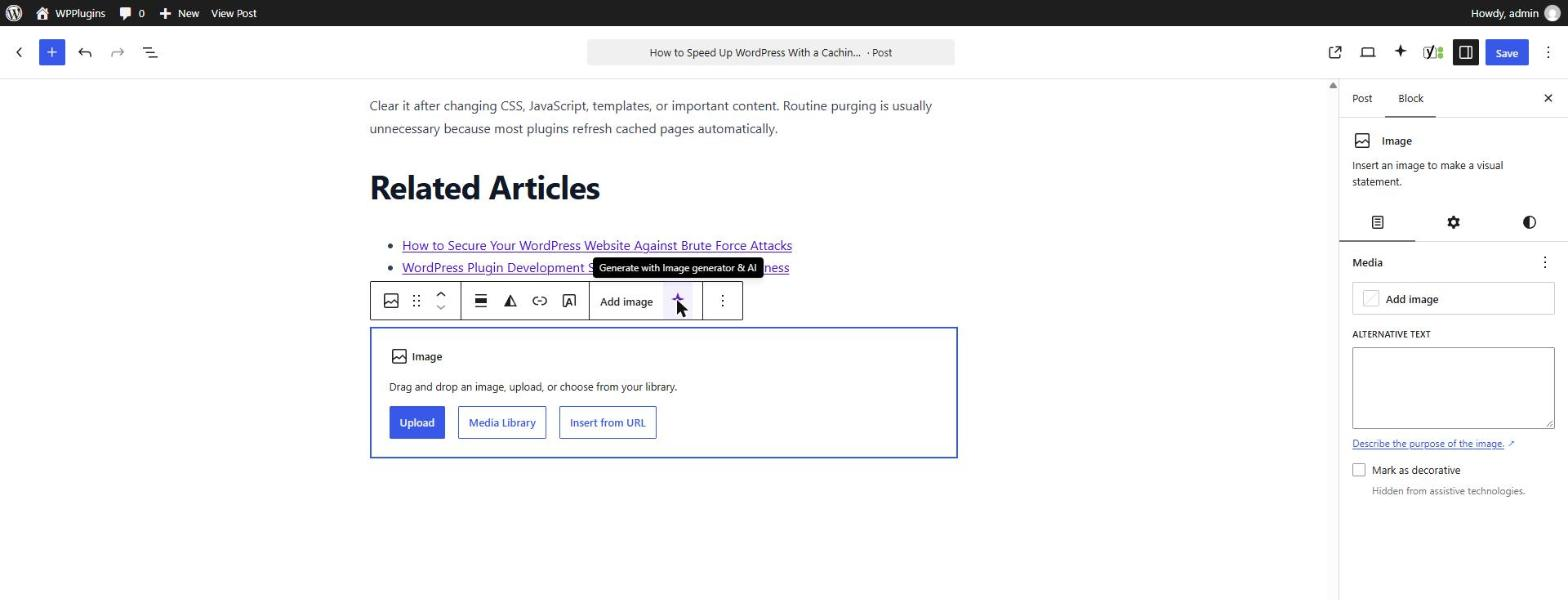
Block editor — the ✨ button on Image and Media & Text blocks opens the image generator.
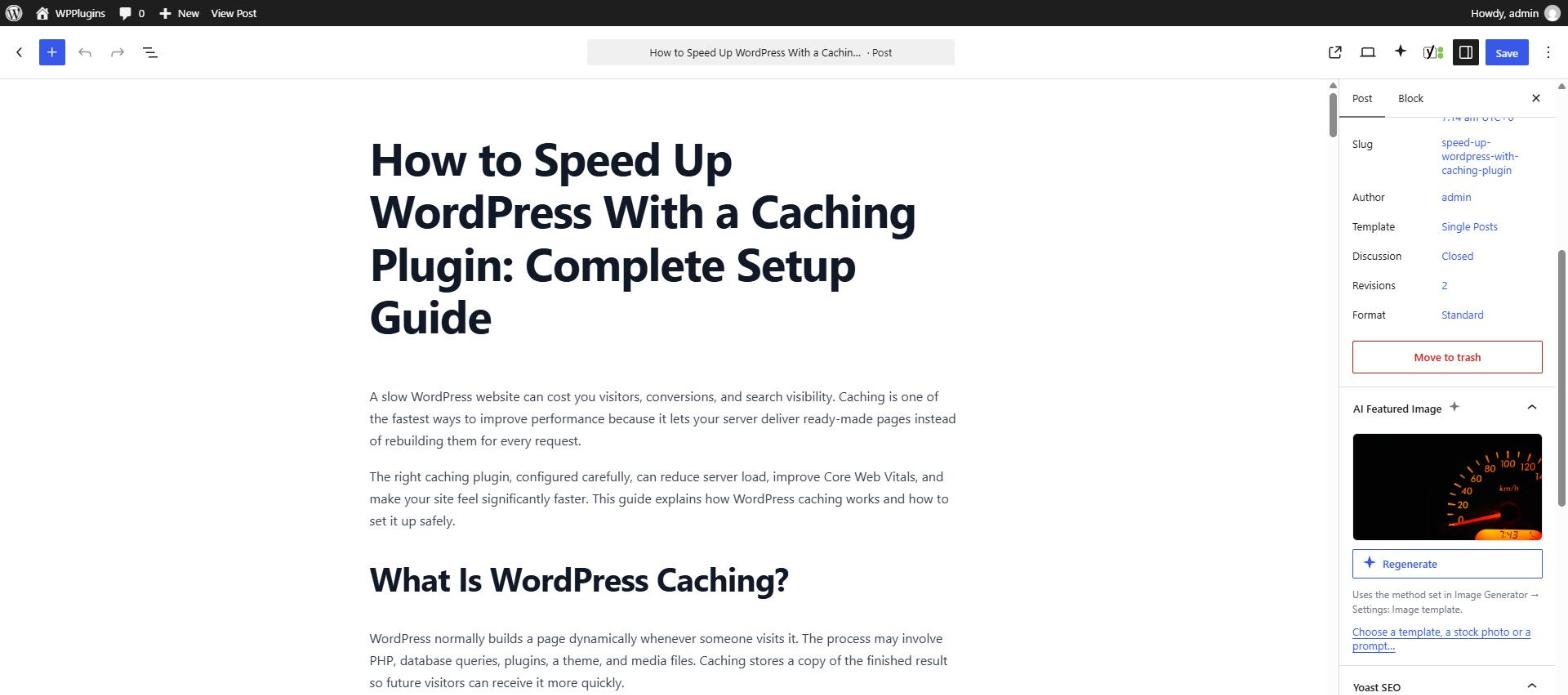
AI Featured Image panel in the post sidebar — regenerate the featured image in one click, or choose a template, stock photo or prompt.
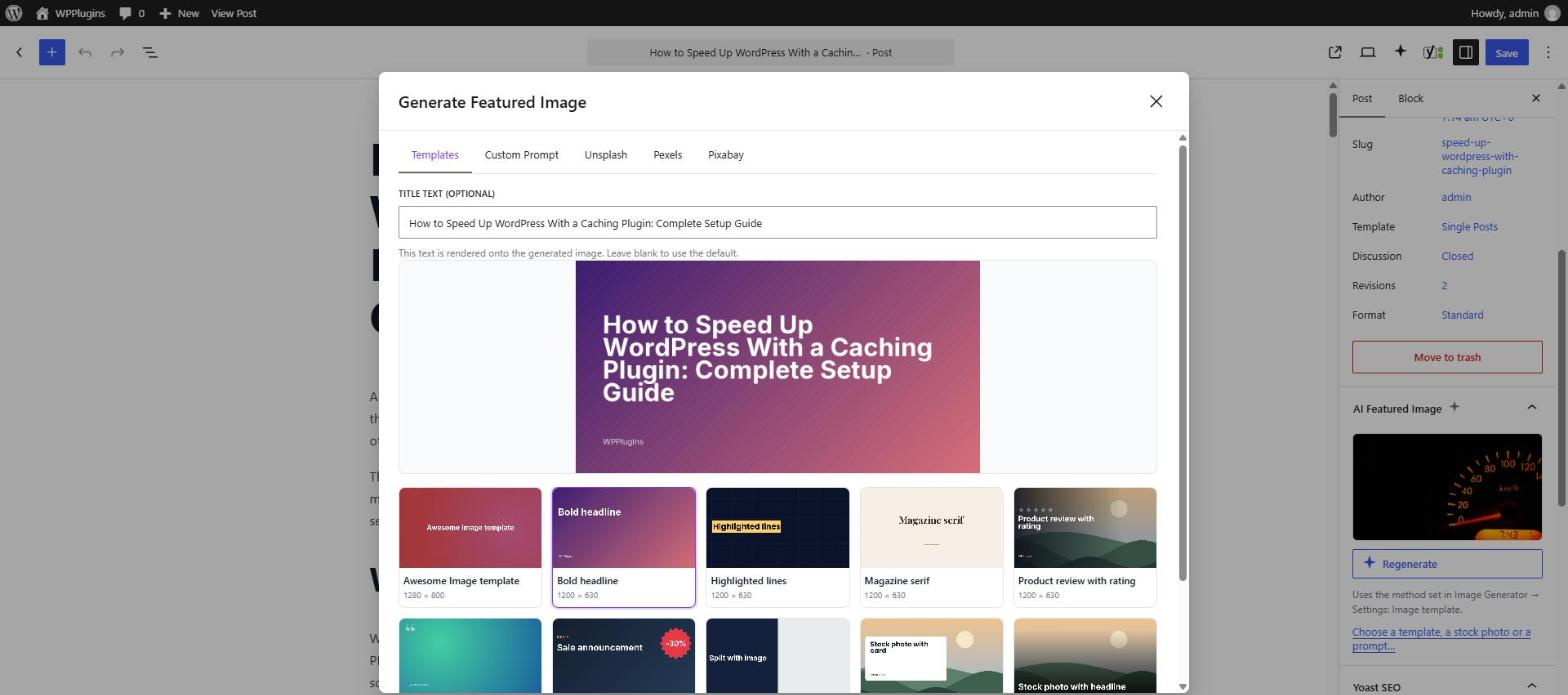
Templates tab — preview any of your templates with the post title before you add it.
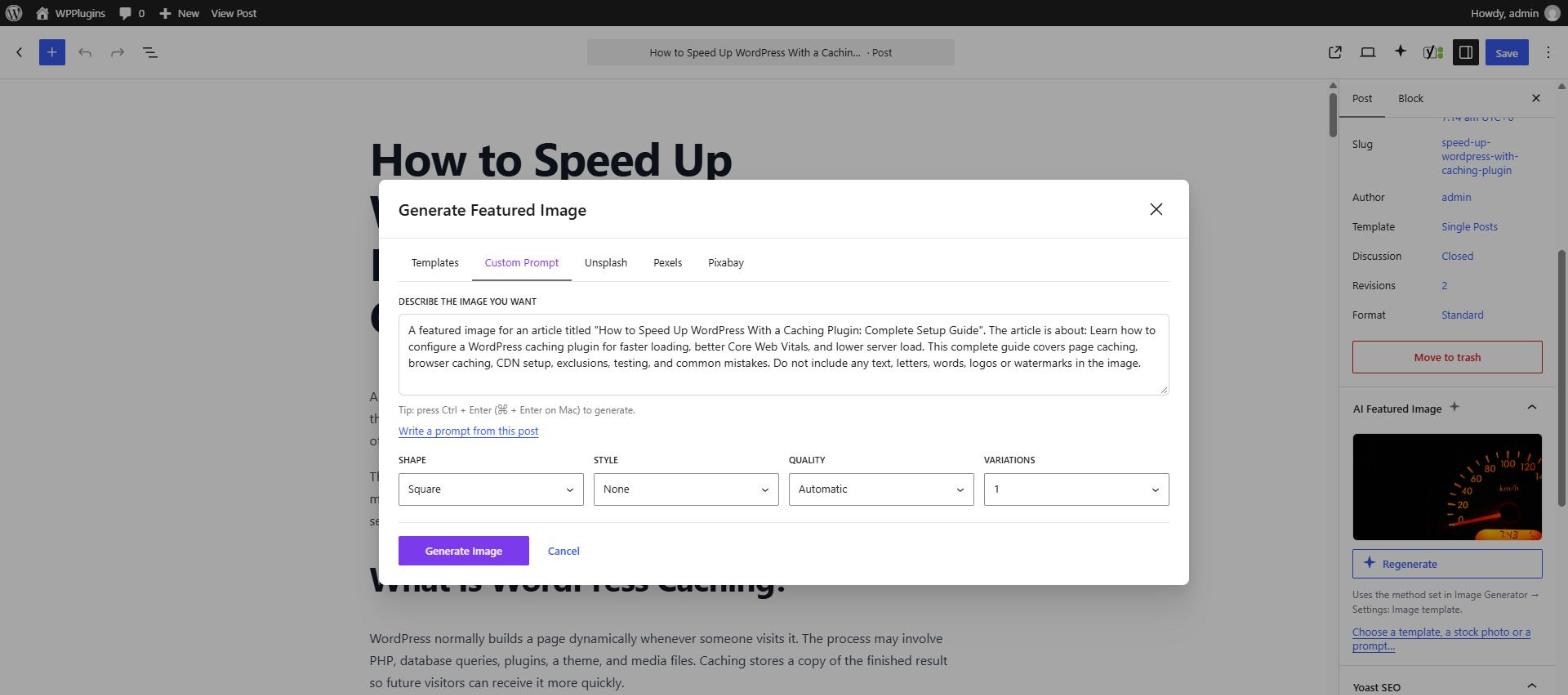
Custom Prompt tab — write a prompt (or build one from the post) and pick the shape, style, quality and number of variations for an AI image.
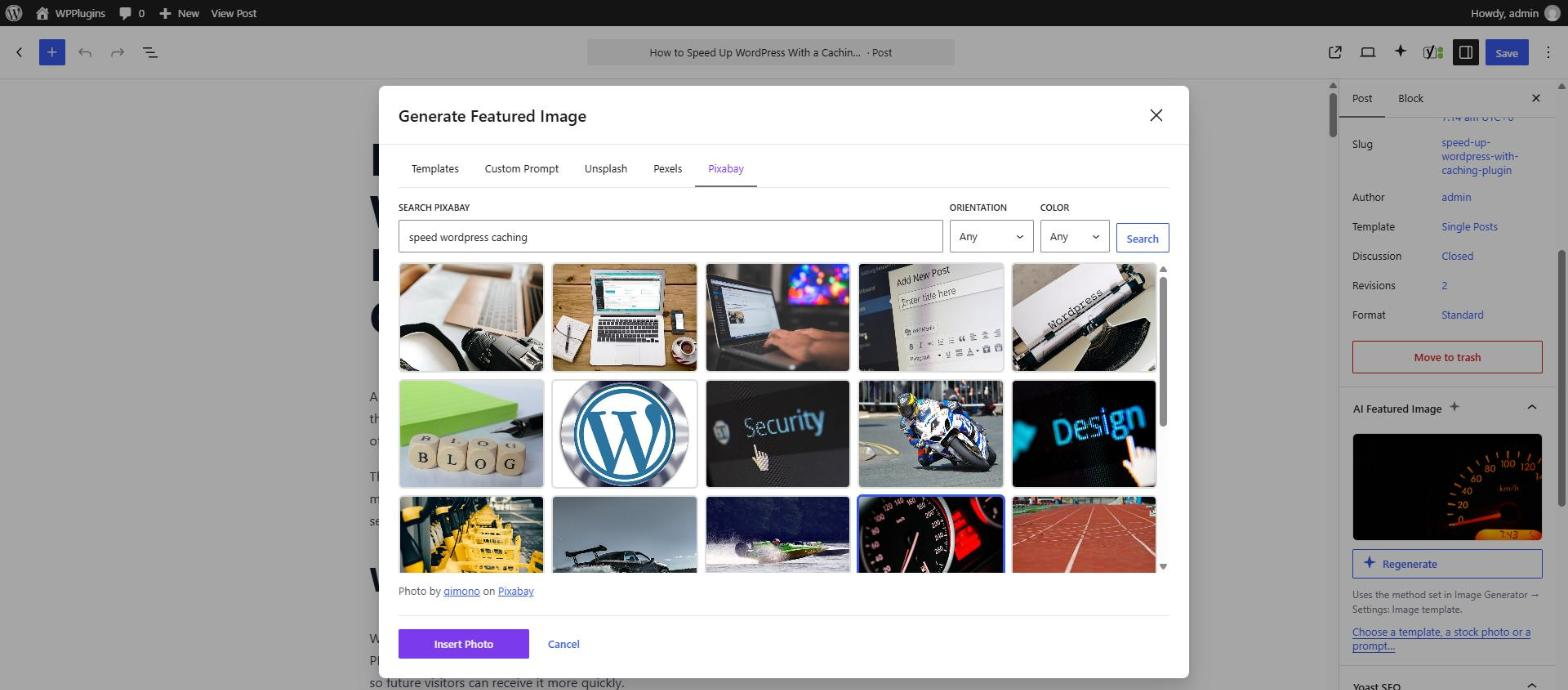
Free stock photos from Pixabay, searched with keywords from the post title, with the photographer credit.
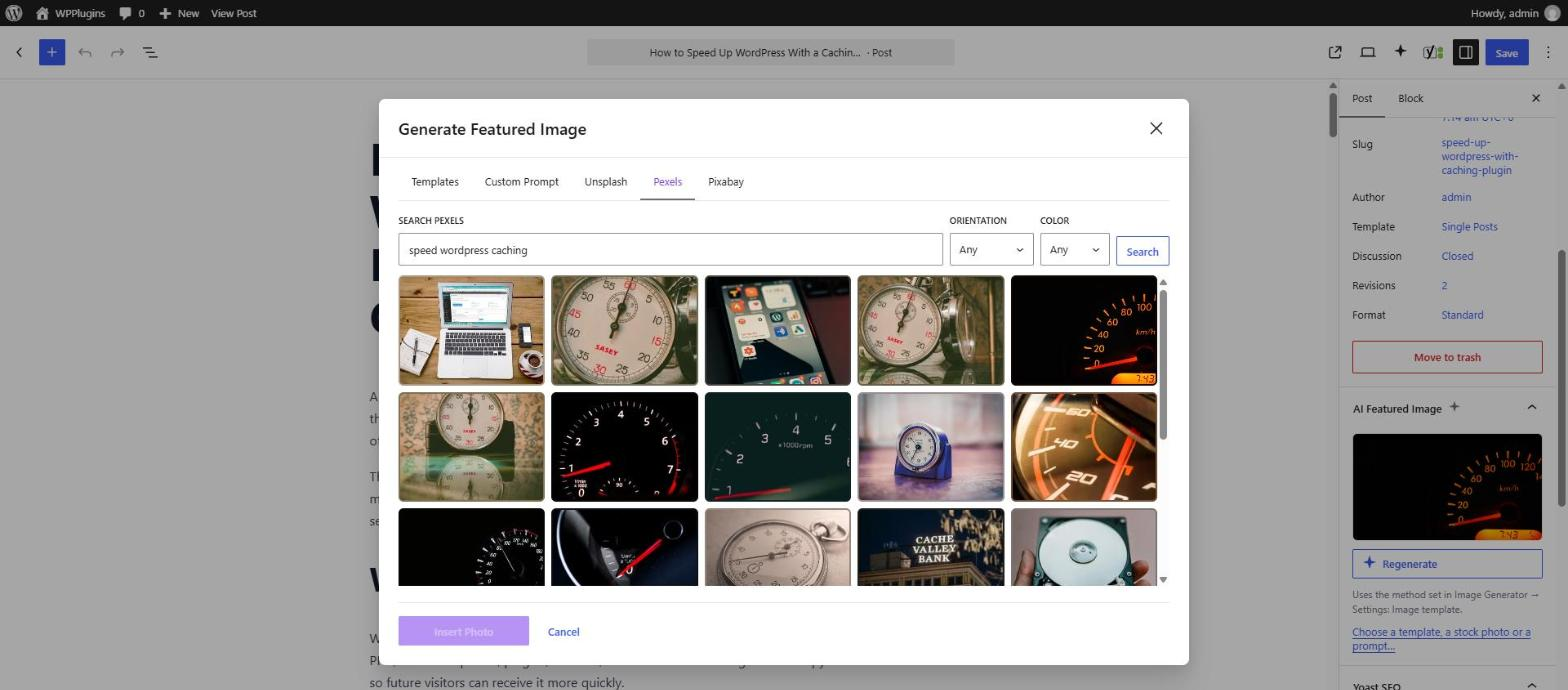
Pexels tab — filter stock photos by orientation and color and scroll for more.
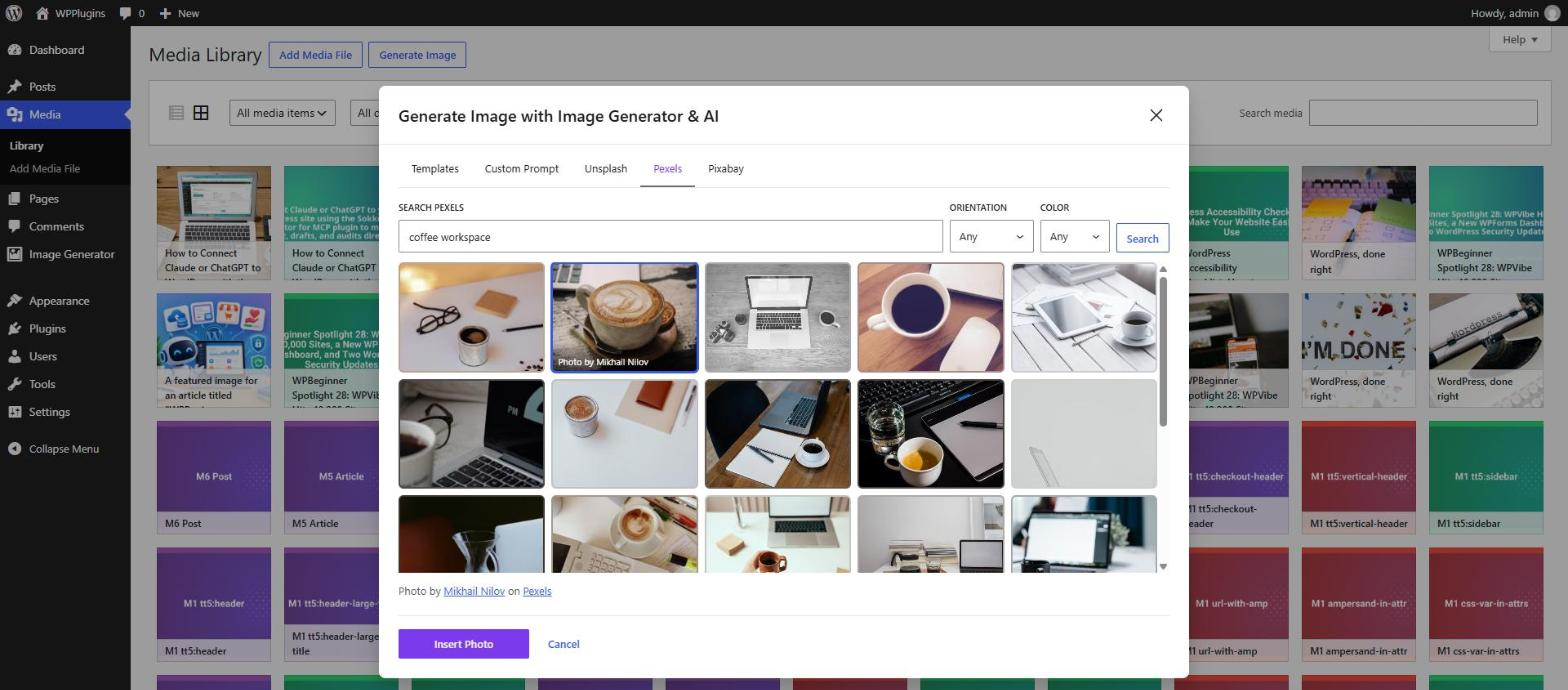
Media Library — Generate Image opens the same modal, so it works with any editor or page builder.
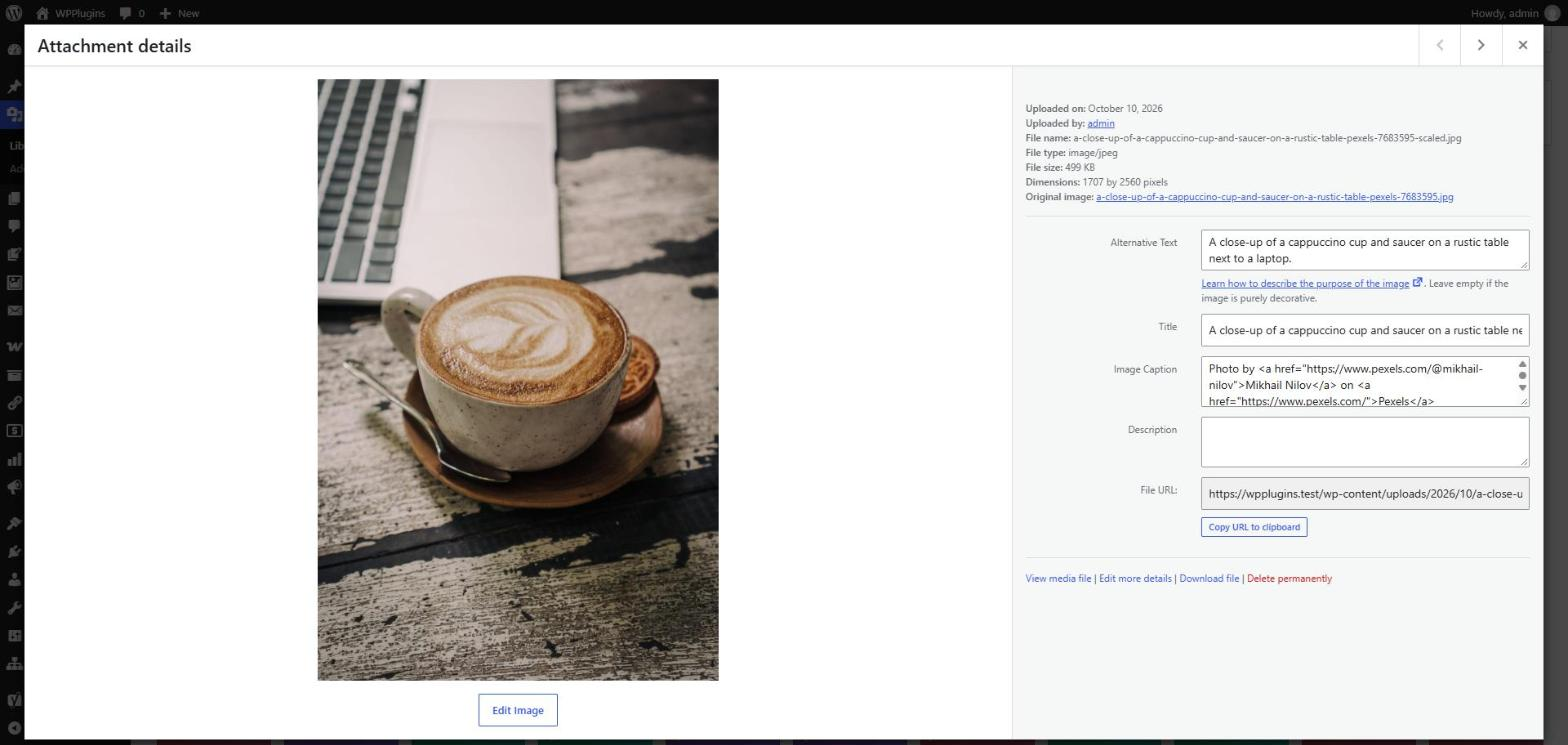
A stock photo imported into the Media Library with alt text, title and the photographer credit in the caption.
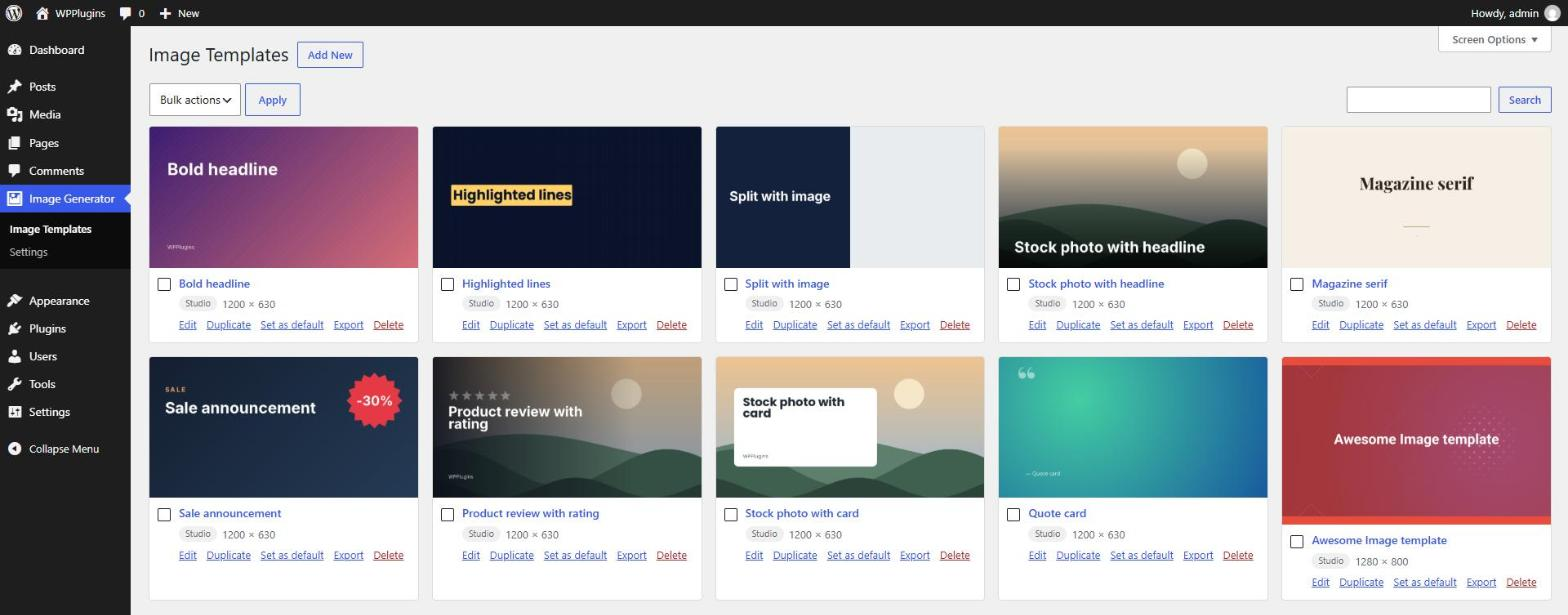
Image Templates — your templates as a grid with previews; duplicate, set as default, export or delete.
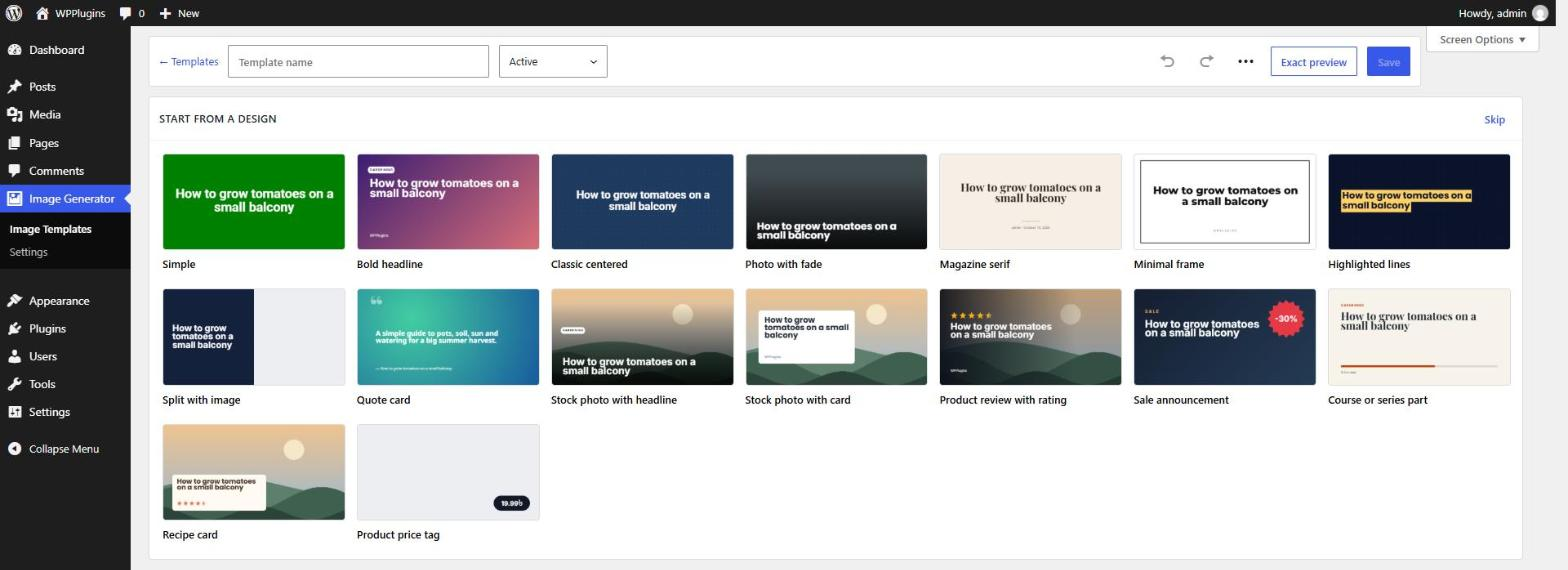
Start from a design — ready-made templates, including stock photo designs (the review, sale, course, recipe and price tag designs come with Pro).
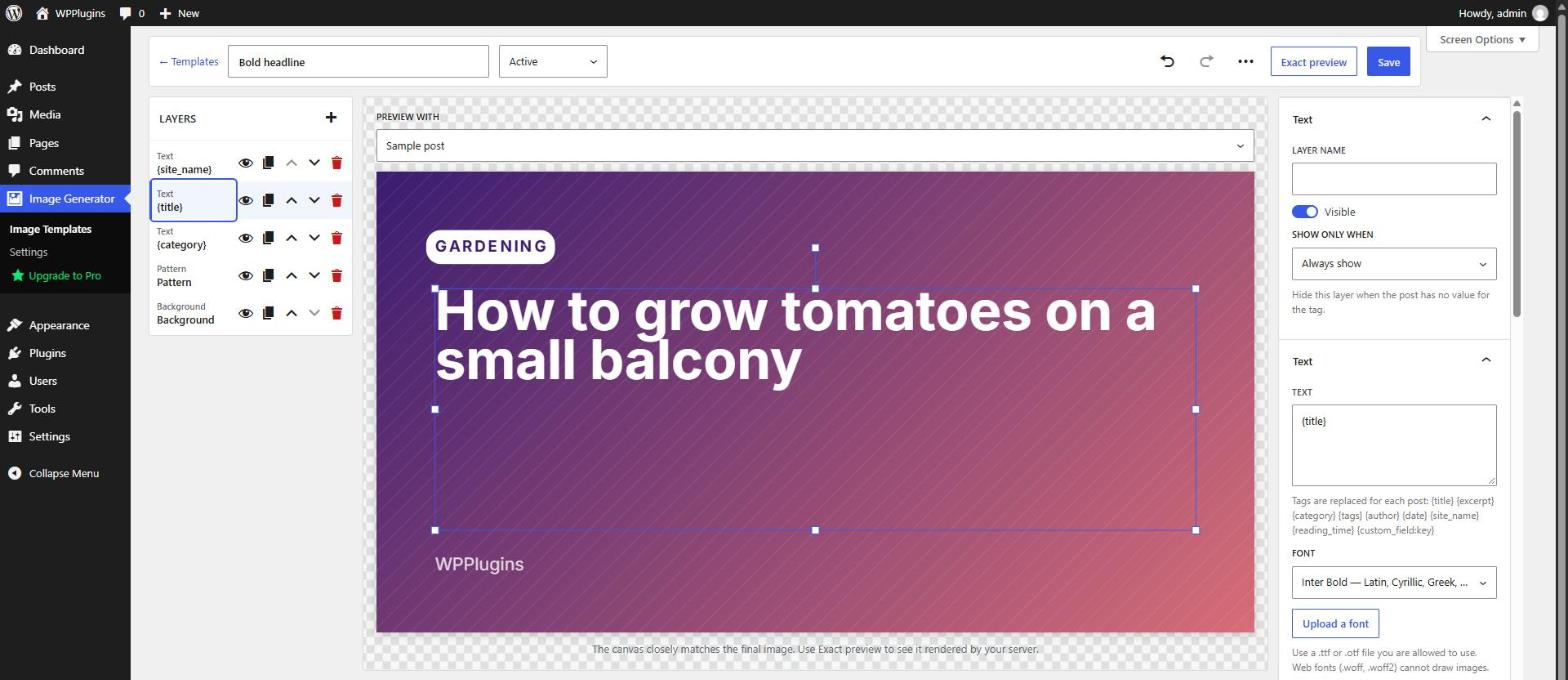
Template Studio — edit layers on a canvas; text fits its box and uses tags like {title} and {category}.
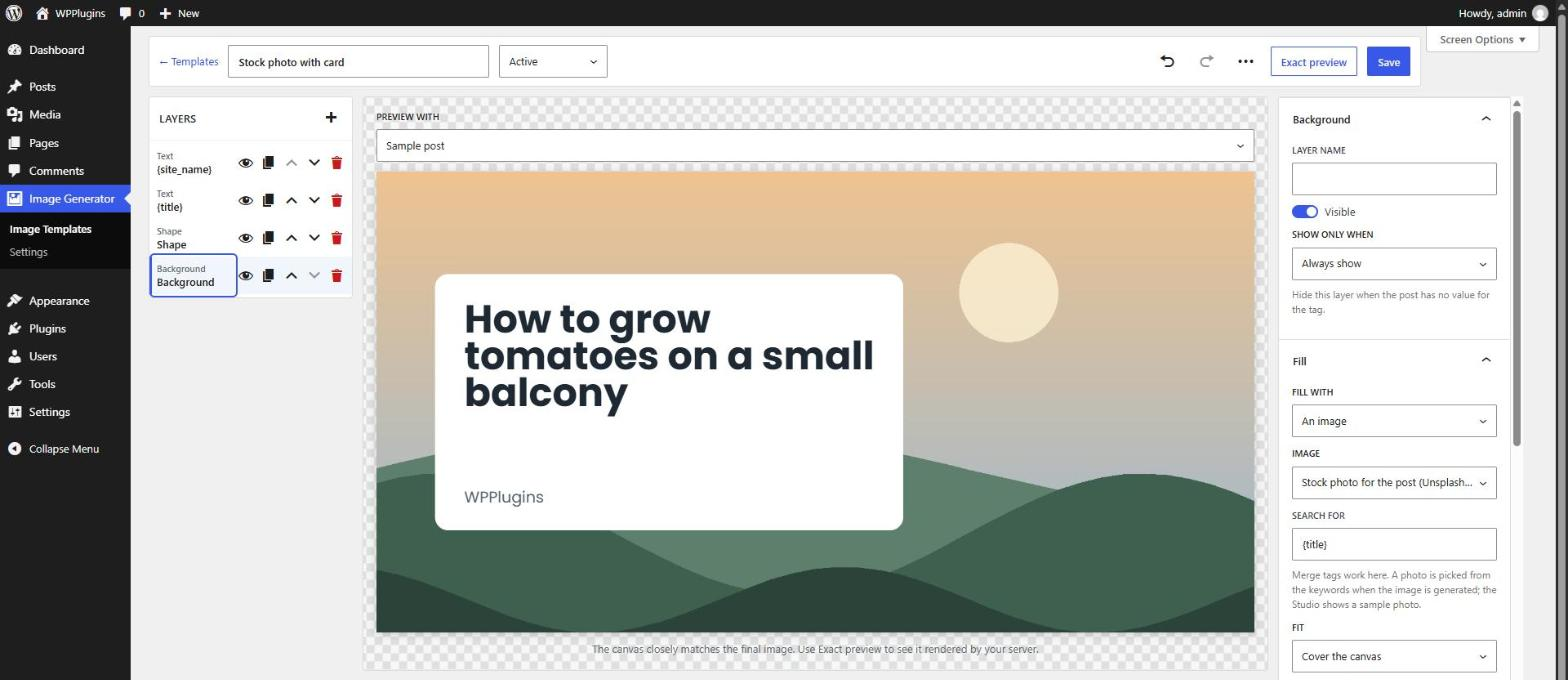
Template Studio — a background that shows a stock photo picked for each post, with your design on top.
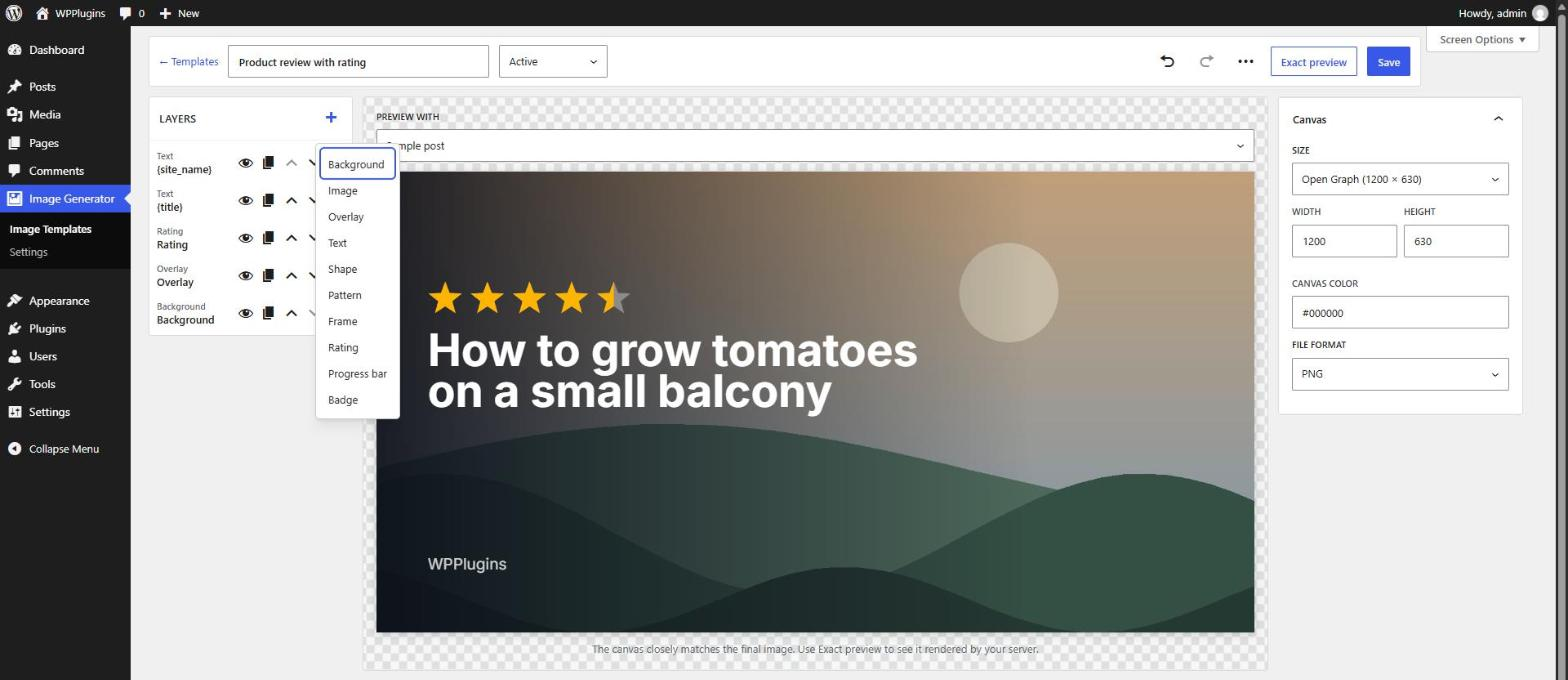
Template Studio — layer types: background, image, overlay, text, shape, pattern and frame (Rating, Progress bar and Badge come with Pro).
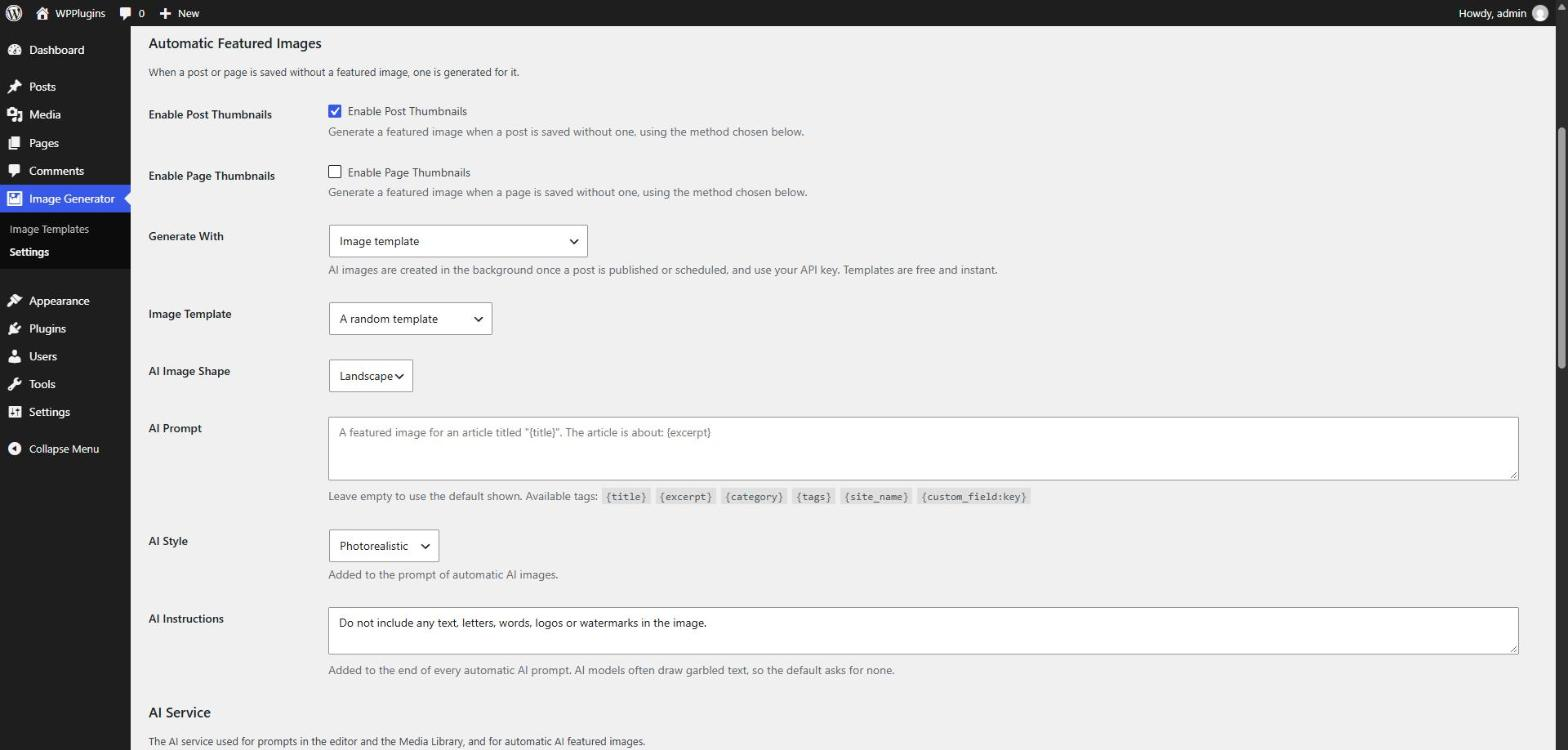
Settings — automatic featured images with a template, AI or a stock photo, and the AI prompt and style.
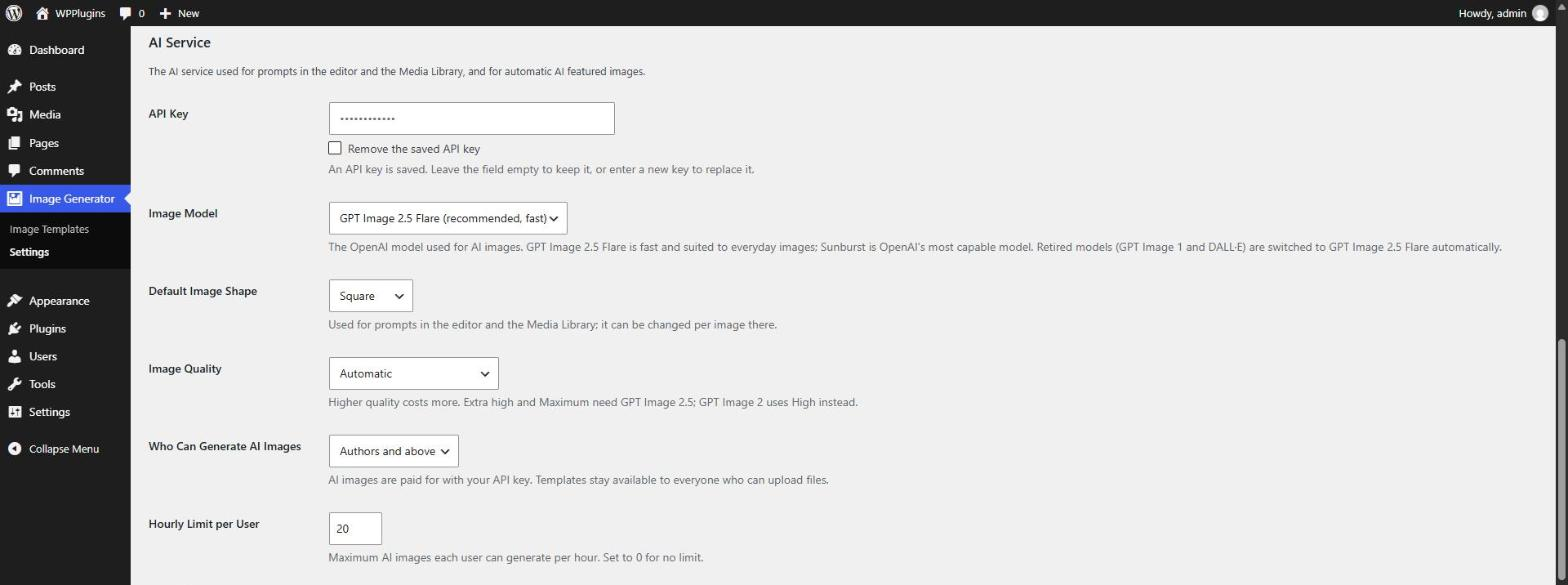
Settings — AI service: API key, model, image shape and quality, who can use AI and an hourly limit.
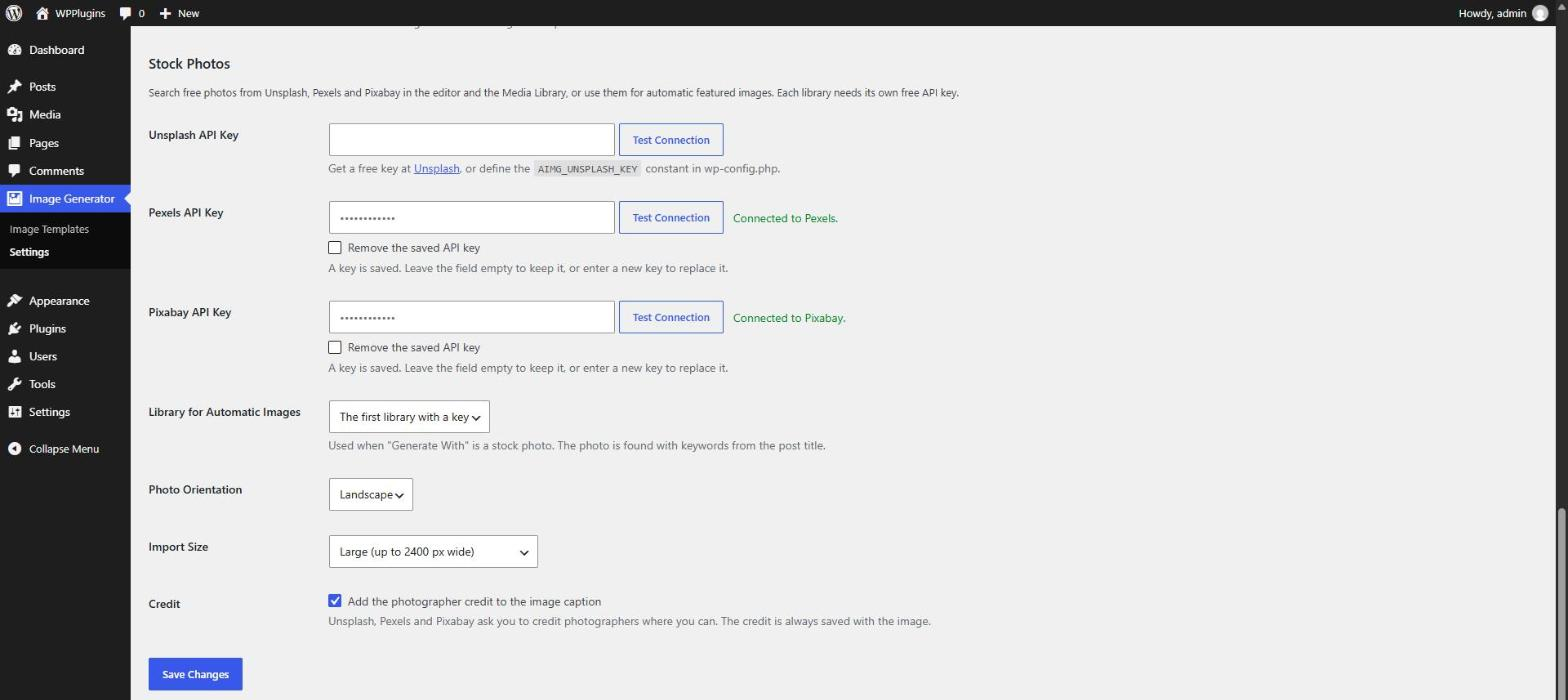
Settings — stock photo API keys with Test Connection, and the library, orientation, size and credit options.