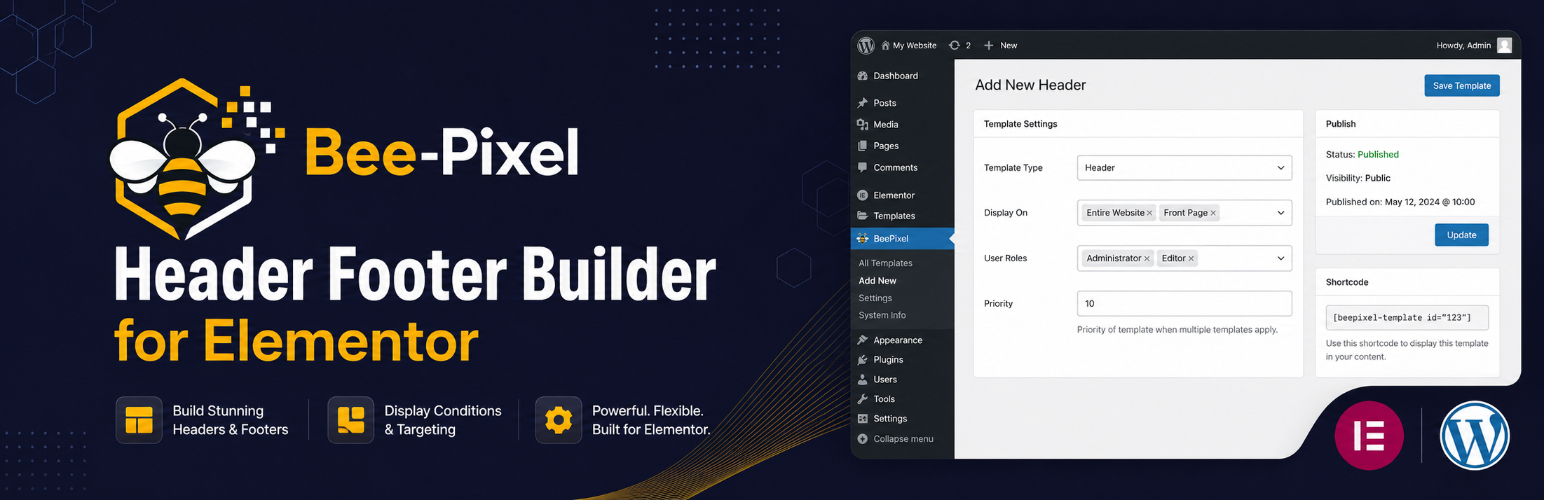
BeePixel Header Footer Builder for Elementor lets you design and manage custom header and footer templates using the Elementor page builder. No coding required.
This plugin is free. If it helps your project, consider supporting on Patreon.
Template Types
Create four types of templates:
- Header — a custom header for your site
- Footer — a custom footer for your site
- Before Header — a zone above the header, useful for announcement bars
- After Footer — a zone below the footer
Adding or Replacing the Theme Header
By default a template is added alongside your theme’s own header or footer, so nothing in your existing design changes unexpectedly.
Each template also has a Replace the theme’s own header / footer option. Turn it on and the plugin takes over the theme’s header or footer hook. Automatic replacement is supported on Astra, GeneratePress, OceanWP, Hello Elementor, Neve, Kadence, Blocksy, Storefront and Genesis.
On any other theme, add do_action( 'bphfe_header' ); or do_action( 'bphfe_footer' ); to your child theme wherever you want the template to appear.
Display Conditions
Control where each template appears:
- Entire Website
- Front Page / Homepage
- All Singular Posts & Pages
- All Posts
- All Pages
- All Archive Pages
- Search Results
- 404 Error Page
- WooCommerce Shop Page
- WooCommerce Product Pages
- WooCommerce Cart Page
- WooCommerce Checkout Page
Exclude Specific Pages
Enter page or post IDs to prevent a template from showing on specific pages.
User Role Targeting
Show templates based on user status:
- All Users
- Logged In Users Only
- Logged Out / Guest Users Only
- Specific WordPress roles (Administrator, Editor, Subscriber, and so on)
Additional Options
- Canvas Template — remove the theme wrapper when previewing a template on its own
- Shortcode — embed any published template anywhere using
[bphfe_template id="POST_ID"]
How to Use
- Install and activate the plugin. Elementor must be active.
- Go to BeePixel HFE in your WordPress dashboard.
- Click Add New, enter a name, and publish.
- Design your template in Elementor.
- In the Template Settings meta box, set the template type and display conditions.
- Publish — your template is now live.
Shortcode Usage
Find the template post ID in the URL when editing it (for example post=123), then use:
[bphfe_template id="123"]
Developer Hooks
do_action( 'bphfe_before_header' )— print the Before Header templatedo_action( 'bphfe_header' )— print the Header templatedo_action( 'bphfe_footer' )— print the Footer templatedo_action( 'bphfe_after_footer' )— print the After Footer templateapply_filters( 'bphfe_theme_hook_map', $map )— add or change theme replacement hooksapply_filters( 'bphfe_active_template', $id, $type )— override the resolved templateapply_filters( 'bphfe_enable_body_fallback', true )— disable the after-<body>fallback