
Bulk COGS Editor for WooCommerce is a fast and the most powerful bulk editing solution for managing product costs with WooCommerce’s native Cost of Goods Sold (COGS) feature. Quickly edit product cost values for large catalogs by relevant filtering criteria, preview proposed changes, and apply updates through background processing with live progress and cancellation.
Import product costs from CSV or Excel (XLSX), export cost data to CSV, and review operation history or roll back eligible changes while original values are retained. Product prices are not changed.
There is nothing extra to set up beyond enabling Cost of Goods Sold in WooCommerce. For setup instructions and a step-by-step guide, see the Bulk COGS Editor documentation.
Watch the plugin in action
Why use Bulk COGS Editor?
- Save time on supplier price changes. Update a category, brand, or selected group instead of editing products one by one.
- Work from your spreadsheet. Bring supplier costs into your catalog or prepare updates from exported product data.
- Make informed changes. Check the effect on product costs before committing an update.
- Keep a record of your work. Identify past operations and decide whether eligible changes need to be reversed.
How it works
- Open Products > Bulk COGS Editor and choose Bulk edit.
- Choose your filters and find the matching products.
- Choose a cost action, review the preview, and select the products to update.
- Review and confirm the update, then follow its results in the editor.
Features
- Filter products and variations by title, SKU, category, brand, product type, stock status, current price, or current COGS.
- Set an exact cost, increase or decrease it by a fixed amount or percentage, or clear it.
- Preview product images alongside current COGS, proposed COGS, and the exact difference, with pagination and product selection.
- Process updates through Action Scheduler, WooCommerce’s background task system, with progress and cancellation controls.
- Import CSV or XLSX costs using product IDs or SKUs, export matching costs to CSV, and download validation and update reports.
- Inspect recorded outcomes and retained original costs in History, with rollback review and confirmation.
- Configure history retention and choose whether rollback overwrites later cost edits or skips changed products.
Performance for large catalogs
Bulk processing reduces repeated product searches and counts. It loads reusable product data in batches and groups cache cleanup to reduce repeated work.
The plugin saves progress checkpoints and each product’s result to support recovery after interruptions. Costs are saved through WooCommerce’s product APIs, preserving its hooks and cache handling.
In the developer’s reported benchmark results, processing approximately 10,000 products improved from 50–60 minutes initially to 40–42 minutes, then 25–28 minutes.
The latest reported WP-CLI run updated 10,000 products in 15 minutes 24 seconds, with zero skipped and zero failed — about 69–74% less elapsed time than the initial implementation.
The completion screenshot records the editor operation’s elapsed time of 00:15:24. End-to-end CLI runtime was not measured separately. This is a single benchmark run, not a guaranteed completion time.
Actual performance depends on hosting, database speed, product types, installed extensions, and background worker availability. Repeated runs and larger catalogs still need benchmarking.
Import and export product costs with CSV or Excel
CSV and XLSX import
Choose CSV mode and click Import on the Bulk COGS Editor page. Upload a UTF-8 CSV or XLSX file.
The upload limit follows WordPress’s maximum upload size, shown beside the file field. The plugin has no separate file-size or row-count limit. Hosting upload, memory, storage and execution limits still apply.
Sample CSV
Exported CSV files include a blank new_cogs column. Fill it with new costs and import the file.
`csv
id,sku,new_cogs
123,PRODUCT-001,25.50
124,PRODUCT-002,40.00
`
Required headers are new_cogs and id or sku. Older files can use cogs if new_cogs is missing.
- Use either ID or SKU to identify products.
- If both are provided, they must match.
- Use decimal values without currency symbols.
- Blank costs are skipped.
- Duplicate product rows are excluded and listed in the error report.
XLSX imports read raw values from the first worksheet. Replace formulas with values and store SKUs as text to preserve leading zeros.
XLSX requires PHP’s ZIP, XMLReader and DOM extensions. Exports use CSV format.
Preview and apply
Preview preparation runs in Action Scheduler batches without changing products. You can close the page and return to check progress.
When ready, review products, download validation errors, select products and click Apply. Preparation can be cancelled separately from an applied update.
Original uploads are deleted after preparation. Staged previews and reports expire after about 24 hours. Retention extends while an applied update is active.
History and retention
Operation history and original cost records follow the retention period set in Settings. See the retention FAQ below. Daily cleanup preserves active operations and data needed for reports.
The plugin also keeps records that prevent the same preview from being applied more than once, including simultaneous Apply requests. These records follow the configured retention period and are removed only when they are no longer needed.
Run background updates with WP-CLI
Use Action Scheduler’s CLI runner for import preview preparation and confirmed updates while the editor continues to show progress and accept cancellations. See the Action Scheduler documentation for more information.
Import preview workers must run on the upload server under the same operating-system account as PHP. This lets them read the private temporary uploads.
If your shell uses a different account, ask your host to run the command under PHP’s account. Ordinary product updates do not need the uploaded file.
During preparation, worker logs show the stage, checked row count, and batch size. Total and remaining row counts become available after reading finishes.
After uploading an import for preview or confirming an update in the editor, run this command from your WordPress directory:
wp action-scheduler run --group=bulk-cogs-editor --batch-size=1 --batches=0
Check the queue with:
wp action-scheduler status --group=bulk-cogs-editor
The status report covers the site’s full Action Scheduler queue.
The run command processes due plugin actions for all users and exits when none remain. It does not wait for scheduled retries. --batch-size counts scheduled actions, not products.
If another worker owns the available batch, wait for it to finish or run:
wp action-scheduler run --group=bulk-cogs-editor --batch-size=1 --batches=0 --force
The plugin prevents two workers from changing the same operation simultaneously. Using --force can still increase server load.
Keep the normal background runner enabled for retries. If your host runs the command on a schedule, use a process lock to prevent overlapping command runs.
For performance checks, prefix the command with time. WooCommerce > Status > Logs under source dkbce records worker timing and runner details.
Requirements
- WordPress 6.7 or later
- WooCommerce 10.3 or later
- PHP 7.4 or later
- WooCommerce Cost of Goods Sold feature enabled in WooCommerce settings
If Cost of Goods Sold is unavailable or disabled, the editor is turned off and explains what is needed.
Privacy
Bulk COGS Editor for WooCommerce does not send product, customer, order, or store data to external services. All WooCommerce COGS calculations and updates are performed locally on your WordPress/WooCommerce installation.
Developer resources
Bulk COGS Editor for WooCommerce is open-source software and is made to be extended. The source code is available in the GitHub repository.
Connect with the developer
Screenshots
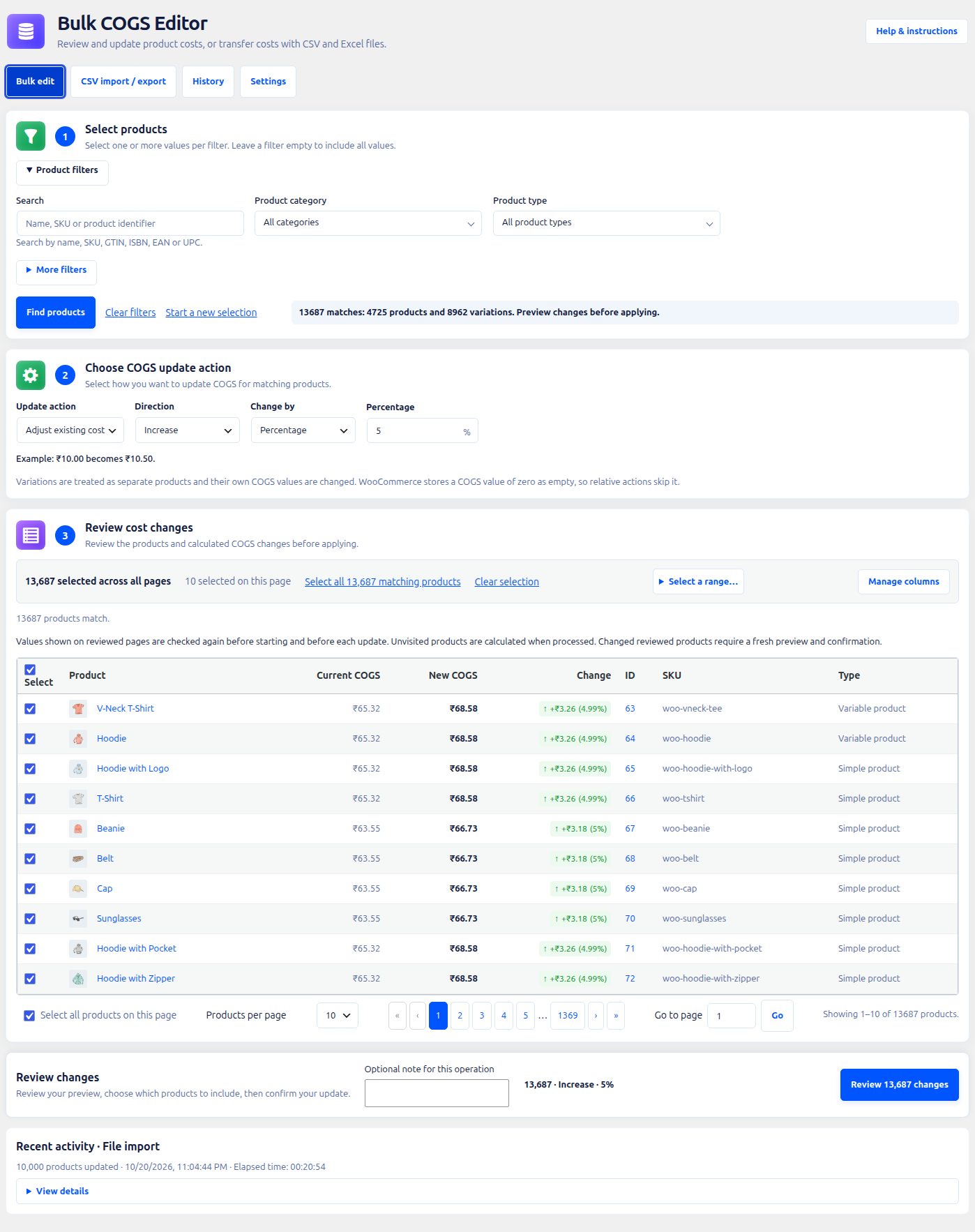
Bulk editor: Product filters, cost actions, a preview, and explicit confirmation in the Bulk edit tab.
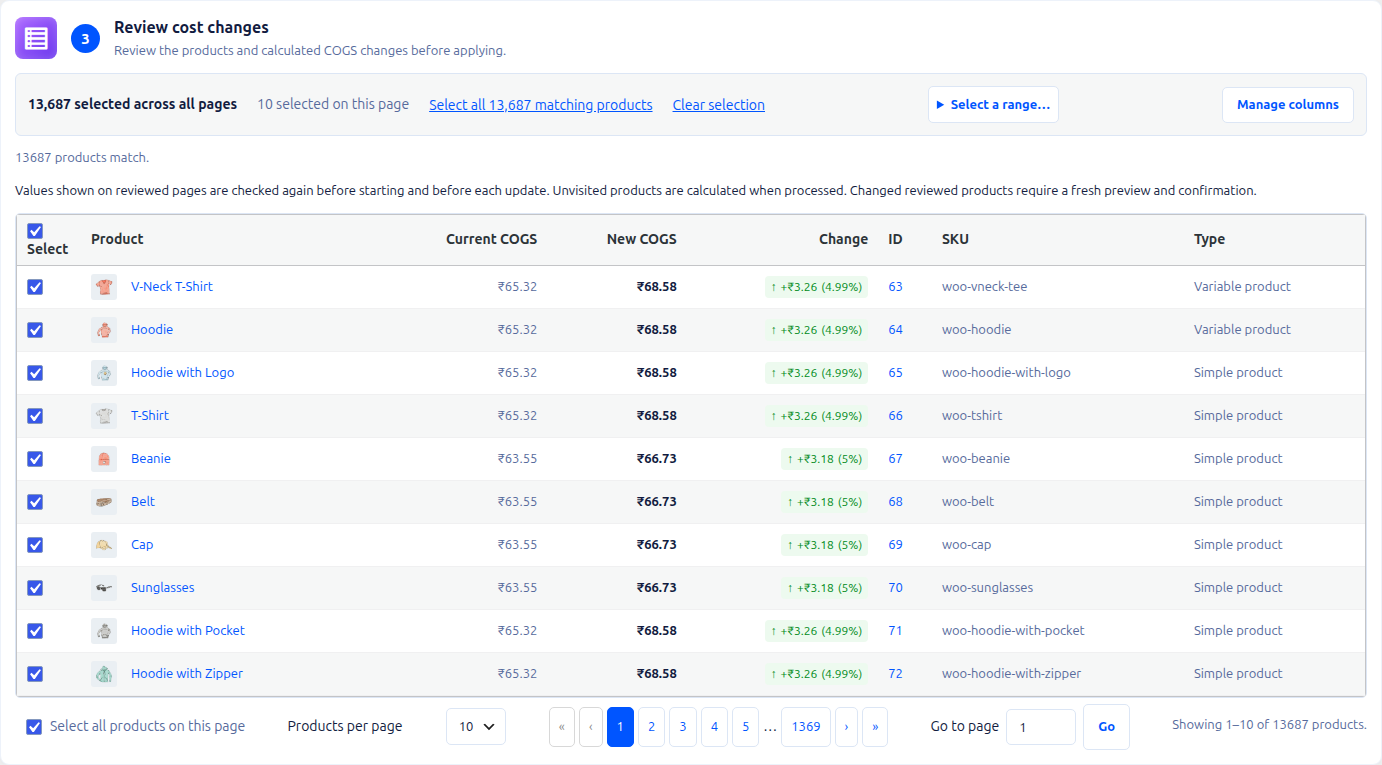
Product preview: Current and proposed COGS, green increases and red decreases, cross-page selection, optional columns, and numbered pagination.

CSV export: Output column choices and product filters for spreadsheet workflows.
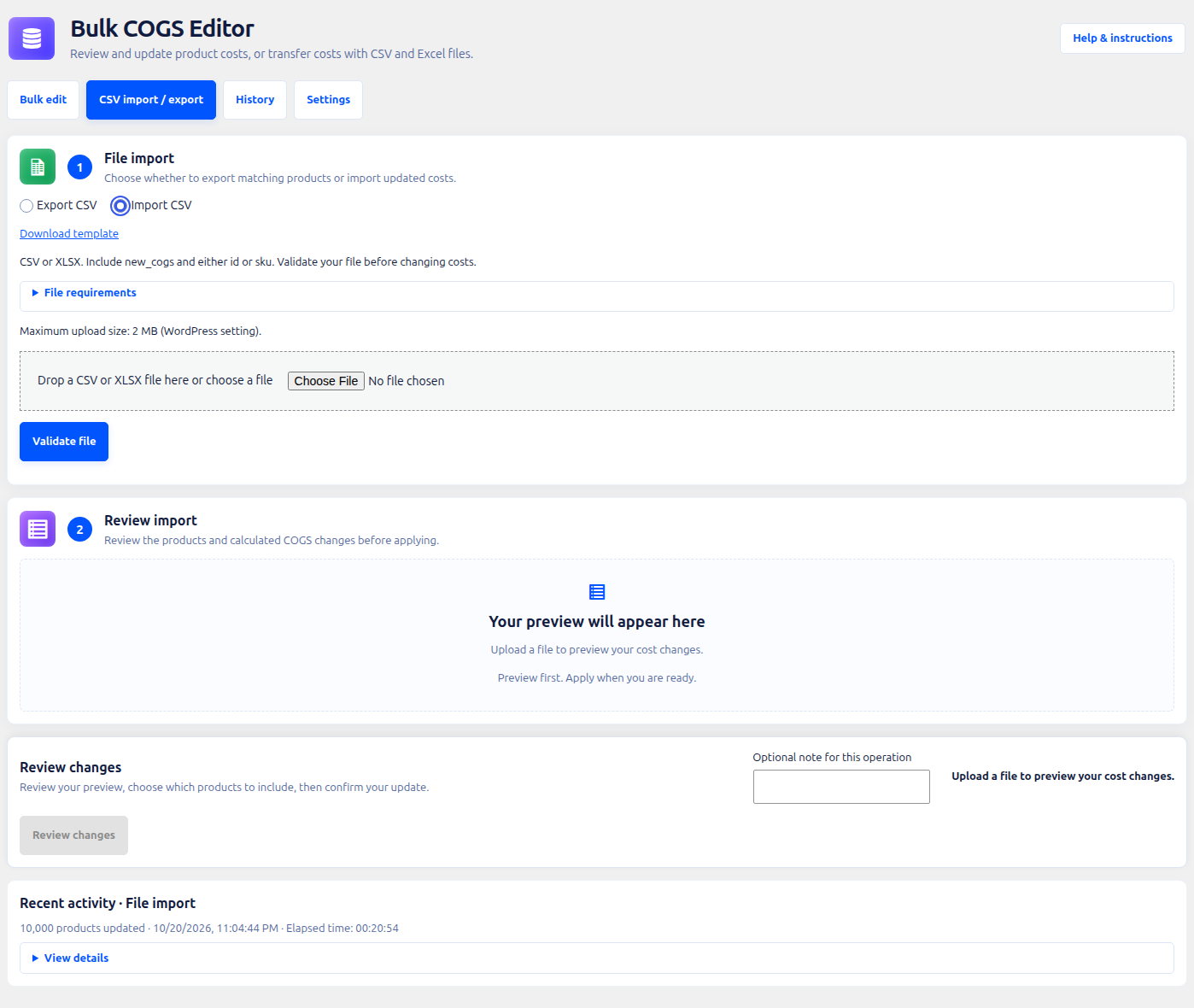
CSV and Excel import: Template download, file requirements, and CSV or XLSX upload controls.
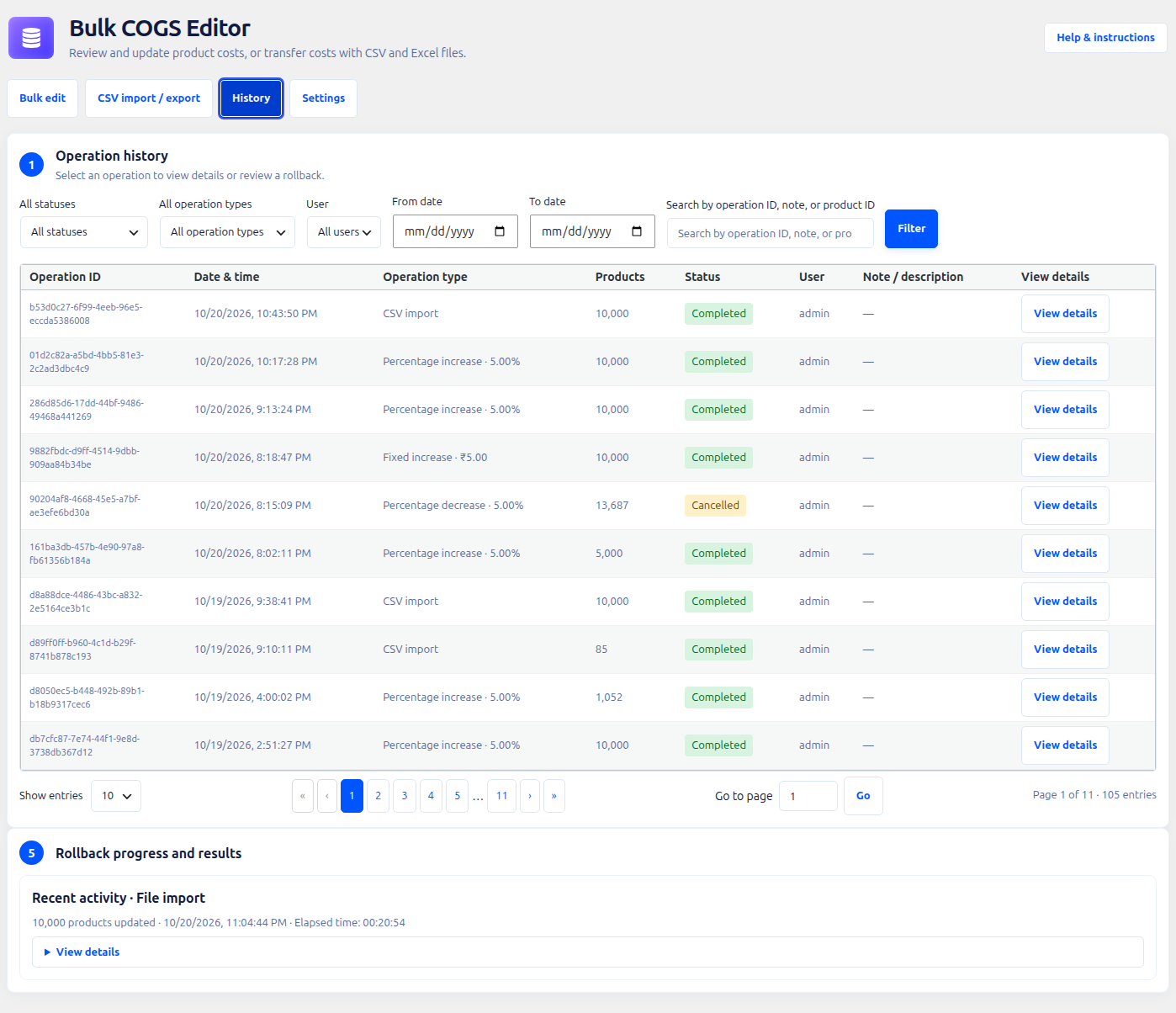
Operation history: Filterable operation records with statuses, outcomes, notes, and numbered page navigation.
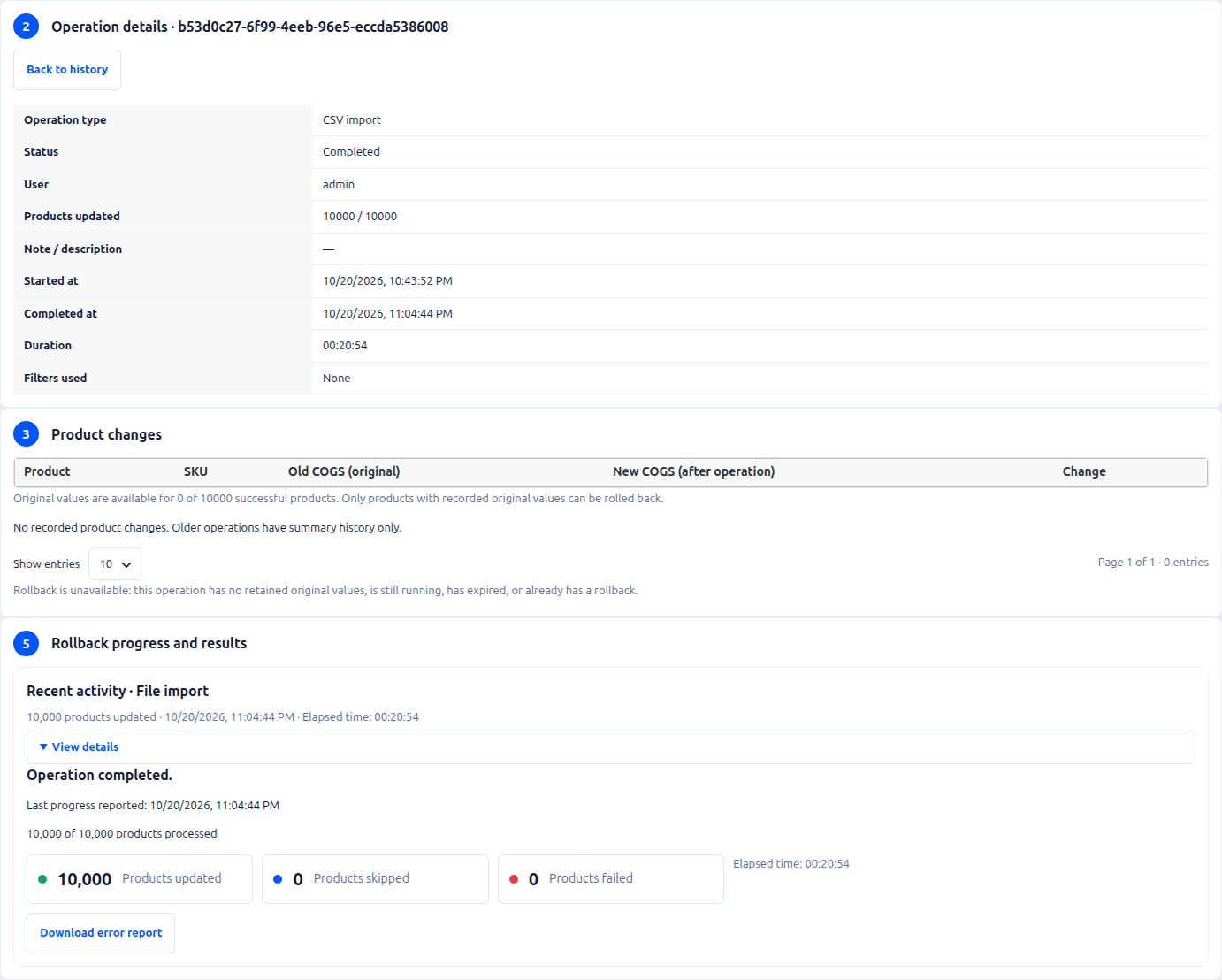
Operation details: Existing summary-only history with operation metadata, results, and the notice explaining that original values are unavailable.
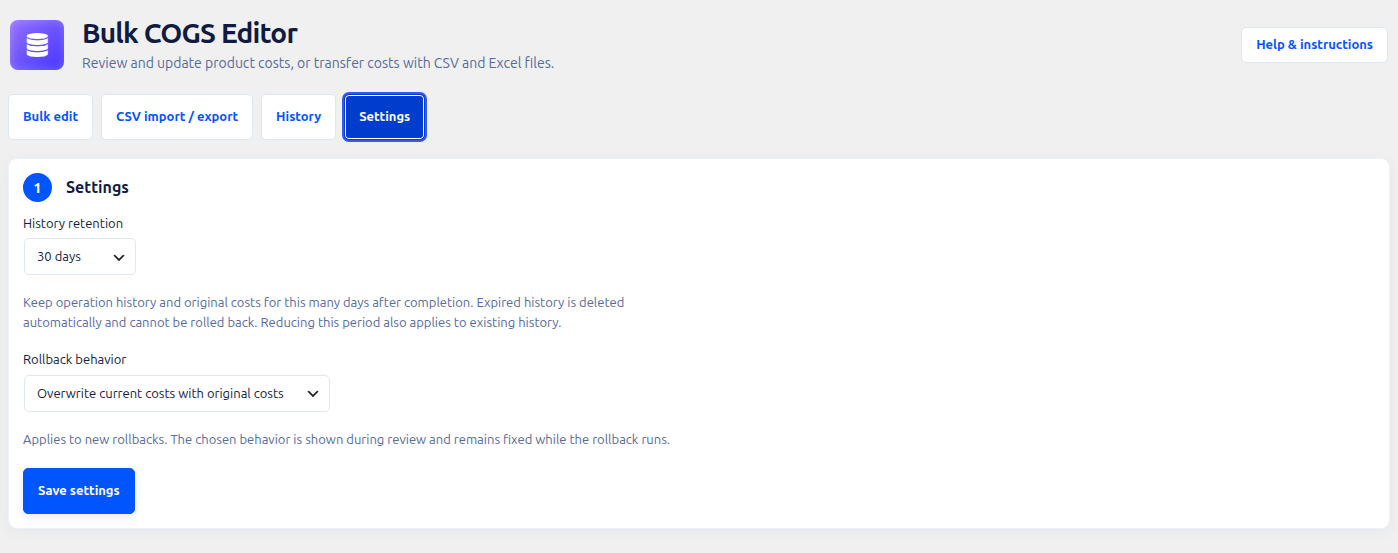
Settings: History retention presets and custom days, plus overwrite or skip-changed rollback behavior.