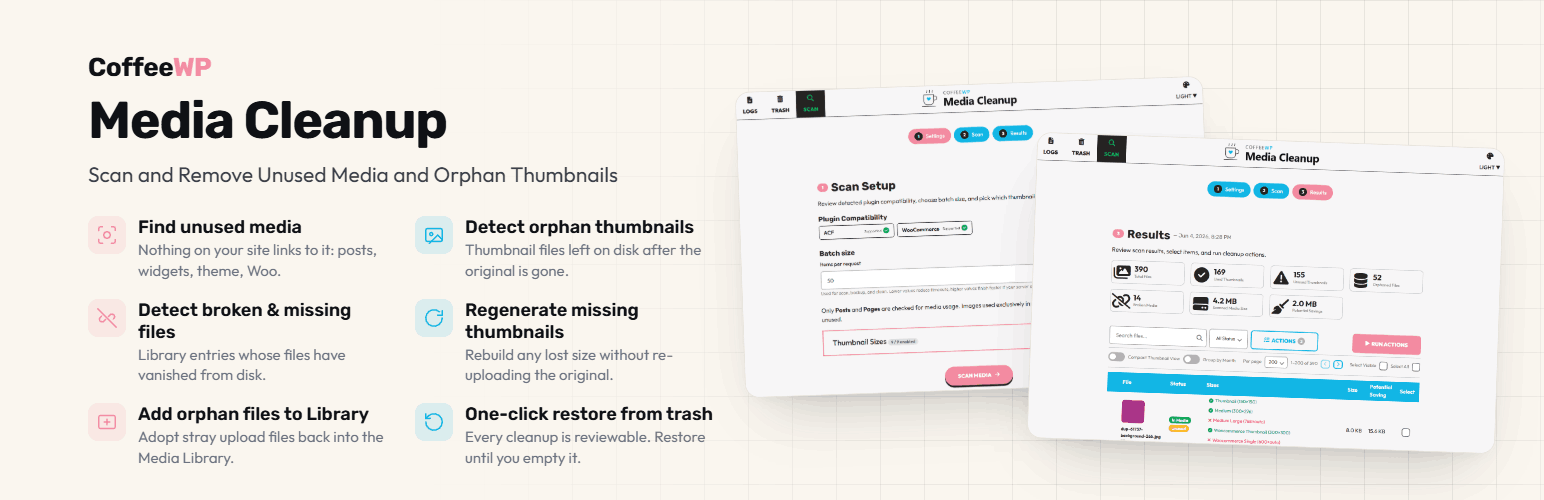
CoffeeWP Media Cleanup – Scan and Remove Unused Media and Orphan Thumbnails
by Eli Hanna
CoffeeWP Media Cleanup helps you reclaim disk space and tidy up your WordPress media library.
A guided three-step wizard walks you through the work:
- Pre-scan settings: review detected page-builder compatibility, pick which thumbnail sizes WordPress should generate, and choose a batch size that fits your server.
- Scan: walk your uploads tree and detect which files are unused, broken, or missing.
- Results: see what is unused, what is broken, what is missing, which thumbnails are stale, and run targeted clean actions on selected rows or across the whole result set.
Clean actions:
- Delete unused media (file moves to trash; attachment record soft-deleted).
- Delete missing files (clears DB rows whose backing file is gone).
- Delete broken-link records (clears attachment posts whose files never existed).
- Delete orphan thumbnails (removes derivative files with no attachment parent).
- Regenerate missing thumbnails (re-runs WordPress’s image-size pipeline).
- Add orphan files to the Media Library (creates attachment records for unattached files).
Trash + restore:
A dedicated Trash view lists every file the plugin has moved out. Restore any item with one click, permanently delete individual rows, or empty the trash. Optional auto-delete after N days. Trashed files live under wp-content/uploads/cwpm/trash/ and are protected from being overwritten by new uploads (filename collisions are detected and avoided).
Activity log:
Every clean action writes to a daily log file at wp-content/uploads/cwpm/logs/. The Logs view shows each file with size and download link. Optional auto-delete after 30 days.
Designed to be safe:
- Soft-delete by default. No file is ever permanently removed except via the explicit “Empty trash” or “Permanent delete” controls.
- Per-row checkboxes and a typed-confirmation disclaimer modal gate the destructive actions.
CoffeeWP Media Cleanup PRO
A paid version extends the scanner to places the free version does not reach:
- Scan any custom post type, beyond posts, pages, and WooCommerce products.
- Find duplicate files by content hash.
- Deeper WooCommerce scanning: product galleries, variation images, and
downloadable files. - Elementor deep parsing for images stored in builder data.
Details and pricing: https://coffeewp.dev/media-cleanup/
External Services
This plugin does not connect to any external services. No data leaves your WordPress install.
Third-Party Libraries
The plugin bundles these GPL-compatible libraries (LICENSE files shipped alongside each):
- Color Punch (MIT): internal CSS / JS UI framework. Shipped at
assets/vendor/color-punch/. - Font Awesome Free (CC BY 4.0 icons + SIL OFL 1.1 fonts + MIT code): icon font. Shipped at
assets/vendor/font-awesome/. Upstream: https://fontawesome.com/ - Rubik, Outfit, Fira Code fonts (SIL OFL 1.1): bundled with Color Punch under
assets/vendor/color-punch/fonts/. - Catppuccin color palette (MIT): applied via Color Punch theme variants. Upstream: https://github.com/catppuccin/catppuccin
Data + Storage
Custom database tables (created on activation, dropped only on uninstall when cwpm_delete_data_on_uninstall is enabled):
wp_cwpm_scan_results: per-file scan output (rel_path, attachment_id, usage flags, thumbnail status).wp_cwpm_trash: trashed-file ledger (rel_path, original_path, file_name, file_size, trashed_at).wp_cwpm_file_hashes: md5 hashes computed during scan; reserved for future identity-matching features.
On-disk storage (under wp-content/uploads/cwpm/):
wp-content/uploads/cwpm/trash/: files moved by the trash system. Recoverable until you Permanent-Delete or Empty-Trash.wp-content/uploads/cwpm/logs/: daily activity logs (one file per day, e.g.cwpm-2026-05-13.log).
Both folders contain .htaccess + index.php stubs to prevent direct web access.
Options + transients: all keys start with cwpm_. Stored in wp_options. Per-user preferences (theme, table density) stored in wp_usermeta with the same prefix.
Custom post type: cwpm-trash: used as a soft-delete state for attachment posts. The attachment record stays in wp_posts but is hidden from the Media Library until restored.
Screenshots

Pre-scan settings step: pick thumbnail sizes, set batch size, see detected plugin compatibility (ACF, WooCommerce, page builders).

Scan step: live progress as the wizard walks the uploads tree.

Results step: stats grid, sortable / filterable table, batch action bar.

Clean complete: summary modal showing how many files were trashed and how much space was freed.

Trash view: listing of moved files with restore + permanent-delete controls.