Custom Icons for Elementor and WPBakery lets you add your own icon fonts to WordPress and pick them in the icon controls of Elementor and WPBakery Page Builder. Instead of relying on a stock icon library, you can use a custom icon set that matches your brand.
Generate an icon font with the free IcoMoon app, upload the ZIP file on the plugin’s “Custom Icons” page, and your icons appear next to the built-in ones in the page builder. A “Custom Icon” block brings the same icons to the block editor.
Features
- Upload custom icon fonts as a ZIP file exported from IcoMoon
- Icons show up as an extra tab in Elementor’s icon library
- Icons are available in the WPBakery Page Builder icon picker
- “Custom Icon” Gutenberg block: custom icons in the block editor, with a searchable icon grid, size, color and alignment
- Add as many icon sets as you need
- Icon manager in the admin menu with search across all uploaded icons
- Delete an icon set with one click
- Uploads are validated: only font files with allowed extensions are extracted from the ZIP, and size limits apply
How to add custom icons to Elementor
- Create your icon set in the IcoMoon app and download it as a ZIP file.
- In WordPress open “Custom Icons” in the admin menu and click “Upload New Icons”.
- Select or upload the ZIP file in the media library and insert it.
- Edit a page with Elementor, add an Icon widget (or any element with an icon control), open the icon library and pick your set from its tab.
How to add custom icons in the block editor
- Upload your icon set on the “Custom Icons” page.
- Edit a post or page, click the add-block button and search for “Custom Icon” (Design category).
- Pick an icon from the grid in the block sidebar and set its size, color and alignment.
For WPBakery, choose your icon set in the icon type dropdown of the Icon element and select an icon.
Requirements
Elementor and/or WPBakery Page Builder must be installed to use the icons in the page builder. The ZIP must be an IcoMoon export that contains the selection.json file. Limits: up to 300 files per ZIP, 5 MB per file and 20 MB in total.
Screenshots
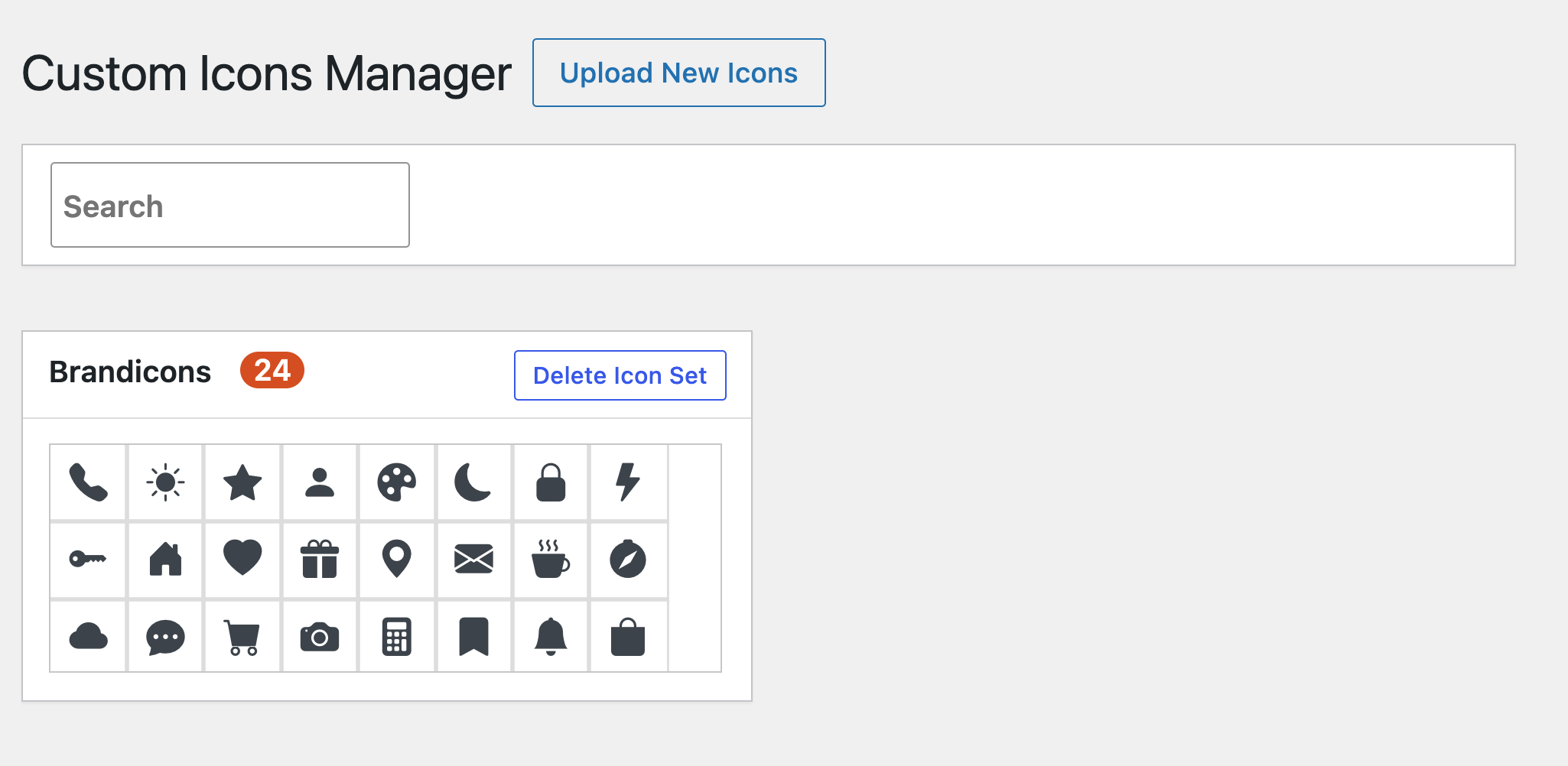
The Custom Icons manager: an uploaded icon set with search and delete.
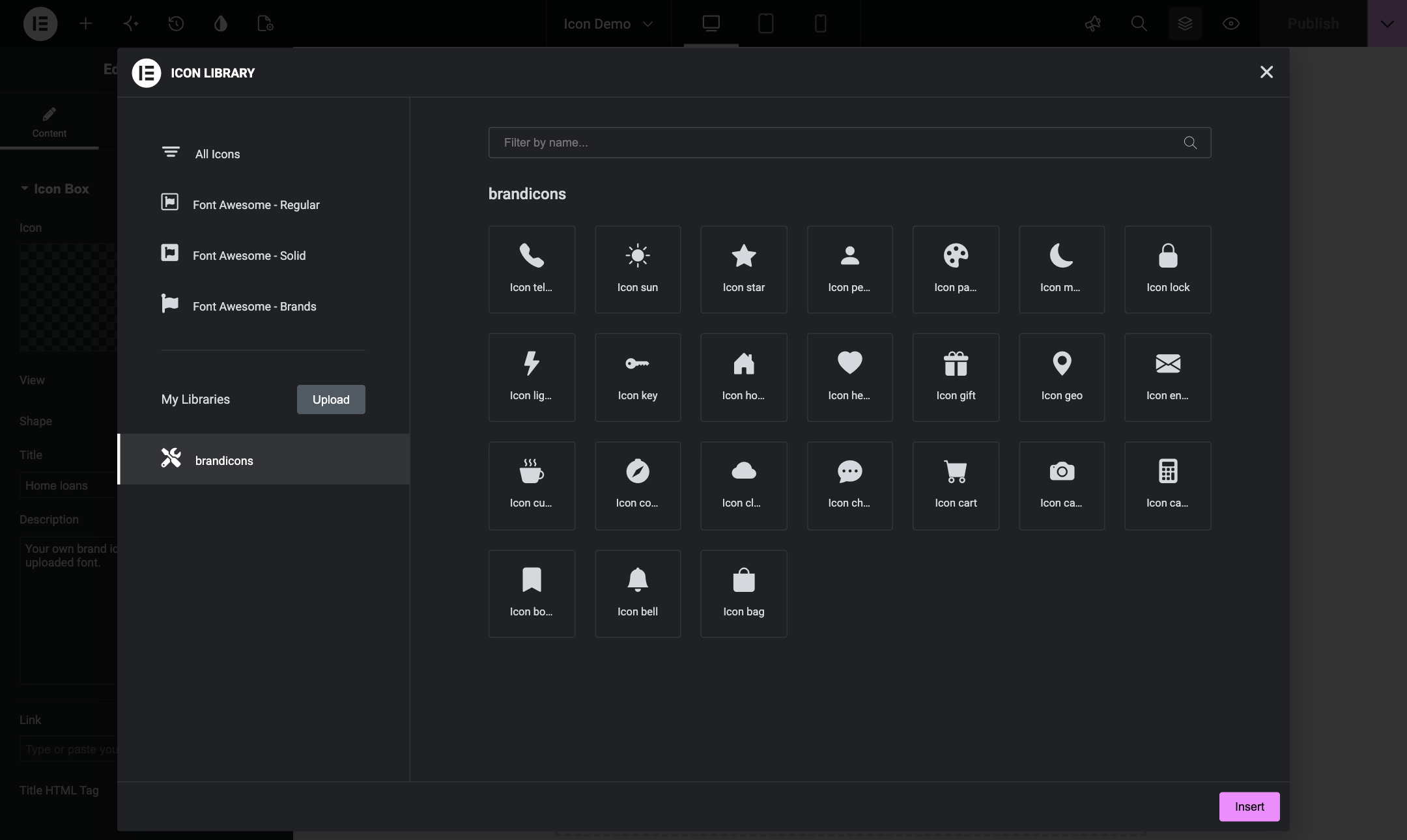
The uploaded icon set appears as its own tab in the icon library of the page builder.

A custom icon chosen in an icon control.

The custom icons on the front end of the site.
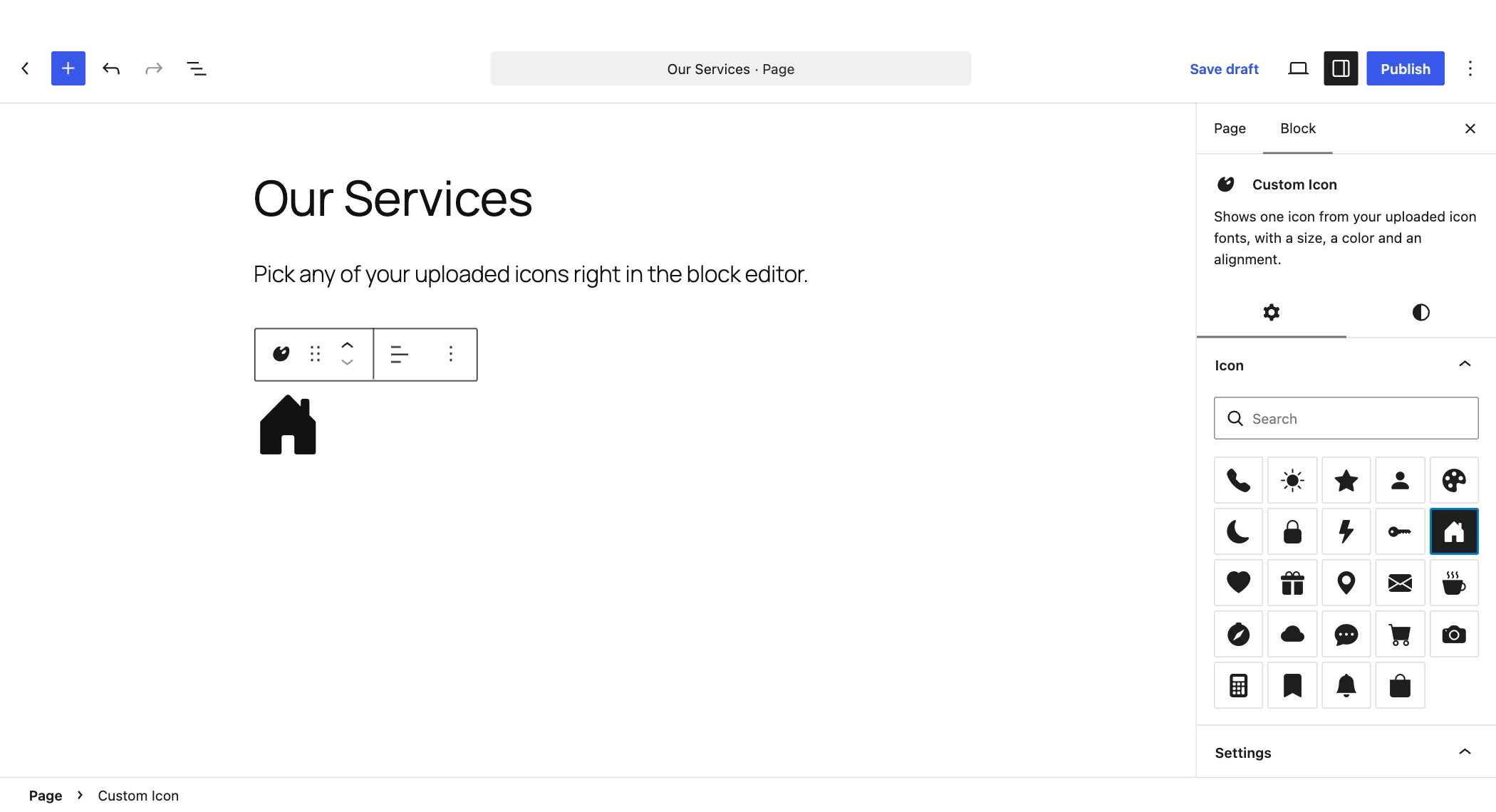
The Custom Icon block in the block editor, with the icon picker in the sidebar.