DineSync for Clover connects your WooCommerce store to your Clover POS. Orders arrive on your Clover device once they are paid or accepted. Product and price changes you make in WooCommerce are pushed to Clover. Your Clover menu — items, categories, prices and modifier groups — can be imported into WooCommerce whenever you need it.
Clover’s North American platform only. DineSync connects to api.clover.com, which serves Clover accounts in the United States and Canada. Merchants on Clover’s European platform cannot connect.
DineSync works with WooCommerce rather than replacing it. Your products, orders, customers, payment gateways and shipping methods stay where they are.
Built for restaurants, cafes, bakeries, and food businesses that take orders online through WooCommerce and run Clover POS in-store.
What DineSync does
Being precise about this matters more than sounding impressive, so here is the actual scope:
- Paid orders go to Clover. A card order reaches your Clover POS the moment the payment completes — not when the checkout form is submitted, so a declined card never reaches your kitchen. Cash on delivery, direct bank transfer and check orders reach Clover as soon as WooCommerce accepts the order at checkout – there is no separate step for you to approve – with no payment recorded on Clover, because none has been taken. An order DineSync will not send – canceled, refunded or failed, or with sync switched off – says why in the sync log. Orders carry line items, modifier selections, customer details, fees, shipping and discounts.
- A broken item link never costs you the food. If a product’s link to Clover is no longer valid — most often because the links were made against a different Clover account — DineSync sends that line by name instead, so the item still appears on the ticket, and removes the dead link.
- Product and price changes push to Clover when you save. Edit a product in WooCommerce and the changed fields are sent to Clover. Only what actually changed is sent.
- Your Clover menu imports into WooCommerce on demand. Click Import from Clover to pull items, categories, prices, stock levels and modifier groups across.
- Modifiers come across and display on your storefront. Clover modifier groups become selectable options on the product page.
- How modifiers appear on the Clover ticket depends on where they came from. Modifiers imported from Clover are attached to the item they belong to, exactly as they would be if the order had been rung up in store. Modifiers managed by a third-party add-on plugin have no matching record in Clover, so their cost stays in the item’s price and their names are printed in the item’s note. Either way the ticket totals are correct.
- Orders can print to your Clover kitchen printer automatically when they arrive.
What DineSync does not do
- Changes made on your Clover POS do not flow back to WooCommerce automatically. There is no live Clover-to-WooCommerce feed. If you change a price or stock level on the Clover device, run Import from Clover to bring it across. This is a deliberate statement of scope, not a temporary outage.
- A void or refund made on your Clover device does not reach WooCommerce, and Clover does not put that stock back by itself. Correct both counts by hand.
- It is not a replacement checkout, cart or ordering system.
Why DineSync?
- Keep WooCommerce — Your products, orders and customers stay in WooCommerce. Use any of the WooCommerce payment gateways, shipping plugins and marketing tools you already rely on.
- Push to Clover, not just pull from it — Update a price in WooCommerce and it reaches your Clover POS on save.
- No vendor lock-in — Sync data is stored as ordinary WooCommerce product metadata. Deactivate DineSync and your products, orders and customer history are untouched.
- Per-field control — Choose exactly which fields are pushed to Clover: price, name, SKU, categories, stock, availability and description. The Modifiers toggle governs what an import from Clover may overwrite; modifier groups are read from Clover, never written to it.
- Smart updates — Only changed fields are sent to Clover, minimizing API calls and avoiding unnecessary overwrites.
Key Features
Order Sync (WooCommerce to Clover)
- WooCommerce orders appear on your Clover POS with full details
- Line items, modifier selections, customer info (name, email, phone), fees, shipping and discounts included
- Payment recorded on Clover for orders that have actually been paid, with the correct amount
- Auto-print to a Clover printer you select
- Each order is claimed in the database before it is sent, so a refreshed checkout page cannot produce a second Clover order. A send that succeeds keeps the claim for good; one that fails releases it, so the order can be retried
- If some line items reach Clover and others do not, the order is marked Partly synced rather than synced, the order screen lists what is missing and why, and Send missing items adds only those lines to the Clover order that already exists — never a second order
- Works with both the classic WooCommerce checkout and block-based checkout
Order Status (WooCommerce to Clover)
- WooCommerce “Completed” marks the Clover order fulfilled
- WooCommerce “Cancelled” and “Refunded” cancel the Clover order
- An order canceled on Clover is not reopened there if you move it back to Processing in WooCommerce; the order’s DineSync panel tells you to reopen or re-enter it on Clover by hand
- Editing an order’s lines after it reached Clover does not change the Clover ticket; the order’s panel tells you to update it there
Product Push (WooCommerce to Clover)
- Push products to Clover with diff-based updates — only changed fields are sent
- Saving a product sends its changes to Clover if that product is already linked. New Clover items are only ever created by an explicit Push to Clover, or by a Full Sync
- Push also runs in bulk from the Inventory Actions panel
- Bulk pushes are batched (30 items at a time) to avoid timeouts
- A product that is out of stock and does not track stock quantity is marked unavailable on Clover. For a product that tracks stock, a sale sends nothing – Clover counts it at payment – and a stock change you make is sent to Clover: as your quantity, once DineSync has confirmed the two counts agree; after linking an existing Clover item, the change you made is applied to the count your till already holds instead. Sending your quantity writes over any in-store sales since your last import, so run Import from Clover first if the till has been busy. Both require the matching field to be enabled in Fields pushed to Clover
- If a product tracks stock and its Clover item does not yet, the first save starts a stock record on Clover at the product’s quantity and names it in the sync log
- WooCommerce short descriptions map to Clover’s alternateName field, stripped of HTML and trimmed to Clover’s 127-character limit
- WooCommerce categories are created on Clover if they do not already exist
Menu Import (Clover to WooCommerce, on demand)
- Import items, categories, prices, stock levels and modifier groups from Clover
- Existing products are matched by Clover ID, then SKU, then exact name. Items sharing a name are left alone rather than guessed at, so an import will not silently duplicate or relink your products — the sync log names the clash so you can give them distinct names or SKUs
- A product with no Clover link still sells and still reaches the kitchen — its line is sent by name at the price paid. It just does not receive price or stock updates until it is linked
- A Clover link column on the Products list shows which Clover item each product is linked to. Choose offers the matching items when a link is missing; Unlink removes one without touching Clover
- Full Sync runs Map, then Import, then Push. Import adds Clover items to your shop and Push adds shop products to Clover, so use it when you want both menus to hold everything. To link without adding anything, use Map
- The Stock and Modifiers toggles govern what an import may overwrite. The other field toggles apply to the push from WooCommerce to Clover, not to imports
- Clean & Re-Sync clears every Clover link and imports your menu again, so you can start from a clean slate. It reads Clover first, and changes nothing if Clover cannot be read
Modifier Groups
- Clover modifier groups (toppings, sizes, extras) import with your menu
- Built-in storefront renderer with radio buttons, checkboxes and live price adjustment
- Adapter support for WooFood / Flavor and WC Product Add-Ons — the plugin detects which is active and writes modifiers in that format
- Works with no configuration
Built for WooCommerce
- Uses native WooCommerce products, cart, checkout and orders
- Compatible with WooCommerce High-Performance Order Storage (HPOS / Custom Order Tables)
- Works with any WooCommerce-compatible theme
- Settings dashboard with connection status, sync statistics and an activity log
How It Works
- Install the plugin and go to DineSync > Settings
-
Enter your Clover Merchant ID and API token, choose Sandbox or Production, and click Connect to Clover
If you have been testing in Sandbox, clear your product links before switching to Production. Links made against a sandbox account do not exist on a production account, and orders will reach Clover with no items on them. DineSync detects this and offers to clear them, but clearing them first avoids the problem entirely.
-
Click Import from Clover to pull your menu into WooCommerce
- Enable order sync — paid orders now flow to your Clover POS
- Re-run Import from Clover whenever you change your menu on the Clover device
Who Is It For?
Restaurants, cafes, bakeries, food trucks and food businesses that:
- Already use WooCommerce (or want to) for online ordering
- Use Clover POS in-store and want online orders to reach it
- Want to keep the WooCommerce ecosystem — payment gateways, shipping plugins, marketing tools
- Want control over exactly what data is sent to Clover
Third-Party Services
1. Clover POS API (api.clover.com / apisandbox.dev.clover.com)
The official Clover API. This is the only external service DineSync contacts, on any installation.
- Used for: reading and writing inventory items, modifier groups, categories, orders and merchant data
- API endpoints: https://api.clover.com/v3 (production) and https://apisandbox.dev.clover.com/v3 (sandbox)
- Region: DineSync uses Clover’s North American API. Accounts on Clover’s European platform are not supported.
- Data sent: product names, prices, SKUs, stock levels, descriptions, categories, order details, customer names, emails and phone numbers
- Data received: Clover items, categories, modifier groups, stock levels, printers, employees, order statuses
- Privacy Policy
- Terms of Service
Support
For help, email info@monirtechsolutions.com or visit monirtechsolutions.com/plugins/dinesync-for-clover/support.
Screenshots
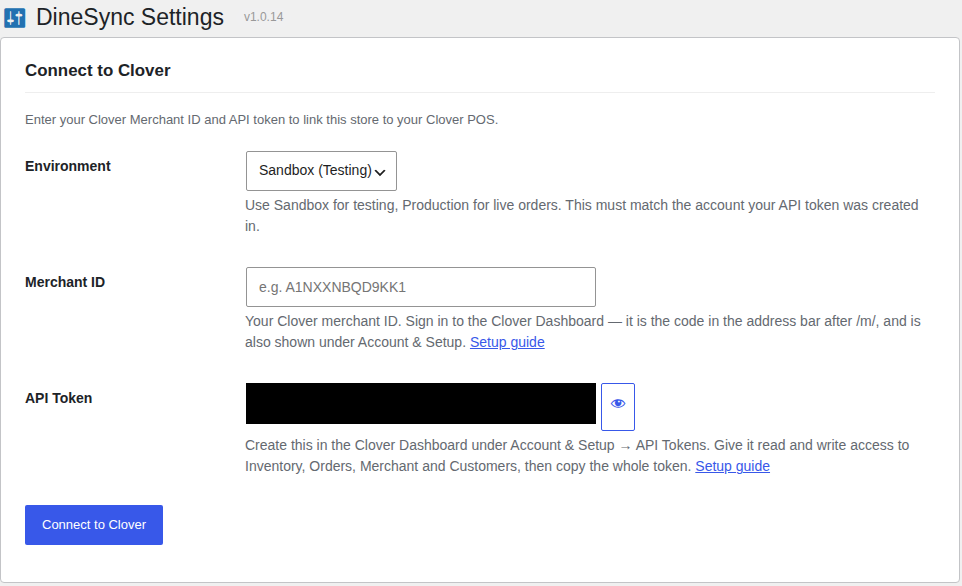
Connect to your Clover POS with your Merchant ID and an API token.
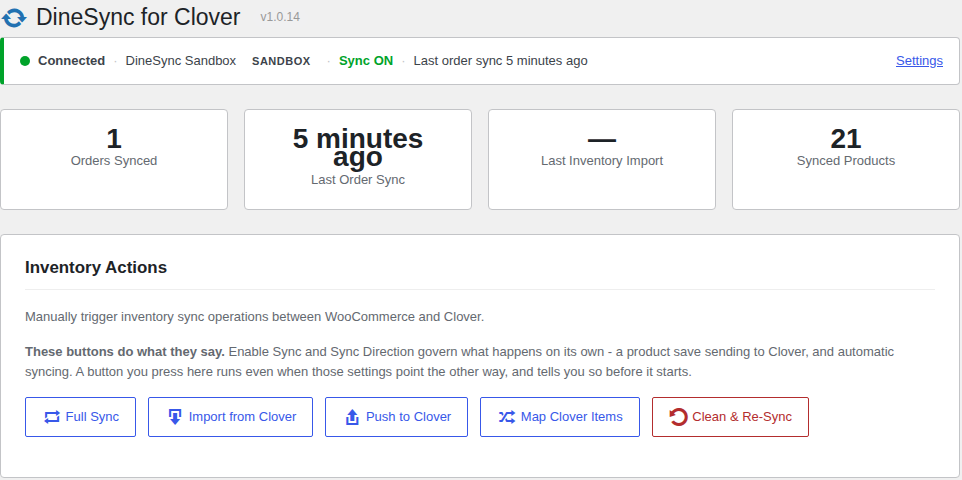
See at a glance that your store is connected and how many orders have reached Clover.
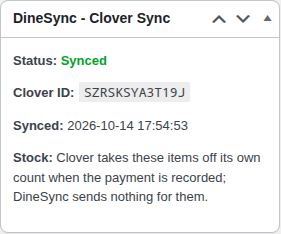
Every order shows whether it reached your Clover POS, and Clover counts its items itself when it's paid, so nothing is taken off twice.
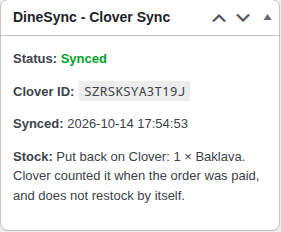
Cancel an order or refund it with restock, and DineSync puts the items back on your Clover count, only what Clover actually counted.
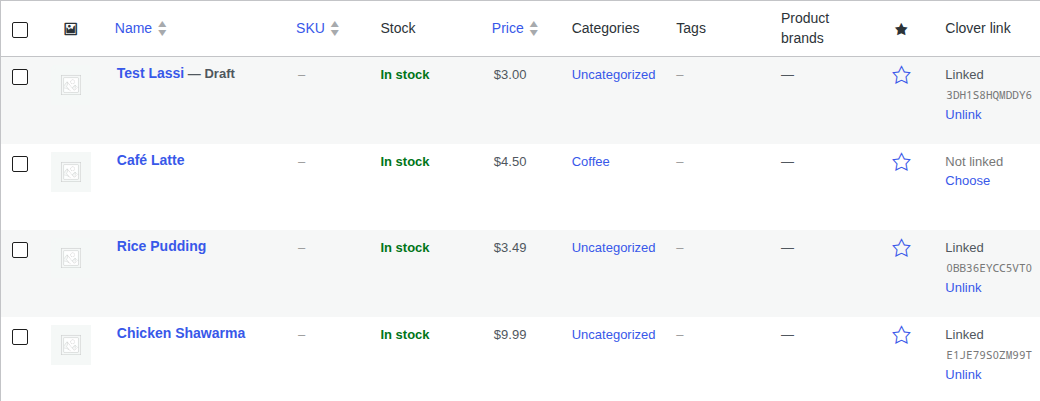
See which Clover item each product is linked to, and fix a link with Choose or Unlink.
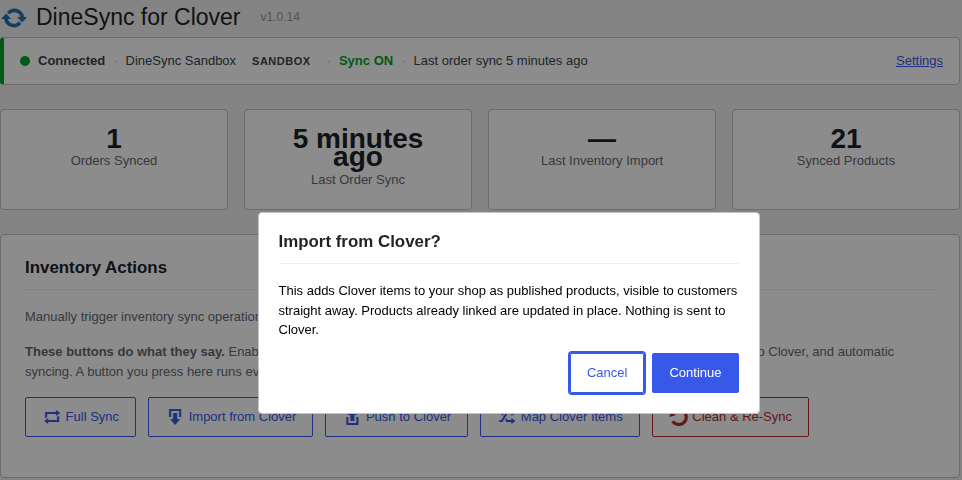
Every inventory action tells you what it will add or change before it runs.
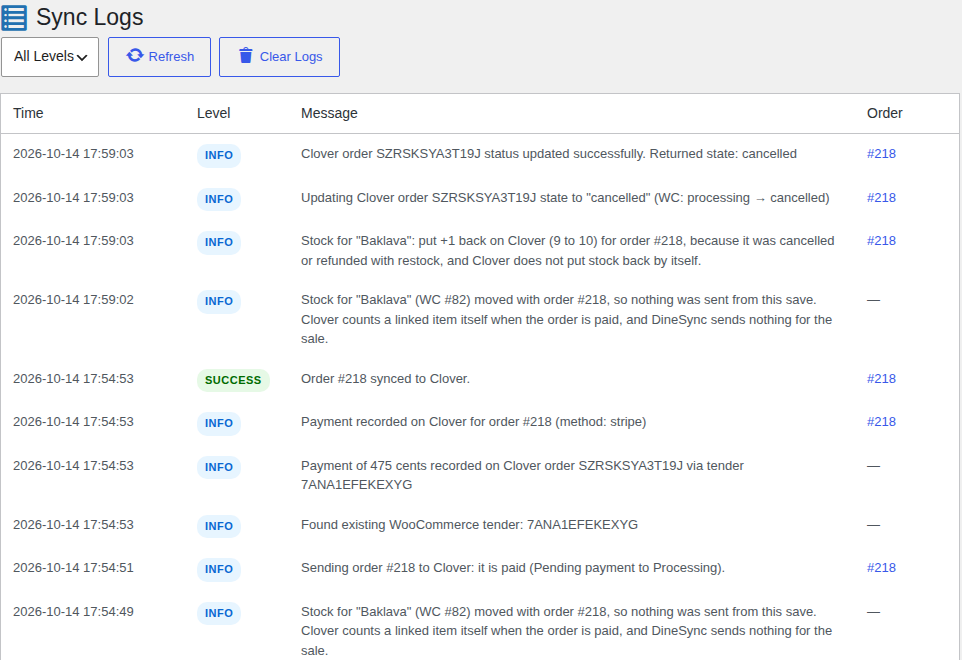
The sync log says in plain words what happened to every order and stock change.
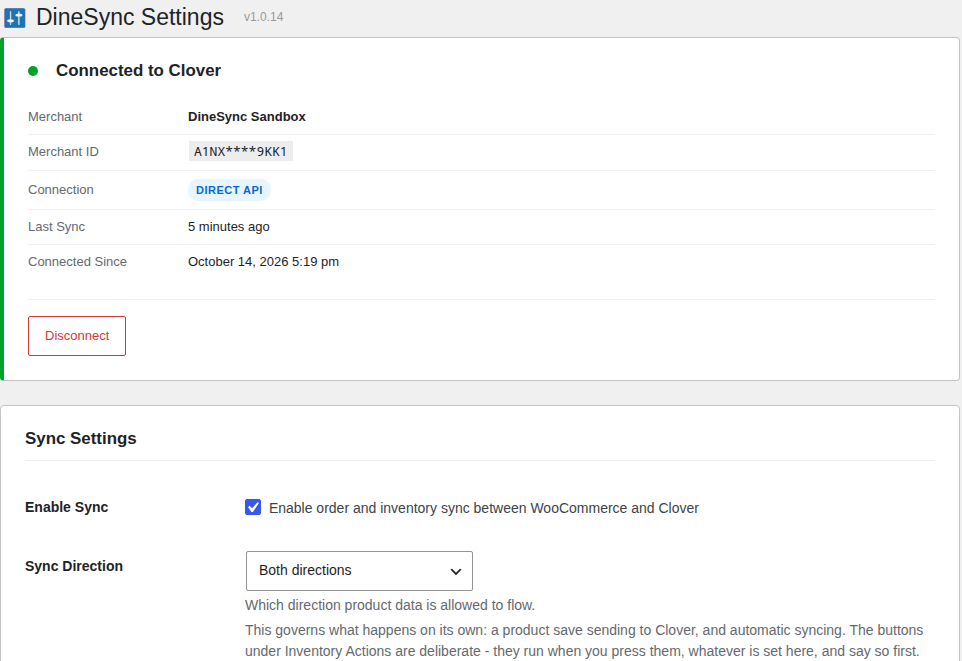
Choose whether your store syncs, and in which direction.
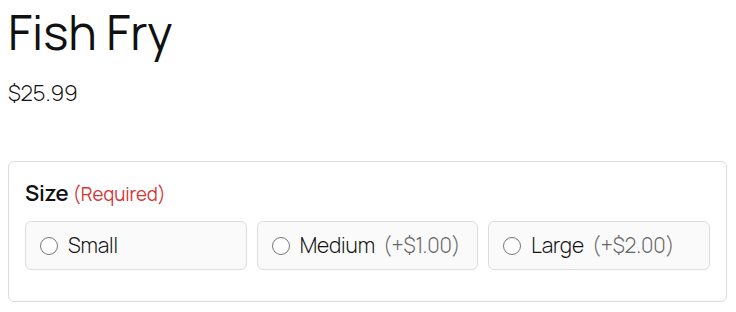
Your Clover modifier groups, like sizes, toppings and extras, appear as options on your product pages.