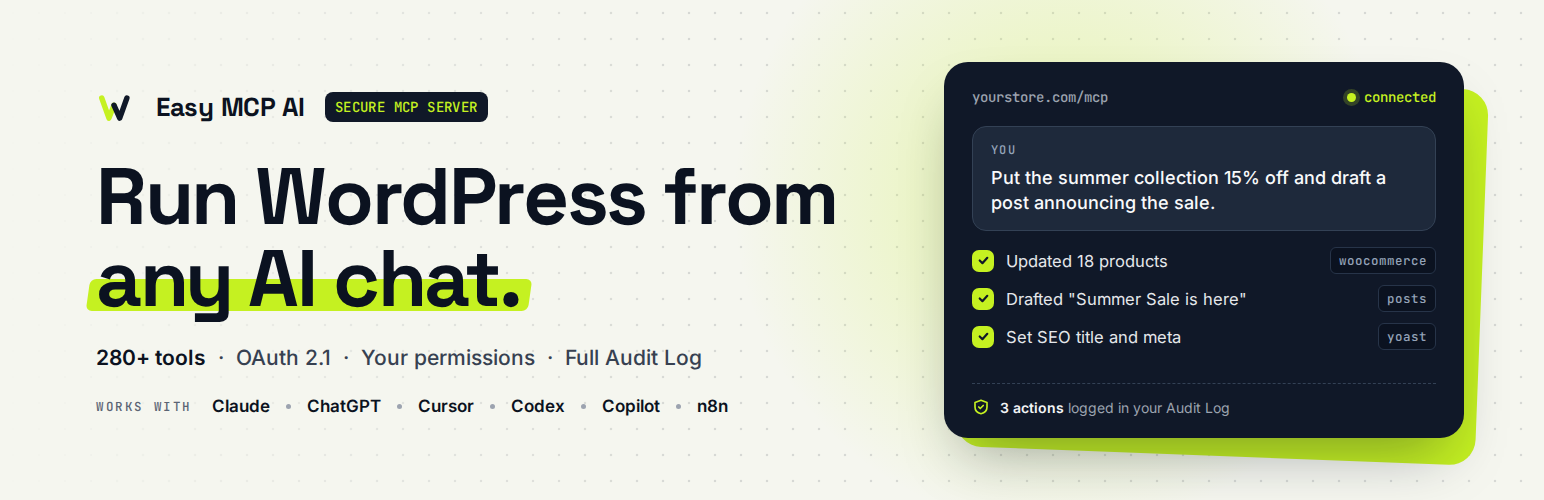
Easy MCP AI – Connect Claude to WordPress: MCP Server for ChatGPT & AI Agents
by Themeisle
Secure WordPress MCP server for Claude, ChatGPT and AI agents. Easy MCP AI is a free plugin that turns your own site into a Model Context Protocol (MCP) server. Connect Claude to WordPress, connect ChatGPT to WordPress, or give Cursor, OpenAI Codex, GitHub Copilot and other AI agents access limited to the tools and permissions you choose.
Your WordPress AI assistant can write and publish posts, update WooCommerce products, and edit Yoast or Rank Math SEO fields. It answers questions with data from Google Analytics, Search Console and Semrush. Every tool call runs under WordPress permissions, and, when logging is on, the Audit Log records each one.
Why Easy MCP AI
- Secure by design: OAuth 2.1, WordPress capability checks, per-token permissions, rate limits, an Audit Log and Change History
- 280+ MCP tools: 130+ for core WordPress, 90+ for plugin integrations (WooCommerce, ACF, The Events Calendar, BuddyPress and the supported SEO plugins) and 50+ for SEO and analytics
- One AI connector: works with Claude, ChatGPT, Cursor, OpenAI Codex, GitHub Copilot, Google Antigravity, Manus, n8n and more
- SEO data in chat: tools for Google Analytics, Search Console, Semrush, SE Ranking, DataForSEO and Ahrefs
- No relay, no vendor account: the MCP server is PHP on your own site, AI clients connect to your site directly, with no hosted relay, account or usage fee
- WordPress MCP adapter for the Abilities API: turn abilities from other plugins into MCP tools without writing code
Connect Claude to WordPress
Easy MCP AI connects Claude to WordPress from the Claude web app, desktop app, Cowork and Claude Code.
- In WordPress, open Easy MCP AI Dashboard and click Connect to Claude, or copy your MCP server URL and follow the steps below.
- In Claude, open Settings Connectors, add a connector, paste your MCP server URL, then click Connect.
- Sign in to WordPress, choose what the AI may read or change, and click Approve.
For Claude Code, run the command shown on the dashboard, then use /mcp in Claude Code to sign in. See the Claude integration guides.
Connect ChatGPT to WordPress
- On the dashboard, click Connect to ChatGPT. The button opens the Connectors screen in ChatGPT Developer Mode.
- Enter a name such as “WordPress”, paste your MCP server URL and leave Authentication set to OAuth.
- Confirm any warning ChatGPT shows for custom MCP servers, click Create, then approve access on your WordPress site.
See the ChatGPT guide.
Connect Cursor, Codex, GitHub Copilot & Other AI Agents
Every client below uses the same MCP server URL from your dashboard.
- Cursor: use the one-click Add to Cursor button, or paste a config into
mcp.json - GitHub Copilot in VS Code: install with the one-click Install in VS Code button
- OpenAI Codex CLI: copy the prepared
codex mcp addcommand, which includes your API token and connects through the mcp-remote bridge - Google Antigravity (Gemini): add the server to the MCP config, then authorize with OAuth
- Windsurf, Cline, Roo Code, Zed, OpenCode, LibreChat, Manus and Pydantic AI: copy-paste configs on the dashboard
- n8n: follow the n8n guide
- Any other MCP client that supports the Streamable HTTP transport. Clients that support only stdio connect through the mcp-remote bridge, which runs on your own computer, not on a hosted server.
Browse all integration guides.
What Your WordPress AI Agent Can Do
Content management: draft, rewrite, schedule and publish posts and pages. These tools also work in any custom post type, run find-and-replace inside content and restore revisions.
Gutenberg and site editing: create and edit Gutenberg blocks, reusable blocks, block templates and global styles.
Media: upload media from a file or a URL. For URL uploads the plugin downloads the file, and your AI agent can set alt text and captions.
Site admin: manage users, roles and user meta. Moderate comments and update site settings. Handle menus, categories, tags and custom taxonomies, and list plugins and themes.
Try prompts like:
- “Write a 500-word post about healthy eating and save it as a draft.”
- “Show today’s WooCommerce orders and total revenue.”
- “What keywords does my homepage rank for, and how many clicks do they get?”
WooCommerce MCP: Run Your Store with an AI Agent
47 WooCommerce tools give your WooCommerce AI agent control of products, variations, attributes, orders, customers, coupons and webhooks. Your AI agent can also read refunds, shipping zones and methods, tax rates and payment gateways, pull sales and top-seller reports, and bulk-update products, variations and orders.
SEO MCP for Yoast, Rank Math, AIOSEO, SEOPress, Slim SEO & The SEO Framework
Easy MCP AI works as a Yoast MCP or Rank Math MCP connector. It exposes your Yoast SEO or Rank Math fields as MCP tools. Your AI agent reads and updates SEO titles and meta descriptions. Where the SEO plugin supports them, it also edits canonical URLs, robots meta tags, Open Graph data, focus keywords and schema settings. Supported fields depend on the SEO plugin and on the version you run.
Google Analytics MCP, Search Console MCP & Semrush MCP
Pull data from Google Analytics, Search Console, Semrush, SE Ranking, DataForSEO and Ahrefs into chat. The 56 tools below use your own provider accounts and API keys.
- Google Analytics 4 (13 tools): traffic, top pages, conversions, custom dimensions and realtime users, plus marking and unmarking key events
- Google Search Console (6 tools): search queries, clicks, impressions, CTR, position, sitemaps and URL indexing
- Semrush (13 tools): domain overview, organic keywords, competitors, keyword difficulty and backlinks
- SE Ranking (15 tools): keyword and backlink research, competitors, top pages and AI-search visibility
- DataForSEO (8 tools): live search results pages, search volume, ranked keywords, backlinks and on-page SEO audits
- Ahrefs (1 tool): Domain Rating for any domain with a free Ahrefs APIv3 key. Show the credit “Domain Rating by Ahrefs” wherever you display the rating.
Setup: open Easy MCP AI Tools External data. Upload a Google service-account key file (a JSON file), then set your default GA4 property and Search Console site. Add Semrush, SE Ranking, DataForSEO or Ahrefs credentials, click Test, and enable the tools you want.
Easy MCP AI calls a provider in three cases: when you save or test the credentials, when the External data tab loads account details, and when an AI client runs one of that provider’s tools.
ACF, The Events Calendar & BuddyPress
- Advanced Custom Fields (ACF): 6 tools to read and update ACF fields on posts, users and terms, and list field groups
- The Events Calendar: 10 tools for events, venues and organizers
- BuddyPress: 10 tools for members, groups, activity and private message threads
WordPress Abilities API & MCP Adapter
WordPress 6.9+ lets plugins register Abilities. Easy MCP AI acts as a WordPress MCP adapter for them. Under Easy MCP AI Tools Abilities, select the abilities you want and save. The ones you select become MCP tools, and the adapter exposes nothing else. No adapter code is required. Find compatible plugins in the Abilities directory.
Change History & Audit Log
- Audit Log: when logging is on, the Audit Log records tool calls, including refused ones, with the token, tool, arguments, result, client IP and time. Entries are kept for 30 days by default.
- Change History: keeps before/after snapshots of what your AI client changes. It is enabled by default on new installs, and you can compare any recorded change in the admin. You can ask “what did the AI change on this post last week?” through the
wp_history_list,wp_history_getandwp_history_difftools.
Secure MCP Server for WordPress
Giving an AI client access to your site is a serious step. This MCP server runs inside WordPress, with no hosted relay in between. Tool results return to the authenticated client that requested them. Your content and credentials stay between your AI client and your own site, and the plugin sends nothing to its makers. The controls below cover sign-in, permissions, storage and logging.
- OAuth 2.1 with PKCE, Dynamic Client Registration, refresh-token rotation with reuse detection, audience binding and revocation
- WordPress permissions: every tool call runs as the WordPress user bound to the token or OAuth grant, with that user’s capability checks
- Least privilege: choose which tools each API token or OAuth grant can use, including read-only access
- Hashed tokens, encrypted credentials: token records are SHA-256 hashes, and external data credentials use AES-256-GCM encryption
- Rate limits and IP allowlist: 120 requests per minute per token by default, plus an optional IP allowlist for API tokens
- Force Draft on Create (off by default): Easy MCP’s own create tools save new posts, pages, custom post type items, products and events as drafts. Plugin abilities and later edits are not covered
- HTTPS: OAuth requires HTTPS on live sites (local loopback addresses are exempt), and API tokens should use HTTPS too
Screenshots
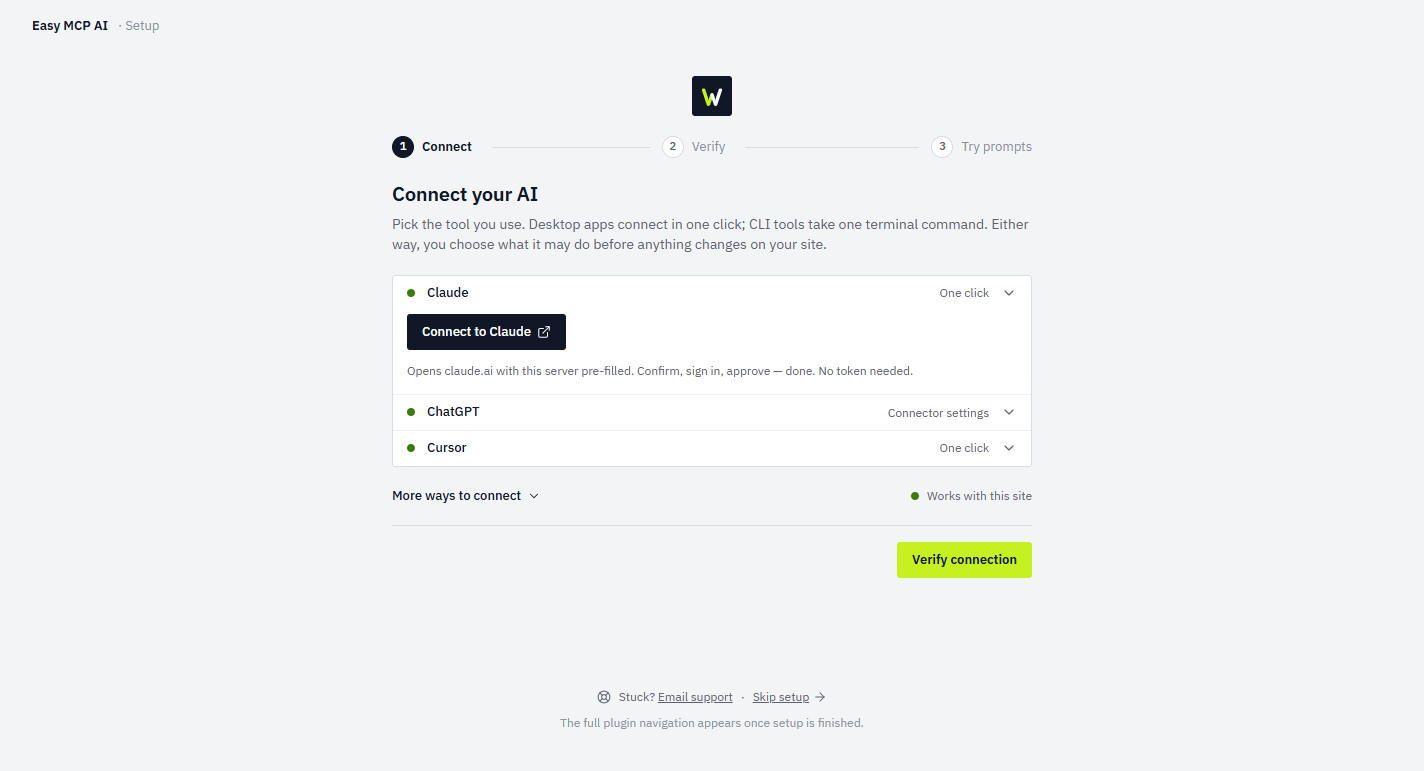
Guided setup: choose your AI client (Claude, ChatGPT, Cursor and more) and connect in three steps
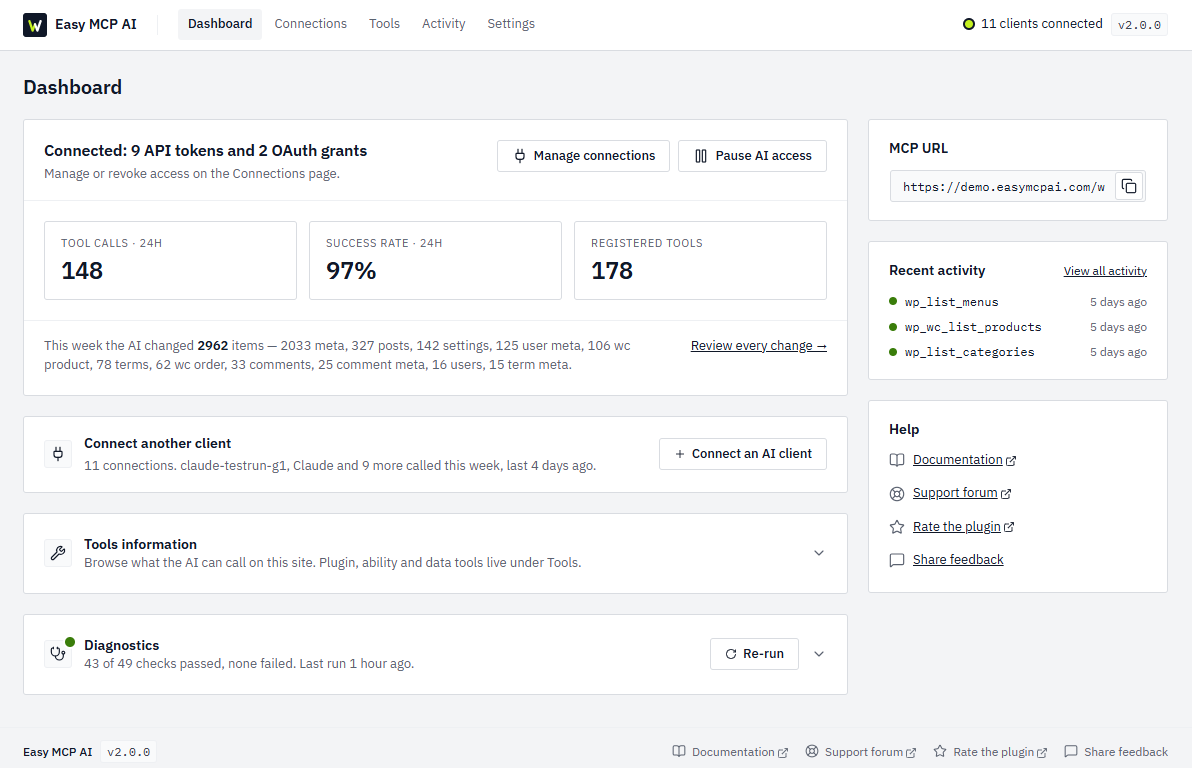
Dashboard: see what your AI clients are doing on your site at a glance
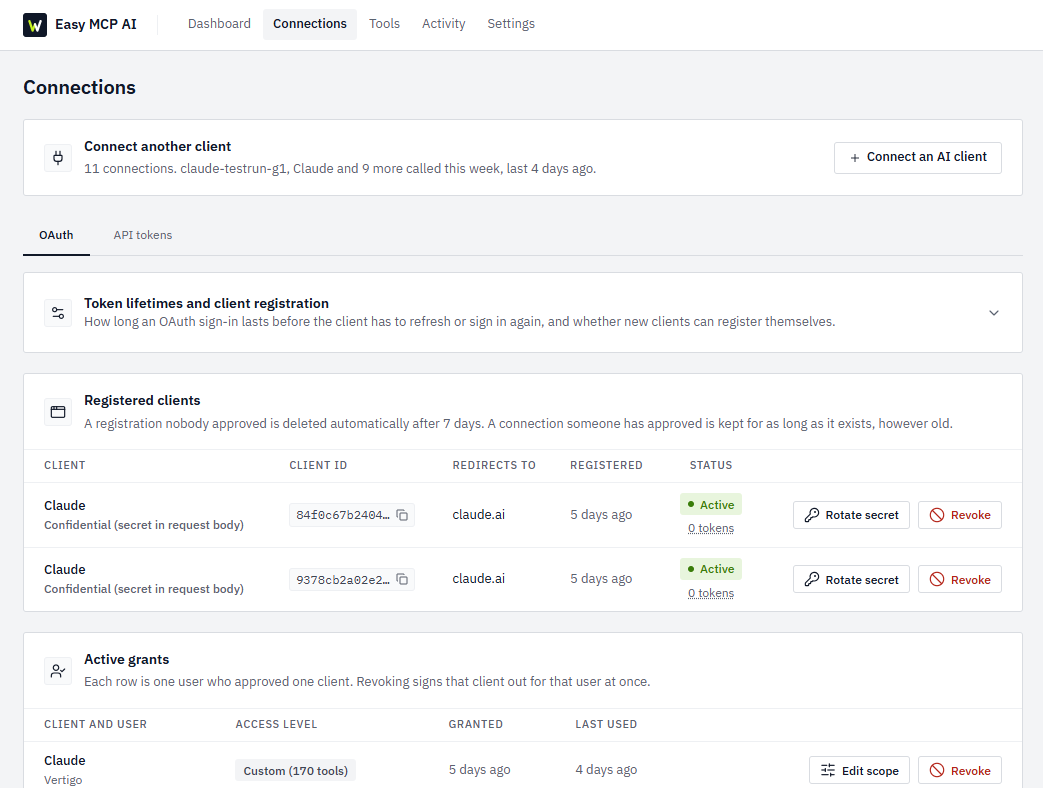
Connections: approve AI clients over OAuth or create API tokens
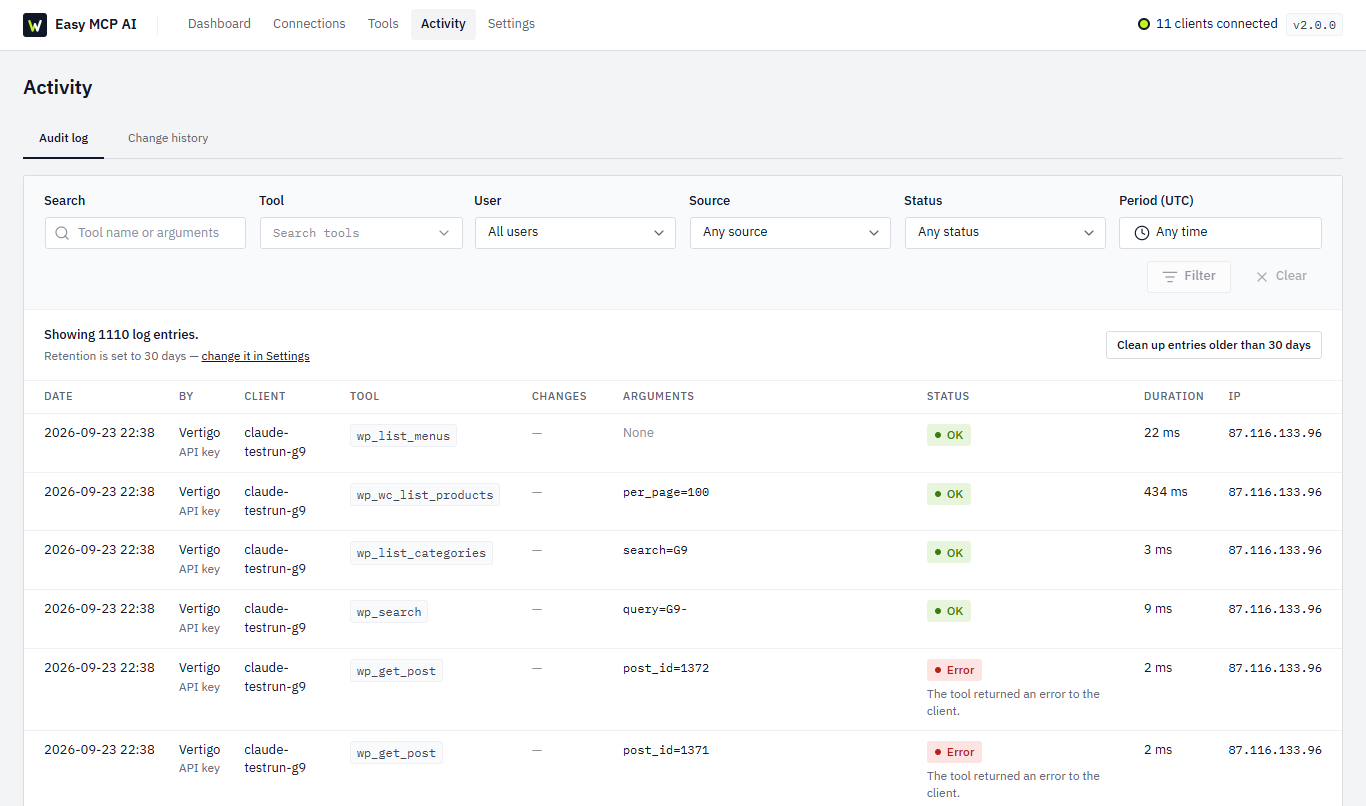
Audit log: every tool call an AI makes, with the user, client, tool, arguments, result and duration
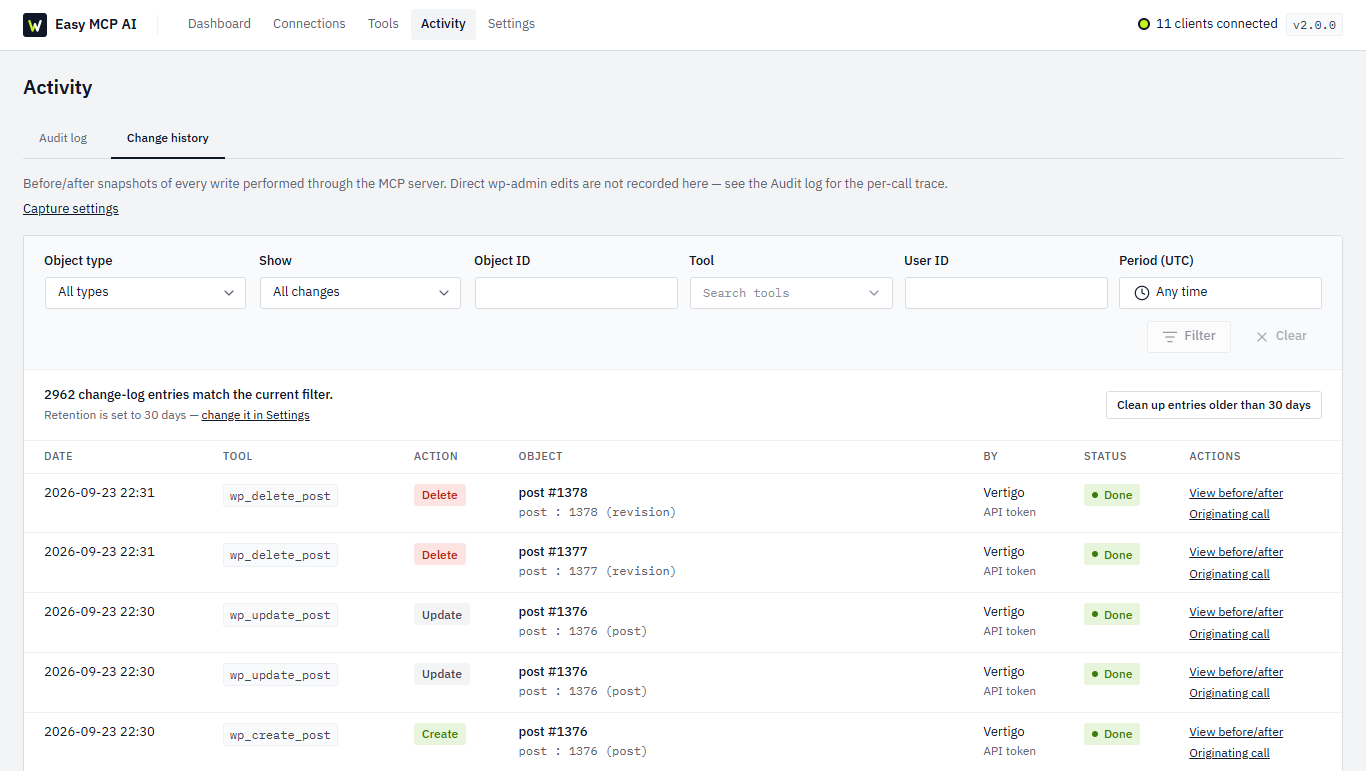
Change history: every edit an AI makes, with a before-and-after view of each field and a link to the WordPress revision
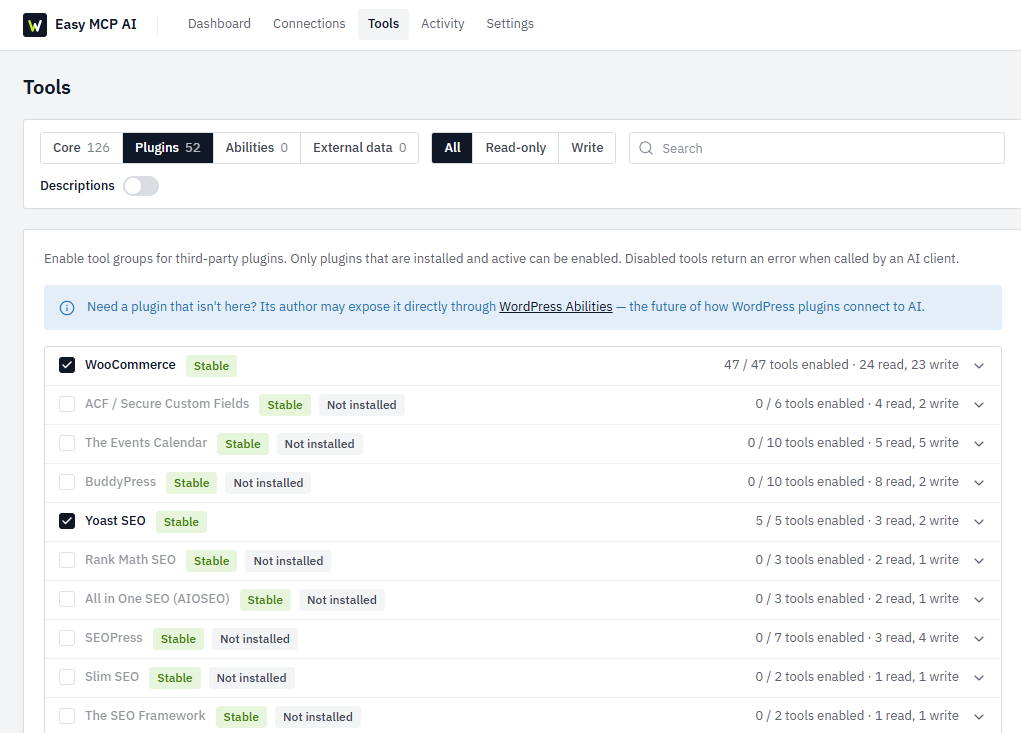
Plugin integrations: ready-made tools for WooCommerce, ACF, The Events Calendar, Yoast, Rank Math and more
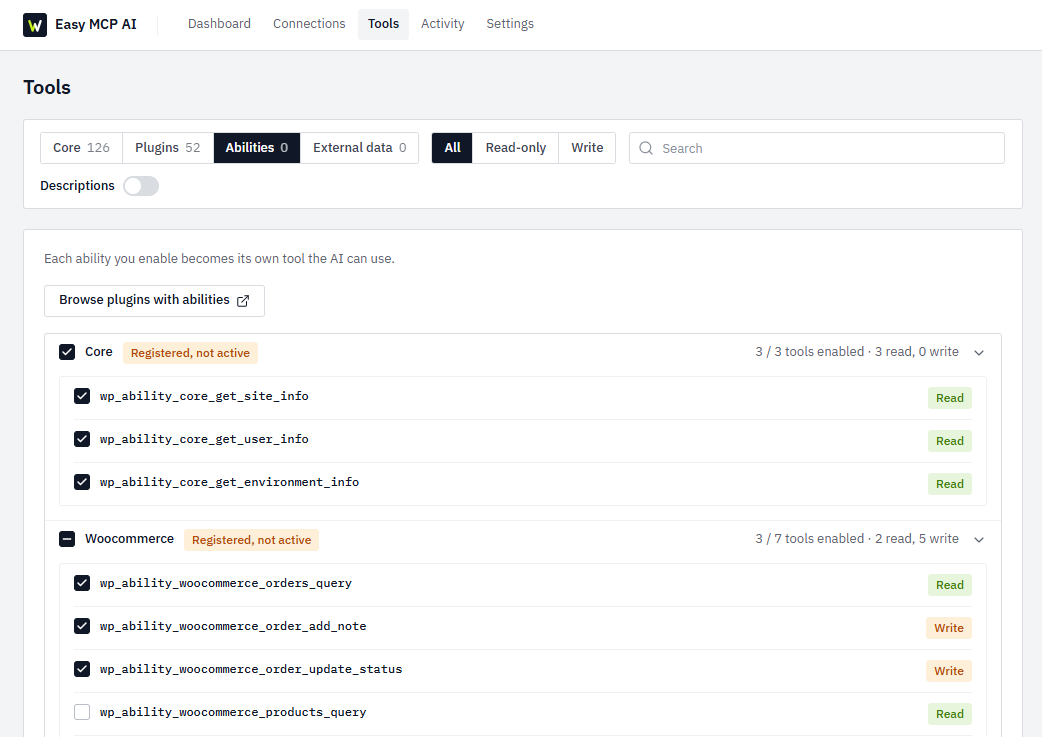
Abilities: plugins that register WordPress 6.9+ Abilities appear here, and each ability you enable becomes its own AI tool
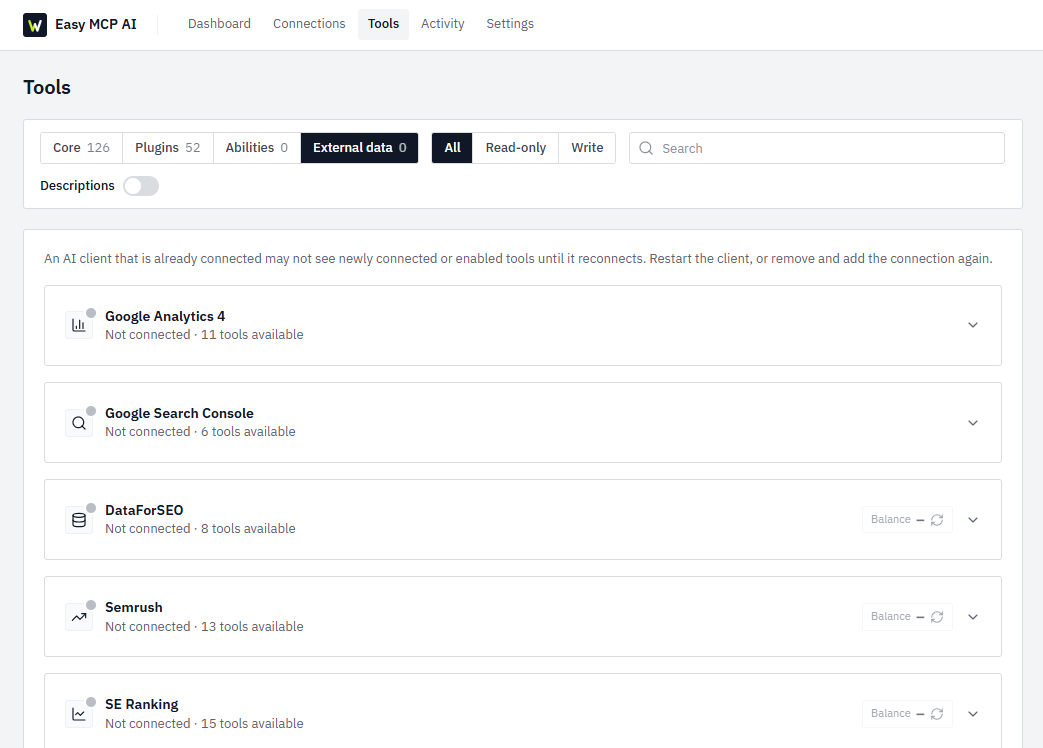
External data: connect Google Analytics 4, Search Console, Semrush, Ahrefs, and more
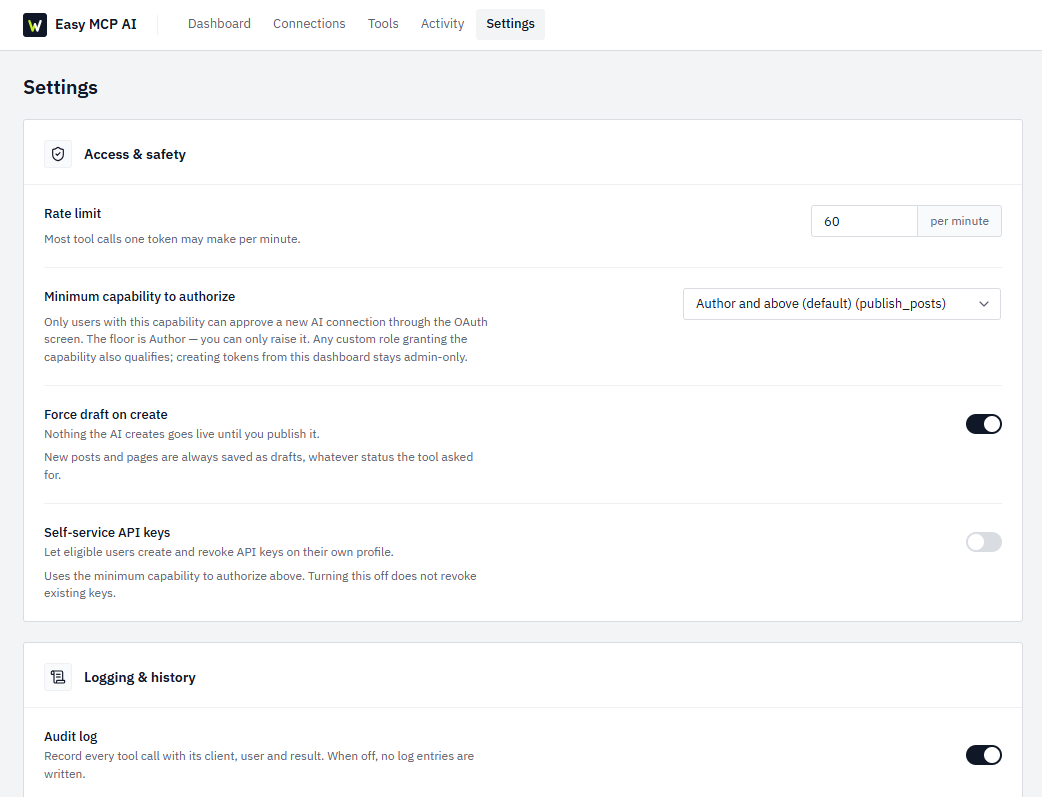
Access and safety: a per-minute rate limit, Force Draft on Create, and self-service API keys for your users