
The block editor hides common formatting behind menus. Coloring a few words takes four clicks: More Highlight Text color. Underline has no button at all, and strikethrough, superscript and subscript live in the “More” menu.
EstudoBiblico Quick Format Toolbar keeps the block editor exactly as it is and puts those tools on the block’s own toolbar, right after the editor’s Bold, Italic and Link:
B I Link | U S | A▾ Highlight▾ | x² x₂ | Clear formatting
- Text color and highlight as split buttons, like the classic editor: one click applies your last color; the arrow opens your theme’s palette, and the color you pick becomes the new “last color”.
- Underline, strikethrough, superscript and subscript in one click.
- Clear formatting that removes bold, italic, underline, strikethrough, sub/superscript, code, keyboard and colors, and leaves links, footnotes and formats added by other plugins untouched.
- Works across blocks: select text over several paragraphs and format it in one go, undone with a single Undo.
- Optional tools, off by default: inline code, special characters (Ω), and one-click block tools (paragraph/headings, lists, quote, text alignment) through the blocks’ own transforms and settings.
- Button width (compact, normal, comfortable) and the tools to show, from the editor’s ⋮ menu EstudoBiblico Quick Format Toolbar. Settings are saved per user.
The toolbar goes wherever the editor puts its block toolbar: next to the block, or at the top of the screen with the editor’s own “Top toolbar” option. The plugin does not move or restyle the editor’s toolbar.
The editor already has most of these formats; what it lacks is quick access. EstudoBiblico Quick Format Toolbar adds no new kind of formatting and stores nothing of its own in your content: it puts the editor’s own tools one click away, the way the classic editor’s toolbar did.
Nothing is removed from the editor: the “More” menu, keyboard shortcuts and formats from other plugins keep working. Deactivate the plugin and the editor is back to its defaults; your content is not affected, because every format is saved exactly as the editor saves it.
Experimental: Inspector Shortcuts
Off by default. When turned on, some sidebar controls (padding, margin, line height, border) are shown directly instead of behind “+”, for blocks that support them. It relies on an experimental editor feature; if the editor changes it, the controls simply go back behind “+”.
Source Code
The JavaScript and CSS in build/ are compiled from the human-readable source in src/, which is included in the plugin. To build it yourself:
- Install Node.js.
- In the plugin folder, run
npm installand thennpm run build.
The build uses @wordpress/scripts. React and the @wordpress packages are not bundled: the plugin uses the copies that ship with WordPress.
Privacy
EstudoBiblico Quick Format Toolbar does not collect personal data, track visitors or call external services. It loads only in the block editor. Your settings (tools, button width and last colors) are stored in your WordPress user profile through the editor’s own preferences, and are removed when the plugin is deleted.
License
This plugin is licensed under GPLv2 or later. Icons from @wordpress/icons, GPLv2 or later.
Screenshots

The toolbar on a paragraph: underline, strikethrough, text color, highlight, superscript, subscript and clear formatting, next to the editor's own buttons.
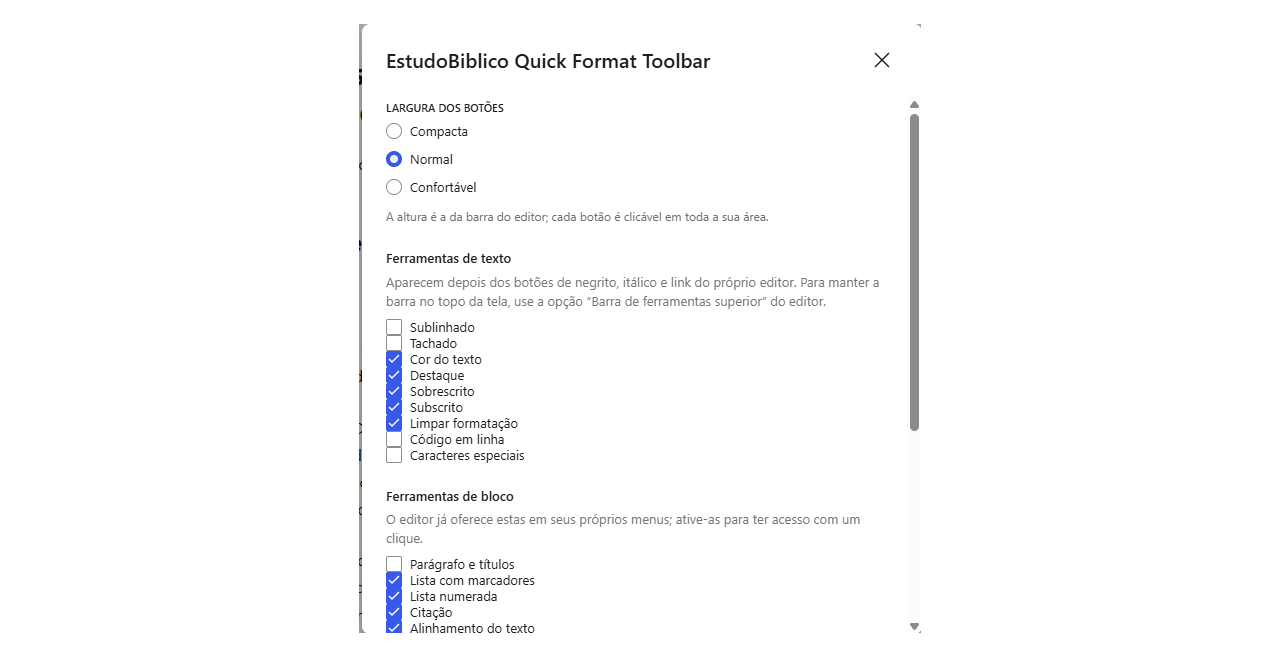
Settings: button width, which text and block tools to show, and the experimental inspector shortcuts. Stored per user.
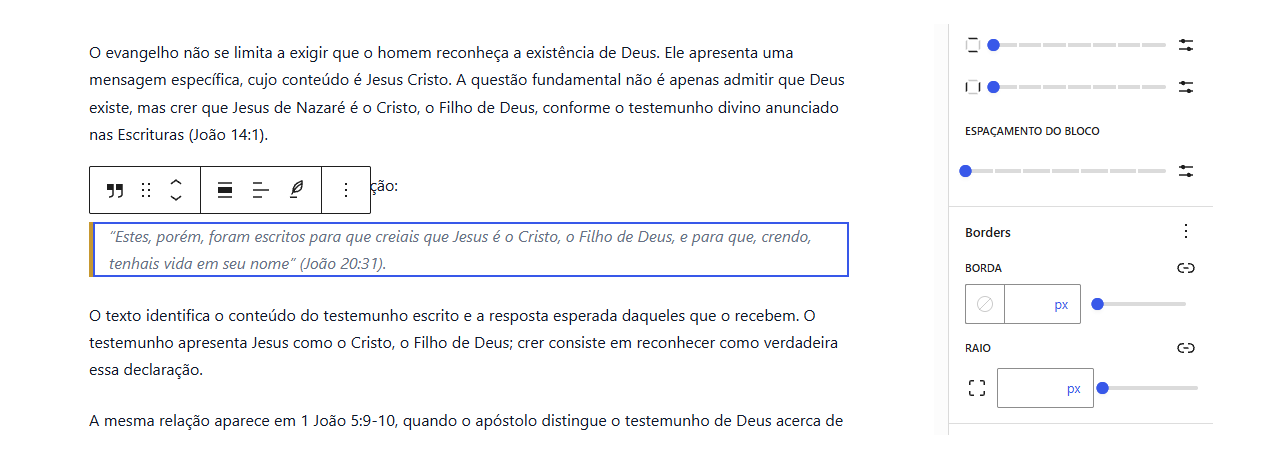
On a quote block, the block tools appear in the same toolbar, with the inspector shortcuts open on the right.
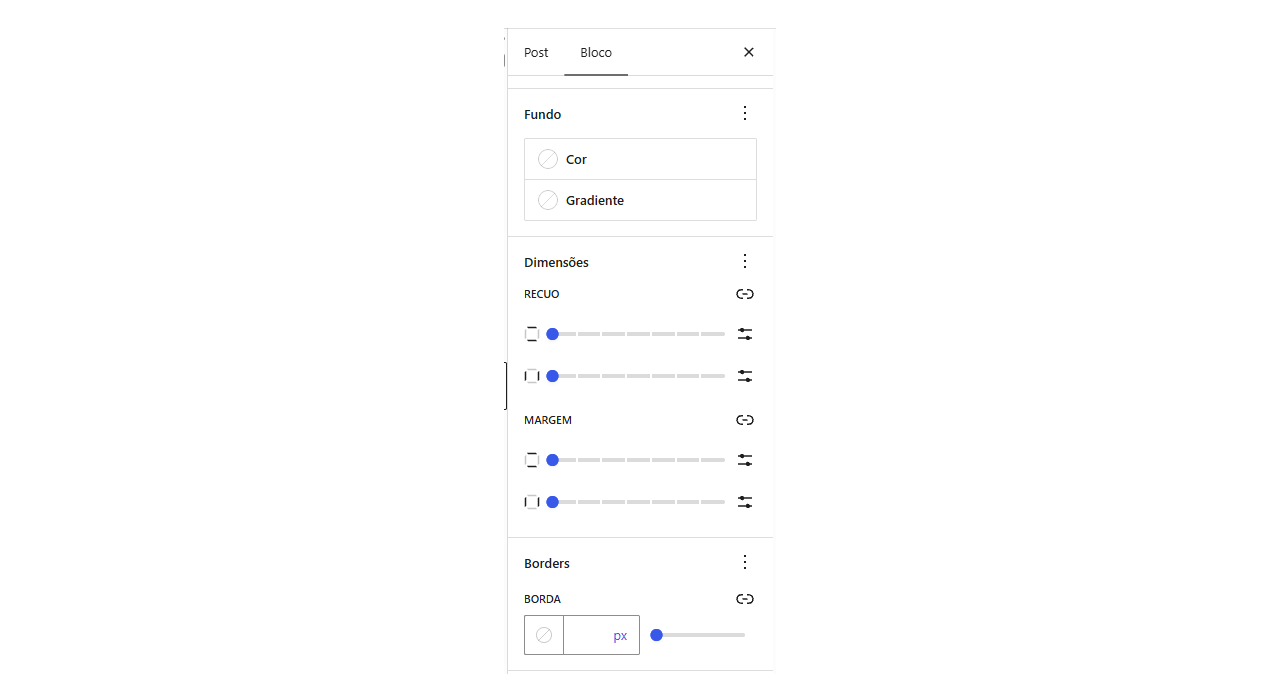
Inspector shortcuts bring background, dimensions and borders of the selected block into reach without hunting through panels.