FluentAuth – Login Security, Two-Factor Authentication, Passkeys & Social Login
by WPManageNinja
FluentAuth is a login security plugin for WordPress. It protects the way people sign in to your site, and it tells you when something on your site has changed.
You get two-factor authentication, passkeys, social login, magic login links, login attempt limits, IP access rules, a security checklist, file change scanning and a full audit log. All of it in one plugin, with no bloat and no slowdown.
Highlighted Features
- Two-Factor Authentication (email, authenticator app and passkeys)
- Passkey sign-in with Touch ID, Windows Hello, a security key or a password manager
- Social Login with Google, GitHub and Facebook
- Google One Tap Login
- Magic Login links by email, with no password
- Limit Login Attempts and block brute force attacks
- IP allow list and IP block list
- Bot protection for signup, login and WooCommerce account forms, with Cloudflare Turnstile
- Security checklist that finds problems and fixes them
- WordPress core, plugin and theme file change scanning
- Audit log of every login, failed attempt and plugin change
- Login and logout redirects
- Login and signup page customizer
- Custom WordPress system emails
- Restrict /wp-admin by user role
- Recovery tools for a site that has been hacked
Two-Factor Authentication (2FA)
Ask for a second step after the password. Three ways to do it, and you choose which roles may use each one.
- Email codes. A one time code sent to the user’s inbox. Nothing to install.
- Authenticator app. Google Authenticator, Authy, 1Password or any other TOTP app. FluentAuth draws the QR code on your own server, so the secret never leaves your site.
- Passkeys. Touch ID, Face ID, Windows Hello, a hardware security key or a password manager. The browser ties the passkey to your domain, so it cannot be used on a fake copy of your login page.
You can let a role set up a second factor or require it, and you choose how strong a required one has to be: a device factor only, meaning a passkey or an authenticator app, or any of the three. Anyone who must have one sets it up while they sign in, before a session is created for them, so the requirement cannot be walked past.
An authenticator app also hands out ten single use recovery codes, and passkey users can fall back on those too. Everyone manages their own second factor from their WordPress profile screen, and an admin screen lists who has enrolled, what each person registered, and lets you reset anyone locked out.
Authenticator secrets can be encrypted in your database with a key you keep in wp-config.php, so reading the database gets an attacker nothing.
Passkey Login
Passkeys are the strongest option here. The credential lives on the device and is bound to your domain by the browser, so phishing does not work against it: a copied login page has a different domain and the passkey will not answer.
They can be the second step after a password, or the way in on their own – turn on passkey sign-in and the login form offers a button that signs the user in with no password at all. No third party service is involved: everything runs on your site.
Social Login and Registration
Let people sign in with the accounts they already have.
- Login with Google
- Login with GitHub
- Login with Facebook
- Google One Tap Login
Turn on the providers you want, paste the keys, and the buttons appear on your login and register forms. You can also stop social sign ups when registration is closed on your site.
Magic Login by Email
Users type their email address and get a one time login link. No password to remember and no reset flow to walk through. Make it the main way people sign in, or keep it as an extra option. Links are hashed, expire, are rate limited and can only be claimed once, and asking for a link never reveals whether an address has an account on your site.
Limit Login Attempts
Block brute force attacks by counting failed logins. Set how many attempts are allowed and over how many minutes, and FluentAuth locks the address out for a while. Every blocked attempt is logged, and you can be emailed when it happens.
IP Allow List and Block List
Two simple lists, one address or range per line. The block list refuses a login from those addresses outright. The allow list skips the attempt limit for addresses you trust, such as your office.
You can also require that a role only signs in from an allow listed address. FluentAuth detects reverse proxies and Cloudflare, so the address it acts on is the real visitor address and not your proxy.
Bot Protection with Cloudflare Turnstile
Stop spam signups before your site sends them an email. Turn on Cloudflare Turnstile for the signup forms, the login and password reset forms, or WooCommerce’s My Account forms. Each one has its own switch. If Fluent Forms or FluentCart already has Turnstile keys, you can use the same keys with one click. Checkout is never changed. If a site move ever leaves you locked out, adding define('FLUENT_AUTH_DISABLE_TURNSTILE', true); to wp-config.php switches it off.
Security Checklist
FluentAuth checks your site and gives you a short list of what to look at. Each item says what is wrong, why it matters and what happens if you fix it, and most have a button that fixes it for you. Anything that does not apply can be waved away, and you can take that back later. It checks things like:
- HTTPS, and PHP errors shown to visitors
- Theme and plugin file editing from the dashboard
- The security constants in wp-config.php
- Old backup files sitting in a public folder
- PHP execution inside your uploads folder
- Drop-in or mu-plugin files that have appeared or changed
- Administrators with an easily guessed username, or gone unused
- User accounts that do not show on the users screen
File Change Scanning
FluentAuth compares your files against the official copies published on WordPress.org.
- WordPress core files, against the official checksums for your version.
- Plugins from the WordPress.org directory, against the checksums for the version you have installed.
- Themes from the WordPress.org directory, against the official theme package, since themes have no published checksums. Needs the ZipArchive PHP extension, which most hosts have.
- Files nothing else can verify, such as a custom theme or a premium plugin, recorded in a snapshot so you hear about it when one changes.
When a file has changed you can see a side by side diff against the original, put the original back with one click, or delete a file that should not be there. You can also flag a plugin or theme running a version that was never published, a common sign that files were swapped out.
Activity and Audit Logs
FluentAuth records every login, failed attempt and blocked address, and every plugin or theme activated, deactivated or updated, with who did it. Logs go in their own database tables, so your WordPress tables stay clean, and old entries are cleared on a schedule you pick.
Email Notifications and Reports
Get an email when an administrator or editor signs in, or when someone is blocked for too many failed attempts. You can also get a daily, weekly or monthly summary of what happened on your site.
Recovery Tools
If you think somebody has been in your site, one screen tells you what to do next.
- Sign everyone out and revoke every application password
- Send password reset emails to your users, in batches so nothing times out
- Reinstall WordPress core from the official copy
- Reinstall a plugin or theme from the WordPress.org directory
- Rotate the security keys in wp-config.php, with a clear warning about what else that breaks
Everything done here is written to the audit log with the name of the person who did it.
Login Redirects
Send users to different pages after they log in or log out, based on their role. Set it up once and it applies to every login method, including social and magic login.
Login and Signup Page Customizer
Set your own logo, colours, background and form style on the WordPress login page, and see the result as you edit. You can also build login and registration forms anywhere on your site with shortcodes.
Custom WordPress System Emails
WordPress sends a lot of plain default emails. FluentAuth lets you rewrite them with your own wording and branding, and gives you one template design they all share. You can also turn off the admin notification that fires every time a new user signs up.
Core Security Hardening
Turn off the parts of WordPress your site does not use.
- Disable XML-RPC
- Disable application passwords and remote app login
- Stop user listings being read through the REST API
- Restrict /wp-admin for low level roles
- Hide the admin bar for the roles you choose
Remote Auth for Multiple Sites
Use one site as the login provider for your other sites. Users sign in once on the main site and land on the child site already logged in.
Guided Setup
A short setup wizard runs the first time you open FluentAuth. It asks a handful of questions, shows you what each answer changes, and turns on a sensible set of options. Skip it and nothing is written, and every answer is an ordinary setting you can change later.
Built to Be Fast
FluentAuth is one plugin doing the work of several, written to stay out of the way. The admin area is a single page Vue 3 app over the REST API, logs live in custom database tables, and no scanning agent sits in front of every request on your site.
For Developers
Another plugin can put its own login screen on FluentAuth’s flows. It registers with the LoginBridge service, and from then on its custom form gets the attempt limits, the IP rules and the two-factor challenge, including an inline second step on a custom AJAX action. There are filters through the whole auth flow, and the site owner’s settings always win over what an adopting plugin asks for.
External Services
Nothing below leaves your site unless you turn that feature on.
- File scanning compares your files against the official copies, so it fetches them from WordPress.org (
api.wordpress.org,downloads.wordpress.org,plugins.svn.wordpress.org,themes.svn.wordpress.org) and the official WordPress mirror on GitHub (raw.githubusercontent.com). Only the name, version and file path of the item being checked is sent. WordPress.org privacy · GitHub terms and privacy. - FluentAuth Alerts Service (
dash.fluentauth.com, run by WPManageNinja LLC) sends you scheduled scan alerts by email. Off until you connect it, and the screen lists what would be sent – your name and email, your site address and title, the paths of files that differ, your plugin and theme versions, and your PHP and WordPress versions – before you decide. Never file contents, database data, or anything about your visitors. Privacy · Terms. - Social login contacts Google, GitHub or Facebook only if you set one up, and only when a user clicks the button: the standard OAuth handshake plus the user’s name and email so the account can be matched. Google (terms, privacy) · GitHub (terms, privacy) · Facebook (terms, privacy).
- Cloudflare Turnstile (
challenges.cloudflare.com) checks for bots on the forms you choose: signup, login and password reset, or WooCommerce’s account forms. Off until you add your keys and pick a form. On those forms the visitor’s browser loads Cloudflare’s script, which collects signals from the browser to tell people from bots. When the form is sent, your site sends the result to Cloudflare to confirm it. Turnstile privacy addendum · Cloudflare terms.
Why FluentAuth?
Most WordPress sites get broken into the same way. Somebody guesses a password, or reuses one that leaked somewhere else, and walks in through the login form. The login form is the door, and that is what FluentAuth guards.
Running several security plugins to cover this is its own problem. Each one hooks into every request and runs its own set of rules, and the site gets slower for it. One plugin that covers login security, two-factor authentication, social login, file scanning and audit logs is less work for your server and less work for you.
That is why we built FluentAuth, and that is why it is free.
Replace Multiple Plugins with FluentAuth
If you use FluentAuth, you do not need these:
For limiting login attempts and blocking brute force
- Limit Login Attempts Reloaded
- WPS Limit Login
For two-factor authentication
- Two Factor
- WP 2FA
For login and logout redirects
- LoginWP (formerly Peter’s Login Redirect)
- Sky Login Redirect
- WP Login and Logout Redirect
For hiding the admin bar and restricting access
- Hide Admin Bar
- Hide Admin Bar Based on User Roles
- Auto Hide Admin Bar
- Hide Admin Bar from Non-Admins
User Guides
- Getting Started with FluentAuth
- Login / Logout Redirects
- Register/Login Shortcodes in FluentAuth
- Configure Login with GitHub
- Configure Login with Google
- Configure Login with Facebook
Other Plugins By The Same Team
- FluentCart A New Era of eCommerce – Faster, Lighter, and Simpler
- FluentCRM – Email Marketing, Newsletter, Email Automation and CRM Plugin for WordPress
- Fluent Forms – Fastest WordPress Form Builder Plugin
- Ninja Tables – Best WP DataTables Plugin for WordPress
- Ninja Charts – Best WP Charts Plugin for WordPress
- WPPayForm – Stripe Payments Plugin for WordPress
- Mautic Integration For Fluent Forms
- Fluent Forms PDF – PDF Entries for Fluent Forms
- FluentSMTP – WordPress Mail SMTP, SES, SendGrid, MailGun Plugin
CONTRIBUTE
If you want to contribute to this project or report a bug, you are welcome. The repository is on GitHub.
Screenshots
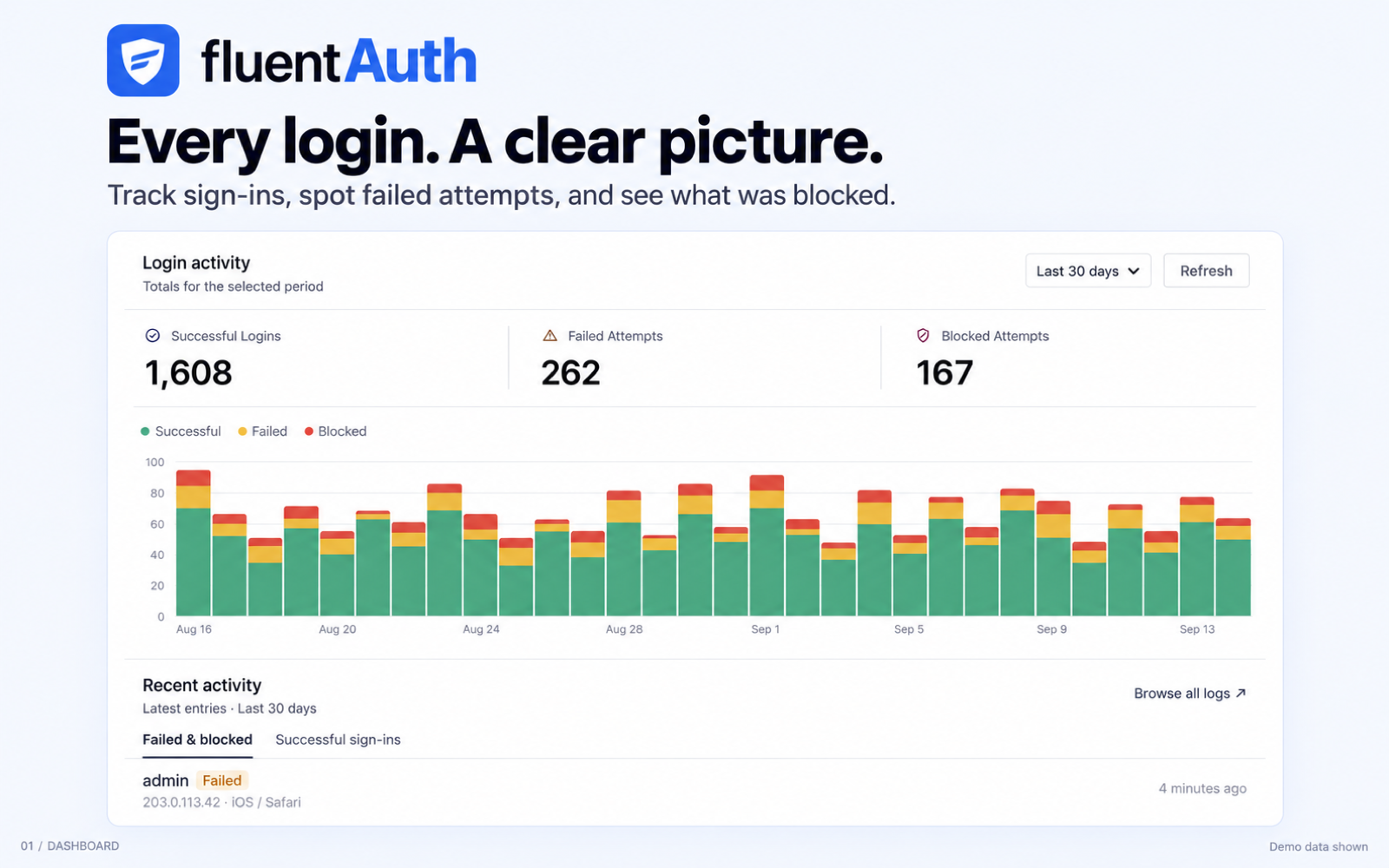
Reporting Dashboard
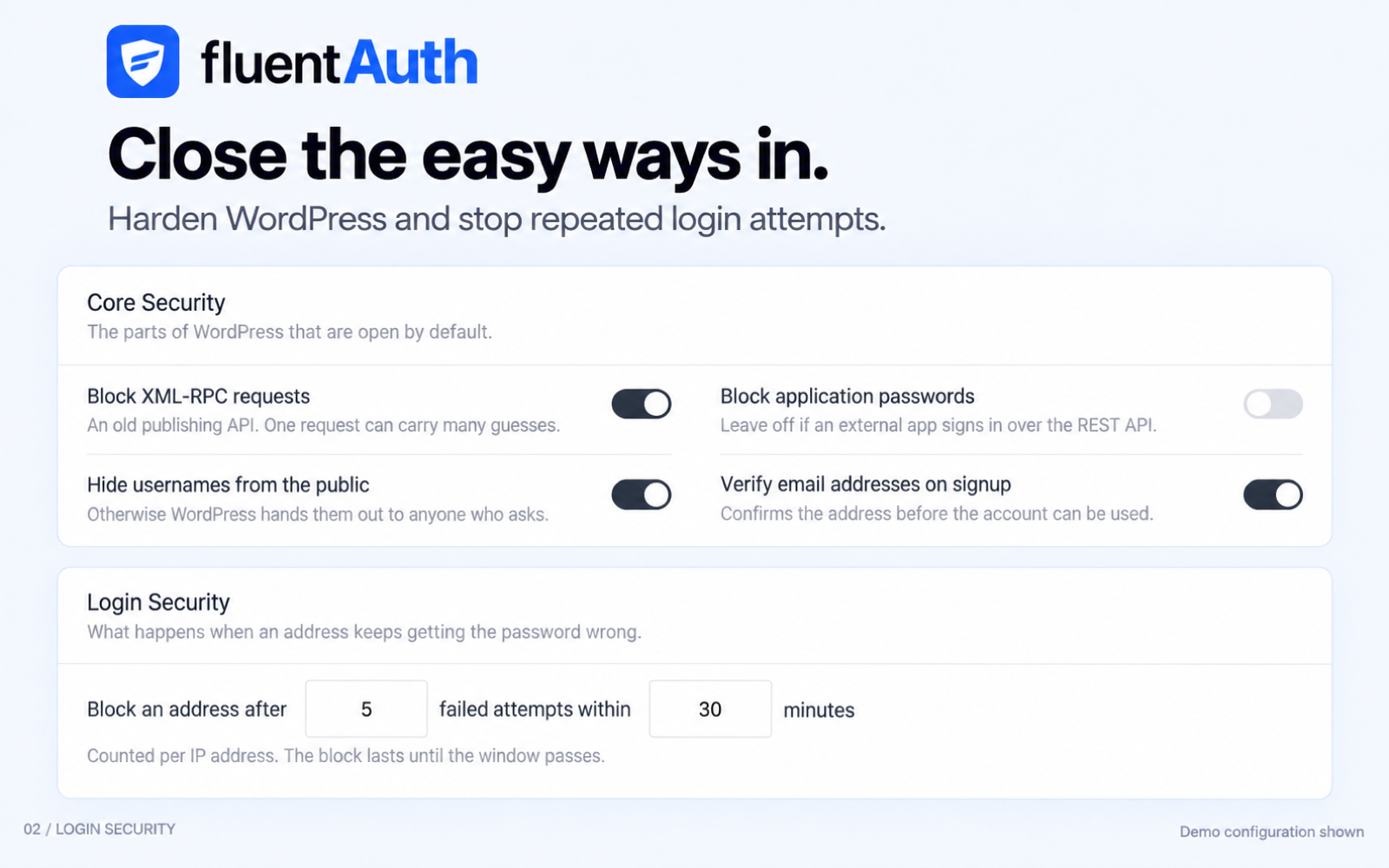
Login Security Settings
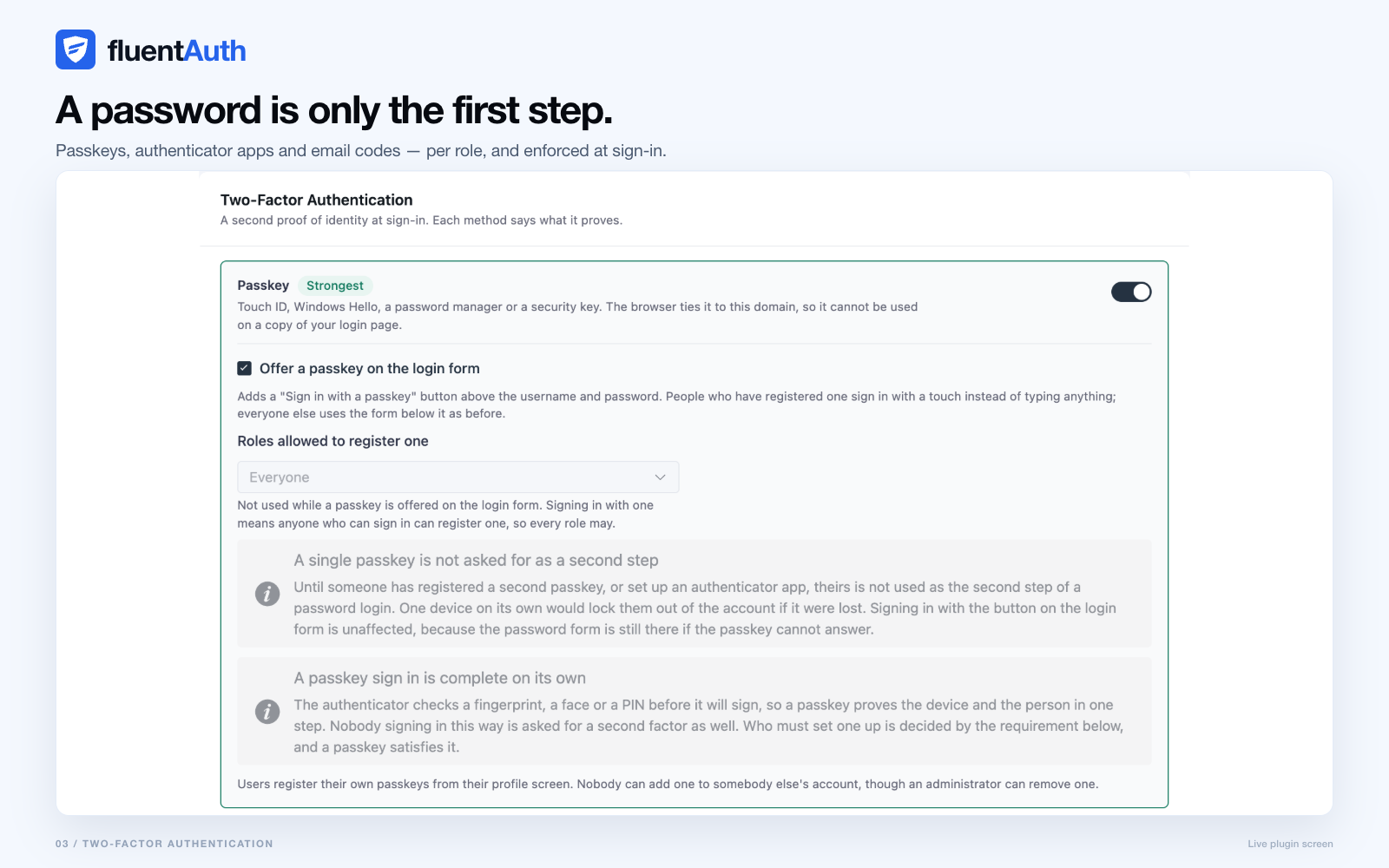
Passkey, Authenticator App and Email Two-Factor Authentication
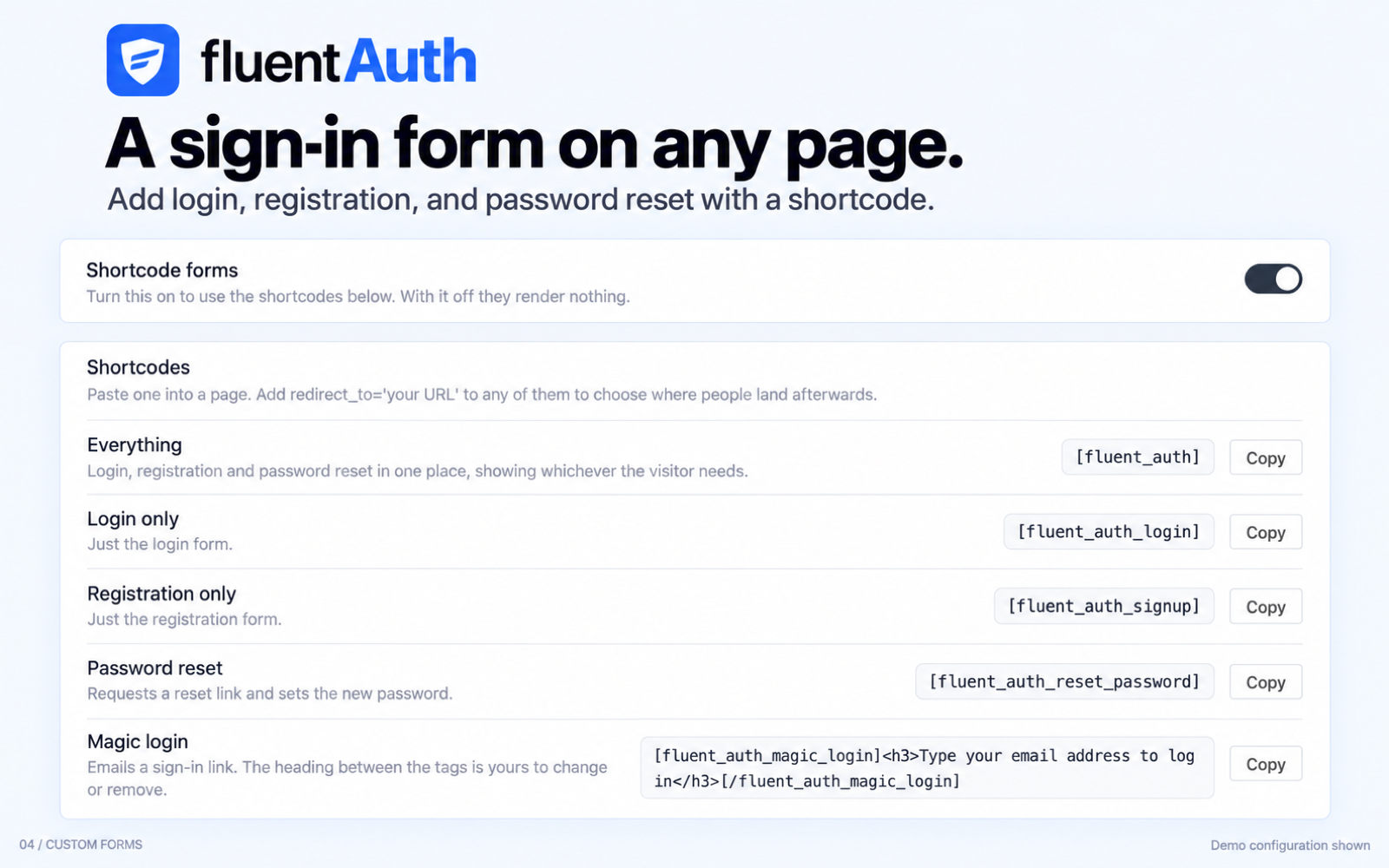
Custom Login/Signup Shortcodes
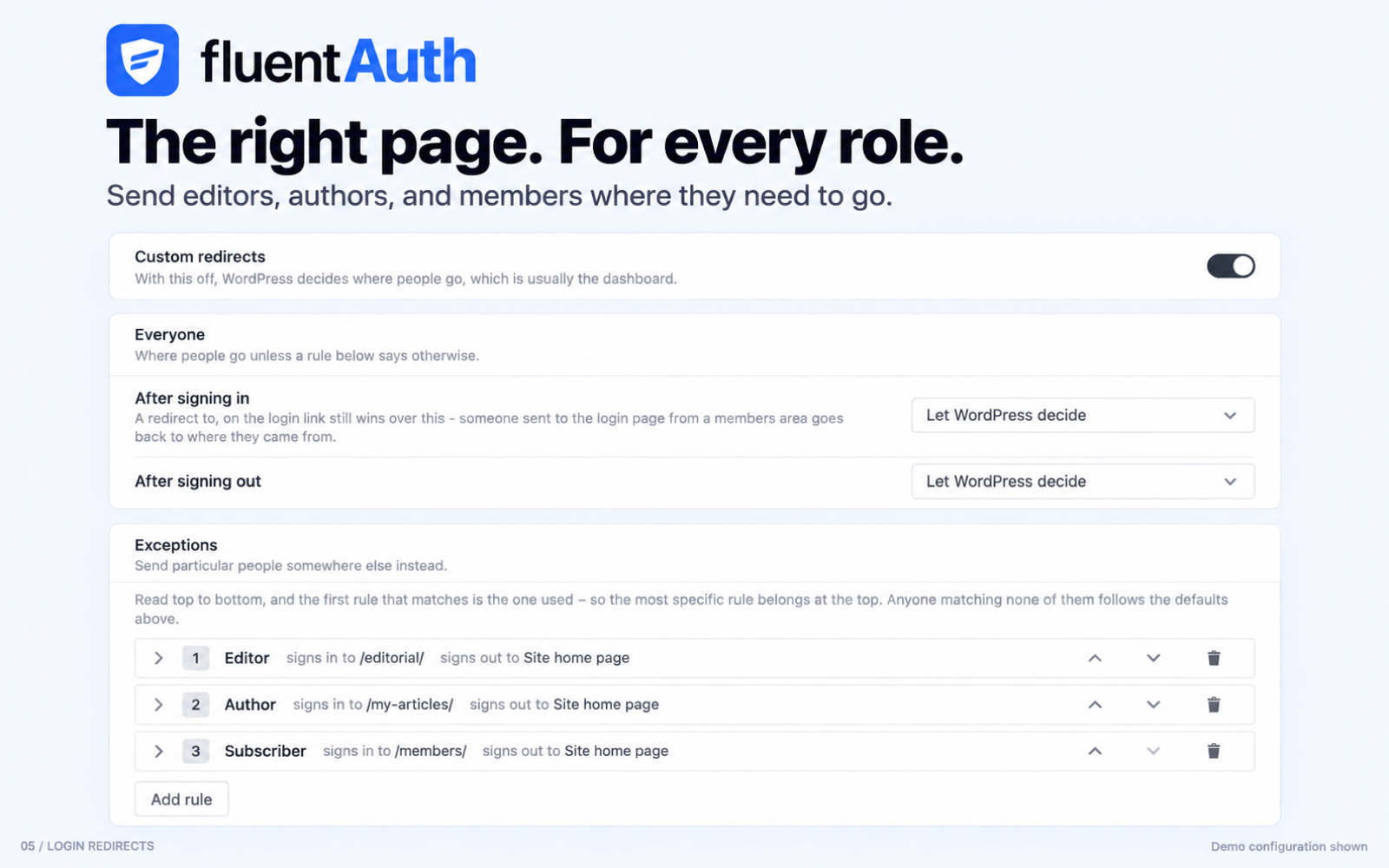
Dynamic Login Redirects
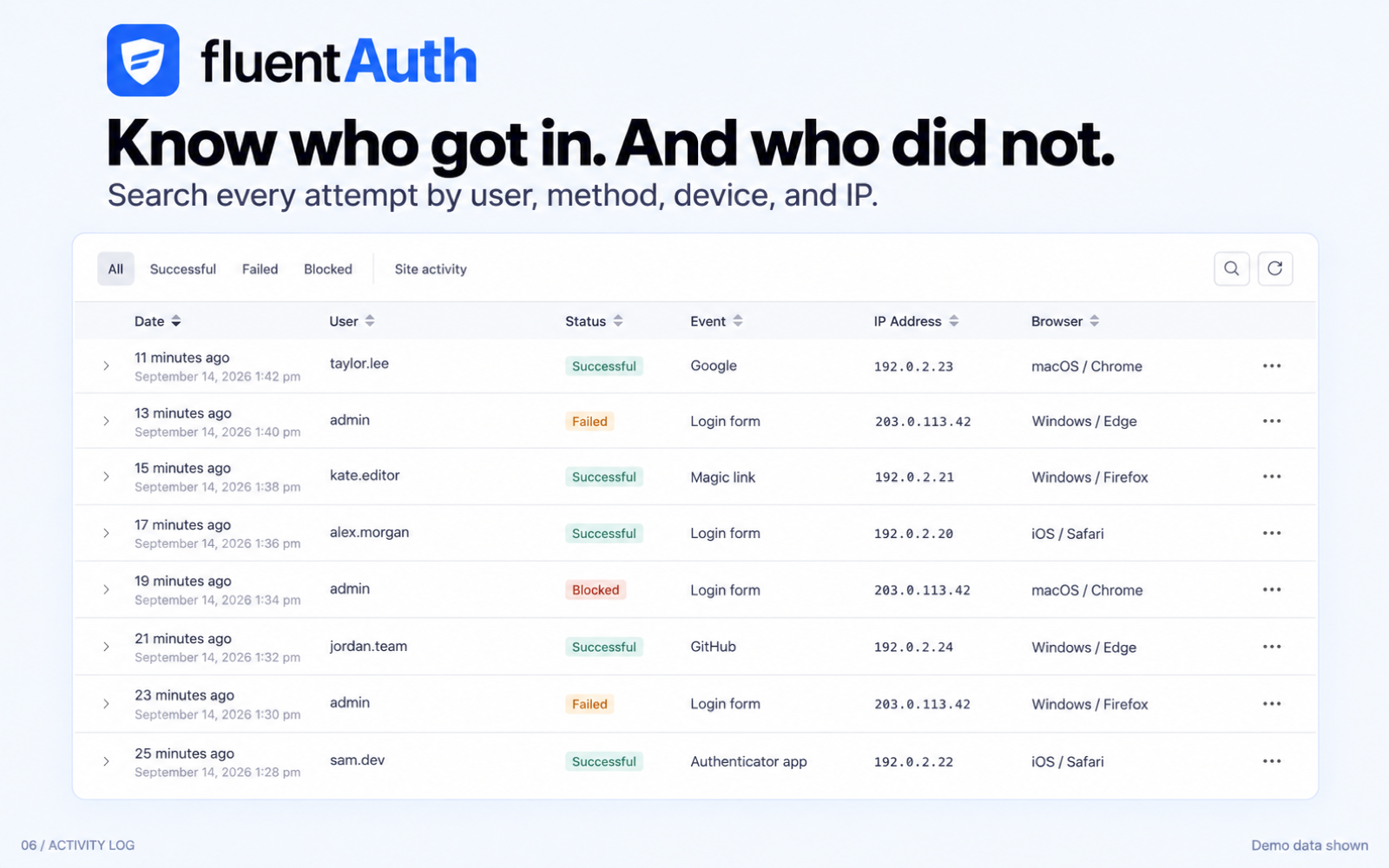
Detailed Audit Logs
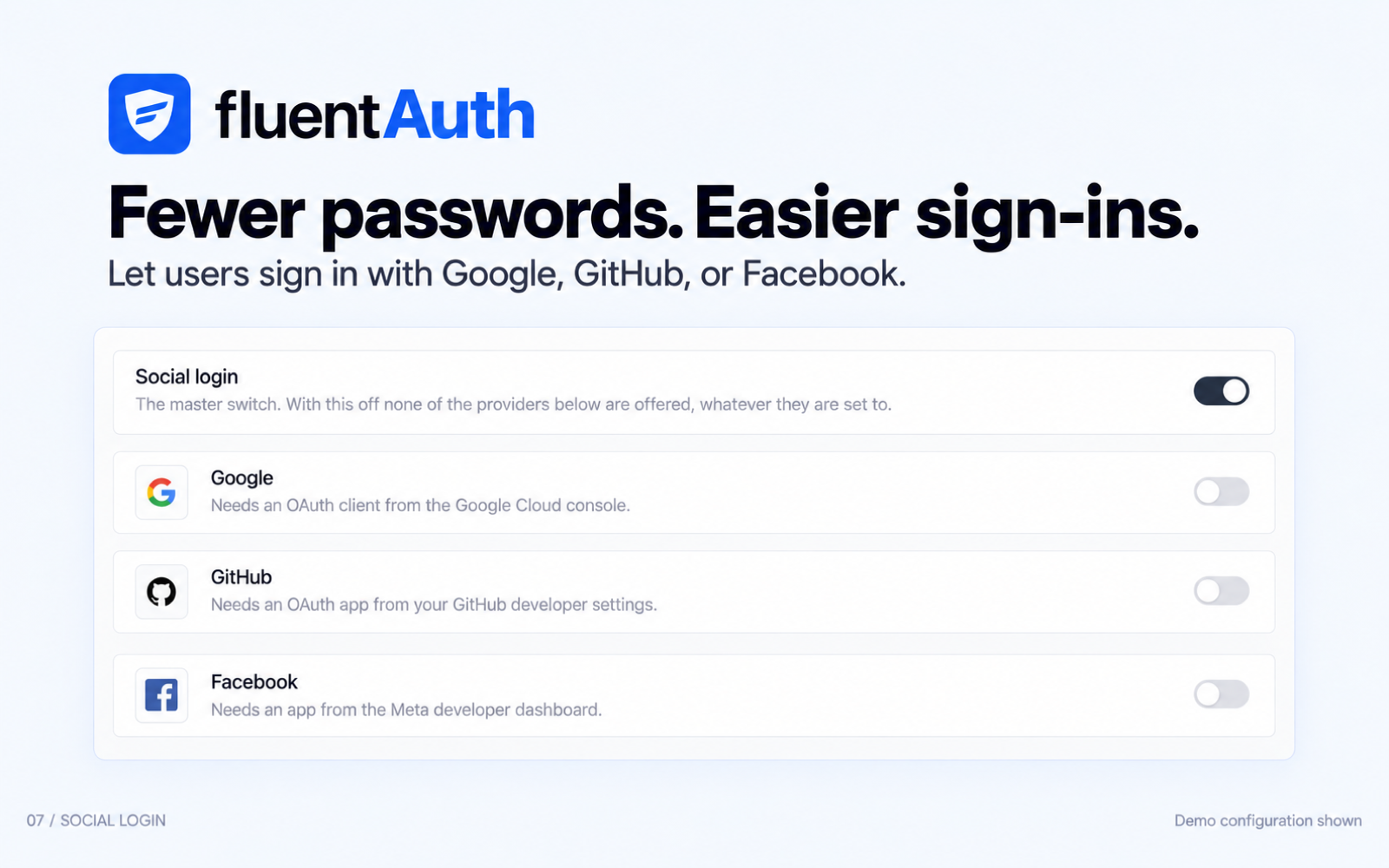
Social Login Settings
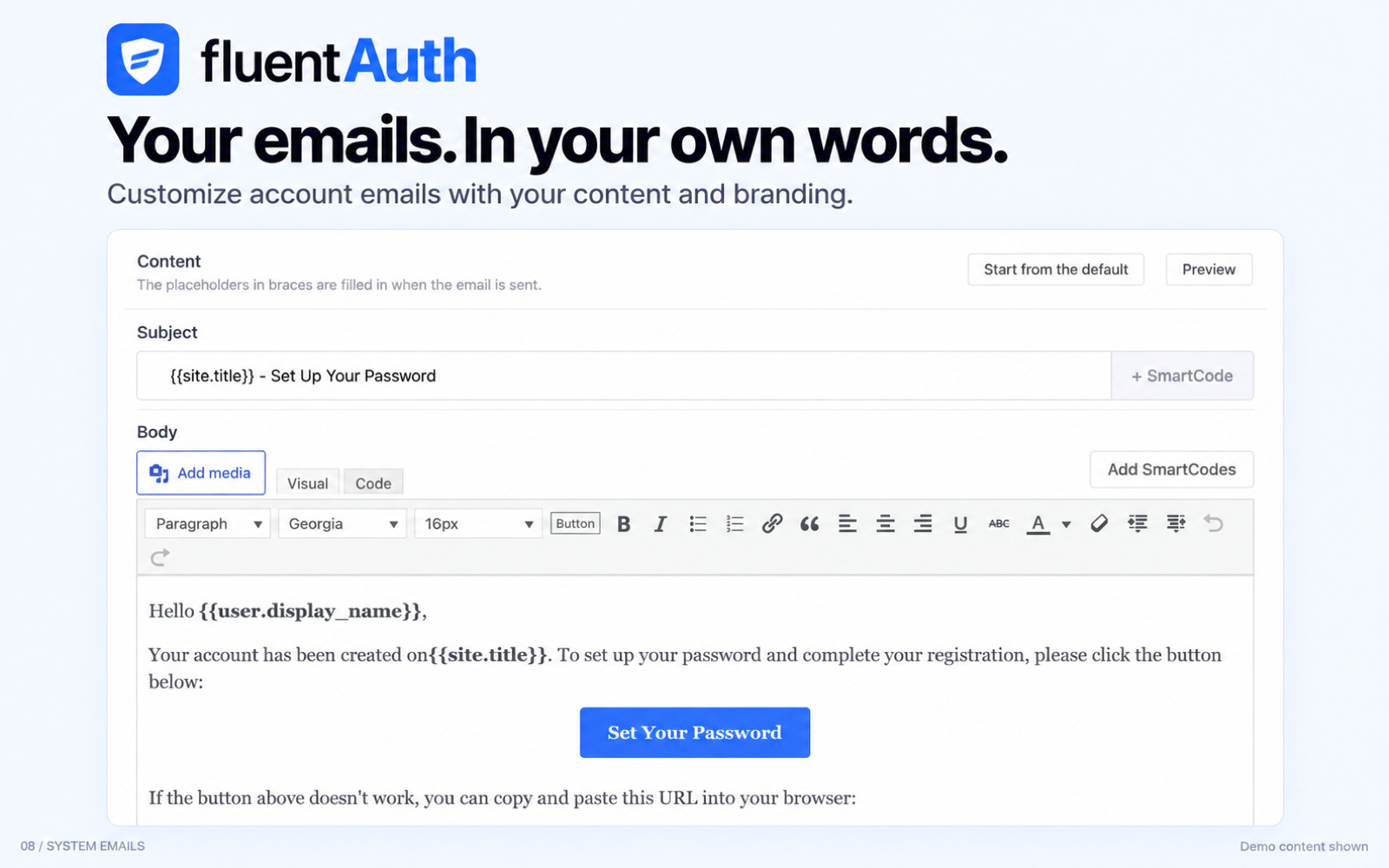
System Emails Customization
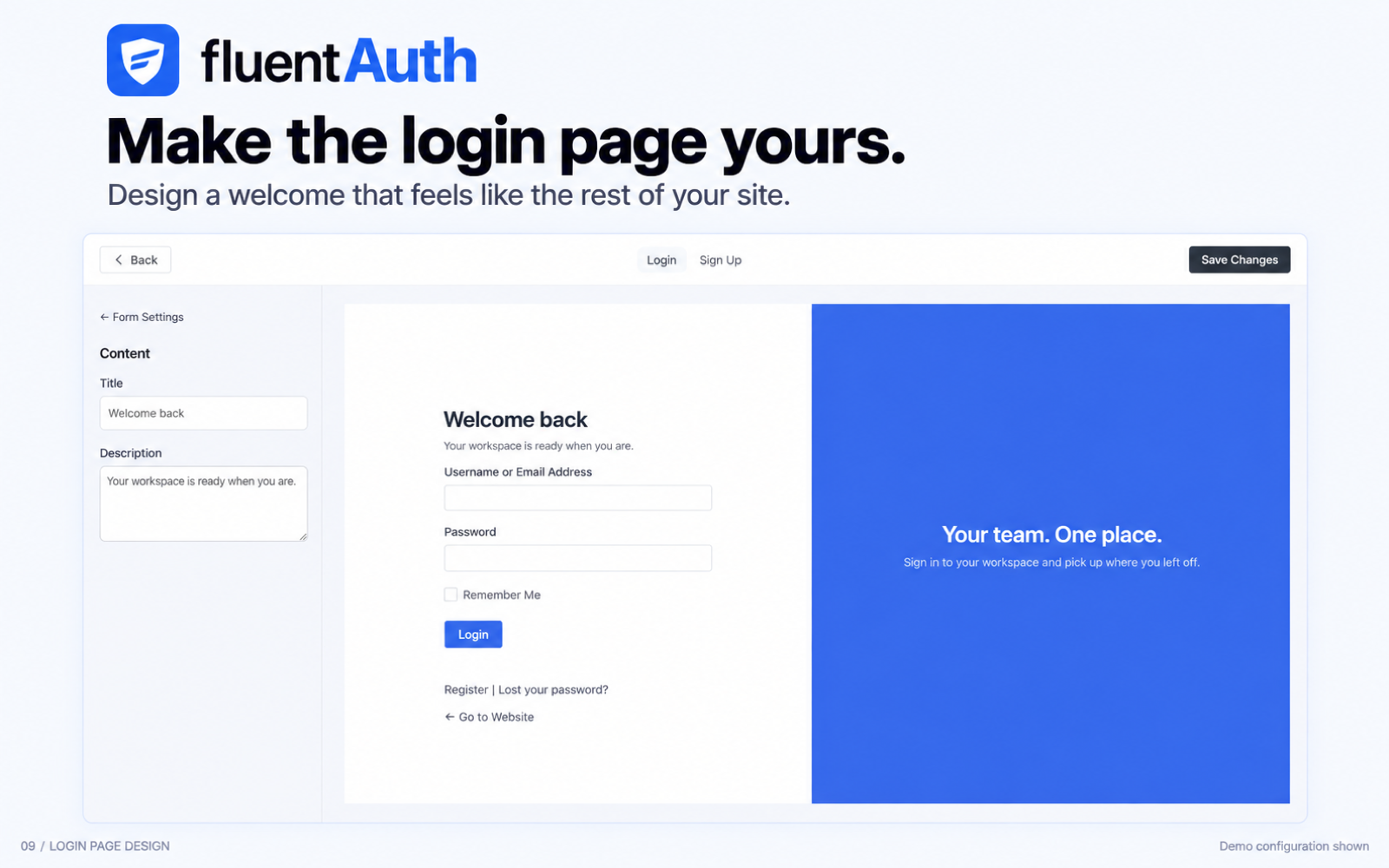
Login/Signup Page Customizer
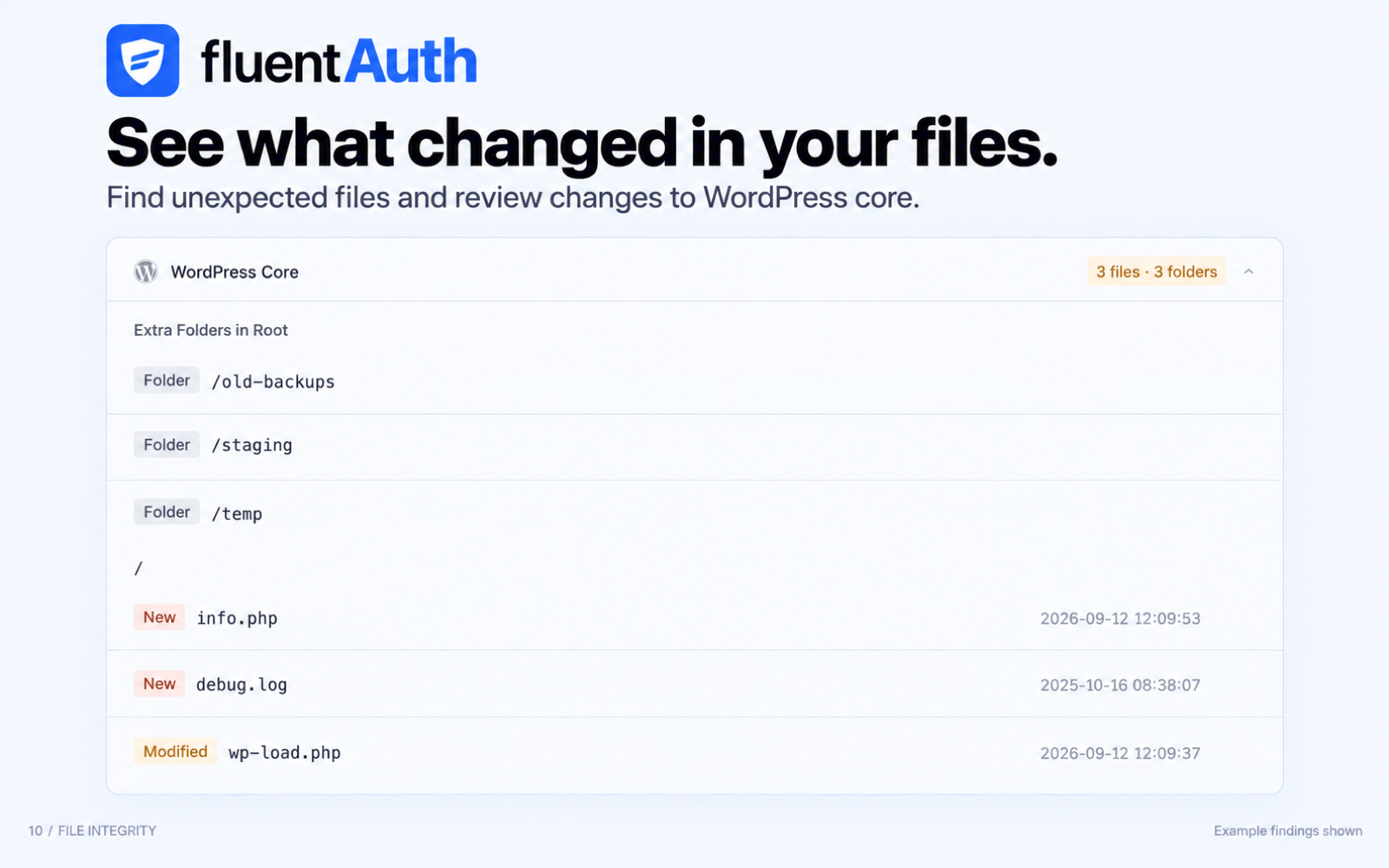
WordPress Core Files Integrity Check
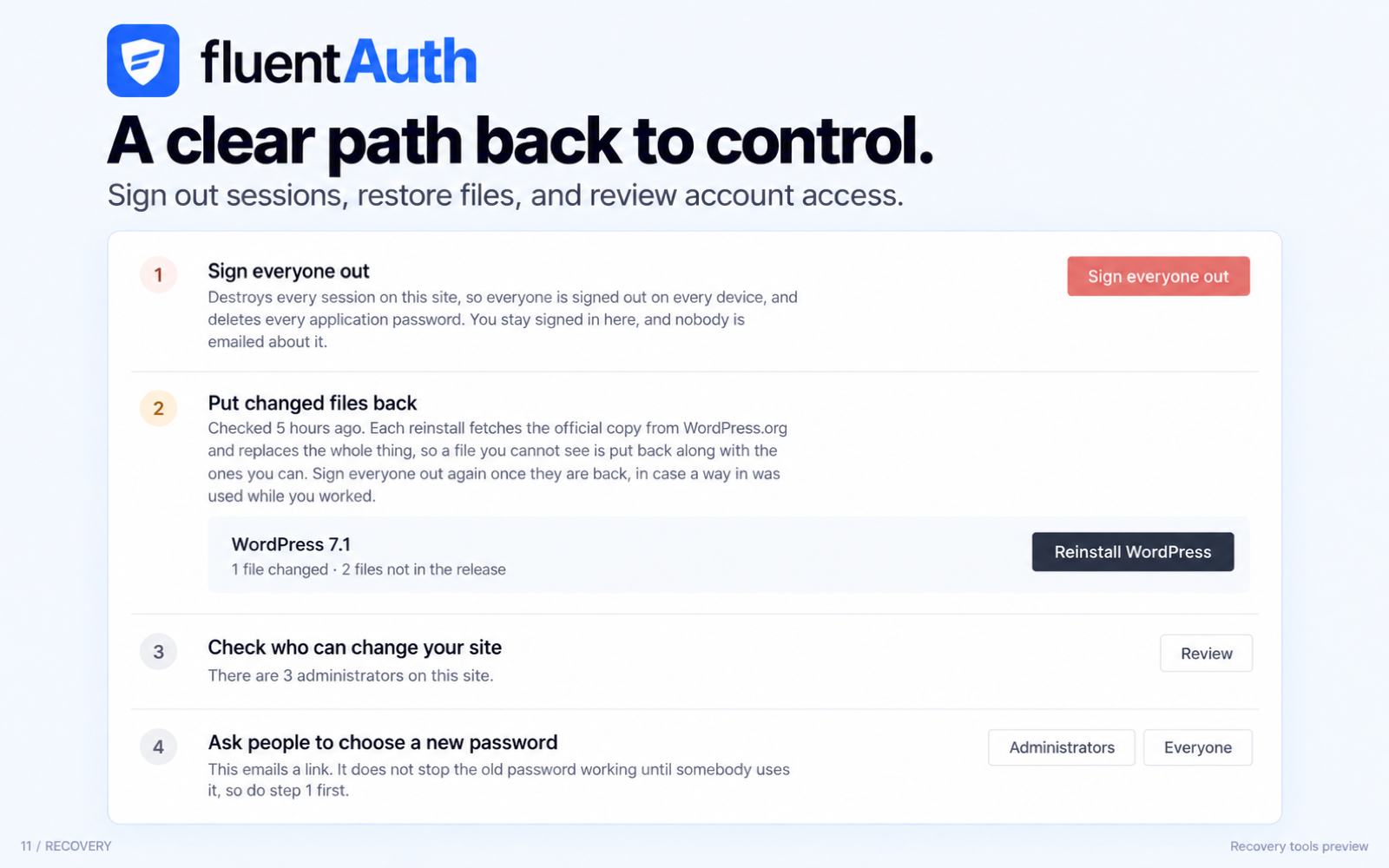
Account and File Recovery Tools
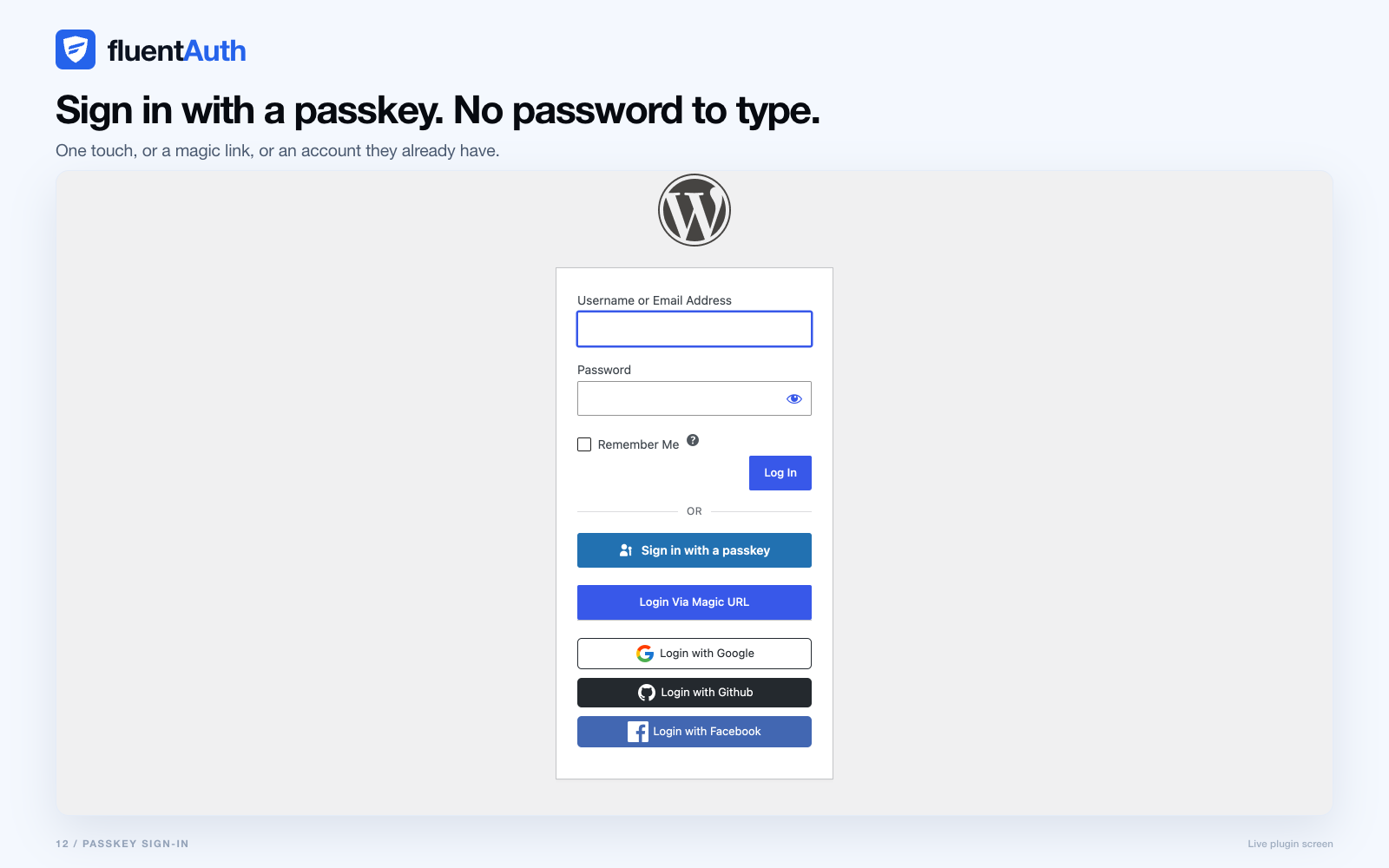
Passkey Sign-In Without a Password
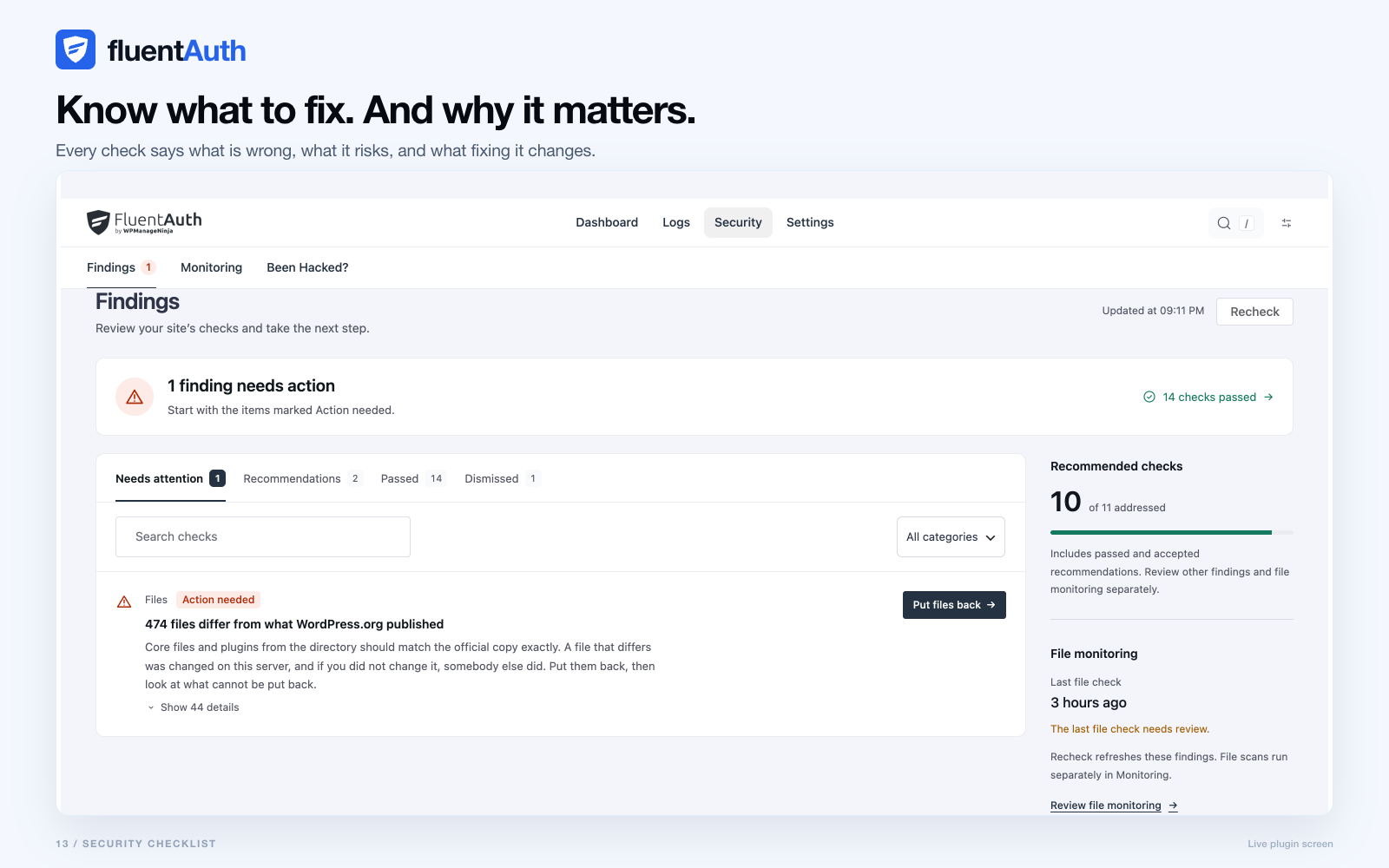
Security Checklist With One-Click Fixes