Gradia POS turns your WooCommerce store into a fully-featured Point of Sale terminal — accessible directly from a browser, no dedicated hardware needed.
Key Features:
- 🛒 Fast product search by name, SKU, or barcode scan
- 💳 Payment gateways pulled directly from WooCommerce (local or remote store)
- 🖨 Receipt printing for both local and external WooCommerce orders
- 🌐 Remote WooCommerce store bridge via REST API (Consumer Key / Secret)
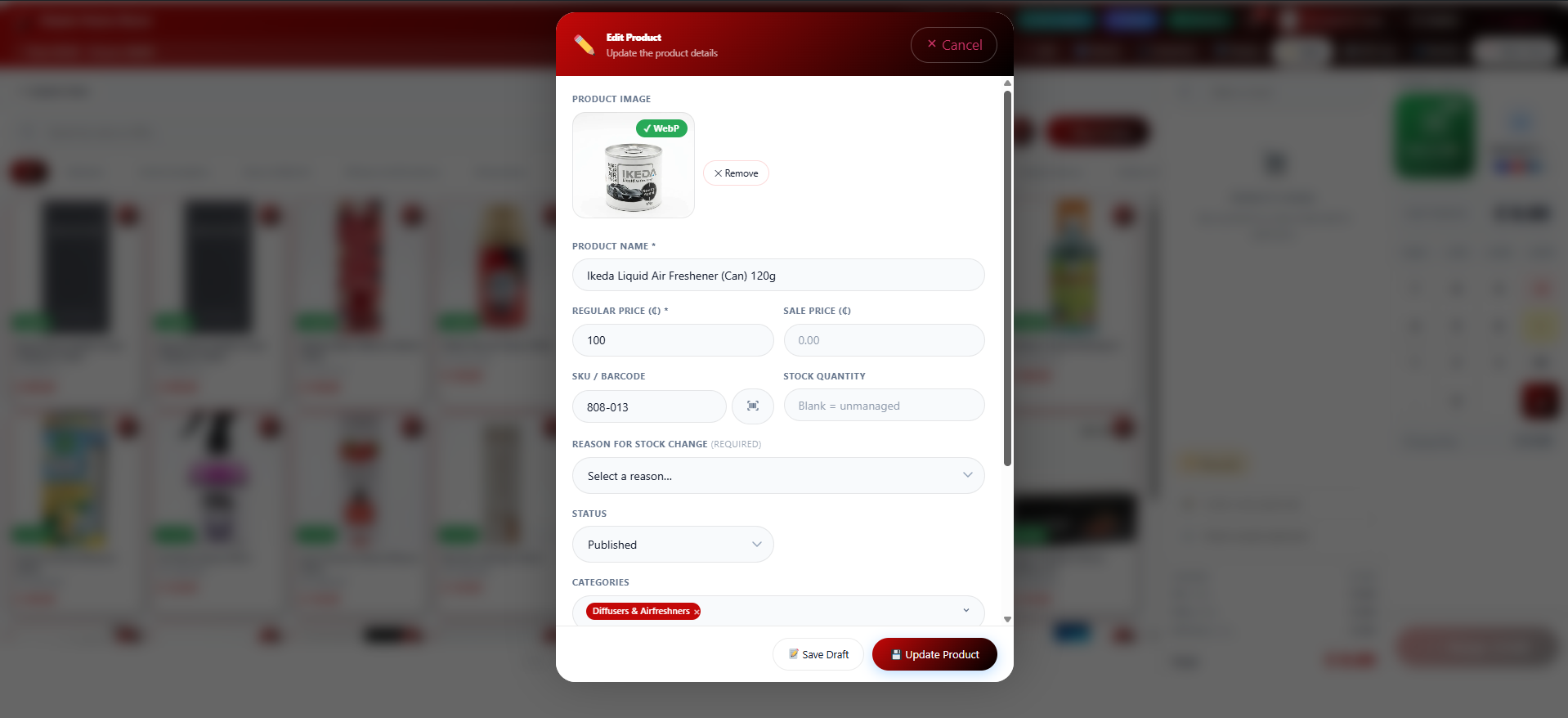
- 📦 Add and edit products from within the POS terminal
- 📷 WP Media Library image picker in product forms (with URL fallback)
- 👥 Role-based access: Administrator, Shop Manager, Supervisor, Cashier
- 📶 Offline support with IndexedDB order queue and auto-sync
- ⭐ Built-in customer rewards and loyalty points
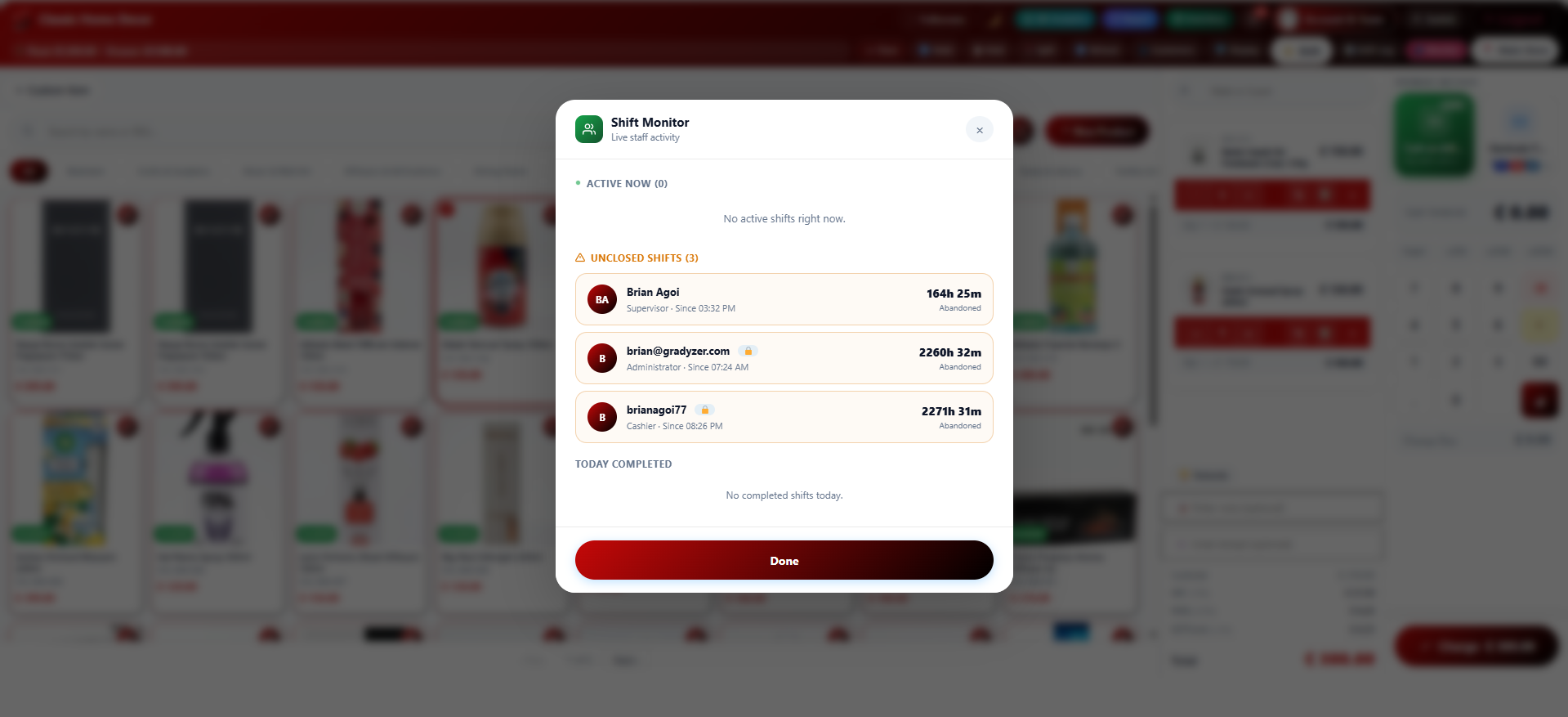
- ⏰ Shift tracking with clock-in/clock-out, shift log, and live monitor
- 🎁 Tips and gift cards at checkout
- ✉️ Optional digital receipt by email, alongside printing
- 🎨 Glassmorphic UI with customisable accent colour and dark mode
- 🔒 All API credentials encrypted at rest (AES-256-CBC)
External services
This plugin connects to the following third party services. Each one is used only for a specific, optional feature, and none of them run unless the relevant setting or feature is used.
Gravatar (Automattic)
Used to show a staff member’s profile picture in the account panel of the POS terminal and the admin settings screen. Whenever a user’s avatar is displayed, their email address is converted to an anonymized hash and sent to Gravatar to retrieve the matching image; if no Gravatar image exists for that address, a generated placeholder is shown instead. This is WordPress core’s own avatar mechanism (“get_avatar”), not something specific to this plugin.
Terms of Use available at https://en.gravatar.com/site/terms-of-service
Privacy Policy available at https://automattic.com/privacy/
Stripe
Used to process card payments, either through Stripe Elements at the register or through a connected Stripe Terminal card reader, when the store owner selects Stripe as a payment provider in Settings. Card details are sent directly to Stripe by Stripe’s own SDK, never to this plugin; the plugin sends the order amount and currency to Stripe’s API to create, capture, or cancel a payment when a Stripe transaction is started, completed, or cancelled at checkout.
Terms of Service available at https://stripe.com/legal/ssa
Privacy Policy available at https://stripe.com/privacy
Square
Used to process payments through a connected Square Terminal card reader, when the store owner selects Square as the terminal provider in Settings. The order amount and currency are sent to Square’s API to create a checkout when a Square Terminal payment is started, and to poll or cancel it while it is in progress.
Terms of Service available at https://squareup.com/us/en/legal/general/developers
Privacy Policy available at https://squareup.com/us/en/legal/general/privacy
Paystack
Used to process card payments at the register when the store owner selects Paystack as a payment provider in Settings. Card details are sent directly to Paystack by Paystack’s own SDK, never to this plugin; the plugin sends the order amount and currency to Paystack when a payment is started.
Terms of Use available at https://paystack.com/terms
Privacy Policy available at https://paystack.com/privacy/merchant
Flutterwave
Used to process card payments at the register when the store owner selects Flutterwave as a payment provider in Settings. Card details are sent directly to Flutterwave by Flutterwave’s own SDK, never to this plugin; the plugin sends the order amount and currency to Flutterwave when a payment is started.
Terms of Service available at https://flutterwave.com/us/terms
Privacy Policy available at https://flutterwave.com/us/privacy-policy/
PrintNode
Used for cloud receipt printing, when the store owner configures a PrintNode API key in Settings and chooses PrintNode as the print method. The receipt content and the selected printer ID are sent to PrintNode each time a receipt is printed through it.
Terms and Conditions available at https://www.printnode.com/en/terms-conditions
Privacy Policy available at https://www.printnode.com/en/privacy-policy
Screenshots
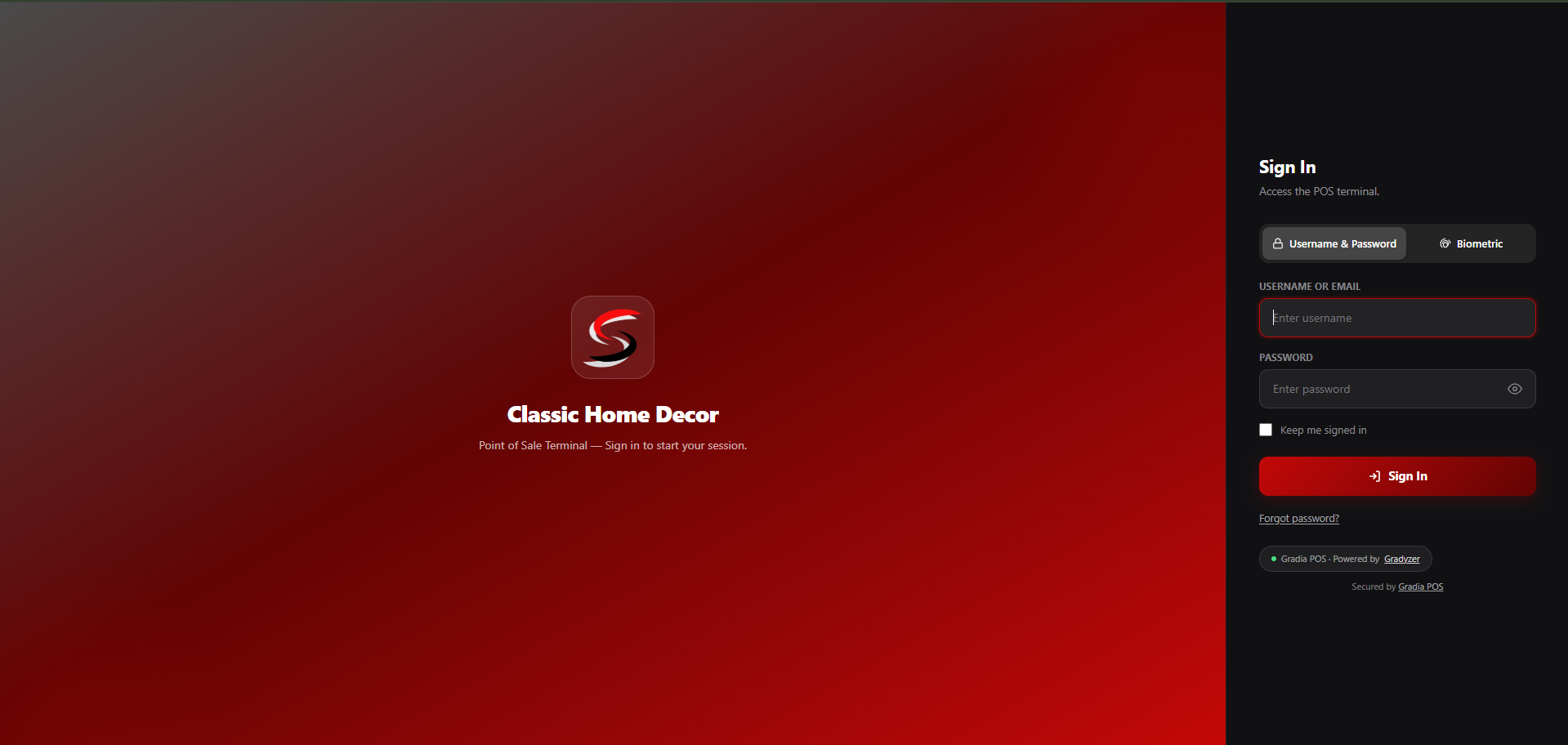
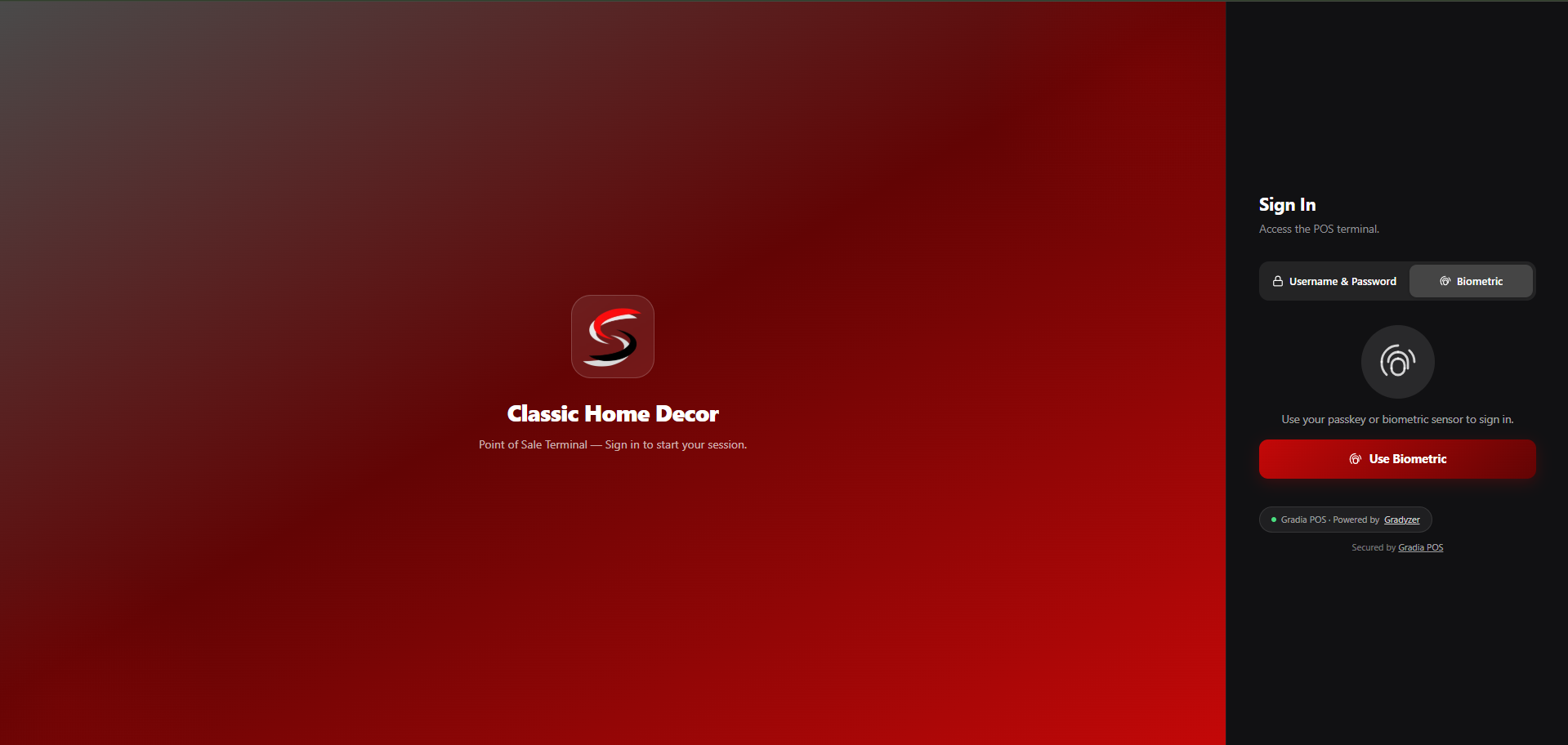
Signing in to the POS terminal with a username and password
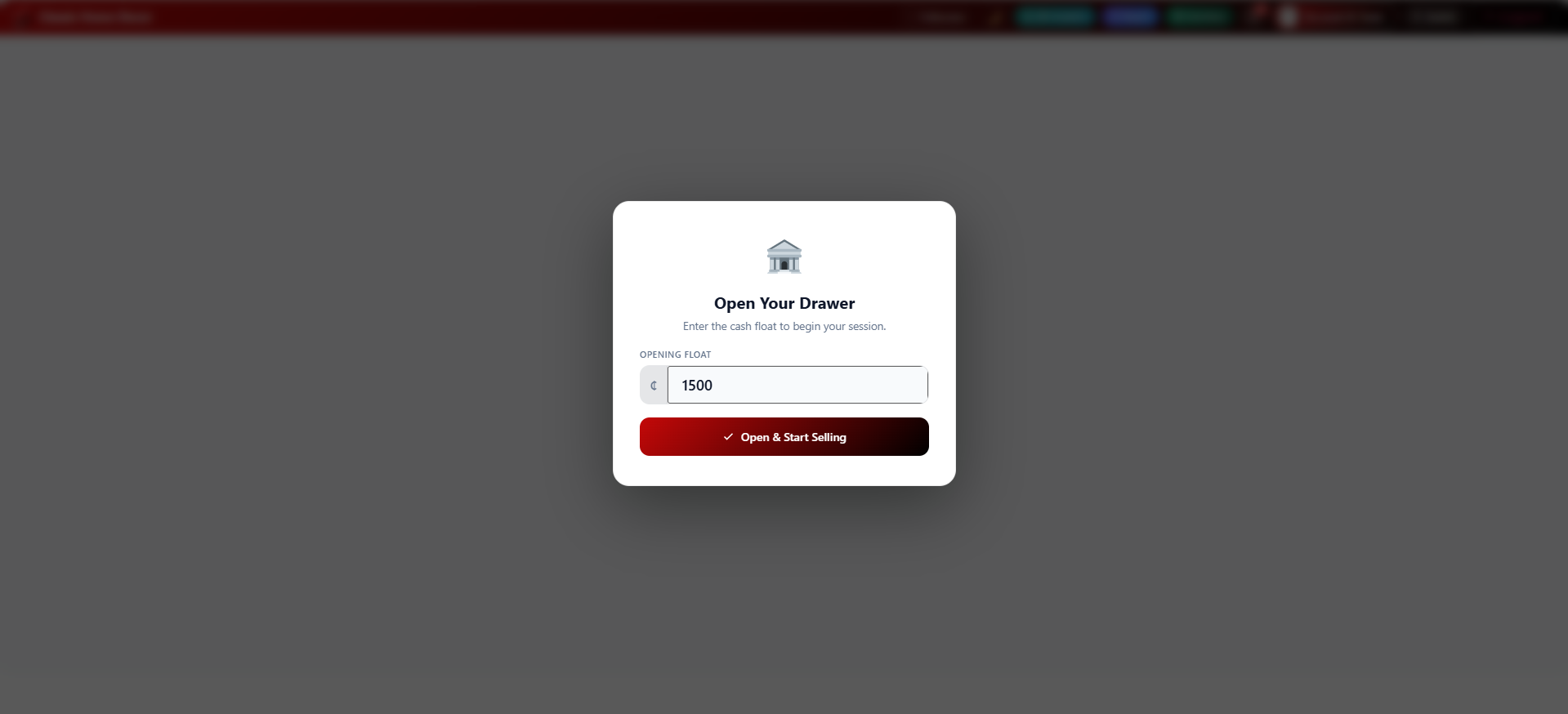
Opening the cash drawer with a starting float before a shift begins
The main POS terminal showing the product grid, categories, and basket
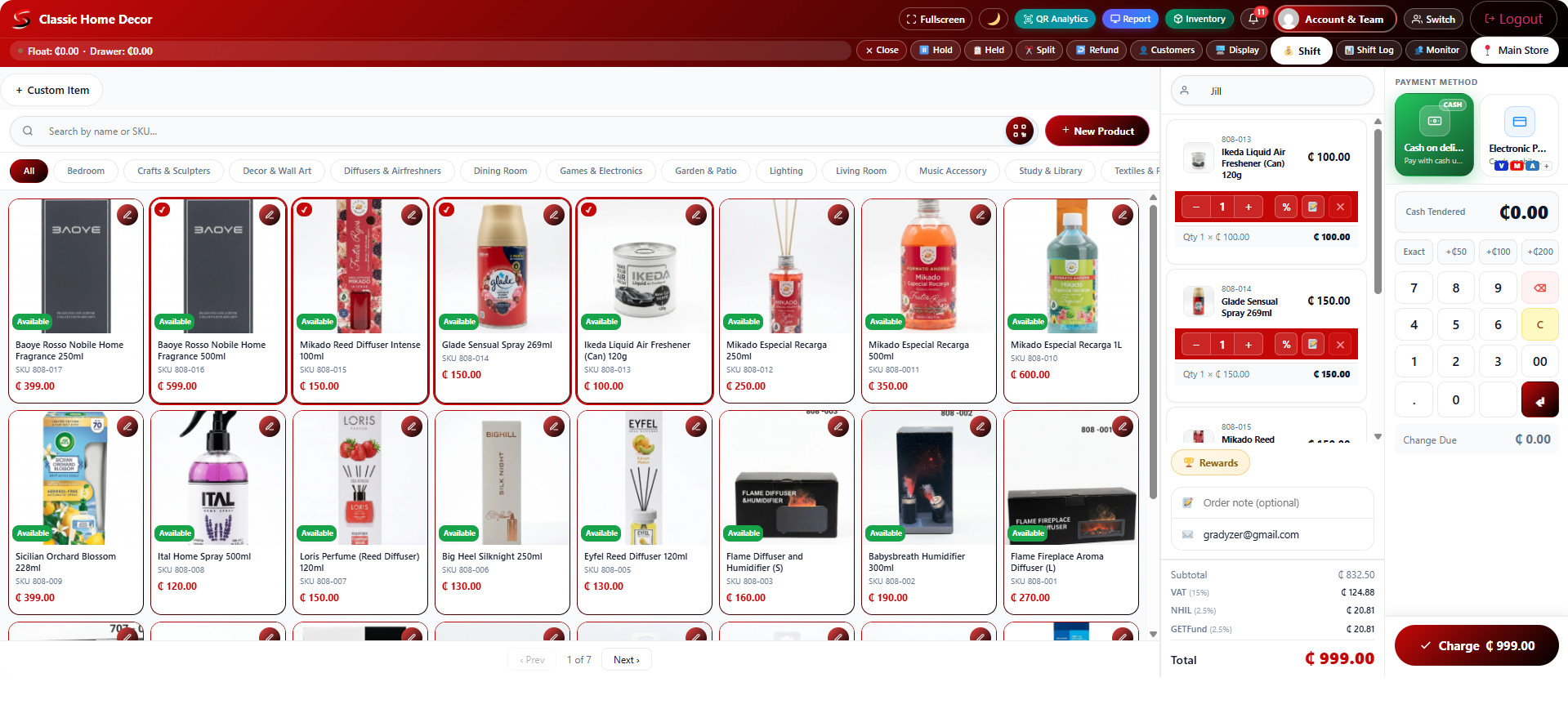
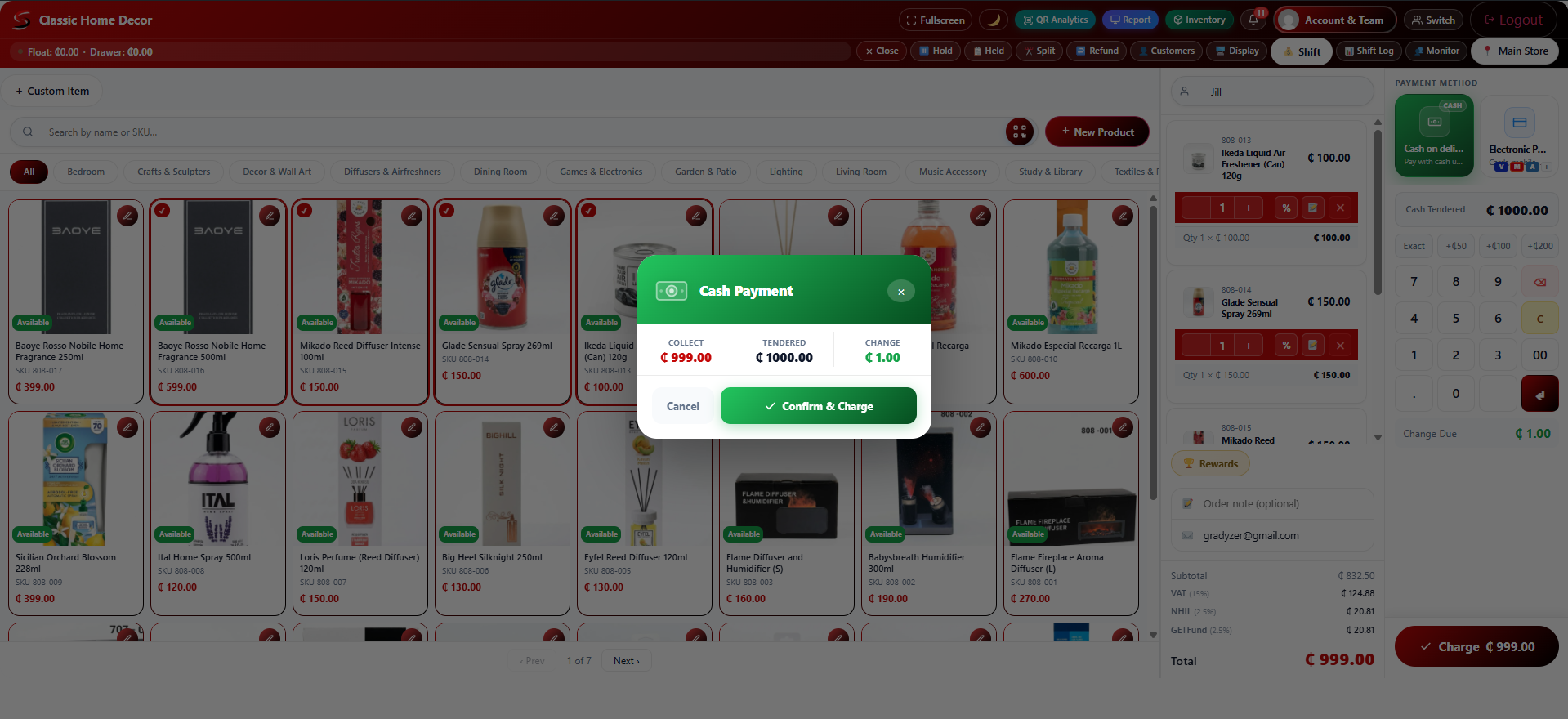
Confirming a cash payment with the amount tendered and change due
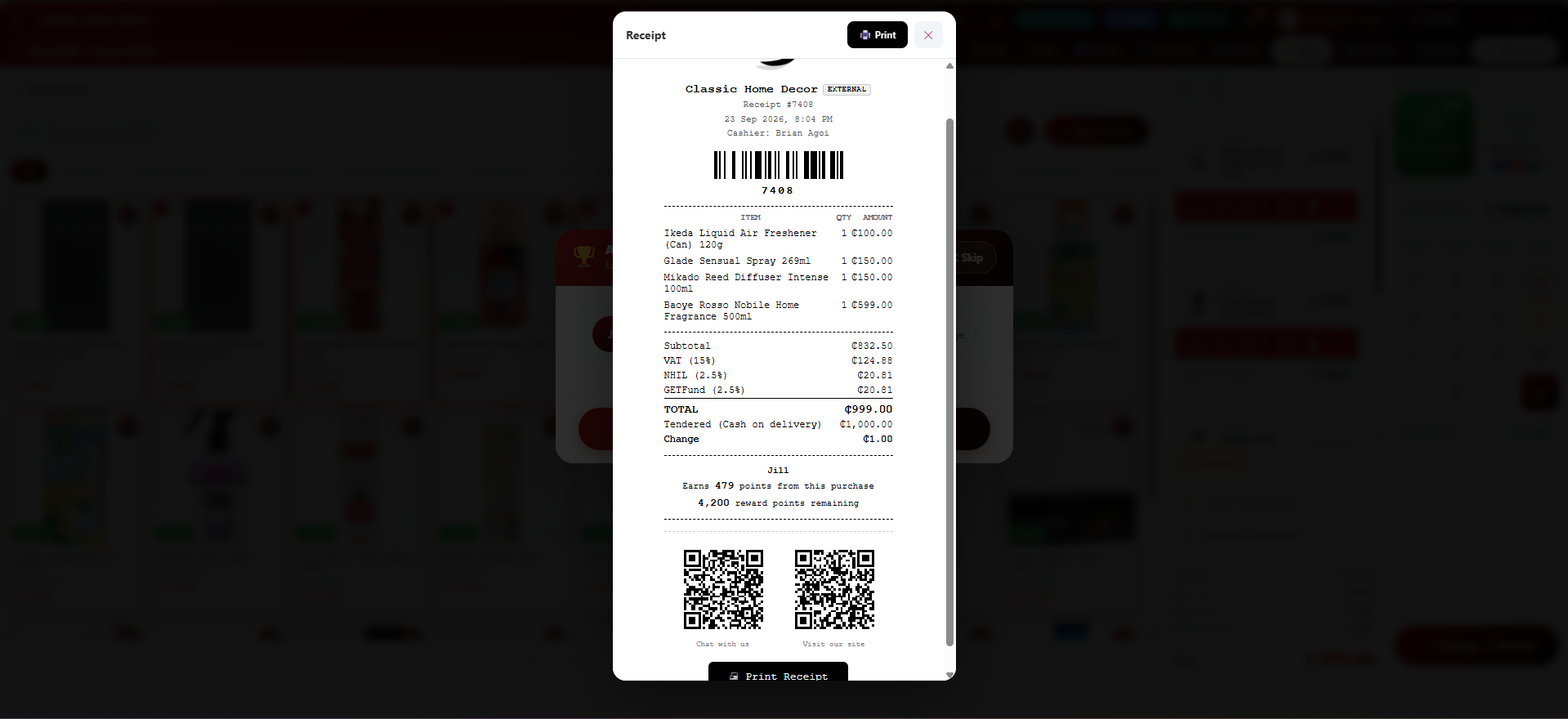
A printable receipt with itemized items and a barcode
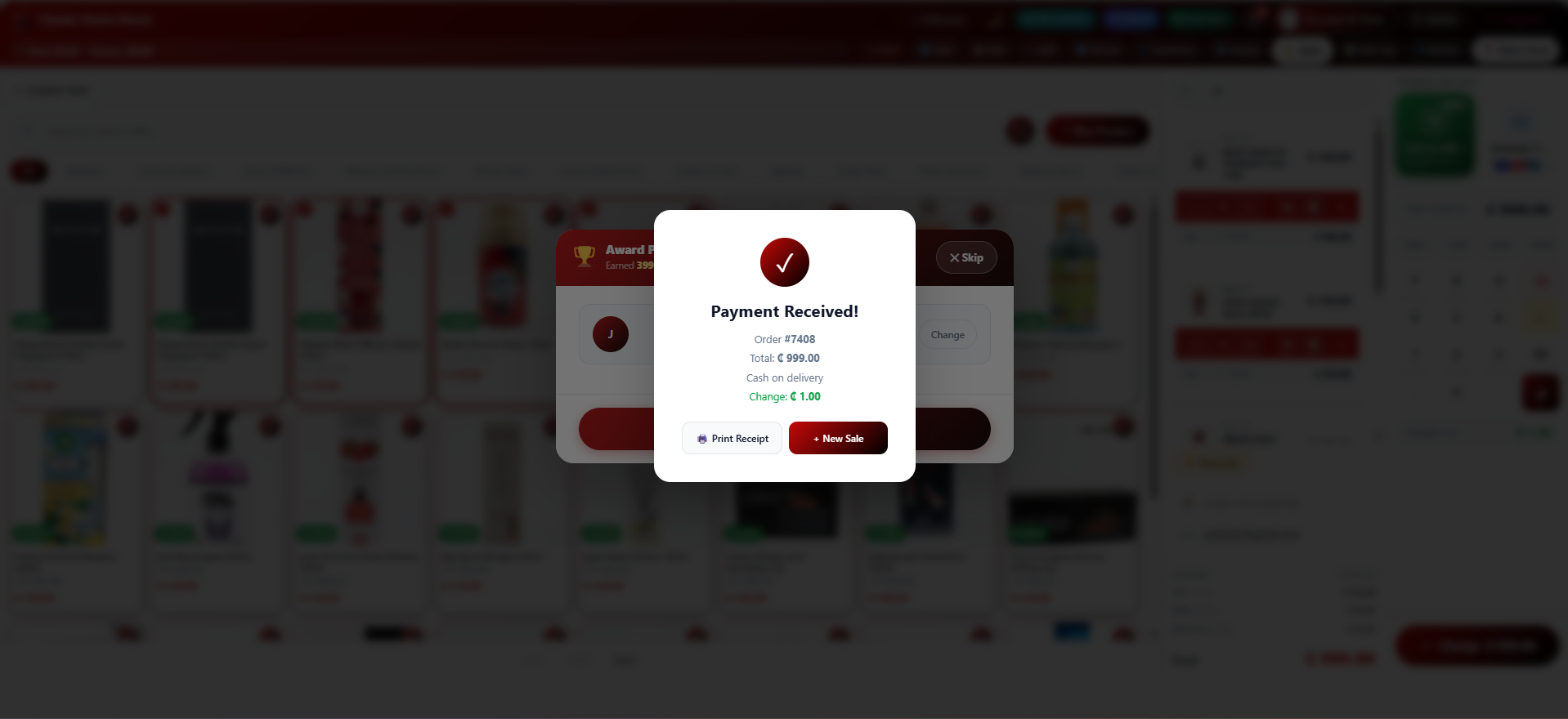
The payment confirmation screen after a completed sale
Awarding reward points to a customer at checkout
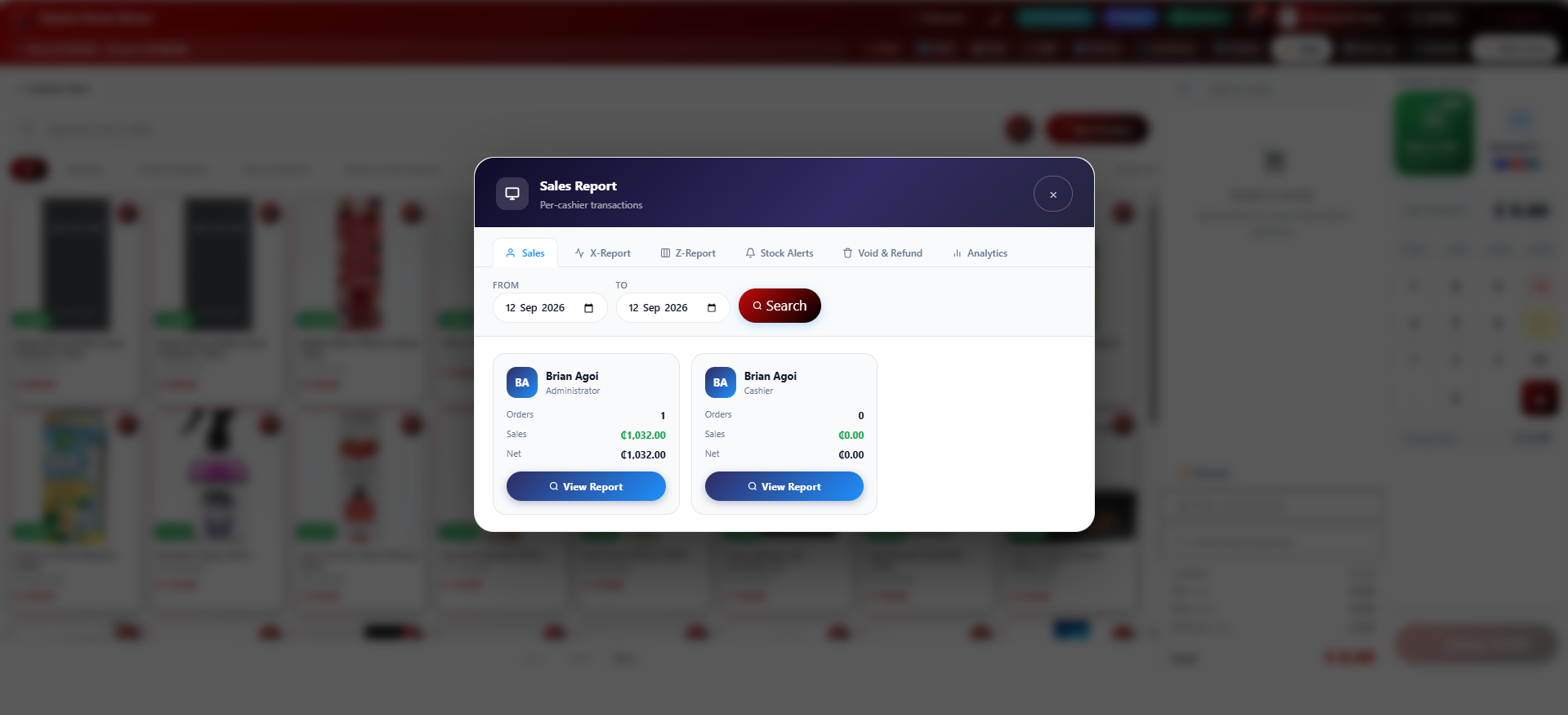
The Sales Report showing orders and totals for each cashier
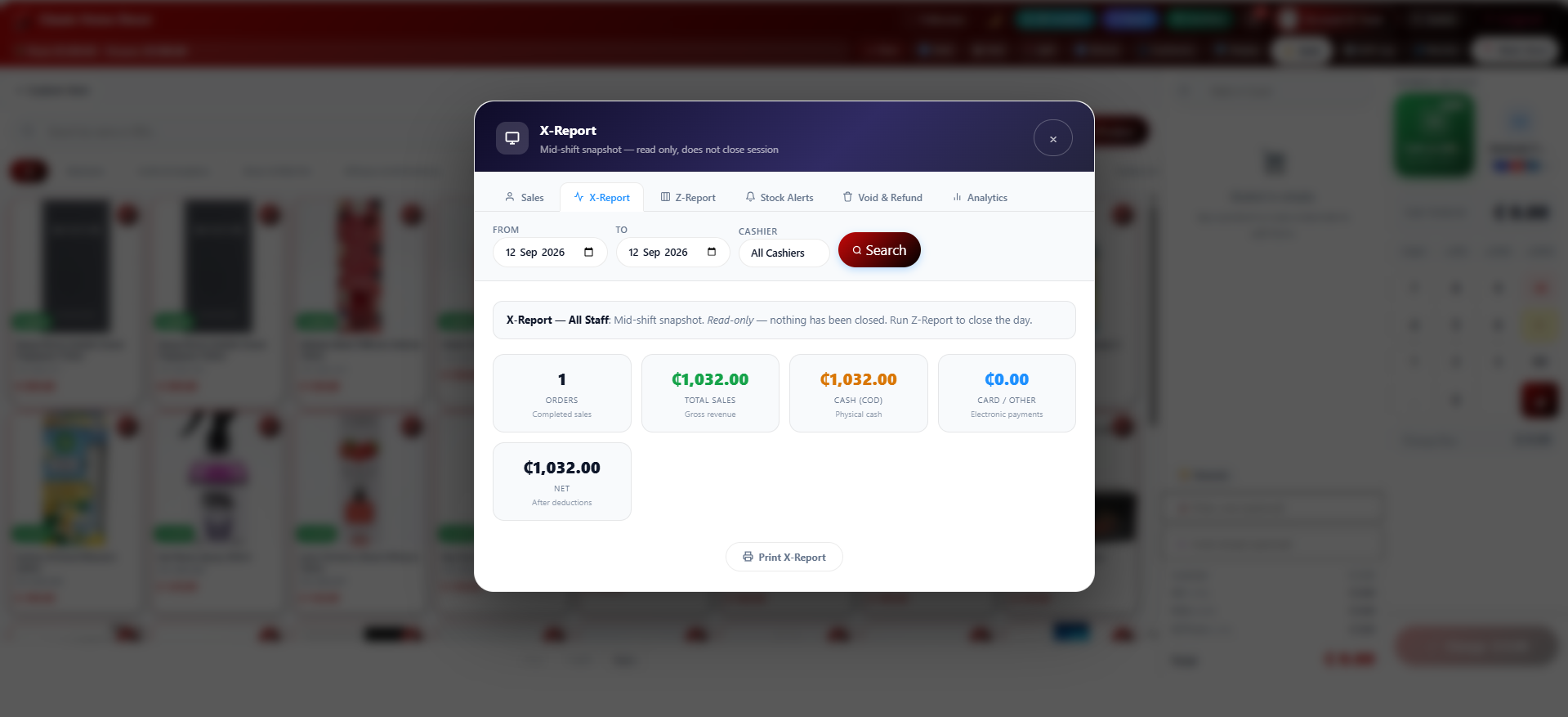
The X Report, a read only snapshot of sales taken mid shift
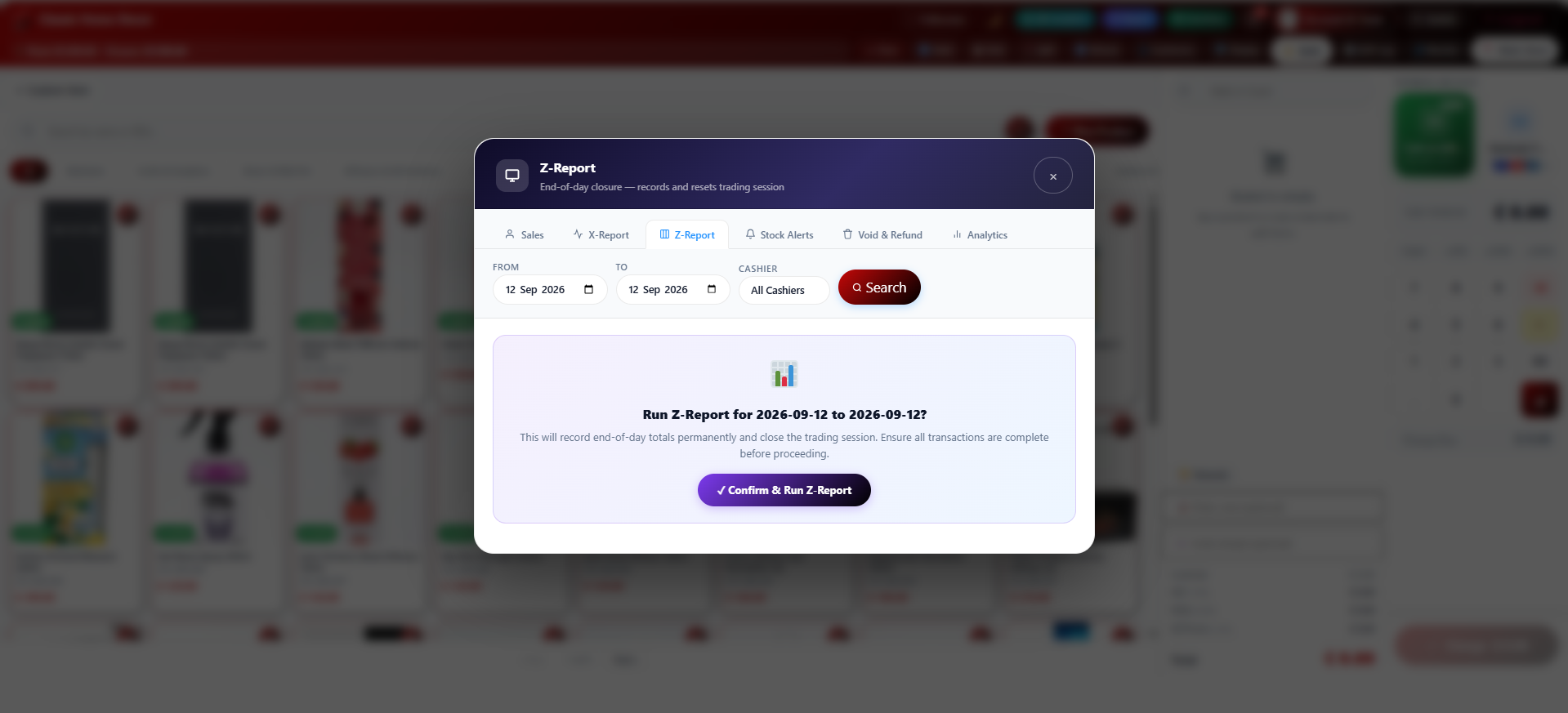
Confirming the Z Report to close out the trading session
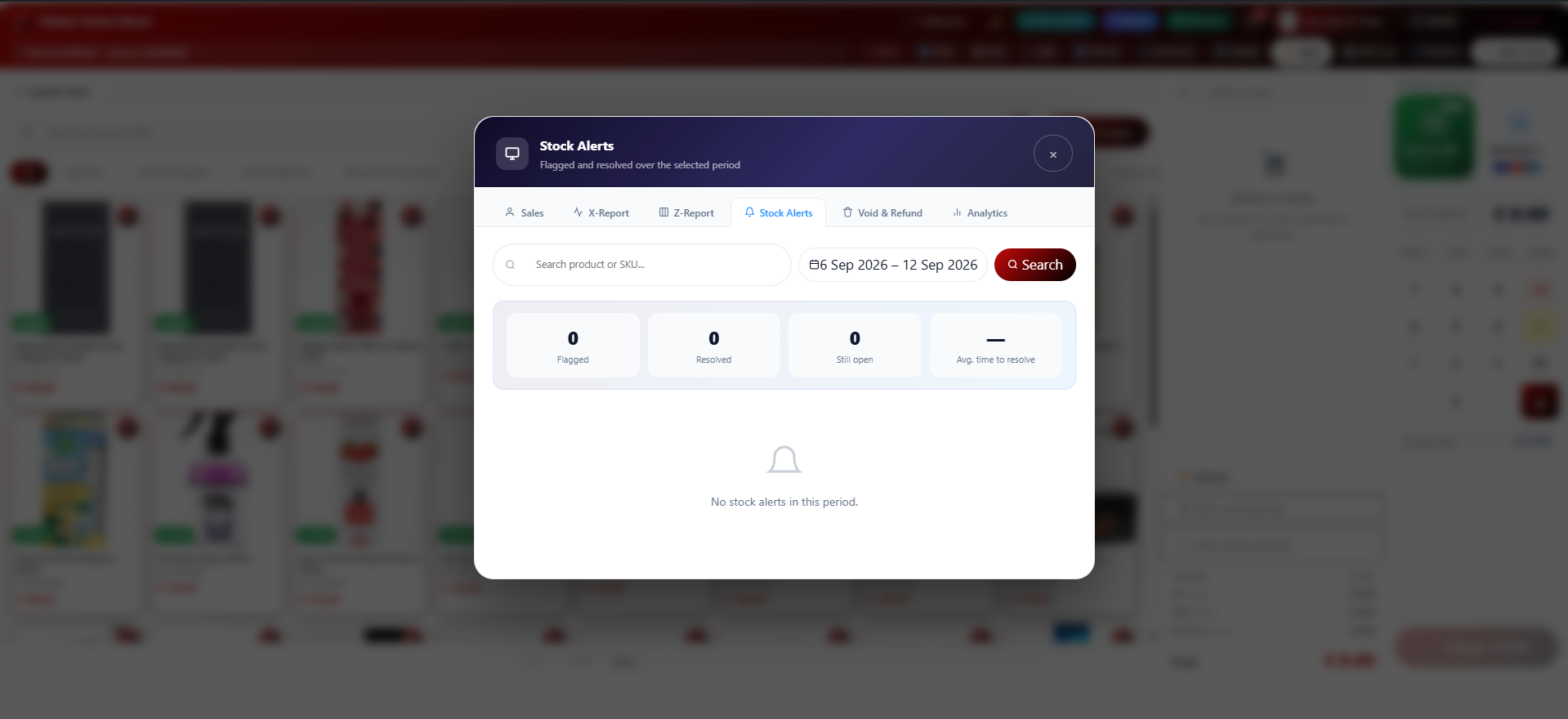
The Stock Alerts log showing flagged and resolved inventory issues
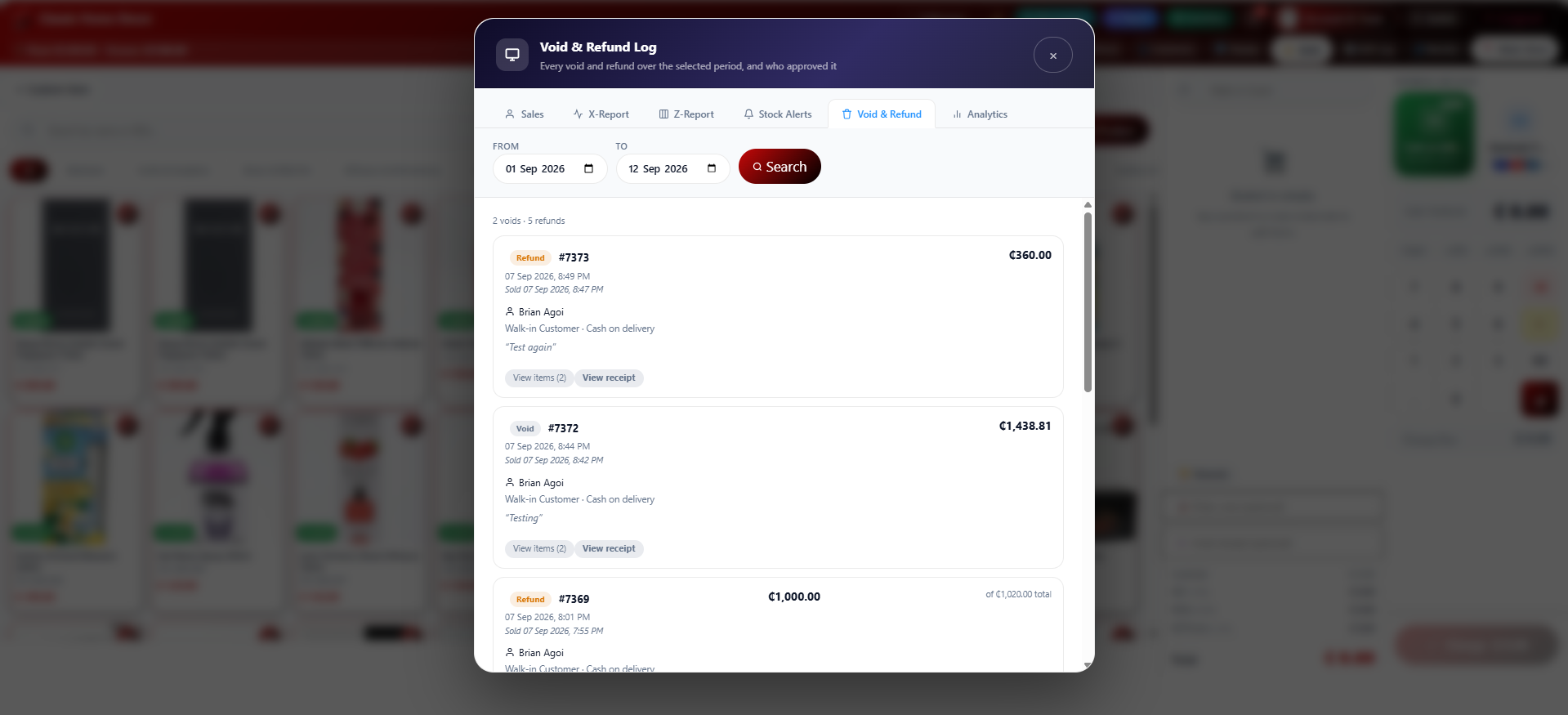
The Void and Refund log with approval details for each entry
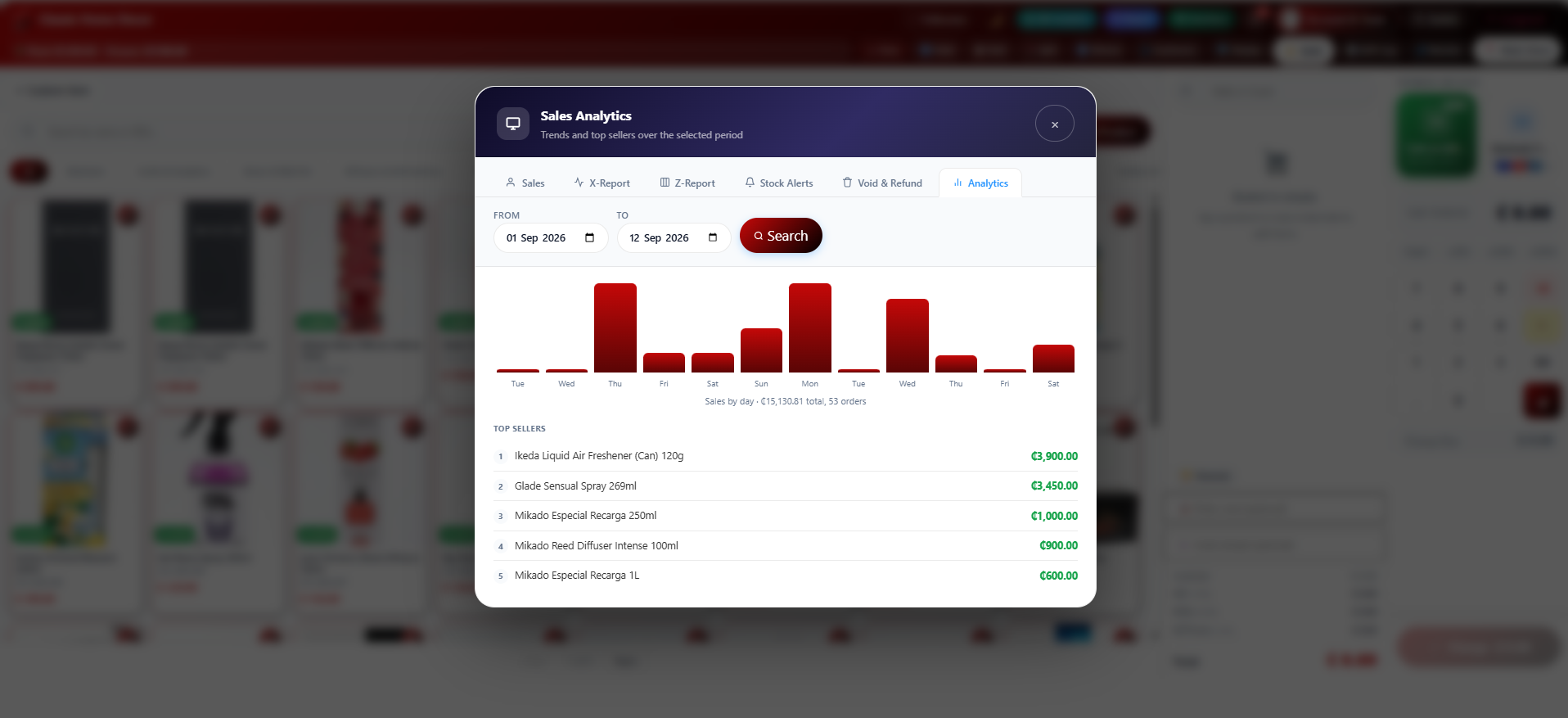
Sales Analytics showing daily trends and the top selling products
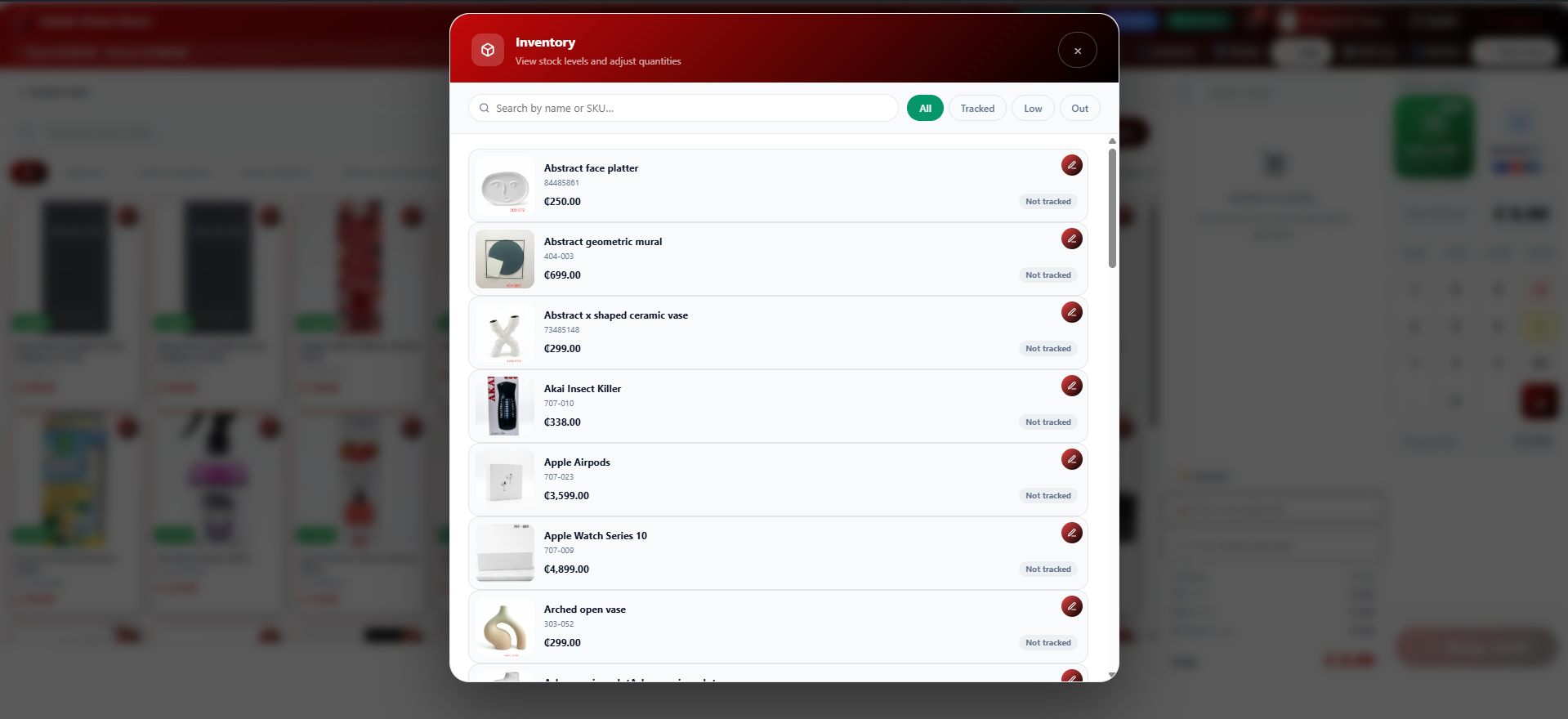
The Inventory list showing stock levels with quick editing
Account security settings, including password and PIN
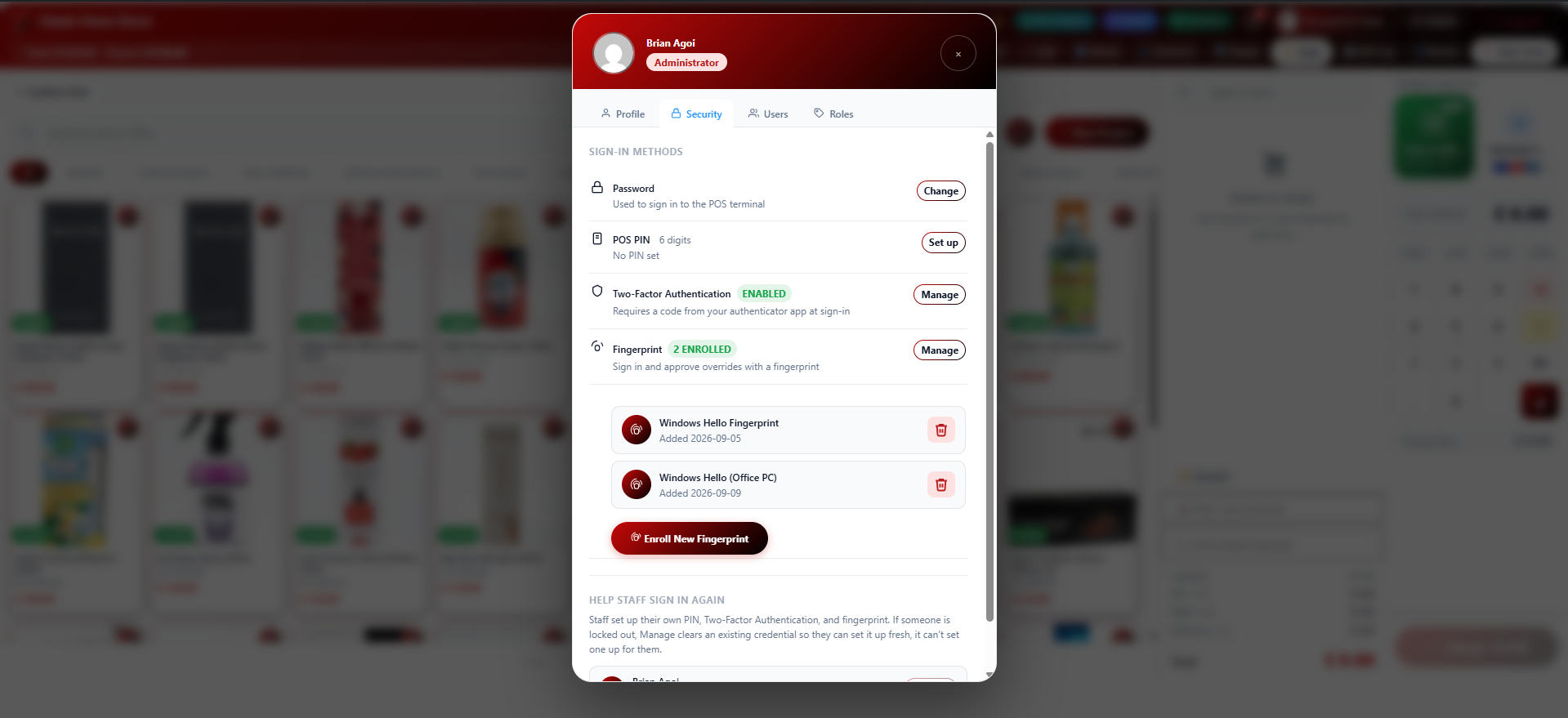
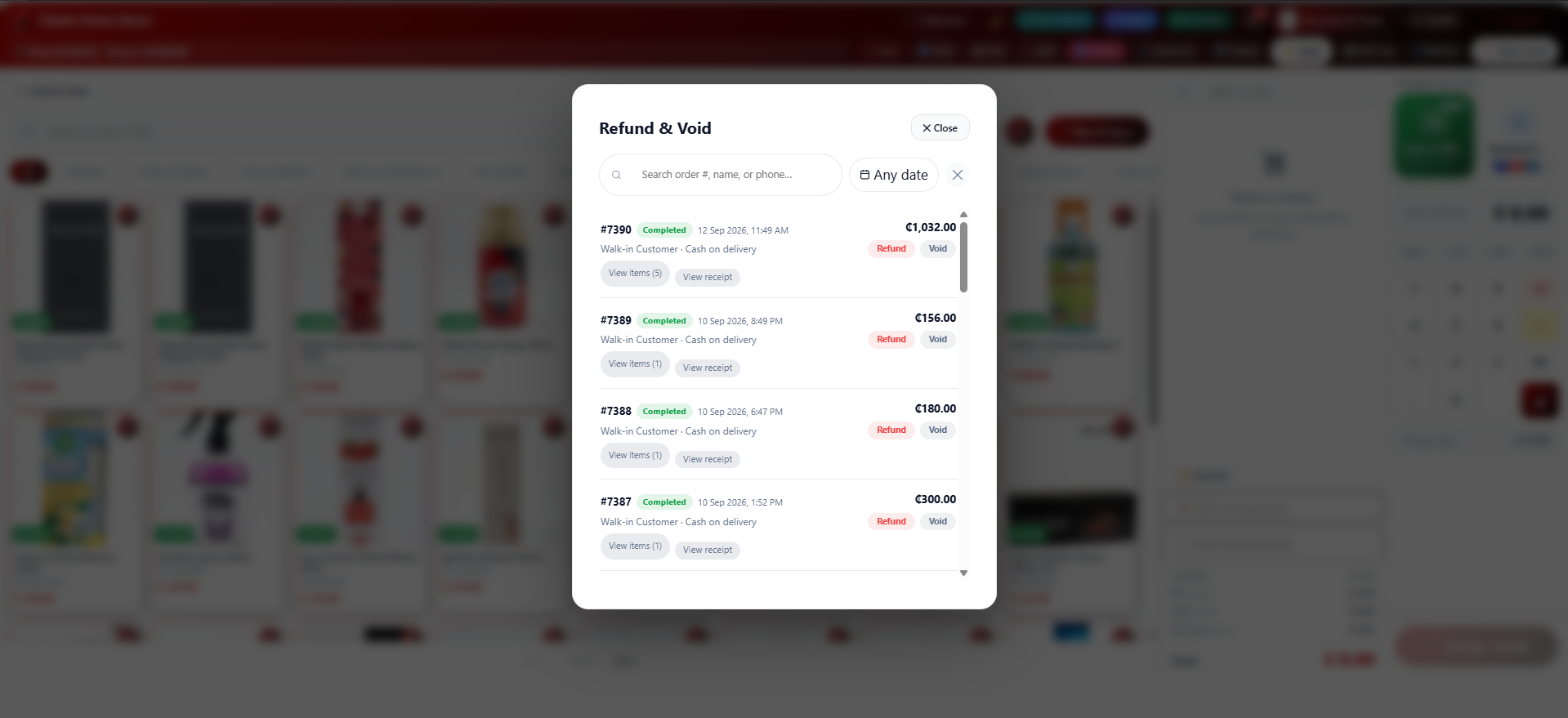
The Refund and Void screen for browsing past orders
Shift Monitor showing active and unclosed staff shifts
The Edit Product screen for updating price, stock, and other details