
imagIn – WebP & AVIF Converter helps you convert JPG, JPEG, and PNG images to modern WebP or AVIF formats from inside WordPress.
The plugin runs on your own server using available PHP image libraries. It does not send image files to an external service, require a cloud account, or lock conversion features behind a premium plan.
Key features
- Convert JPG, JPEG, and PNG files during upload.
- Convert existing JPG, JPEG, and PNG media files one at a time from the Media Library.
- Bulk convert existing JPG and PNG media files in small batches from the imagIn settings page or directly from the Media Library.
- Choose the output format: WebP or AVIF.
- Keep the original file, replace it after conversion, or move it to a backup folder.
- Set separate quality levels for WebP and AVIF.
- Check available PHP memory before converting large images and show an actionable message when more memory is needed.
- Check server support for GD, Imagick, WebP, and AVIF.
- Store conversion metadata on each attachment.
- Show conversion status in the Media Library.
- Show progress and a clear completion result during bulk conversion.
- Update image URLs in page content and builder data after conversion, including Elementor data.
- Use local server libraries only.
Local-first image conversion
imagIn is designed for site owners who want a simple conversion workflow without connecting WordPress to an external optimization platform. Conversion support depends on the image libraries available on your hosting server.
If your server does not support WebP or AVIF through GD or Imagick, the plugin will show the capability status and skip unsupported conversions safely.
Original file handling
You can choose how imagIn handles original images after a successful conversion:
- Keep the original file and its WordPress image metadata. The converted file is stored in uploads without creating a second Media Library attachment.
- Replace the original file with the converted file. The converted file becomes the main Media Library asset used by pages and templates that reference that attachment.
- Move the original file and generated source sizes to a backup folder inside uploads.
If existing pages depend on a direct JPG or PNG file URL, keep Update page image references enabled before using any handling mode. Matching URLs in WordPress content and builder metadata will be updated after a successful conversion. Keep original remains the safest choice for the original attachment and its metadata, but URLs stored outside WordPress content or metadata still cannot be identified automatically.
When Update page image references is enabled, imagIn also updates matching image URLs in post content, excerpts, and post metadata used by page builders. This helps Elementor and other builders switch to the converted file without replacing each image manually.
Privacy
imagIn processes images locally on your WordPress server.
The plugin does not send image files, site data, or usage data to an external API, CDN, cloud service, or third-party optimization platform.
Support
imagIn is completely free and does not include premium features, usage limits, or cloud requirements.
If this plugin helps your workflow, you can support future development through Trakteer:
https://trakteer.id/inkamediautama
Screenshots
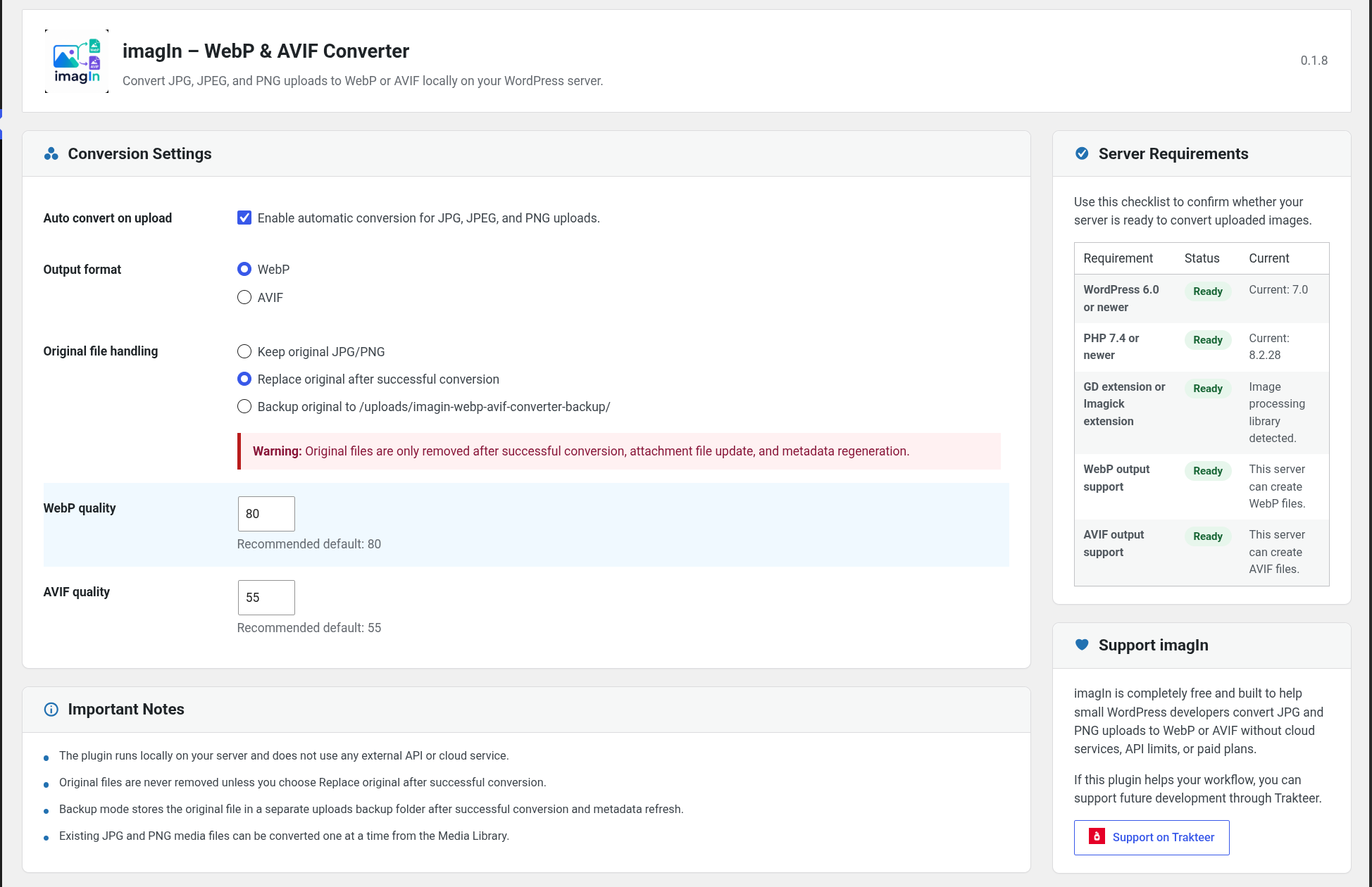
imagIn settings page with automatic upload conversion, output format selection, original file handling, quality controls, server requirements, and support information.
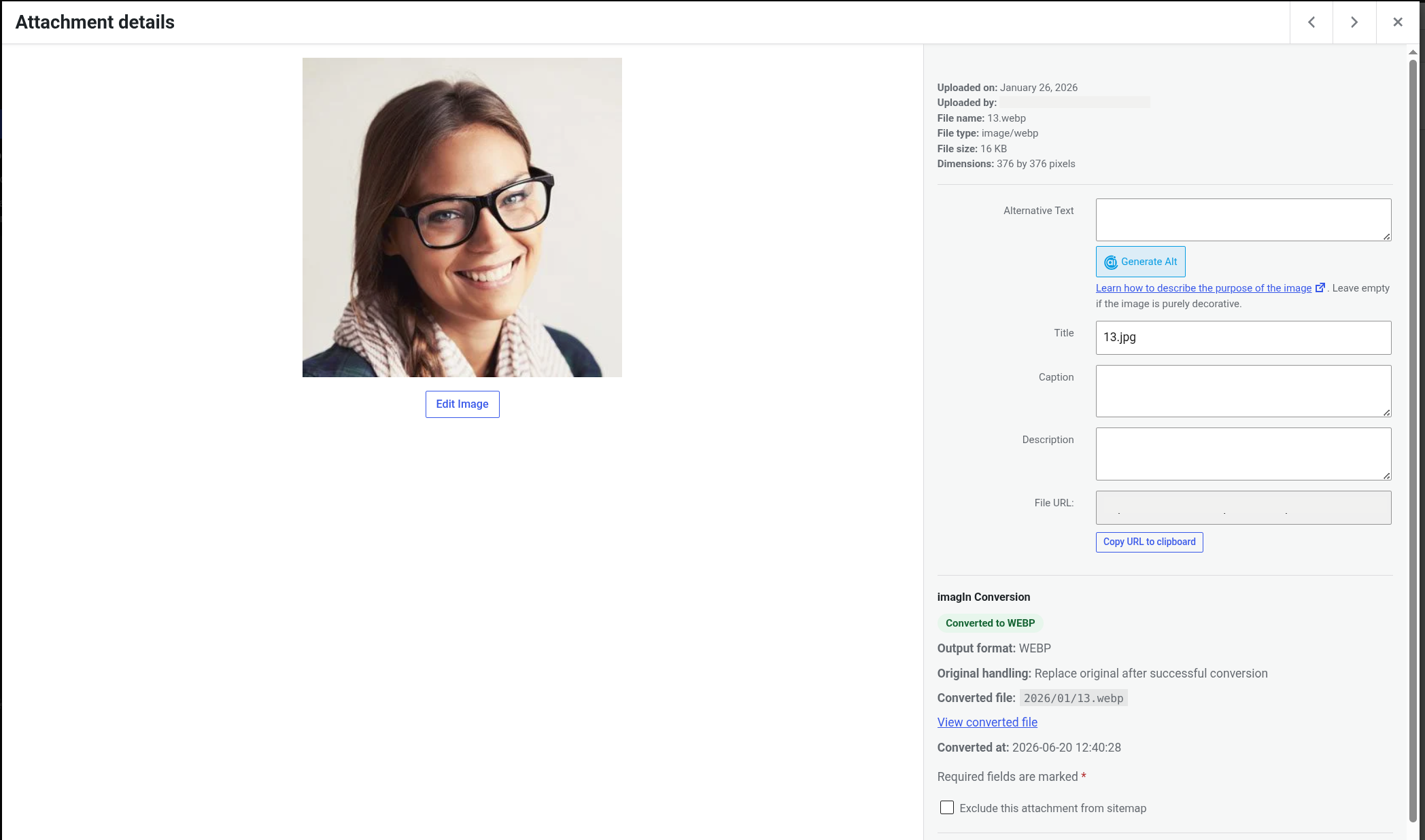
Attachment details panel showing a converted WebP image, conversion metadata, output format, original handling mode, converted file path, and converted timestamp.
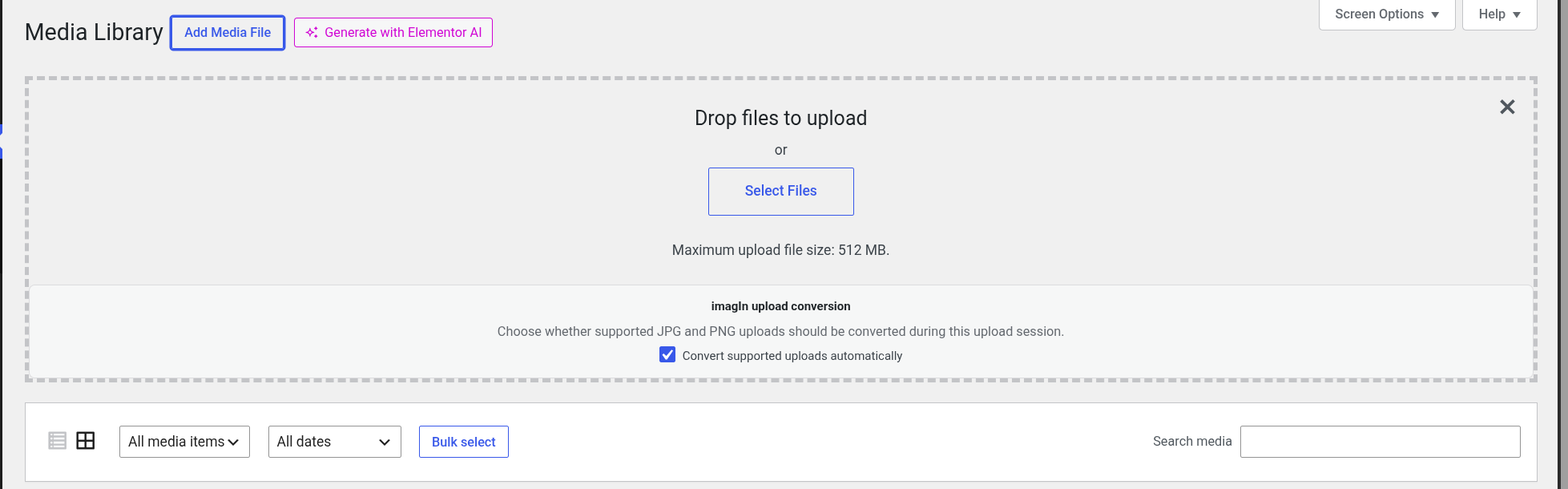
Media Library upload screen with the imagIn upload conversion option for automatically converting supported JPG and PNG files during the current upload session.