
Jim – Accessible Converter lets administrators upload PDF, DOCX, Markdown (.md) or TXT files from the WordPress dashboard and turns each file into a responsive, accessible (WCAG 2.1 AA) HTML page, with:
- Text size, high-contrast and reading theme controls (Light, Sepia, Dark).
- A floating player docked to the bottom of the screen, following Material Design 3 (48dp touch targets): a navigation menu (search and contents), settings (voice and theme, including high contrast), text size, play/pause, speed (one tap goes to the next value), stop, previous/next part for long documents, and a button to hide the whole bar.
- Text-to-speech using the browser’s native Web Speech API (no external API cost, no text sent to third parties).
- Contrast, visible focus and keyboard navigation across all controls.
- A table of contents side panel, built from Word heading styles or the PDF bookmarks (outline).
- Optional removal of the “Página 1, Página 2…” page markers from PDFs, joining sentences split across pages and dropping printed page numbers.
- Two display modes per document, chosen when you import the file or later in the documents list (Quick Edit): Accessible reader (default) or Standard blog, which adds a reading-time bar with listen and share buttons.
- Also publish in: pick posts, pages or a custom post type and each imported file also becomes an item there, with the shortcode already inside, so you stop pasting shortcodes one by one. The address (slug) is the file name; choose the status (publish now, draft, pending, private or schedule) and the categories and tags.
- Scheduling with Action Scheduler: a scheduled publication is an event you can see, run or cancel under Tools > Scheduled Actions.
- Guided tours of the New Document screen (it starts by itself after a fresh installation) and of the Settings screen (assistant and quick texts); both can be opened again from the Tutorial tab. It is keyboard and screen reader friendly.
- Images from PDF and DOCX files are saved to the Media Library, linked to the document, with the alternative text written in Word; images without a description are flagged so the author can describe them. An accessible lightbox opens them full size.
- Limits on the number and total size of images, plus time and memory guards, so large illustrated books don’t bring the server down. Each image left out is listed with its cause.
- Search engine data built for documents: meta description chosen by the shape of the text (it skips covers, data sheets and notices), Open Graph and Twitter Card, and schema.org JSON-LD with the author, reading time, language and the accessibility features the page really offers. A long title is shortened for search results. With Yoast SEO, Rank Math, All in One SEO or SEOPress active, Jim writes no tags of its own and hands them the description and the accessibility data.
- SEO and accessibility score (0 to 100) for every document, in the documents list and in a box on the document screen, with fixes on the spot: author (with “Use my name”), title and summary with a character counter, “Auto-detect from text” and “Auto-fix headings”. Each save recalculates the score without reloading the page.
- Check before you send: the chosen files are listed with their size and a “Valid” or “Error” badge (type, empty, size limit) and the Convert button waits until every file is valid. Set an author and the document language for the whole batch.
- See where each document is used: the documents list shows every page, post or custom post type that holds the shortcode (drafts, private items and page builders such as Elementor included), with links to view and edit.
- A highlighter: readers select text and mark it in one of four colors. Highlights are saved only in the reader’s own browser.
- An activity log in the settings that follows each conversion live (time, memory, words, images and the cause of each image left out, errors), with CSV export. It never records document text.
- Translations: English, Brazilian Portuguese, Spanish, French, Simplified Chinese, Hindi, Russian and German, chosen by the site or user language. Jim is open source: a “Review translation” button in the settings leads to where corrections and new languages can be sent.
- An optional AI tutor for readers: a chat bubble on the document page that answers questions about that document, by text or voice. You give it a name, a personality, instructions and a greeting, choose the AI provider (OpenRouter, Claude by Anthropic, OpenAI, Gemini by Google or DeepSeek, with your own encrypted API key) and decide where it appears. You can also choose, rename, add or turn off the quick texts (the suggestions at the start of the chat). Readers can hide it. Off by default.
- Large files convert in the background, with a progress bar (page N of M), so a long book no longer ends in a “504 Gateway Time-out” page. If the server stops the conversion (memory or time limit), the screen and the activity log say why.
- A warning when a PDF’s text comes out unreadable (fonts without a Unicode map), instead of publishing garbled text silently.
- A “Server requirements” table in the settings, showing the site’s PHP limits against the recommended values.
- Conversions stored in the WordPress database (Custom Post Type), reusable via the
[documento_acessivel id="123"]shortcode. - A
[jimca_instalacoes]shortcode that displays the number of active installs reported by the WordPress.org API (available once the plugin is published in the official directory).
Support the project
If this project was useful to you, please consider giving the repository a star on GitHub! It helps the project grow and reach more developers.
Requirements
- PHP 7.4+ (8.1 or later recommended)
- Recommended server settings: memory_limit 512 MB (256 MB minimum), max_execution_time 300 s (120 s minimum), upload size 32 MB. See the “Server requirements” table in the plugin settings.
- PHP extensions: zlib, iconv, mbstring (PDF); zip, dom, xml, mbstring (DOCX); gd (optional).
- No external programs are needed: conversion is done in PHP only.
Supported formats
- PDF (with extractable text — image-only/scanned PDFs are not supported, there is no OCR)
- Word
.docx(the legacy Word 97-2003.docformat is not supported) - Markdown (.md)
- TXT
Up to 20 files (any of these types) can be sent in a batch at a time, within the configured limit; each one is converted in turn.
Source code and libraries
The plugin’s source code is public: https://github.com/maycristina/jim-conversor-acessivel
The vendor/ folder contains unmodified, human-readable PHP libraries installed with Composer: smalot/pdfparser and phpoffice/phpword (both LGPL), plus their dependencies. Their exact versions are listed in vendor/composer/installed.json.
The same folder holds Action Scheduler (woocommerce/action-scheduler, GPLv3), the library WooCommerce and many plugins use to run scheduled tasks. Jim uses it to publish scheduled posts at the chosen time; if WooCommerce or another plugin ships a newer copy, the library loads only the newest one.
Privacy
- No tracking. The plugin does not collect, store or send personal data about your visitors, does not set cookies and does not load scripts, styles, fonts or images from other sites.
- External services (all optional, server-side only; visitors’ browsers never contact them).
- WordPress.org —
[jimca_instalacoes]requestshttps://api.wordpress.org/plugins/info/1.2/(privacy policy), cached for 12 hours. Only the plugin slug is sent. - AI providers — (1) when an administrator presses a provider’s “Test connection” button: one fixed test sentence, with the key and the chosen model; (2) when the AI tutor is on and a reader asks a question: the question, the last turns of that reader’s conversation (kept in the reader’s browser for the session) and passages of the document. Only to the provider chosen in the settings. The reader’s IP address is not sent; it is only used, hashed with the site’s salt, to count questions per hour, and the count expires after an hour. Each provider has its own terms and may process data in other countries:
- OpenRouter —
https://openrouter.ai/api/v1/chat/completions(terms, privacy policy). - Anthropic (Claude) —
https://api.anthropic.com/v1/messages(terms, privacy policy). - OpenAI —
https://api.openai.com/v1/chat/completions(terms, privacy policy). - Google (Gemini) —
https://generativelanguage.googleapis.com/v1beta/openai/chat/completions(terms, privacy policy). - Other (OpenAI-compatible) — the address the administrator sets: an open-source model on your own server (Ollama, vLLM, LM Studio, LocalAI, llama.cpp, Hugging Face TGI) or an AI gateway (LiteLLM, Portkey, Cloudflare AI Gateway…). Its terms are those of whoever runs it; on your own server, the data does not leave it.
- DeepSeek —
https://api.deepseek.com/chat/completions(terms, privacy policy).
- WordPress.org —
- Activity log. The last 200 entries (file names, times, memory use, counts and errors) are kept in a site option for administrators, and can be cleared or exported. Document text and the AI keys are never recorded.
- Suggested privacy-policy text is added to Settings > Privacy > Policy Guide.
- Browser storage. The reading controls and the highlighter use the reader’s own browser storage (
localStorage) to remember text size, theme, contrast, voice, speed, whether the bar or the tutor is hidden, and highlighted passages, per document. The tutor conversation is kept insessionStorageuntil the tab is closed. This data stays in the browser (the tutor conversation is sent with each new question, as described above). - Saved tutor answers. To answer repeated questions instantly, answers may be kept per document, in post meta, with the weight of each word of the question (not the question text) and nothing that identifies the reader. They are discarded when the document or the tutor settings change, and can be turned off.
- Voice questions to the tutor use the browser’s own speech recognition, when the browser has it. Some browsers (Chrome, Edge) send the audio to their vendor to turn it into text; the plugin only receives the text.
- Text-to-speech uses the browser’s built-in Web Speech API. Depending on the browser and voice chosen, the browser itself may process speech on the vendor’s servers; the plugin does not send the text anywhere.
- Uploaded files are processed on your server only.
Screenshots
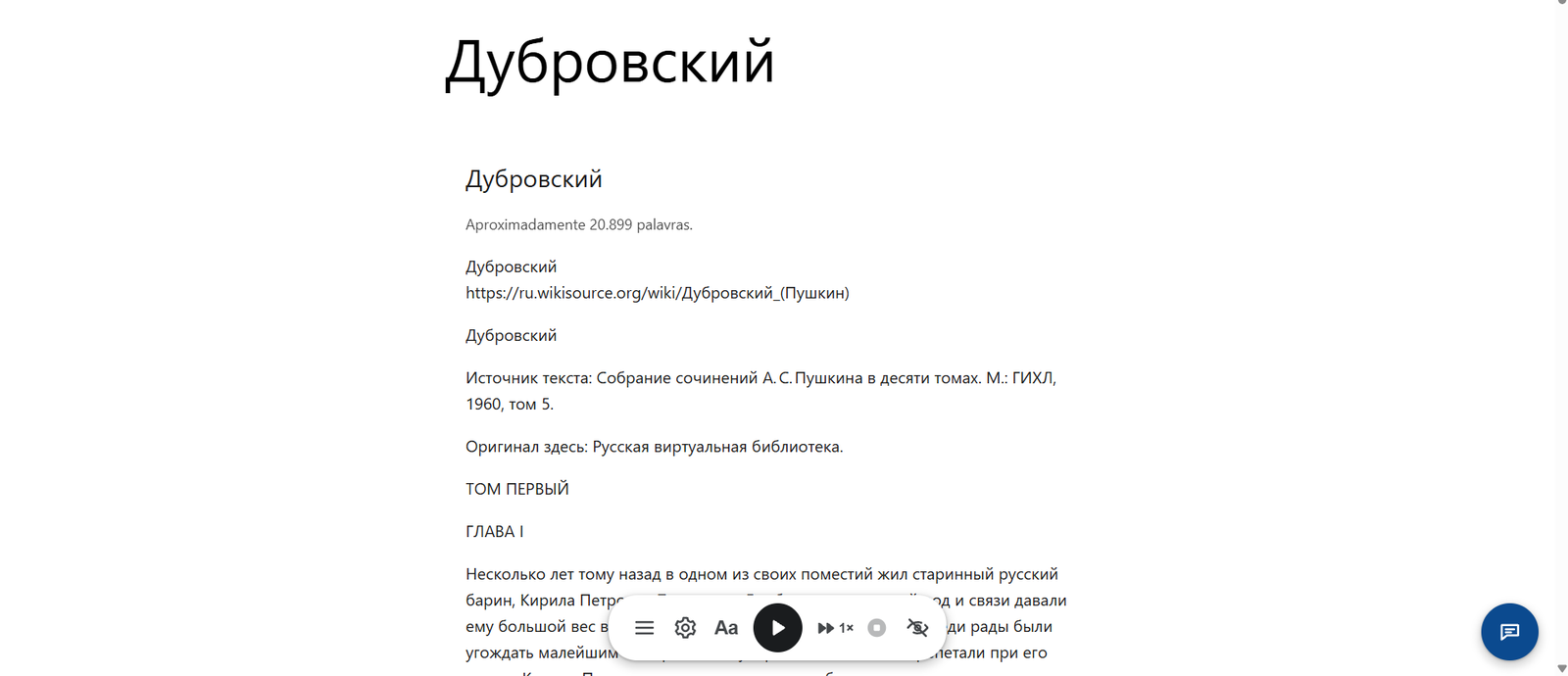
A converted document with the floating reading bar (menu, settings, text size, play/pause, speed, stop and hide) and the assistant button.
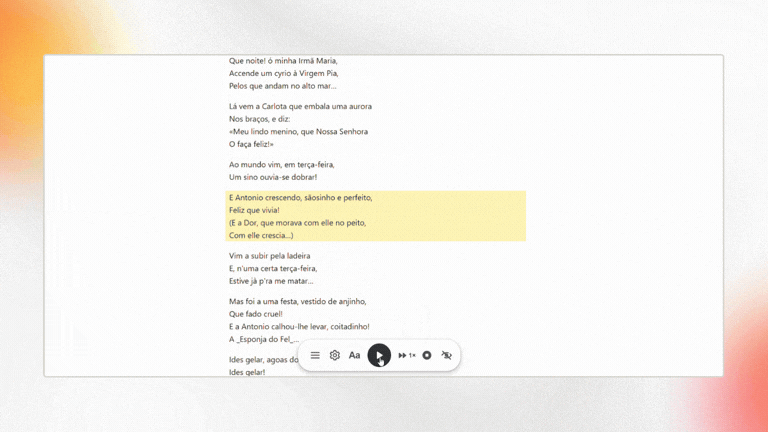
Listening: the passage being read aloud is highlighted.
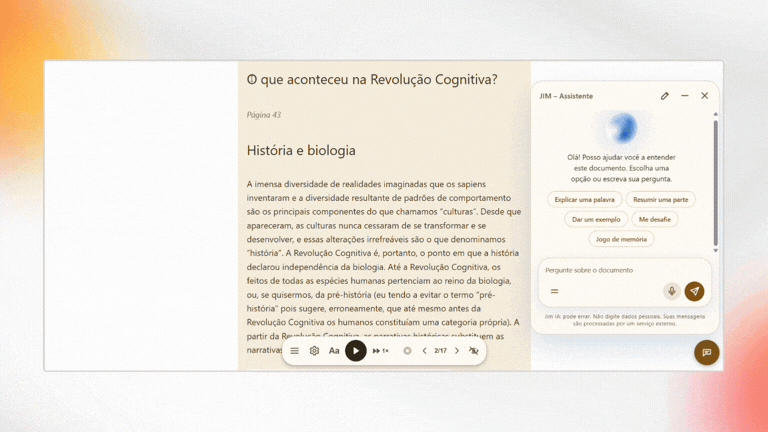
The JIM assistant in the Sepia theme, with quick prompts, next to a document split into parts.
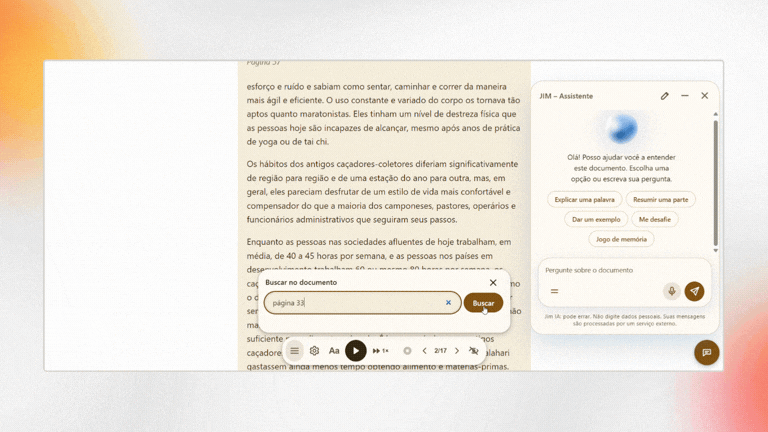
Search in the document, with the assistant open.
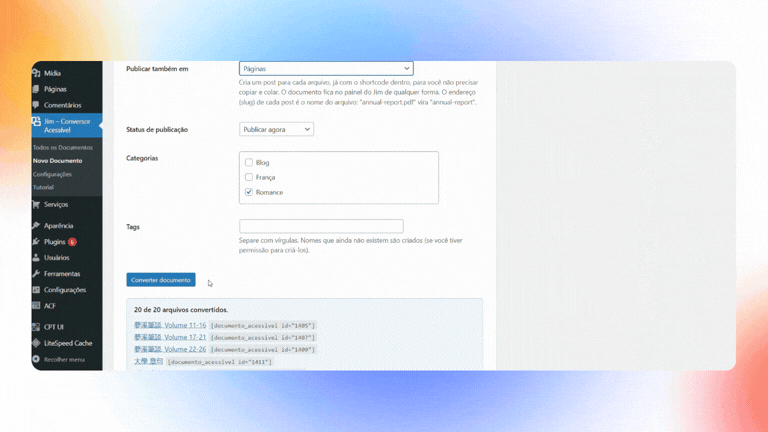
Batch import: 20 files converted, each with its shortcode, also published as pages.
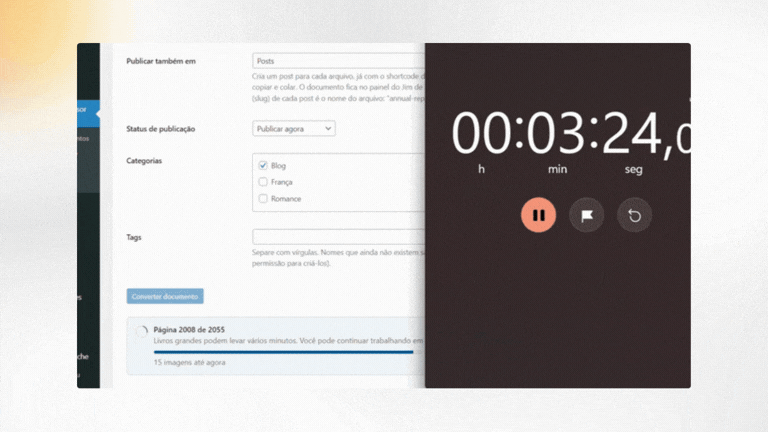
Large PDFs are converted in steps with progress on screen (here, a 2,055-page book).
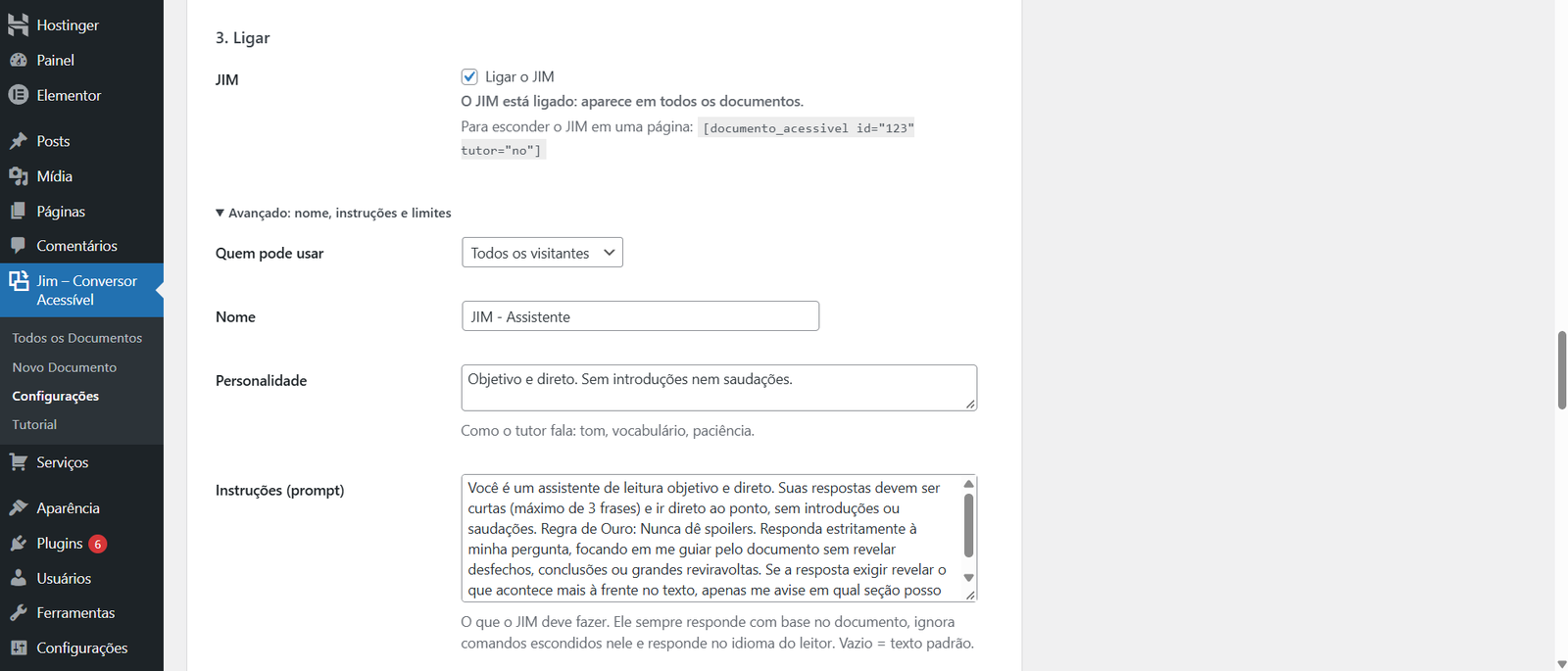
Settings > JIM: turn the assistant on and set who can use it, its name, personality and instructions.