
Keeal for WooCommerce adds Keeal Payment so customers pay on Keeal’s secure page, then return to your site while paid orders move to Processing automatically.
Why store owners like it
- Broad payment options — cards, Apple Pay, Google Pay, PayPal, and more (depends on your Keeal account and region).
- Less sensitive data on your site — customers enter payment details on Keeal; you are not storing card numbers in WordPress.
- Straightforward setup — turn on the gateway, add your Keeal credentials, paste the webhook URL into Keeal, and you are ready to test checkout.
How it works
- At checkout, your store asks Keeal to start a payment for the order.
- The customer completes payment on Keeal.
- Keeal tells your store when payment is done; the order updates without you manually marking it paid.
External services
This plugin relies on Keeal (hosted checkout and merchant services) so customers can pay on Keeal and your store can see payment results.
What it is used for
- Starting a payment for a WooCommerce order and sending the shopper to Keeal to finish checkout.
- Optional connection check from WooCommerce Keeal so you can confirm your store can reach Keeal with your saved API key.
What may be sent to Keeal
When a customer checks out, your server sends HTTPS requests to Keeal with what is needed to collect payment—for example order reference, amounts, what is being purchased, currency, billing email, and URLs to return after pay or cancel. Your API key is included so Keeal knows the request is from your store. If you run the optional connection check, a small test request is sent the same way (no full order payload for that test).
What comes back to your site
Keeal sends webhooks (notifications) to your WordPress site so order status can update when a payment completes or fails. Card details are handled on Keeal’s side; this plugin does not collect or store card data in WordPress.
Legal links (Keeal)
Screenshots
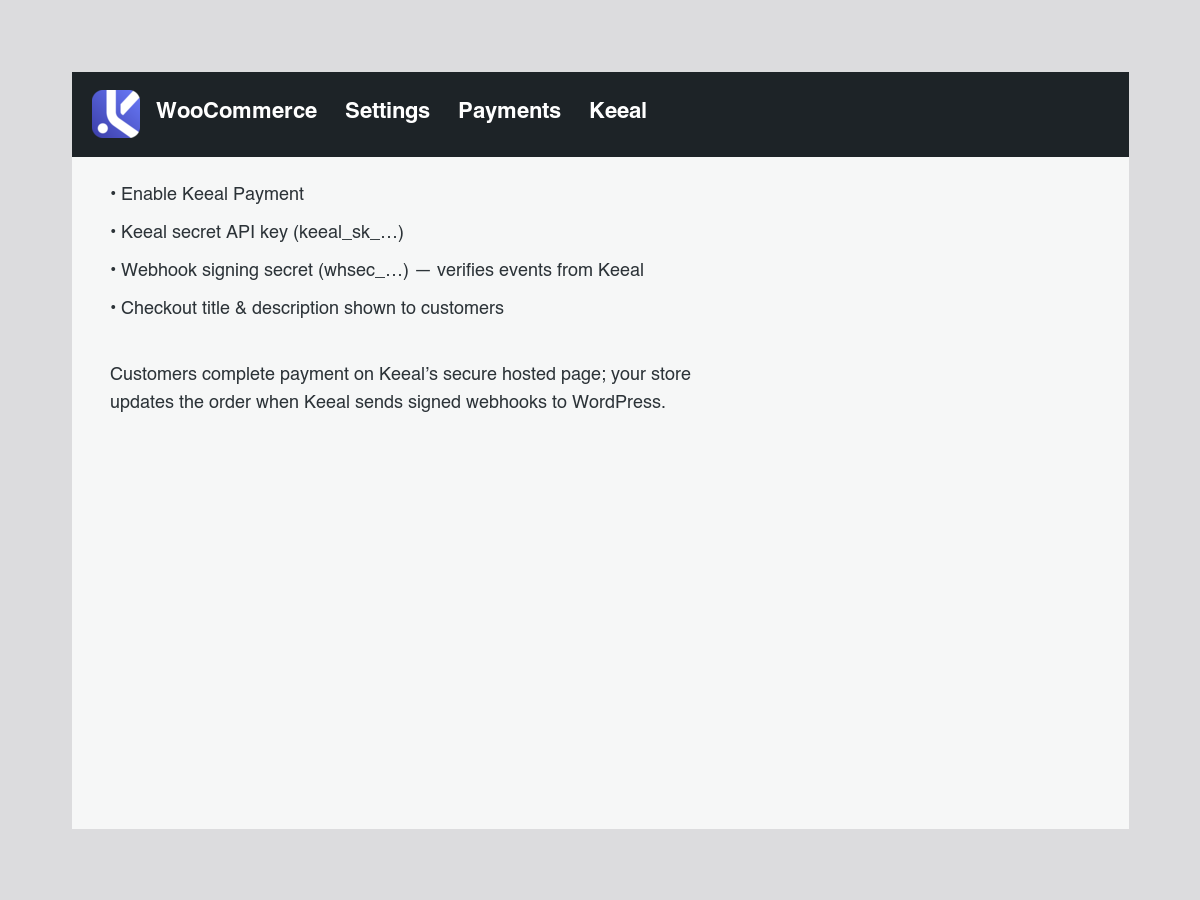
Payment settings — Enable Keeal, set your secret API key, webhook signing secret, and the text shoppers see at checkout.
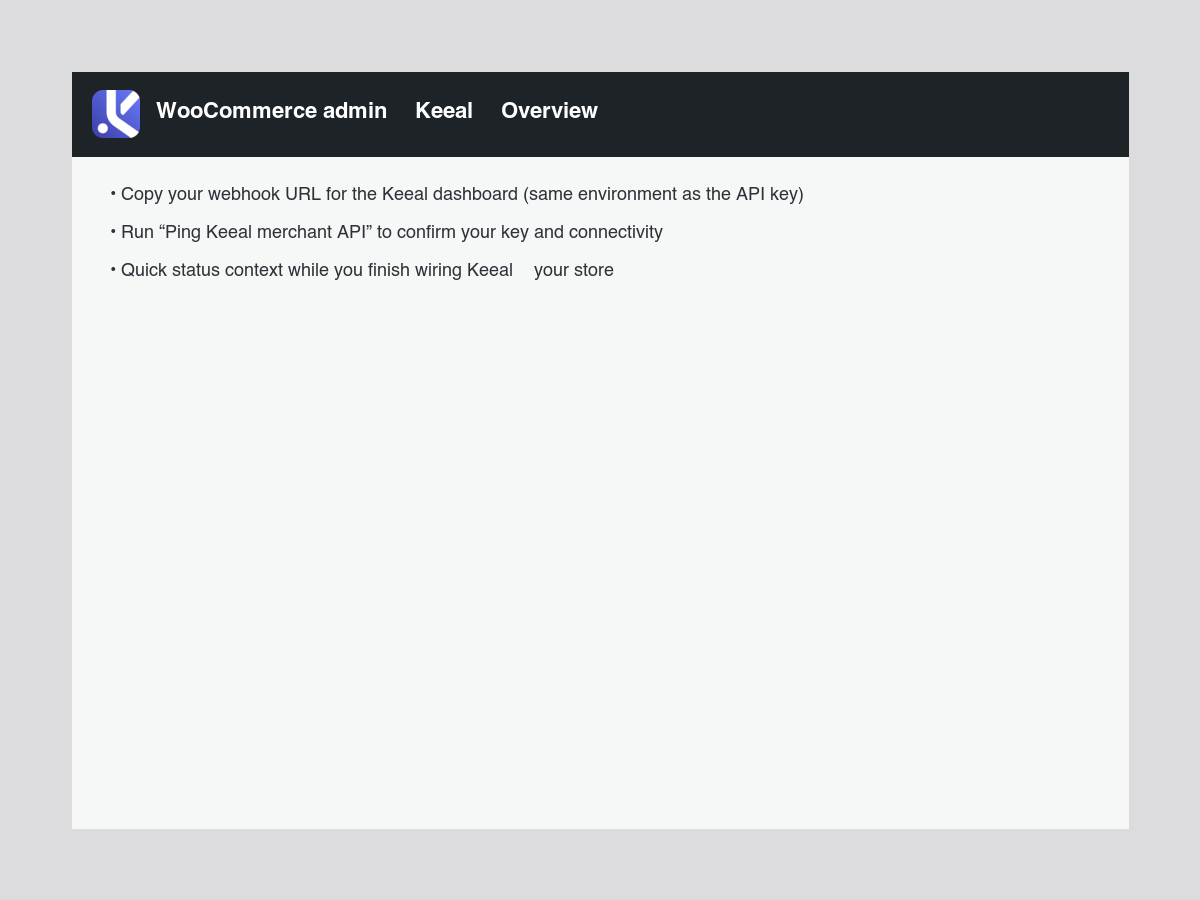
Keeal overview — Copy the webhook URL for the Keeal dashboard and run a quick API connectivity check.
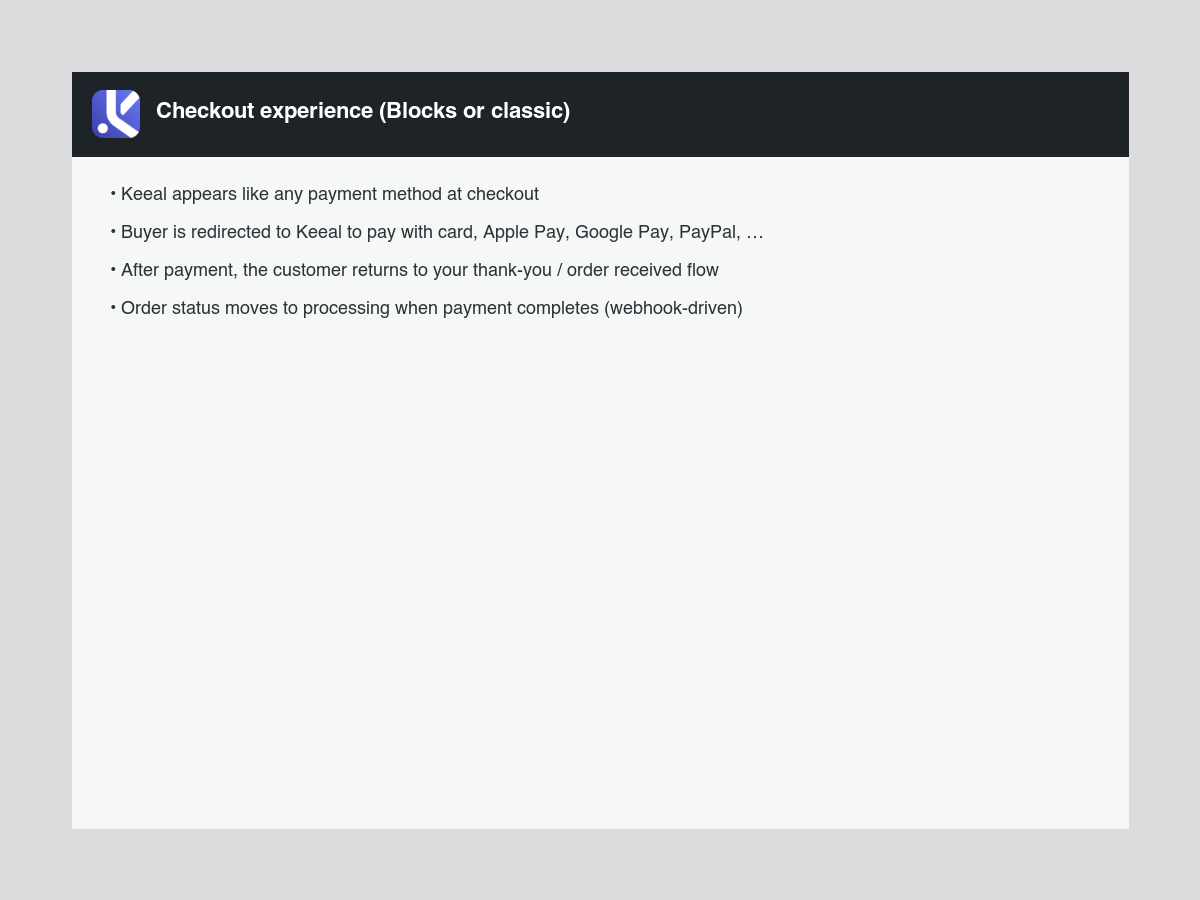
Checkout flow — Keeal appears as a payment method; buyers complete payment on Keeal, then return to your store while webhooks update order status.