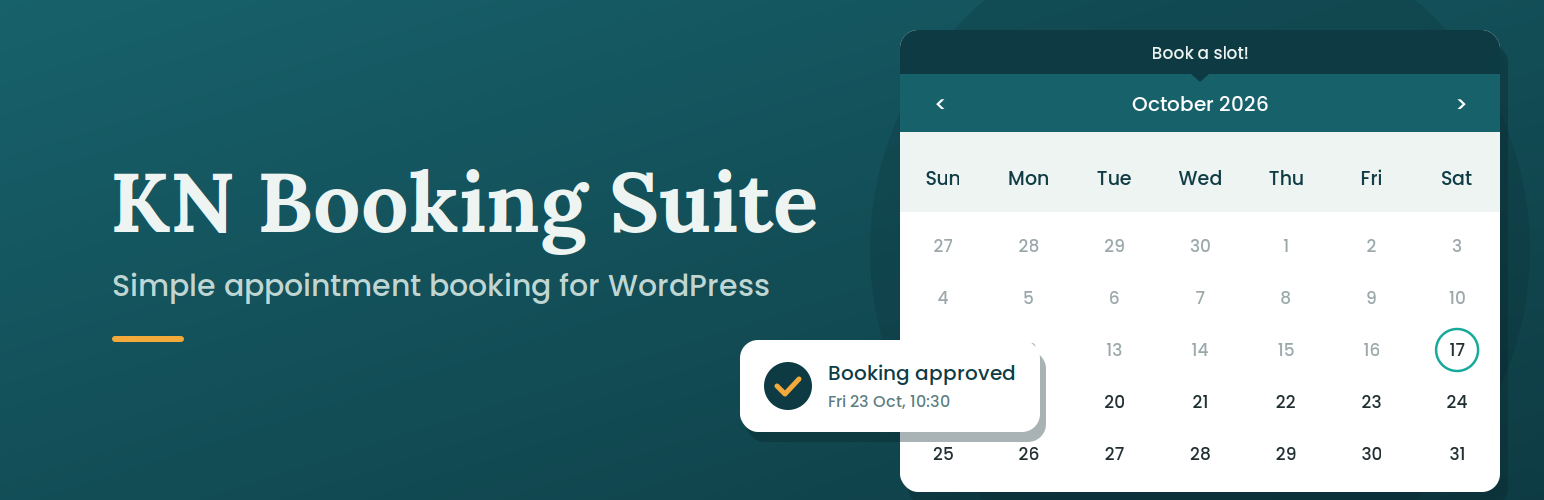
KN Booking is a lightweight appointment booking plugin built for salons, barbershops and other small appointment-based businesses. Clients pick a date and time on a calendar, you approve or decline the request, and everyone gets an automatic email. No account with an external service, no bloat.
A built-in setup wizard (Settings > Setup) gets you running in about two minutes: enter your business details, choose your open days and hours, and set your booking rules. Then add the [kn_booking] shortcode to any page.
Free Features:
- Interactive calendar with availability management
- Booking request management (approve, cancel, delete)
- Automated email notifications (new request, approval, cancellation)
- Customizable booking form with dynamic fields
- Customer profile page for users to view and manage their bookings
- Booking Calendar and Booking Profile blocks for the block editor
- Configurable availability hours and blocked dates
- Color presets and calendar theming options
- CSV export of booking data
- Guest and logged-in user booking support
Pro Add-on Features (sold separately):
- WooCommerce payment integration
- AI-powered booking analysis (OpenAI)
- Add to Google Calendar button
- Additional premium features
Blocks and Shortcodes
Both are also available as blocks in the block editor: search for “Booking Calendar” and “Booking Profile”.
[kn_booking]
Place this shortcode on any page to display the booking calendar.
[kn_profile]
Place this shortcode on a page to allow logged-in users to view and manage their own bookings.
External Services
This plugin connects to external services only when the optional Pro add-on is installed and the user explicitly triggers the corresponding feature:
OpenAI API
The KN Booking Suite Pro add-on optionally connects to the OpenAI API to power the AI-assisted booking analysis feature. This feature is only triggered when an admin explicitly clicks “Analyze” on a booking in the dashboard.
- What data is sent: A summary of the booking (date, time, and description/notes) is sent to the OpenAI API.
- When: Only when an admin manually triggers the AI analysis action.
- Why: To generate a contextual response or summary about the booking.
This service is provided by OpenAI, L.L.C.:
* OpenAI Terms of Use
* OpenAI Privacy Policy
Screenshots
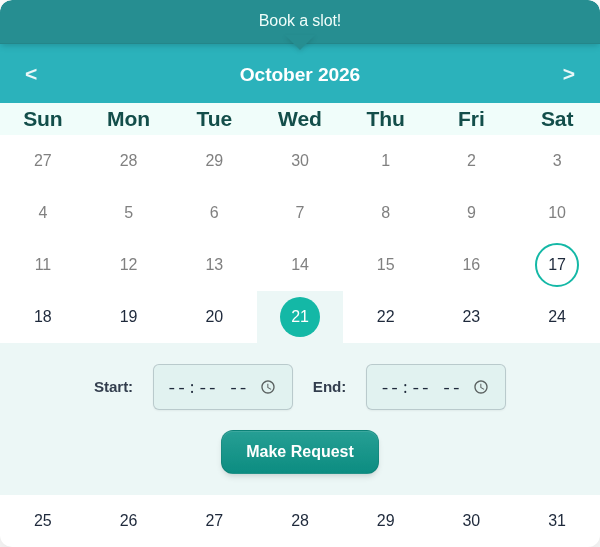
Booking calendar on the front end: clients pick a date and a time, then send a request.
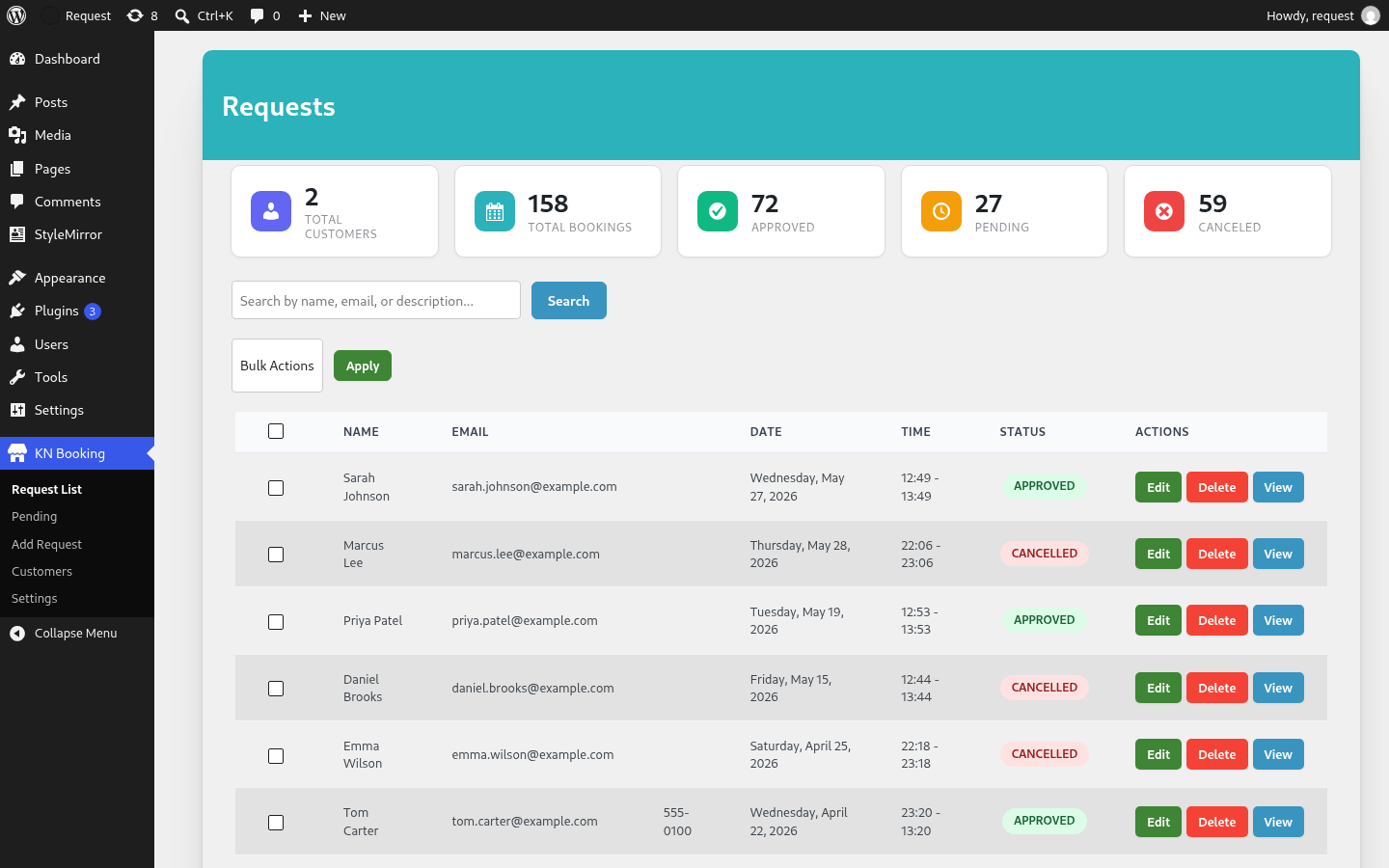
Requests list: search, bulk actions, and approve, edit or cancel each booking.
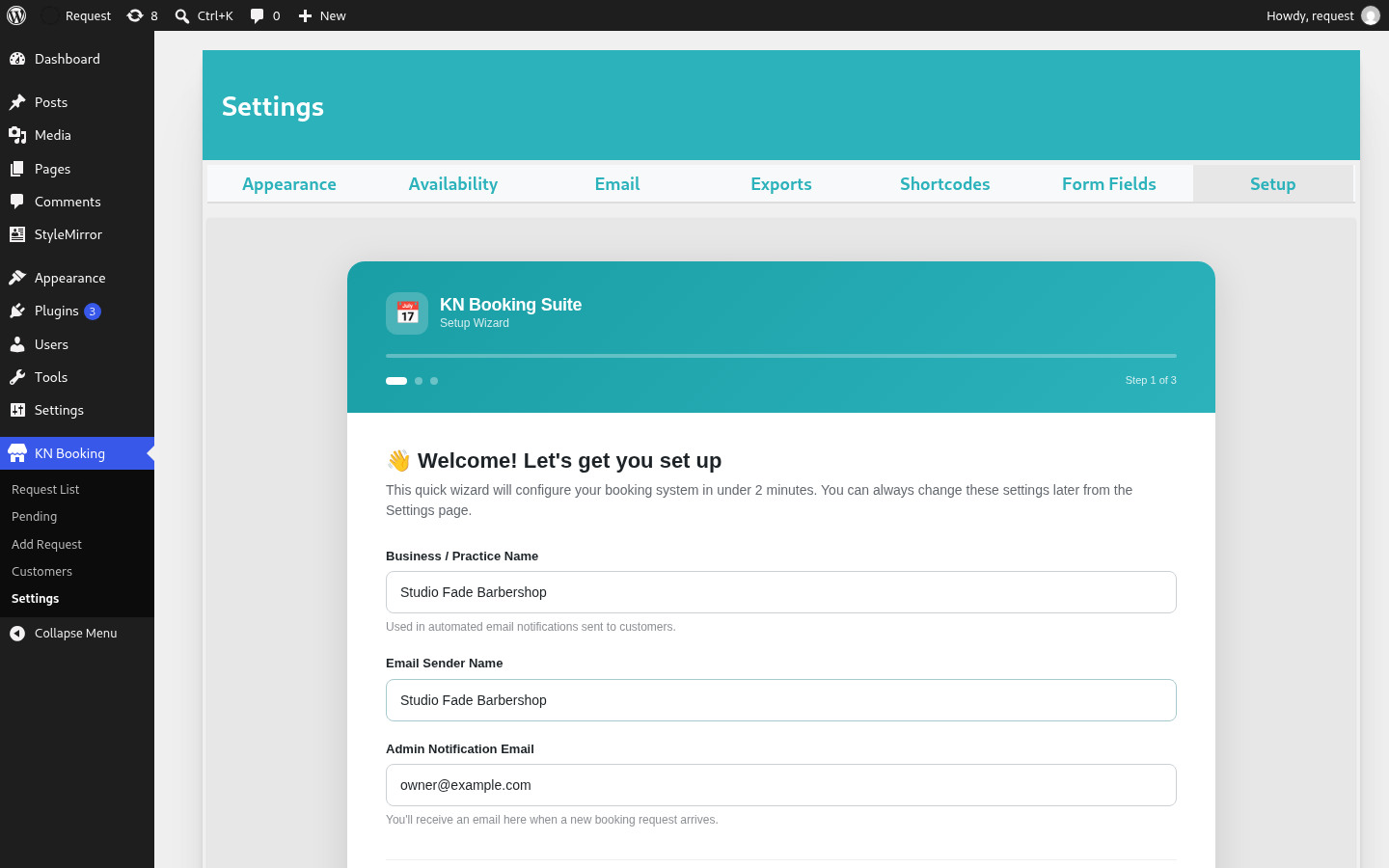
Setup wizard, step 1: business name and notification email.
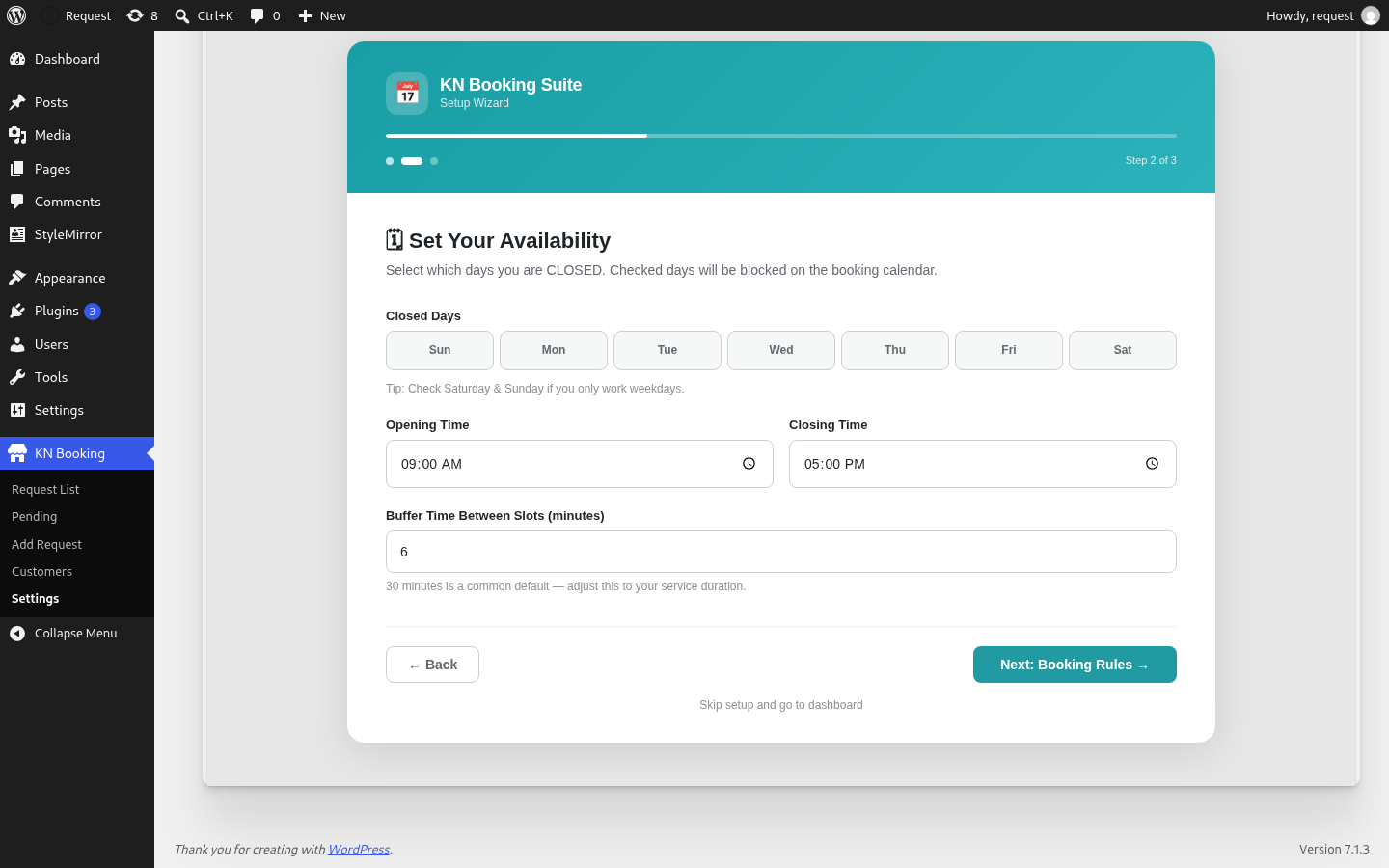
Setup wizard, step 2: closed days, opening hours and buffer time.
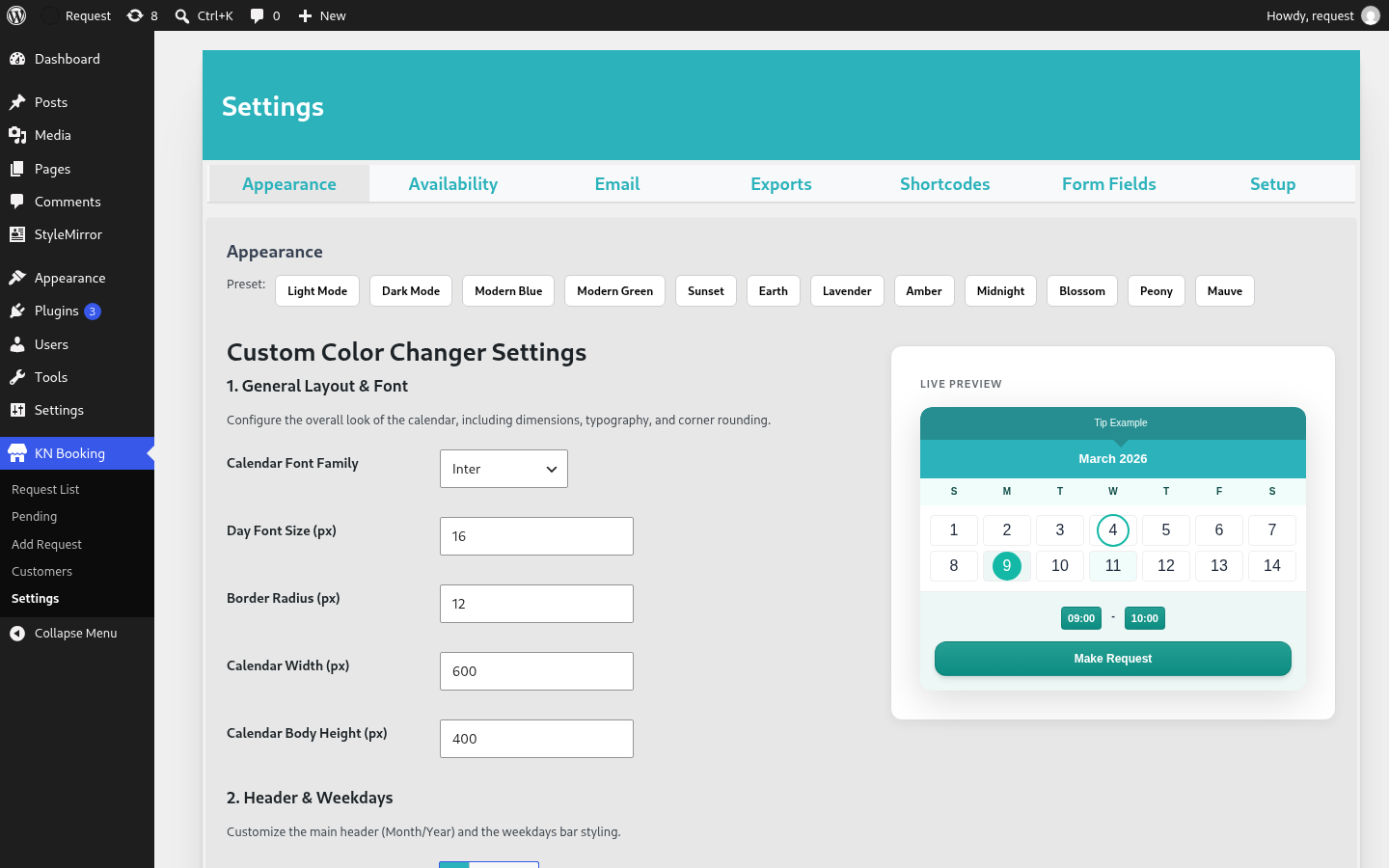
Appearance settings: colour presets and a live preview of the calendar.