Leo Product Recommendations: Upsell Popup, Frequently Bought Together & Cart Drawer for WooCommerce
by LeoCoder
The best time to suggest a second product is right after a shopper adds the first one. They have already decided to buy. A phone case, a belt, a refill pack: one good suggestion at that moment is often enough.
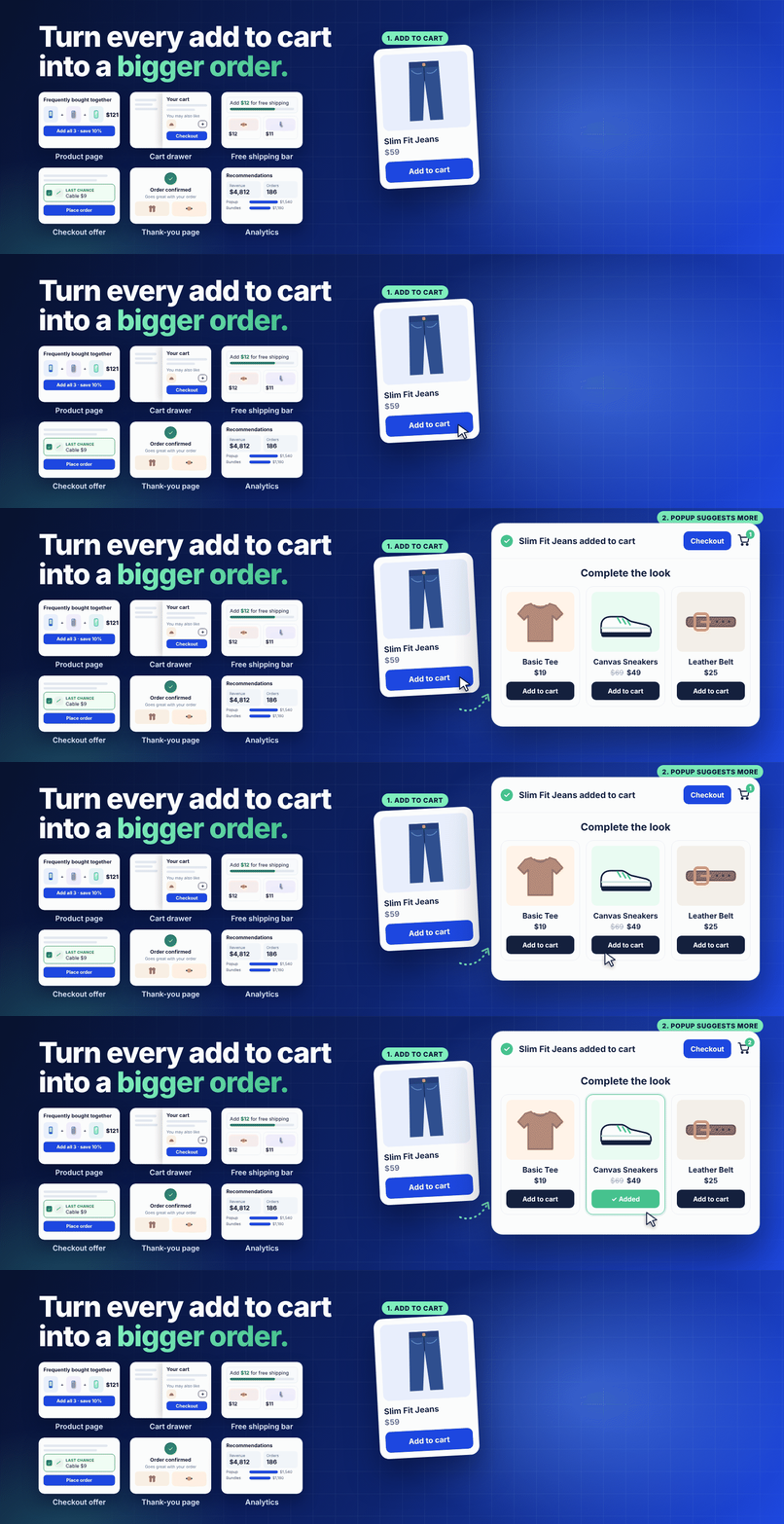
Leo Product Recommendations shows that suggestion. When a product goes into the cart, a popup confirms it and shows the products you want to recommend. The shopper adds one with a single click and keeps shopping or goes to checkout. No new page, no redirect.
Install it, choose what to recommend, and it works on your shop, category and product pages. Pro adds “Frequently bought together” on the product page, a slide-in cart drawer, a free shipping bar and recommendations on the cart, checkout and thank-you pages.
What shoppers see
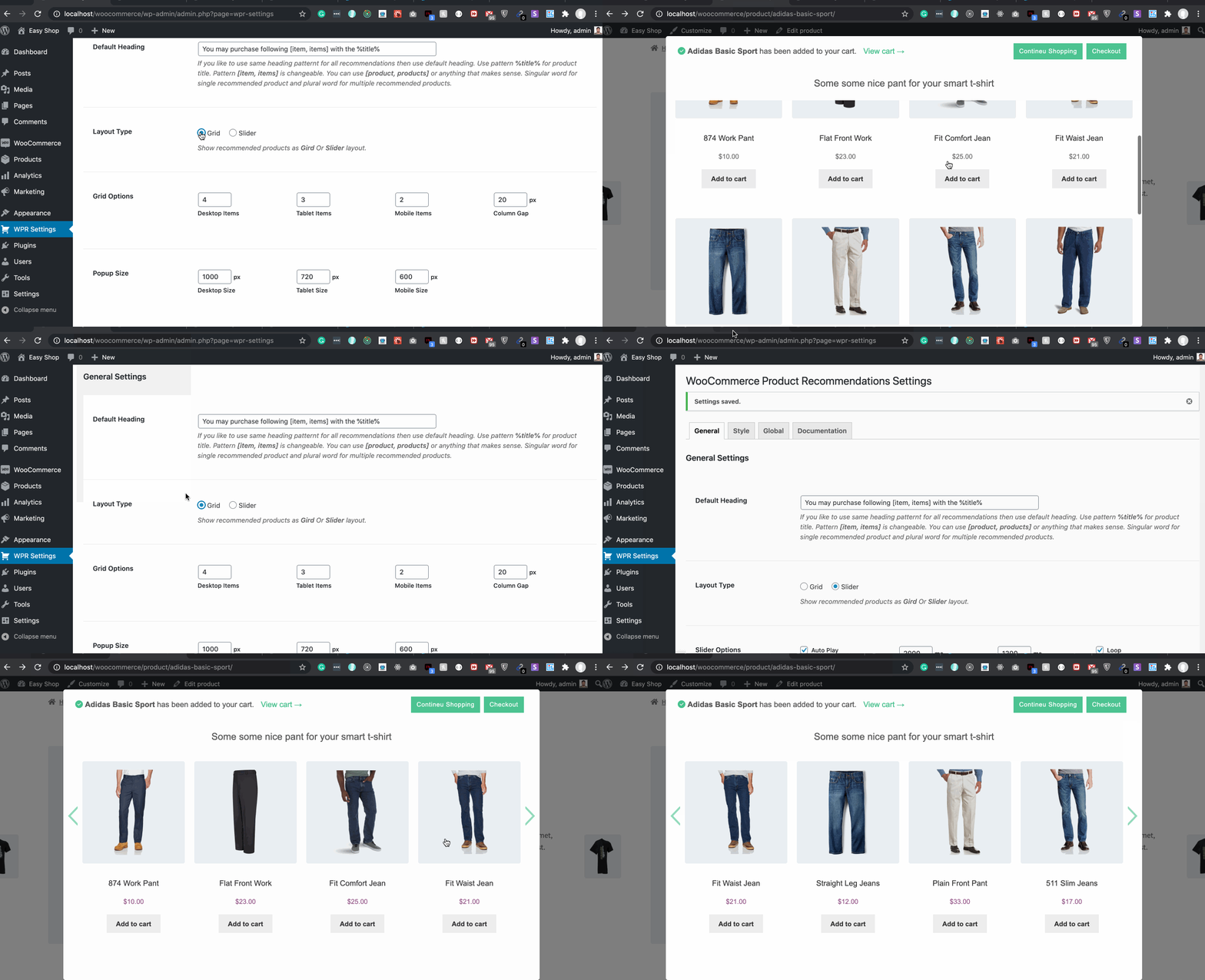
The popup shows what was just added, the cart subtotal, and a row of products that go with it. Each product has its own Add button, and products with options (size, color) can be chosen right there. Checkout and View cart are one tap away. On phones it slides up from the bottom of the screen.
It draws its own product cards, so it looks clean in any theme. If you prefer the older layout, you can switch back to the classic design in the settings.
Three ways to choose what to recommend
1. The Upsells and Cross-sells you already have. If you set them in WooCommerce (Product data > Linked Products), the popup uses them. Nothing else to set up.
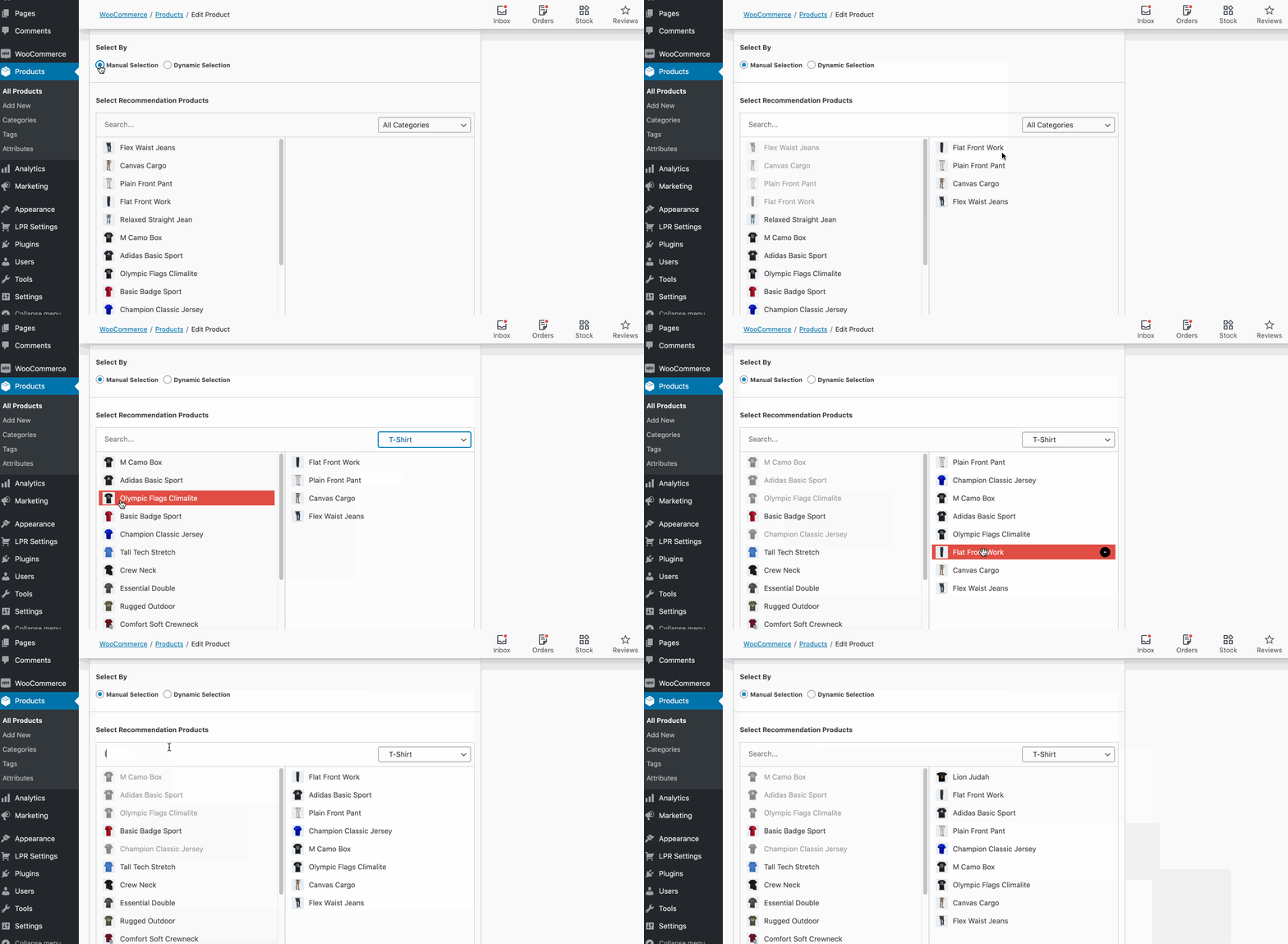
2. Products you pick yourself. Open a product’s Recommendations tab, pick the products to suggest and drag them into order. Best for accessories and things you know sell together.
3. One rule for the whole store. For example “4 best sellers from the same category” or “newest products tagged summer”. Filter by categories, tags and sale items, and sort by best selling, rating, date, price or random. Running a sale? Campaign Mode shows your campaign products on every product until you turn it off.
Products that are hidden, out of stock or already in the cart are never suggested.
Track the sales it brings in
If your site uses Google Tag Manager, the popup sends GA4 ecommerce events to the dataLayer: lpr_popup_view_item_list, lpr_popup_select_item and lpr_popup_add_to_cart. Each event carries the product data and the product that opened the popup, so you can report what the recommendations sell. Your normal add_to_cart tracking keeps working.
Prefer a ready report? Pro has a built-in analytics dashboard.
Works with your store
- Simple, variable and grouped products
- Shop, category and product pages, WooCommerce blocks and shortcodes, block themes
- Bundles, subscriptions and other product types with their own add to cart (the popup opens after the page reloads)
- Popular themes such as Astra, Storefront, Kadence, OceanWP, Blocksy and the Twenty themes
- Elementor and other page builders
- HPOS and the block cart and checkout
- Keyboard and screen reader friendly, right-to-left languages, translation ready
The recommended products load only after something is added to the cart, so your pages don’t get heavier.
Free features
- Popup after add to cart, modern or classic design
- Uses your WooCommerce Upsells and Cross-sells
- Recommendations you pick for each product
- A store-wide rule, with Campaign Mode
- One-click add to cart in the popup, products with options included
- Products per row for desktop, tablet and mobile
- Heading with the added product’s name, or your own heading and text
- Limit how often each visitor sees the popup
- GA4 and Google Tag Manager dataLayer events
- Template overrides and hooks for developers
Pro features
Leo Product Recommendations Pro shows recommendations in more places, picks them from your own sales, and shows you the money they bring in:
- Smart picks. Learns which products your customers buy together from your own orders. New products and new stores get similar products until there is enough data.
- More places. “Frequently bought together” on the product page, a slide-in cart drawer, “Complete your order” on the cart page, a last-chance offer at checkout and suggestions on the thank-you page.
- Discounts. A small saving for products bought together, for add-ons from the popup or cart drawer, and for the checkout offer. Percentage or fixed amount, with a bigger saving for 2 or 3+ products. Taken off in the cart automatically, no coupon code needed.
- Free shipping bar. “Add $12.00 more to get free shipping” with products that cost about the missing amount, added in one tap.
- Analytics dashboard. Revenue, orders and adds to cart from recommendations, the best product pairs, and average order value with and without a recommended product. Data stays in your own database.
- Rules per product, slider layout, popup size, your own colors and button options.
Demo and docs
Privacy
The plugin does not send any data by itself. To show a few milestone notices in your admin (for example after the popup has been shown 100 times), it keeps simple counts in your own database: how often the popup was shown, how many products were added from it, and how many paid orders included them. These counts never leave your site. If you choose to send feedback when you deactivate it, only the reason you pick, any comment you write and the plugin version are sent to LeoCoder. No site URL or other site details are sent. You can skip the feedback form.
The Feature Request tab in the settings works the same way: only when you click Send request, it sends what you typed, your email if you added one, and the plugin version to LeoCoder. No site URL or other site details are sent.
The dataLayer events stay in the visitor’s browser, in a dataLayer your site already has. The plugin does not send them anywhere.
Screenshots
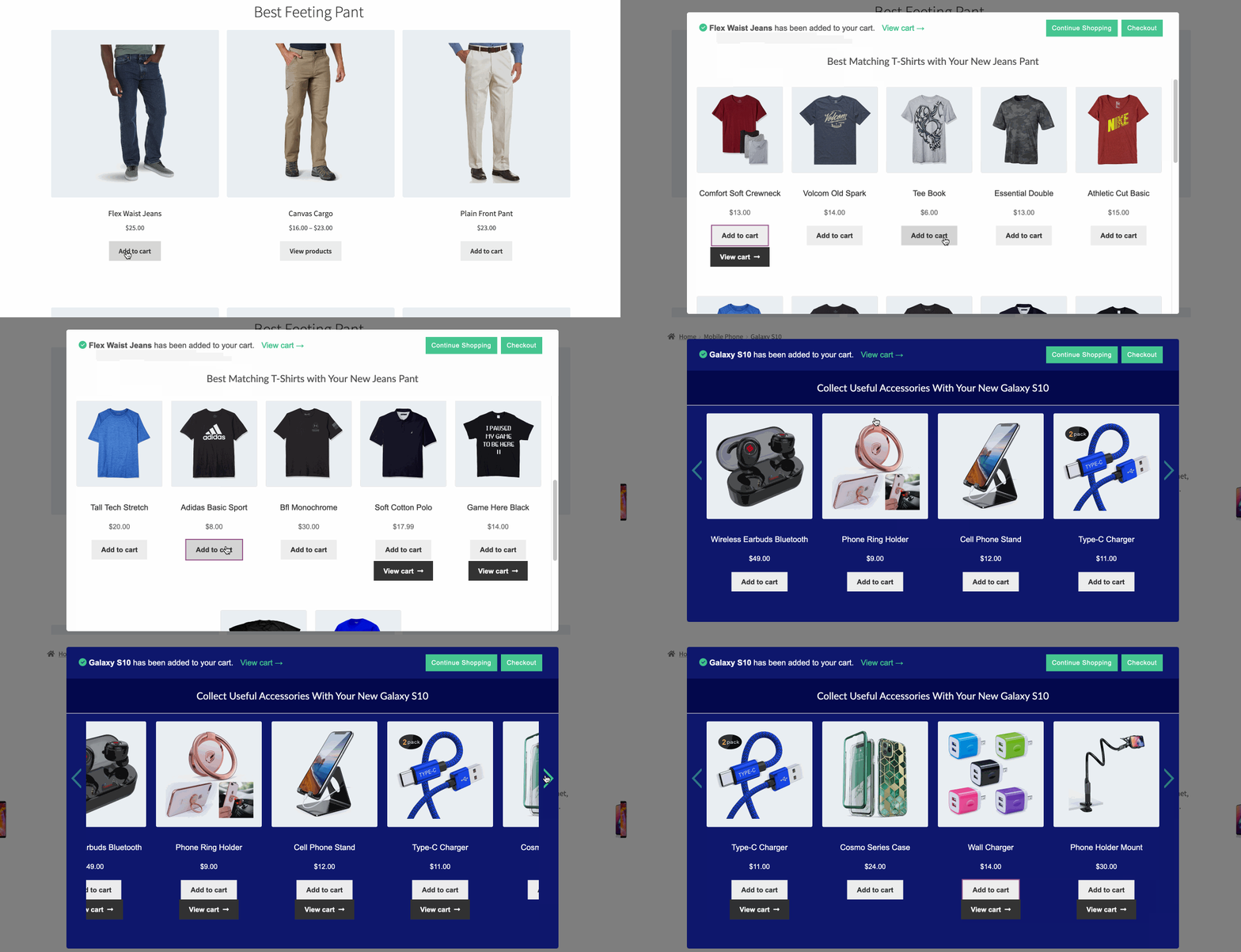
The popup after add to cart, with one-click add for each recommended product
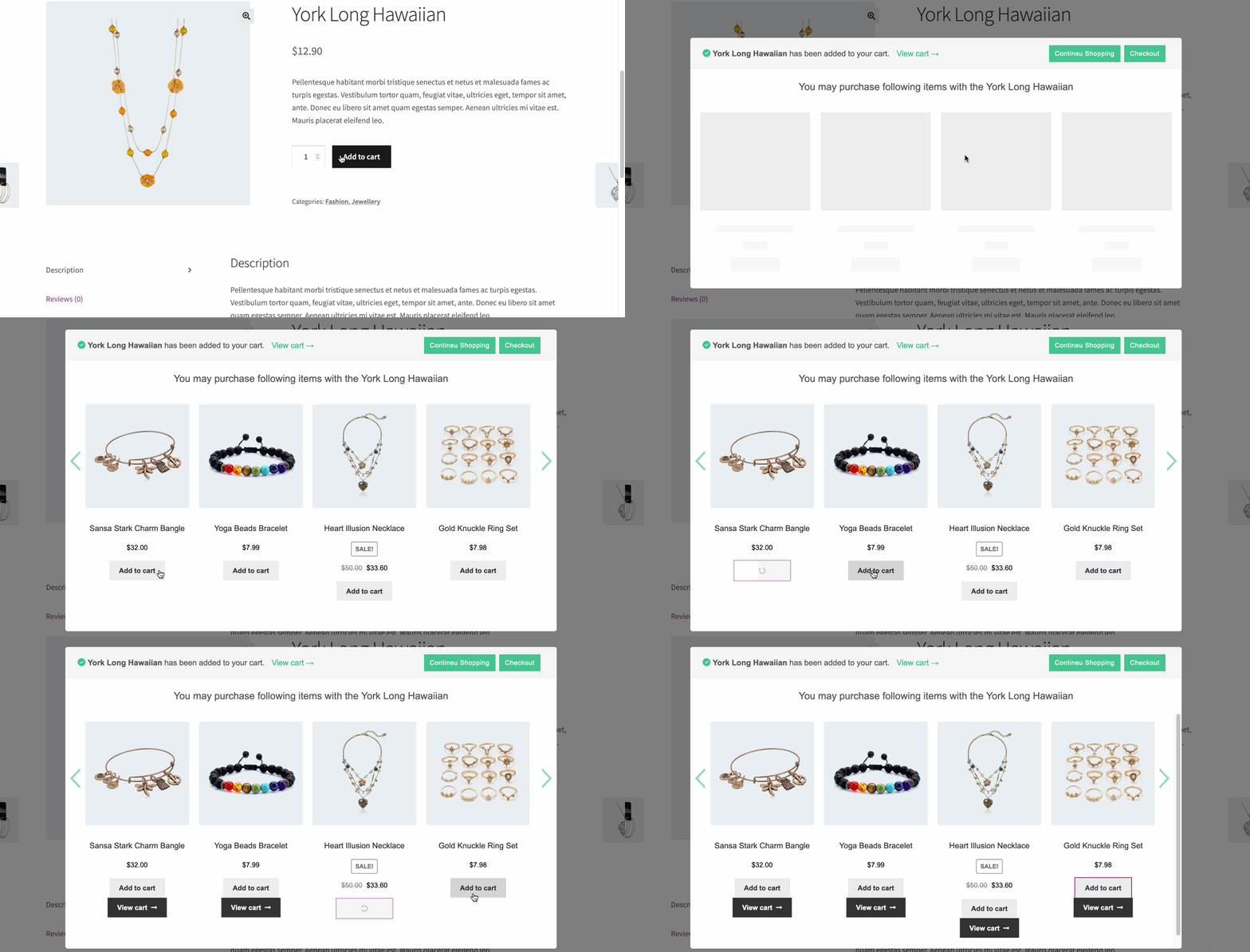
On phones the popup slides up from the bottom
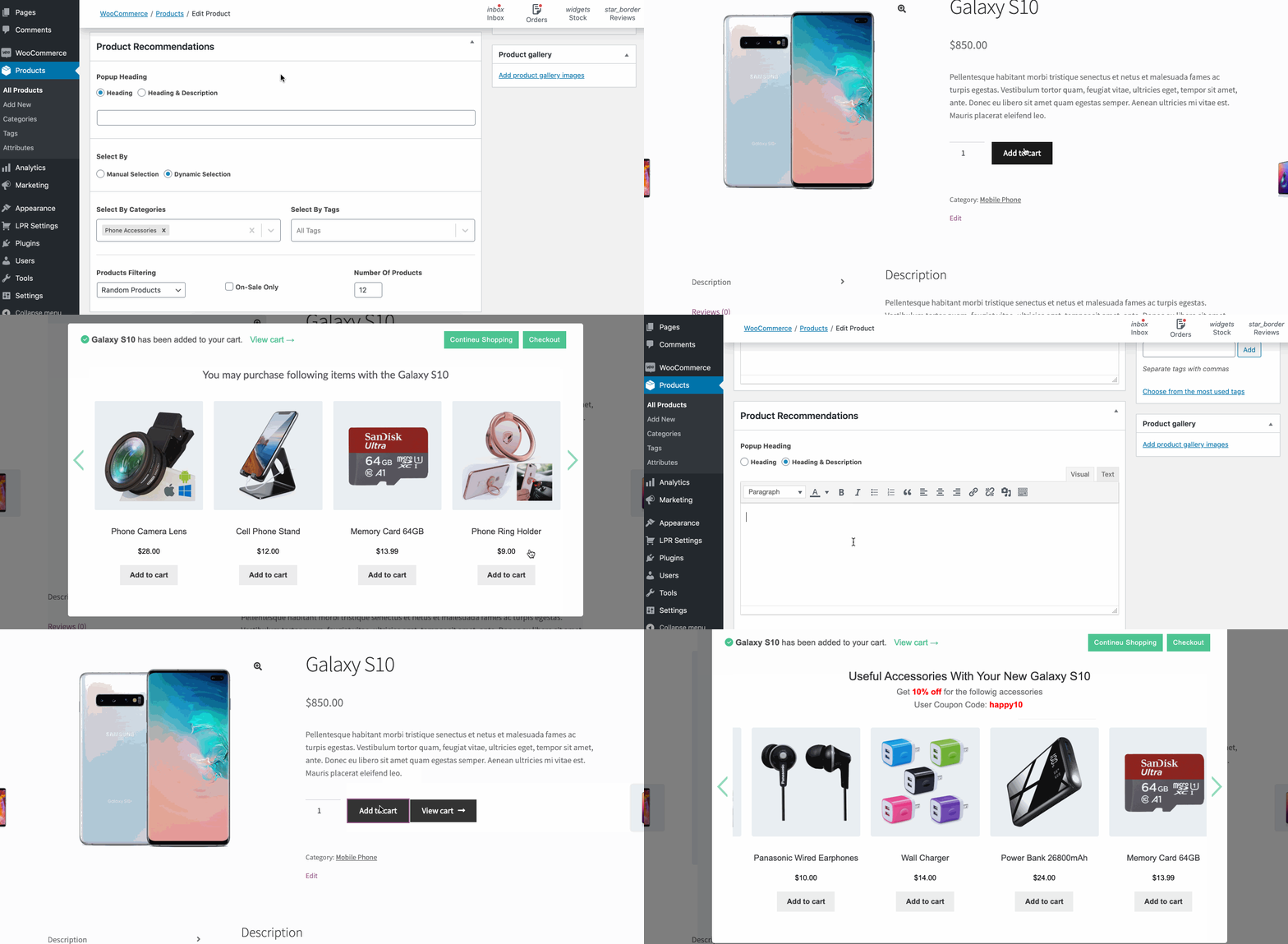
Choose recommendations for one product in its Recommendations tab
What to Recommend: Upsells and Cross-sells, and one rule for the whole store
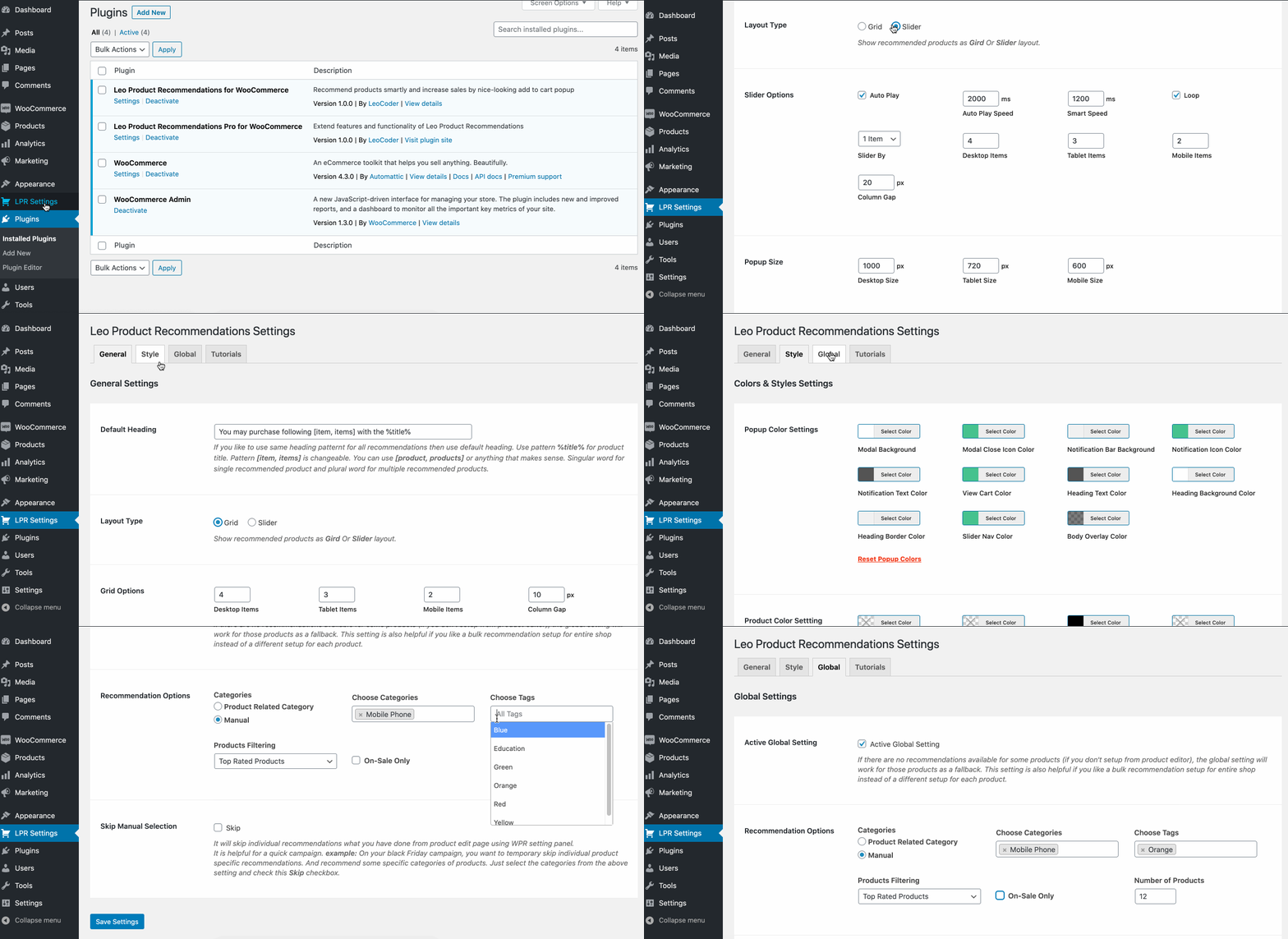
Popup settings with a live preview
Pro: "Frequently bought together" on the product page, with a bundle saving