
LucrativeIT Driving School Management System is a complete driving school booking system and management plugin for WordPress. Let students book driving lessons online, match every booking to a free driving instructor, take payment, and run your whole driving school from one modern dashboard.
It suits driving schools, driving instructors, motorcycle and truck training centres, and any lesson-based business that needs appointment scheduling by instructor and location.
Plugin website: https://drivingschool.lucrativeit.com/
Documentation: https://docs.lucrativeit.com/driving-school/documentation.html
Pro: https://lucrativeit.com/wordpress-plugins/wordpress-driving-school-management-system
Why driving schools choose it
- Students see only real, bookable times — no double bookings.
- Instructors are assigned automatically based on the services they teach and their availability.
- Take payment online with Stripe or WooCommerce, or accept direct (manual) payment.
- Fast React admin built on the WordPress REST API.
- Import demo data in one click to see the full booking flow straight away.
Driving lesson booking (front end)
- Ready-made pages — Book a Lesson and Booking Checkout pages are created automatically on activation.
- Lesson catalogue — responsive service cards with category, price, duration, description, a feature checklist (for example “Automatic car”, “Free pickup”), a Book Now button, and a “View Details” page for every lesson.
- Featured lessons — mark services as featured and show them anywhere, such as your home page.
- Two booking flows you can switch in Settings:
- Time slot picker — the student picks a location and date and chooses from generated start times (for example 09:00, 10:10, 11:20…).
- Time search — the student enters a location, date, and start time and the plugin checks who is free.
- Instructor selection cards — after picking a time, the student chooses from the instructors available for that slot. Each slot also shows when the lesson ends.
- Location-based booking — offer each lesson at one or more training locations.
- Guest or logged-in booking — logged-in students have their name and email filled in automatically.
- Customer accounts — optional Login, Registration, and My Account pages. Students can create an account, log in, and see every lesson they have booked, with date and time, location, instructor, booking status, and payment status. You can also require login before booking.
- Dedicated checkout page with a booking summary (lesson, location, date and time, instructor, price) and a choice of payment method.
- Customisable booking form — add text, text area, email, phone, number, date, dropdown, radio, and checkbox fields; set the label, placeholder, help text, options, and half or full width; mark fields required; and reorder them. Name and email are always collected. Phone, date of birth, and notes are included by default.
- Mobile-friendly, accessible markup with keyboard-friendly time slot and instructor pickers.
Shortcodes
[ldsms_booking]— show all active lessons with the booking flow.[ldsms_featured_services limit="3"]— show lessons marked as featured. Uselimitto cap how many are shown, or remove it to show all.[ldsms_services category="your-category-slug"]— show lessons from a single category.[ldsms_service service="your-service-slug"]— show one lesson with its details and Book Now button.[ldsms_service_detail]— optional lesson details page; “View Details” links open this page for the chosen lesson.[ldsms_checkout]— the checkout page students are sent to after choosing a time.[ldsms_login]— customer login form (requires customer login to be enabled in Settings).[ldsms_register]— customer registration form (requires customer login to be enabled in Settings).[ldsms_account]— My Account page listing the logged-in student’s bookings; shows the login form to logged-out visitors.
Every category and service shows its exact shortcode with a Copy button, and Settings Shortcodes lists them all.
Driving school management (admin)
- Dashboard — today’s bookings and revenue, pending bookings, active locations and services, all-time totals, this week and this month figures, a 6-month revenue chart, and upcoming and recent bookings, with links straight to the matching lists.
- Service categories — group lessons (for example Driving Lessons, Test Preparation, Motorcycle Training) with a description, status, sort order, and a copyable category shortcode.
- Services / lessons — name, slug, description, feature list, duration, price, currency, category, featured flag, status, the locations where each lesson is offered, and a copyable shortcode.
- Instructors — profile, email, phone, bio, status, and the services each instructor teaches.
- Locations — address, city, state, postcode, phone, description, status, and sort order for every training centre or pickup point.
- Instructor availability — date ranges with daily working hours, multiple time ranges per day (split shifts), blocked ranges for breaks or time off, and overlap protection. Filter the list by instructor.
- Bookings — list, search by code, name, or email, and filter by booking or payment status; create bookings for phone or walk-in students with live slot checks; edit booking status (pending, confirmed, completed, cancelled), payment status (unpaid, paid, refunded, failed), and notes; and reschedule a booking to a new date, time, location, or instructor with a live availability check.
- Search on every admin list.
Smart scheduling rules
- Real-time availability that respects instructor hours and existing bookings.
- A lesson is only offered when an instructor who teaches it is free for its full length.
- Buffer time between two lessons for the same instructor.
- Minimum notice — stop last-minute bookings (for example at least 2 hours ahead).
- Break between slots for the slot picker (for example 50-minute lessons with a 10-minute break start on the hour).
- Times are calculated in your WordPress site time zone.
Payments
- Stripe Checkout — secure card payments with webhook confirmation and automatic “paid” status.
- WooCommerce — send bookings to WooCommerce checkout and use any WooCommerce payment gateway; order status, including refunds, syncs back to the booking.
- Direct payment — accept bank transfer or cash with your own payment instructions, then mark the booking paid in the admin.
- Offer Stripe and direct payment together and let students choose at checkout.
- Card details are entered on Stripe’s hosted page and never stored on your site.
- Multi-currency support with a site-wide default currency.
Email notifications
- Instructors are emailed automatically when a lesson is booked with them or rescheduled to them (can be turned off).
- Set the admin notification email address.
- Editable subject and message templates with placeholders:
{booking_code},{instructor_name},{service_name},{location_name},{starts_at},{ends_at},{customer_name},{customer_email},{customer_phone},{customer_dob},{status},{notes}, and{form_fields}for answers to custom booking form fields. - Built-in SMTP settings (host, port, encryption, username, password, from name and email) and a test email button.
Easy setup with demo data
- On first activation you are asked whether to import demo data: sample categories, lessons, instructors, 6 months of availability, and about 30 sample bookings so the revenue stats and monthly chart are filled in straight away.
- Prefer to start fresh? Skip it — while your school has no data, the dashboard keeps offering a one-click demo import.
- Already added your own services and instructors? The dashboard offers Import sample bookings until your first paid booking. Sample booking codes start with
DEMO, so they are easy to delete later.
Built for developers
- Modern WordPress React stack (
@wordpress/element,@wordpress/components,@wordpress/api-fetch). - Custom REST API under
lucrativeit-driving-school-management-system/v1, with capability checks and nonces. - Prepared SQL queries, sanitised input, and escaped output throughout.
- Extensible with actions for every created, updated, and deleted record — for example
ldsms_booking_created,ldsms_booking_updated,ldsms_booking_rescheduled,ldsms_customer_registered,ldsms_payment_completed,ldsms_service_created,ldsms_instructor_updated,ldsms_availability_deleted, andldsms_settings_updated— plus filters such asldsms_rest_controllers,ldsms_service_providers,ldsms_demo_data, and theldsms_demo_data_importedaction. - Translation ready, with RTL stylesheets included.
- Clean uninstall: deleting the plugin removes its tables and settings. Deactivating keeps all data.
Go Further with Pro
Premium features ship in a separate add-on (not included in this free plugin). Install LucrativeIT Driving School Pro alongside this plugin.
- Instructor portal — give an instructor access from Driving School > Instructor Access. They sign in to “My Lessons” in wp-admin, or any page with
[ldsms_instructor_availability], to see their booked lessons with student details and what they earn from each one (the lesson price is not shown), and to manage their own availability. - Commissions — set a default commission and a rate per instructor (in the instructor editor or under Driving School > Commissions > Commission rates). The rate is the instructor’s share of the lesson price before tax. Each booking keeps the rate in force when it was made.
- Commission report — Driving School > Commissions shows lesson revenue, instructor commission, and the school’s share per instructor and per booking, filtered by dates, instructor, booking status, and payment status, with CSV download.
- Calendar of available dates — in Settings > General, under “How customers pick a time”, turn on “Calendar of available dates”. The booking form shows a month calendar. Days with open slots are highlighted, darker days have more free times, and days with no slots cannot be selected.
- Booking wizard — add
[ldsms_booking_wizard]to a page for a step-by-step flow. Customers choose a location and lesson, pick a date on a calendar that highlights days with open lessons, choose a time and an instructor, then continue to checkout. Optional attributes:service="lesson-slug"to fix the lesson, andlocation="location-slug-or-id"to preselect a location. - Bulk slots — on Driving School > Availability, use “Add for multiple instructors” to create the same date range and hours for several instructors at once. Instructors whose existing slots overlap are skipped and listed.
- Multiple booking forms — create forms in Driving School > Booking Forms, mark one as the default, and choose a different form for any service in the service editor.
Explore:
External services
This plugin can connect to one third-party service, Stripe, to take online card payments. It is only used when a site administrator enables the Stripe payment method in Settings and enters a Stripe secret key. If Stripe is not enabled, the plugin makes no requests to Stripe or to any other external service.
Stripe (payment processing)
Stripe is an online payment platform. The plugin uses the Stripe Checkout API (https://api.stripe.com) to create a secure, Stripe-hosted payment page for a booking and then to confirm that the payment was completed.
What data is sent and when:
- When a student chooses to pay with Stripe at checkout, the plugin creates a Stripe Checkout Session. It sends the customer’s email address, the booking ID and booking code, the lesson (service) name, the amount and currency, and the success and cancel return URLs of your site. Your Stripe secret key is sent in the request header to authenticate with Stripe.
- When the student returns from Stripe to your site after paying, the plugin sends the Checkout Session ID to Stripe, together with your secret key, to check the payment status and confirm that the amount and booking details match.
- On the Stripe-hosted payment page, the student enters their card details directly with Stripe. Card details never pass through or get stored on your WordPress site.
- If you configure a Stripe webhook, Stripe sends payment event notifications to your site’s REST API endpoint. The plugin checks each notification with your webhook signing secret. No extra data is sent from your site to Stripe for this.
This service is provided by Stripe, Inc.:
- Stripe Services Agreement (terms of service for merchants): https://stripe.com/legal/ssa
- Stripe Consumer Terms of Service: https://stripe.com/legal/consumer
- Stripe Privacy Policy: https://stripe.com/privacy
Other connections you configure
- SMTP email (optional): if you fill in the SMTP settings, booking notification emails go through the SMTP server you choose. That server receives the email content, including the instructor’s email address and booking details such as customer name, service, location, and start time. The plugin does not provide this server. Your email provider’s terms and privacy policy apply.
- WooCommerce (optional): if you choose WooCommerce as the payment method, payment happens through the WooCommerce gateway you have set up. This plugin does not contact that gateway directly. The gateway’s own terms and privacy policy apply.
Screenshots

Lesson catalogue on the front end, with price, duration, features, Book Now, and View Details for every lesson.

Check availability: the student picks a location and date, chooses a generated time slot, and selects an available instructor.

Booking checkout with a lesson summary, Stripe or direct payment choice, and the customisable booking form.

Admin dashboard with today's bookings and revenue, pending bookings, all-time totals, a 6-month revenue chart, and quick stats.

Bookings list with student, service, date and time, instructor, location, booking status, and payment status.

Add a booking for a phone or walk-in student: services appear only when an instructor who teaches them is free.

Services with category, locations, duration, price, featured badge, and a copyable shortcode.

Service categories with a copyable shortcode to show one category's lessons on any page.

Instructors with contact details and the services each instructor teaches.

Training locations with address, phone, and status.

Instructor availability by date range and daily hours, including split shifts.

Add availability: choose the instructor, date range, and hours, or block a range for time off.

General settings: currency, booking buffer, minimum notice, customer login, guest booking, and the booking flow.

Booking form builder: add, reorder, and configure the fields shown at checkout.

Payment settings: WooCommerce, direct (manual) payment, and Stripe Checkout.

Email settings: admin notification address and the editable instructor email template.

SMTP settings with a test email button.

Shortcodes tab with copy buttons for every booking screen.

My Account page: the logged-in student's bookings with date and time, location, instructor, booking status, and payment status.
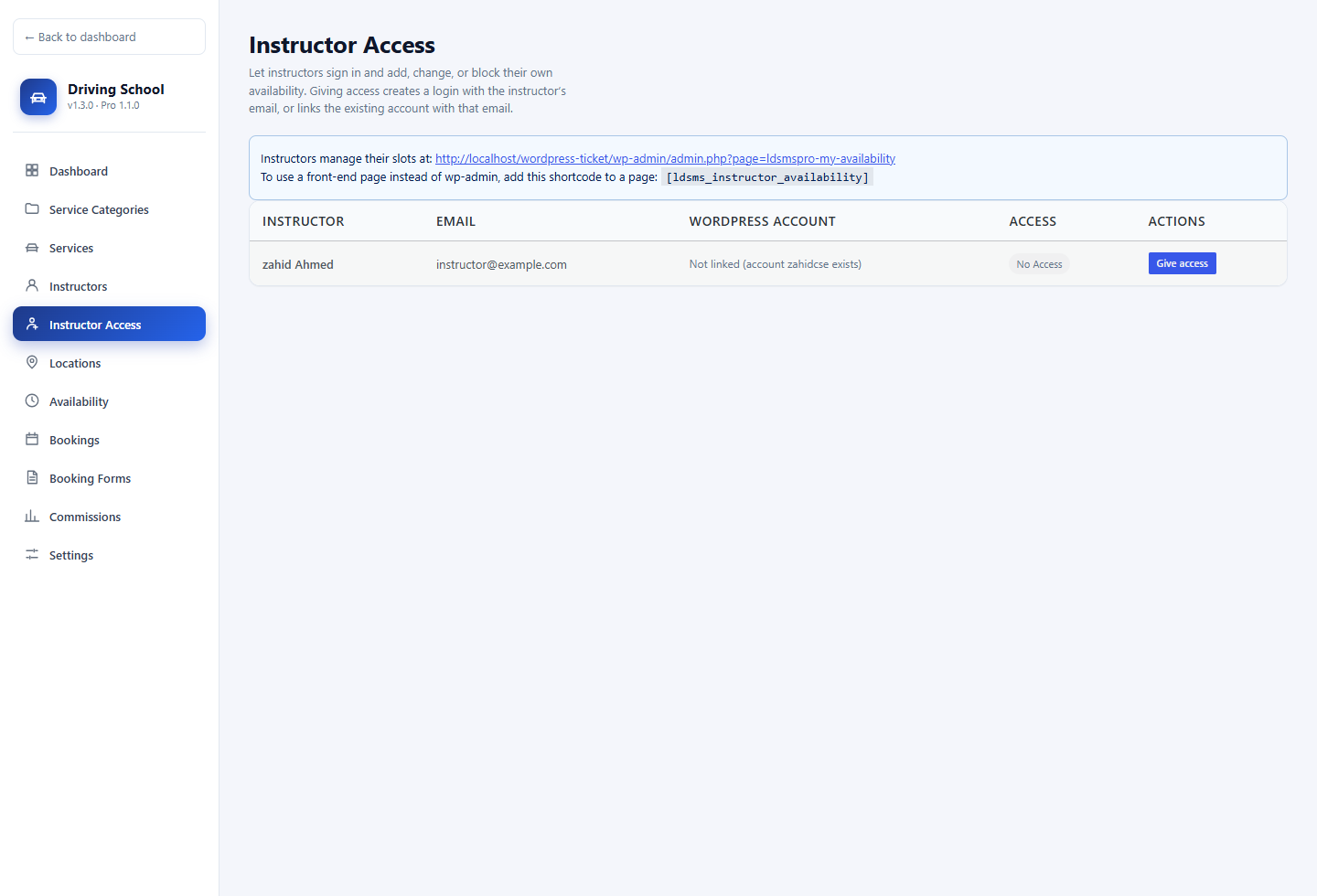
Pro: Instructor Access — give an instructor a login so they can open My Lessons.
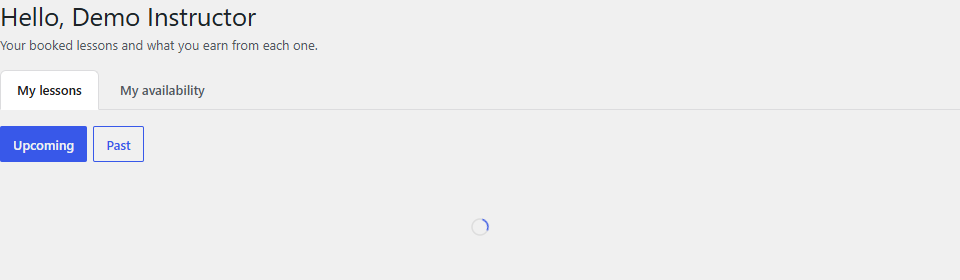
Pro: My Lessons — the instructor's booked lessons with student details and what they earn from each one.
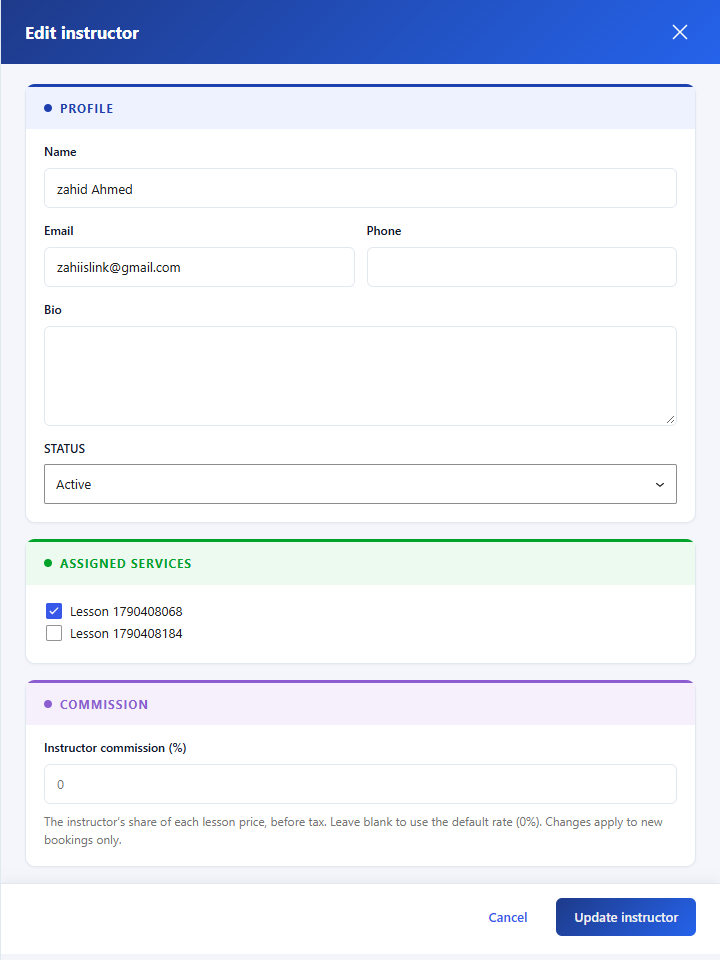
Pro: Commission rate on the instructor editor — the instructor's share of the lesson price before tax.
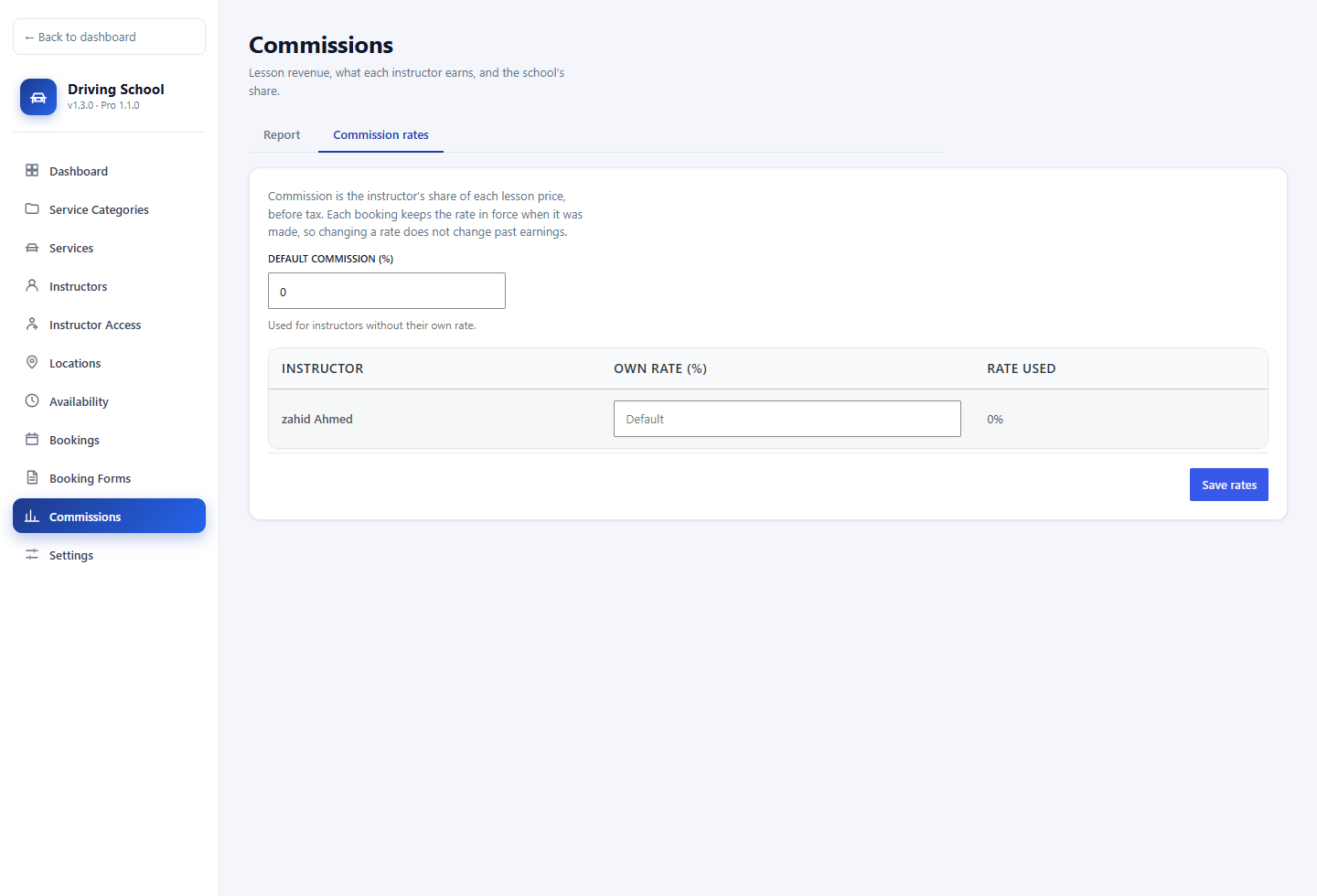
Pro: Commission rates — default rate and a rate per instructor under Driving School > Commissions.

Pro: Commission report — lesson revenue, instructor commission, and the school's share, with date and status filters and CSV download.

Pro: Calendar of available dates — the booking form month calendar, with days that have open slots highlighted.
![Pro: Booking wizard, step 1 — choose a location and a lesson ([ldsms_booking_wizard]).](https://ps.w.org/lucrativeit-driving-school-management-system/assets/screenshot-27.png?rev=3771317)
Pro: Booking wizard, step 1 — choose a location and a lesson ([ldsms_booking_wizard]).

Pro: Booking wizard, step 2 — pick a date on the calendar and a free time.
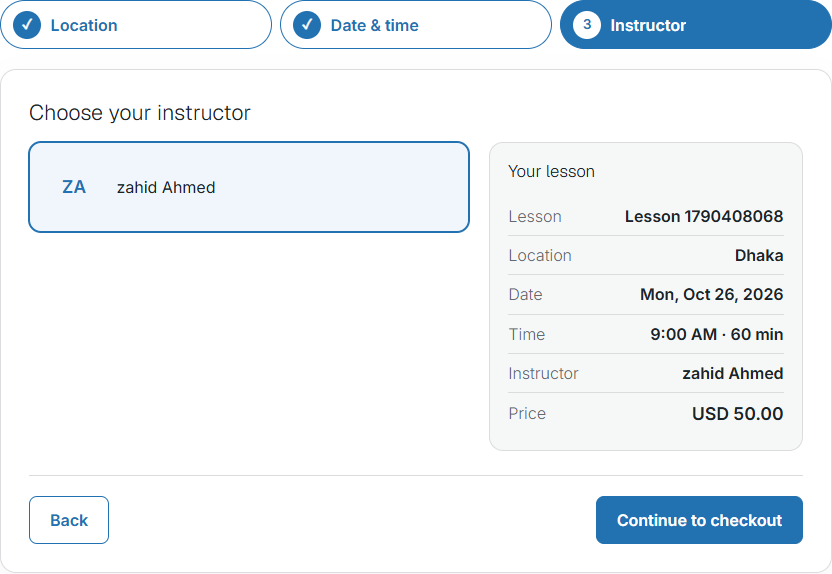
Pro: Booking wizard, step 3 — choose an instructor and continue to checkout.

Pro: Bulk slots — "Add for multiple instructors" on Driving School > Availability.
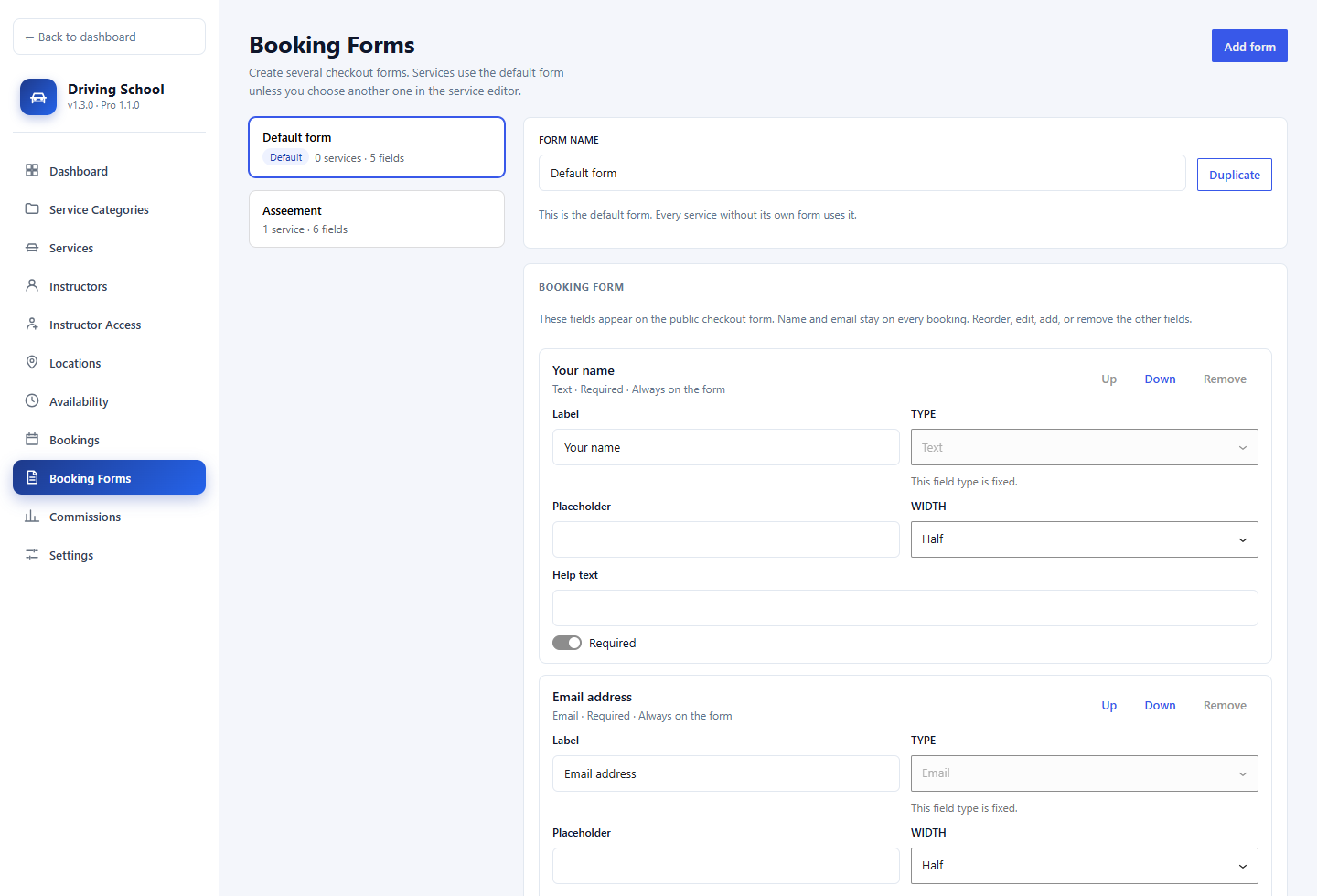
Pro: Booking Forms — several forms, with one marked as the default.
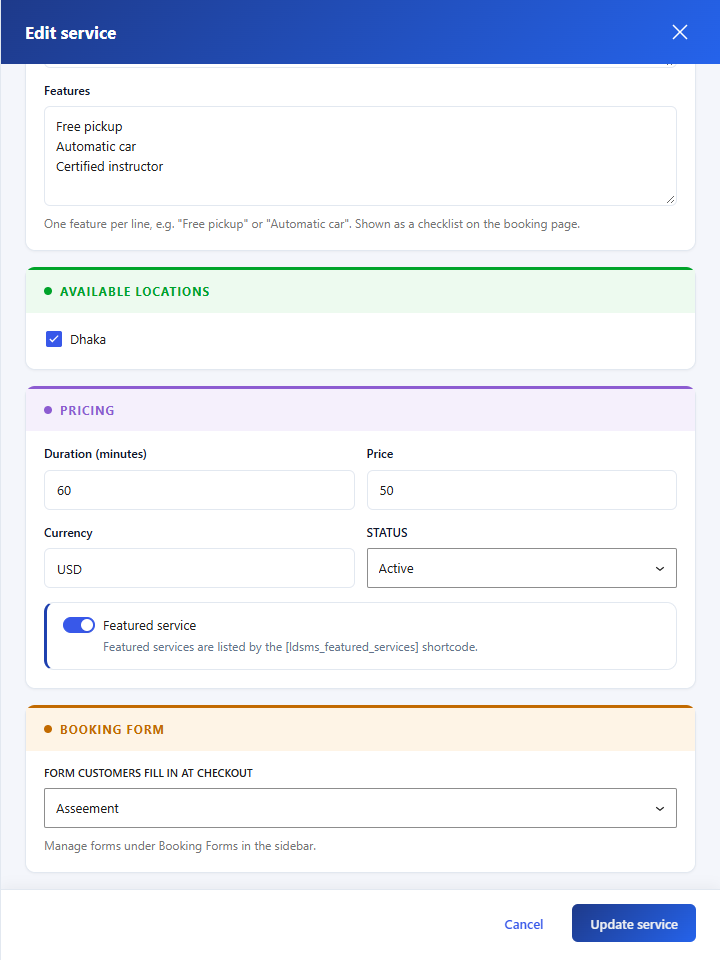
Pro: Service editor — choose a different booking form for one lesson.