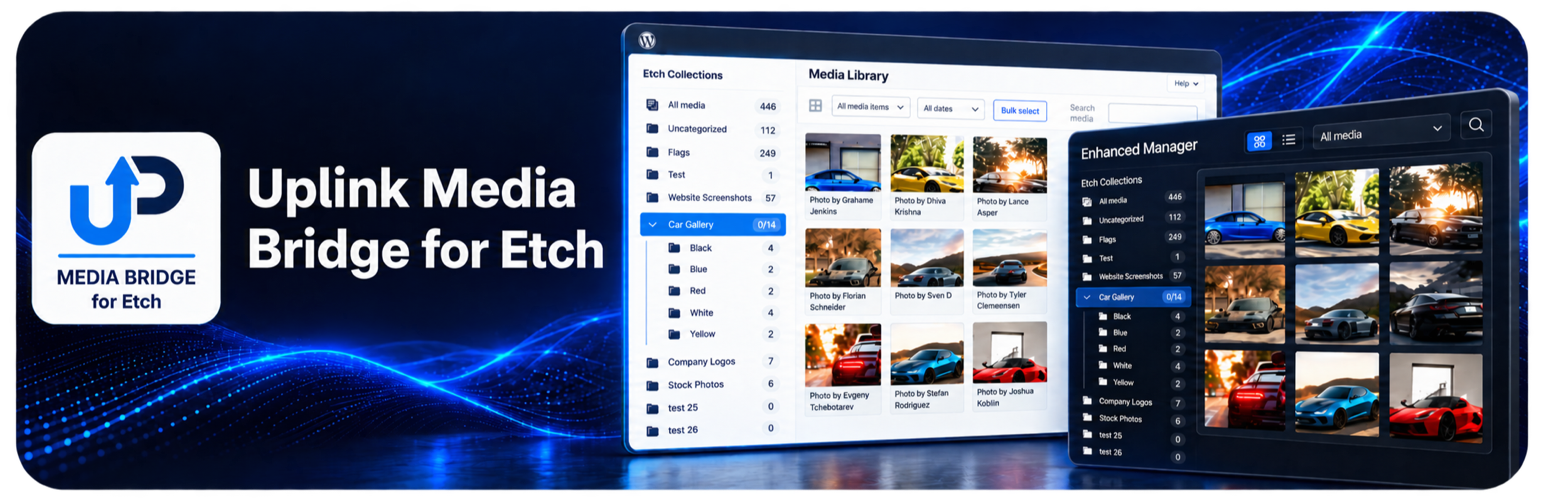
Uplink Media Bridge for Etch lets you organize Etch Collections directly in the WordPress media library. Manage images, curate collection order, build galleries, and create reusable Etch image loops without opening the builder.
Etch must be installed and active. Wicked Folders and HappyFiles are optional integrations, not requirements.
Choose your media workflow
Use the WordPress Media Library with Etch Collection tools, or choose the Enhanced Media Manager with a customizable name, collection navigation, and grid, masonry, and list views. Settings are under Media > Uplink Media Bridge.
The Enhanced Manager includes search, filters, adjustable thumbnail sizes, bulk collection assignments, attachment editing, and light, dark, or automatic appearance. The collection sidebar has a remembered draggable width in the WordPress, Enhanced, and Etch Asset Manager views. Media Health helps identify issues such as missing alt text, missing image sizes, and oversized files. Optional EXIF information shows available camera metadata.
AVIF uploads and missing image sizes
When the host cannot resize AVIF images, the browser automatically generates missing sizes during uploads. This works in the WordPress library and Enhanced Manager, including registered custom crops. Original AVIF files and their embedded EXIF stay unchanged; browser-generated copies omit EXIF. Keep the upload page open until processing finishes. Failed size generation can be retried without uploading the image again. Existing images can be repaired under Health > Missing image sizes. Local repair supports still AVIF originals up to 40 megapixels and 32 MB.
Collections and custom image order
Create, rename, move, and delete collections. Assign an image to multiple collections and drag selected images into a collection. An experimental depth setting extends collection management to as many as five levels.
Open a collection and choose Reorder to arrange images by dragging individual images or a selected group. Each collection keeps its own order, so a shared image can appear in different positions in different collections. Changes save automatically. Keyboard users can move a focused image with Alt plus an arrow key.
Etch image loop generator
Choose a collection by name, select an image order and limit, and preview the generated query. Copy the query for manual use, or give the loop a name and add it to the Etch loop library. The generator is available in settings and the Enhanced Manager.
Generated loops read current collection membership and order as images are added, removed, or reordered. Existing loops are preserved. Saving to the Etch loop library requires administrator settings access.
Upload previews, renaming, and replacement
Preview selected images and edit filenames before uploading, including after supported pre-upload optimization. A selectable queue lets you review one image at a time. File extensions follow the resulting format. Keep originals bypasses supported pre-upload optimization.
File replacement is optional and disabled by default. Enable it in Settings > File replacement, or leave it off if another plugin handles replacement. Select one file and choose between:
- Keep the existing filename and URL. The replacement must have the same file type and extension after optimization. Existing thumbnail URLs are refreshed. Browser or CDN caches may need clearing.
- Use the replacement filename and type. This creates a new file URL and permits a different format. Old files are retained for links written directly into content; those links are not rewritten.
Both options preserve the attachment ID, title, alt text, caption, description, collections, and custom collection order. The dialog shows the retained filename when applicable and displays replacement errors directly in the dialog.
Collection galleries
Choose Collection Slider to show one or several images at a time, with responsive image counts, configurable navigation, autoplay, Play/Pause, and a visible countdown. Optional lightbox photo details display only selected, available EXIF fields.
Display collection images with the Collection Gallery block or the [etch_collection_gallery] shortcode. Choose a layout, image size, captions, custom collection order, and lightbox settings. A shortcode generator provides a preview and copyable code.
Example: [etch_collection_gallery collection="portfolio" layout="grid" columns="3" limit="24"]
Optional integrations
Wicked Folders and HappyFiles can synchronize folder hierarchies and media assignments with Etch Collections. Settings label this feature 3rd party folder sync. Review migration and cleanup guidance before removing an existing folder provider.
Media Bridge also adds an optional uniform square-grid view with adjustable thumbnail widths to the Etch Asset Manager. This does not add collection-specific sorting to that manager.
Supported Cimo pre-upload optimization runs through the shared upload workflow. The Enhanced Manager also offers browser-based compression and format conversion without Cimo Pro. Instant Images and Ops Center integrations are available when those plugins are installed.
Permissions and data
Media Bridge respects WordPress attachment permissions and Etch taxonomy capabilities. Collection management and media editing remain limited to users with the required access.
Deactivation and uninstall cleanup options are available in About. Review them before enabling cleanup, especially when using a third-party folder provider. Back up the site before migration or cleanup. Deactivating Media Bridge stops its gallery blocks and shortcodes from rendering; saved content remains available when the plugin is reactivated.
Documentation
Read the complete documentation for migration, permissions, EXIF, shortcode attributes, integrations, and data retention details.
Configurable Collection Slider
Insert Collection Slider and select a collection. Choose one image for a single-image slider or up to eight for a carousel. Tablet and mobile counts can reduce the desktop count. Navigation button settings control position, alignment, shape, and text or icons. Playback settings add optional autoplay, a two-to-twenty-second interval, and a visitor Play/Pause button. Autoplay pauses on hover or when offscreen, stops for manual navigation and keyboard focus, and respects reduced motion. Shortcodes also accept autoplay=”true” interval=”5000″. Existing single-image sliders retain their one-image behavior. The Etch gallery dialog provides the same settings; its preview remains static.
Example: [etch_collection_gallery collection=”123″ layout=”slider” slides=”4″ carousel_tablet=”2″ carousel_mobile=”1″ nav_position=”bottom” nav_alignment=”end” nav_shape=”pill” nav_content=”icon”]
Image compression and photo maps
Under Media > Uplink Media Bridge > Compression, use the master switch and choose WebP, AVIF, JPEG XL or JPG to let permitted users compare the enabled formats in the Enhanced editor’s Optimization tab. Quality controls and full-size previews help compare results before saving. All sizes converts recorded WordPress and custom sizes except those excluded on the Compression tab. No sizes are excluded until an administrator selects them. For example, exclude thumbnail (150 × 150) to keep thumbnail files unchanged. Choose Selected sizes and check an excluded size to override it for one conversion. Size names sharing one physical file are excluded and overridden together. Choose Main image only or Selected sizes to limit processing. Unselected files remain unchanged, with original files retained for restoration. JPEG XL adds responsive picture sources with the original image as fallback. Existing picture elements, CSS backgrounds and external links keep the original format. Current-site content, metadata and options referencing converted WebP, AVIF or JPG files are updated. Custom tables and external sites are outside this workflow. Module workers, WebAssembly and OffscreenCanvas are required. Animated source images are left unchanged. Compression settings also provide separate role selections for compression and restoration. Both default to administrators only. Selected users must still be able to upload files and edit the specific image. Restoration access is independent of the compression master switch.
GPS exposure and photo maps are off by default and require separate opt-ins under EXIF. The EXIF display option in the Enhanced Manager must also be on. Maps use bundled Leaflet 1.9.4. Opening a photo’s EXIF map requests tiles from Esri World Imagery or OpenStreetMap and sends the displayed location, IP address and browser information to that provider. No map tiles are requested when mapping or GPS exposure is disabled.
Esri terms: https://www.esri.com/en-us/legal/terms/full-master-agreement
Esri privacy: https://www.esri.com/en-us/privacy/privacy-statements/privacy-statement
OpenStreetMap terms: https://osmfoundation.org/wiki/Terms_of_Use
OpenStreetMap privacy: https://osmfoundation.org/wiki/Privacy_Policy
Bundled image encoders run locally. Codec source, build and license references are in assets/vendor/jsquash/SOURCES.md. Leaflet source and license are in assets/vendor/leaflet. This release uses GPL-3.0-or-later for compatibility with the bundled Apache-2.0 codec wrappers. Third-party libraries retain their own licenses.
Source code and builds
The ZIP includes editable PHP, JavaScript and CSS for all first-party code. assets/gallery-lightbox.js is the original handwritten source, not a generated or minified bundle. Edit it directly; no npm, webpack, transpiler or compilation step is required. First-party assets are served directly as shipped.
Development repository: https://github.com/stphnwlkr/media-bridge-for-etch
To make an installable ZIP, place media-bridge-for-etch.php, uninstall.php, readme.txt, LICENSE and the includes, assets and blocks directories inside a media-bridge-for-etch folder and ZIP that folder. Development tests, reports and old builds are excluded from the runtime package. The development checkout also provides python3 tools/build.py for this packaging step.
Bundled third-party assets retain their upstream source, build and license references in the sections below and their assets/vendor SOURCES.md files. Browser Image Compression includes readable original sources in its source map. Leaflet includes leaflet-src.js.
Third-party licenses
Lucide outline icons are bundled under ISC and MIT licenses. Source and full license notices are included in assets/vendor/lucide/. Web Awesome and Leaflet license notices remain in their respective assets/vendor/ directories.
Screenshots
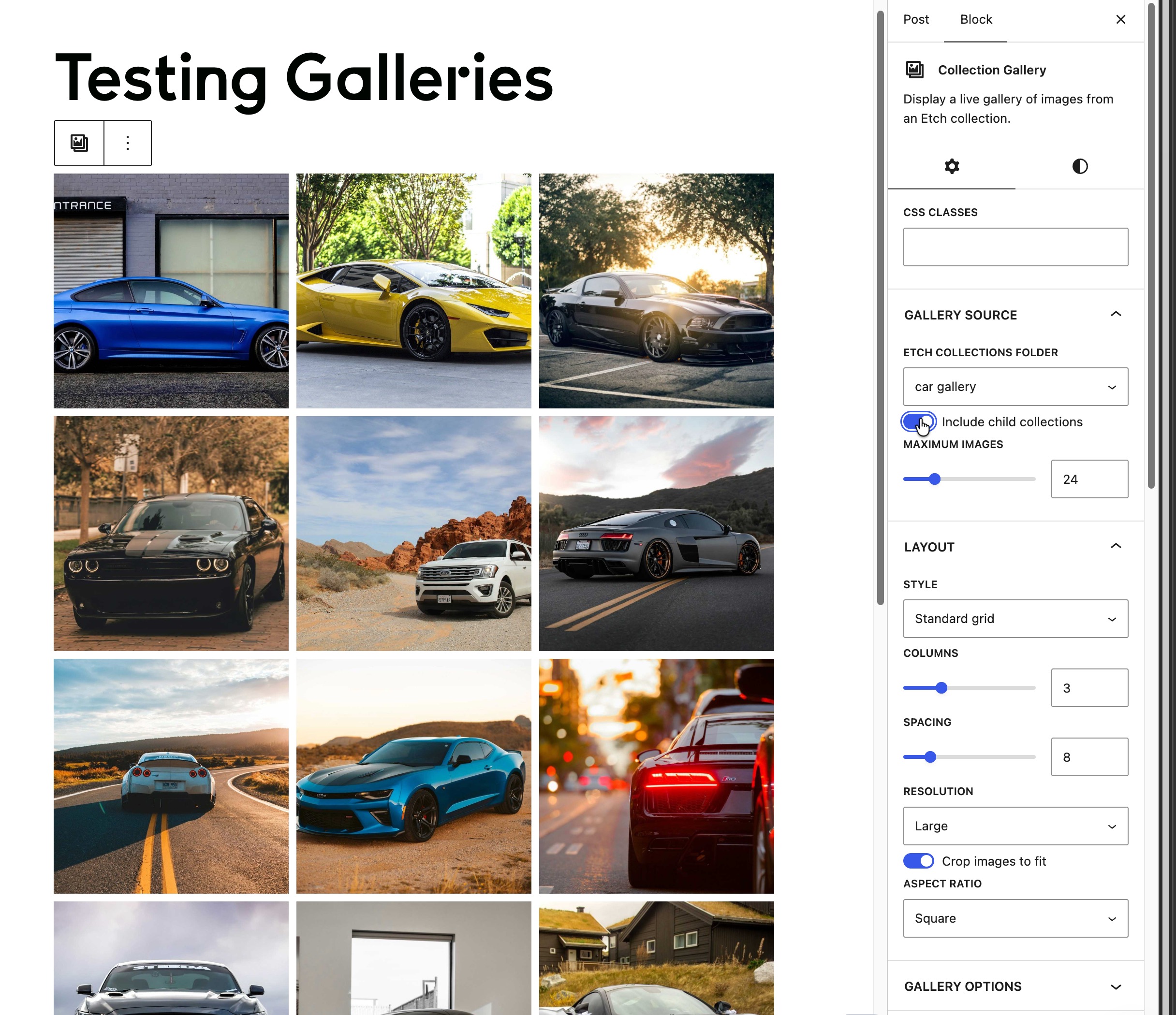
Collection Gallery block displaying a three-column grid, with collection, layout, image size, crop, and aspect-ratio controls in the block sidebar.
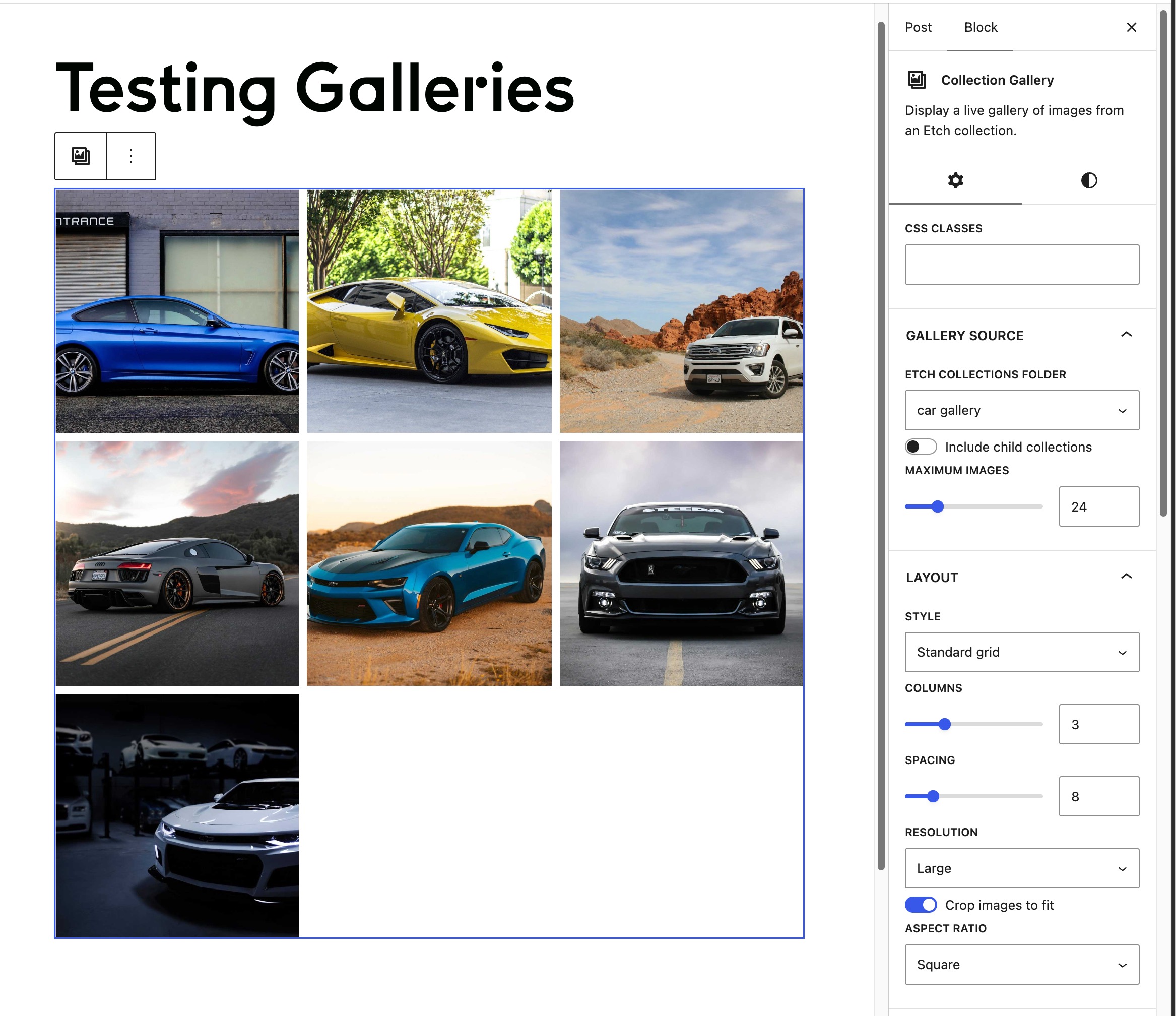
Collection Gallery block excluding child collections while displaying a cropped three-column image grid.
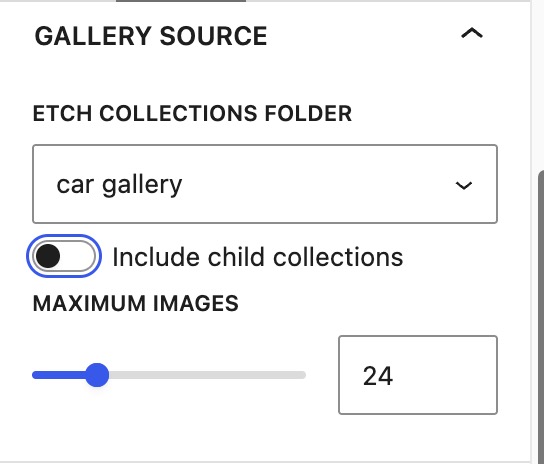
Gallery source controls for choosing an Etch collection, including child collections, and setting the maximum image count.
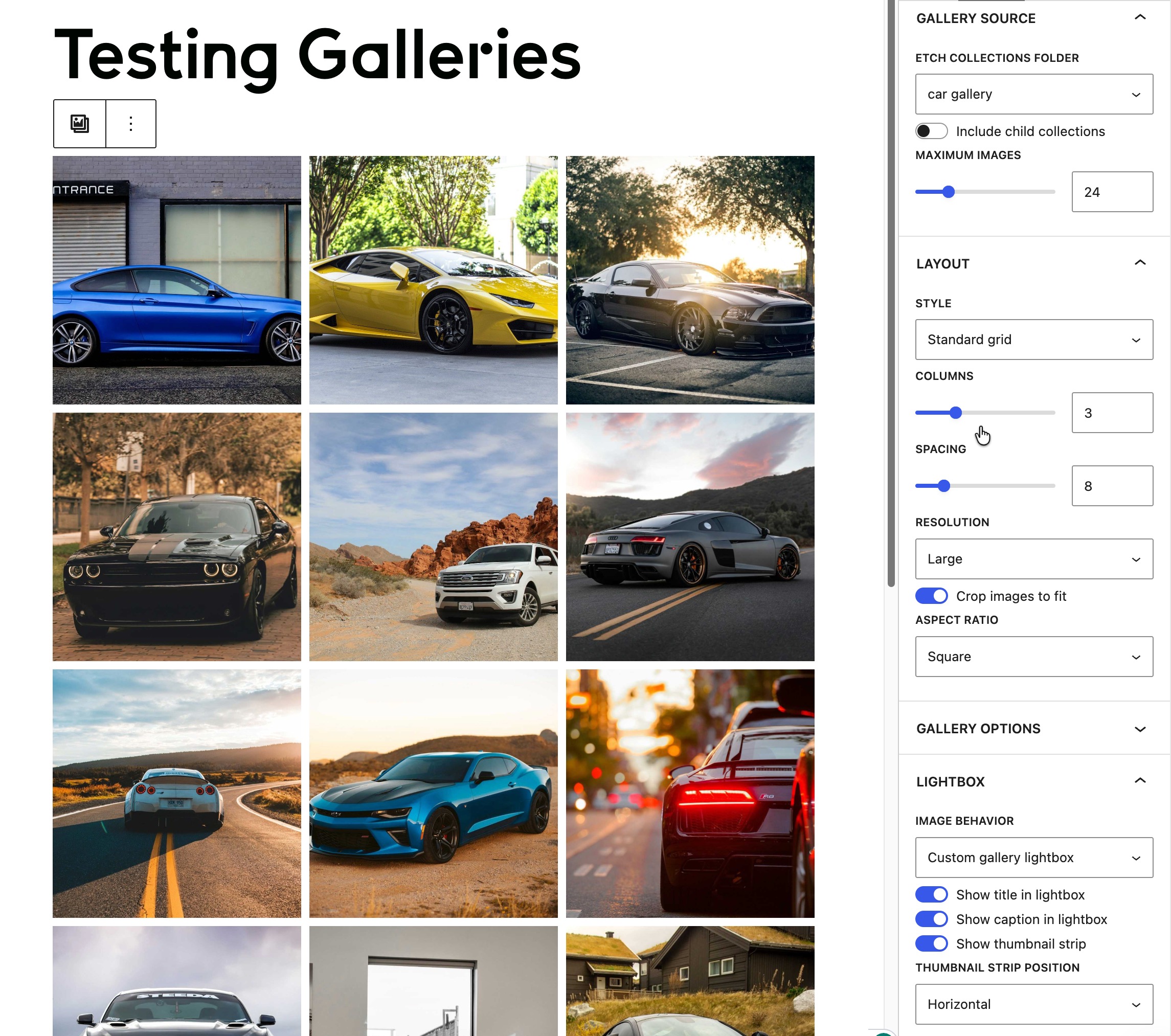
Collection Gallery block with grid layout controls and custom lightbox options open in the block sidebar.
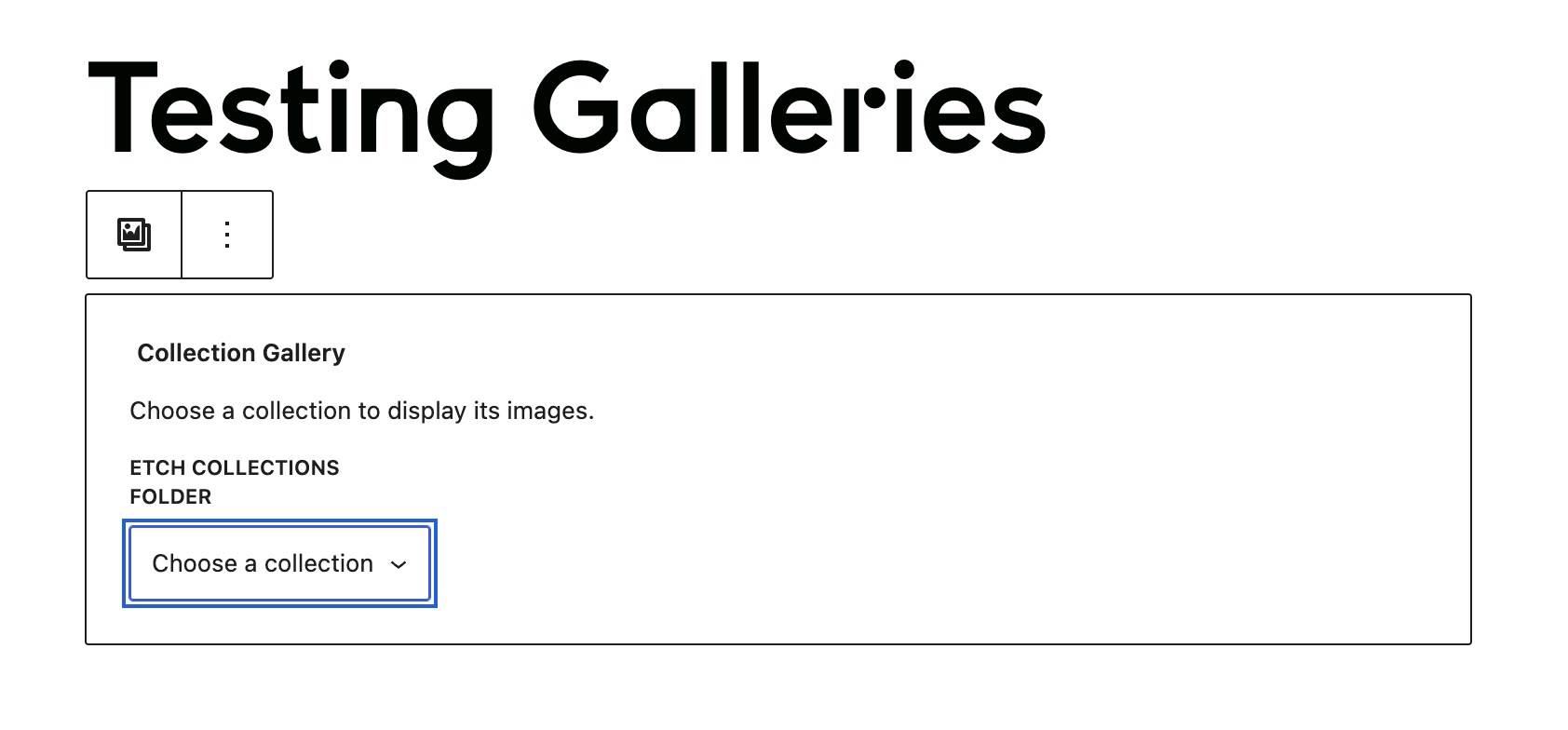
Empty Collection Gallery block prompting the editor to choose an Etch collection.
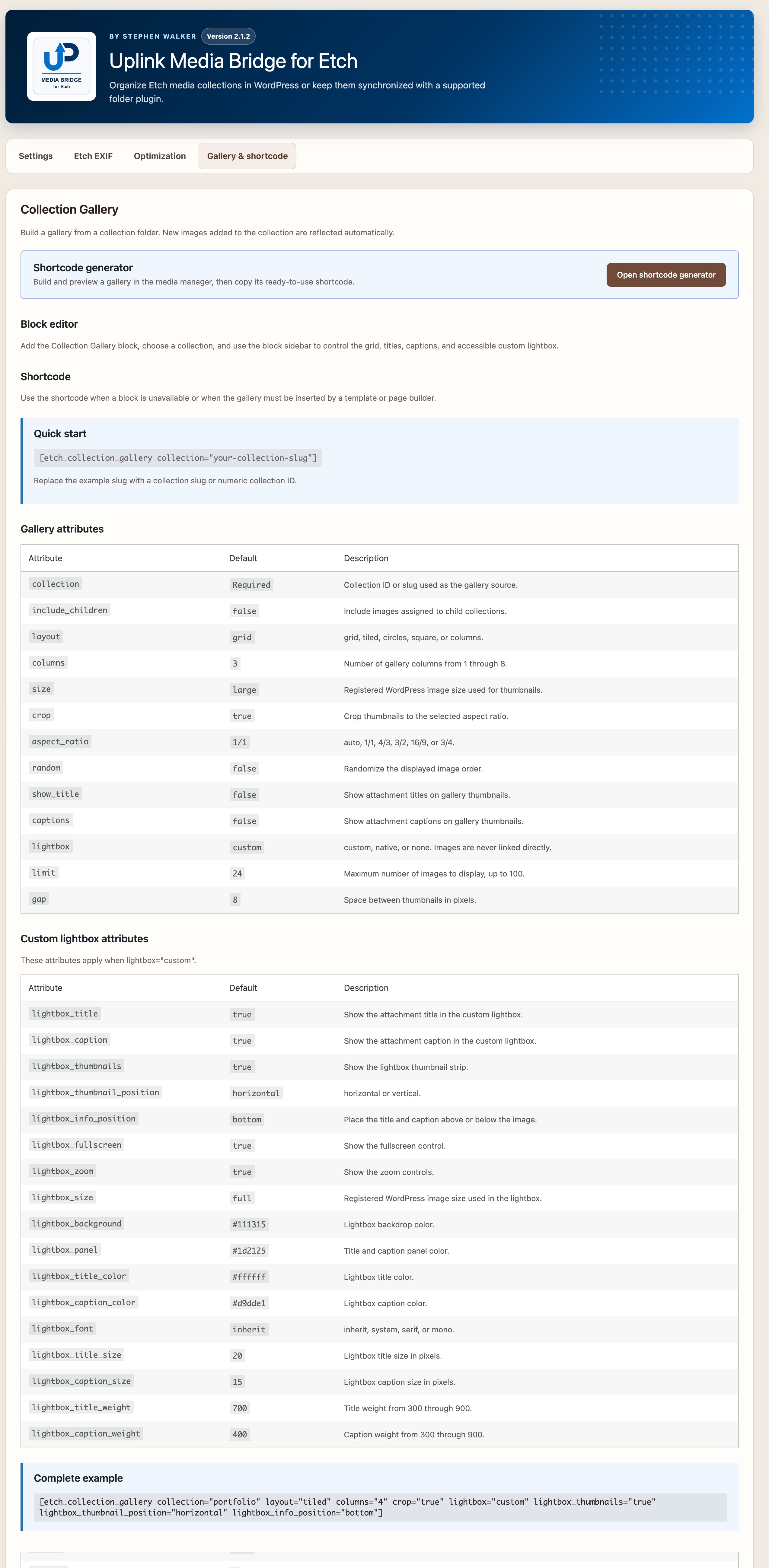
Gallery and shortcode documentation covering the block, shortcode attributes, and custom lightbox options.
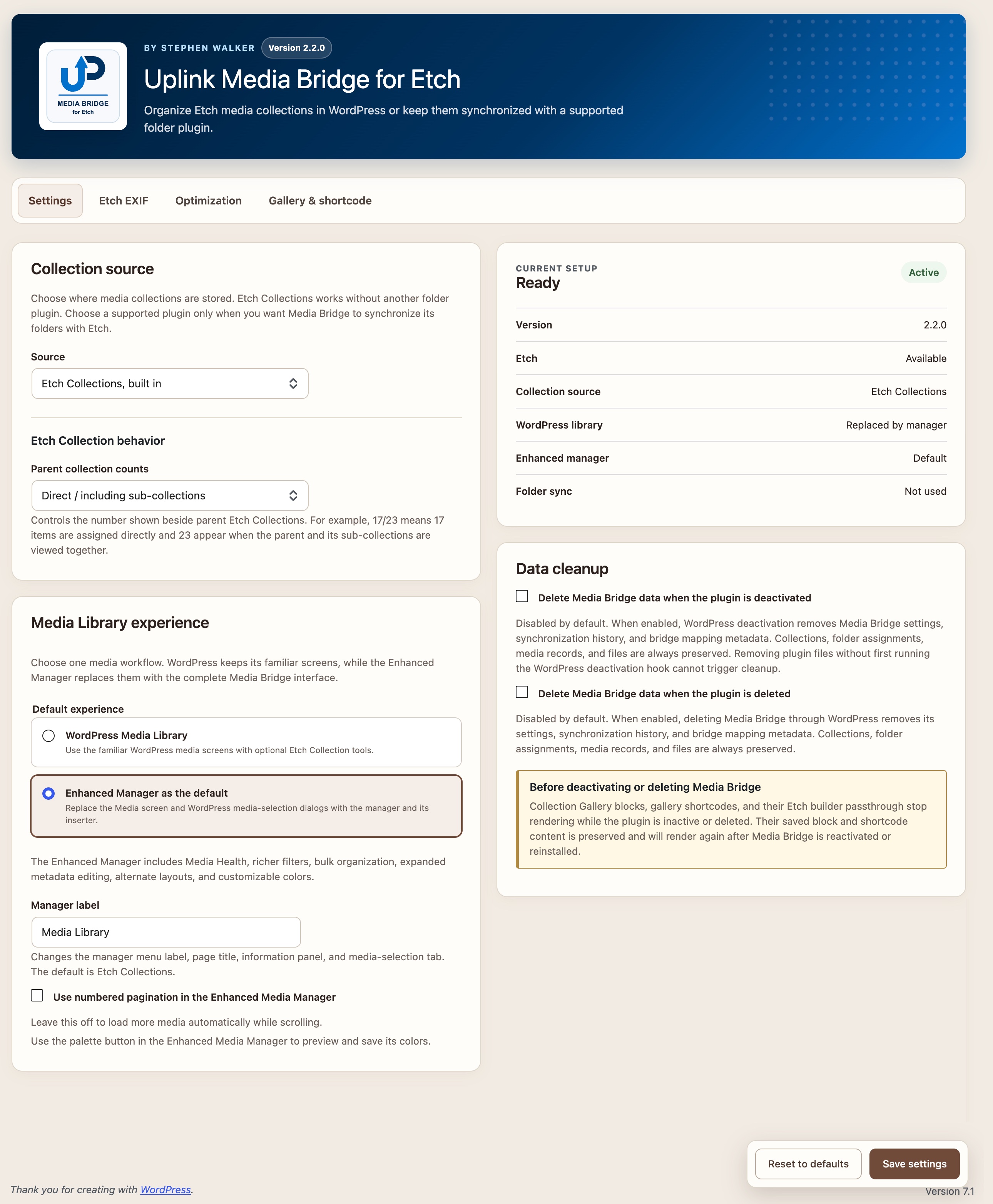
Media Bridge settings with the Enhanced Manager selected as the default media workflow.
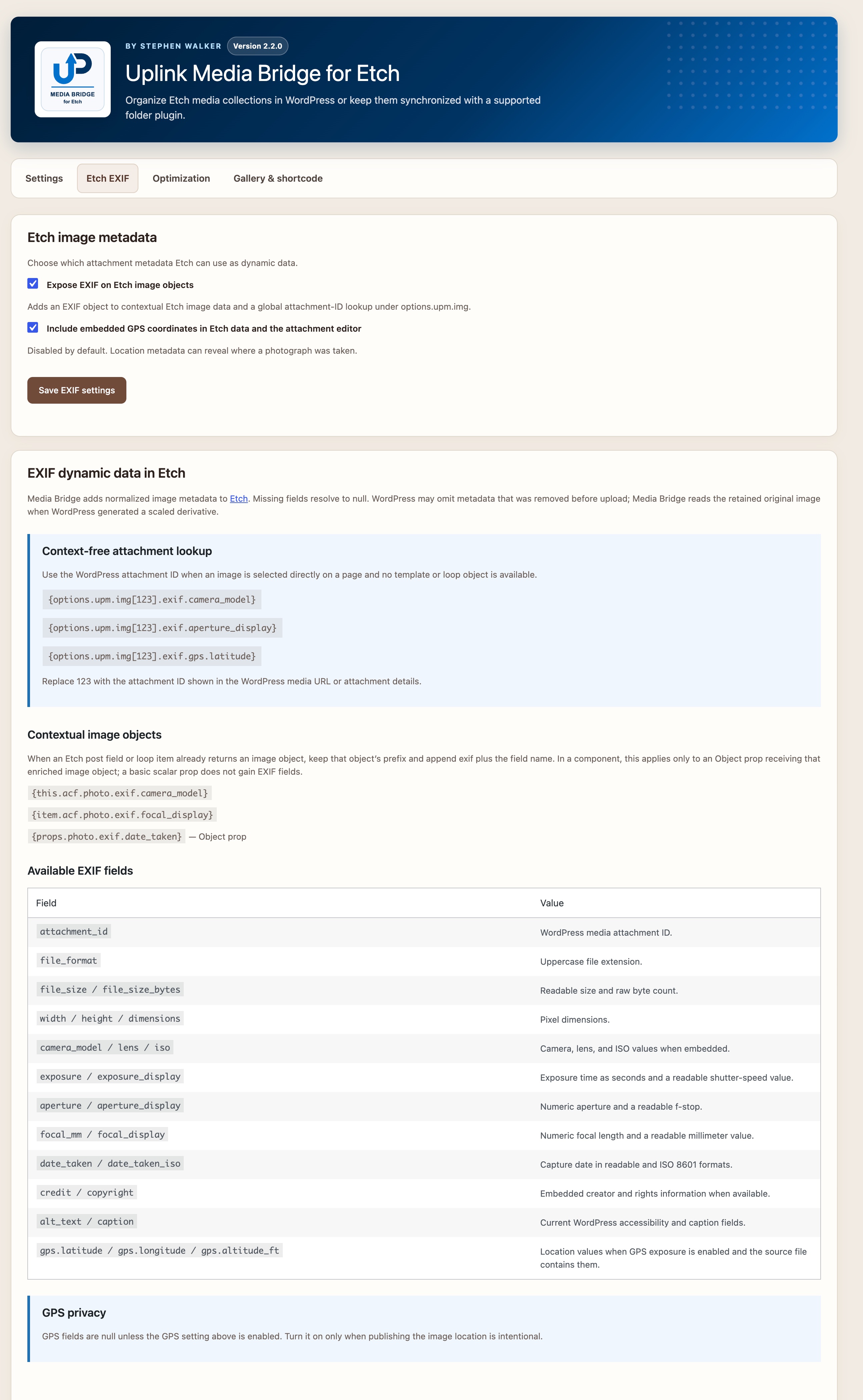
Etch EXIF settings and documentation with dynamic-data examples, available fields, and GPS privacy guidance.
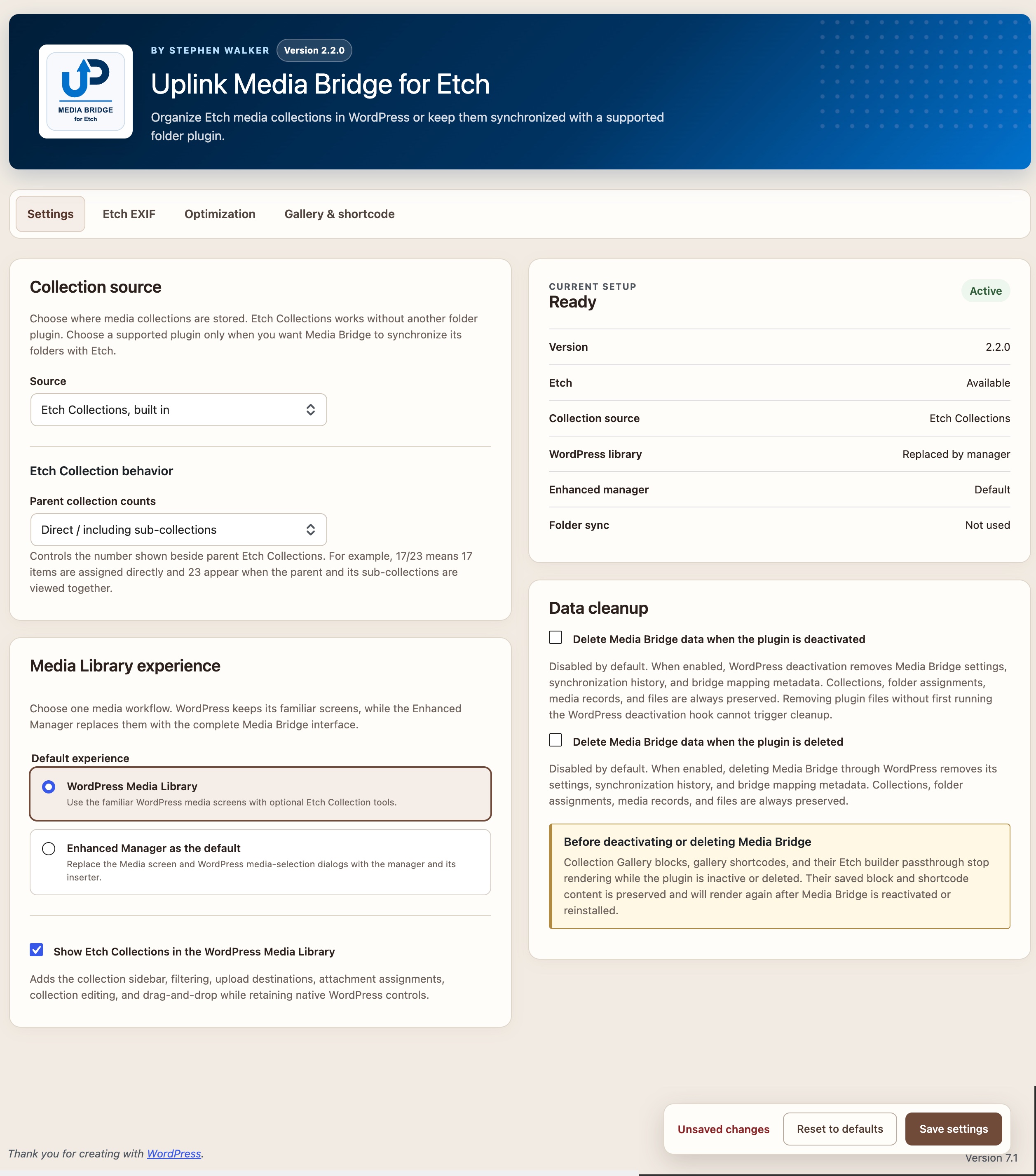
Media Bridge settings with the WordPress Media Library and native Etch Collection tools selected.
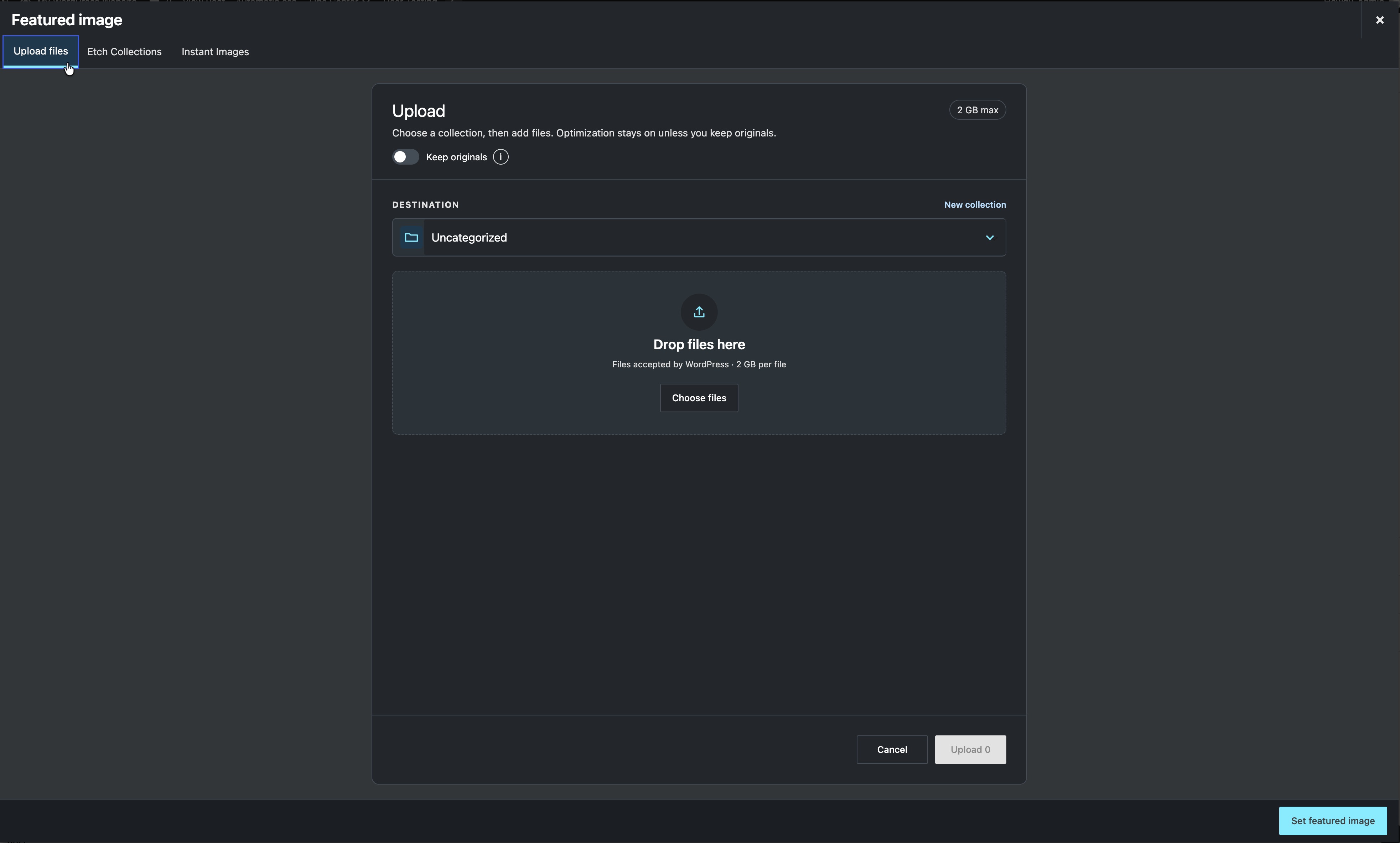
Media upload screen with collection assignment, drag-and-drop area, Cimo optimization bypass, and new-collection access.
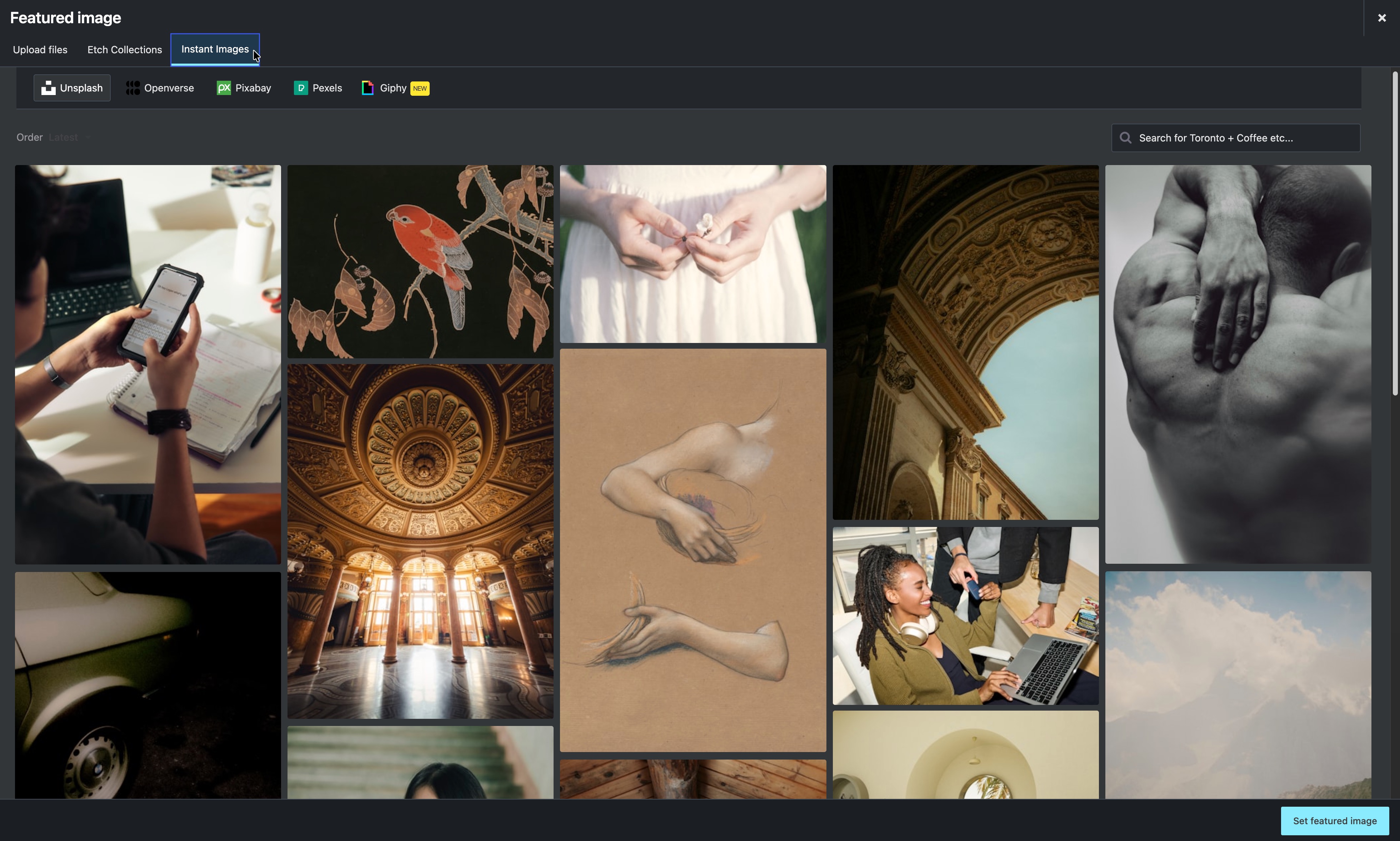
Instant Images tab in the featured-image selector with Unsplash and other image providers.
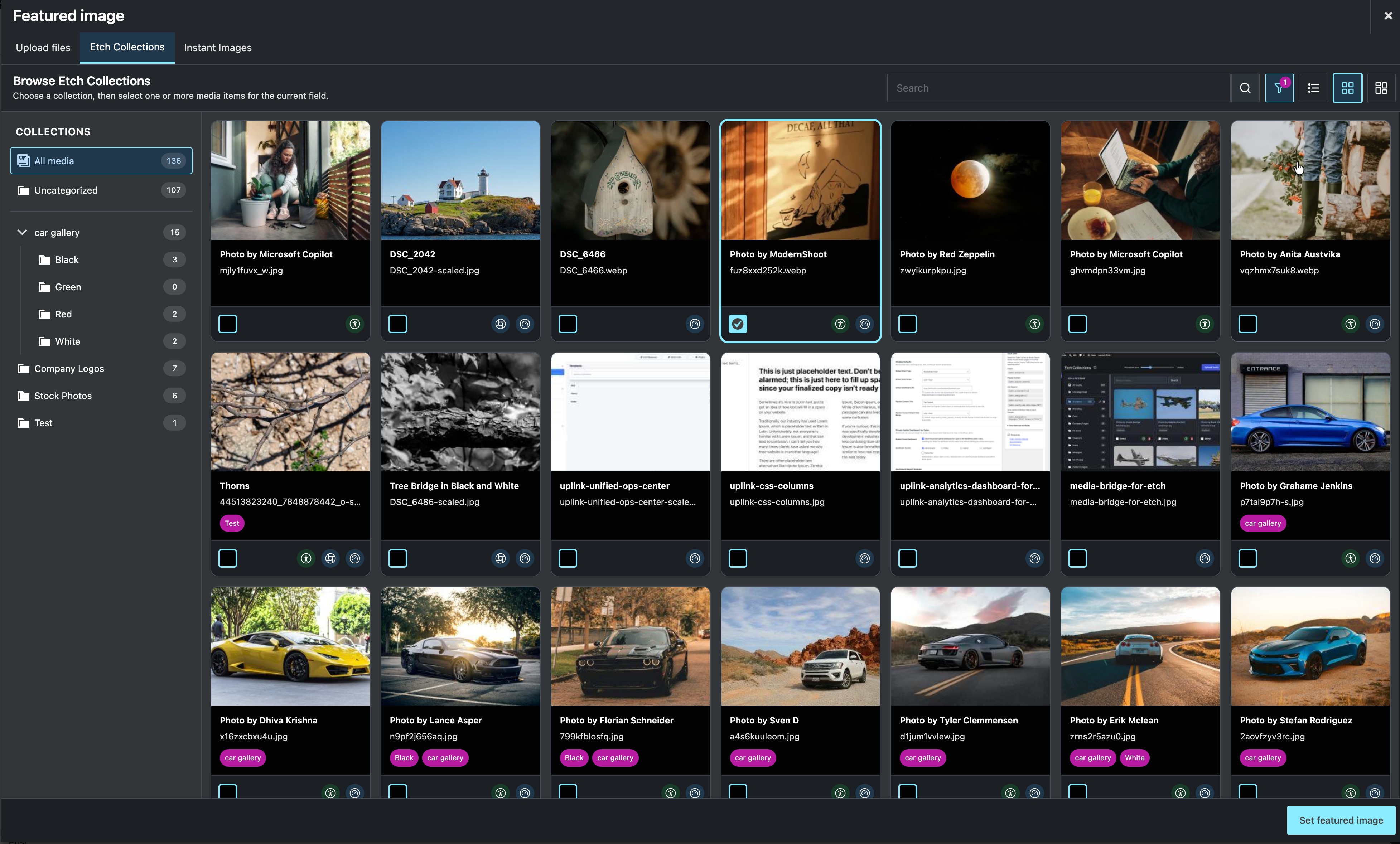
Etch Collections featured-image selector with collection navigation, search, filters, layout controls, and a selected image.
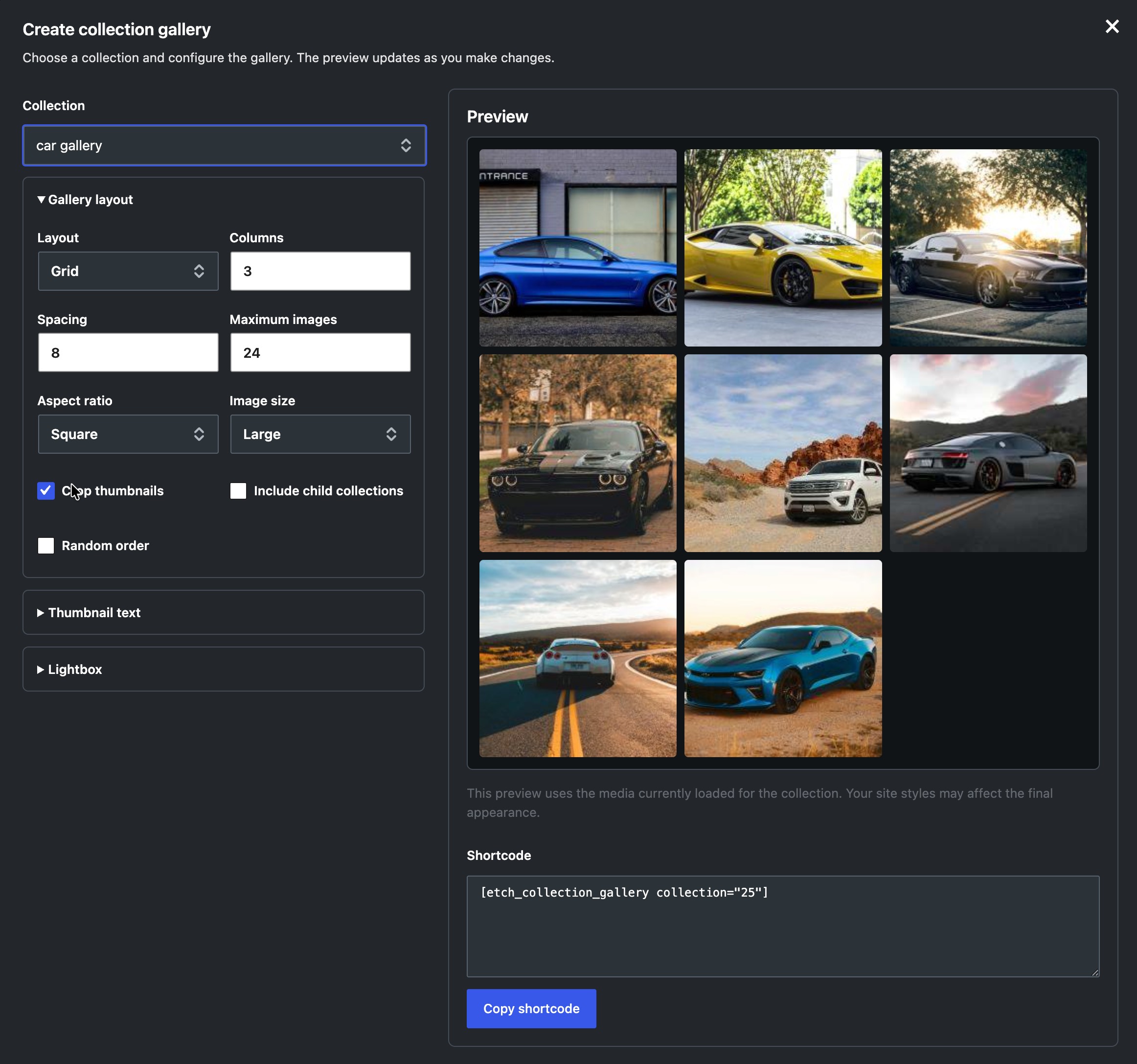
Collection gallery shortcode generator with a live preview and controls for layout, thumbnails, child collections, and image order.
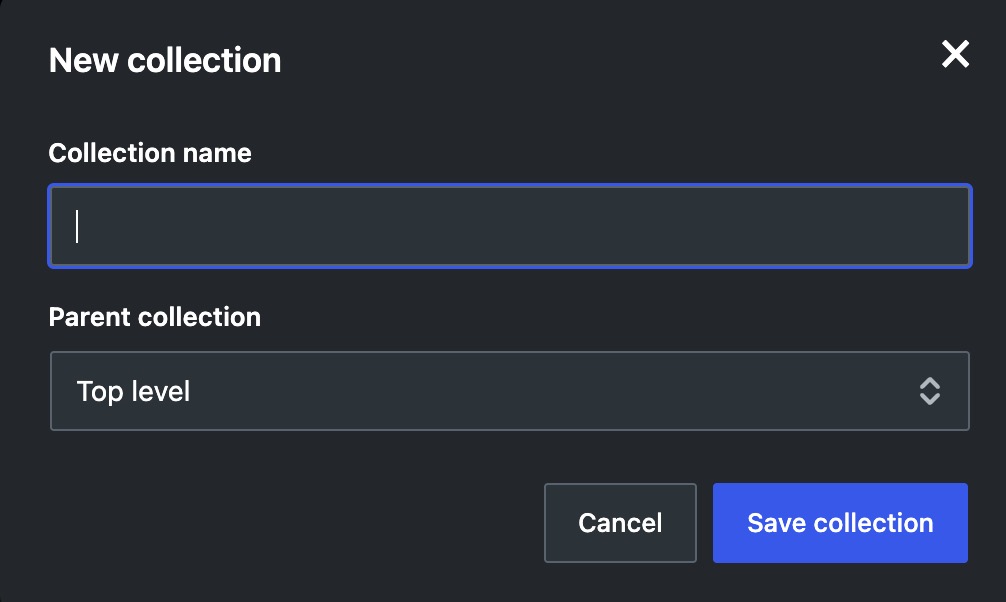
New collection dialog with collection name and parent collection fields.
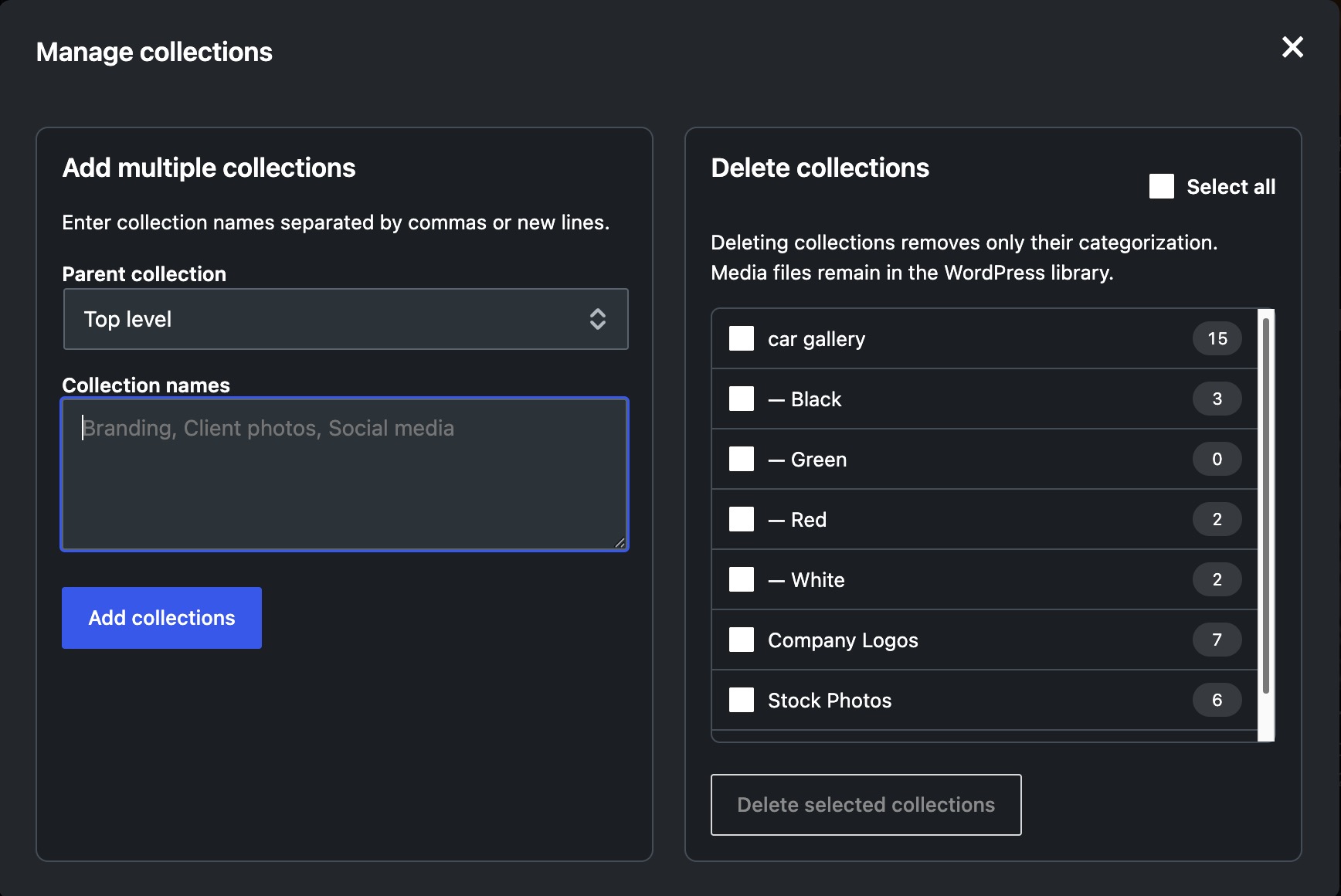
Collection management dialog for adding multiple collections or deleting selected collection assignments without deleting media.
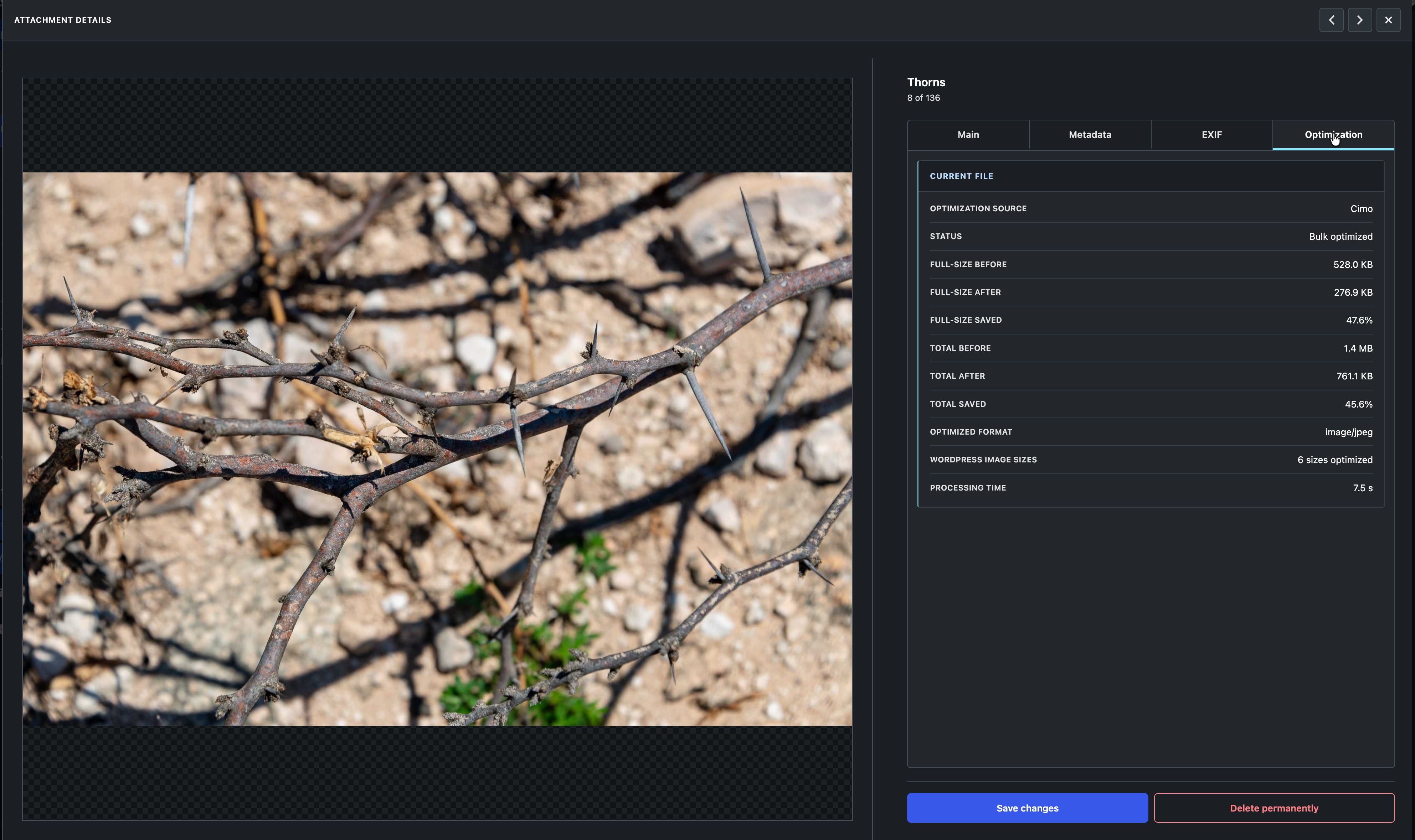
Full-screen attachment editor showing Cimo compression results in the Optimization tab.
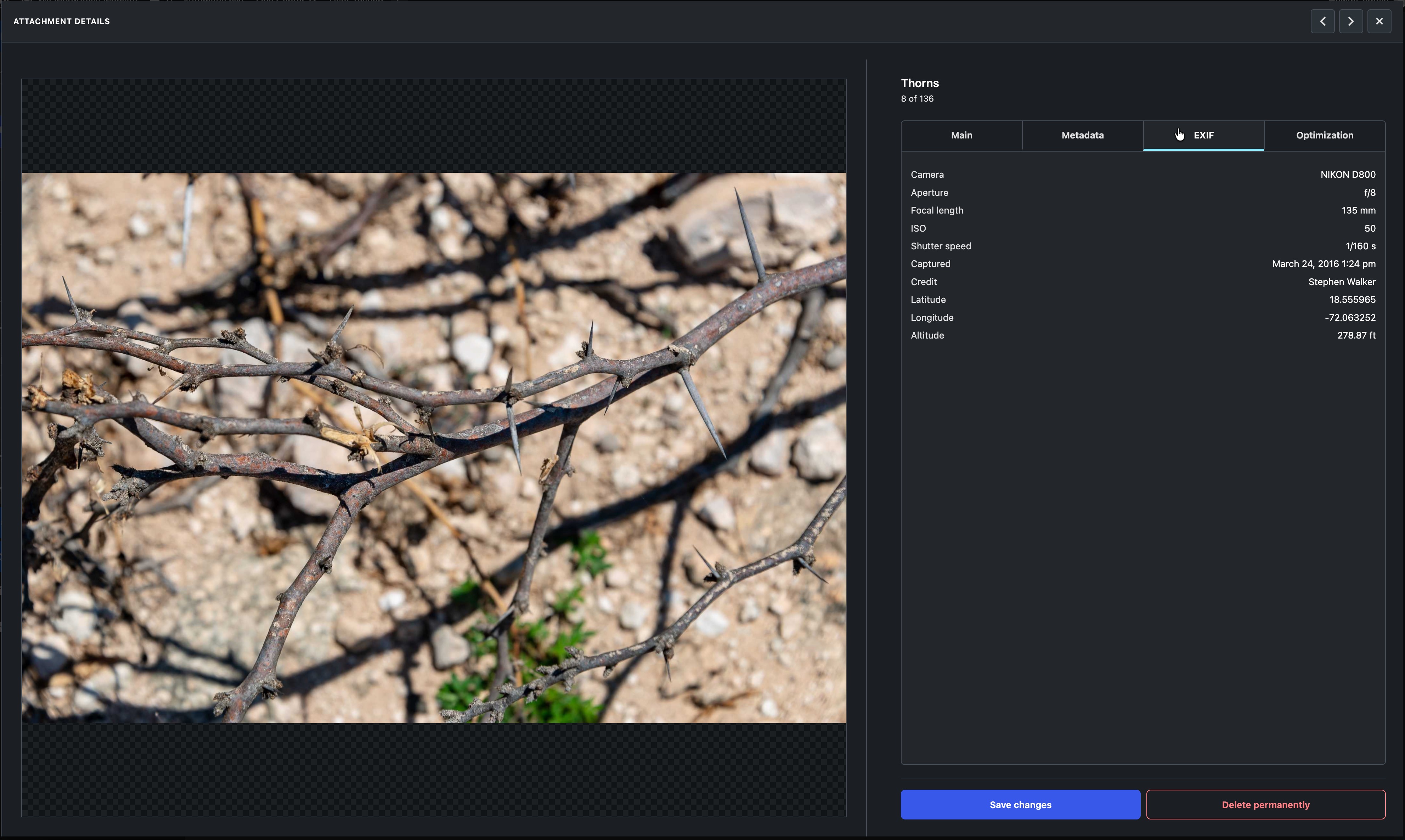
Full-screen attachment editor showing camera settings and location metadata in the EXIF tab.
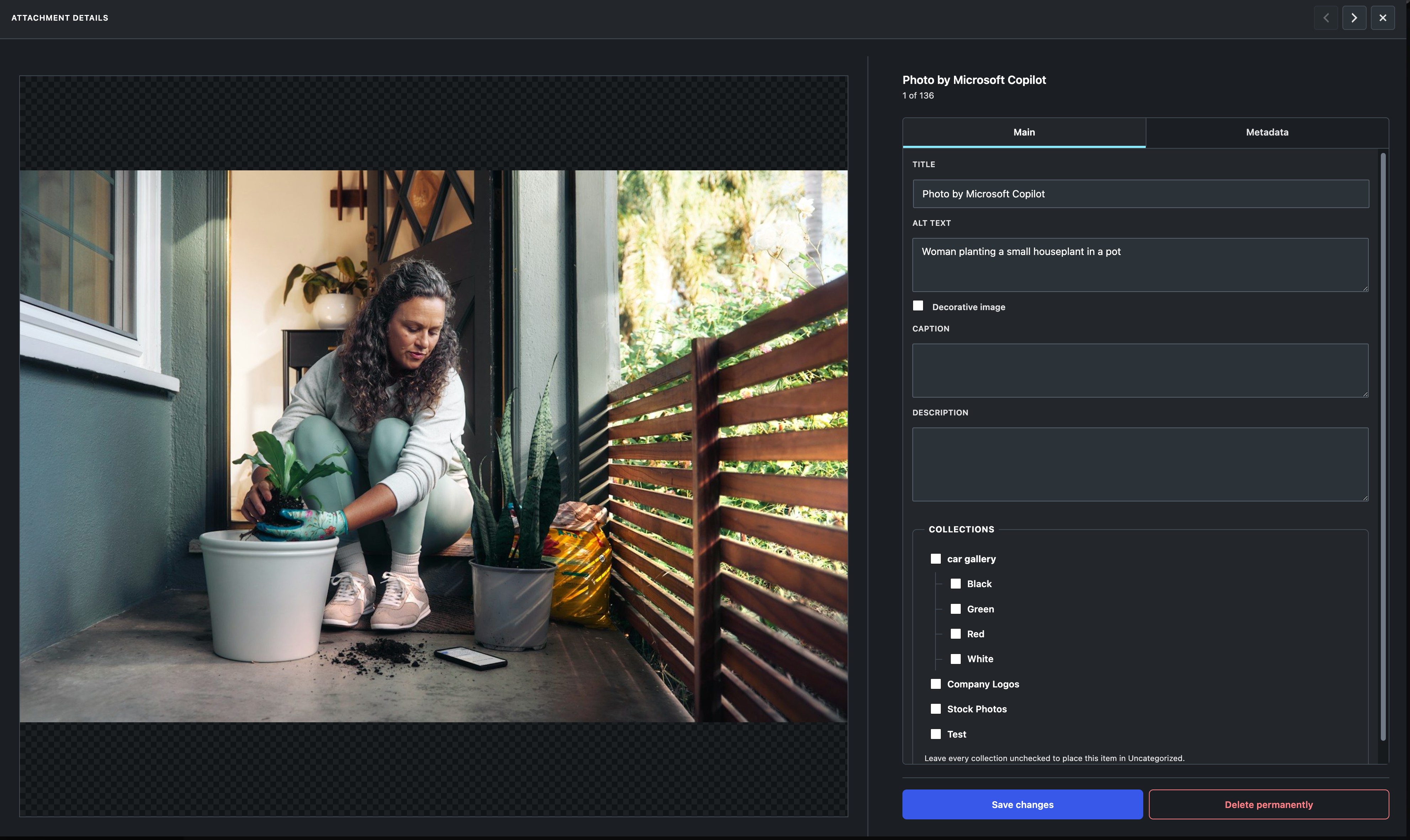
Full-screen attachment editor with title, alt text, caption, description, and hierarchical collection assignment controls.
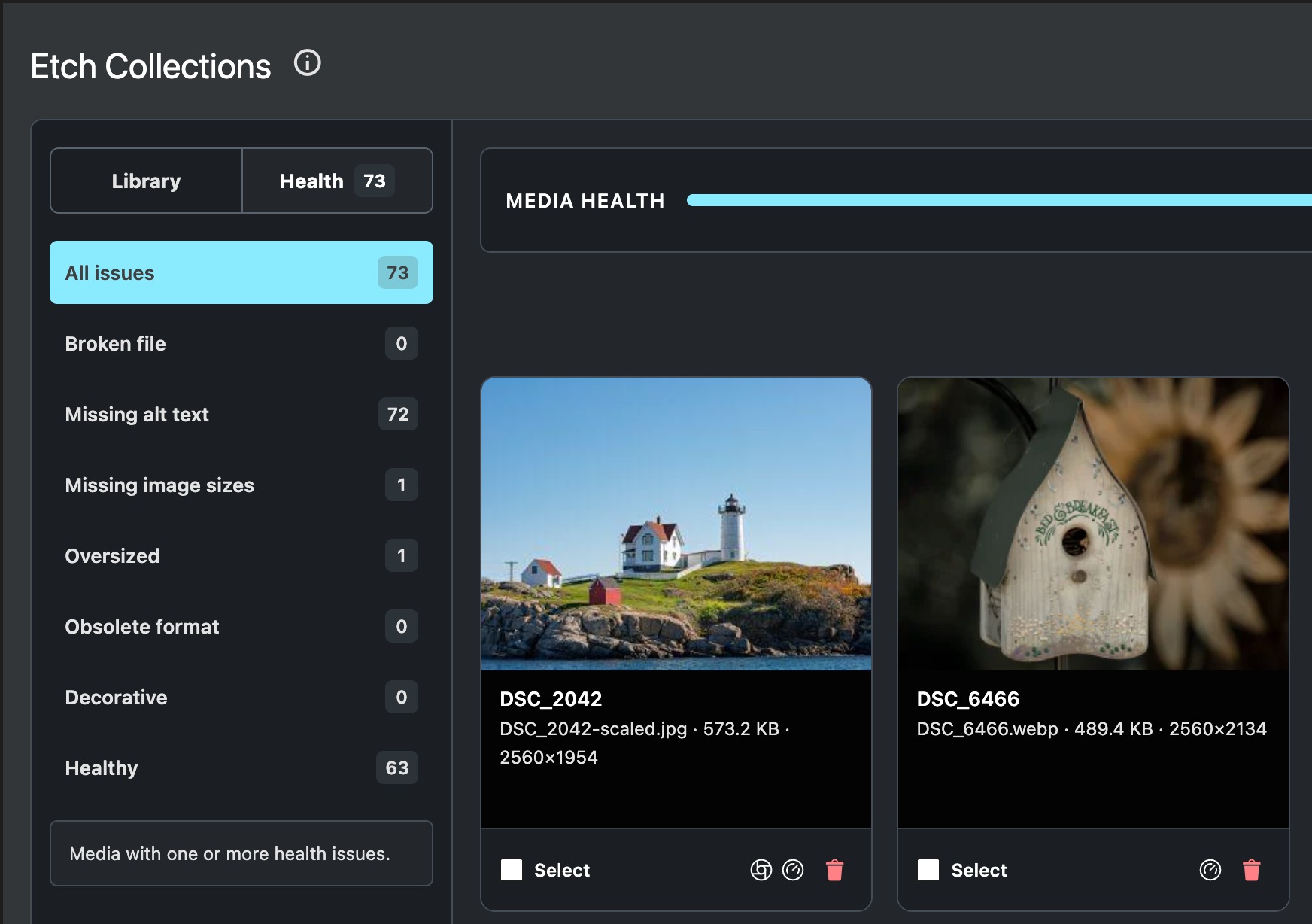
Media Health navigation showing issue counts for missing alt text, missing image sizes, oversized files, and other checks.
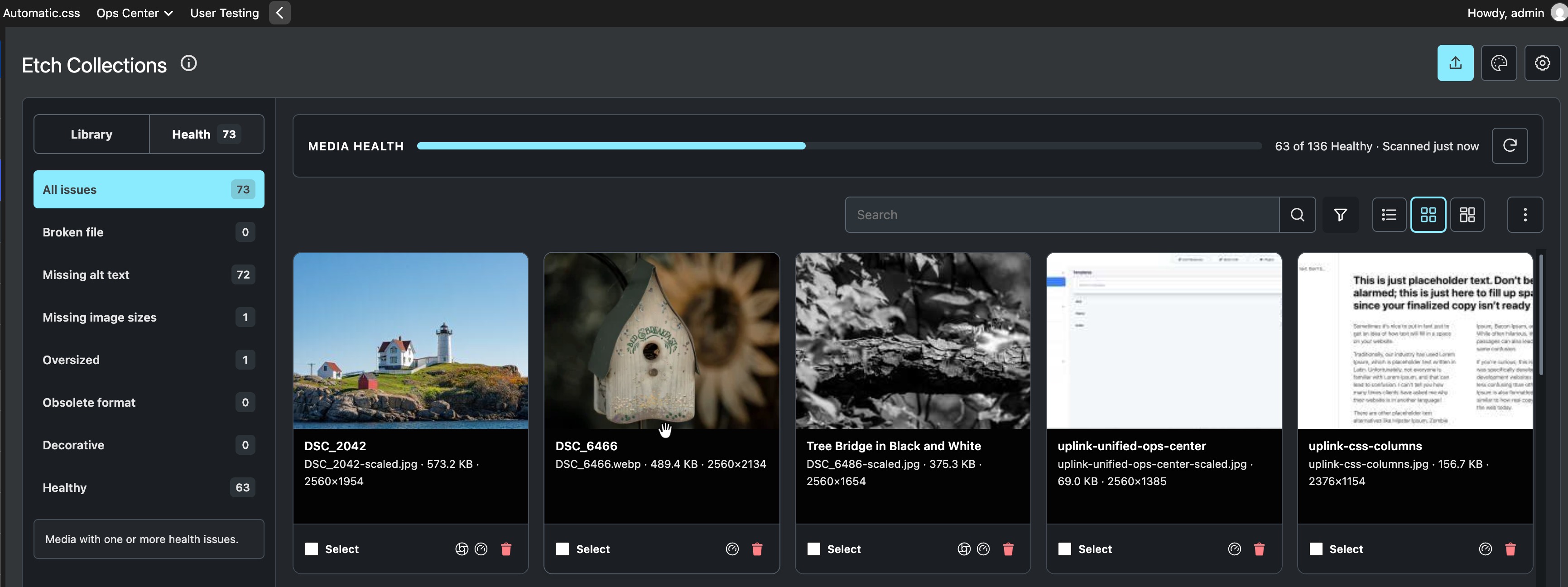
Media Health workspace with scan progress, issue categories, search, filters, layout controls, and affected media cards.
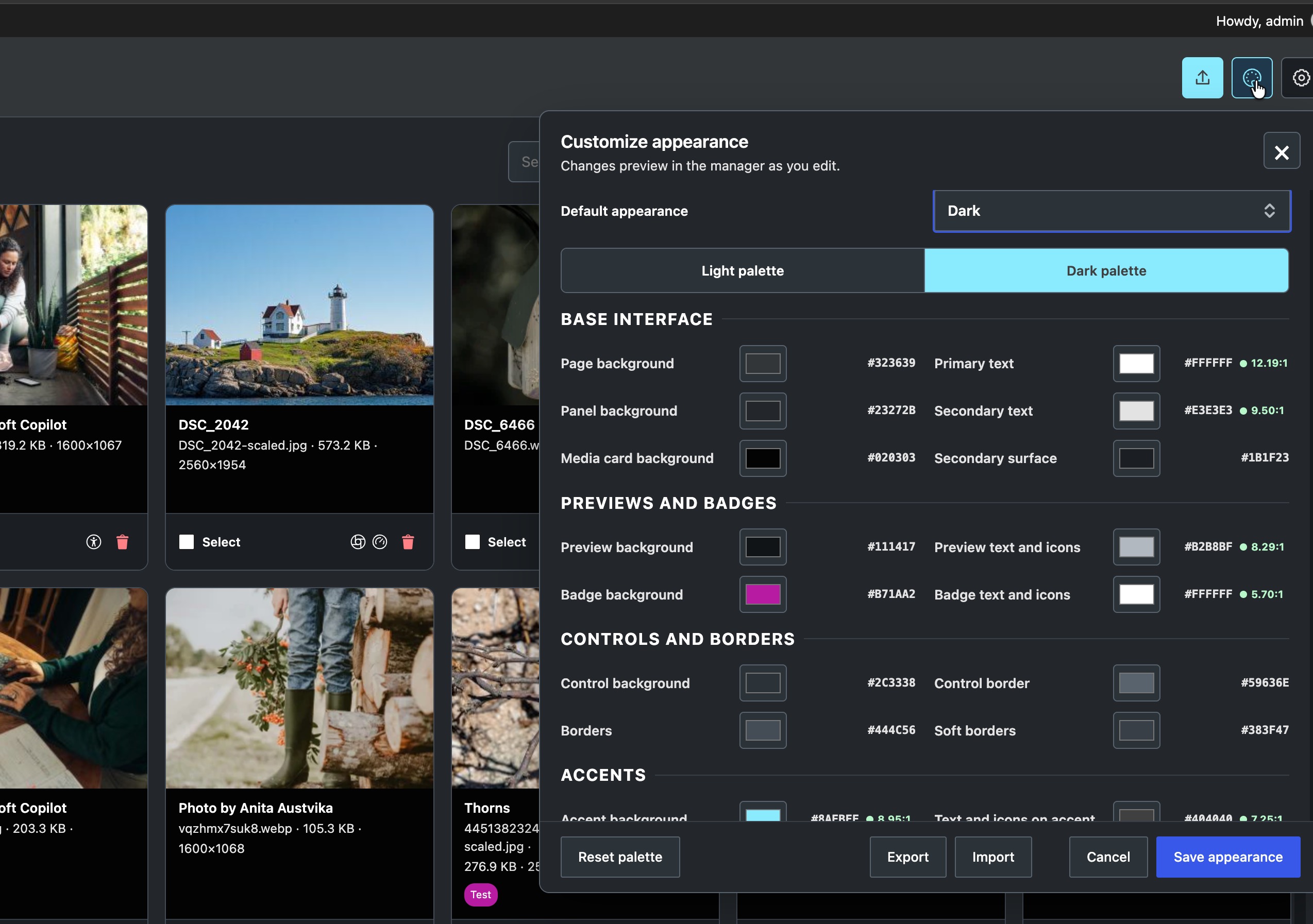
Appearance editor with separate dark-palette controls and contrast ratios for interface text, surfaces, badges, and controls.
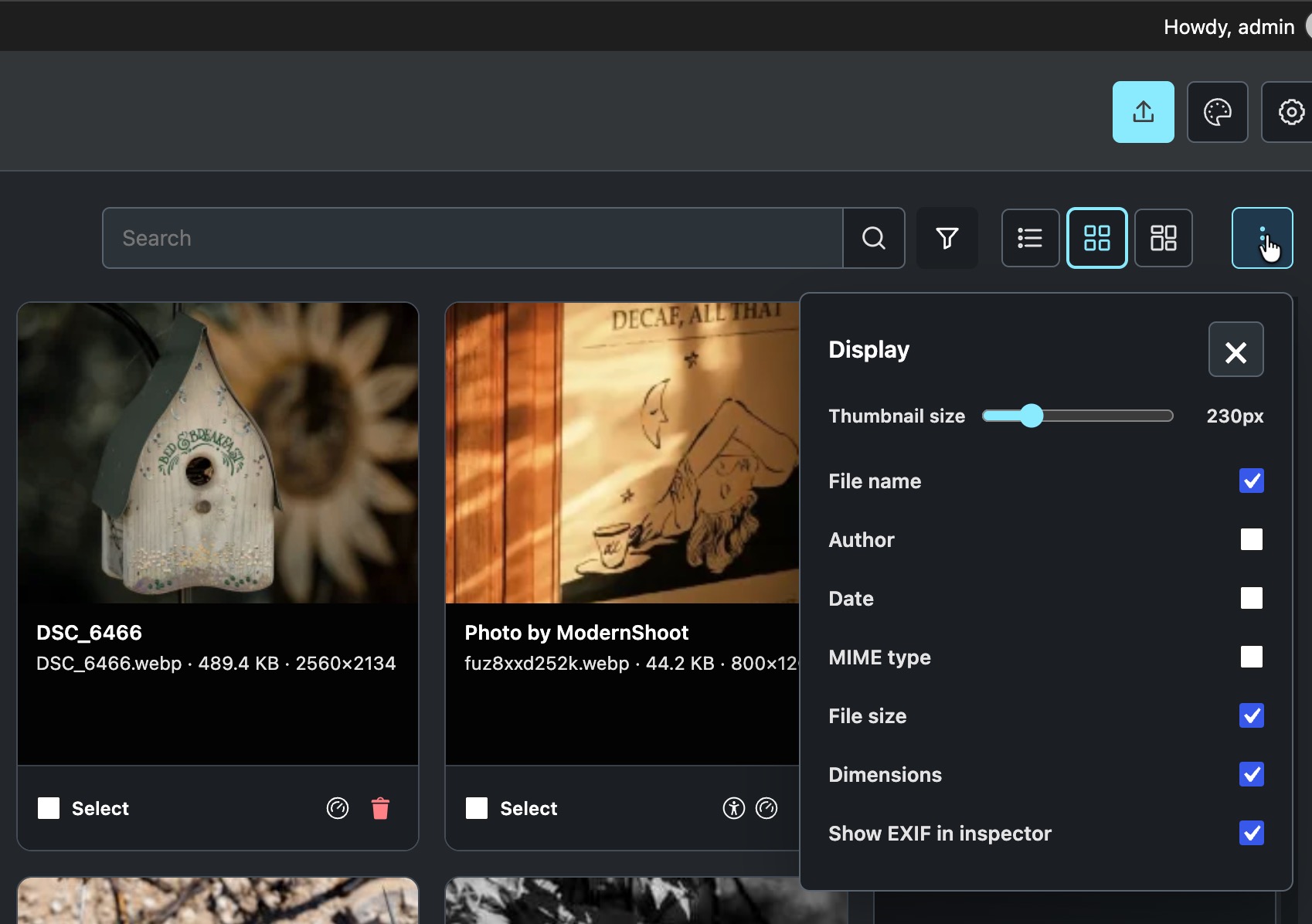
Display panel for thumbnail size and optional card details including filename, author, date, MIME type, file size, dimensions, and EXIF status.
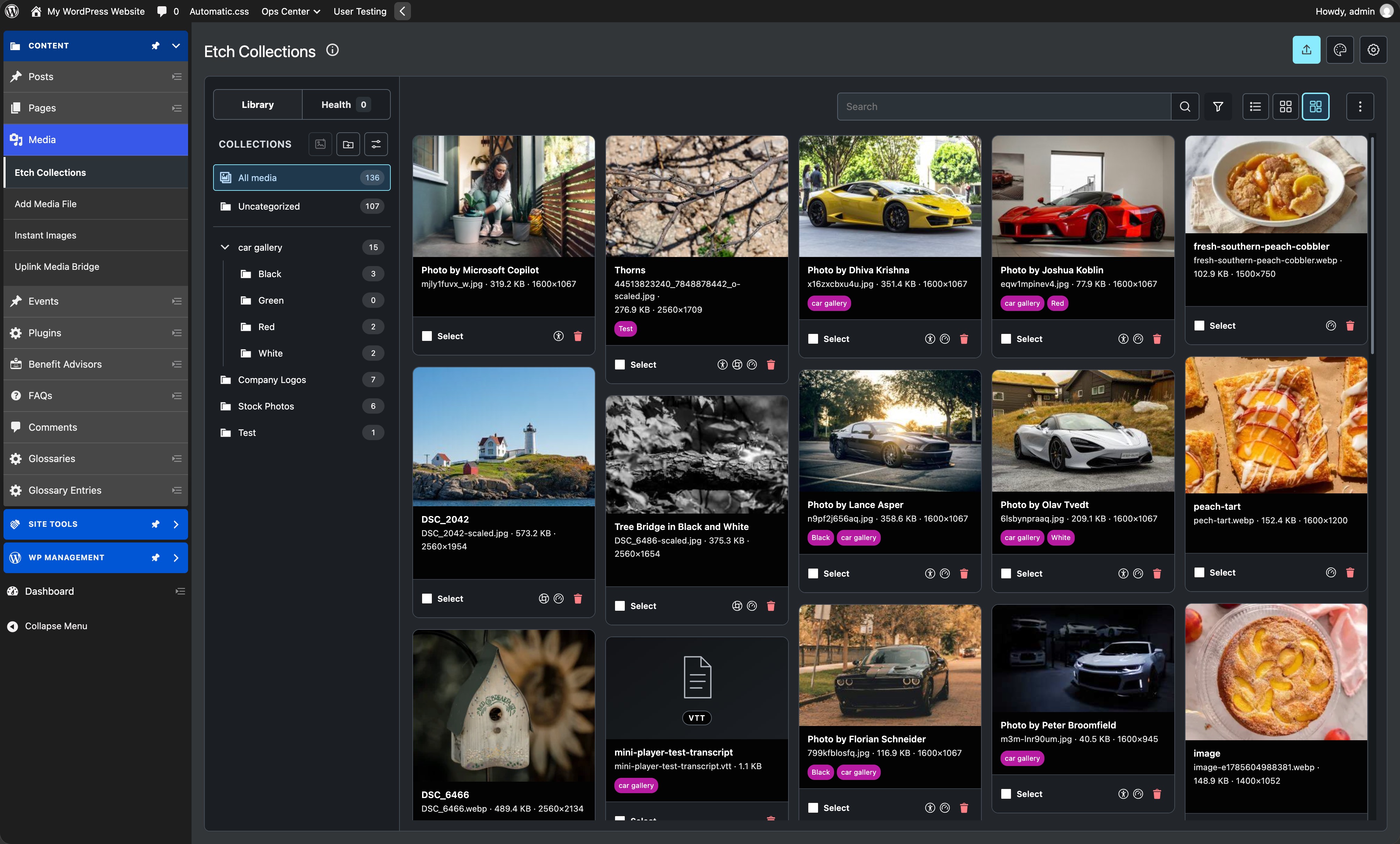
Etch Collections media manager in masonry view with nested collections, search, filters, media details, status icons, and selection controls.
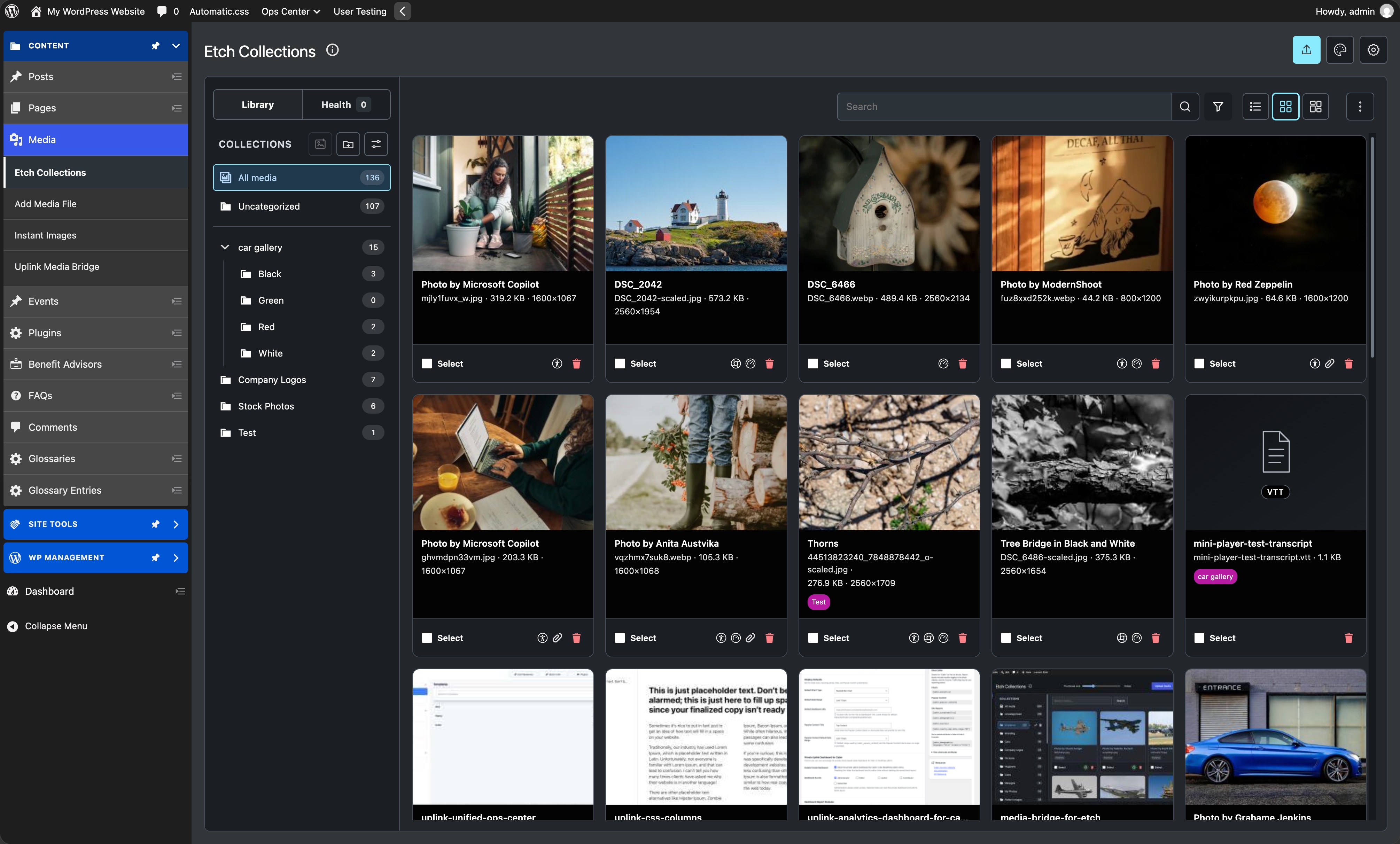
Etch Collections media manager in grid view with nested collections, search, filters, collection badges, and selection controls.
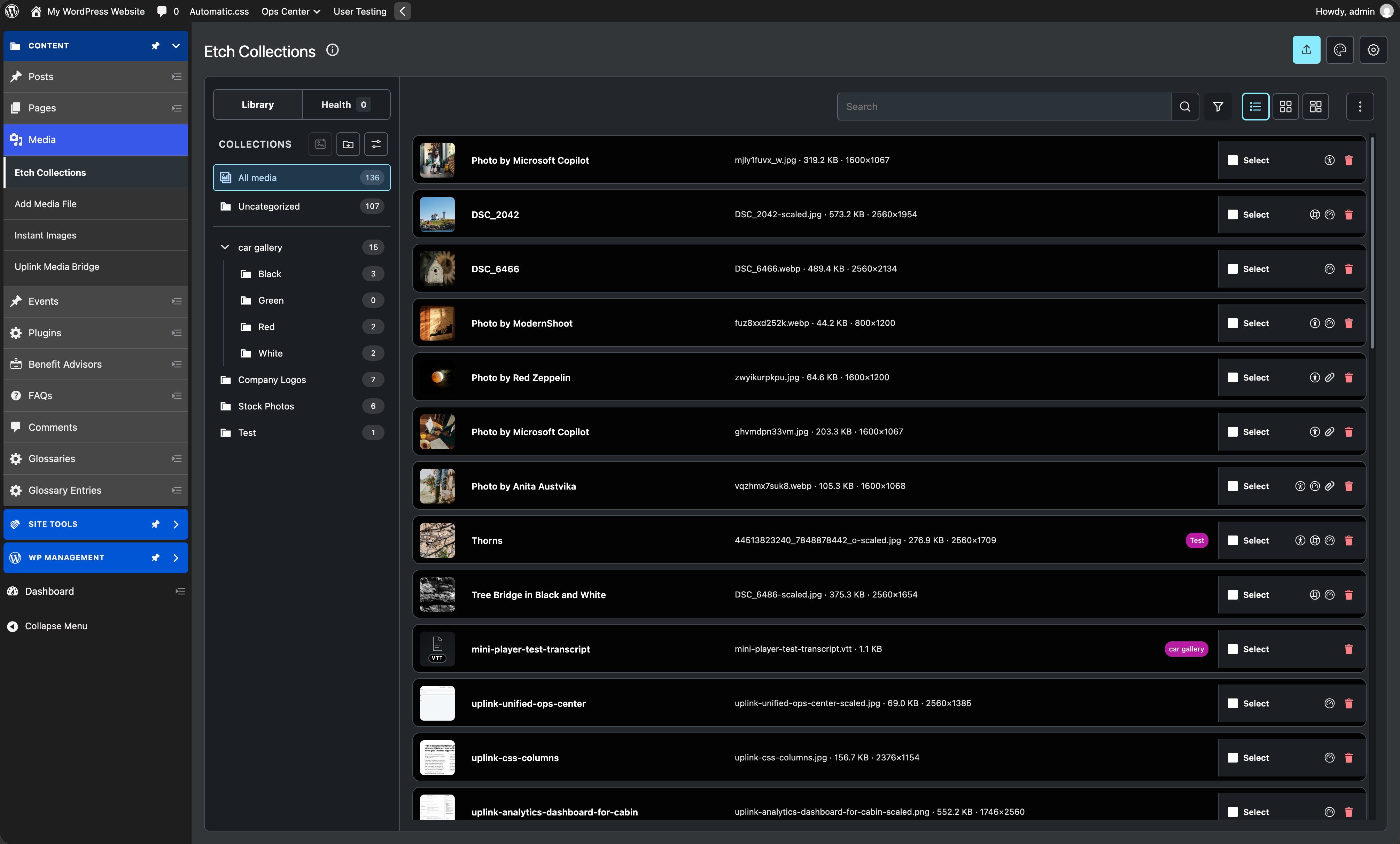
Etch Collections media manager in list view with thumbnails, file details, collection badges, status icons, and selection controls.