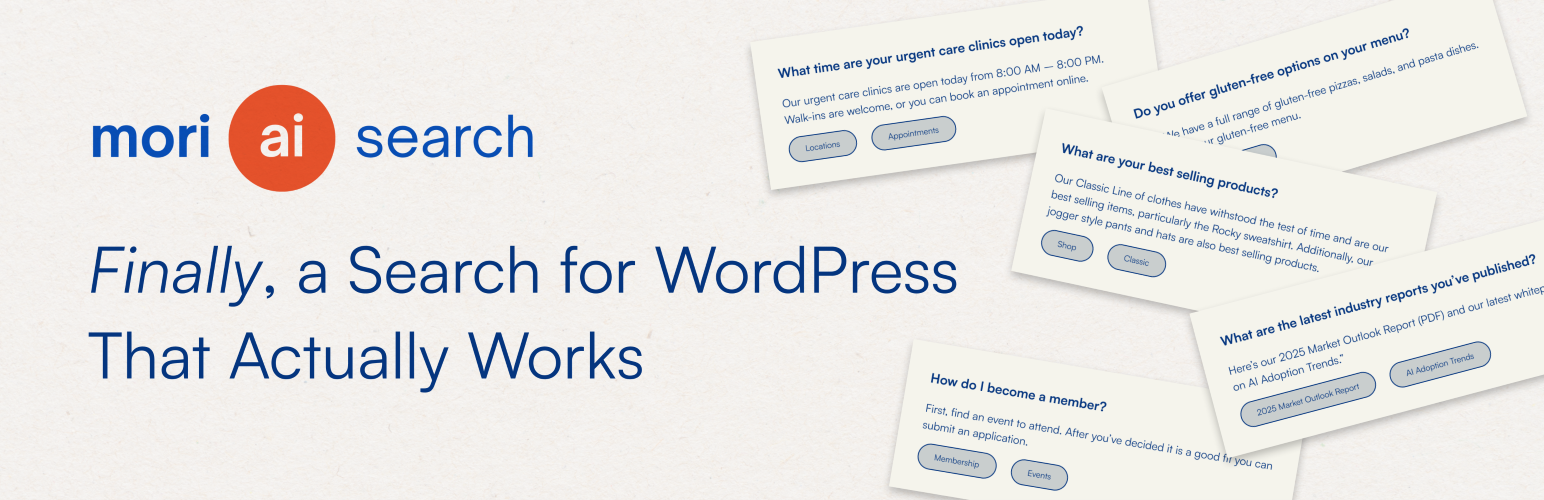
WordPress search is literal. Mori is semantic. When someone searches “pricing” or “services,” they get the pages that actually answer those needs, not just posts that happen to repeat the keyword. Mori blends embeddings (vector representations of meaning) with practical controls like post type weighting and tag filtering.
Mori AI Search upgrades your site’s search from basic keyword matching to smart, context-aware results. It builds a structured index of your content using AI, so visitors can find the right page, file, or answer faster. You control what gets indexed, how results are ranked, and which post types matter most. Power users get a clean REST API for custom front ends and integrations.
What it does
- Creates a rich index of posts, pages, custom post types, and attachments
- Generates AI-assisted metadata during indexing: keywords, auto-tags, and summaries you can refine with manual tags
- Ranks results by semantic similarity, then applies weights by post type to surface what matters first
- Exposes a simple REST API for search, prompts, and admin actions so you can build your own UI or integrate with other tools
- Lets you exclude items from the index and override tags for precise control
- Supports PDFs uploaded via the settings screen. Text is extracted and indexed alongside your content
Key features
Structured index
- Pages, posts, custom post types, and attachments
- AI-generated keywords and auto-tags, plus manual tags you define
- Priority flags and per-post type weights for ranking control
Admin controls
- Single settings screen for API key, prompts, extra context, and PDF uploads
- One-click reindex that runs in batches via WP-Cron to avoid timeouts
- Exclusion and tagging interface with incremental loading for large sites
Search API
Use the REST API when you want to build a custom search form, headless front end, theme integration, or custom JavaScript search experience. Most site owners can use the shortcode or menu option instead.
/ai-search/v1/searchwith support forquery,context,tag, andpost_typefilters- Returns normalized data with merged tags, keywords, and scoring details
- Built-in heuristics to recognize “main pages” or “site map” queries and return primary navigation
- Optional debug mode that includes similarity scores and SQL filters in the response
Performance-minded
- Embedding inputs are trimmed to roughly 8k tokens (about 32k characters) per item
- Batched reindexing with a default of 20 items per run, adjustable via constant
- Data stored in a dedicated MySQL table for fast lookups
🈺 Mori AI Search Pro
Mori AI Search is fully usable on its own. For sites that need deeper customization and reporting, Mori AI Search Pro is available as a separate premium companion plugin.
Pro adds advanced tools for:
- Search analytics and query insights
- ACF and selected custom field indexing
- Front-end styling controls for the search overlay
- Voice search support (coming soon)
Learn more about Mori AI Search Pro at moriaisearch.com.
How it works
- Add your OpenAI API key on the Mori settings page.
- Start a reindex. Mori queues all eligible content and processes it in batches via WP-Cron.
- For each item, Mori generates an embedding, proposes tags, extracts 3–5 keywords, and saves everything to the index table.
- When a visitor searches, Mori computes similarity between the query and the stored embeddings, applies your weights, filters by tag or post type if requested, and returns the top results.
Typical use cases
- Marketing sites that need “what is pricing” and “services” to land on the right pages
- Documentation portals that benefit from keywords and tag filters
- Media libraries where PDFs and attachments must be discoverable
- Headless or decoupled setups that want a clean REST search layer
Adding Mori Search to your site
After indexing your content, you can add Mori Search to the front end in three common ways.
Shortcode
Add the search trigger anywhere shortcodes are supported:
[aiws_search]
To show a visible label next to the icon:
[aiws_search label=”Search”]
You can change the label text:
[aiws_search label=”Ask Mori”]
WordPress menu
You can add Mori Search to a WordPress navigation menu.
- Go to Appearance Menus.
- Add a Custom Link.
- Set the URL to
#. - Set the Navigation Label, such as
SearchorAsk Mori. - Add the CSS class
ai-search-menu-item. - Save the menu.
If you do not see the CSS Classes field, open Screen Options at the top of the Menus screen and enable CSS Classes.
Mori will replace that menu item with the search trigger. If you entered a Navigation Label, Mori will show the icon and label on the front end.
Custom front ends
Developers can also call Mori through the REST API:
/ai-search/v1/search
Keywords, tags, and ranking control
Mori uses several signals to decide which pages should appear for a search:
- Semantic similarity from embeddings
- Page title and content
- AI-generated keywords
- Auto-tags and manual tags
- Post type weights
- Priority settings
During indexing, Mori automatically generates keywords for each indexed item. These keywords help Mori recognize important terms, phrases, acronyms, services, document types, and alternate wording that may not be obvious from semantic matching alone.
You can review and edit keywords in the index table/admin interface. This is useful when:
- A page should appear for a common search phrase
- A service has acronyms or alternate names
- A PDF or attachment needs to be easier to find
- A page is relevant even though the exact wording is not repeated often
- You want to improve results for specific searches without rewriting page content
Examples:
- Add
form 990,public disclosure, ortax returnto a nonprofit PDF. - Add
HIV care,HIV testing, orPrEPto a healthcare service page. - Add product, department, service, or location terms that visitors commonly search for.
Keywords should be short, specific, and search-oriented. They work best as relevance hints, not as long descriptions.
Data and privacy
- Nothing is sent to OpenAI until you add an API key.
- During indexing, only the content needed to build embeddings and metadata is transmitted. That typically includes title, excerpt, main content, and for attachments the extracted text of PDFs you choose to upload through Mori.
- During a search, the query and optional context are sent to calculate similarity or generate an answer when your configuration calls for it.
- Review your own privacy policy to disclose how search data is handled on your site. See OpenAI’s Terms of Use and Privacy Policy for provider details.
Recommended setup checklist
- Add your OpenAI API key.
- Choose which post types should be indexed.
- Set post type weights so your most important content types rank appropriately.
- Upload or select PDFs you want Mori to index.
- Run a full reindex.
- Add Mori to the front end using the shortcode, menu item, or REST API.
- Test common visitor searches.
- Review results, then adjust keywords, manual tags, priority settings, or post type weights as needed.
- Reindex after major content changes or when adding important new files.
Roadmap
- Additional performance improvements
- Expanded search tuning controls
- WooCommerce filters and merchandising signals