
Panda Pods Repeater Field is a plugin for the Pods Framework. It is more than a repeater field: it is a quick way to set up a relational database and present the data on the same page. It takes advantage of Pods table storage, so you don’t need to worry about the posts and postmeta tables expanding dramatically and slowing down page loading. This plugin is compatible with Pods Framework 2.8 or later and has been updated for WordPress 7.0 and Pods 3.3.9. To download Pods Framework, please visit https://pods.io/. After each update, please clear the cache to make sure the CSS and JS are updated. Usually, Ctrl + F5 will do the trick.
Introduction
Screenshots

After activating the Pods Framework, activate Advanced Content Types and Table Storage in Pods Admin, under the Components section.

Activate Advanced Content Types.

Activate Table Storage.

This example shows how to use the plugin. First, add a new Pod. In Pods, click Create New.

Create a new Pod with Advanced Content Types. In this tutorial, we call it "Comic Content".

We are going to use Comic Content as the storage for a repeater field.

Under the Admin UI tab, untick Show Admin Menu in Dashboard, because items added there are not linked to any parent posts.

Now create a new post type in Pods. Name it "Comic" and use table-based storage because we want to reduce the burden on the WordPress posts table.

Once it has been created, add a new field to Comic. We name it "Comic Box 1" here. At the bottom of the Field Type list, you will find Pods Table As Repeater Field. Select it and then click the "Additional Field Options" tab.

Now you can see the Pods table "comic_content" created earlier in the dropdown. Select it, add or update the field, and save the Pod. You can set the field width, which defaults to 100%. You can also limit the number of repeater field entries. Enable Trash allows you to move items to Trash and restore them if needed. Trashed items will not be returned by pods_field() or pandarf_items_fn(), but if you disable Trash later on, trashed items will still be returned. There are other advanced options to choose from. They should be self-explanatory.

If you are using nested repeater fields, I recommend setting the field width to 100%. This is a sample of nested repeater fields.

The setup is complete.

When you add a new Comic, you will see "Comic Box 1" in the More Fields area.

You can add as many new items to Comic Box 1 as you want, and they are only attached to the current Comic you are editing.

You can click the top bar to collapse it and the bottom bar to expand the window.

To find the parent_pod_id and parent_pod_field_id, go to Pods and click the main Pod (Comics in this tutorial).
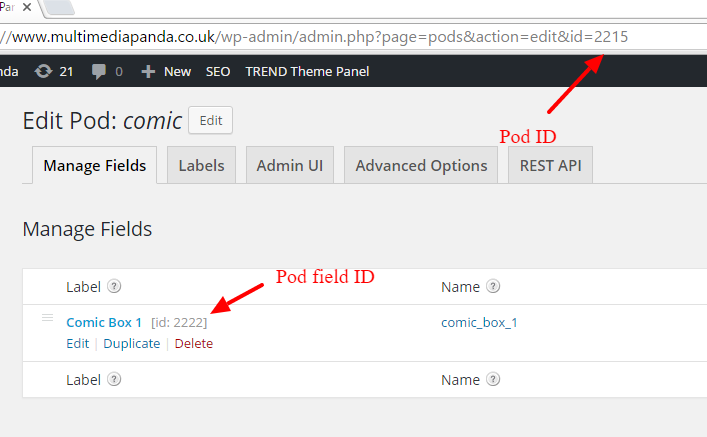
Here, 2215 is parent_pod_id and 2222 is parent_pod_field_id.

To find the parent_pod_post_id, open the main post and look at the URL. If you are using a Pods Advanced Content Type or a custom post type as the main table, it is the "id" variable in the URL. If you add a repeater field to Settings, the parent post ID is the same as parent_pod_id. If you add a repeater field to Users, the parent post ID is the same as the user ID.

The Load More functionality settings.

Instructions for the Load More functionality.

The Order option settings.

Display Order Info settings.