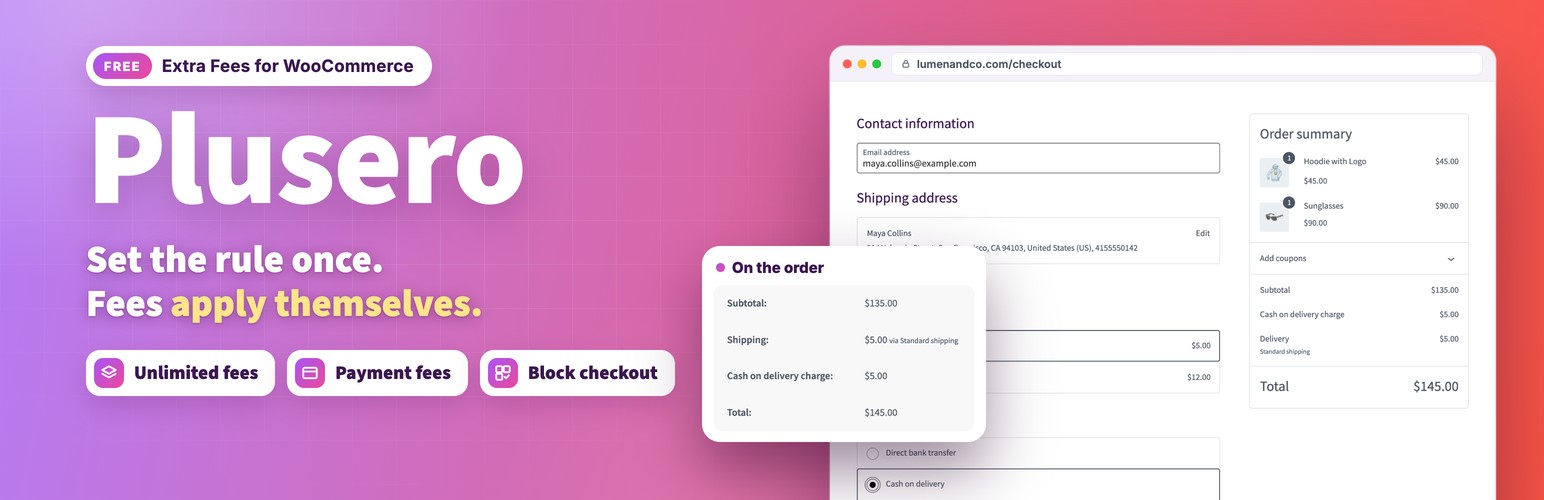
Plusero Extra Fees lets you add a charge to an order when a condition you set is met. A cash on delivery surcharge. A small order fee. A packaging charge on fragile goods. A card processing percentage. You describe the rule once and the fee applies itself from then on.
- Live demo: Free version | Pro version
- Documentation: Free version | Pro version
- Support: propluginslab.io/support
Fees are built through a short guided flow that asks five plain questions: where the fee applies, when it should be charged, how much it should be, what customers should see, and whether it reads correctly. Every answer is shown back to you as a sentence before you save, so you know what you built.
What you can do
- Charge fees in five places: on a product, on the cart, at checkout, by shipping method, or by payment gateway.
- Build as many fees as you need. There is no limit of any kind on how many you create.
- Decide when a fee applies using cart subtotal, total quantity, a chosen product or variation, a product category, customer role, billing country, payment method or shipping method. A shipping method rule can name a whole method type, such as any flat rate, or one method in one shipping zone, such as an Express flat rate.
- Combine conditions so that either all of them must match, or any one of them is enough.
- Charge a fixed amount, or a percentage of the cart subtotal with or without tax.
- Set a smallest and a largest amount, which keeps a percentage fee sensible on very large orders.
- Round to two decimals, up to a whole number, or to the nearest 0.05.
- Mark a fee taxable and pick which tax class it uses.
- Give each fee a customer facing label, a description shown under the fee in the cart and checkout totals, and a tooltip.
- Decide the order that fees are worked out and displayed in.
- Save a fee switched off as a draft, switch a fee off without deleting it, or duplicate one as the starting point for another. Editing a fee keeps the status it already has.
- Narrow the fee list to active or inactive fees, or to fees charged in one place.
Fees that react to checkout
A payment fee reads the gateway the customer selected and recalculates the moment they switch, so a cash on delivery surcharge appears and disappears as they change their mind. A shipping fee does the same with the shipping method they chose. This works on the classic checkout and on the block checkout.
Works where WooCommerce works
Fees are added through the standard WooCommerce cart fee hook, so they appear in the cart, the checkout, the order, the confirmation email and PDF invoices with no extra setup. The classic cart and checkout, the block cart and checkout, and the Store API all show the same totals. High Performance Order Storage is supported.
Built in documentation
Every option is explained inside your dashboard, under Plusero Fees, Documentation. What each condition means, what each calculation does, and what to check when a fee is not showing. You never have to leave your site to look something up.
Multilingual
Fee labels, descriptions and tooltips are registered with WPML and Polylang automatically when you save a fee, so they can be translated alongside the rest of your shop.
A note about the Pro edition
This free plugin is complete on its own. Nothing here is limited, locked, trial based or time restricted, and no feature listed above needs Pro to work. A separate Pro edition is described in the Pro version section below.
External services
This plugin does not connect to any external service. It makes no remote requests and sends no data anywhere. Everything it stores stays in your own database.
Pro version
Plusero – Extra Fees for WooCommerce Pro includes everything in this plugin and adds:
- Ten more conditions: cart weight, number of different items, product tag, logged in, orders placed before, billing state, billing postcode, shipping country, day of the week and coupon used.
- More ways to work out an amount: per item, per unit of weight, percentage plus a fixed amount, tiered bands, round up for charity, and any fee as a reduction.
- Optional fees the customer ticks in the cart or checkout, such as gift wrapping, express handling or insurance.
- More than one condition group, reusable condition sets and scheduling by date, day and hour.
- Combined or grouped fee lines, first match only, an order fee ceiling and highlighting.
- A live fee breakdown on product pages, reports, change history, a debug panel, import and export, ready made fees and a REST API.
More plugins from ProPluginsLab
Free on WordPress.org:
- Back In Stock Notifier for WooCommerce – Waitlist and restock email alerts for out of stock products.
- Recovero – Cart Recovery for WooCommerce – Recover abandoned carts with automated emails.
- Anticipo – Pre-Orders for WooCommerce – Take pre-orders before a product launches.
- Affireo – Affiliates for WooCommerce – Run an affiliate and referral program.
- Storefold – Multivendor Marketplace for WooCommerce – Turn your store into a multivendor marketplace.
- Dispatchio – Shipment Tracking for WooCommerce – Add tracking numbers and shipment updates to orders.
- Presentero – Gift Cards for WooCommerce – Sell and redeem digital gift cards.
- Kitero – Product Configurator for WooCommerce – Build composite products and kits.
- Inputo – Name Your Price for WooCommerce – Let customers choose what they pay.
- Mercenza – B2B for WooCommerce – Sell wholesale with customer groups, wholesale prices and trade accounts.
- Visuaro – Product Designer for WooCommerce – Let customers design custom products in the browser.
- Christmas Snow – Festive Snowfall Effect – Add a lightweight snowfall effect to any site.
Pro plugins at propluginslab.io:
- Recovero Pro
- Anticipo Pro
- Affireo Pro
- Storefold Pro
- Dispatchio Pro
- Presentero Pro
- Kitero Pro
- Plusero Pro
- Inputo Pro
- Mercenza Pro
- Visuaro Pro
- Back In Stock Notifier Add-ons – 26 add-ons incl. Mailchimp, Klaviyo, Twilio SMS, WPML, or all of them in the Bundle.
Screenshots
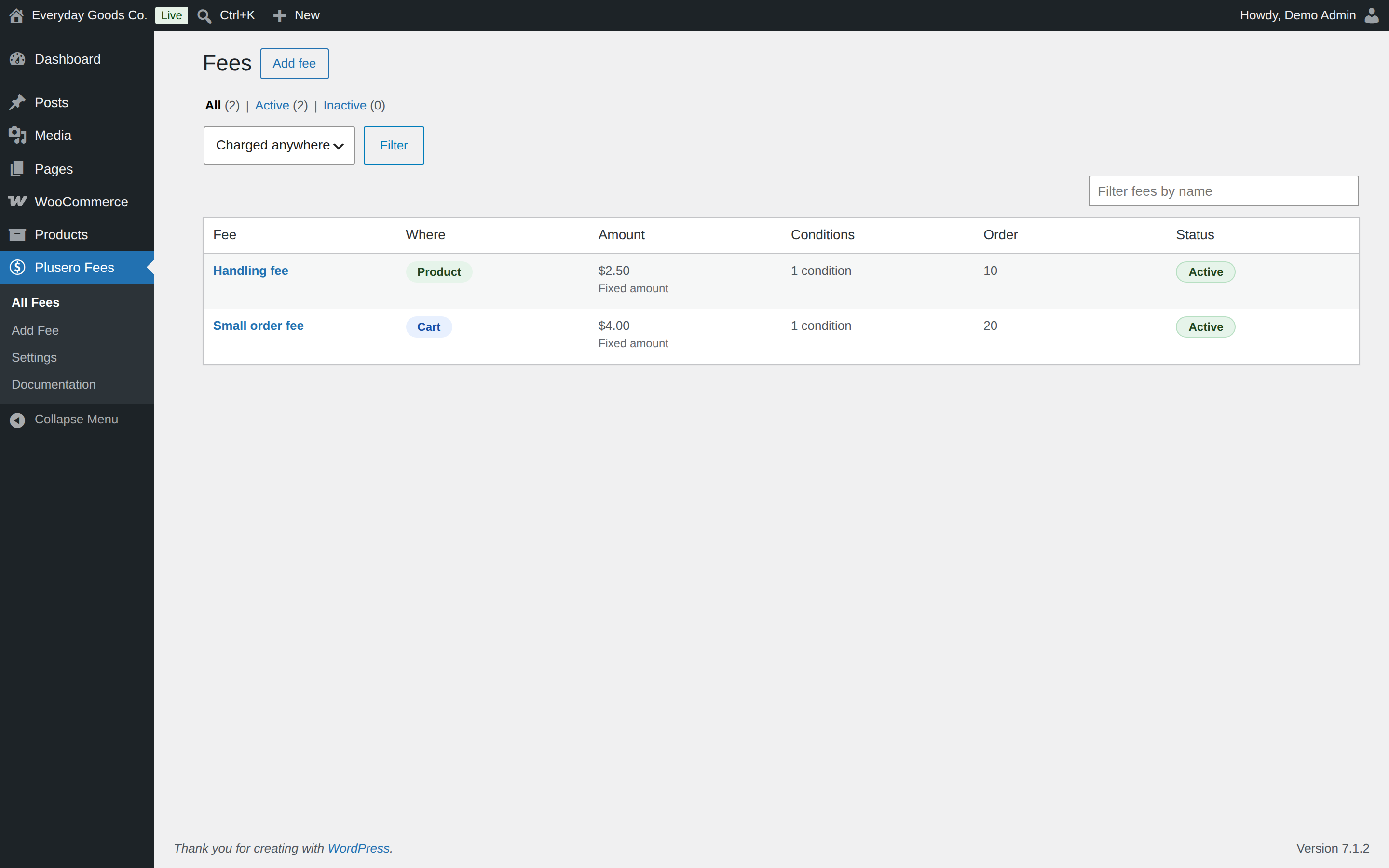
Use the All, Active and Inactive links and the location dropdown to narrow a long list. Click a status button to switch a fee on or off.
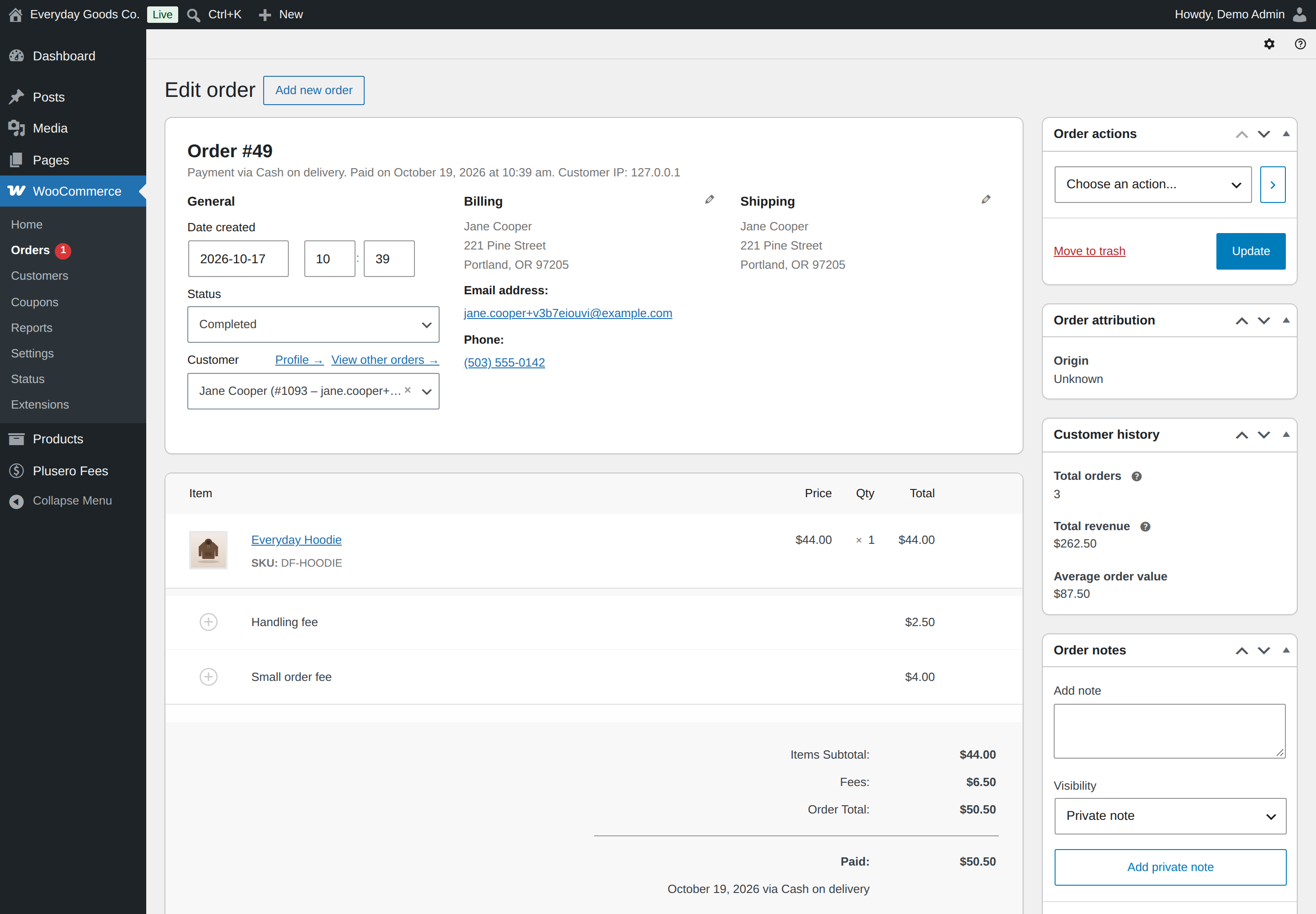
Every fee that applied is listed as a separate line and counted in the Fees total.
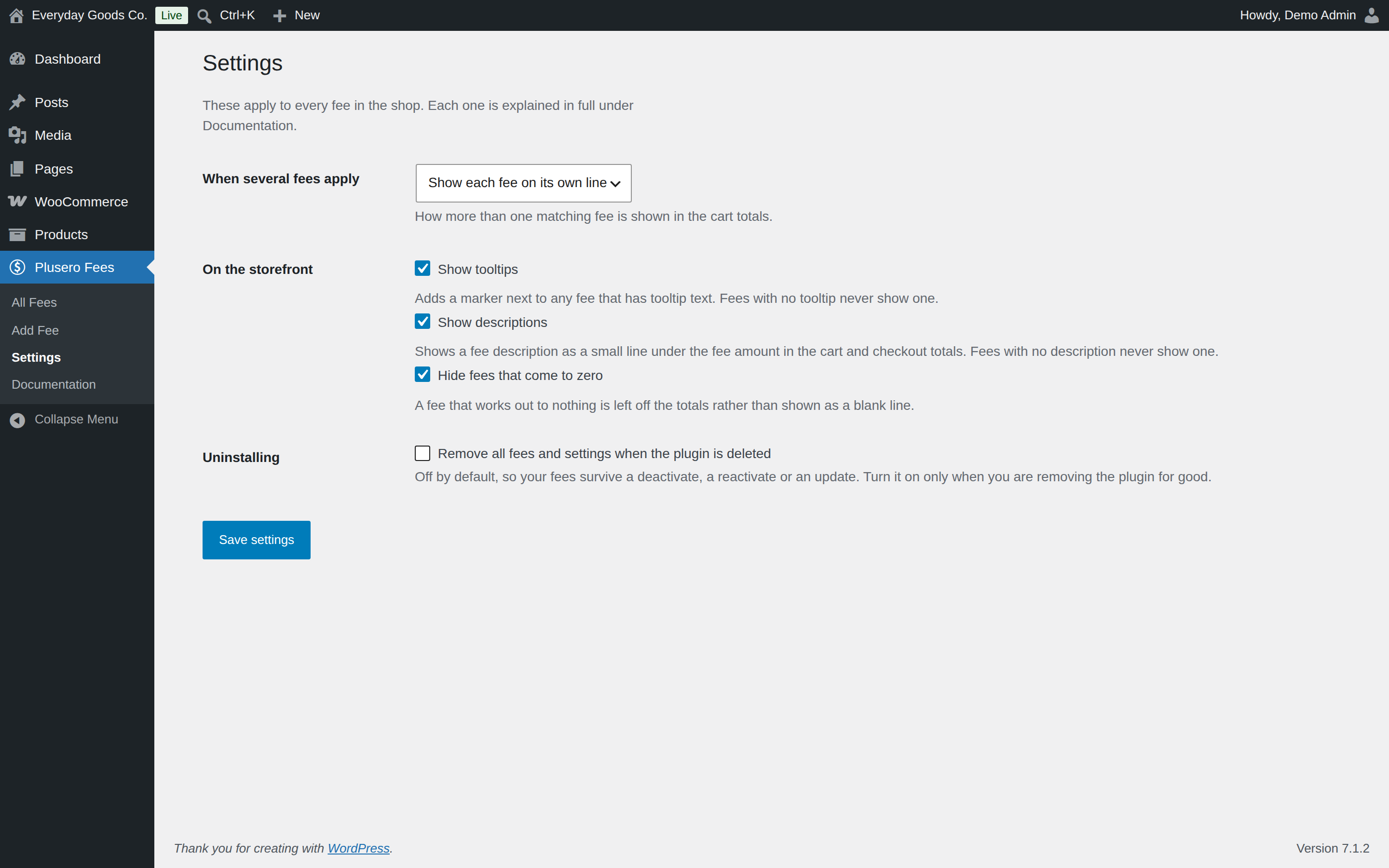
Tooltips, descriptions and hiding zero fees are on by default. Removing data on delete is off.
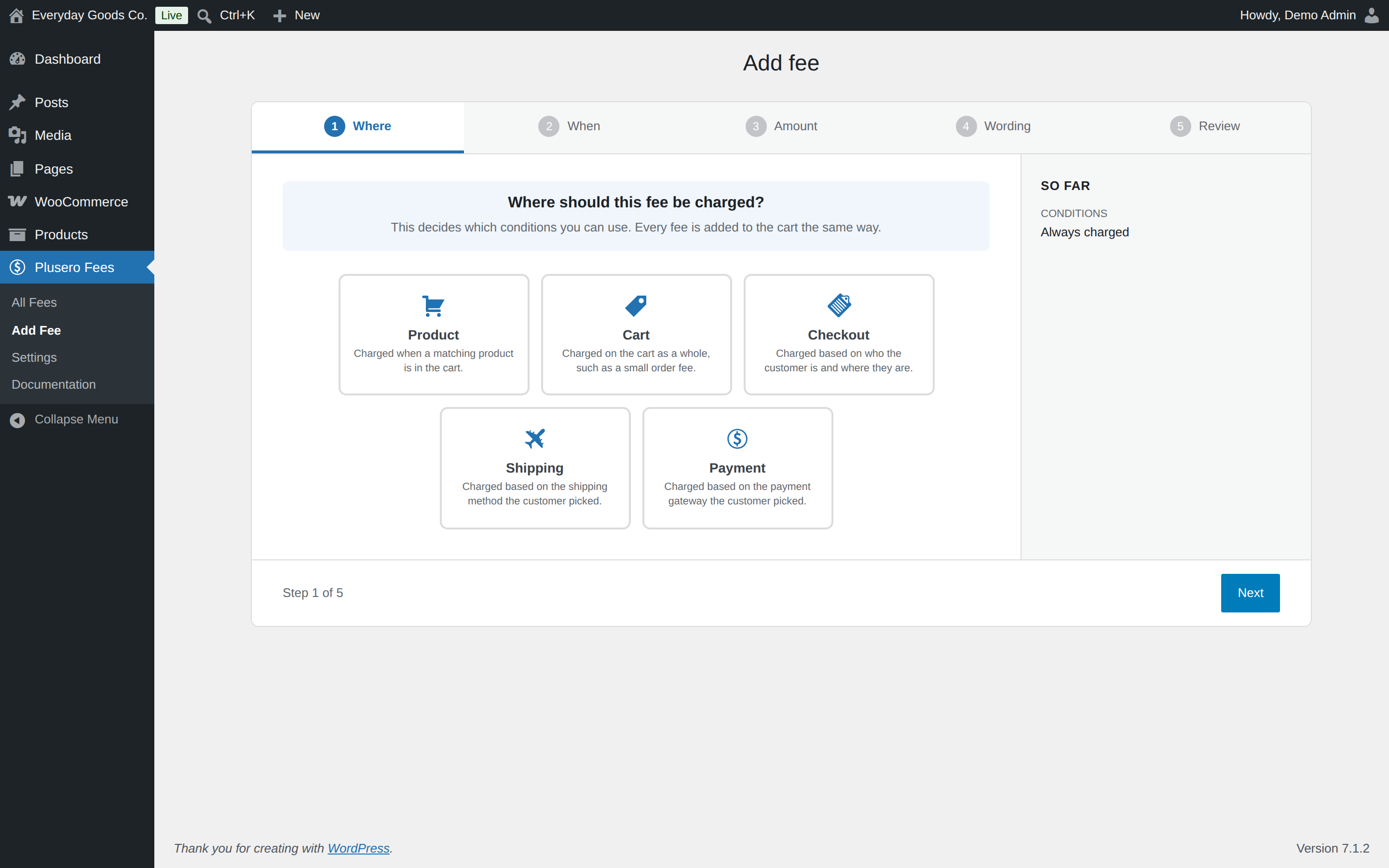
Each card says what that location reacts to. The So far panel on the right fills in as you answer.