
Adds a Sign in with QRAuth button to your WordPress login page. Visitors press it, confirm it is them on QRAuth, and come straight back signed in. On a computer they scan a code with their phone’s camera. On a phone they confirm on the phone itself, with no code to scan. QRAuth handles Google, GitHub, Microsoft and Apple sign-in for you, so you never register an OAuth app with any of them.
Five-minute setup. Create a free QRAuth account, add your website in the QRAuth dashboard, and paste the Client ID and Client Secret into Settings QRAuth. The settings page walks you through each step and shows the exact address to copy.
Built on OpenID Connect. Sign in with QRAuth uses the authorization code flow with PKCE, a one-time state bound to the visitor’s browser, and a nonce. WordPress checks the ID token’s signature against QRAuth’s published keys before anyone is signed in. The QRAuth sign-in service is OpenID Certified.
Account safety is the default.
- Only people who already have a WordPress account can sign in, matched on an email address QRAuth has verified. Turn on account creation if you want open registration.
- New accounts are always created as Subscriber, at every layer (settings, sanitiser, runtime). Change a role by hand under Users All Users if needed.
- Administrators and Editors are never matched by email. They link their account once from their own profile page while signed in with their password.
- The plugin never redirects outside your site and never touches your user table on uninstall.
Works where your users sign in: wp-login.php, the registration form, WooCommerce My Account and checkout, and any page via the [qrauth_login] shortcode.
Older sites: embedded widget. Sites set up before Sign in with QRAuth existed can keep using the embedded QR widget. It is used only while no Sign in with QRAuth client is configured, and switching over keeps every linked account.
Open source build. The compressed JavaScript at assets/js/qrauth-components.js is built from publicly available TypeScript source at https://github.com/qrauth-io/qrauth/tree/main/packages/web-components. The unminified source files are also vendored alongside the minified bundle inside this plugin (assets/js/source/) for offline review. See the Source section below for build instructions.
External services
This plugin connects to QRAuth (https://qrauth.io) — the identity verification service that performs the actual passwordless / social sign-in. QRAuth is operated by ProgressNet, the publisher of this plugin. Without QRAuth there is no widget and no sign-in.
What the service is and what it is used for
QRAuth verifies that the user who scanned the QR code (or completed a social-provider flow on the hosted approval page) is the same person who initiated the sign-in on your WordPress site, then returns a signed assertion that the plugin uses to set the WordPress auth cookie.
What data is sent and when
- Auth-session creation — when a visitor opens a page that hosts the widget (wp-login.php, the registration form, a shortcode-enabled page, or a WooCommerce sign-in form), the plugin’s same-origin REST proxy sends your Client ID, Client Secret (server-side only — never exposed to the browser), and the host page URL to
https://qrauth.io/api/v1/auth-sessions. No visitor data is included in this request. - Sign-in verification — when the visitor approves the sign-in (by scanning the QR code with their phone or completing a social-provider flow on QRAuth’s hosted approval page), the plugin’s REST proxy fetches the verified result from
https://qrauth.io/api/v1/auth-sessions/verify-result. The response carries the QRAuth user identifier and, when theemailscope is allowed in Settings QRAuth, the user’s email address. The plugin uses this only to locate or create the matching WordPress user; nothing beyond a hashed link reference is retained. -
Hosted approval page — when a visitor on a phone taps “Continue with QRAuth”, the browser navigates to
https://qrauth.io/a/<token>to complete the social-provider flow. This is a standard cross-domain navigation initiated by the visitor. -
Sign in with QRAuth (OpenID Connect), when an OIDC client is configured — the visitor’s browser is redirected to
https://id.qrauth.io/authorizewith your OIDC Client ID, the redirect URI, and one-time state, nonce and PKCE values; the visitor signs in on QRAuth’s pages and is redirected back. Your server then callshttps://id.qrauth.io: the discovery document and signing keys (/.well-known/openid-configuration,/.well-known/jwks.json, nothing sent), the token endpoint (/token: your OIDC Client ID and Client Secret, the one-time authorization code and PKCE verifier), and the userinfo endpoint (/userinfo: the access token). The responses carry a site-specific QRAuth user identifier and, with the visitor’s consent, their name and email address and whether QRAuth has verified it. The plugin uses these only to sign the visitor in to the matching WordPress account. The OIDC Client Secret is stored in your site’s options table, like the widget’s Client Secret, and is never sent to the browser.
The vendored web component (assets/js/qrauth-components.js) is served from your own WordPress site — there is no third-party JavaScript on wp-login.php, and the component does not contact qrauth.io directly from the browser; all server-to-server calls are proxied via your site’s REST API.
Service terms and policies
- Terms of Service: https://qrauth.io/terms
- Privacy Policy: https://qrauth.io/privacy
- Data Processing Addendum: https://qrauth.io/dpa
- List of Sub-processors: https://qrauth.io/subprocessors
Source
The compiled bundle at assets/js/qrauth-components.js carries the following banner header at the top of the file:
/*!
 * @qrauth/web-components v0.4.2
 * Vendored by qrauth-passwordless-social-login. Do not edit by hand.
 *
 * Source:  https://github.com/qrauth-io/qrauth/tree/main/packages/web-components
 * License: MIT
 * npm:     https://www.npmjs.com/package/@qrauth/web-components
 * Build:   `npm install && npm run build:assets` (see bin/fetch-web-components.mjs)
 *
 * The unminified TypeScript source for this bundle is also vendored at
 * assets/js/source/ — see assets/js/source/README.md for provenance.
 */
The unminified TypeScript source files are also vendored alongside the compiled bundle inside this plugin (assets/js/source/) for offline review.
The plugin’s own source — PHP, the small browser adapter (assets/js/qrauth-adapter.js), build scripts, tests, and CI — is publicly maintained under GPL-2.0-or-later at:
- Plugin source repository: https://github.com/qrauth-io/qrauth-passwordless-social-login
The PHP and assets/js/qrauth-adapter.js shipped in the plugin ZIP are non-minified — read them directly without checking out the repo.
The vendored file assets/js/qrauth-components.js is a pinned production build of the public @qrauth/web-components library. The non-compiled source for that library is openly available:
- Source repository: https://github.com/qrauth-io/qrauth/tree/main/packages/web-components (MIT-licensed)
- npm release: https://www.npmjs.com/package/@qrauth/web-components — pinned to v0.4.2, sha512 in
package.jsonunder theqrauth.webComponentsIntegritykey - Build instructions for the upstream library: https://github.com/qrauth-io/qrauth/blob/main/BUILDING.md
To regenerate the vendored bundle from the pinned npm release, clone the plugin source repository linked above and run from its root:
npm install
npm run build:assets
The build script bin/fetch-web-components.mjs (kept in the plugin source repository, not in the WordPress.org plugin ZIP) downloads the npm tarball, verifies its sha512 SRI hash against package.json#qrauth.webComponentsIntegrity, extracts the IIFE build, and writes it to assets/js/qrauth-components.js. CI runs the same script before the WordPress.org plugin-check job, so the bundle distributed on the directory always matches the published npm release. To rebuild from upstream source instead of the pinned tarball, follow BUILDING.md in the upstream library repository above.
Screenshots
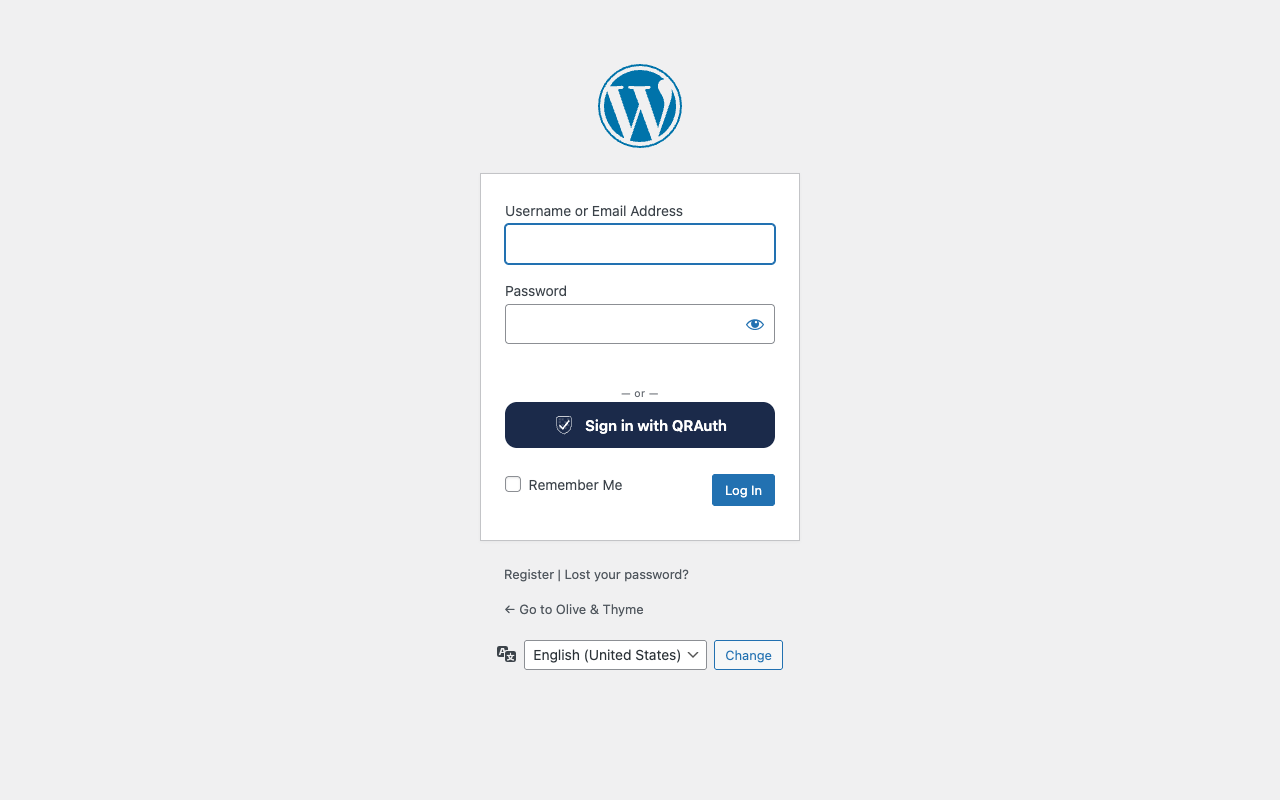
The WordPress login page with the "Sign in with QRAuth" button under the password form.
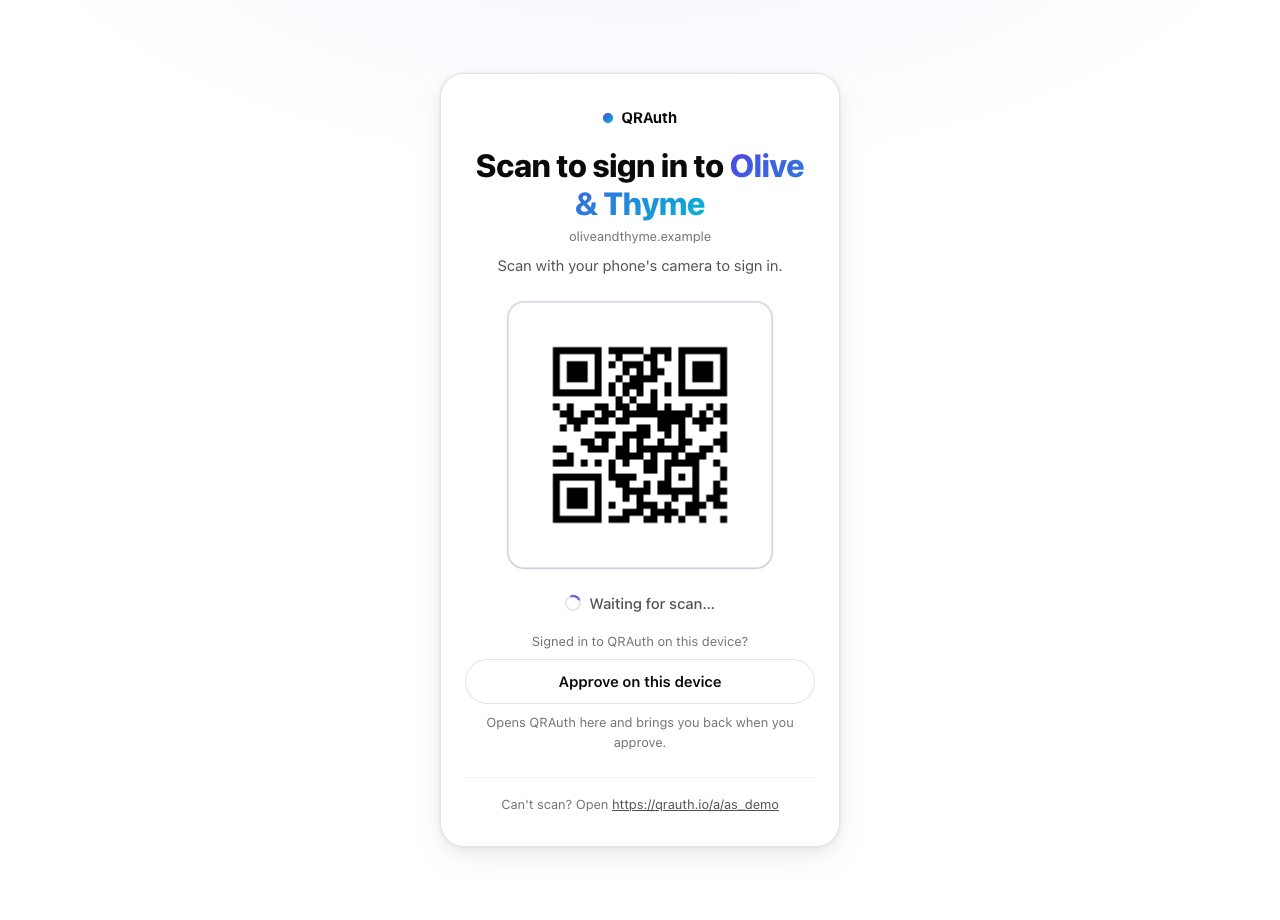
QRAuth's sign-in page on a computer: visitors scan the code with their phone's camera.
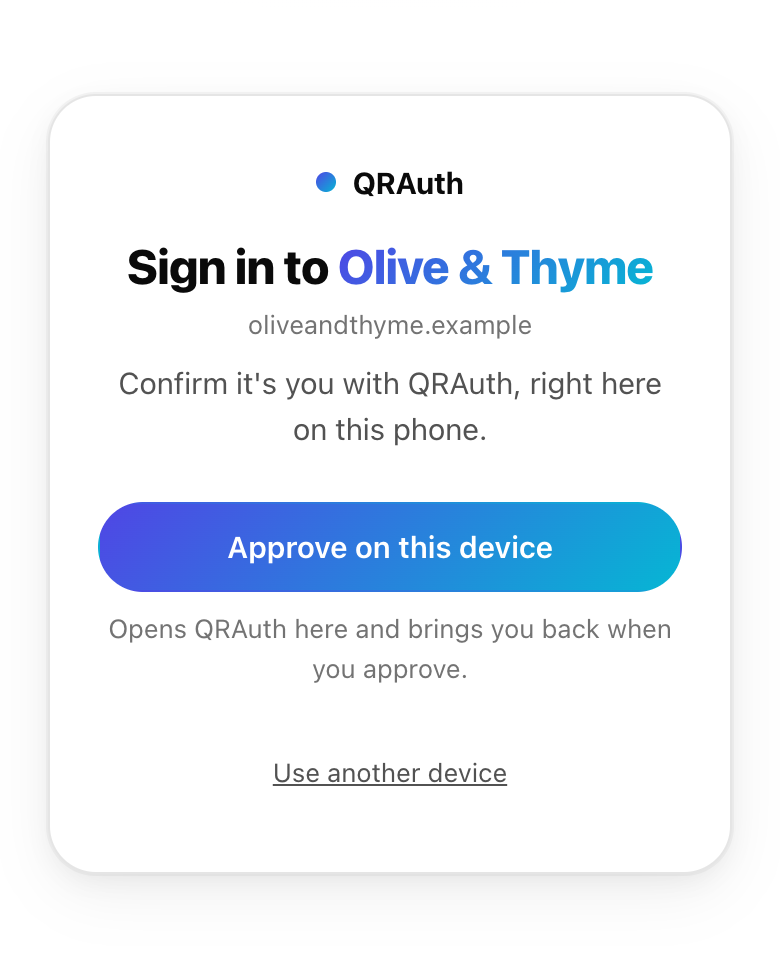
The same page on a phone: no code to scan, visitors confirm right there and come back signed in.
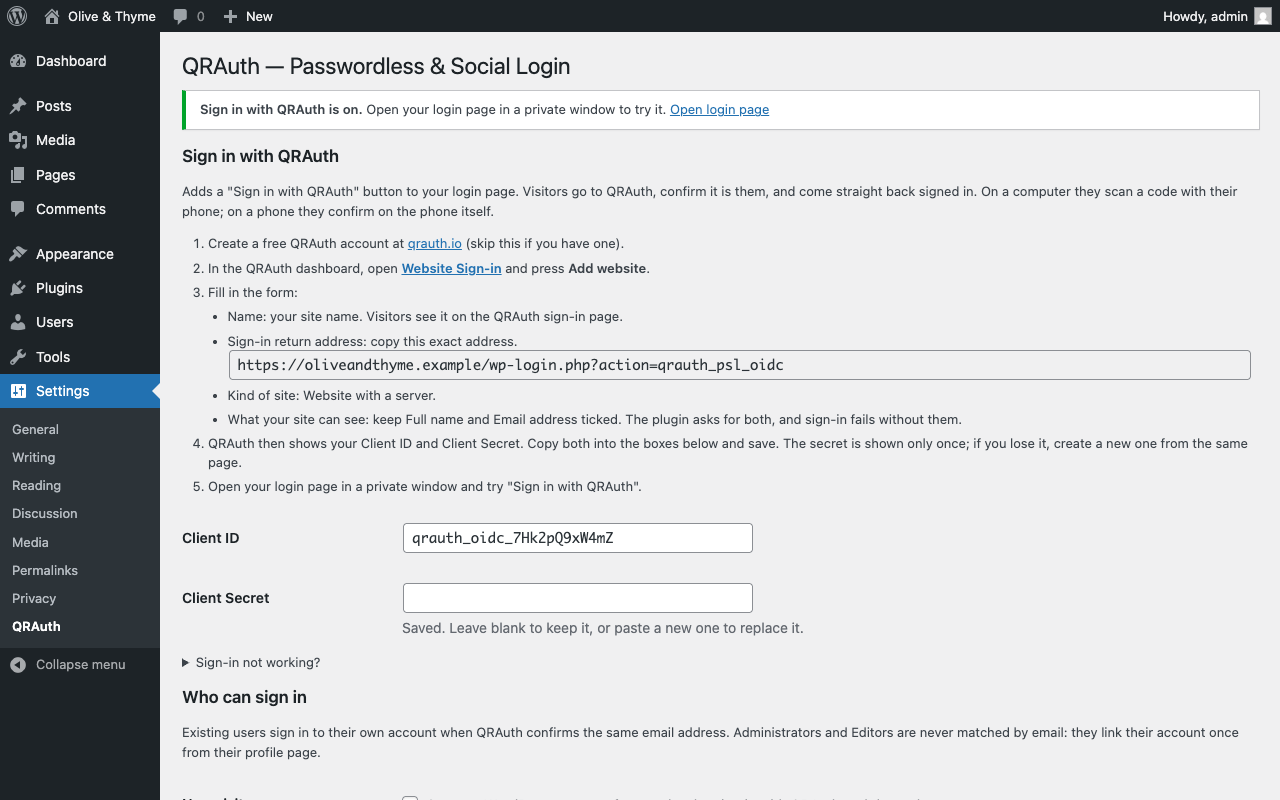
Settings → QRAuth: a step-by-step setup guide with the return address ready to copy.
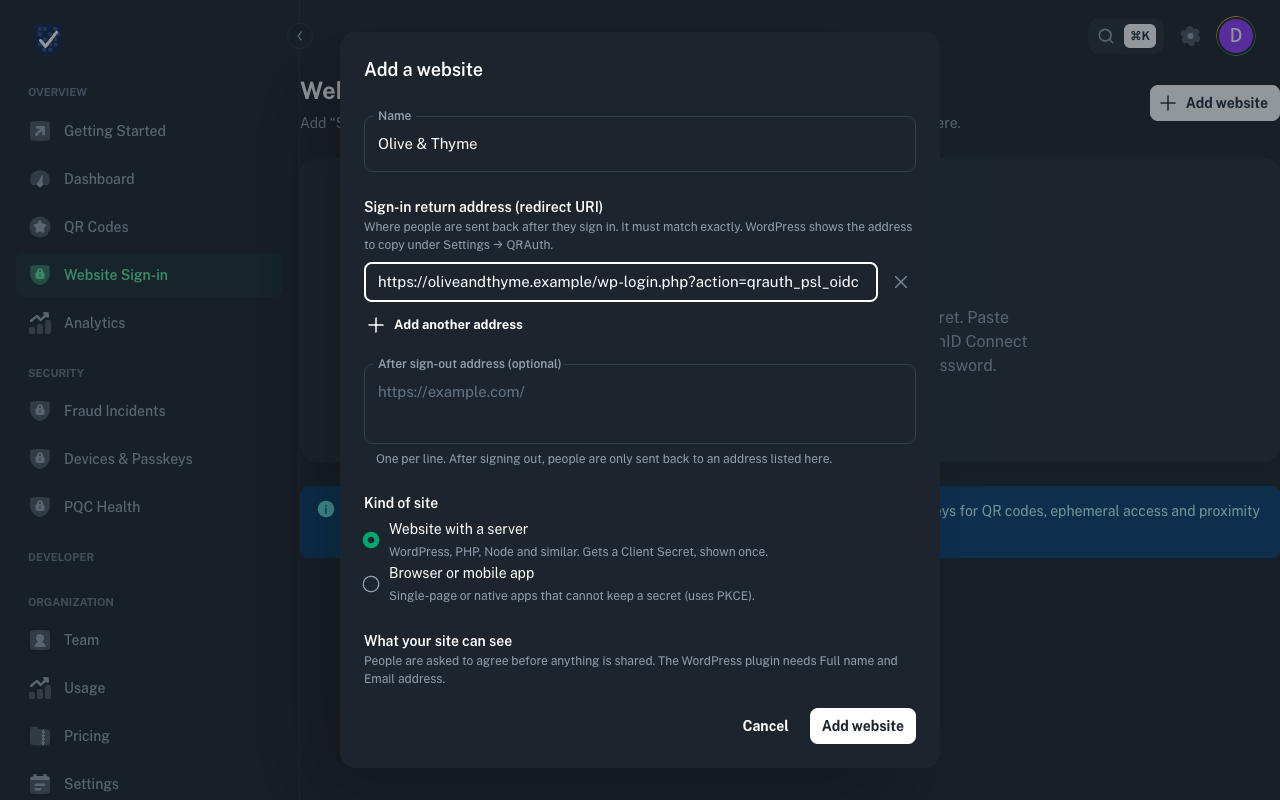
Adding your website in the QRAuth dashboard to get the Client ID and Client Secret.