
Media Cleanup finds the images and files your site no longer uses and removes them safely, so your backups get smaller and your uploads folder stays tidy.
It reads your whole site, not just your posts. Page builders (Elementor, Divi, Beaver Builder, Bricks, Oxygen, Breakdance, WPBakery, Avada…), custom fields (ACF, Meta Box, JetEngine), WooCommerce galleries and categories, sliders, theme settings, widgets, menus, theme files and the CSS that builders generate. No extra add-on per plugin and nothing behind a paywall.
Nothing is deleted behind your back. Files go to a private trash first. Restore anything in one click.
The safety net. If a visitor, Google or an old newsletter asks for a file you trashed, Media Cleanup notices and puts it back automatically, then keeps it out of future results.
Why it’s different
- Every builder supported, free. Instead of a parser per plugin, Media Cleanup reads post content, all post meta, options, term and user meta, comments, other plugins’ database tables, theme files and generated CSS as plain text. If an image is referenced anywhere, it’s kept.
- Honest results. Each file is marked Safe to remove or Check first, with the reason in plain words: “Uploaded to About us but that page doesn’t show it anymore”, “Uploaded in the last 14 days”, “PDFs are often linked from emails”. If part of your site couldn’t be read, results are marked “Check first” instead of guessing.
- Uploads folder scan, free. Finds files that aren’t in the Media Library, leftover WebP/AVIF copies of deleted images, and old thumbnail sizes nothing uses.
- Safe by design. Never runs your shortcodes or page builder code during a scan. Re-checks posts you edited after the scan before moving anything.
- Fast on big sites. The scan runs in small steps that fit your server’s time limit, resumes after a timeout, and keeps going in the background if you close the page.
- Simple or Advanced. Simple mode is one button and a list to review. Advanced mode adds the full scan report, every option, scheduled scans and an error log.
- Search your settings in plain words. Type “skip a folder” or “restore a deleted image” and jump straight to the right setting.
- Media Library “Usage” column. See where each image is used, from the last scan.
- WP-CLI included.
wp media-cleanup scan,list,trash --all-safe,restore,empty-trash,usage.
Free features
- Media Library scan with confidence levels and reasons
- Uploads folder scan (orphan files, leftover WebP/AVIF/@2x copies, old thumbnail sizes)
- Missing-file detection (library entries whose file is gone)
- Private trash with previews, restore and permanent delete
- Safety net with automatic restore and a server self-test
- Optional automatic trash emptying after N days without visitor requests
- Daily or weekly scheduled scans
- Keep list (hide files you want to keep)
- Scan report: what was read, plugins and tables found, anything skipped
- Settings backup and restore
- WP-CLI commands
Tip
Like any cleanup tool, keep a recent backup before deleting files permanently.
External services
This plugin works on your server. Your images and files are never uploaded anywhere. The plugin connects to one external service, operated by us:
Reinvent WP Services (services.reinventwp.com), used for four things:
- Settings search. It finds the right setting when you describe what you want in your own words. When you type in the settings search box on the plugin’s admin page, it sends the text you typed, the plugin name and the plugin version. Nothing is sent until you type a search.
- Error reports. They help us fix bugs. They are sent only after you click “I Agree” on the privacy notice in the plugin’s admin page. When the admin page hits an error, it sends the error message, the admin page URL (which includes your site address), your browser’s user agent and the plugin version. Before you agree, errors are only saved in the plugin’s own error log on your site.
- The list of Reinvent WP apps on the Reinvent WP Dashboard page. When an administrator opens that page, your site downloads the current list at most once a day and keeps a copy. Nothing about your site or you is sent.
- The assistant (the Describe a problem with your site field) on the Reinvent WP Dashboard page and on this plugin’s page. When you send a question, it is sent with any screenshots or text files you attach to it (of a file, only its newest part, with emails, IP addresses, passwords and keys hidden by your browser first), the last few messages of the conversation and the list of Reinvent WP plugins on your site (whether each is active, inactive or not installed, and its version), so the answer can point to the right plugin and setting. Nothing is stored; the conversation stays in your browser tab. If you send feedback from the assistant’s form, your email, site address and message go to the Reinvent WP team, like the feedback form.
Reinvent WP Services: Terms of use, Privacy policy.
Source Code
The source code is on https://github.com/reinventwp/reinventwp-apps.
Screenshots
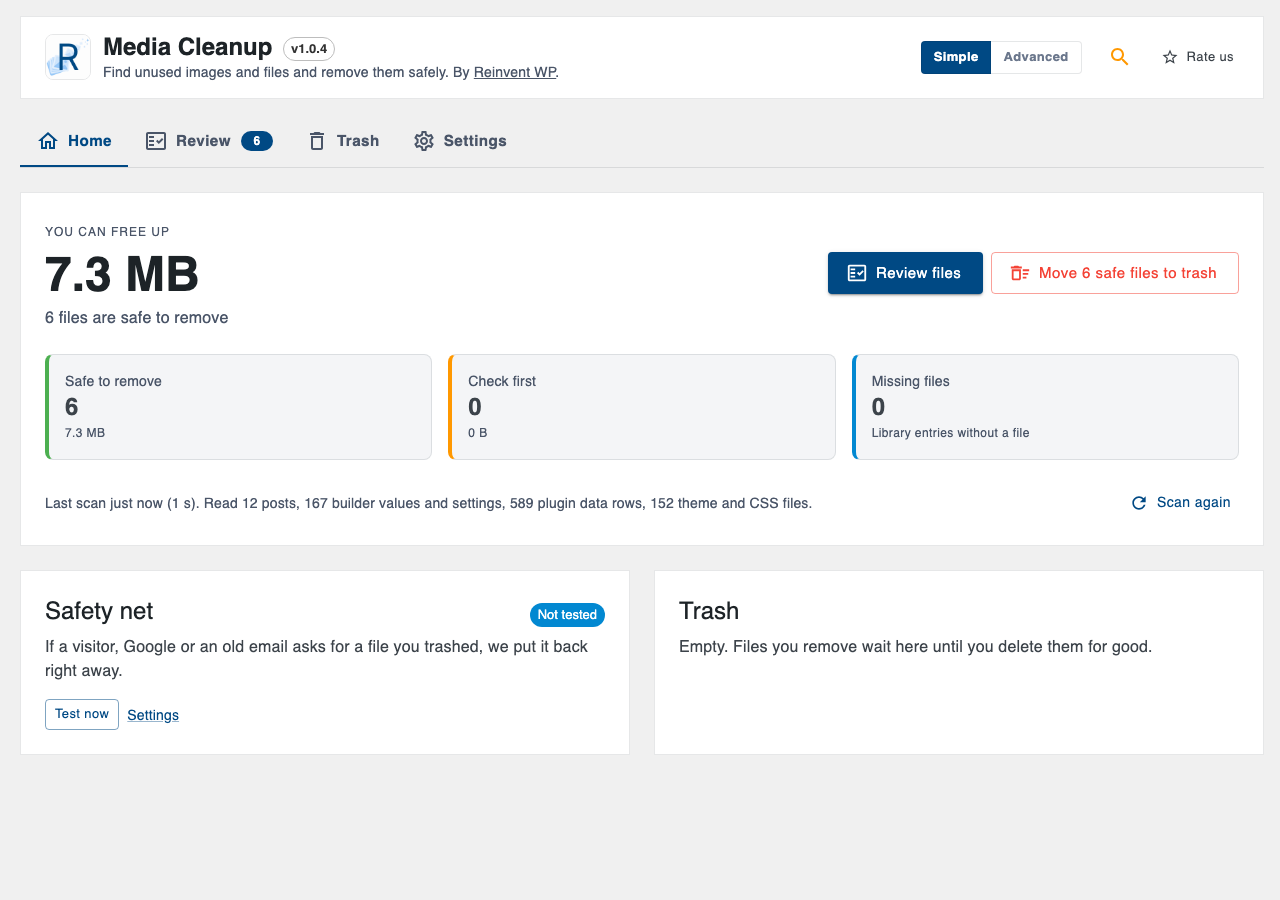
Home: how much you can free up, and what to review first.
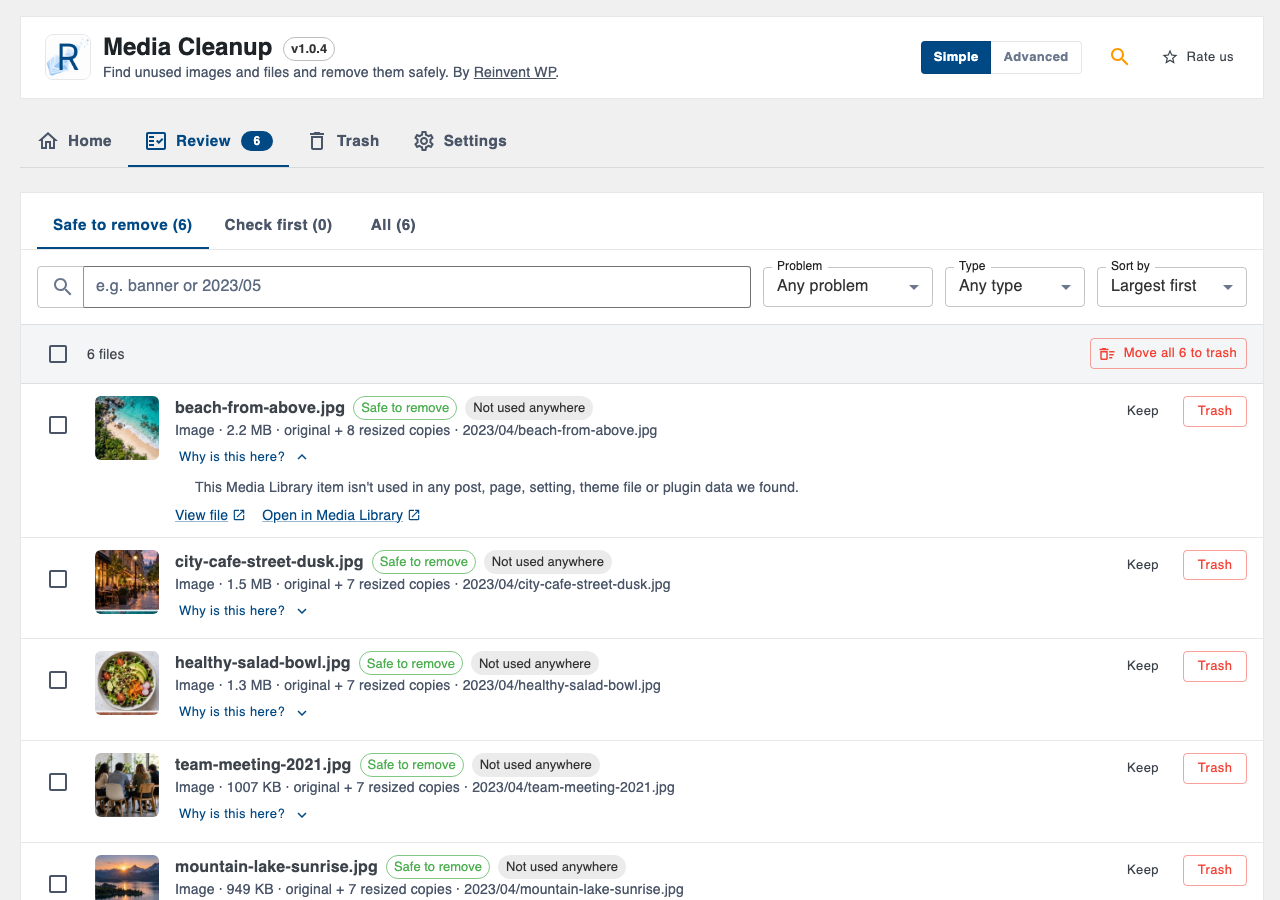
Review: every file with the reason it was flagged.
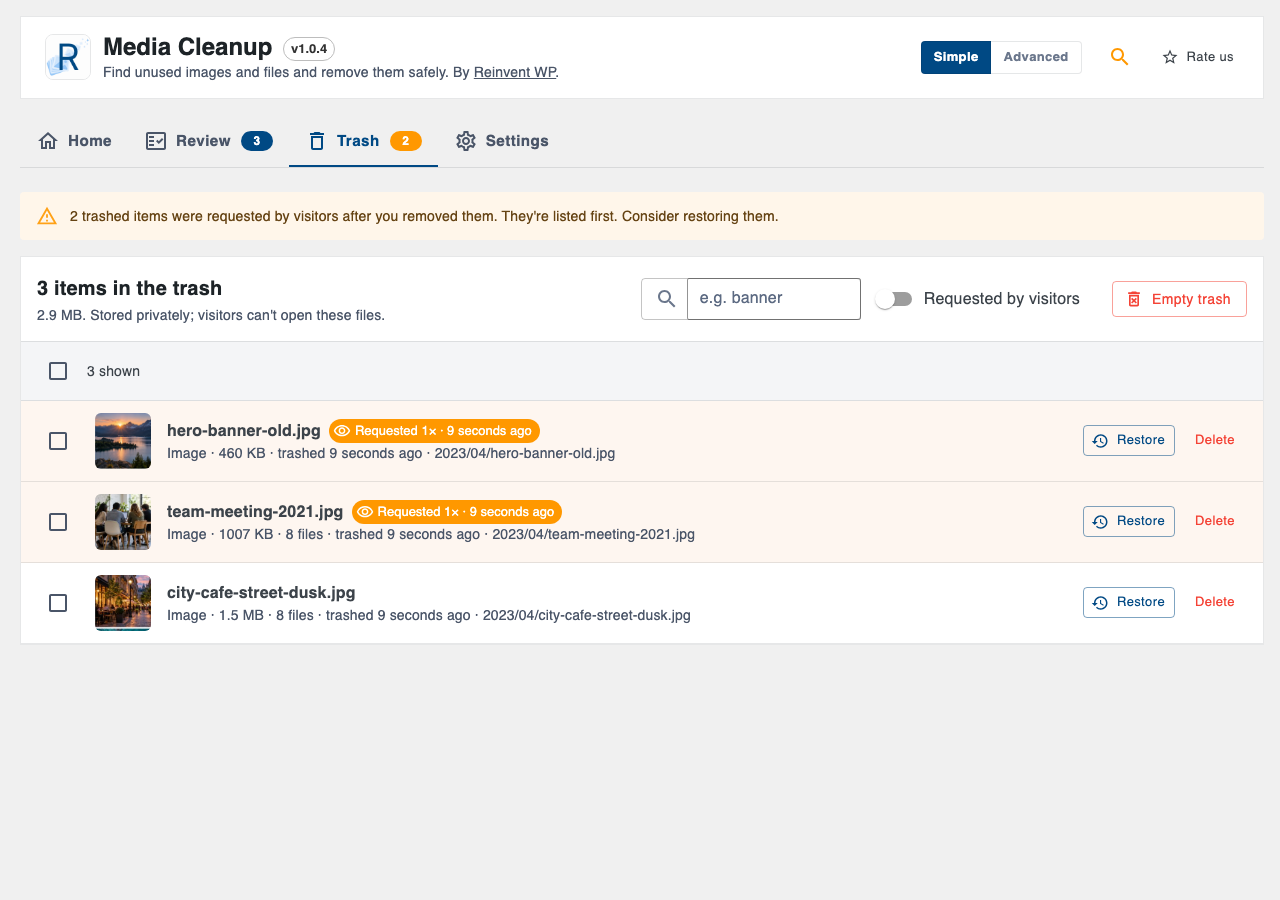
Trash: restore or delete for good, with visitor requests highlighted.
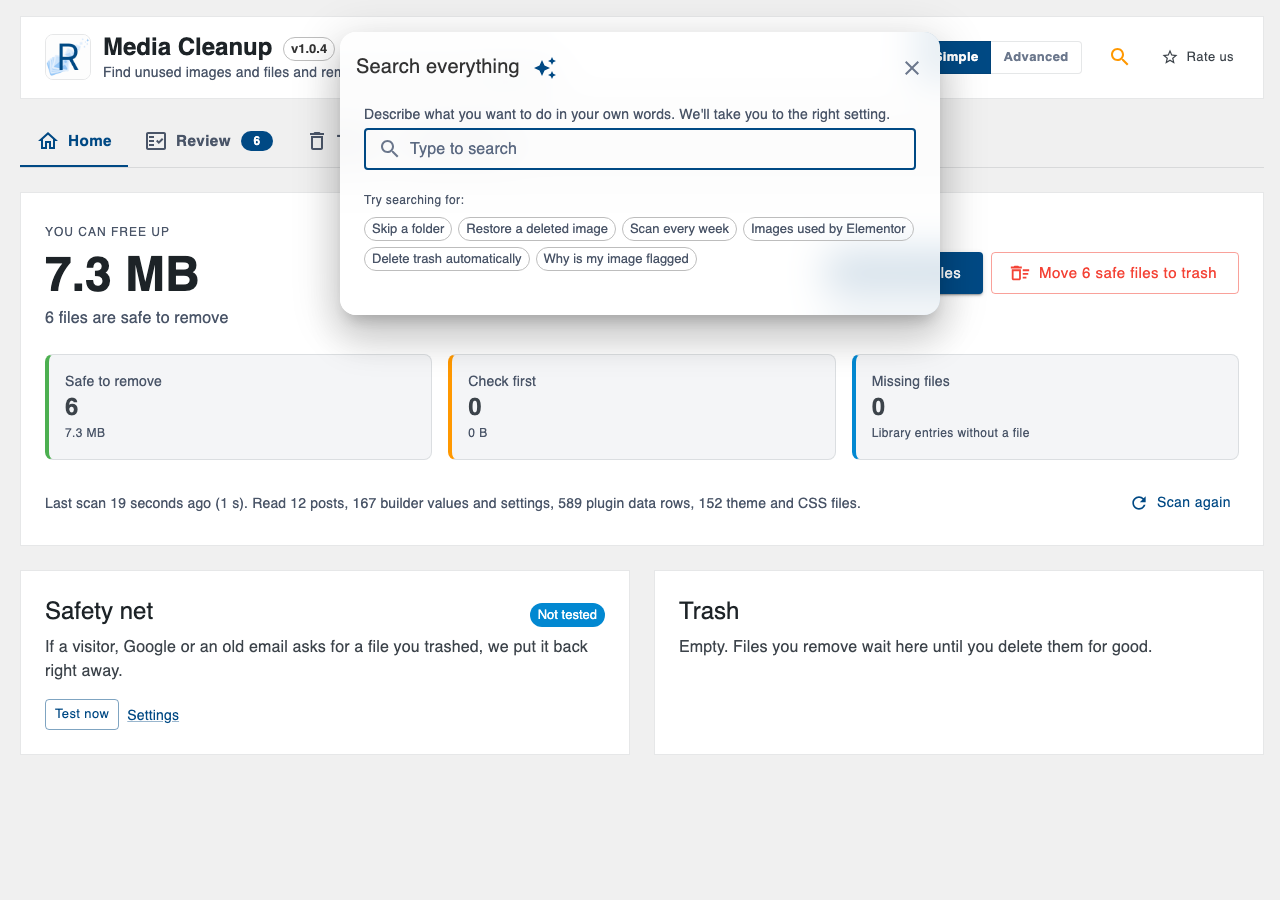
Settings search: describe what you want in your own words.