Take control of the My Sites menu in WordPress Multisite.
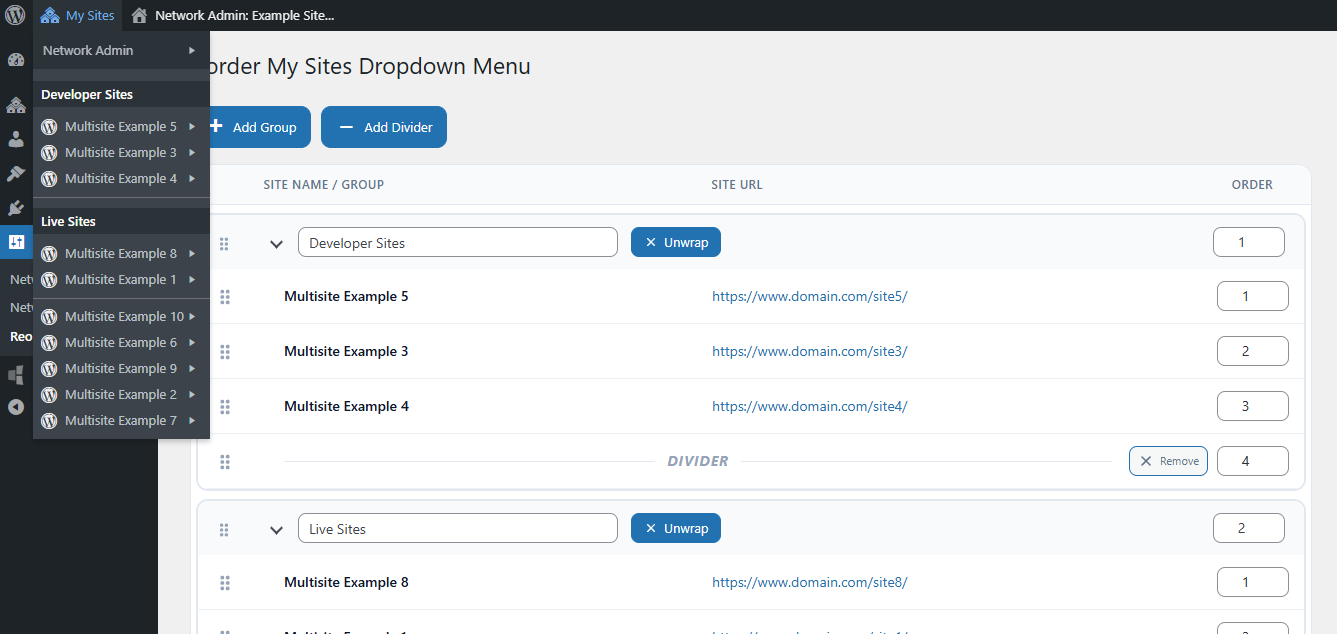
Reorder Multisite Sites Dropdown lets Network Administrators organize the My Sites dropdown in the WordPress admin bar instead of relying on the default site order.
If you manage a WordPress Multisite network with many websites, finding the site you need in the My Sites menu can quickly become frustrating. This plugin gives you a visual Network Admin interface for arranging sites into an order and structure that makes sense for your network.
There is no need to edit WordPress core files or maintain a custom admin-bar snippet. Configure the menu once from Network Admin and the organization is applied to the existing WordPress My Sites menu.
Organize your WordPress Multisite sites
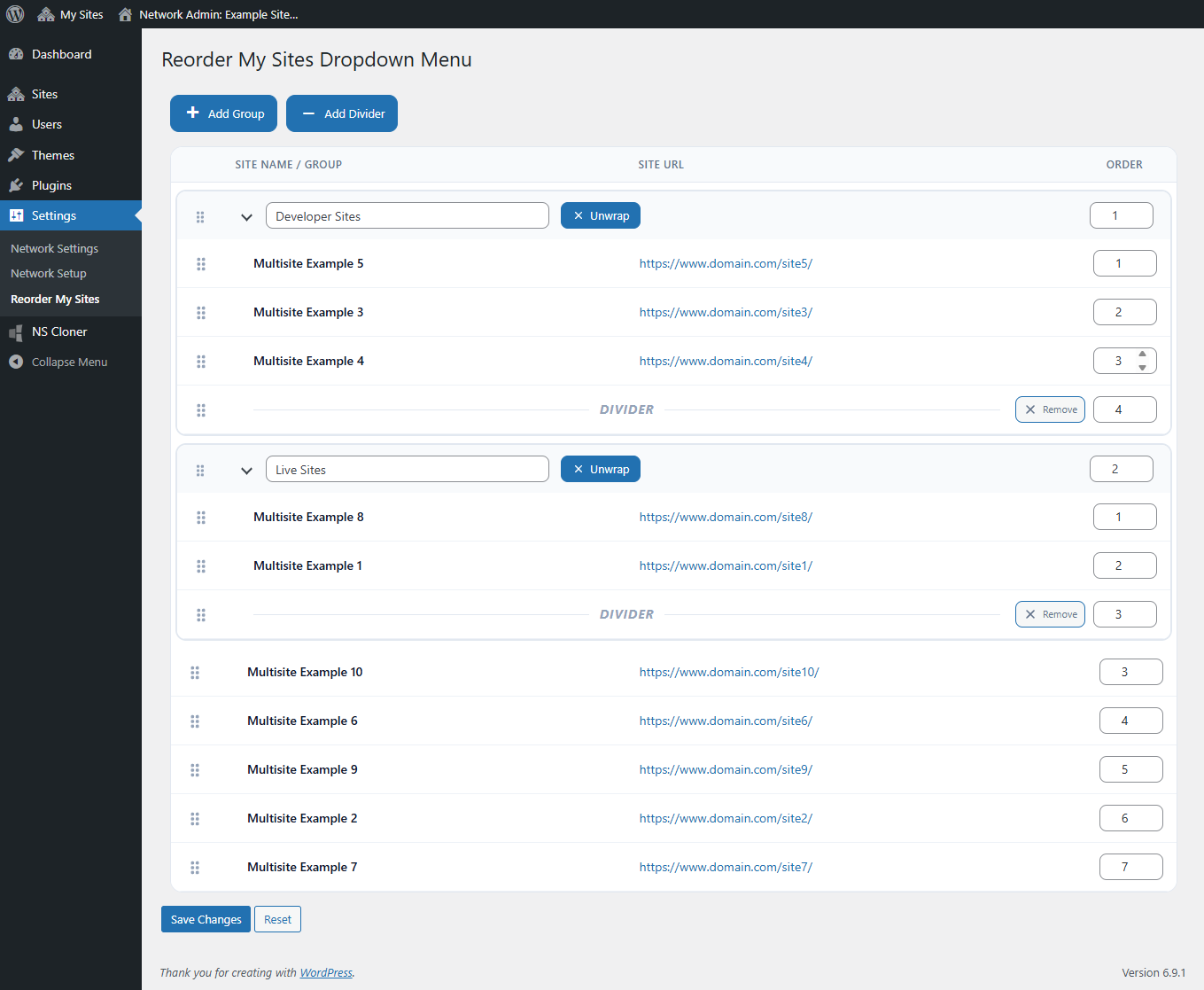
- Drag and drop site ordering – Move sites into the exact order you want.
- Manual ordering controls – Quickly reposition sites using numeric order fields.
- Site groups – Group related WordPress sites together under custom headings.
- Nested organization – Place sites inside groups to make larger networks easier to navigate.
- Visual dividers – Add separators between sections of your My Sites menu.
- Large network support – Organize networks with more than 100 sites without relying on the default WordPress site-query limit.
- Network-wide configuration – Manage the organization centrally from WordPress Network Admin.
- Native admin bar integration – Keeps the familiar WordPress My Sites menu while making it easier to use.
Built for larger WordPress Multisite networks
The plugin is especially useful for agencies, universities, organizations, franchise networks, development teams, and other WordPress Multisite installations that manage many sites from one network.
Whether you manage 10 sites or hundreds of sites, Reorder Multisite Sites Dropdown helps turn a long My Sites list into a menu that reflects the way your network is actually organized.
Where are the settings?
After network activating the plugin, go to:
Network Admin > Settings > Reorder My Sites
From there you can drag sites into position, create groups, add dividers, and save the organization.
Screenshots