
SoftIcon Flipbook turns your brochures, magazines, catalogs, menus and ebooks into a realistic page-turning book, right inside the block editor. Add the Flipbook block, pick a PDF and you see the finished book in the editor – no shortcodes, no separate “flipbook” screens.
Video tutorials: the 30-second promo, every setting explained, add a flipbook, the Hardcover design and reading features and the lightbox, or watch the whole playlist.
Why choose SoftIcon Flipbook?
- Block first – upload or pick a PDF in the block and preview the real flipbook while you edit.
- Readable on phones – the book switches to one page at a time on small screens, two-page spreads on wide ones. Or force one layout.
- Light on your pages – the flipbook engine loads only when the book scrolls into view, and pages are drawn as the reader gets near them. In a lightbox the book loads only when a visitor opens it.
- Many books on one page – show each one as a cover, button or link that opens the book in a popup.
- PDF or images – build a book from a PDF, or from images in reading order.
- Clear errors – if a PDF cannot be shown (for example a link to another website that blocks it), the block says why and keeps a link to the file.
Features
- Lightbox: a cover, button or text link on the page opens the book in a popup over the page
- Two designs: Classic, or Hardcover book with a cover around the pages, the stack of page edges, a shadow at the spine and large arrows beside the book
- PDF flipbook from the Media Library or a link
- Image flipbook from any set of images
- Auto, always-two-pages or always-one-page layout
- Hard cover: first and last pages turn on their own
- Open at any page, jump to a page from the page counter, or link straight to a page with #page=5
- Thumbnails of all pages: a click opens that page
- Links inside the PDF work: web and email links, and page links that turn the book
- Table of contents from the PDF’s bookmarks
- Zoom with the toolbar buttons, a pinch on phones or Ctrl + scroll on computers; drag to move around a zoomed page
- Toolbar with page counter, previous/next, thumbnails, zoom, download, fullscreen and a page-turn sound visitors can mute
- Keyboard arrows turn the pages, the toolbar works with screen readers
- Fullscreen that fits the book to the screen, with an iPhone fallback
- Maximum height and colors for background, toolbar and icons
- Wide and full width alignment
Third-party libraries
- PDF.js 6.4.299 (npm package pdfjs-dist) by Mozilla – github.com/mozilla/pdf.js – Apache License 2.0. Bundled as build/pdfjs.js and build/pdfjs/pdf.worker.min.js (minified upstream build); license in build/pdfjs/LICENSE.txt.
Also from the pdfjs-dist package: the JavaScript builds of the OpenJPEG (BSD-2) and JBIG2 (BSD-3) image decoders in build/pdfjs/decoders, the Foxit (BSD-3) and Liberation (GPLv2 with font exception) standard fonts in build/pdfjs/standard_fonts, and the Adobe CMaps (BSD-3) in build/pdfjs/cmaps, each with its license file. The fonts and CMaps are binary data files; the build stores each one unchanged as a base64 string in a .json file, which the plugin decodes back to the original bytes for pdf.js. - StPageFlip 2.0.7 (npm package page-flip) by Nodlik – github.com/Nodlik/StPageFlip – MIT License. License in build/page-flip-LICENSE.txt.
- Freemius WordPress SDK 2.13.4 – github.com/Freemius/wordpress-sdk – GPLv3. In the vendor/freemius folder, used only for the optional opt-in described in the FAQ.
The unminified source of this plugin is in the src folder, with package.json and webpack.config.js. Build it with npm install and npm run build; the build copies the pdf.js files from node_modules/pdfjs-dist.
Development
The plugin is developed on GitHub: github.com/softiconai/softicon-flipbook. Bug reports and pull requests are welcome there; for help, use the support forum here on WordPress.org.
Screenshots
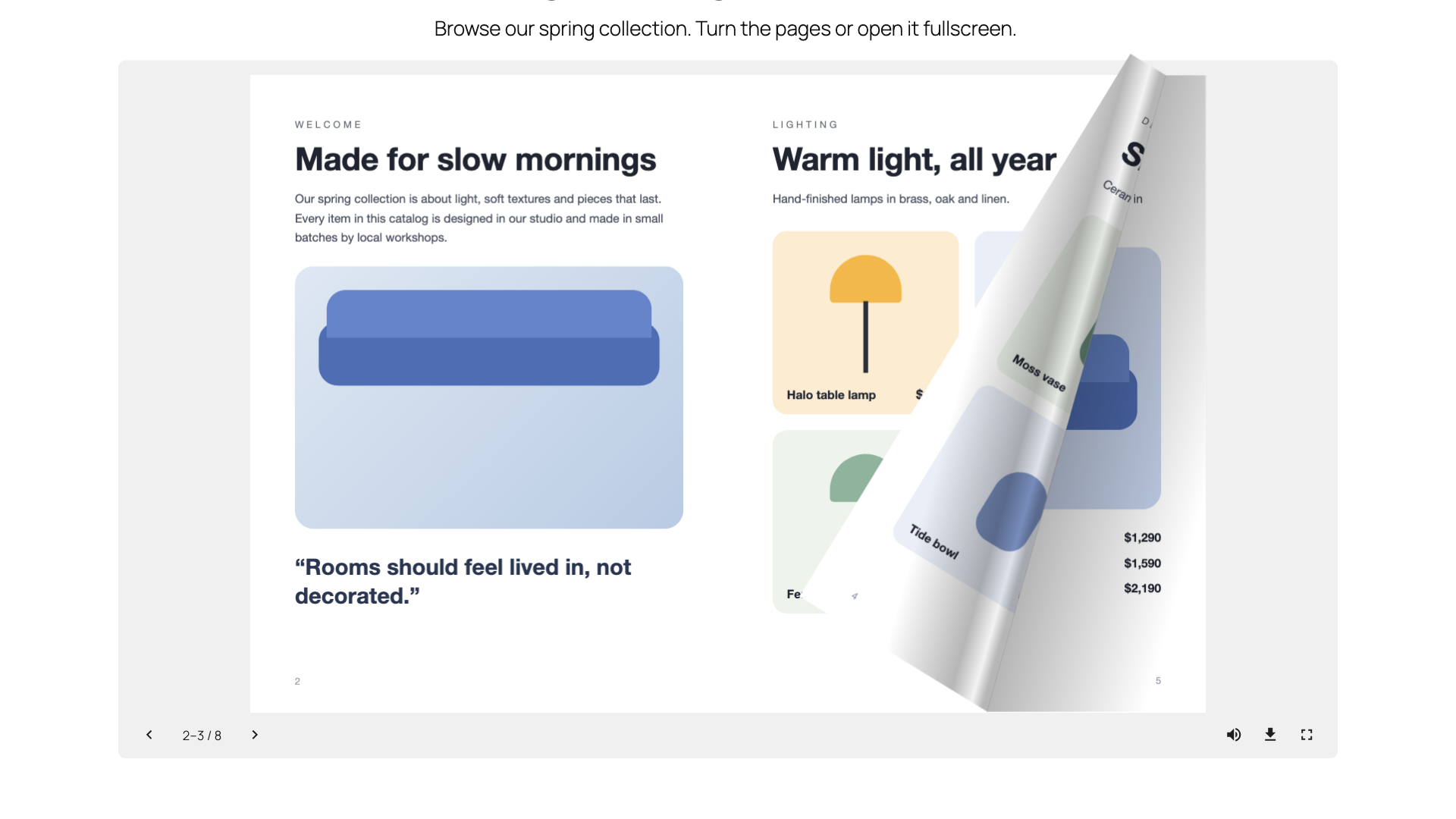
A realistic page turn – drag a corner or use the toolbar.
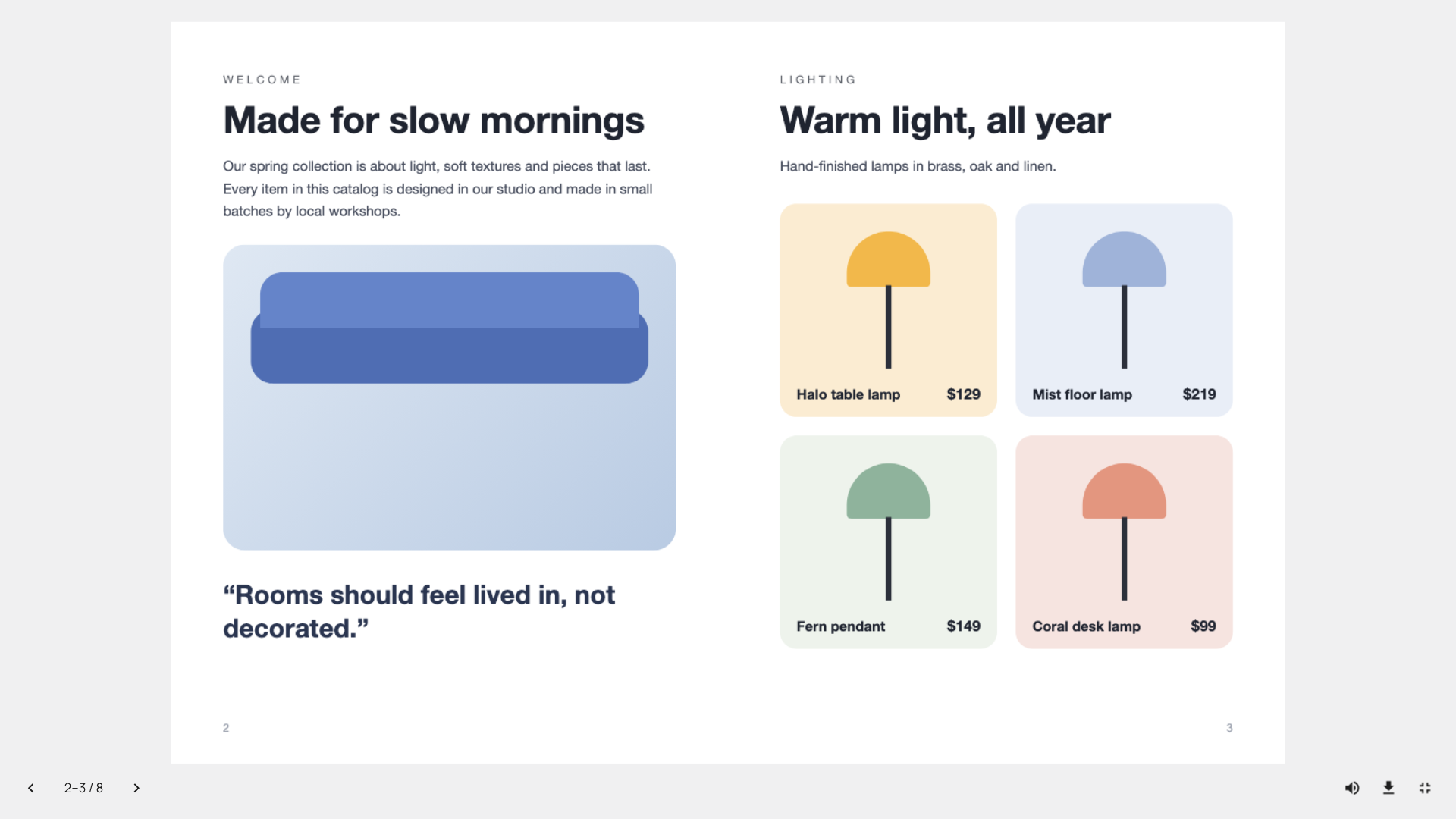
Two-page spreads on desktop, with download, sound and fullscreen in the toolbar.
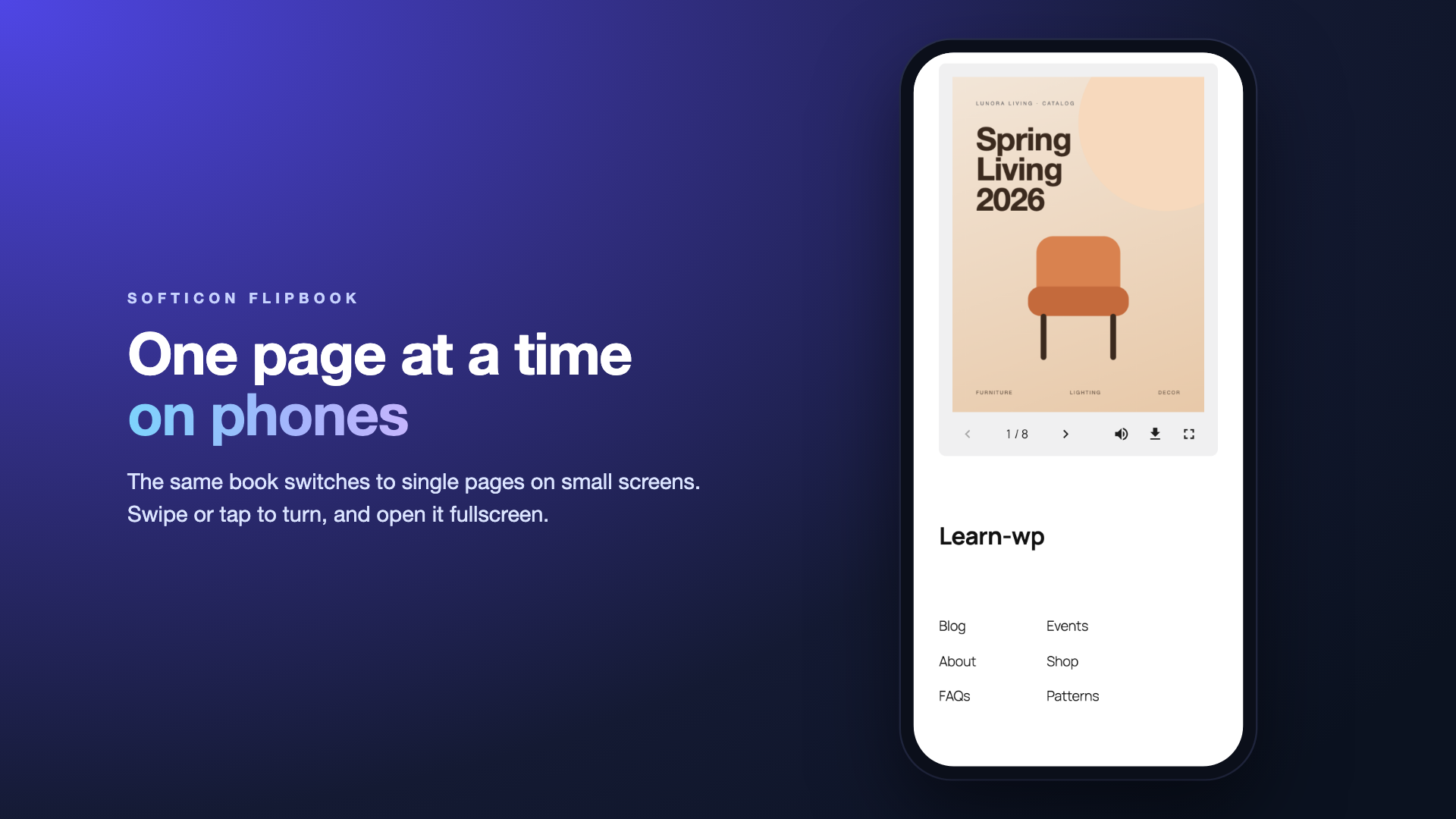
One page at a time on phones.
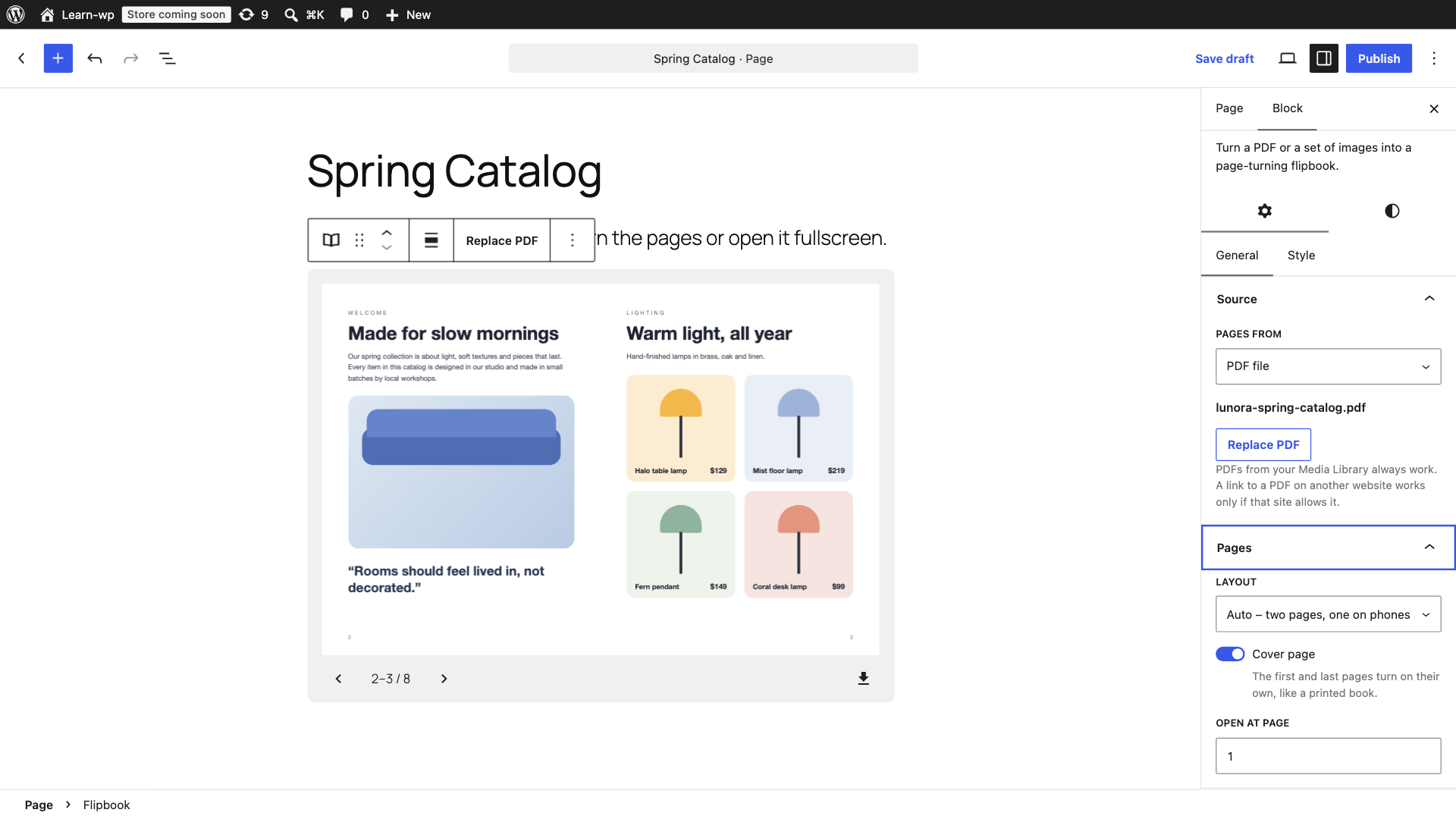
Live flipbook preview in the block editor, with the layout settings.
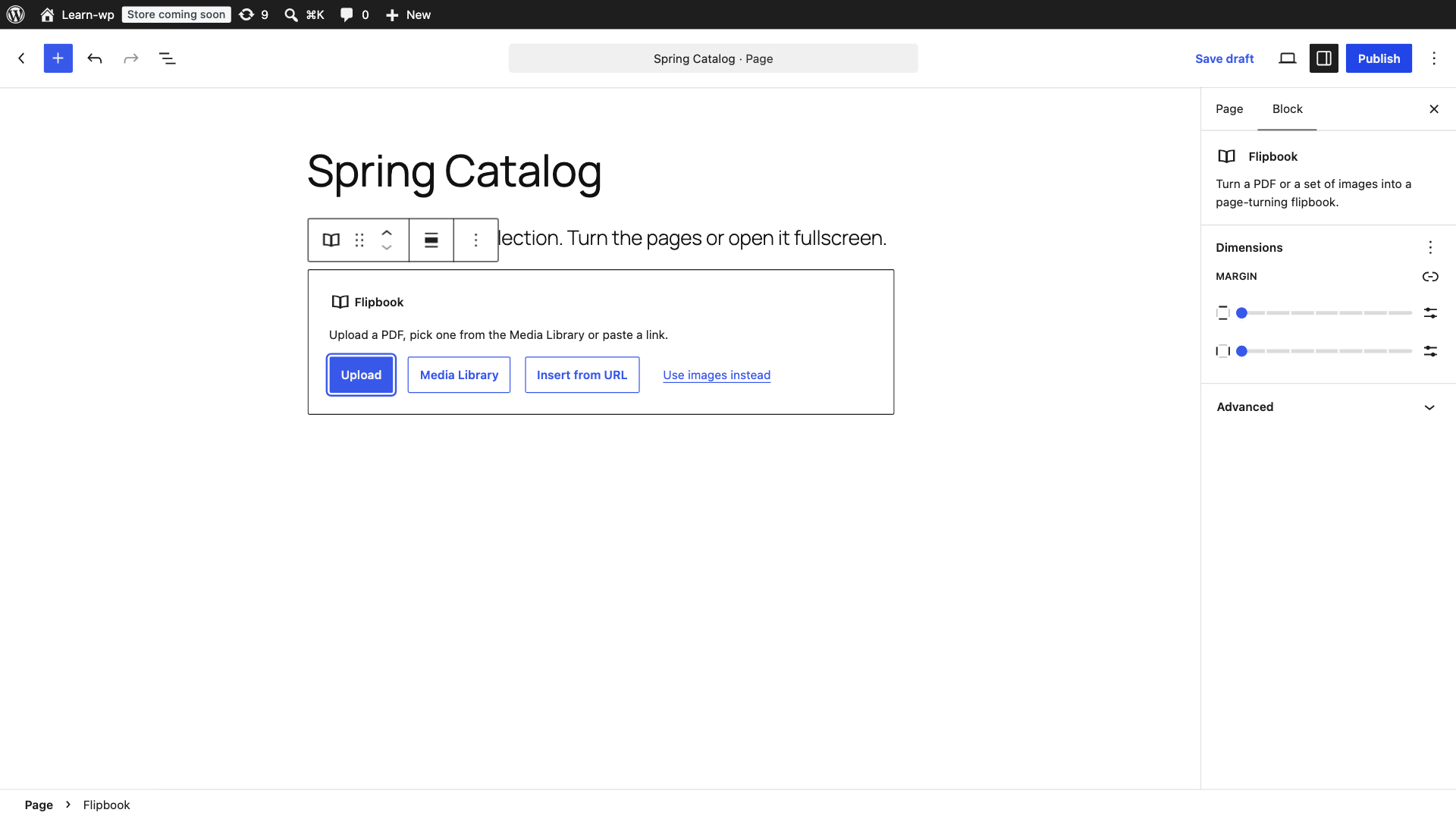
Add a PDF straight from the block: upload, Media Library or a link.
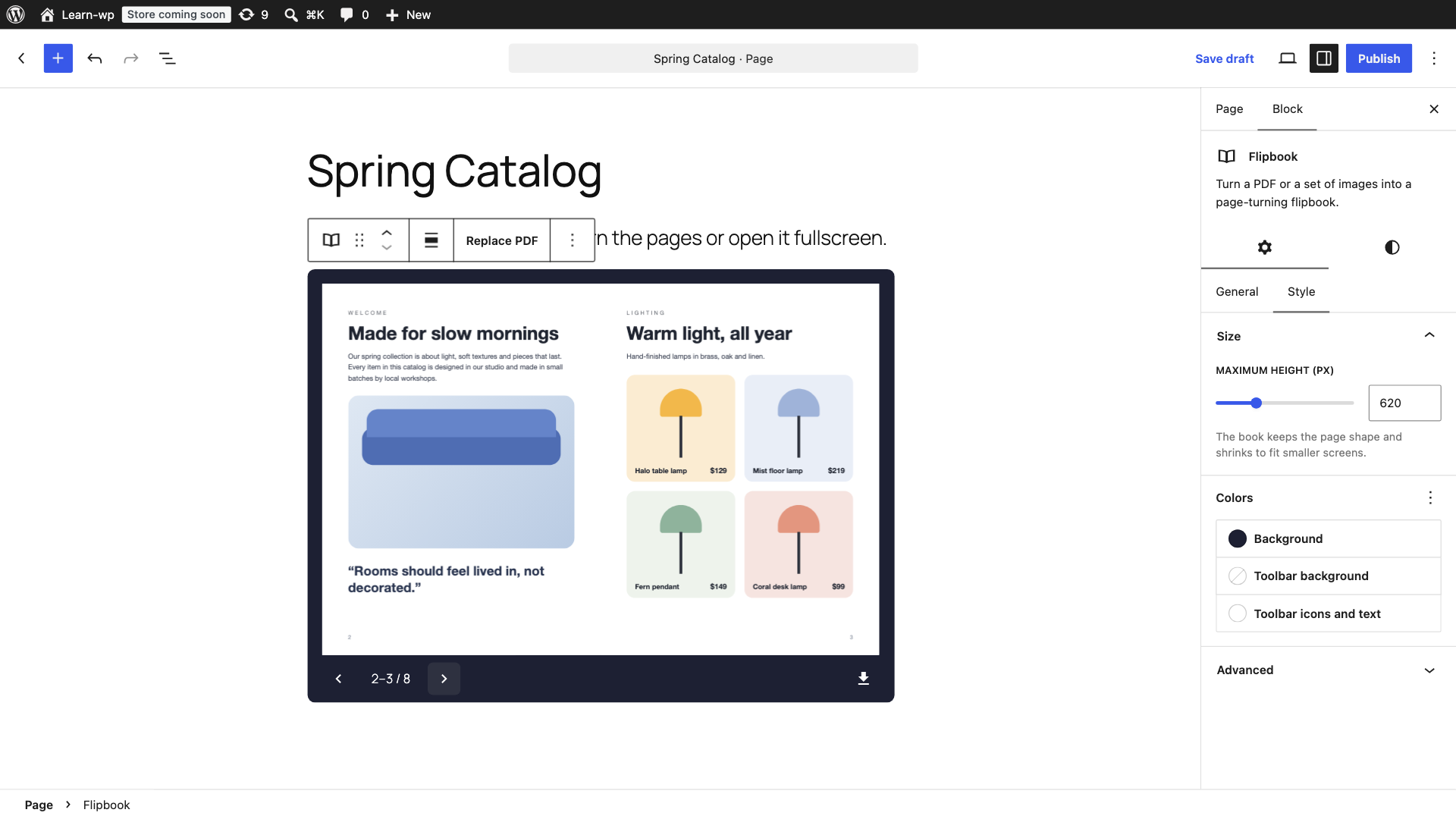
Set the maximum height and the colors of the background and toolbar.