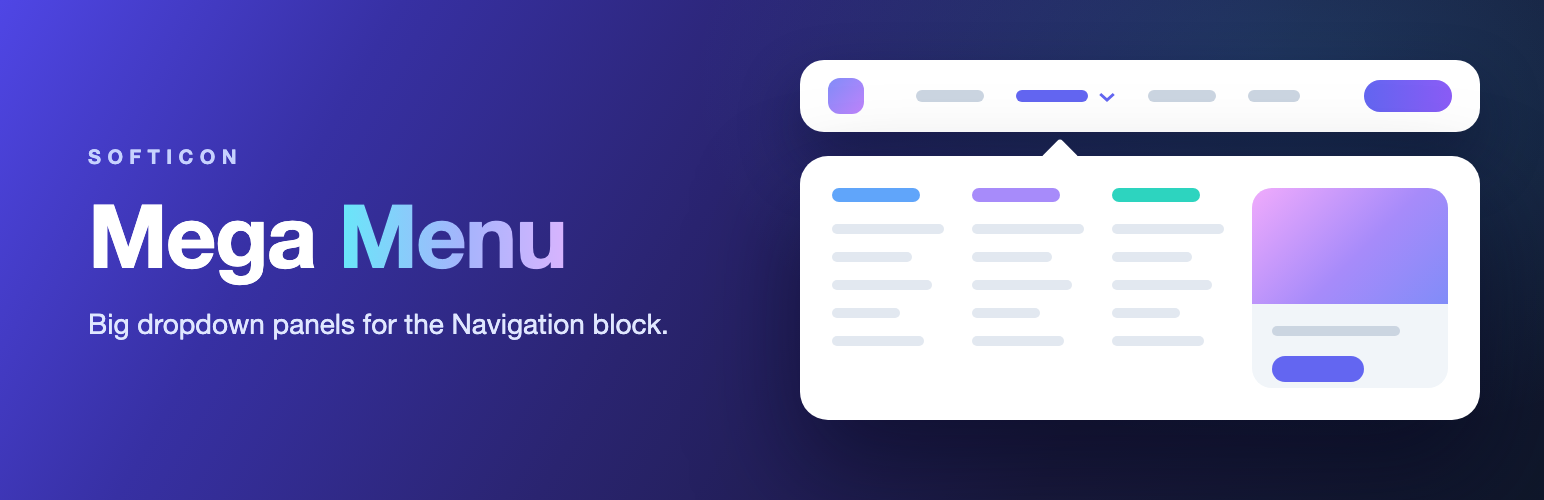
SoftIcon Mega Menu adds a Mega Menu item to the Navigation block of block themes like Twenty Twenty-Five. Each item opens a large panel that you design in the Site Editor with the blocks you already know: columns of links, images, buttons, even a product grid.
Classic mega menu plugins work with the old Appearance Menus screen, which block themes do not use. This plugin is made for the Navigation block.
How it works
- Go to Appearance Mega Menus and click Create panel. A new panel starts with three columns of links. Design it with any blocks.
- Click Open header editor, select the Navigation block, click its + and add a Mega Menu item.
- Type the item’s text, choose the panel in the block settings and save.
You can also create a panel right from the block settings.
Already have a menu? Select a link in it, click the first icon in the toolbar and choose Transform to Mega Menu. The link keeps its text and address.
Panels are template parts in their own Mega Menu area, so you can reuse one panel in several menus.
Features
- Mega Menu item for the Navigation block
- Panels designed in the Site Editor with any blocks
- Appearance Mega Menus: all panels in one list, create a panel in one click, a short how-to
- Turn any menu link into a mega menu (and back) with Transform, keeping its text and link
- Open on hover or on click
- Panel width: content, wide, full screen or a custom width
- Panel position: centered on the screen, or lined up with the menu item
- Panel always stays inside the screen
- Space above the panel, padding, rounded corners, shadow, background and text colors
- Optional link on the menu item text, with a small arrow that opens the panel
- Phones: the panel opens inside the Navigation block’s phone menu, or the item just goes to its link
- Keyboard friendly: Enter or Space opens a panel, Escape closes it, Tab out closes it
- Preview the panel in the editor
- Works without JavaScript too: the panel opens on hover and keyboard focus
- Small script with no dependencies, about 2 KB
Source code
The JavaScript and CSS in the build folder are compiled from the human-readable source in the src folder, which is included in the plugin. To build it yourself, run npm install and then npm run build in the plugin folder. The build uses @wordpress/scripts.
Libraries
The plugin does not bundle any third-party library. Its scripts use only the packages that come with WordPress (@wordpress/blocks, @wordpress/block-editor, @wordpress/components and others), loaded from WordPress itself. The settings panel helpers in src/vendor/softicon-tools are our own code, released under the same GPLv3 or later license as the plugin. All icons were drawn for this plugin.