
Upload images, CSS and JavaScript from WordPress uploads to Amazon S3 and serve registered files through S3 or CloudFront. Local copies are retained, and stored post content is not changed.
- Full or incremental batch uploads with progress reporting.
- Searchable folder tree with a vertically resizable list.
- Remote URLs for registered files, including responsive images and common lazy-load markup.
- Confirmed deletion of tracked S3 files, with options to skip, restore or permanently delete files missing locally.
- Recovery of supported images into the Media Library, including a separate local-only repair tool. Recovered attachments receive new IDs; deleted captions, alt text and post associations cannot be reconstructed.
Clear your page cache after updates, configuration changes, uploads or deletion; the plugin does not purge it automatically. Existing unregistered S3 objects must be uploaded again to enter the registry.
Deactivation preserves settings and registry records. Uninstall removes local bookkeeping without deleting S3 objects.
Screenshots
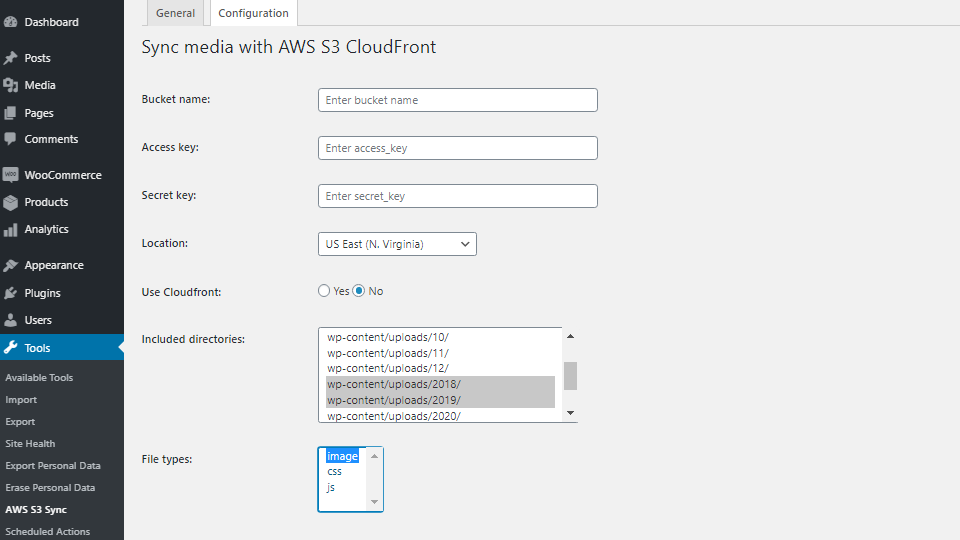
Configuration tab allows you to enter your AWS S3 "Bucket name", "Access key" "Secret key", "Location" and select the directories and file types, which you want to upload to S3. The saved secret key is never included in the settings HTML. Leave the secret field empty to keep the saved key for the same access key, including when testing the connection. Enter a new secret to replace it; changing the access key requires its corresponding secret key.

If you want to use CloudFront service, just select "yes" for "Use Cloudfront" option and enter your CloudFront ID in the appropriate field.
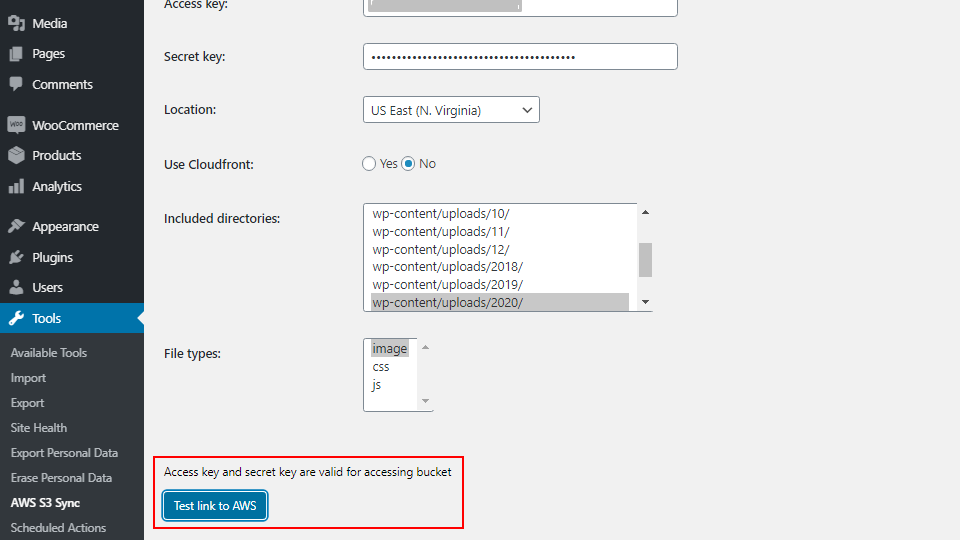
Click "Test link to AWS" to check the selected bucket's region and, when enabled, the CloudFront distribution. Upload, delete, and public file access are not tested.

General tab contains the "Upload file to S3" button, which starts the process of the file upload. Besides you can see observe the process thanks to progress bar with the list of the already uploaded files.

You will see the message about your invalidation ID if you have saved a configuration "Use Cloudfront" > "yes" and have indicated your CloudFront ID.

Registered files use direct S3 URLs when "Use Cloudfront" is "no". Files without a successful upload registry entry keep their local URLs.

With "Use Cloudfront" set to "yes", registered files use the configured CloudFront domain. Each image size is checked separately.