
Tabwise organizes your WordPress Pages and Posts into tabs.
Once a site grows past a few dozen pages or posts, the admin list turns into one long scroll. Finding the right page means searching, paging and squinting at titles. Tabwise adds a row of color-coded tabs above your Pages and Posts lists. Group your content into tabs like “Services,” “Locations,” “Legal” or “Tutorials,” click a tab, and the list shows only what’s in it.
Tabwise only sorts. It never creates, edits, publishes or deletes your pages or posts.
Free and open source, forever. Every feature is included. There’s no pro version, no locked features, no upsells, no ads, no tracking and no branding added to your dashboard.
If Tabwise saves you time and you’d like to say thanks, you can buy me a coffee. It’s never expected.
Pages features
- Tabs above the Pages list. Click a tab to see only its pages. Switching tabs is instant, with no page reload, and the list keeps its full width.
- All and Unassigned. “All” shows every page, and “Unassigned” shows the pages you haven’t filed yet.
- Default tab. Pin any tab and it opens first whenever you visit Pages.
- Colors. A full color picker with hue, opacity, Hex, RGB and HSL, preset colors and your own saved colors.
- Icons. Over 100 built-in icons with search (try “phone”, “legal” or “shop”), plus optional custom icons by upload or link, including Google Fonts icons.
- Always readable. Tab labels get strong contrast automatically, whatever color you pick, in light and dark admin themes.
- Drag and drop. Reorder tabs by dragging them, including into and out of the “more tabs” list. A blue marker shows exactly where the tab will land.
- Move pages your way. Use Bulk actions, the Tab field in Quick Edit, or drag a page onto a tab.
- More tabs. Extra tabs sit behind a “more tabs” button. Each one keeps its color and its own ⋯ menu.
- Manage Tabs (Pages Manage Tabs). Every page tab in one table: rename, recolor, change icons, reorder, set the default, filter, sort A–Z, or select several and change, merge or delete them at once.
- Tab layouts for pages. Start in one click with 8 ready-made sets: Business & Services, Local Contractor, Online Store, Blog or Magazine, Agency or Portfolio, Restaurant & Hospitality, Software & SaaS, and Nonprofit & Community.
- Your own layouts. Save your current page tabs as a layout or build one from scratch, then edit, apply or delete it any time.
- Import and export. Save your page tabs and layouts to a file and load them on another site, including which pages go in each tab (matched by page address).
Posts features
Turn on Posts in Tabwise Settings and the Posts screen gets every feature above, with its own separate set of tabs. Post tabs never mix with page tabs.
- Tabs above the Posts list, with All, Unassigned, a default tab and the “more tabs” list.
- The same colors, icons, drag and drop, Quick Edit field and Bulk actions as Pages.
- Manage Tabs (Posts Manage Tabs). The full table, bulk actions, filtering and sorting, just for post tabs.
- Tab layouts for posts. 8 ready-made sets made for posts: General Blog, Company Blog, Local Business Blog, Tech & Tutorials, Food & Recipes, Travel, Lifestyle & Personal, and Podcast & Video.
- Your own post layouts, plus import and export, kept separate from your page layouts.
- Zero cost when off. If Posts is turned off, Tabwise loads nothing at all on the Posts screen.
Admin settings
One settings page covers both Pages and Posts: Pages Tabwise Settings, also linked from the Posts menu.
- Screens. Pages are always on. Turn Posts on or off.
- Visible tabs. Choose how many tabs show in the bar, from 3 to 10. The rest go under “more tabs.”
- Custom icons. Off by default. Turn it on to upload your own icons or import them from a link.
- Who can use tabs. Administrators always have access. Choose which other roles can use and manage tabs. People can only move content they’re already allowed to edit.
- Uninstall. Choose whether deleting the plugin also removes your tabs and settings. Your pages and posts are never touched either way.
Safe by design
Tabwise only sorts. It never creates, edits, publishes, trashes or deletes your pages or posts. Deleting a tab simply moves its content to Unassigned.
Lightweight
- Loads only on the Pages and Posts list screens and the Manage Tabs pages, and never on the front end of your site.
- One small script and one small stylesheet, with no jQuery, frameworks, icon fonts or external requests.
- Uses WordPress’s own taxonomy system, with no custom database tables.
- Built-in icons use WordPress’s own icon set, which is already loaded in your dashboard. Custom icons are resized in your browser and saved with the tab, so nothing is added to your Media Library.
Made for the open source community
Tabwise was made with love for the WordPress and open source community by tinocast. It was vibe coded (built with the help of AI) and is actively maintained with long-term support (LTS). Bug reports and ideas are always welcome in the support forum.
External services
Tabwise makes no outside requests on its own. Only if you turn on custom icons and choose “Import from URL”, your browser downloads the icon from the link you paste, once, at that moment:
- For Google Fonts icon links, the icon file is downloaded from Google Fonts (fonts.gstatic.com). No personal data is sent. See Google’s Terms of Service and Privacy Policy.
- For any other link, the image is downloaded from the site you pasted.
The icon is then saved inside your site. If a site doesn’t allow its image to be copied, Tabwise uses the link itself, and that image loads from that site when your tabs are shown.
Screenshots

The Pages screen with Tabwise: color-coded tabs above the full-width list.
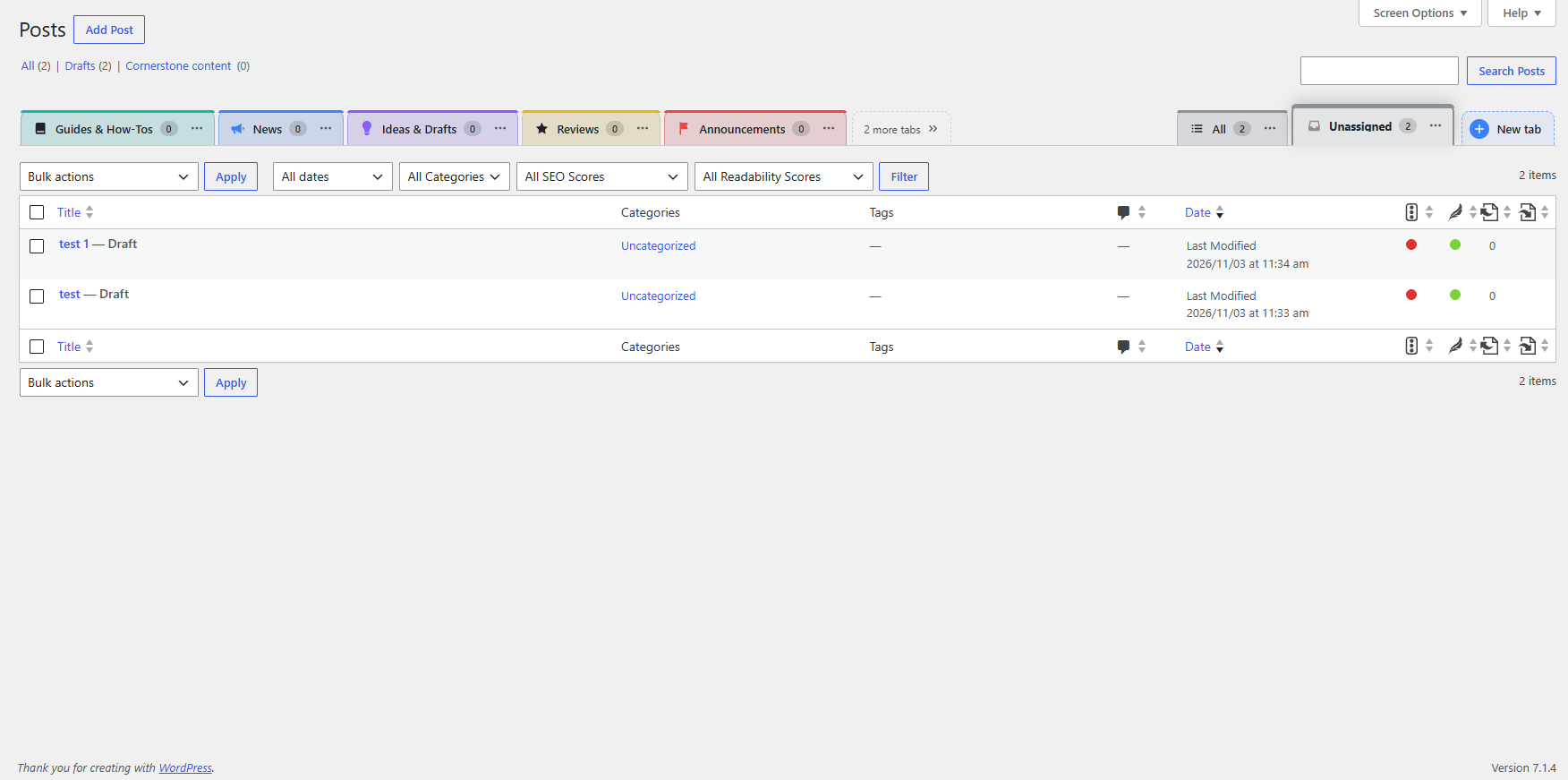
The Posts screen with its own separate set of tabs.

Posts → Manage Tabs: every post tab in one table, with bulk actions, layouts, import and export.
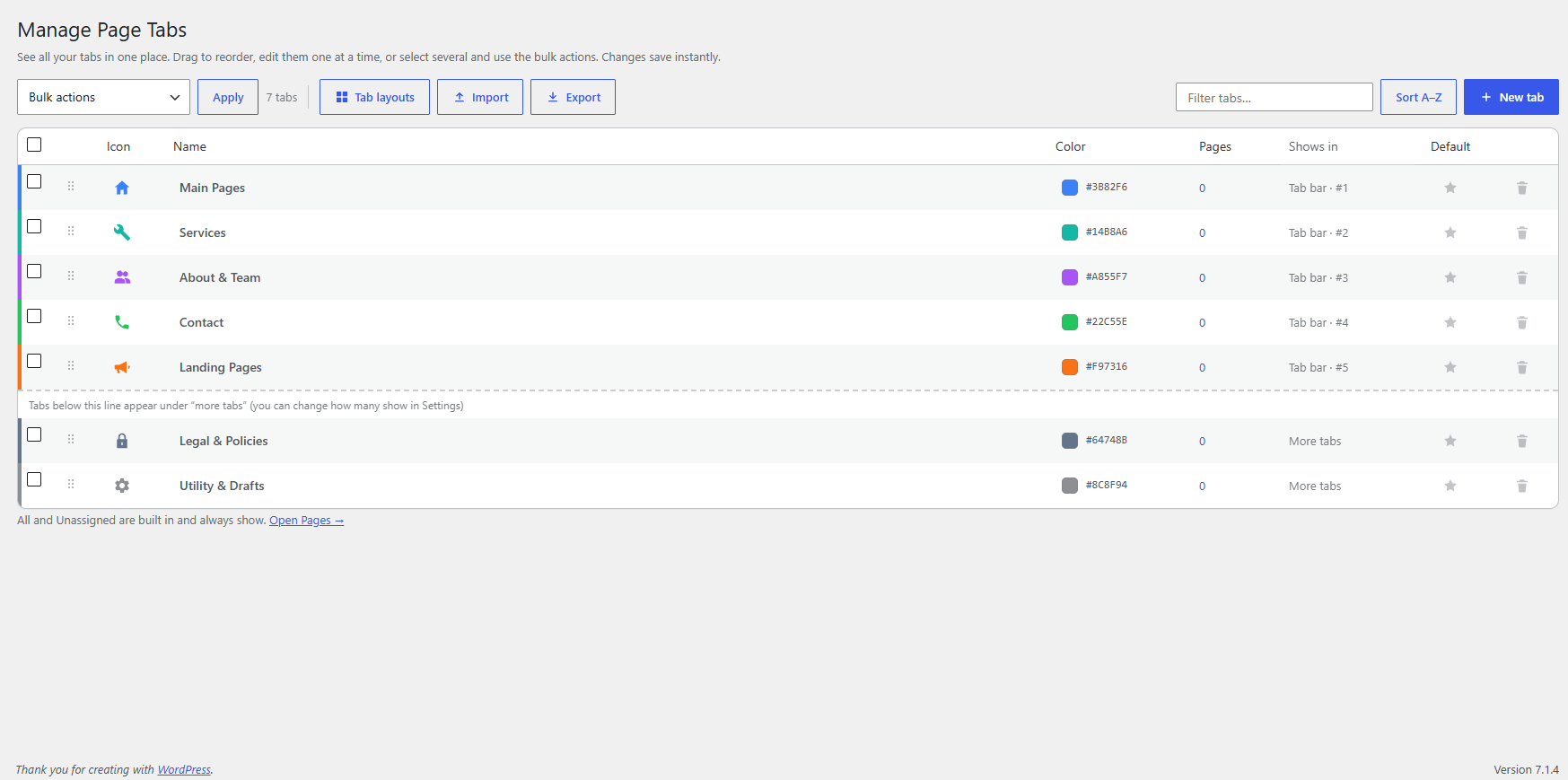
Pages → Manage Tabs: rename, recolor, change icons, reorder and set the default for every page tab.
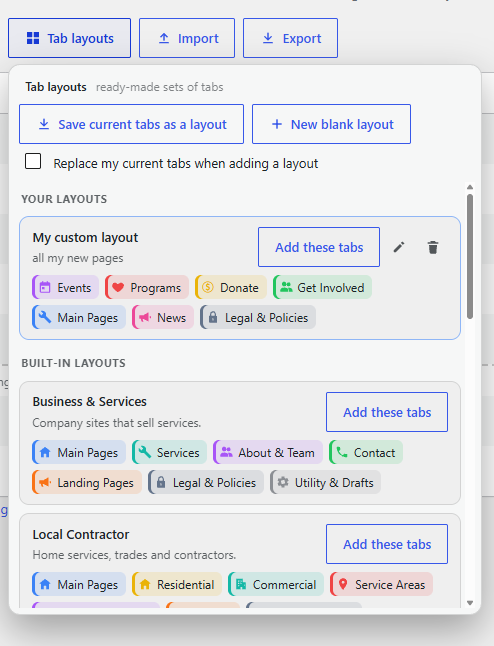
The tab layouts library: ready-made sets of tabs plus your own saved layouts.
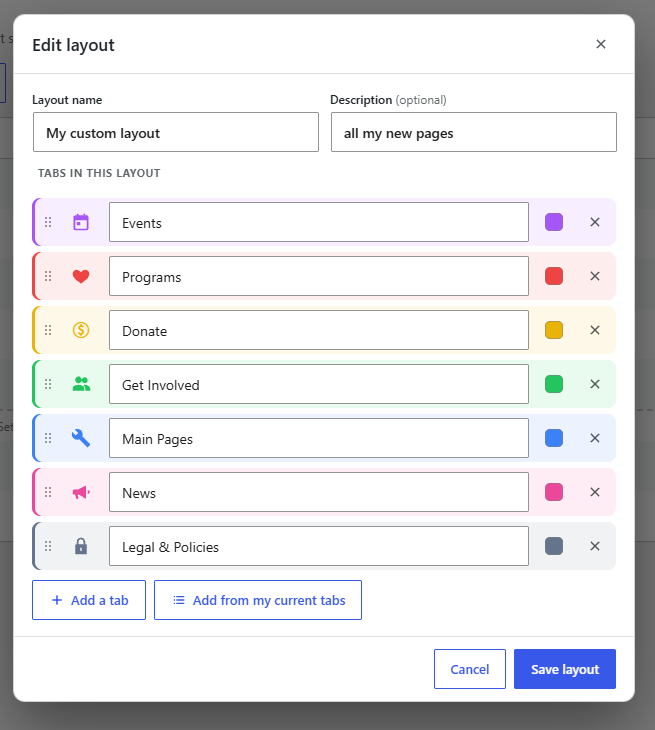
The layout editor: build or edit a custom layout and drag tabs into order.
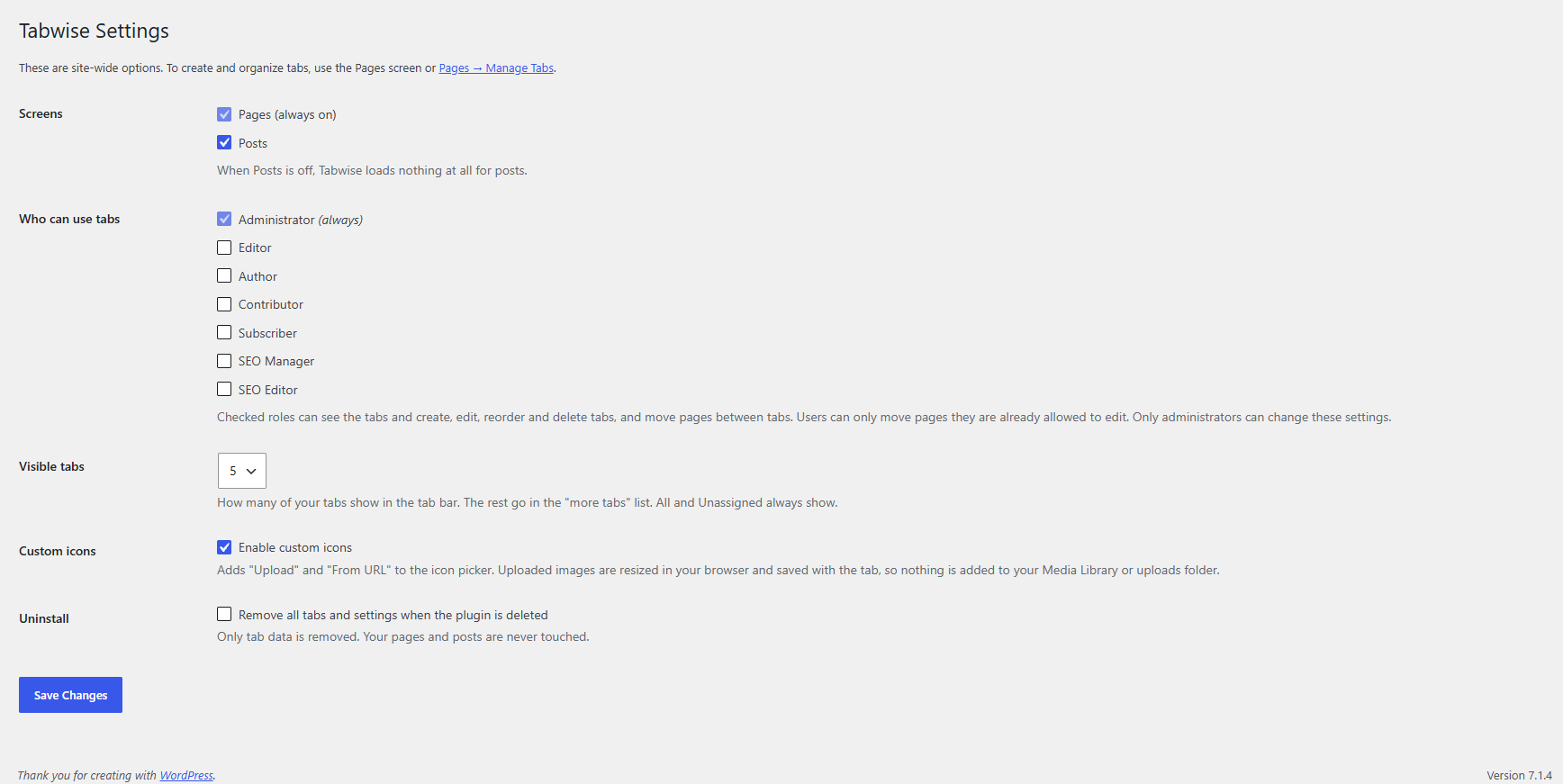
Pages → Tabwise Settings: Posts, visible tabs, custom icons, user roles and uninstall options.
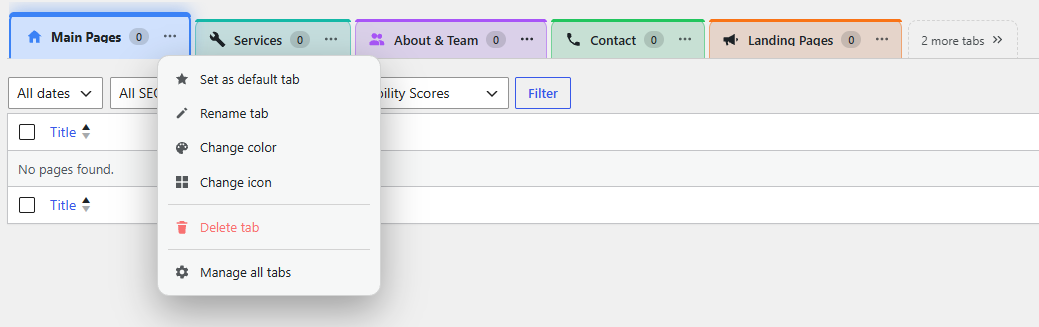
The ⋯ menu on each tab: set as default, rename, change color, change icon and delete.

The full tab bar, from your tabs to All, Unassigned and New tab.
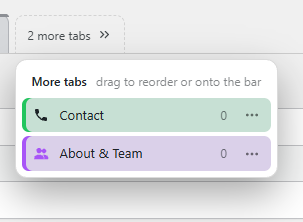
The "more tabs" list, with each tab color-coded and its own ⋯ menu.

All, Unassigned and the New tab dialog up close.
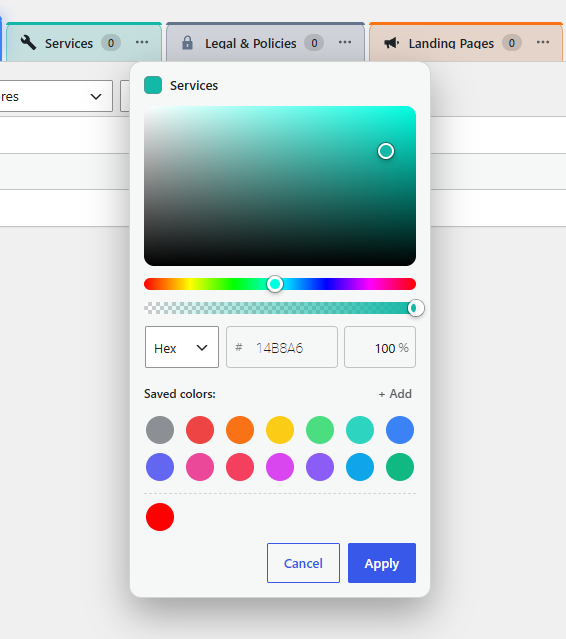
The color picker with Hex, RGB and HSL, opacity and saved colors.
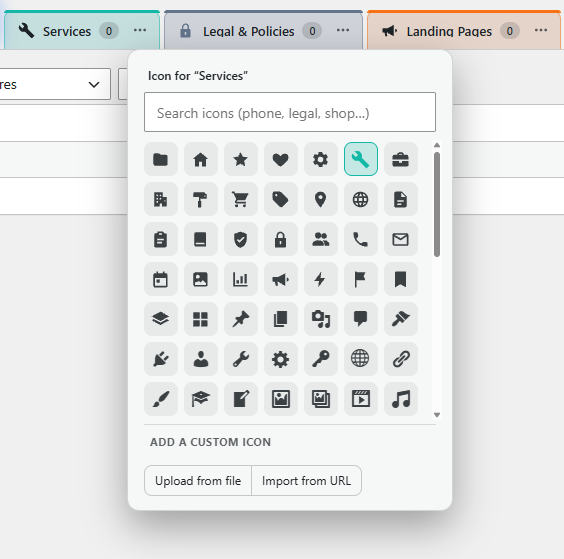
The icon picker, with search, over 100 built-in icons and optional custom icons.