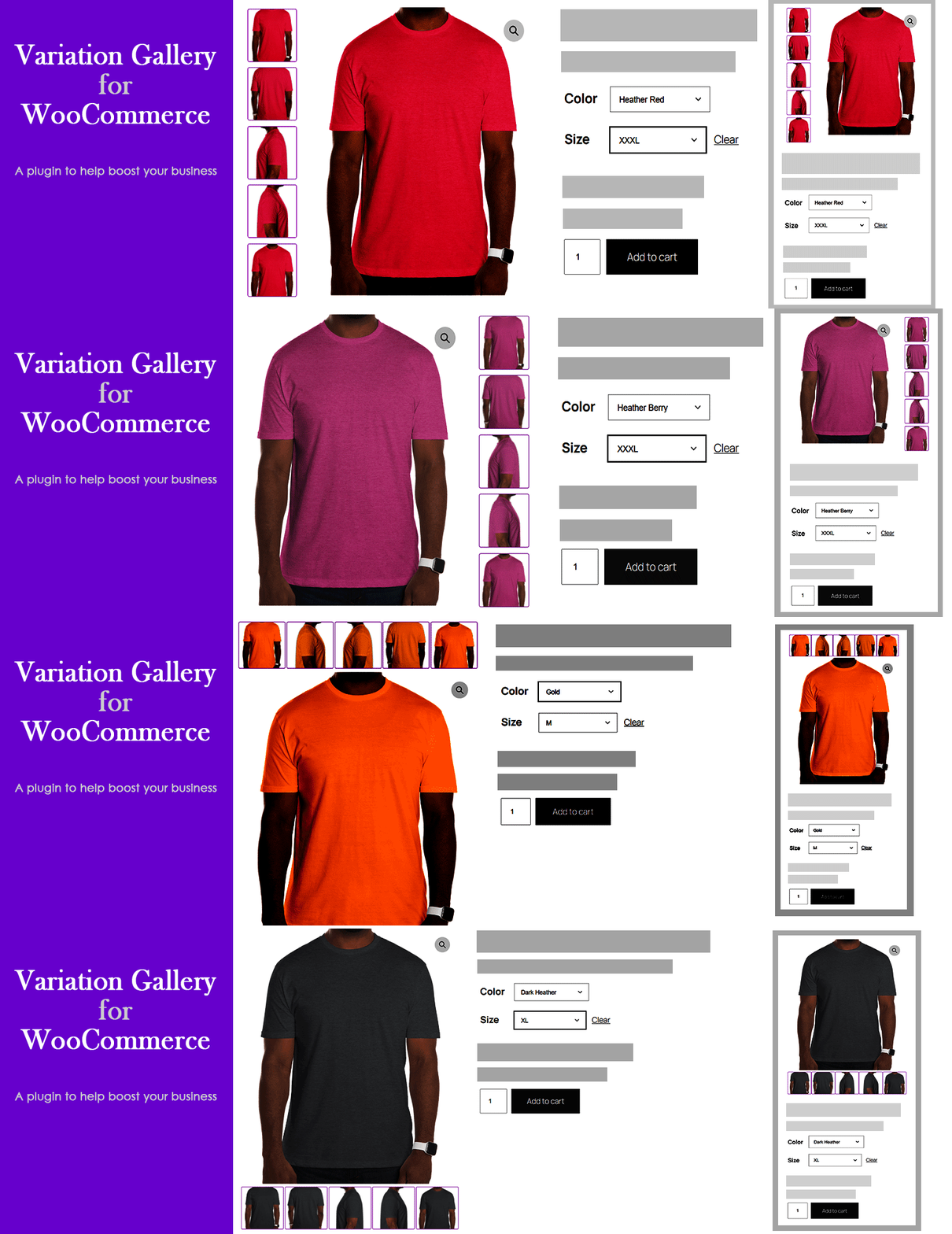
Variation Gallery for WooCommerce allows you to customize where variation thumbnail galleries appear relative to the product gallery. By default, WooCommerce allows multiple images for each variation, which has no limits on how much visual information can be shown.
👉 Plugin Demo | Documentation | Get Pro 👈
Core Features & Highlights
✨ Image slider: Uses Slick Slider for smooth, responsive navigation of the main product gallery image.
✨ Thumbnail position (Top/ Bottom) : Offers flexible positioning for product gallery thumbnails with options to align them on the top or bottom.
✨ Thumbnail slider: Uses Slick Slider for smooth, responsive navigation of the main product thumbnail image.
✨ Zoom option: Enables a zoom feature on main product images, allowing detailed viewing across all color and style variations.
✨ Light box: Enables a lightbox popup for viewing product variation and main gallery images in a full-screen, high-resolution display.
✨ Global & Product-Level Controls: Configure settings globally via WordPress Admin → Tools → Variation Gallery or customize them per product under the product editor tab.
How to Work Settings with Gallery.
✨ Thumbnail Position: Top — Displays gallery thumbnails above the main product image.
👉 Live Demo | Documentation
✨ Thumbnail Position: Bottom — Displays gallery thumbnails below the main image (Default).
👉 Live Demo | Documentation
✨ Thumbnail Position: Left (Pro) — Displays gallery thumbnails stacked vertically on the left side.
👉 Live Demo | Documentation
✨ Thumbnail Position: Right (Pro) — Displays gallery thumbnails stacked vertically on the right side.
👉 Live Demo | Documentation
Compatibility
Variation Gallery for Woocommerce plugin is integrated into WooCommerce and WordPress, but only where necessary. It’s unlikely to conflict with other plugins.
Need Any Help?
👉 For any bug, support or suggestion please submit your ticket here .
Screenshots

Single Product Gallery
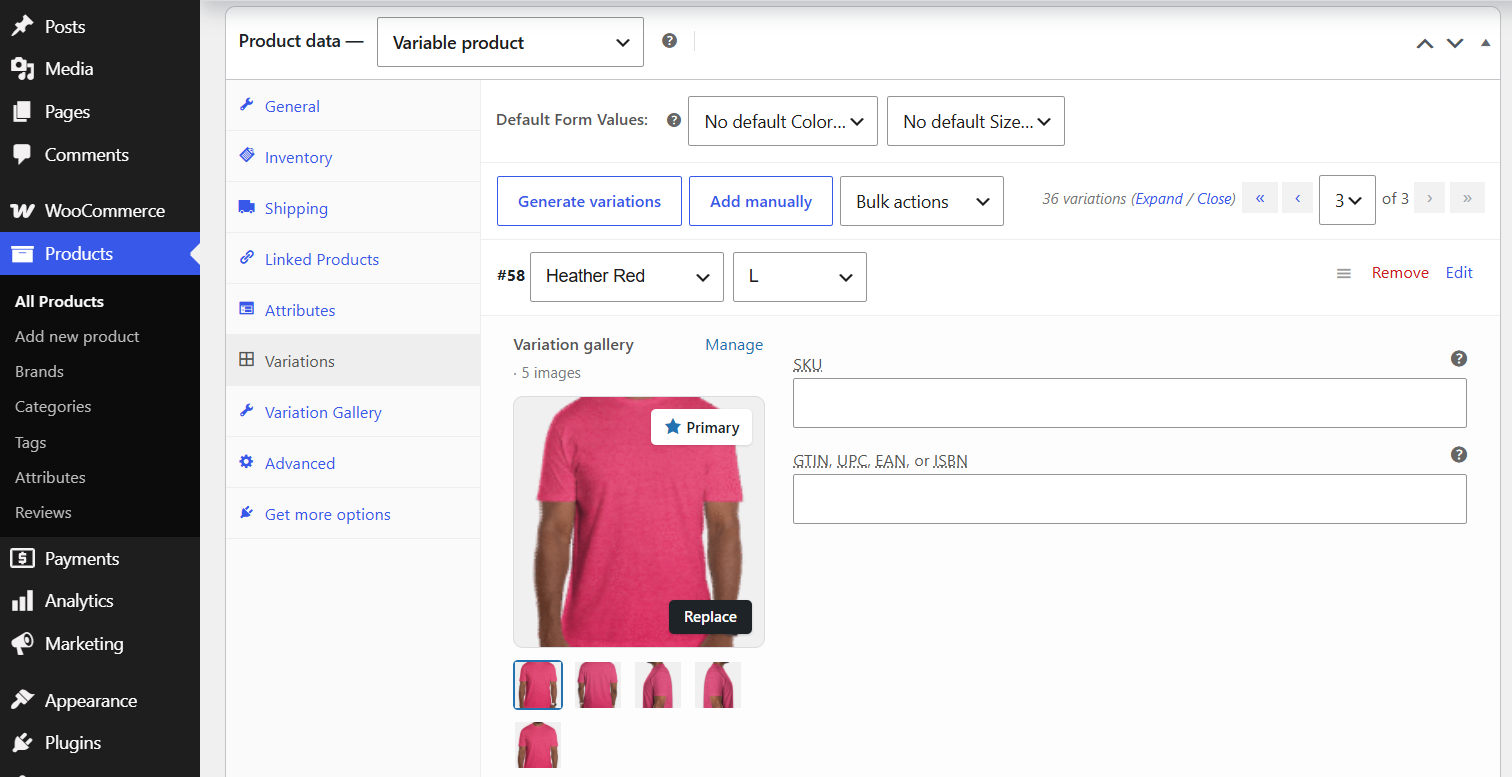
Variation Gallery

Admin Product Settings

Variation Gallery Settings