Total Cost Input for WooCommerce plugin lets customers enter the amount of money they want to spend. The matching product quantity is calculated for them and shown right next to the sum (and, in the PRO version, the customer can also type the quantity and the two numbers stay in sync).
This plugin is ideal to sell products that can not be counted in portions, like liquids, powders, gas, cryptocurrencies, etc.
With this plugin used, your customer can just enter a sum, like $100 for example, and buy some amount of product you are selling, in grams, litres, bitcoins, etc.
It can be a valuable addition to your crypto selling store with the Cryptocurrency WordPress Plugin for WooCommerce!
FREE Features
Total Cost Inputis a per-product product type: tick the checkbox on a product and that product, and only that product, asks for a sum instead of a quantity- The
Total Cost Inputfield on the product page of an opted-in product: the customer enters the amount of money and the resulting quantity is calculated for them - A product-sale widget – the
[total_cost_input_widget]shortcode and theTotal Cost Input: ProductGutenberg block:- a dropdown of every product that can be bought right now (purchasable, in stock, visible in the catalog); the list shows product names only, without prices
- an amount field in the site currency – the customer types the sum and the widget buys the matching quantity
- a quantity field next to the sum: it is shown (read-only) and is updated as the customer types the amount, so the buyer sees the units before paying; the posted quantity is the same number
- a
Buybutton that adds the product to the cart and takes the customer straight to the checkout - a configurable field order, so the card can be arranged the way you sell – including the product after the quantity – set per shortcode/block with the
orderattribute, in the block inspector, or site-wide on the settings screen - a 12-column grid: every field’s width is a span of
1to12columns (orfullfor all twelve, which is the default), set per shortcode/block with thewidthsattribute, with the width selects in the block inspector, or as one line on the settings screen. A field that spans 12 columns takes the whole row, so a card of default fields stacks vertically and smaller spans sit in a row; fields whose spans add up to more than 12 wrap onto the next line – there is no separate layout switch - the Material design look by default: an elevated card, outlined fields and a filled button, so the widget looks finished without any styling
- The
Product Quantity Stepsetting – sell fractional quantities (enter0.1and the customer can buy0.1,0.2,0.3…), in the FREE version too
PRO Features
The PRO version includes all FREE features, plus:
- Option to show both, the
Total Cost InputandQuantityfields on the product page - The widget’s quantity field becomes editable – in place of the read-only quantity the customer can type the units too, and the two numbers are kept in sync in both directions: type a sum and the units follow, type the units and the sum follows
- The widget’s product list restriction – sell only the products you choose, not the whole catalog
- The widget’s custom button text instead of
Buy - The widget’s theme style – apply the style of the site theme to the widget, so it inherits the theme’s background, borders, font and corner radii and the plugin only keeps the layout
- The widget’s custom style, set in the block inspector or on the settings screen – background colour of the widget and of the button, text colour, font family, font size and the corner radius of the widget and of the button, on top of the included Material default
- The widget’s vendor restriction – on a WC Vendors, Dokan or WCFM page the dropdown offers that vendor’s products only
Not supported yet
Block-based product surfaces are not supported yet. The Total Cost Input field works on the classic single-product template and on the classic cart and checkout. The block versions of those pages (the Single Product block, the Cart and Checkout blocks) render the quantity field on the client side and therefore ignore the plugin’s field:
- Single Product block – no
Total Cost Inputfield; - Cart and Checkout blocks – no money/quantity synchronisation.
Use the classic templates (or the [total_cost_input_widget] shortcode / block, which is unaffected) until a future release adds the block support.
l10n
This plugin is localization ready.
Languages this plugin is available now:
- English
- Arabic (عرب)
- Czech (čeština)
- Danish (Dansk)
- German (Deutsche)
- Greek (Ελληνικά)
- Spanish (Español)
- Persian (فارسی)
- French (Français)
- Hebrew (עִברִית)
- Hindi (हिन्दी)
- Indonesian (Bahasa Indonesia)
- Italian (Italiano)
- Japanese (日本)
- Korean (한국인)
- Malay (Melayu)
- Norwegian (Norsk)
- Netherlandish (Nederlands)
- Polish (Polski)
- Portuguese (Português)
- Russian (Русский)
- Slovak (Slovenský)
- Finnish (Suomalainen)
- Swedish (Svenska)
- Thai (ไทย)
- Philippine (Pilipinas)
- Turkish (Türk)
- Vietnamese (Tiếng Việt)
- Chinese (中国人)
Feel free to translate this plugin to your language.
Screenshots

the classic product card of a 100 product: typing 9.9 in the total sets the quantity to 0.099 at a 0.001 step
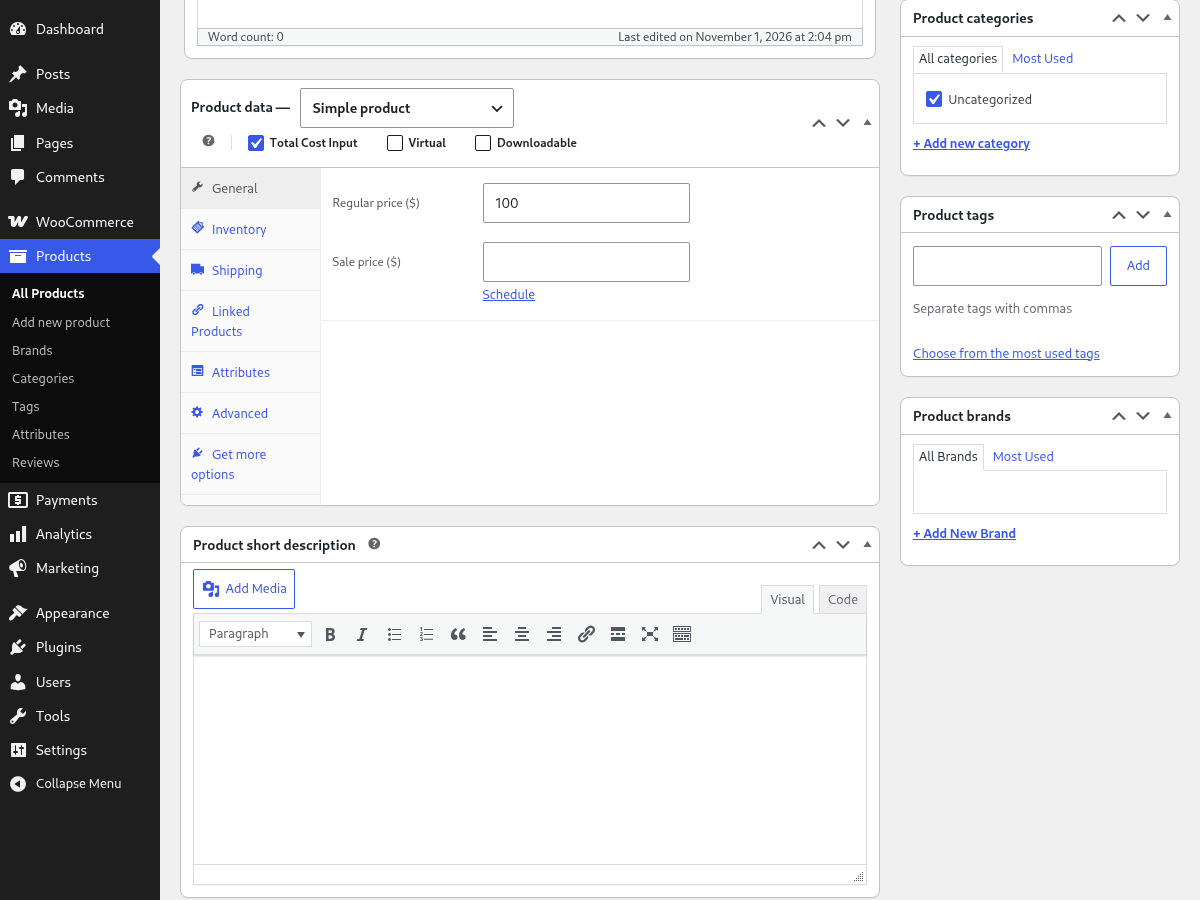
the product screen: the per-product Total Cost Input checkbox on the General tab of the product data panel
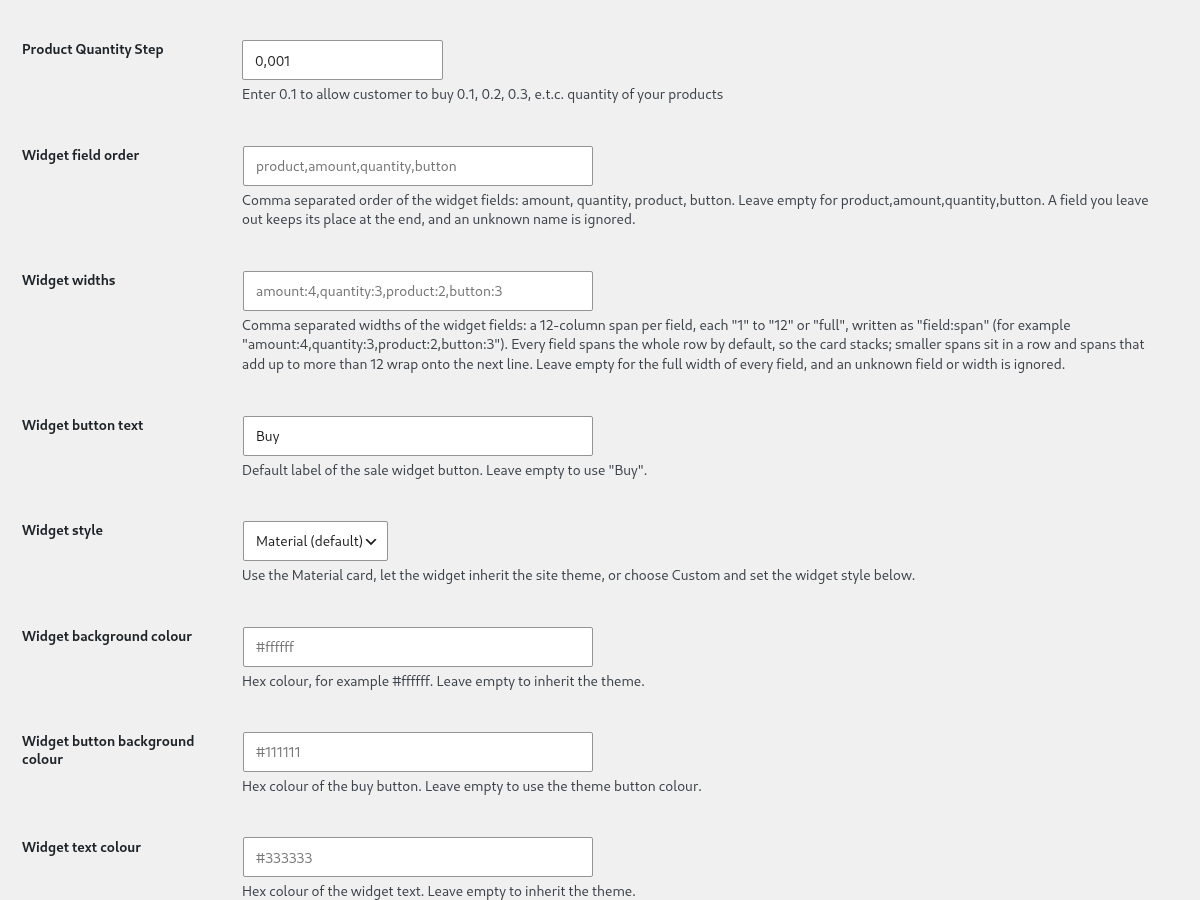
the settings screen: Product Quantity Step, Widget field order, Widget widths (a 12-column span per field: 1 … 12 or full) and the Widget style row

the same product card the other way round: a typed quantity moves the total (0.05 units at 100 are 5.00), so the two fields stay in sync in both directions
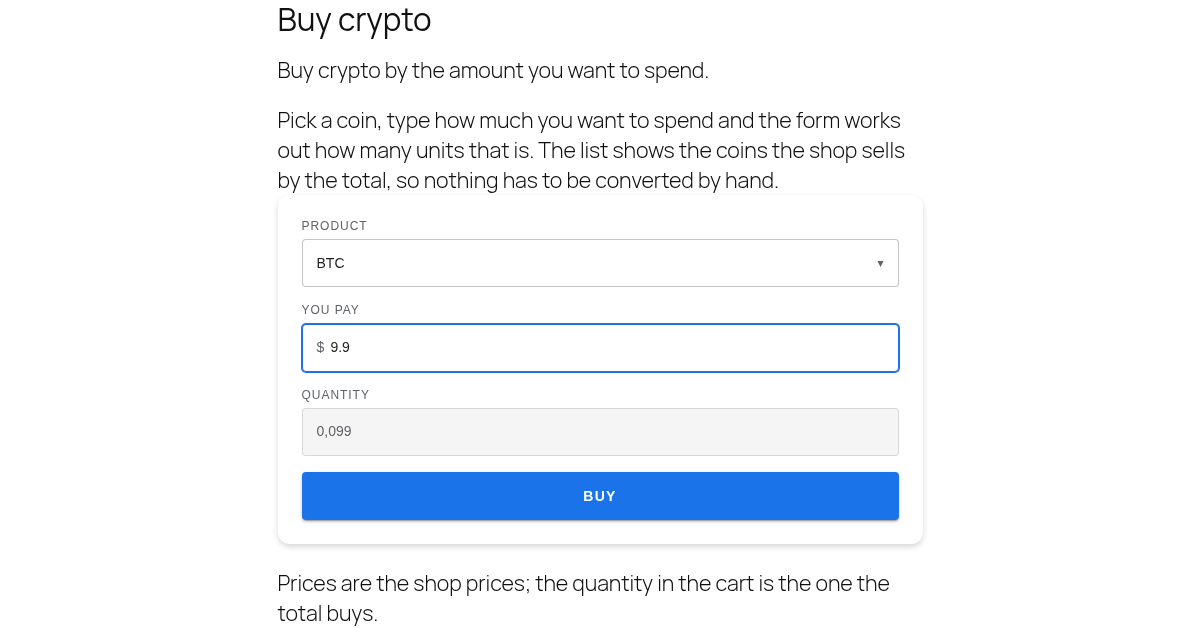
the sale widget in a page (FREE): the product dropdown, the amount field and the Quantity shown next to it as a disabled display that follows the amount (9.9 buys 0.099), in the default Material card, with the page text around it

the same Free widget with the product list open: the custom list shows the product names only (BTC, ETH), with no prices, and it is not clipped by the card

the same Free widget on one row: the amount, the disabled Quantity (0.099 at 9.9), the product dropdown and Buy share the row through their 12-column spans
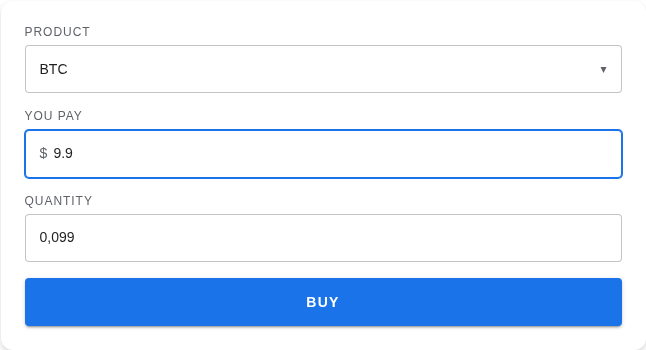
the same widget in PRO with the Material style: the amount field and the editable quantity field next to it (9.9 buys 0.099)
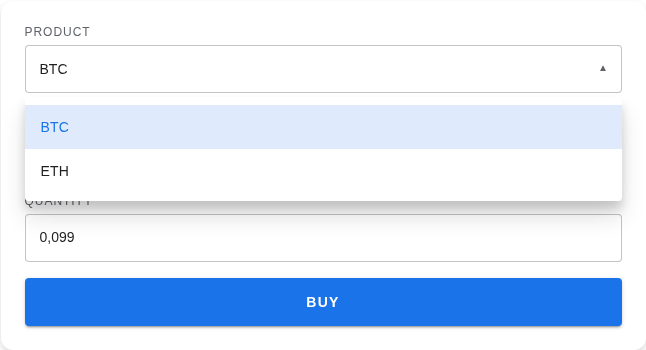
the same Professional widget with the product list open: names only, no prices, not clipped

the Total Cost Input block in the block editor with its inspector open: the Field order rows, the four Width selects (Product, You pay, Quantity, Buy button) and the opened Style panel with its mode, colours, font, font size and corner radii

the Professional widget with a custom style: its own card and button colours, font, font size and corner radii, stacked

the same custom style on one row: the amount, the quantity, the product dropdown and the button sharing the row, painted by the block's colours, font and radii, with the 4/3/2/3 12-column spans

the 12-column grid in action: You pay spans 4 of 12 columns, the quantity 4, the product dropdown 1 and the Buy button 3 - 4/4/1/3 adds up to the full row, so all four fields sit on one line