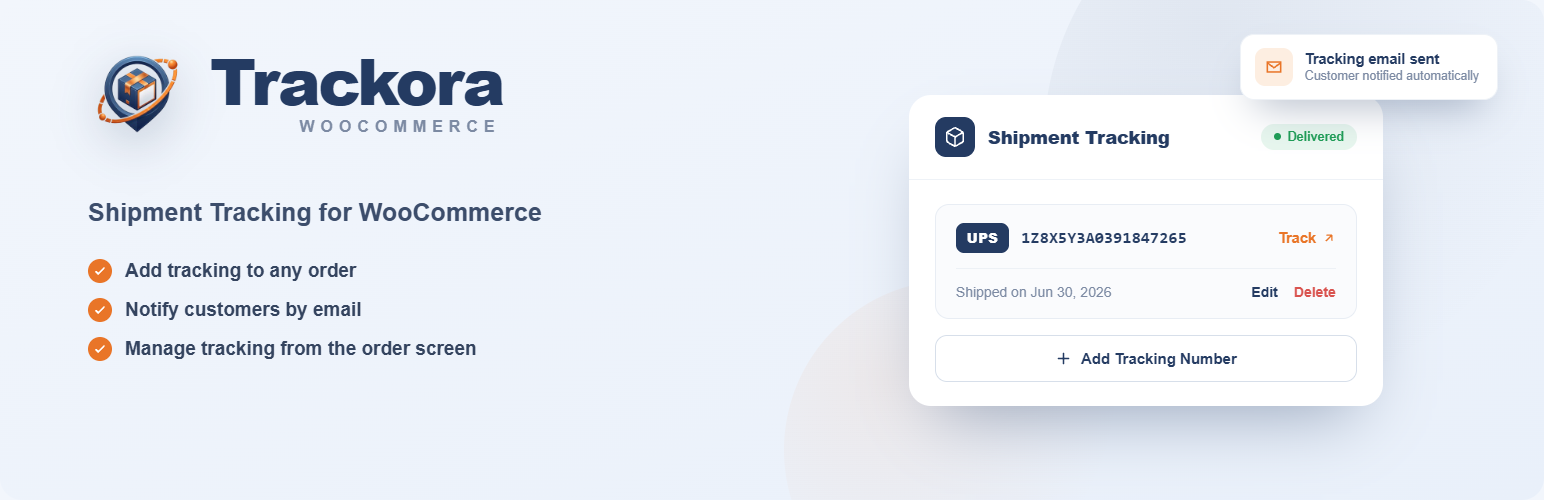
Trackora is a free shipment tracking plugin for WooCommerce. Save a tracking number on an order and the link appears everywhere your customer looks: the confirmation email, the My Account order page, and a public Track Your Order page.
“Where is my order?” is the email every store gets most, and every one of them is time you would rather spend shipping. A customer who can see where their parcel is does not write it.
No settings, no account, no API keys. 100% free — no PRO version, no upsells.
HPOS Compatible · Block Checkout Compatible · 152 Carriers · Bulk CSV Import · REST API · Free & Open Source
Why Trackora
Whether you ship 5 orders a day or 5,000 — single-product stores, high-volume shops, dropshippers and 3PL-fulfilled catalogues all handle tracking the same way here:
- 152 pre-built carriers in 37 countries, each with the correct tracking URL
- Choose which carriers you ship with — turn off the ones you never use on the Shipping Carriers tab, and the order screen offers only your own couriers, with your country first
- Multiple tracking numbers per order, for split shipments
- Bulk CSV import — add tracking to hundreds of orders from a spreadsheet instead of one order at a time, with column mapping, an optional status change, a live progress bar and a reason for every row that fails
- Custom carriers with your own tracking URL — no coding. Add one once on the Shipping Carriers tab and it is offered on every order from then on
- Public tracking page via the
[wcst_tracking]shortcode — customers look up shipments with their order number and billing email, no login required - Styling studio for that page — colours, sizes and starter styles with a live preview, plus a CSS editor, no theme files touched
- Tracking column in the orders list, with copy-to-clipboard
- REST API for automation, fully documented on GitHub
- HPOS, Blocks and Subscriptions compatible
- Privacy-first and GDPR ready — the plugin never calls a carrier’s server
How It Works
- Install and activate Trackora.
- Pick the carrier and paste the tracking number on the order screen.
- Done — the tracking link reaches your customer automatically.
Import tracking in bulk
Your carrier or your 3PL already sends you a file at the end of the day. Import Tracking turns it into saved tracking numbers, from the Trackora screen or from the button at the top of your orders list.
- Drop the file in. CSV saved by any spreadsheet — comma, semicolon or tab separated, and files exported by Excel in a non-English locale keep their accents. Or download a sample built from your own store: real orders of yours that are awaiting shipment and have no tracking yet.
- Check what Trackora read. Column headers couriers actually export are recognised on sight — “Order Number”, “Carrier”, “Ship Date”, “Número de guía”, “Sendungsnummer” and many more, in six languages — and the mapping step shows you that reading so you can correct anything before a single order is touched. Columns Trackora does not know are left alone, so a warehouse export keeps its bays and invoice references.
- Import. Rows are applied in batches behind a live progress bar, and every row that could not be imported is listed afterwards with its line number and the reason.
An import writes tracking and, unless you ask for more, changes nothing else. Two optional switches sit on the mapping step: move every order in the file to a status such as Completed, and send each customer the WooCommerce email for that new status — the email that already carries the tracking number. Both are off by default, and the status changes run only after the whole file has been read, so an order with two shipments in your file is emailed once, with both.
Orders are matched by the number your store displays, an order that already has a tracking number is skipped rather than duplicated, and a carrier name Trackora does not recognise is saved as a custom carrier instead of failing the row.
Supported carriers
152 carriers across 37 countries, including UPS, FedEx, USPS, DHL, Royal Mail, EVRi, DPD, Australia Post, Canada Post, PostNL, PostNord, Correos, SEUR, MRW, Estafeta, Servientrega, Coordinadora, Chilexpress, Andreani, OCA, Interrapidisimo, Olva Courier, Correios, Japan Post, SF Express, Thailand Post and 120+ more across the Americas, Europe, Asia-Pacific, the Middle East and Africa.
Don’t see yours? Add it as a custom provider with your own tracking URL — no coding needed. Every carrier is named, with its terms of service and privacy policy, in the External services section below.
Choose the carriers you ship with
Trackora ships with 152 carriers, and no store uses more than a handful of them. The Shipping Carriers tab is where you turn the rest off: a switch on every row, search by carrier or by country, and a country filter that starts with your own market — read from your WooCommerce store address. What you leave on is what the order screen offers, so picking a carrier stops being a scroll through 37 countries.
Add the courier the list does not cover with Add a carrier: a name, a country, and the tracking URL with {tracking_number} where the number goes. It is saved once and offered on every order from then on. Carriers you added can be edited or renamed later — the orders already using them keep their tracking links — and if the carrier has no URL that accepts the number, leave it empty and the number is shown without a link.
Nothing is switched off behind your back: updating Trackora leaves every carrier enabled until you open the tab and choose.
Works with the plugins you already run
- Custom and sequential order numbers — the tracking page and the CSV importer resolve orders by the number your store actually displays, so WooCommerce Sequential Order Numbers, Sequential Order Numbers Pro and Custom Order Numbers for WooCommerce work with no configuration. Any other numbering scheme can be added with the
wcst_order_number_meta_keysfilter - WooCommerce Subscriptions — tracking numbers are never copied onto renewal orders, so next month’s subscription order never arrives carrying last month’s tracking link
- Email customisers — tracking is injected through WooCommerce’s own
woocommerce_email_before_order_tablehook, so any customiser that keeps the standard order email templates — YayMail, Kadence WooCommerce Email Designer, WP HTML Mail and others — displays it with no extra setup - HPOS and Block Checkout — full support for High-Performance Order Storage as well as legacy post storage, and for the block-based cart and checkout
- Label printers, 3PLs and ERPs — anything that can call the WooCommerce REST API can push tracking numbers straight onto orders. Files exported by a courier usually import as-is: Order Number, Carrier, Ship Date, “Número de guía”, “Sendungsnummer” and many more column headers are recognised automatically, in English, Spanish, German, French, Italian and Portuguese
For developers
Trackora exposes a REST API with full create, read, update and delete over tracking items, the PHP helpers wcst_add_tracking() and wcst_delete_tracking(), and filters to extend the carrier list, the orders list column and the email output.
Endpoints, filters and code examples are documented on GitHub: https://github.com/slbarriosdev/wc-shipment-tracker — bug reports and contributions welcome.
External services
This plugin generates tracking links pointing to carrier websites. When a tracking number is added to an order, the plugin builds a URL for the selected carrier and displays it to the store admin and customers.
The plugin does not make any server-side HTTP requests to carrier websites. Data is only transmitted when a user (admin or customer) actively clicks a tracking link — at that point their browser connects to the carrier’s website and the tracking number (and in some cases the shipping postcode) is passed in the URL as required by that carrier’s tracking system.
Each carrier operates its own website under its own terms of service and privacy policy. The external carrier services this plugin may link to include:
Global
Argentina
- Correo Argentino — Terms | Privacy
- OCA — Privacy
- Andreani — Privacy
- DHL Argentina — Terms | Privacy
- FedEx Argentina — Terms | Privacy
- Urbano — Privacy
Australia
- Australia Post — Terms | Privacy
- Fastway Couriers — Terms | Privacy
- Aramex Australia — Terms | Privacy
Austria
Belgium
Brazil
Canada
Chile
- Correos Chile — Terms | Privacy
- Chilexpress — Terms | Privacy
- Starken — Privacy
- DHL Chile — Terms | Privacy
- Blue Express — Privacy
China
- China Post / EMS — Privacy policy currently unavailable (provider website blocks automated access)
- YTO Express — Privacy
- ZTO Express — Privacy
- SF Express — Privacy
- Cainiao — Privacy
- 4PX — Privacy
- Yanwen — Privacy
- Yunexpress — Privacy
Colombia
- Servientrega — Terms | Privacy
- Coordinadora — Privacy
- Deprisa (operated by Avianca) — Privacy
- TCC — Terms | Privacy
- DHL Colombia — Terms | Privacy
- J&T Express CO — Privacy
- Interrapidisimo — Terms | Privacy
Czech Republic
- PPL.cz — Terms | Privacy
- Česká pošta — Terms | Privacy
- DHL.cz — Terms | Privacy
- DPD.cz — Terms | Privacy
Ecuador
- Servientrega EC — Terms | Privacy
- Laar Courier — Privacy
- Correos Ecuador — Privacy
- DHL Ecuador — Terms | Privacy
Finland
France
Germany
- DHL Intraship / Deutsche Post DHL — Terms | Privacy
- Hermes — Terms | Privacy
- UPS Germany — Terms | Privacy
- DPD.de — Terms | Privacy
India
Ireland
Italy
Japan
Malaysia
- Pos Malaysia — Terms | Privacy
- J&T Express MY — Privacy
- Ninja Van MY — Privacy
- DHL Malaysia — Terms | Privacy
Mexico
- Correos de Mexico — Privacy
- Estafeta — Terms | Privacy
- Paquetexpress — Privacy
- Redpack — Privacy
- DHL Mexico — Terms | Privacy
- FedEx Mexico — Terms | Privacy
- UPS Mexico — Terms | Privacy
- Coordinadora — Privacy
- J&T Express Mexico — Privacy
Netherlands
New Zealand
Nigeria
Peru
- Serpost — Terms | Privacy
- Olva Courier — Terms | Privacy
- DHL Peru — Terms | Privacy
- Shalom — Privacy
Poland
Portugal
- CTT — Terms | Privacy
- DPD Portugal — Terms | Privacy
- GLS Portugal — Terms | Privacy
- DHL Portugal — Terms | Privacy
Romania
Singapore
South Africa
South Korea
Spain
- Correos España — Terms | Privacy
- MRW — Terms | Privacy
- SEUR — Terms | Privacy
- GLS Spain — Terms | Privacy
- Nacex — Terms | Privacy
- DHL Spain — Terms | Privacy
- UPS Spain — Terms | Privacy
- DPD Spain — Terms | Privacy
- ASM — Terms | Privacy
- Correos Express — Terms | Privacy
- Zeleris — Privacy
- TNT Spain — Terms | Privacy
Sweden
- PostNord — Terms | Privacy
- DHL.se — Terms | Privacy
- Bring.se — Terms | Privacy
- UPS.se — Terms | Privacy
- DB Schenker (tracking portal: privpakportal.schenker.nu for Privpak service) — Terms | Privacy
Thailand
- Thailand Post — Terms | Privacy
- Kerry Express (KEX) — Terms | Privacy
- Flash Express — Privacy
- J&T Express TH — Privacy
Turkey
United Kingdom
- DHL UK — Terms | Privacy
- DPD.co.uk — Terms | Privacy
- DPD Local — Terms | Privacy
- InterLink (the former trading name of DPD Local; links resolve to dpdlocal.co.uk) — Terms | Privacy
- EVRi — Terms | Privacy
- ParcelForce — Terms | Privacy
- Royal Mail — Terms | Privacy
- TNT Express — Terms | Privacy
- DHL Parcel UK — Terms | Privacy
- City Link — Privacy
United States
- UPS — Terms | Privacy
- FedEx / FedEx Sameday (tracking portal: fedexsameday.com for Sameday deliveries) — Terms | Privacy
- USPS — Terms | Privacy
- DHL US / DHL eCommerce — Terms | Privacy
- GlobalPost — Terms | Privacy
- OnTrac — Terms | Privacy
Venezuela
Screenshots

Add a tracking number to a WooCommerce order: carrier, tracking number, tracking link, and ship date — all from the Shipment Tracking meta box

The Shipment Tracking meta box in context on the WooCommerce order edit screen

A saved shipment with one-click Track, Edit, and Delete actions on the order edit screen

Shipment tracking information automatically added to the WooCommerce order confirmation email, before the order details
![The Trackora screen under WooCommerce: style the [wcst_tracking] tracking form with colour, size and font controls, starter styles or your own CSS, beside a live preview of the page your customers see](https://ps.w.org/trackora/assets/screenshot-5.jpg?rev=3626438)
The Trackora screen under WooCommerce: style the [wcst_tracking] tracking form with colour, size and font controls, starter styles or your own CSS, beside a live preview of the page your customers see

Bulk CSV import on the Import Tracking tab: drop a CSV and Trackora saves the tracking number against each order. Three steps — select the file, check the columns it read from your header row, import — and a sample you can download built from your own store's orders

The Shipping Carriers tab: pick which of the 152 built-in carriers your store actually ships with, shown here filtered to Spain. A switch on every row, search by carrier or country, and "Add a carrier" for the courier the list does not cover — marked "yours" and editable, unlike the built-in ones. Only the carriers left on are offered when you add a tracking number to an order