
Three things every WordPress site needs, and one screen that shows you all of them working.
WordPress loads roughly 90 KB of scripts and styles on every single page that most sites never use. Emoji detection. A jQuery compatibility shim for code written a decade ago. An icon font for visitors who will never see the admin. This plugin removes them, and then tells you exactly how many kilobytes and how many requests it saved. Not an estimate: the size of the real file on your server.
Speed. Twenty-one optimizations, each a plain toggle. The Optimizations tab opens with a running total of what your current settings have stripped from every page load, broken down by category, next to how much is still on the table. You never have to wonder whether a switch did anything.
Security. Brute-force login protection with a per-IP lockout and a log of who tried. The lost-password form hardened against reset-request spam, with a honeypot, a signed form token, and a per-account rate limit. Comment spam stopped by a honeypot, a signed speed trap and a link limiter. XML-RPC closed. The registration page closed. The theme and plugin file editors removed, so a stolen password no longer means arbitrary PHP on your server. Each one steps aside politely when a dedicated security plugin is already handling it.
One button that clears everything. LiteSpeed, AccelerateWP, WP Rocket, W3 Total Cache, WP Super Cache, WP Fastest Cache, Autoptimize, Elementor, Divi, Beaver Builder, Oxygen, GeneratePress, Brizy, OPcache, the object cache, your server’s reverse proxy and Cloudflare. One click, from the admin bar, wherever you are. It calls each plugin’s own flush routine rather than deleting its files behind its back, so it cooperates with your stack instead of fighting it. And if something fails, it says so and names it, rather than reporting a success that did not happen.
It tells you what you are actually running. The Environment tab draws the path a visitor’s request takes to reach your database, each hop lit or dimmed by what was detected, then grades your PHP version and handler, web server, reverse proxy, database, opcode and object caches, and the wp-config.php and .htaccess settings that matter. All read-only. The same checks appear in WordPress Site Health, where you already look.
No upsell, no account, no paid tier, and nothing phones home. The only external service the plugin ever contacts is Cloudflare, and only if you have deliberately set that up.
Every option is a plain toggle, and anything not marked below is generally safe to leave on.
Front-end optimizations
- Remove query strings from static CSS/JS URLs so proxies and CDNs cache them more aggressively. Off by default, since stripping
?ver=can serve stale CSS/JS after an update on sites that rely on it for cache-busting. Leave it off if you run WooCommerce, where a stale cart or checkout script can break purchases silently. - Disable emoji scripts: browsers render emoji natively, so the detection script is dead weight.
- Remove legacy head tags (RSD, Windows Live Writer, shortlink).
- Hide the WordPress version generator tag from page source and feeds.
- Disable embeds: removes the oEmbed discovery links, REST route, and
wp-embed.js. - Remove jQuery Migrate: patches back methods jQuery 3 removed. Saves about 5 KB compressed and one request. Off by default, because if anything on the site still calls one of those methods this breaks it with only a console error to show for it. Leave jQuery Migrate loaded, open your browser console, and look for
JQMIGRATEwarnings first. - Dashicons for logged-in users only: skips the icon font for logged-out visitors, and steps aside automatically when a theme or plugin has declared a dependency on it.
- Remove block editor CSS: drops the block library stylesheet and global styles from the front end. Off by default, and skipped automatically on block themes. Only suitable for classic themes that use no blocks.
- Heartbeat API control: set the interval independently for the front end, dashboard, and post editor, or remove the heartbeat from public pages entirely. Blank leaves the WordPress default in place.
- Disable pingbacks and self-pings: removes only the
pingback.*XML-RPC methods and the X-Pingback header, closing a common DDoS amplification vector. Safe with Jetpack and the mobile app, which use the rest of XML-RPC.
Security and spam
- Login protection: five failed attempts triggers a 15-minute per-IP lockout, and each repeat lockout of the same address lasts longer than the last, up to a cap, so waiting one out and trying again stops working. A lockout log on the settings page records who was blocked. Automatically steps aside when Wordfence, Solid Security, Sucuri, All-In-One WP Security, WP Cerber, Limit Login Attempts, LoginPress, Jetpack Protect, or Imunify Security is active, so there are no double lockouts.
- Password reset protection: a honeypot and a signed form token turn away scripts that post straight to the lost-password form, and a rate limit caps how many reset emails a single address, or a single account, can trigger in an hour. The per-account cap is the one that matters: it holds even against an attacker rotating through addresses, since the flood is aimed at one inbox. A genuine “forgot my password” is untouched. Blocked requests are logged on the settings page, never emailed, so reset spam cannot in turn flood your inbox or spend your server’s sending reputation. A custom or WooCommerce reset form is rate limited but never required to carry the token it does not render. For an added challenge on top of all this, you can switch on one of three, all off by default: an invisible proof-of-work, where the visitor’s browser quietly solves a small puzzle before the form will submit; a plain arithmetic question; or Cloudflare Turnstile. The first two need no account and contact no external service; Turnstile is there for sites that prefer a managed challenge, and falls back to the invisible checks if Cloudflare is ever unreachable so it can never lock recovery out.
- No email reset for admins: optionally turn off the “Lost your password?” email link for administrator accounts, the ones attackers most want. Off by default, because it applies to you too: if an admin forgets their password the email link will not work for them either, so keep another way back in (your web host or developer can reset it for you).
- Disable XML-RPC: returns 403 on
xmlrpc.phpto block brute-force amplification. - Comment spam protection: honeypot field, signed submit-speed trap, and link limiter. Comments with too many links are held for moderation rather than rejected, so a genuine comment is never lost.
- Auto-close old comments: closes comments on posts older than 90 days, the favourite target of spam bots. Existing comments are preserved. Recommended, but off by default because it overrides your Settings > Discussion choice, so turn it on deliberately.
- Block the registration page: closes
wp-login.php?action=registerand hides the Register link. Turning off “Anyone can register” stops accounts being created but still renders the form, and that URL is among the most probed on any WordPress site. Defers to the core setting: a site that allows registration is never blocked, however this is set. - Disable the file editors: removes the theme and plugin editors from the admin. Those editors let anyone with administrator access write PHP that runs on your server, which is the first thing an attacker reaches for after stealing a login.
One-click cache purge
Adds a Clear All Caches button to the admin bar that flushes, in one click: the WordPress object cache and transients, PHP OPcache, LiteSpeed Cache / AccelerateWP, WP Rocket, W3 Total Cache, WP Super Cache, WP Fastest Cache, Autoptimize, and Elementor / Divi / Beaver Builder / Oxygen / GeneratePress / Brizy generated CSS. Cloudflare purging and server-level cache purging are available as opt-in extras.
For each caching plugin the button calls that plugin’s own flush routine, so it works alongside your caching stack rather than fighting it. Anything not installed is skipped.
Database cleanup
Reports exactly how much cruft is in your database before removing any of it: post revisions, auto-drafts, trashed posts, spam and trashed comments, expired transients, orphaned post and comment metadata, and cached oEmbed markup. Counts are read live, nothing is pre-selected that is destructive, and deletion runs in bounded batches so a neglected site cannot time out the request. Removal goes through the WordPress APIs wherever they exist, so related rows are cleaned up by core rather than left behind.
Site Health integration
Adds five checks to Tools > Site Health: persistent object cache, PHP opcode cache, WP-Cron configuration, post revision accumulation, and visitor IP detection. The information appears where WordPress users already look for it.
WP-CLI
wp ultra-perf purge, `status`, `cleanup`, `lockouts`, `unlock`, `export`, and `import`. Cleanup supports `--dry-run` and `--items=`, and defaults to the non-destructive items only.
Server cache
A reverse proxy in front of WordPress can keep serving a page after every WordPress cache has been cleared, and PHP running as the site user cannot reach it. Two methods are offered: an HTTP purge request to the server itself, which is immediate where the host has configured a purge module, or a request written into the plugin’s own folder in the uploads directory for a privileged process on the server to collect, which works where the proxy cannot be addressed from the site at all.
Automatic is the default and the right choice for almost everyone. It tries the immediate method, quietly falls back to queuing if the server will not answer, remembers the answer so it stops asking, and reports a problem only when neither works. The settings page shows which methods your server has actually been shown to support.
Light and dark
The settings screen has a light and a dark theme, chosen per user from the switcher in the header, so two people administering the same site can each have their own. Light is the default, because WordPress has no admin dark mode and following the operating system would leave a dark panel inside a light admin. Auto is available for anyone who wants the system preference honoured.
Visitor IP detection
Login protection needs the real visitor address. Forwarding headers such as X-Forwarded-For and CF-Connecting-IP can be set by anyone, so they are only ever trusted on requests that genuinely arrived from a proxy.
Auto-detect handles this for you and is the default. It checks the connecting address against Cloudflare’s published ranges, then against loopback and private ranges, and falls back to the raw connection when neither matches. A header on a request that did not come from one of those ranges is ignored, so auto mode cannot be tricked by a spoofed header.
The settings page shows what the plugin sees on your own request: the address it resolved, which header it came from, and whether your current mode matches the evidence. A CDN other than Cloudflare needs Reverse proxy mode with its ranges listed.
Privacy
This plugin does not collect, store, or transmit any personal data about your visitors, and it contains no analytics or tracking of any kind.
Login protection stores the IP addresses of clients that trigger a lockout so an administrator can review and clear them. Entries are capped at the fifty most recent, and everything is removed when the plugin is deleted.
External services
This plugin contacts external services only where you switch a feature on, and never otherwise:
-
Cloudflare API (
api.cloudflare.com): disabled by default. Contacted only if you enable Cloudflare purging on the settings page and supply an API token, and only when you click “Clear All Caches.” Two requests are involved: a zone lookup that sends your site’s hostname, and the purge itself. Your API token is sent as a credential with both. No visitor data, post content, or personal information is transmitted. In its own-zone mode the purge clears the entire zone; in shared mode, where it reuses the official Cloudflare plugin’s credentials, it clears only this site’s own hostname, so other sites sharing the zone are left untouched. See the Cloudflare terms of service and privacy policy. -
Cloudflare Turnstile (
challenges.cloudflare.com): disabled by default. Contacted only if you enable the password reset CAPTCHA and enter a Turnstile site key and secret. When a visitor opens the lost-password form their browser loads the Turnstile widget script fromchallenges.cloudflare.com, and when they submit, your server sends the challenge response and your secret tochallenges.cloudflare.com/turnstile/v0/siteverifyto confirm it, along with the visitor’s IP address for Cloudflare’s own scoring. No post content or account details are transmitted. If Cloudflare cannot be reached the submission falls back to the plugin’s own checks rather than being blocked. See the Cloudflare terms of service and privacy policy.
To work out whether an nginx reverse proxy sits in front of the site, the plugin sends a HEAD request to this server’s own address, as reported by the server itself, with your site’s Host header. It falls back to your home URL if the server does not report an address. Both go to your own server, no third party is involved, and the answer is cached for twenty-four hours. The server’s own address is tried first because a request to your public URL travels through your CDN, if you have one, and a CDN answers with its own headers, hiding the origin stack behind it.
Nothing else leaves your site. The WordPress version comparison on the dashboard reads the update data WordPress already keeps for its own update checks, rather than making a request of its own.
Screenshots
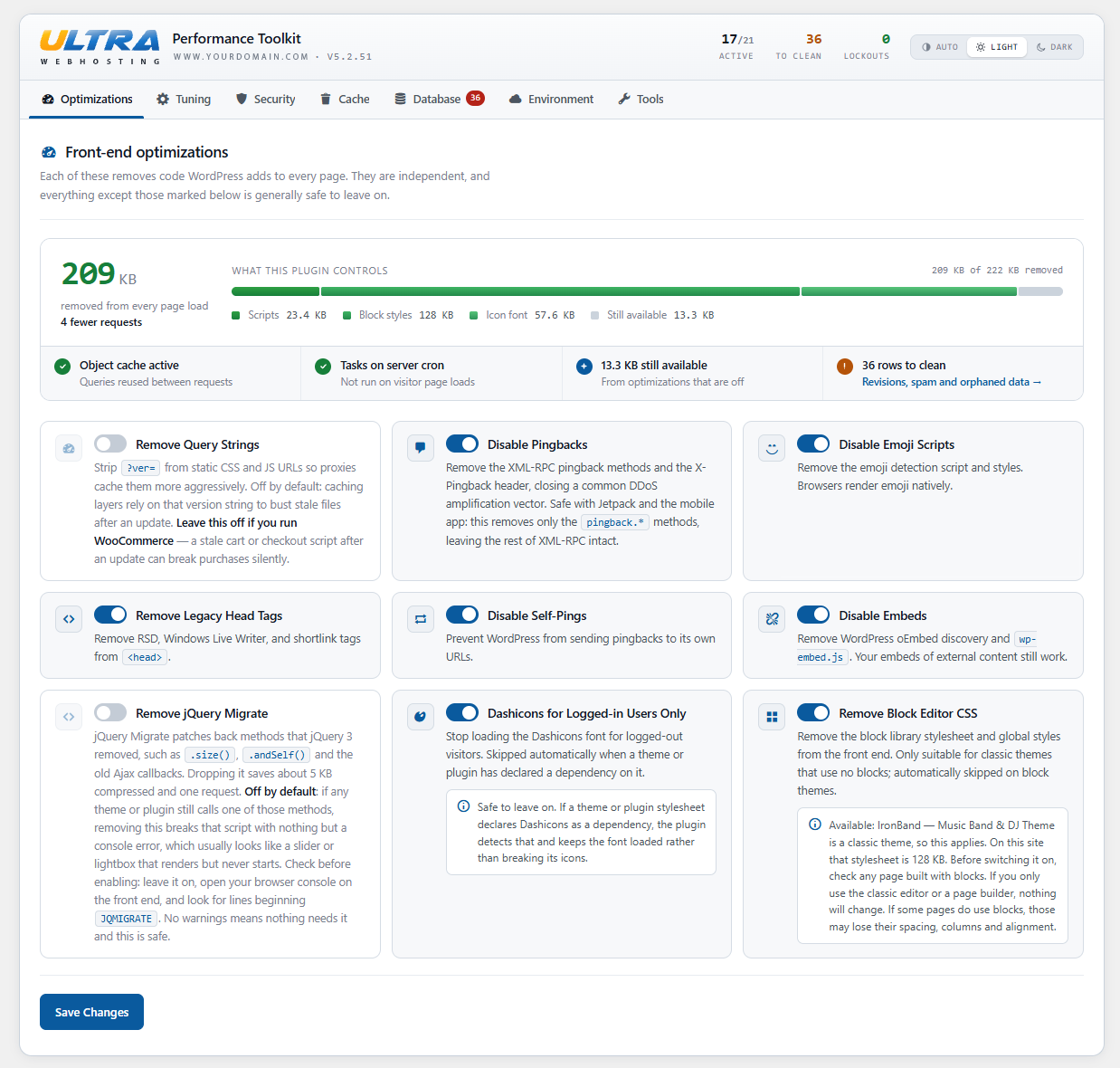
The Optimizations tab, showing what the current settings have removed from every page load.
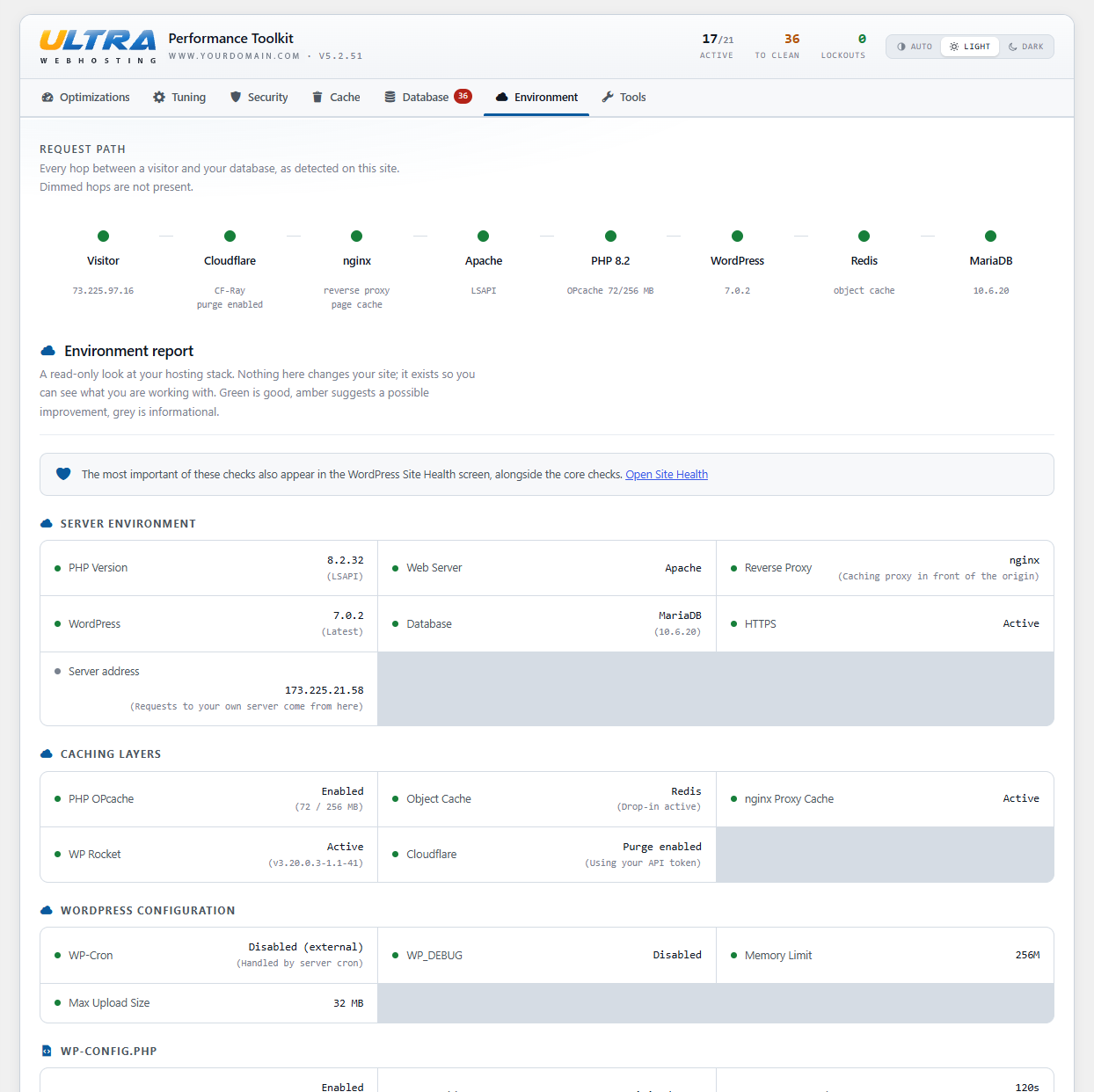
The Environment tab: the path a request takes through your stack, and the graded report beneath it.

The "Clear All Caches" button in the admin bar.
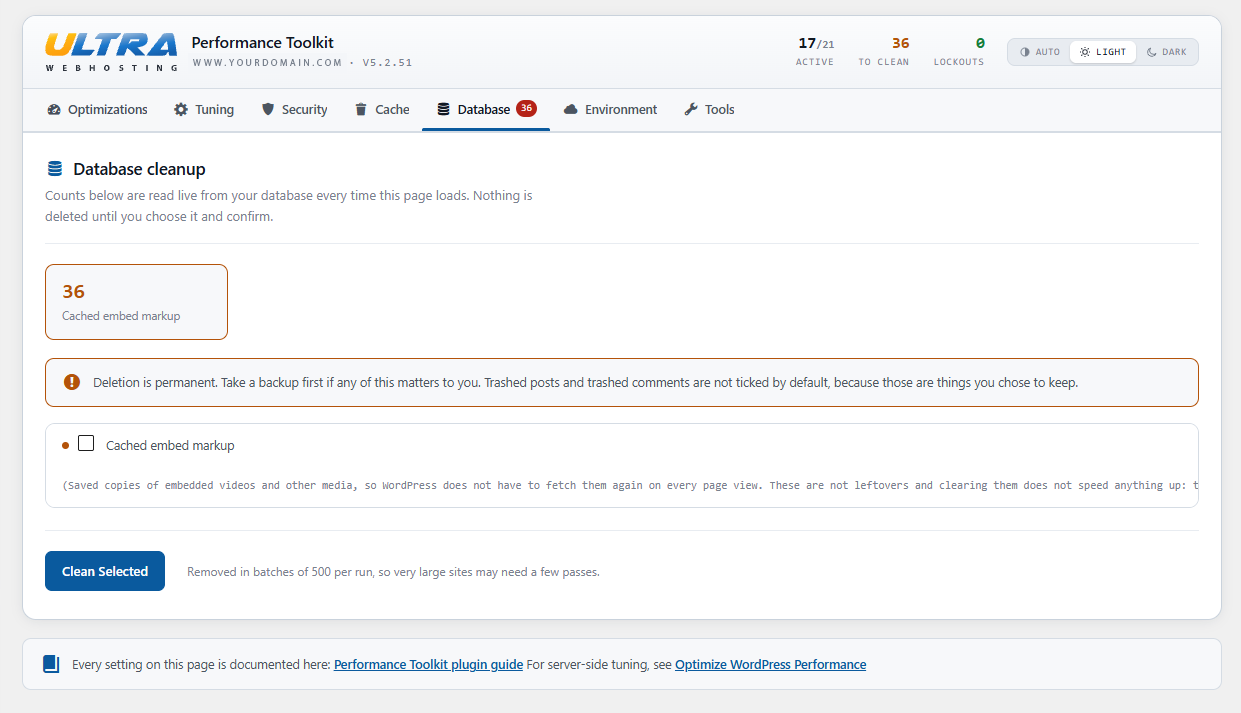
The Database tab, with live counts of what can be cleaned up.