
Web Directory plugin Free is a WordPress directory plugin that turns your site into a searchable business directory. Sort listings into categories and locations, build your own listing form, drop the directory onto any page with a shortcode, and let visitors search and browse – as a list, as cards, or on an interactive map.
In the free edition you add and edit listings from the WordPress admin, and visitors browse, search and view them on the front end.
AI that writes the listing, and search by sentence
Add a key for a free AI service and a Write button appears beside the listing description: it reads the entry name, its categories and its location, and drafts the text. Nothing is sent anywhere until you enter that key, and the fields a person has to state as fact – prices, phone numbers, dates, opening hours – are never generated, because a plausible invented price is worse than an empty one.
The free edition ships with Groq, which has a free tier that needs no payment card. The separate AI Assistant Add-on widens it: OpenAI, DeepSeek, Mistral, OpenRouter and Google Gemini as further services, a Write button on every text field on the form instead of the description alone, and one control that fills every empty field in a single request so the texts agree with each other.
The add-on also brings assisted search. A visitor writes what they are after as a sentence, “a cheap place open on Sunday that takes cards”, and it is read into the search form’s own filters rather than into the keyword box: the category, the location and the distance, the sliders and the dropdowns your form carries. Only values the form actually offers are set, every one of them is shown above the results as a chip the visitor can drop, and a filter they set or cleared themselves is left exactly as they left it. A one-word search is answered the way it always was, without asking the model at all. The add-on is a plugin of its own and is managed from the same AI settings tab.
Live demo: directory.salephpscripts.com
What you can build
A local business directory, a member or staff directory, a property or vehicle catalogue, a venue or event guide, a service-provider index, a classifieds board. Anything that is a list of places or things with fields, categories and a map.
Organise your listings
- Categories and locations are hierarchical, so Country, Region, City nests the way you expect, and each level gets its own page.
- Each category can carry its own marker icon and colour, so the map reads at a glance.
- Every category and location page is a real URL with its own listings, search and map.
Build the listing form yourself
The form builder is drag and drop: arrange fields in rows and columns, and add your own on top of the built-in ones. Field types included:
- Title, Content, Excerpt
- Categories
- Address and Map
- Images & Videos – photos plus YouTube or Vimeo links, shown in one gallery with a lightbox
- Contact info, Phone, Email, Website URL
- Text/string, Number, Price
- List – as a dropdown, radio buttons or checkboxes
- Date-Time
- Opening hours
- File upload
Every field can be placed independently on the listing card, the listing page, the search form and the map popup, so a field can be searchable without cluttering the card.
Put the directory anywhere
Each directory has a page builder: choose which elements appear on the home, category, location and listing pages, and in what order – search form, map, categories block, listings grid, slider, breadcrumbs, page title, buttons.
If you would rather place things by hand, every element is also a shortcode: [webdirectory], [webdirectory-search], [webdirectory-map], [webdirectory-listings], [webdirectory-categories], [webdirectory-locations], [webdirectory-slider], [webdirectory-breadcrumbs], [webdirectory-listing-page] and more. They work in the block editor, in Elementor and in WPBakery.
Maps
- Three engines: Google Maps, Mapbox and MapLibre with MapTiler tiles. Pick per site.
- Marker clustering, so thousands of listings stay usable.
- Per-category and per-listing marker icons.
- Rich popups built from the fields you chose, with the listing photo.
- A map sidebar that lists what is currently in view, and follows as the visitor pans.
- Radius search from an address, in miles or kilometres.
- Several layouts, including a full-width hero map and a sticky map beside the listings.
Search that finds things
The search form is built the same way as the listing form: drag in the elements you want.
- Keyword, categories, locations, address plus radius, rating.
- Any custom field you added becomes a filter – a price range, a number range, a date, a dropdown.
- A “More filters” separator to keep the visible form short.
- Sorting by newest, oldest, title, rating, random, or any numeric or date field you defined.
- Grid and list views, with the visitor’s choice remembered.
- With the AI Assistant Add-on, a whole sentence instead of a form: the filters above set themselves from it, and the visitor can drop any of them.
Ratings
Built in, no add-on: visitors rate a listing, the average shows on the card, the listing page and the map popup, and rating becomes a search filter and a sort option. Ratings can be switched off entirely.
Bulk work
- CSV import and export for listings, including categories, locations, custom fields, images and video links. Import creates or updates; export round-trips.
- Demo content: 5 ready-made directories with their maps and pages, and a listing form template, imported in one click.
- A thumbnail regeneration tool for when you change image sizes.
Plans and listing lifetime
- Plans decide what a listing gets: how many categories, locations, images and videos, which fields, a logo, the map, ratings, and a sticky badge that keeps it first in the lists you choose.
- An active period per plan – days, weeks, months or years – or none at all. A listing whose period ends leaves the site on its own.
- Reminder emails before a listing expires, once or several times (for example 7, 2 and 1 day before), and an email when it expires.
- After expiration, a plan can hand the listing to another plan instead of taking it down: a featured period that falls back to a basic listing.
- Pause takes a listing off the site without spending its period. Renew an expired listing, or give any listing a date of its own, from its edit screen.
Looks and setup
- An install wizard that creates the pages and the first directory for you.
- Colour palette controls so the directory matches your theme, with several presets.
- Translation ready: ships a POT file for any standard gettext or PO editor.
Emails and spam protection
- Email notifications with editable subjects and texts, each one switchable.
- Google reCAPTCHA (v2 or v3) on the listing contact form.
Ready for large directories
- A dedicated search index and sort index keep tens of thousands of listings responsive, and both rebuild in the background.
- A diagnostics page that checks the directory is wired up correctly and tells you what to fix if it is not.
This plugin uses external services: the map provider you choose, Groq for AI writing once you add a key, Google reCAPTCHA if you turn it on, and salephpscripts.com for the AI Assistant Add-on and the demo data. See the External Services section below.
What is not in the free edition
Front-end submission and payments. In the free edition listings are created and edited in the WordPress admin; visitors browse and search. The paid version adds front-end submission with a member dashboard, where members pick a plan, pause and renew their own listings, and WooCommerce checkout for paid listings, renewals, raise-ups and plan upgrades.
Get the full version: Web 2.0 Directory on CodeCanyon
External Services
Web Directory plugin Free uses the following third-party services. Nothing is sent until you use the matching feature:
- Map providers (Google Maps, Mapbox, MapTiler / MapLibre) – when a map loads or an address is geocoded, the request (coordinates, the address being searched, and your API key/token) is sent to the provider you chose. See that provider’s terms and privacy policy.
- Google reCAPTCHA – when you turn it on for the contact form, the visitor’s interaction is checked with Google. See Google’s terms and privacy policy.
- Groq (AI writing) – only when you have entered a Groq API key and pressed a Write button. What is sent is the text the draft is built from: the entry name, its categories, its location and the fields already filled in. Nothing is sent without a key, and no key ships with the plugin. See Groq’s terms (https://groq.com/terms-of-use/) and privacy policy (https://groq.com/privacy-policy/).
- salephpscripts.com (the plugin author) – when you open the AI tab of the settings, the plugin asks salephpscripts.com for the latest version of the AI Assistant Add-on, at most once an hour; only the add-on’s name is sent. When you press the button that installs the add-on or the one that downloads the demo data, the file comes from salephpscripts.com, and your site’s domain and the plugin version are sent with that request.
Updates come through WordPress.org. The free edition does no license or “phone-home” checks.
Screenshots
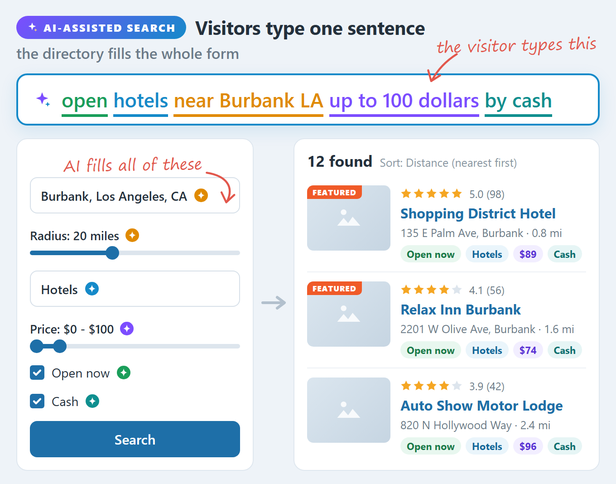
With the AI Assistant Add-on, a visitor types one sentence and the search form fills itself: location, radius, category, price range and filters.
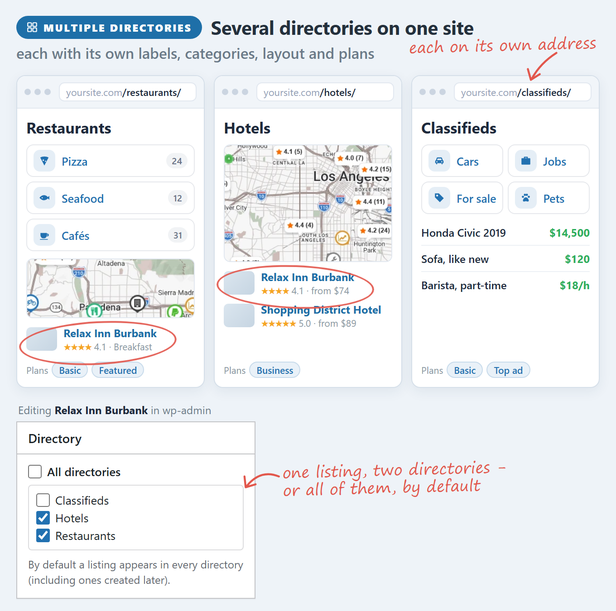
Several directories on one site, such as restaurants, hotels and classifieds, each with its own address, labels, categories, layout and plans; a listing can appear in one, several or all of them.
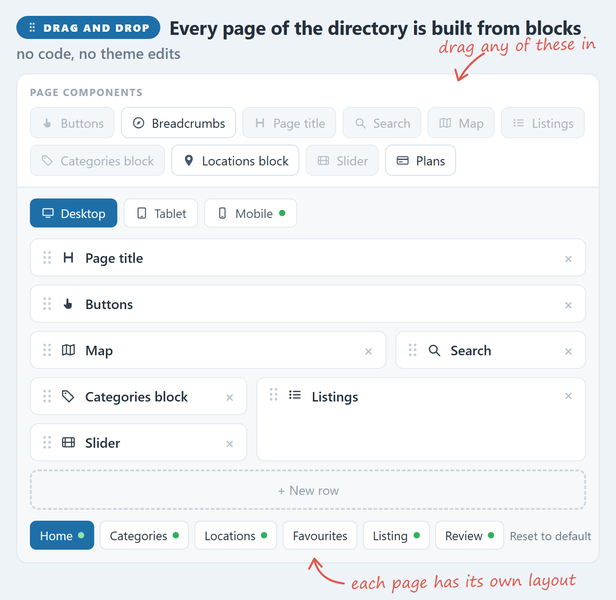
The directory page builder: drag search, map, listings, categories, slider and other blocks into rows, with a separate layout for each page and for tablet and mobile.
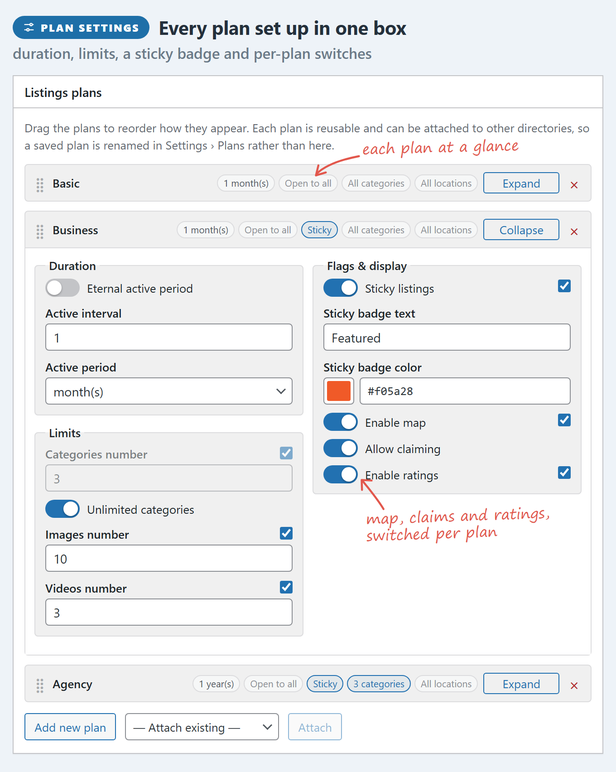
Listing plans in wp-admin: how long a listing stays live, how many categories, images and videos it gets, a sticky badge, and whether it has a map, claims and ratings.
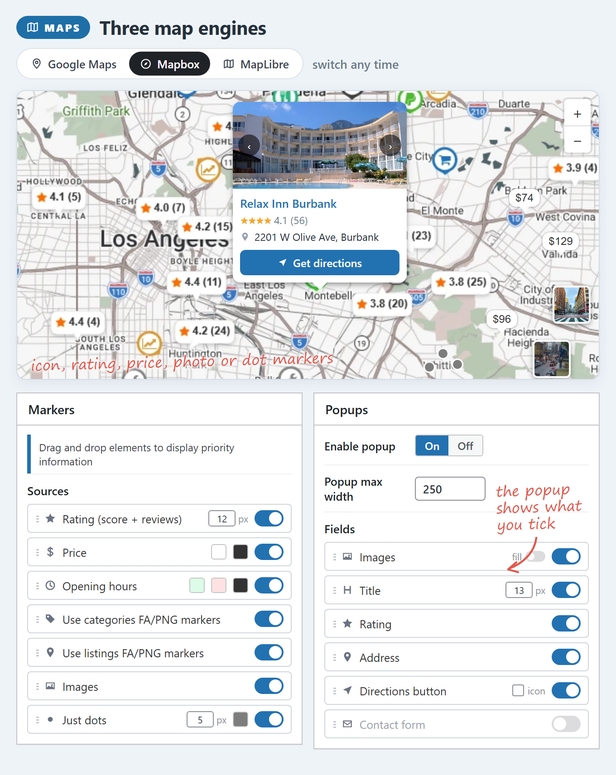
Google Maps, Mapbox or MapLibre, switchable at any time: icon, rating, price, photo or dot markers, and popups that show the fields you tick.
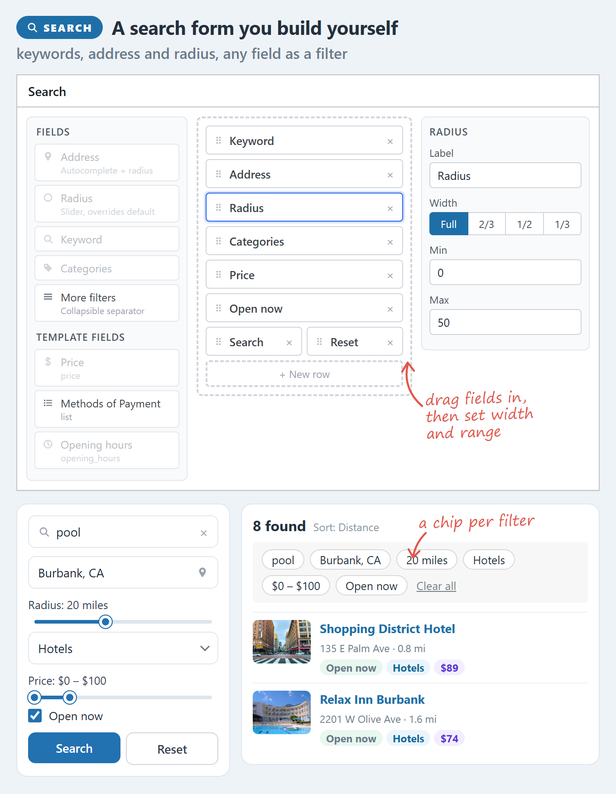
The search form builder: drag in keyword, address, radius, categories and any custom field; every active filter shows above the results as a chip.
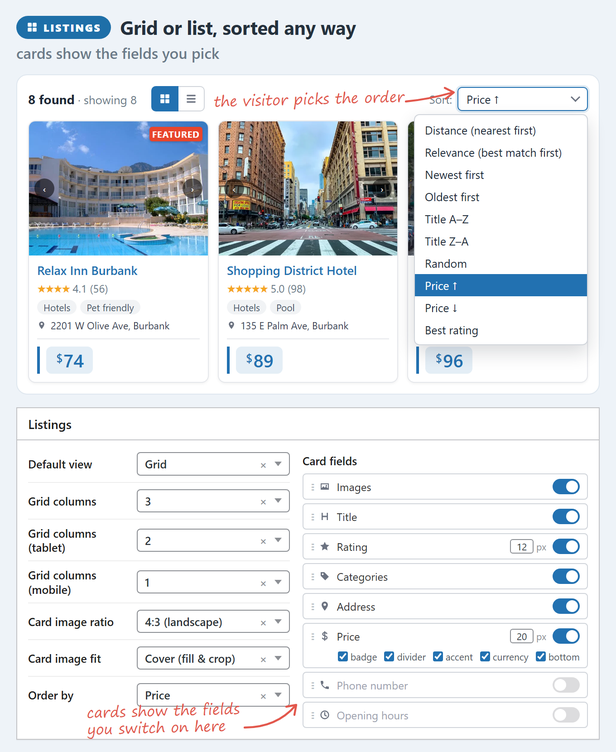
Listings as a grid or a list, sorted the way the visitor picks; the settings set the columns per device, the card image and the fields each card shows.
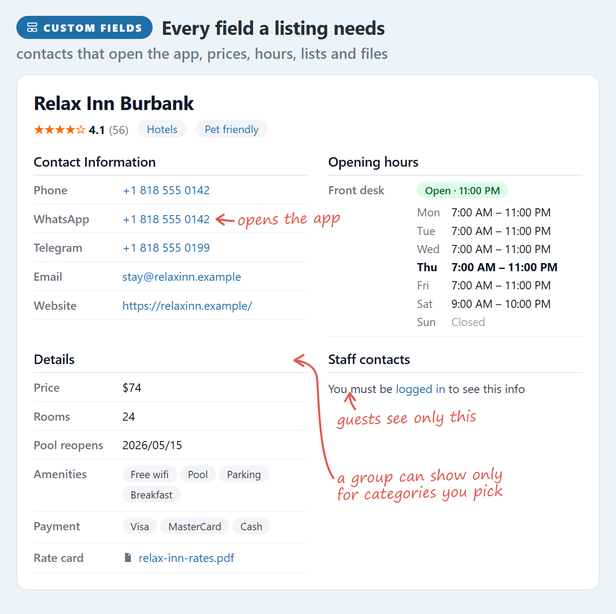
A listing page with its custom fields: phone, WhatsApp and Telegram links, opening hours, price, lists and files, and a group only logged-in users can see.
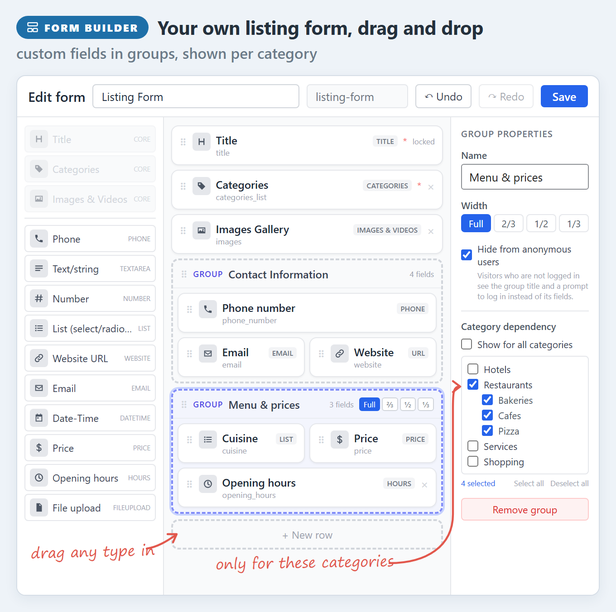
The drag-and-drop listing form builder: add fields by type, arrange them in groups, and show a group only for the categories you pick.
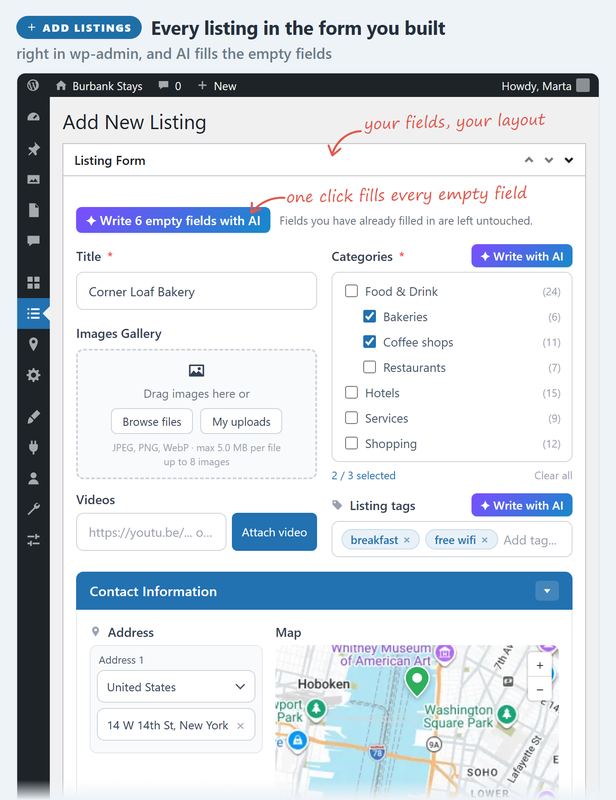
Adding a listing in wp-admin with the listing form you built; with the AI Assistant Add-on, one click fills every empty field.
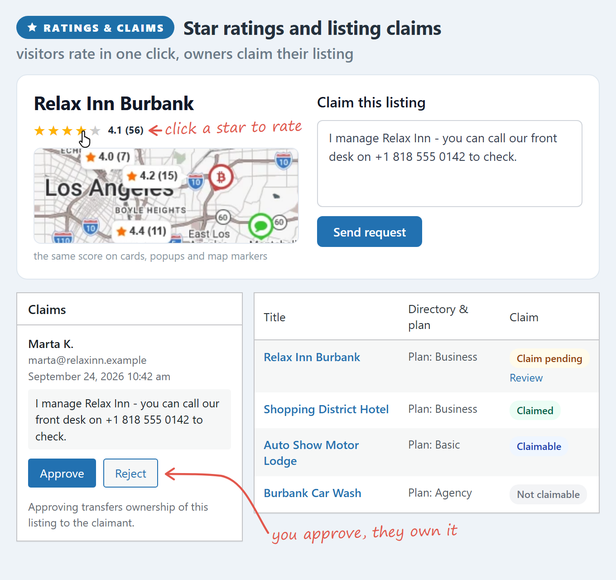
Star ratings in one click, shown on cards, popups and map markers, and listing claims: approve one and the listing passes to its owner.
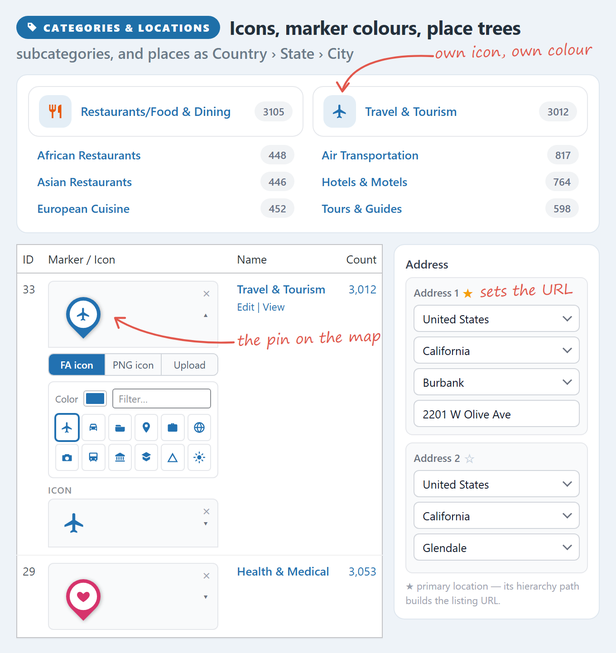
Categories with their own icons and marker colours, and locations as a Country, State, City tree; the primary location builds the listing URL.
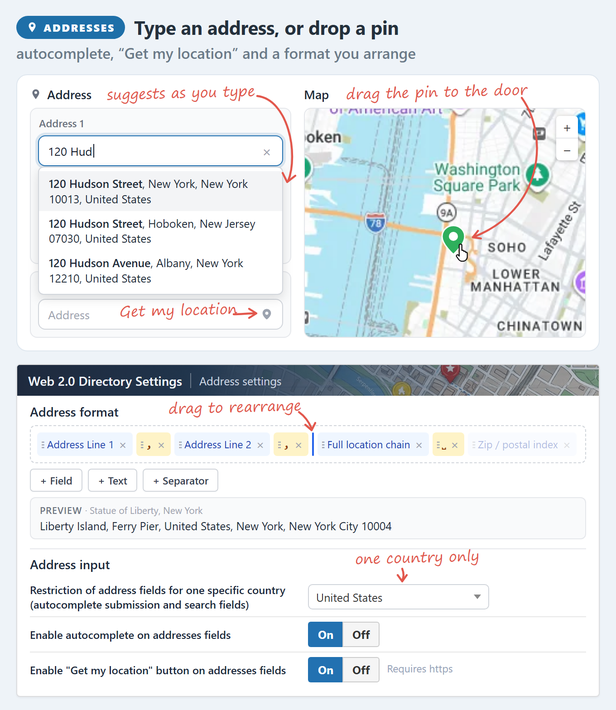
Address input with autocomplete, a Get my location button and a map pin you can drag, plus an address format you arrange yourself.
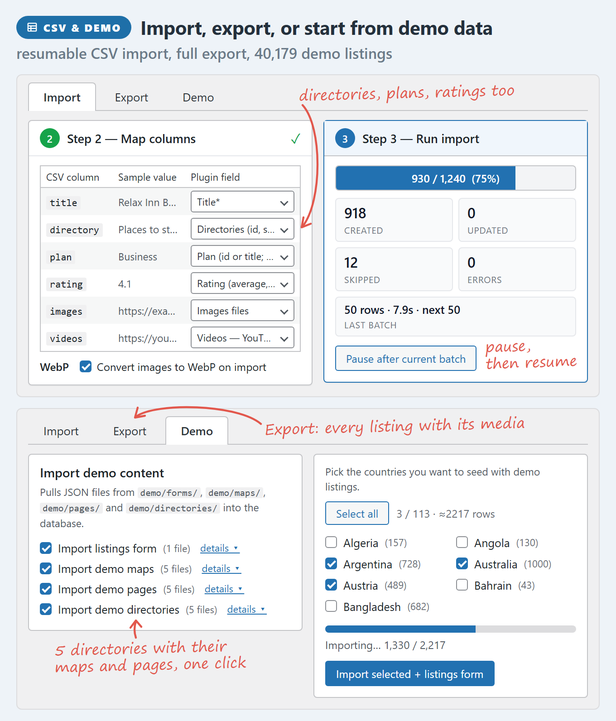
CSV import with column mapping and a resumable progress bar, full export, and demo content: 5 directories with their maps and pages, and demo listings for the countries you pick.
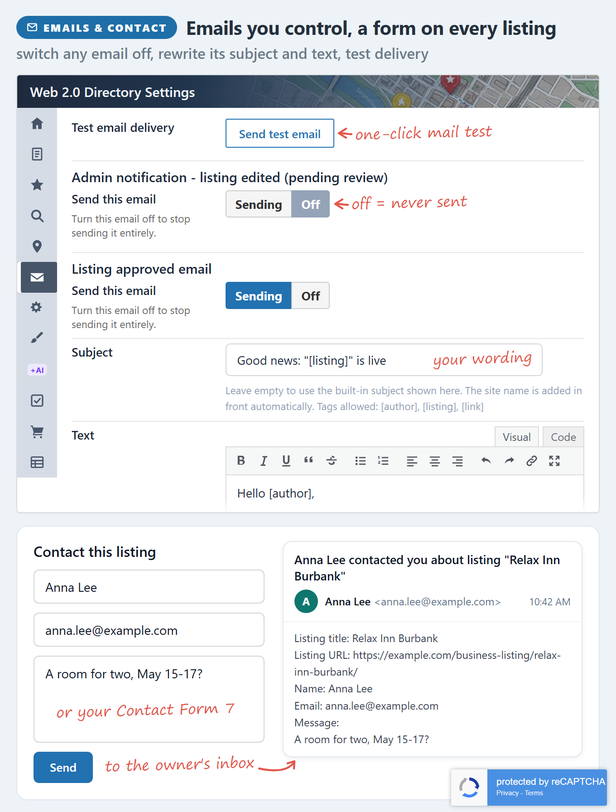
Email notifications you can switch off or reword, a test-email button, and a contact form on every listing, protected by reCAPTCHA.
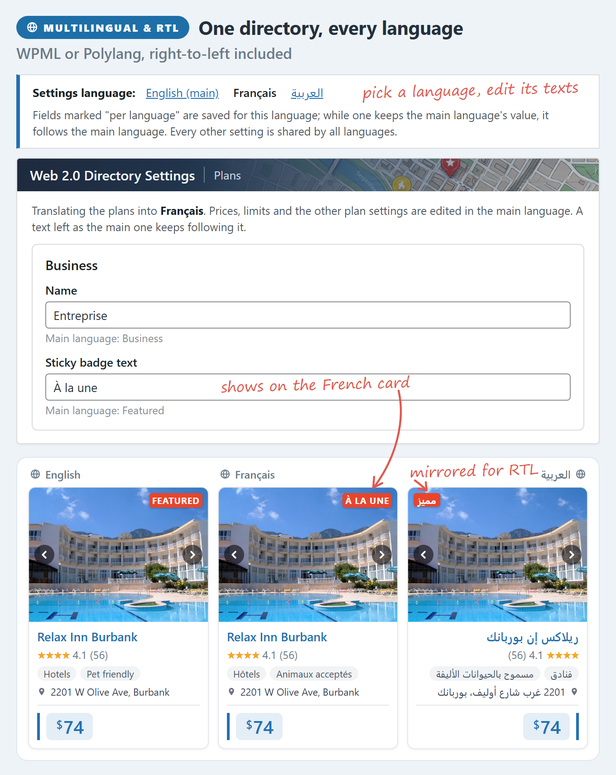
WPML and Polylang, with settings per language, and right-to-left languages: the same listing card in English, French and Arabic.
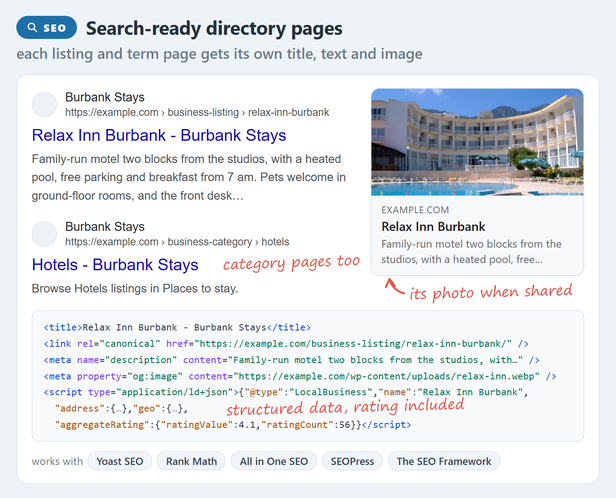
Every listing and category page gets its own title, description, share image and structured data, alongside Yoast, Rank Math, All in One SEO, SEOPress or The SEO Framework.
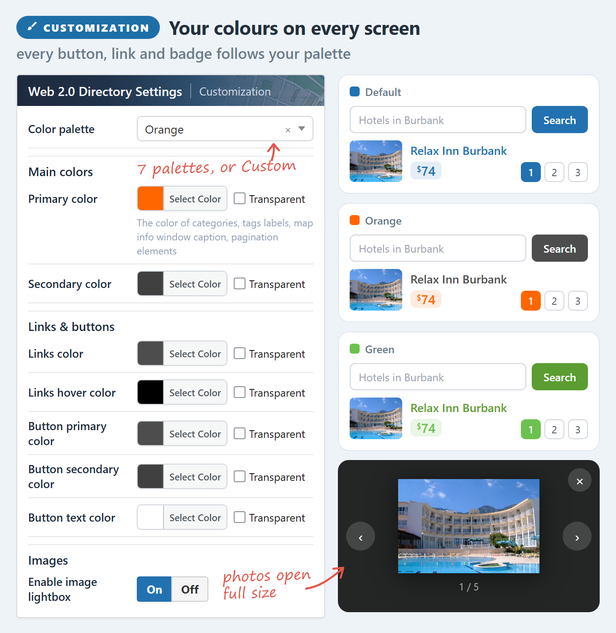
Seven colour palettes or your own colours, applied to every button, link and badge, and an image lightbox.
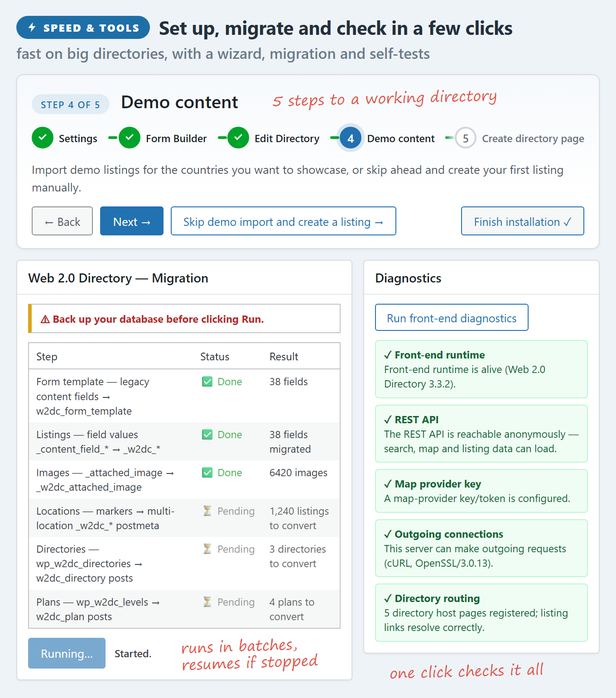
The setup wizard, migration from the previous version in resumable batches, and one-click diagnostics.