Duplicate Media Guard is the easiest way to replace existing media files in WordPress and prevent duplicate uploads — all without breaking your URLs or losing your attachment IDs.
Need to replace a media file in your WordPress Media Library? This plugin adds a Replace Media button directly in the Media Library. Simply pick a file, upload the replacement, and choose whether to keep the existing filename and URL or update all links automatically. The attachment ID is always retained, so nothing breaks.
Beyond media replace, Duplicate Media Guard keeps your Media Library clean by detecting duplicate uploads before they happen. Filename checks catch common re-uploads, exact file hashing identifies byte-identical images, and perceptual hashing can spot resized or recompressed copies even when the filename is different.
Why use this plugin?
- Replace media in WordPress without creating a new attachment or breaking existing links.
- Stop wasting storage on accidental duplicate uploads.
- Keep your Media Library organized with smart duplicate detection.
- Works with the standard WordPress Media Uploader — no custom UI to learn.
How Replace Media works:
Enable Enable Media Replace in the plugin settings. A Replace media link then appears in the Media Library for any file you have permission to edit. Upload the new file and choose one of two replace modes:
- Replace file only — keeps the same filename, URL, and folder. The replacement must be the same file type.
- Replace file and update all links — uses the new filename and automatically updates all matching references stored in WordPress content and metadata.
The attachment ID is preserved in both modes.
Duplicate detection examples:
logo.pngandlogo.pngDuplicatelogo.pngandlogo.jpgDuplicate (when extension check is disabled)banner.webpandbanner.webpDuplicatephoto.jpgand a resized or recompressedcopy.webpPossible visual duplicate (when visually similar detection is enabled)
This helps reduce unnecessary duplicates and storage use while still allowing intentional uploads.
Key Features
- Replace existing media file while retaining its attachment ID and URL — enable with one setting.
- Review possible image duplicates with existing-media previews before uploading.
- Detect byte-identical images using exact file hashes.
- Identify resized or recompressed images using perceptual hashes.
- Match filenames with or without their file extensions.
- Enable or disable duplicate protection and image hash checks independently in the settings.
- Use the standard WordPress Media Uploader — no custom upload interface needed.
- Index existing image fingerprints gradually in the background.
How to Replace Media in WordPress (Step by Step)
- Go to Settings Duplicate Media Guard and turn on Enable Media Replace.
- Open your WordPress Media Library.
- Click any media item and select Replace media.
- Upload the replacement file.
- Choose your replace mode and click Replace — the attachment ID and all internal links are preserved.
Duplicate Detection
- Select an image through the WordPress Media Library.
- The plugin checks the filename, exact file hash, and perceptual hash of indexed images.
- If potential matches are found, a warning shows previews and lets you cancel or proceed. Files with no matches upload without a confirmation.
- Files uploaded outside the standard Media Uploader retain the server-side filename duplicate check.
Use Enable Duplicate Protection to turn duplicate checks on or off. Use Enable Image Hash Checks to control exact and visual image matching. When image hash checks are disabled, filename duplicates use the standard WordPress upload notice and copy-URL action, while other files in the same bulk upload continue normally. Existing images are indexed gradually, so visual matching may be incomplete until indexing has progressed.
Replace Existing Media
Enable Enable Media Replace in the plugin settings to show the Replace media action in the Media Library. Users who can upload files and edit the selected media item can choose a replacement and select how it should be applied:
- Replace the file only keeps the existing filename, URL, and folder. The replacement must have the same file type.
- Replace the file, use the new file name, and update all links applies the uploaded filename and updates matching references in WordPress content and metadata. Links on external websites are not changed.
The attachment ID is retained in either mode. Under Upload Destination, choose whether to use today’s date or keep the existing media date. When using a new filename, this choice also determines the upload folder.
Screenshots
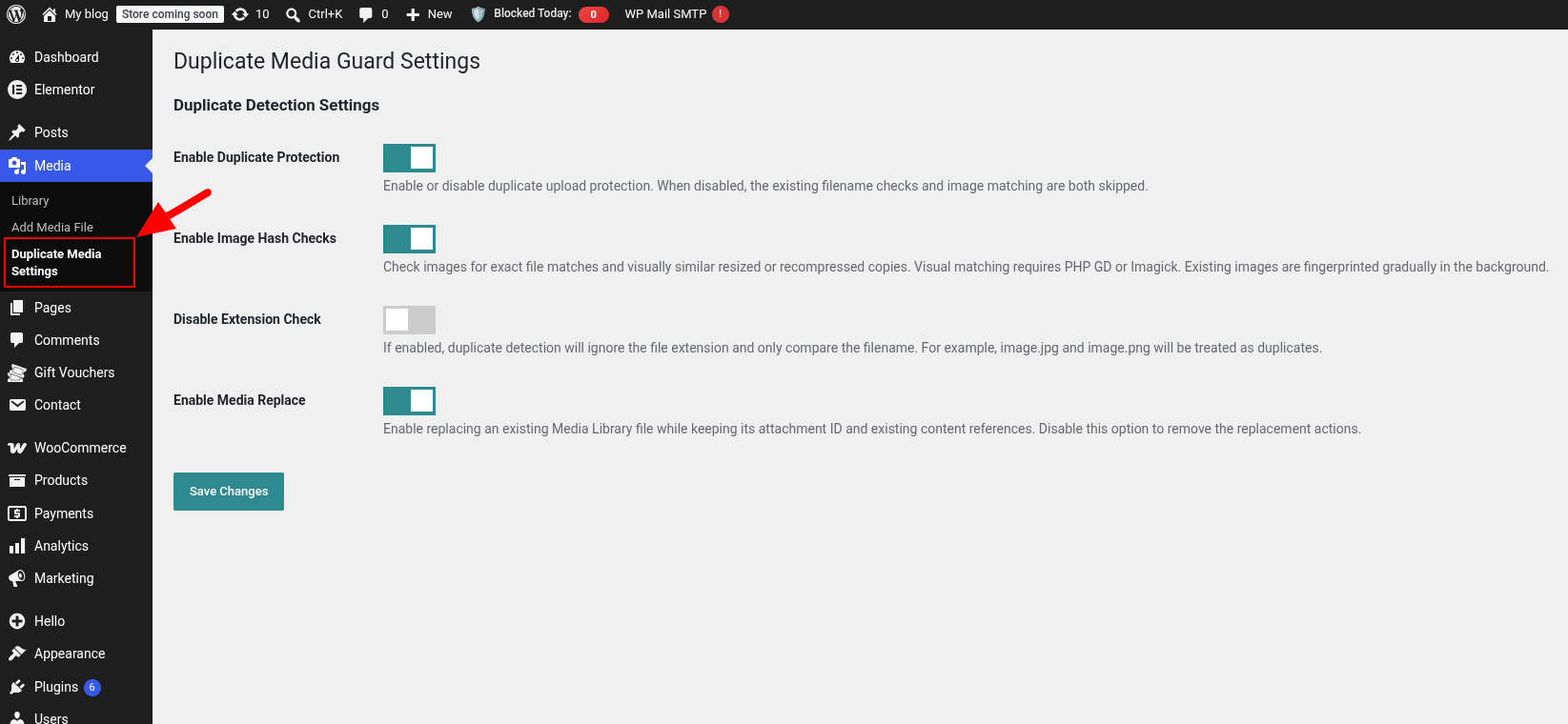
Plugin settings page showing duplicate detection options.
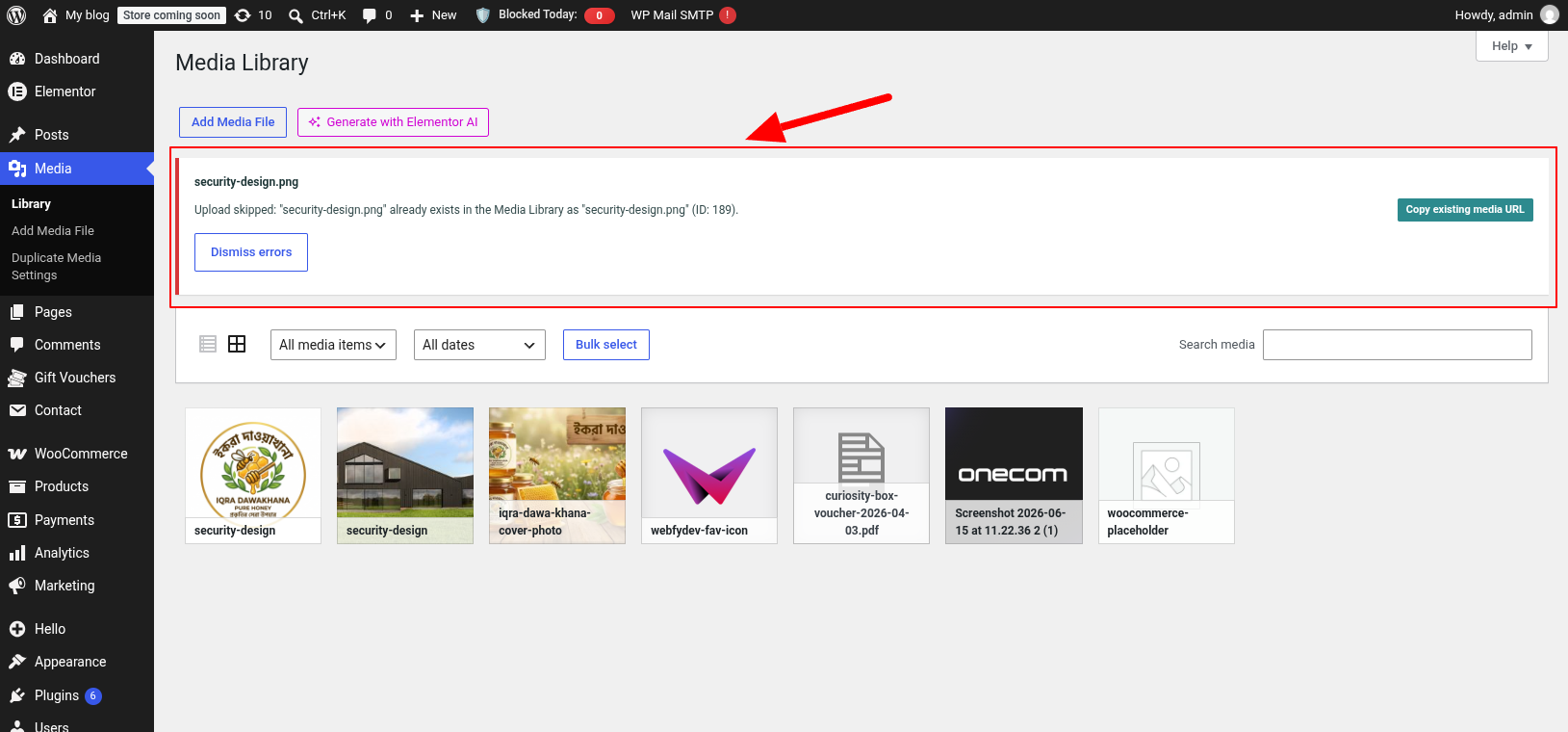
Example showing a duplicate media upload being detected and skipped (when disable hash check).
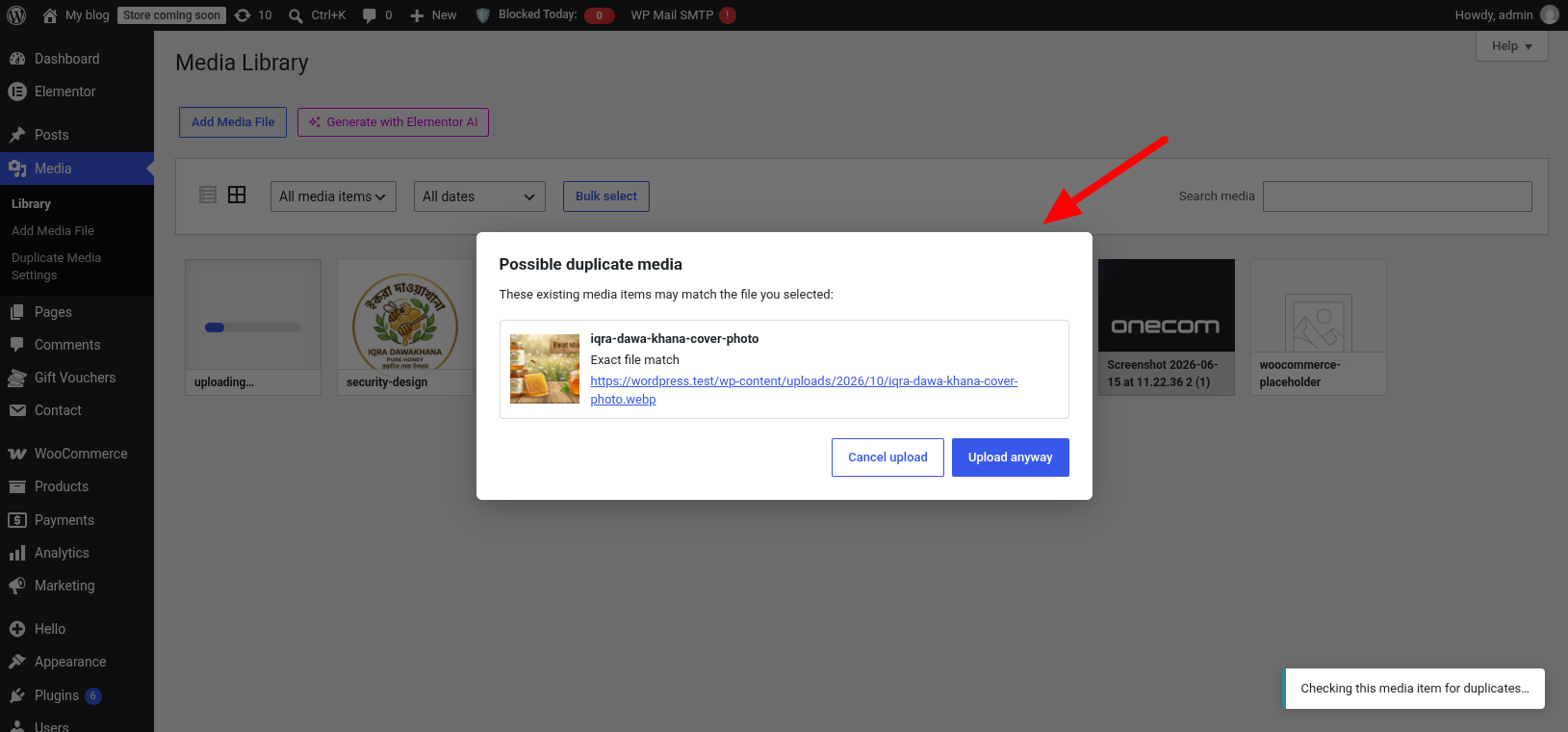
Example warning showing matching images with cancel and upload options (when enable hash check).
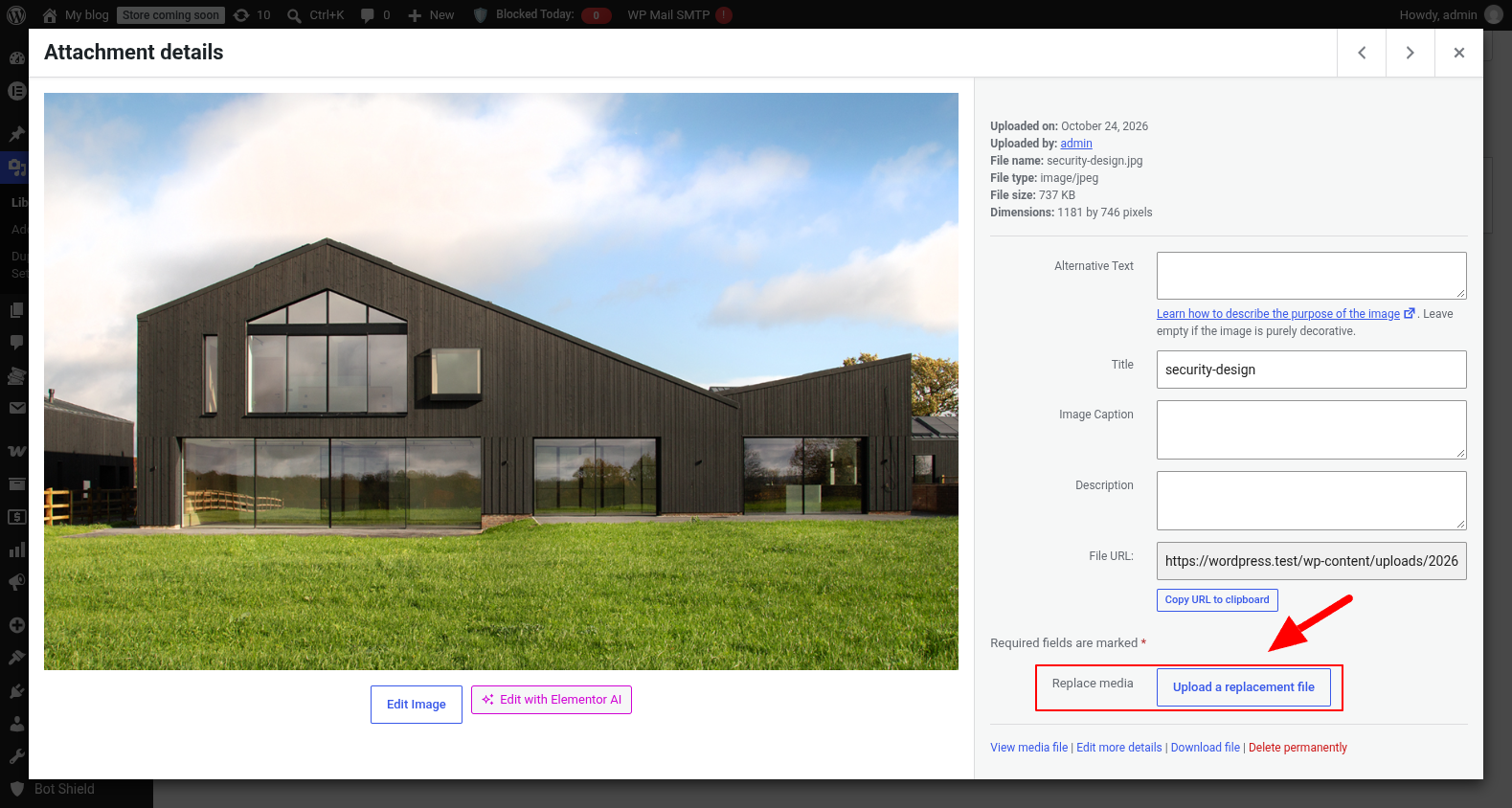
Example showing replace media first step.
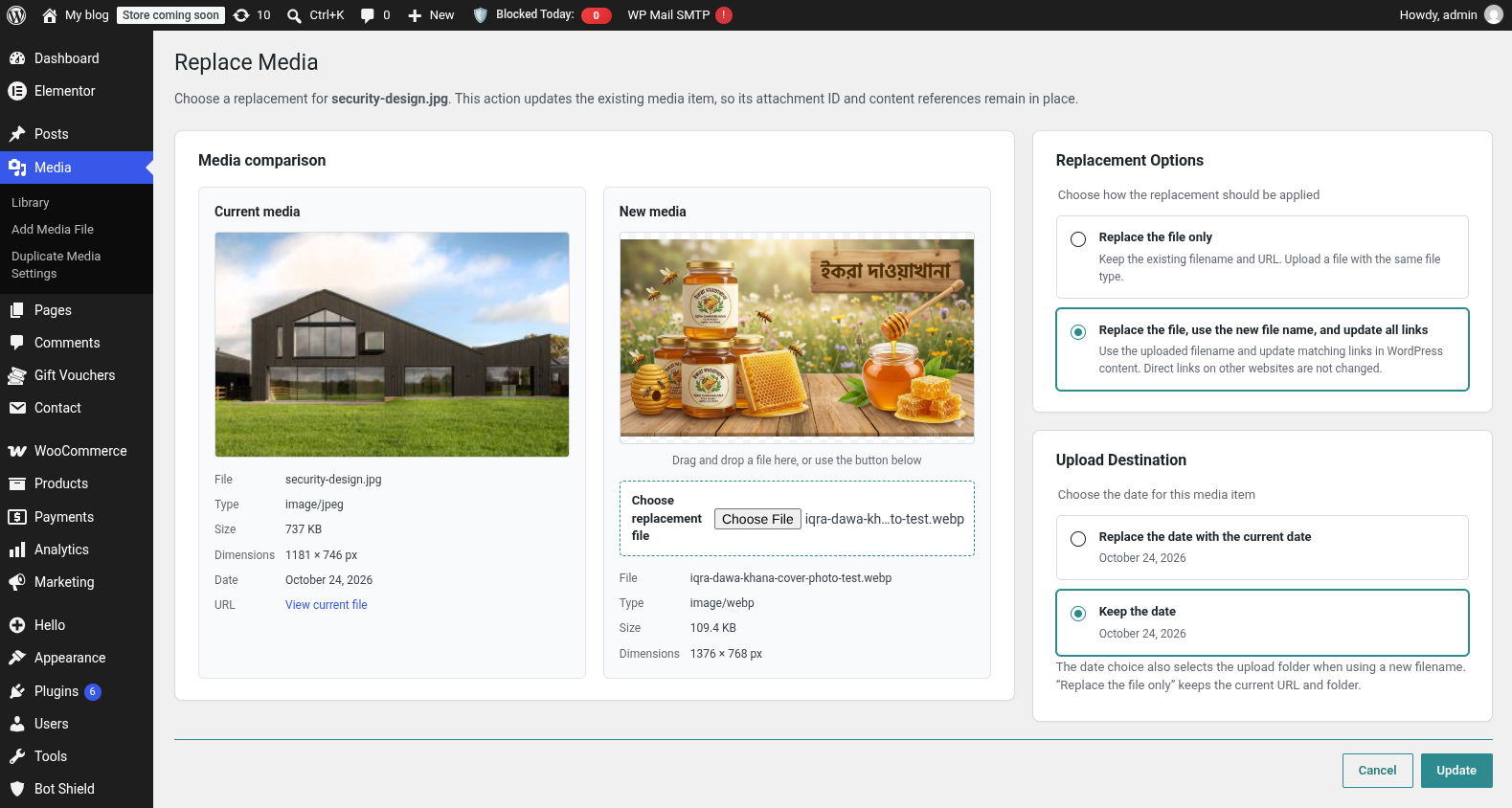
Example showing replace media processing.