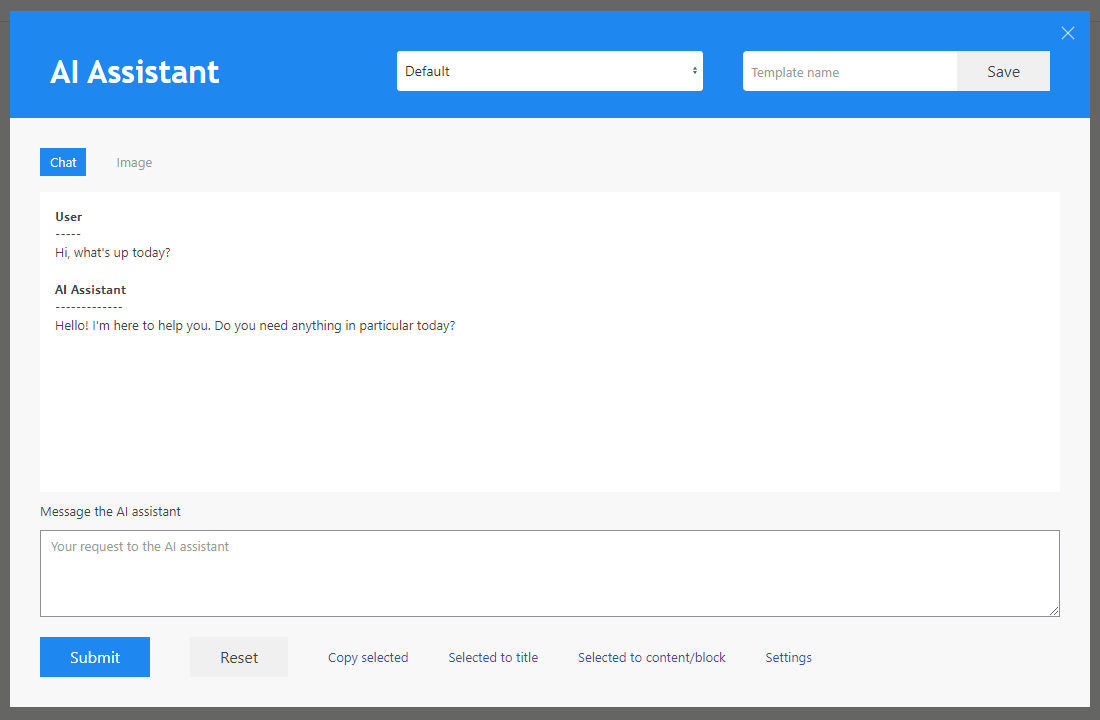
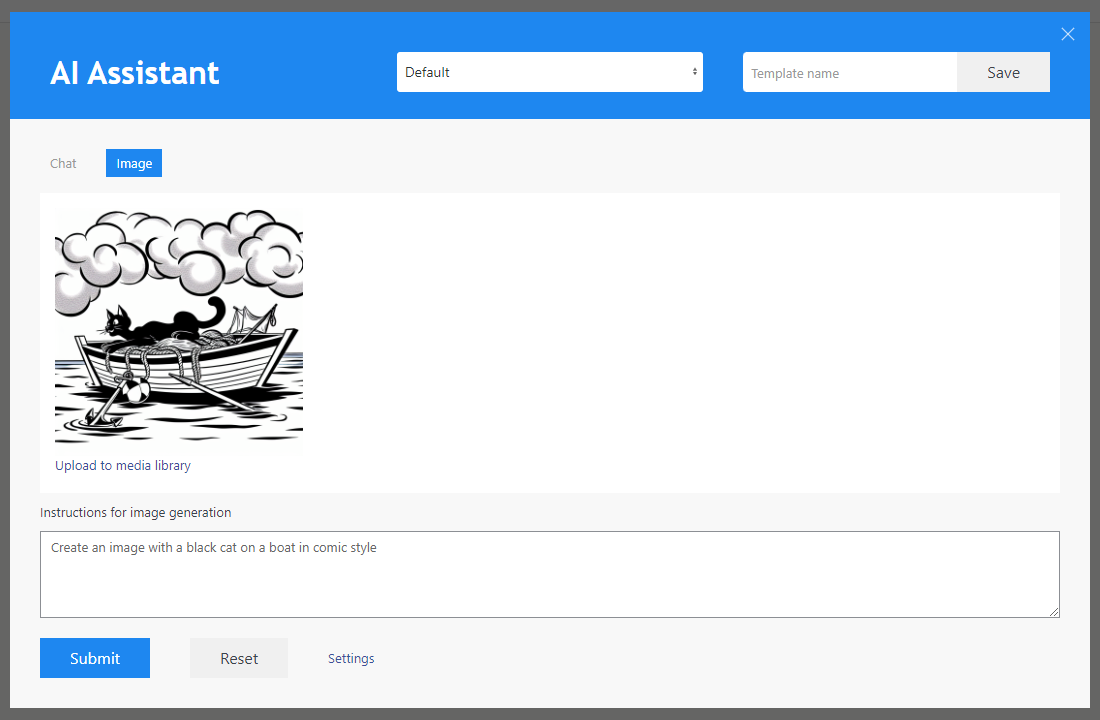
AI Assistant brings OpenAI text and image models into the WordPress post and page editor. Draft articles, improve existing text, create summaries and FAQs, translate content, or generate images from a description.
AI Assistant is an extension of ZMPlugin. ZMPlugin must be installed and active; AI Assistant does not work as a standalone plugin. You also need your own OpenAI API key and access to the models you want to use. API requests use your configured OpenAI account.
Using the assistant
Open AI Assistant from the Classic Editor or Gutenberg editor. The same chat window handles text, attachments and generated images. It is available to logged-in users who can edit posts, including authors; file and image actions additionally require permission to upload files.
Type your request and press Enter or click Send. Use Shift+Enter for a new line. Responses appear above the input field, with text streamed when supported by the server. You can copy selected response text or insert it into the post title or content. Results are not published automatically.
Open the chat settings to choose a model:
- Chat models write and discuss text. Compatible models can also use attached images or PDFs as input.
- Image models create or edit images. Select an image model and send your image request. Use Edit this image on a result to reuse it for editing, or explicitly save a generated image to the media library.
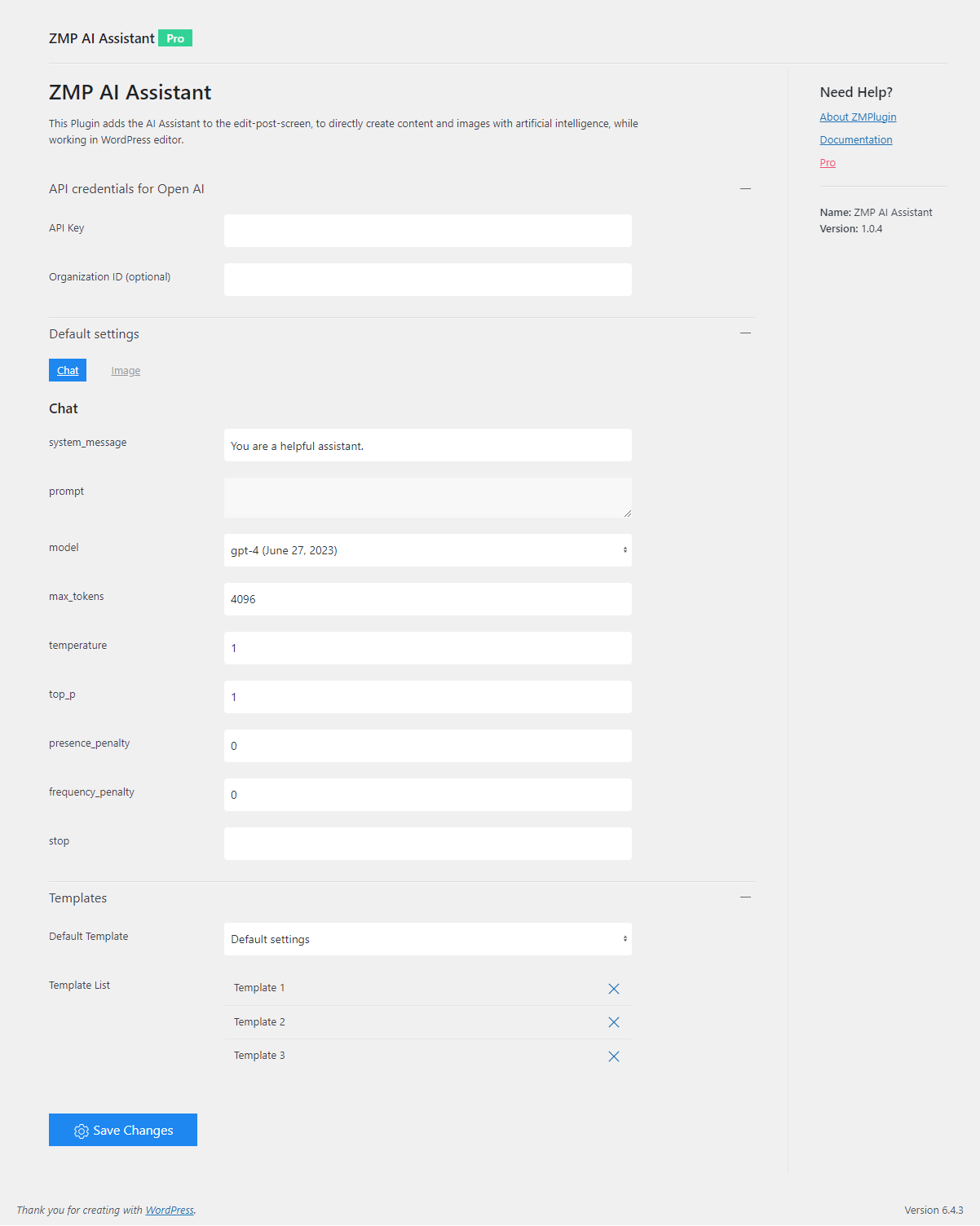
The selector lists models supported by the plugin and available to your configured API project. It does not automatically switch between chat and image models. Settings adapt to the selection: reasoning effort for supported chat models, or image size and quality for image models. Automatic uses the API default. Defaults can also be set on the plugin settings page.
Attach up to four PNG, JPEG, WebP or PDF files per message, with a maximum of 5 MB per attached input file. PDF input requires a compatible chat model; image models accept image inputs. Selecting a file alone does not upload it. Files are sent when you submit the request.
Reusable templates
Templates save a prompt and its form settings for repeated tasks. For example, create one template for article summaries and another for translating product descriptions. Loading a template fills the form; review the prompt before sending it.
Variables insert data from the current post when a template is loaded. They read existing post data; they do not generate or update those fields themselves.
[[title]]– the post title.[[content]]– the post content.[[excerpt]]– the post excerpt, when available.[[tax_XXX]]– names of terms assigned to a taxonomy. Replace XXX with its slug, for example[[tax_category]]or[[tax_post_tag]].[[postmeta_XXX]]– a permitted custom field value. Replace XXX with the meta key, for example[[postmeta_product_name]]. Protected fields are excluded by default; array or multiple-value fields are not supported by the standard template handler.
Example prompt:
Summarize the following article in three sentences. Title: [[title]] Content: [[content]]
Variables use the post data available to WordPress when the template loads; save your post changes before loading a template if those changes should be included. Unavailable values may leave placeholders unchanged. Check the filled prompt before sending or saving it as a template.
Editing and deleting templates
Open Edit template beside the template selector in the post editor, or Edit in the template list on the plugin settings page. Both open the same editor with the template name, raw prompt and model settings. Click a variable in the sidebar to insert it at the cursor. Variables remain unchanged while editing; they are filled only when applying the template to a post.
Use New template to start a reusable prompt. Save updates your template, including its name and settings; Cancel discards your changes. If another window changed the template in the meantime, reopen it before saving. Templates can be deleted from this editor or the settings list.
Templates remain shared for use, but only their creator can edit, rename or delete them. Older templates without a recorded creator are assigned to the administrator with the lowest WordPress user ID on this site. Other users can view their raw contents. The shared template storage is limited to 100 templates and 1 MB; each prompt is limited to 20,000 bytes.
Privacy Notes
Data sent to OpenAI
When you submit a request, the plugin sends your prompt, system instructions, relevant recent conversation context and any needed attachments through your WordPress server to OpenAI. Post data inserted through template variables becomes part of that prompt. The API key authenticates these server-side requests; the chat browser client does not receive it.
The implemented OpenAI interfaces are:
GET https://api.openai.com/v1/models– retrieve available models; this list is cached.POST https://api.openai.com/v1/responses– text chat and compatible image/PDF inputs.POST https://api.openai.com/v1/chat/completions– the text-chat compatibility path.POST https://api.openai.com/v1/images/generations– generate images.POST https://api.openai.com/v1/images/edits– edit images using supplied image data.
Attachments are included in requests; this implementation does not upload them to OpenAI’s separate Files API. The model list can be retrieved when the editor or settings need it, without submitting a chat message.
Storage on your website
The current chat, generated image previews and attachments are held in the browser page’s memory. Closing the assistant modal keeps that context. Resetting the chat, reloading or leaving the editor page discards it. There is no saved conversation archive; older context can also be dropped to keep memory usage bounded.
The plugin processes chat and attachment data on the server during each request, but does not persist them as chat records or preview files. It creates only a temporary per-user processing lock. Explicitly saved templates, settings and API credentials remain in the WordPress database. Saving an image to the media library creates a normal WordPress attachment, which may be publicly accessible.
When WordPress debug logging is enabled, request metadata such as model, status, timing and usage may be logged. The plugin’s request logger excludes prompts, generated text, attachment contents and API credentials. Hosting infrastructure or other plugins may have separate logging and buffering behavior.
OpenAI data handling
The plugin sends store: false for Responses and Chat Completions requests. This does not guarantee that OpenAI retains no data: provider retention and monitoring are governed by your account settings and OpenAI’s policies. Clearing the browser chat does not delete data already sent to OpenAI. See OpenAI API data controls and OpenAI terms and policies.
Resources
Learn more about ZuestMedia WordPress themes and plugins.
If you have any questions or need help, visit the AI Assistant documentation.
You can also find us on Github!
Copyright
ZMP AI Assistant WordPress Plugin, Copyright 2024 zuestmedia.com
ZMP AI Assistant is distributed under the terms of the GNU GPL
Screenshots