BACK TO DIRECTORY


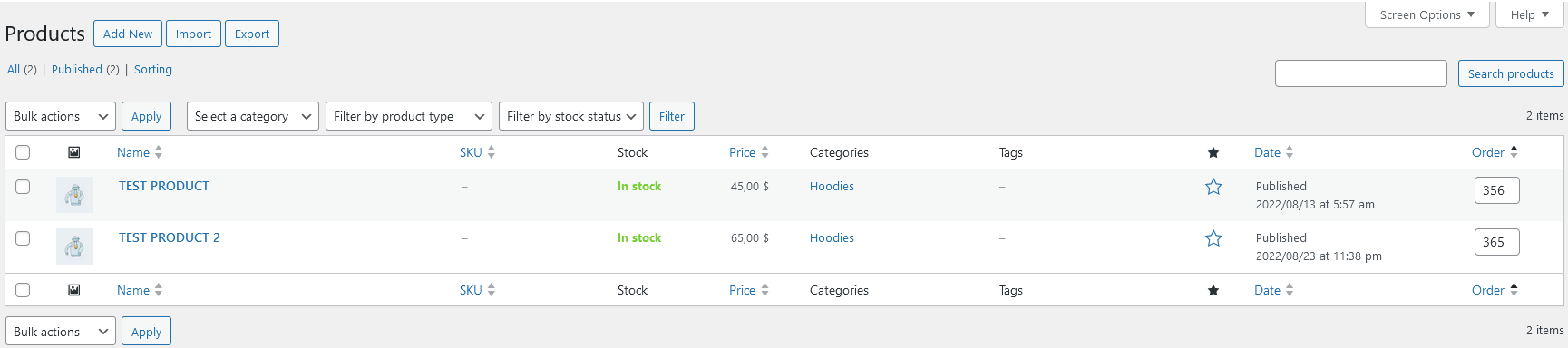

Every WP_Post (page, attachment, post, woo product) has a menu_order column and this plugin allows you to modify it directly on your dashboard listings.
Features
- Change menu order on WP_Post types like pages, attachments, posts & woo products.
Prerequisites
Pricing
Free
Configuration
Once installed you will see an input box on every listing item.
- To disable confirm prompt after menu order is updated visit Wordpres Settings->Writing and untick the option Enable confirmation on input exit
- To disable tab to next on position update visit WordPress Settings->Writing and untick the option Enable Go to next field on update
- To disable or enable post types visit WordPress Settings->Writing and add or remove valid post types separated using commas in WP_Post types allowed input text box.
Usage
- Access WordPress Admin: Log in to your WordPress admin dashboard. This is usually accessed by adding “/wp-admin” to the end of your website’s URL and entering your credentials.
- Navigate to Posts, Media, Pages or Products: After logging in, navigate to any listing page based on WP_Post, such as Posts, Media, Pages, or Products (if you’ve installed WooCommerce). You can find these sections in the left-hand menu of the WordPress admin dashboard.
- Reordering items: Each list item will have a new input box with a menu_order value *. Simply change the value and press Enter to reorder the items. Negative values are also acceptable. For example, -1 will be sorted before 1 or 0.
- If Order column is not present Manage screen options and enable Order Column.
Screenshots
Posts.
Pages.
Media.
Products.
Settings.
Plugin Details
Active Installs
200Total Downloads
4,345Version
2.1.4Requires WP
6.0Requires PHP
7.4Tested Up To
7.1.4Added
2024-04-19Last Updated
2026-09-28 12:20pm GMTRatings
5
1
4
0
3
0
2
0
1
0